
Installing QAnswer on AWS EC2 instance
Getting an instance
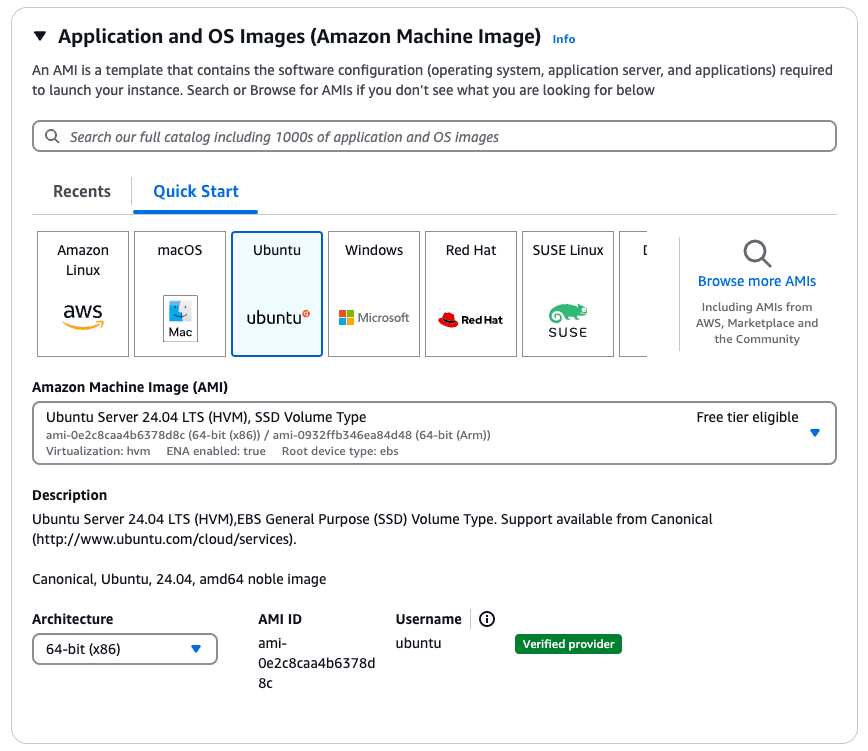
Start an EC2 instance with the appropriate resources.
This guide uses Ubuntu Server 24.04 LTS (HVM) with the g6e.xlarge instance.
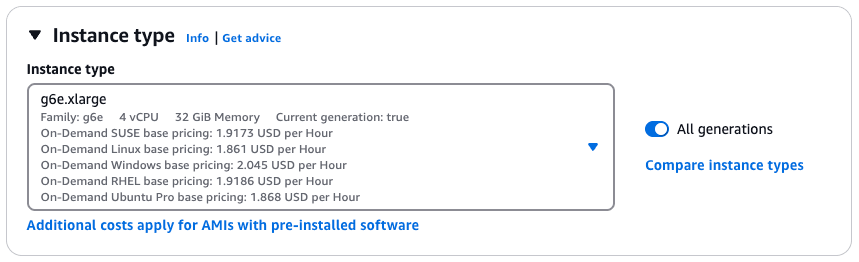
| Instance Size | GPU | GPU Memory (GiB) | vCPUs | Memory (GiB) | Storage (GB) | Network Bandwidth (Gbps) | EBS Bandwidth (Gbps) |
|---|---|---|---|---|---|---|---|
| g6e.xlarge | 1 | 48 | 4 | 32 | 250 | Up to 20 | Up to 5 |
We provision a total of 282GB (250GB + 32GB) of storage for the g6e.xlarge instance, consisting of a 32GB SSD volume combined with the original 250GB SSH.
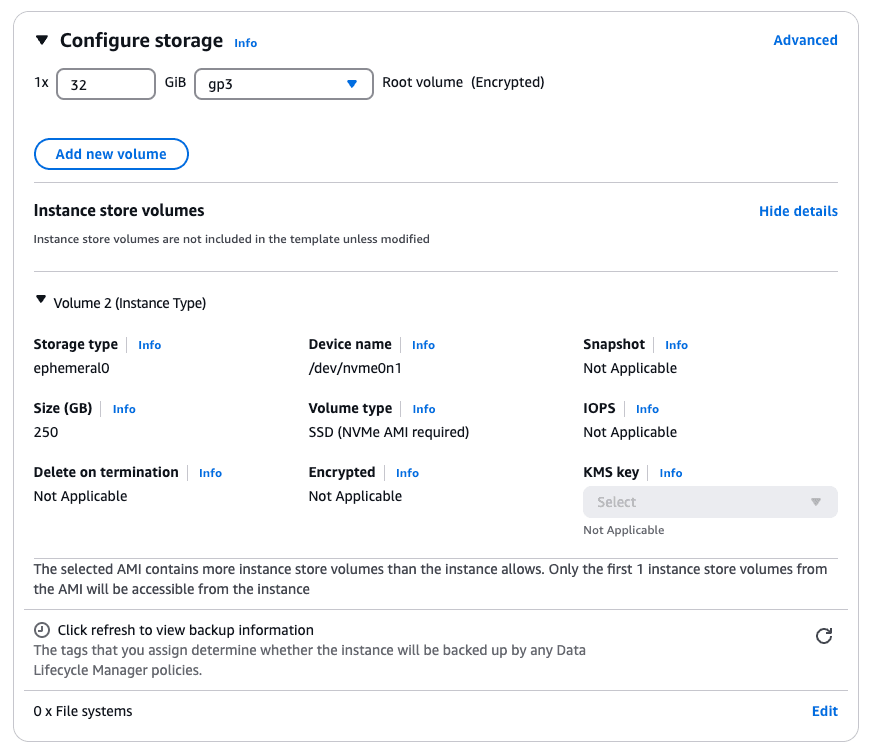
Handling 250GB SSD Mounting for g6e.xlarge
On g6e.xlarge instances, the 250GB SSD is not mounted by default. Mount it manually to enable Docker image downloads.
Steps to Mount the SSD:
- 1. Run
lsblkto list all block devices and identify the unmounted volume.lsblk - 2. Format the volume using the mkfs command with the XFS file system:
sudo mkfs -t xfs /dev/nvme1n1 - 3. Create a mount point directory and mount the volume:
sudo mkdir /home/$USER/.local sudo mount /dev/nvme1n1 /home/$USER/.local - 4. Run
lsblk -fto display the UUID of the mounted volume. Note this value for later steps (e.g., e4bc66e3-c793-4b54-ad00-e5a1e11c80ef).lsblk -f
Make the Mounting Permanent:
- 1. Edit the /etc/fstab file:
sudo vim /etc/fstab - 2. Add the following entry at the end of the file, replacing the UUID and username with actual values:
UUID=e4bc66e3-c793-4b54-ad00-e5a1e11c80ef /home/ubuntu/.local xfs defaults,nofail 0 0
Make the Mounted Volume accessible by $USER
sudo chown -R $USER:$USER /home/$USER/.localCheck volume mounted without problems with df -h
The output will resemble:
Filesystem       Size  Used Avail Use% Mounted on
/dev/root         30G  1.7G   29G   6% /
tmpfs             16G     0   16G   0% /dev/shm
tmpfs            6.2G  1.1M  6.2G   1% /run
tmpfs            5.0M     0  5.0M   0% /run/lock
efivarfs         128K  3.6K  120K   3% /sys/firmware/efi/efivars
/dev/nvme0n1p16  881M   76M  744M  10% /boot
/dev/nvme0n1p15  105M  6.1M   99M   6% /boot/efi
tmpfs            3.1G   12K  3.1G   1% /run/user/1000
/dev/nvme1n1     233G  4.5G  229G   2% /home/ubuntu/.local
Configuring Container Runtime Storage:
To set the location for Docker images:
sudo ln -s /home/ubuntu/.local /var/lib/dockerInstall NVIDIA Driver and NVIDIA Container Toolkit
Verify the NVIDIA driver is installed by running nvidia-smi. If it is not installed, install the driver before using the GPU.
- 1. Go to NVIDIA Driver Finder and enter the GPU model (
L40S) to select the correct distribution from the dropdown list.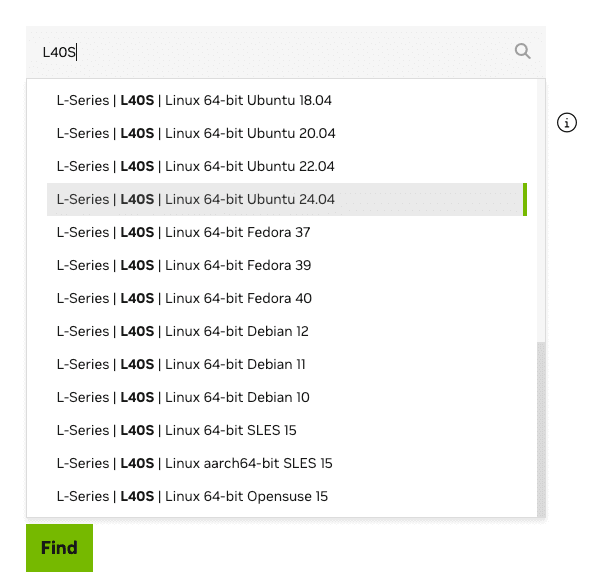
- 2. Click
Find. NVIDIA displays the recommended driver version — for theL40Sthis is550.127.08.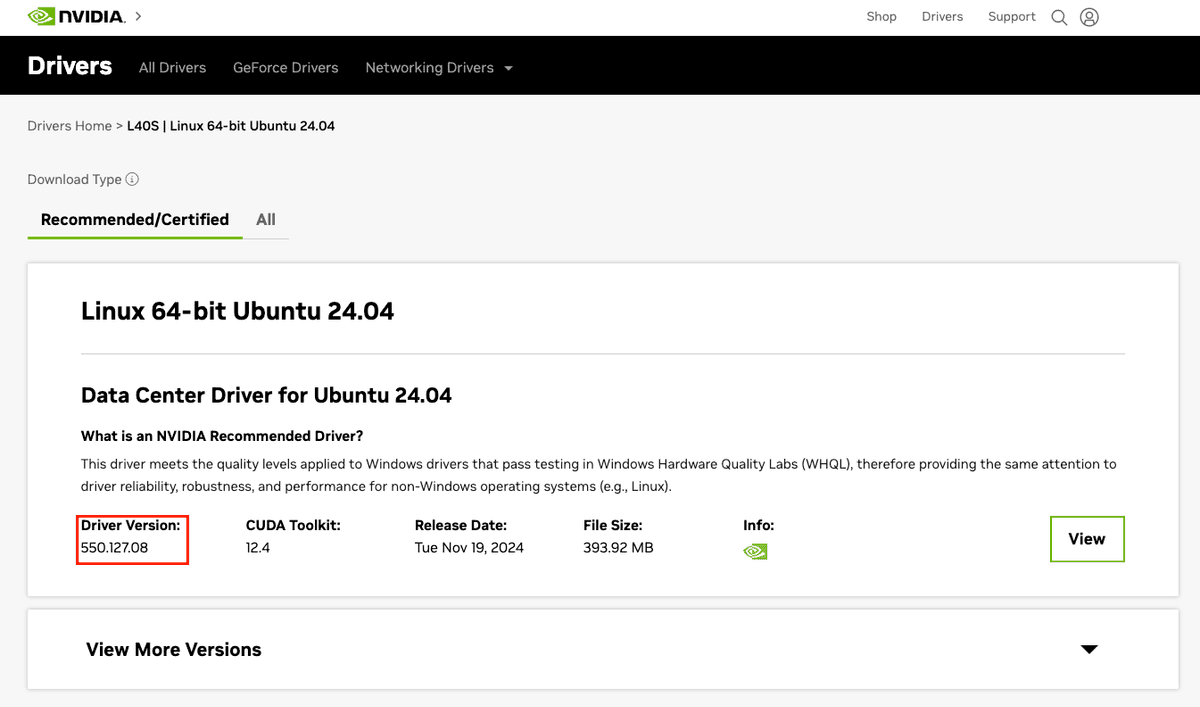
- 3. So, we can download the nvidia-driver-550 (550.127.08) via:
sudo apt update sudo apt install nvidia-driver-550 # may take few minutes to build # Progress: [ 92%] [###########################################.........] - 4. Install
nvidia-container-toolkitto enable GPU access inside containers. See the official documentation for reference.# Configure production repo: curl -fsSL https://nvidia.github.io/libnvidia-container/gpgkey | sudo gpg --dearmor -o /usr/share/keyrings/nvidia-container-toolkit-keyring.gpg \ && curl -s -L https://nvidia.github.io/libnvidia-container/stable/deb/nvidia-container-toolkit.list | \ sed 's#deb https://#deb [signed-by=/usr/share/keyrings/nvidia-container-toolkit-keyring.gpg] https://#g' | \ sudo tee /etc/apt/sources.list.d/nvidia-container-toolkit.list # Update the packages list from the repository: sudo apt-get update # Install the NVIDIA Container Toolkit packages: sudo apt-get install -y nvidia-container-toolkit # Generate nvidia-.yaml (optional for docker, necessary for podman) sudo nvidia-ctk cdi generate --output=/etc/cdi/nvidia.yaml nvidia-ctk cdi list - 5. After rebooting, confirm the driver is working by running
nvidia-smi: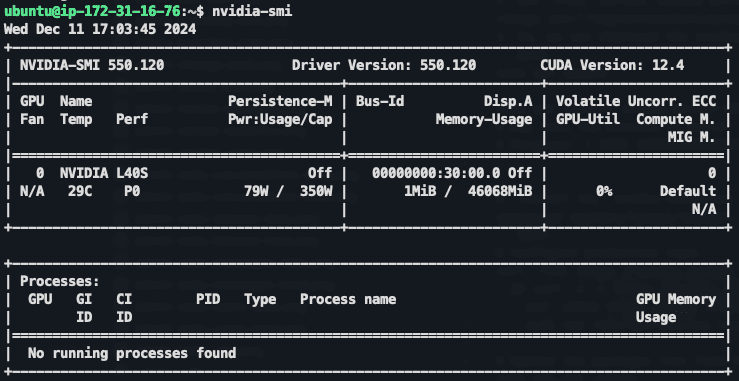
Installing a Container Runtime
Install either Docker or Podman as your container runtime. Follow the respective instructions below:
Installing Docker
Follow the official Docker installation guide to install Docker.
Installing Podman (Alternative to Docker)
Follow the official Podman installation guide to install Podman.
Installing podman-compose
Install podman-compose for docker-compose-like functionality. Refer to the official podman-compose documentation for installation steps.
Example Installation Command:
sudo apt install -y podman podman-composeVerify that both Podman and podman-compose are working:
podman --version
podman-compose --version
Resolve the rootless containers issue in Podman (skip if running as root):
sudo loginctl enable-linger $USERInstall & Deploy QAnswer
QAnswer is provided as a docker-compose file. Clone the repository:
git clone https://gitlab.the-qa-company.com/qanswer-app/qanswer-bundle.gitNavigate to the qanswer-bundle directory, then follow the steps for your container runtime:
Steps for Docker:
1. Run the setup script to pull all required container images. Use the credentials provided to you:
QANSWER_REGISTRY_USER=<user-we-provide> \
QANSWER_REGISTRY_PASSWORD=<password-we-provide> \
VERSION=main source ./setup.sh --container_runtime docker --no_documentation
2. Start the QAnswer bundle using docker compose:
Run the docker command:
QANSWER_KEY=<qanswerKey-we-provide> \
VERSION=main docker compose up -d