
Confluence
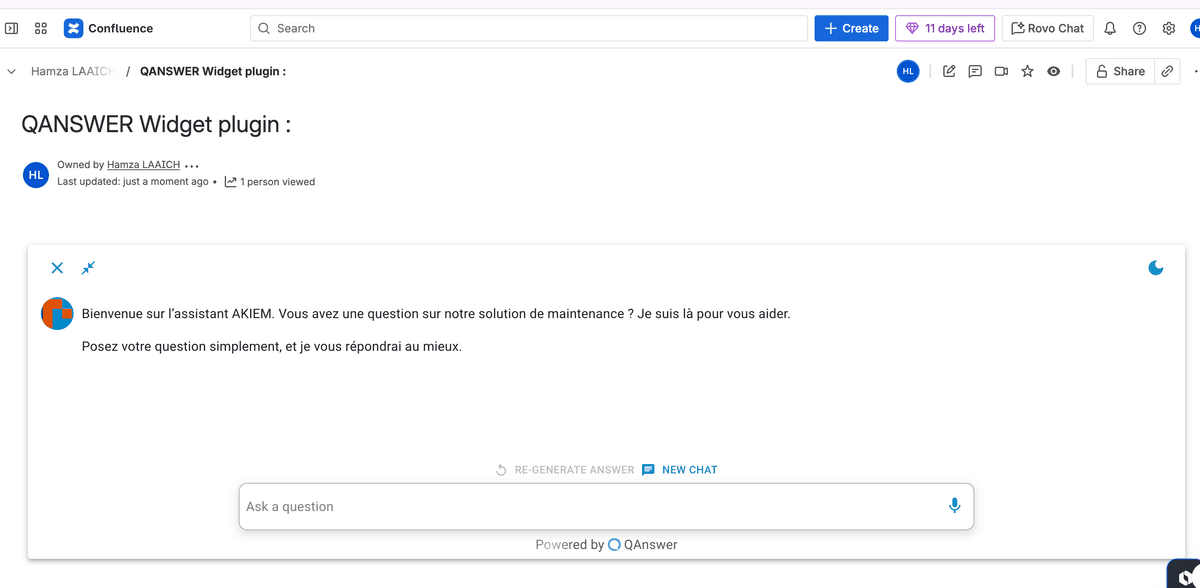
Follow these steps to embed a chatbot for your AI Assistant in Confluence.
Customize
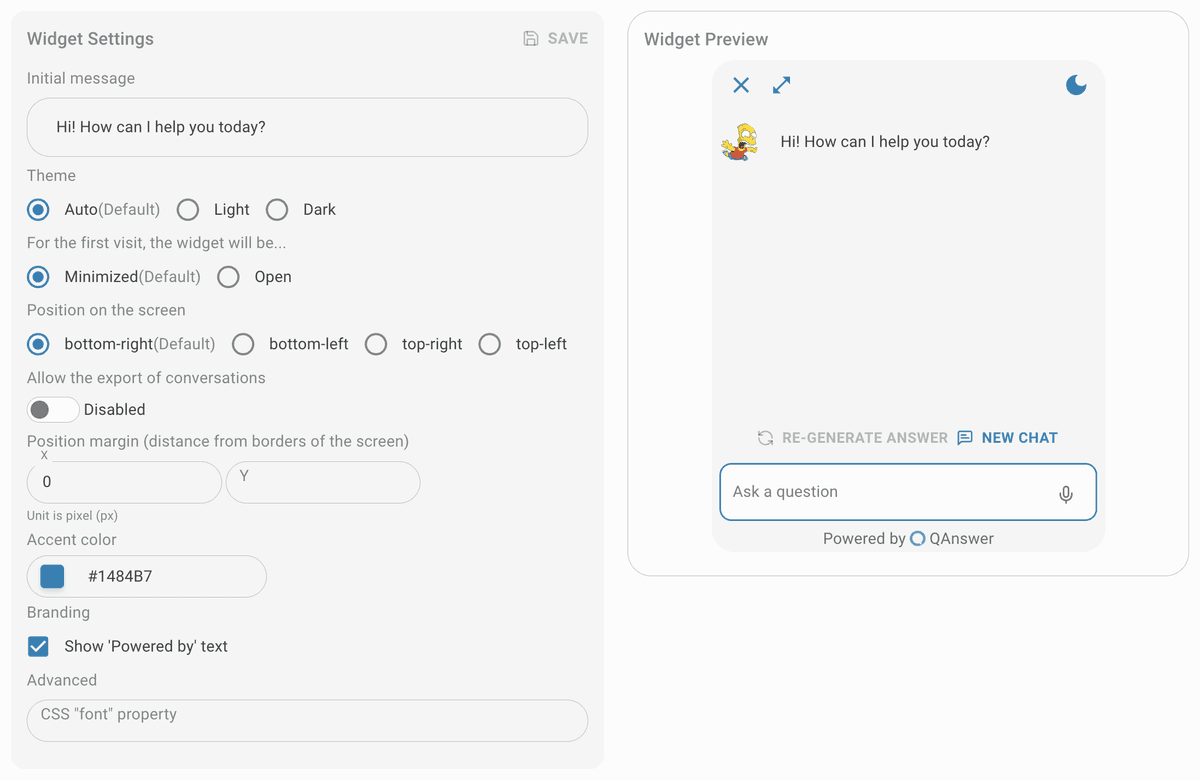
Customize the widget and save it.
Make public
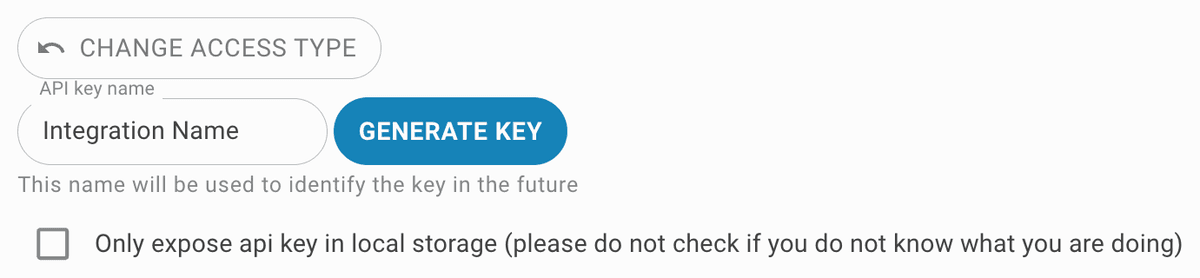
Set the access type to public. To restrict access, generate an API key for the widget integration.


Setup
Access the Atlassian Admin Panel
Go to your Atlassian admin panel and log in with your admin credentials.
Access Confluence
From the Atlassian admin overview page, click "Products" in the left-hand menu and select "Confluence" from the product list.
Install the HTML Macro Plugin
Follow the Confluence HTML macro documentation to install the plugin. Admin permissions are required.
Edit the Confluence Page
Navigate to the target space. Open an existing page or create a new one, then click "Edit" in the top right corner.
Insert the HTML Macro
Type /html in the editor to insert the HTML macro.

Add the Script
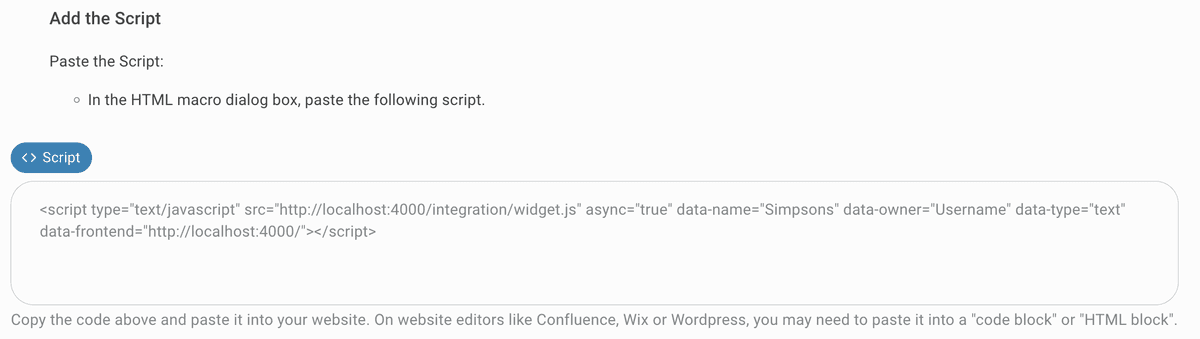
In the HTML macro dialog box, paste the following script.
Configure the HTML Macro
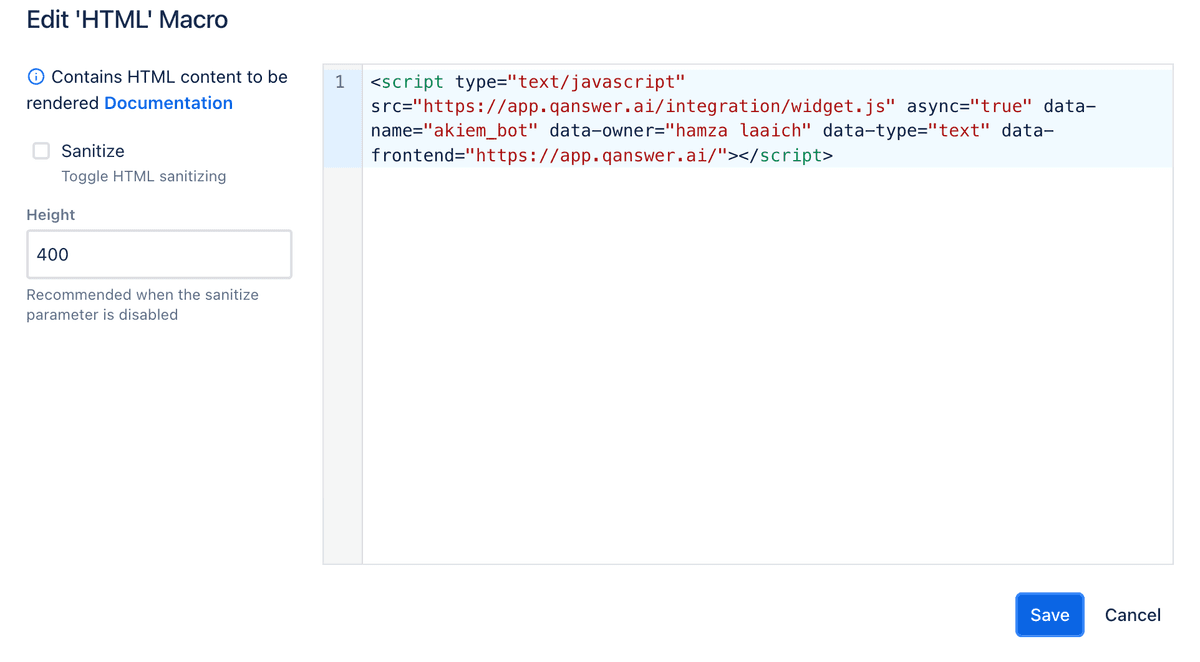
Adjust the macro height as needed. Deselect the "Sanitize" option to prevent it from blocking script execution.
Save the Page
Click on the "Save" or "Publish" button to save the changes to your Confluence page.
Permissions Issues
If permission errors occur, contact your Confluence administrator to obtain the required access.