
Security Logs
The organization's audit trail lives under Insights → Logs. It records every access attempt and every membership or AI usage event for your organization, newest first. If you notice activity you don't recognize, contact your system administrator.
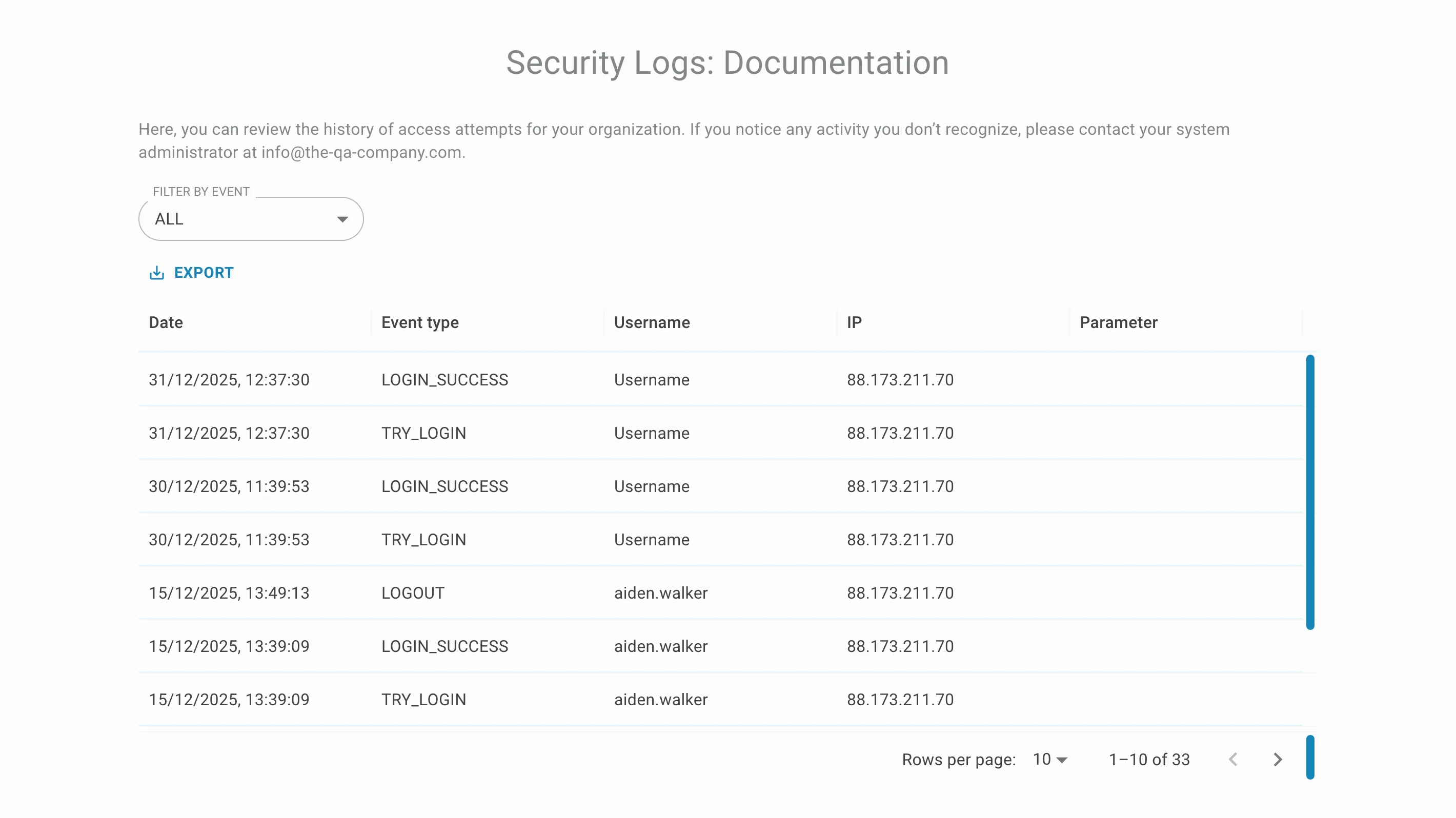
What a log entry contains
Each row of the table describes one event:
- Date — the date and time the event was recorded.
- Event type — the raw event code, for example LOGIN_SUCCESS, TRY_LOGIN or AI_CHAT.
- Username — the display name or username of the account that triggered the event.
- IP — the client IP address the request came from.
- Parameter — extra context for events that have it, such as the assistant an AI chat or search ran against. Login events leave it empty.
The table is paginated. Use the Rows per page selector and the arrows at the bottom right to move through the history — the counter next to them shows how many entries the organization has in total.
Filtering by event type
Open the Filter by event dropdown to narrow the table down to a single kind of event:
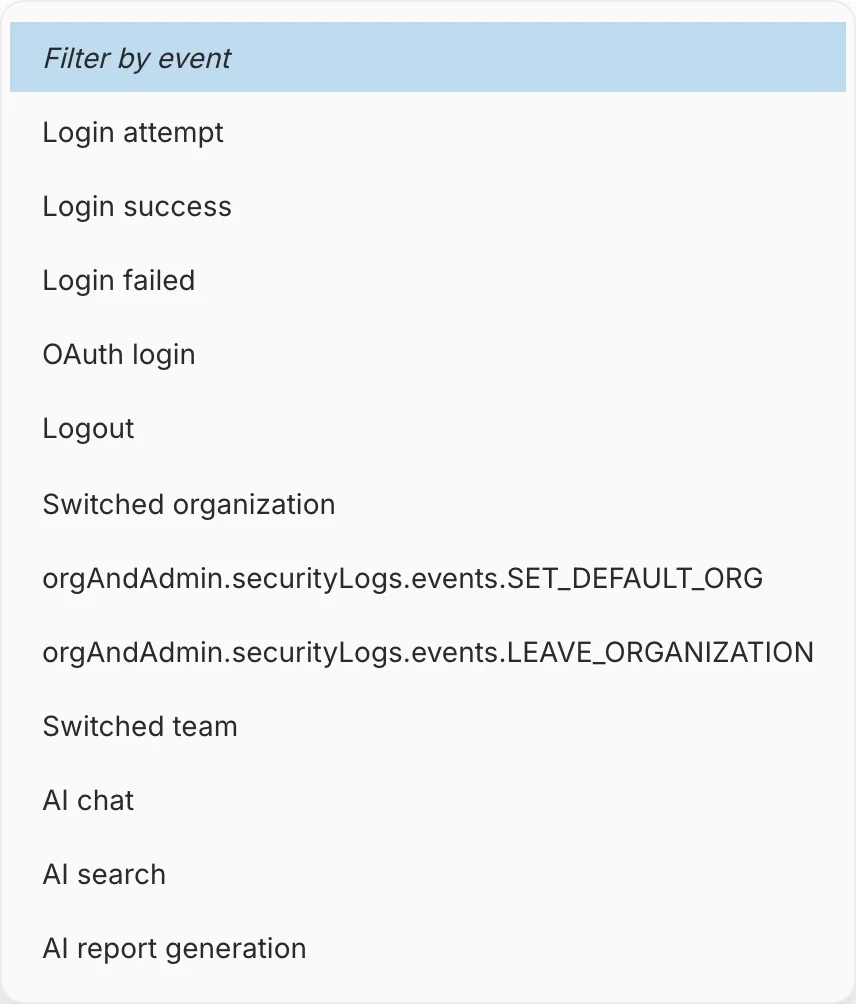
- Login attempt — a sign-in was submitted (TRY_LOGIN).
- Login success — the sign-in was accepted (LOGIN_SUCCESS).
- Login failed — the credentials were rejected.
- OAuth login — the user signed in through an OAuth provider such as Google or Microsoft.
- Logout — the user signed out.
- Switched organization — the user moved to another organization workspace.
- Set default organization — the user made an organization their default workspace.
- Leave organization — the user left the organization.
- Switched team — the user moved to another team workspace.
- AI chat — a chat request was sent to an AI assistant.
- AI search — a semantic search request was run.
- AI report generation — a report was generated by an assistant.
Pick the empty Filter by event entry at the top of the list to go back to all events. For AI events the Parameter column shows which assistant was used:
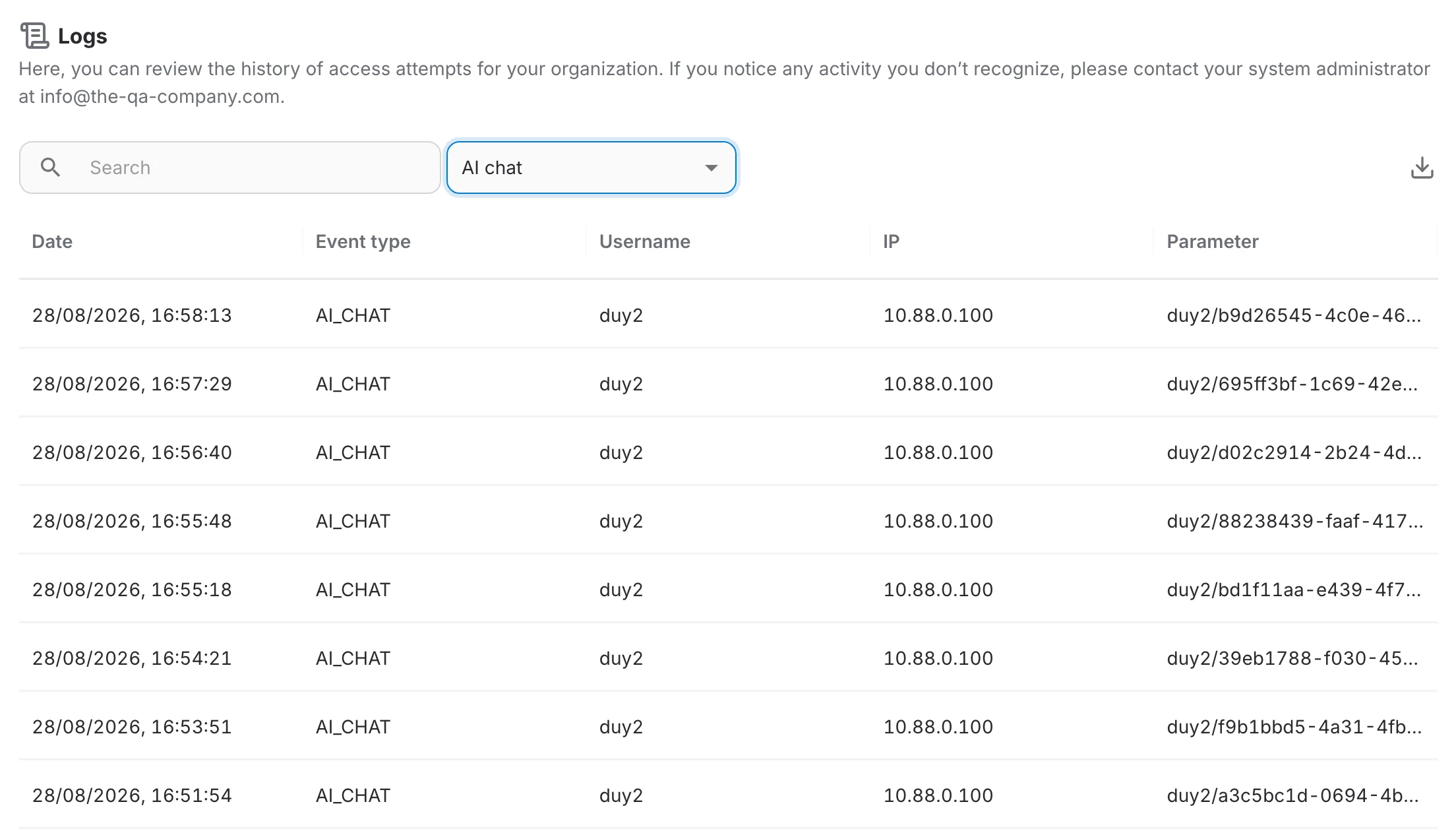
Searching the logs
The Search field filters the history as you type — use it to follow a single user, an IP address or a parameter value across all event types.
Exporting the logs
The download icon on the right of the toolbar exports the history as a CSV file named logs.csv. The export contains the same columns as the table plus the internal user id, and it always covers the full history — not just the page you are looking at.