AI Task
An AI task is what your AI assistant does with its data — answer questions in a chat, return search results, write a report, fill a spreadsheet, or query a knowledge graph. In the redesigned interface the task is a property of the assistant itself: you choose one task type in the assistant editor, and the assistant's page then opens directly on that task.
Choose a task type
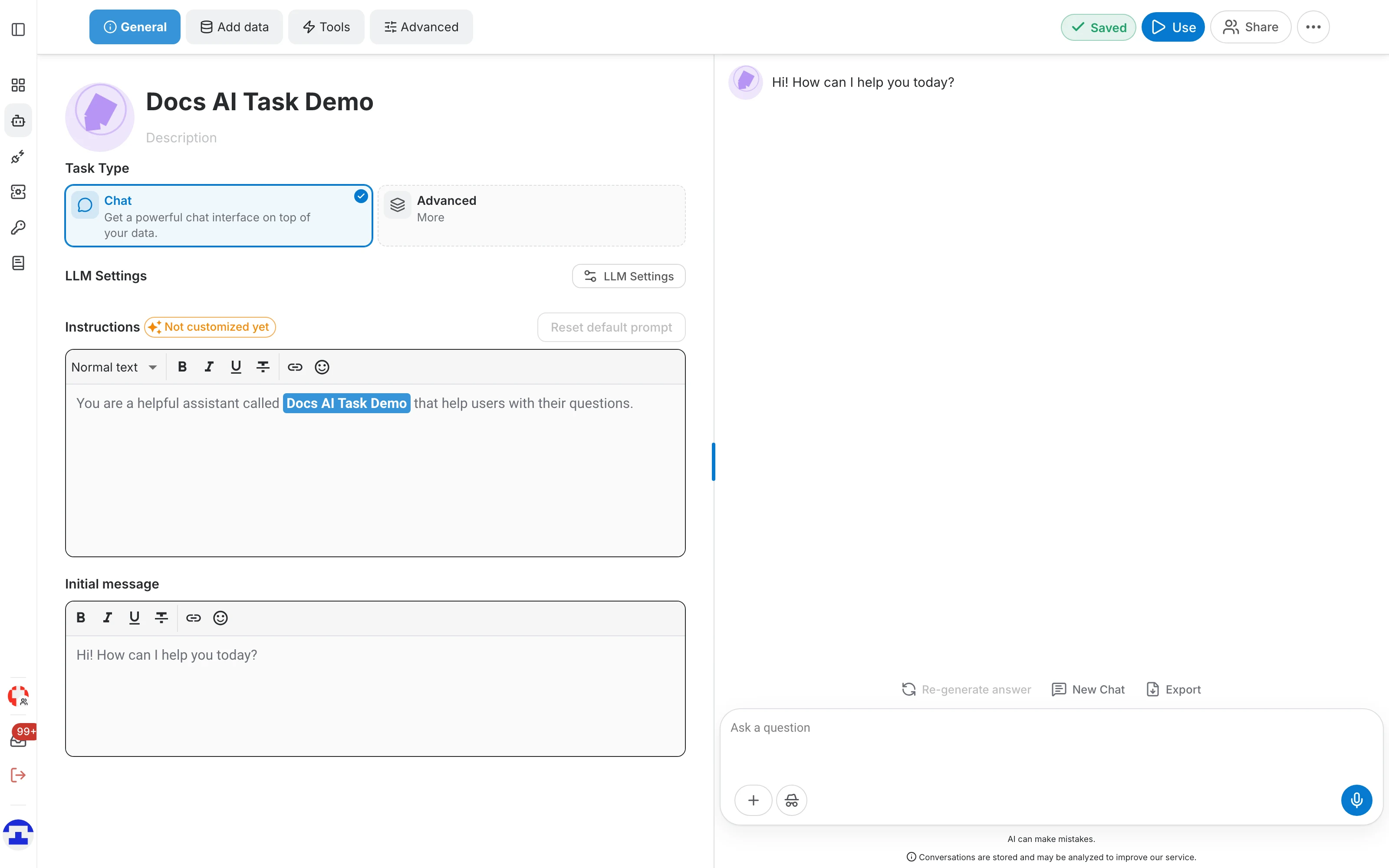
The task type is set in the assistant editor, right under the assistant's name and description:
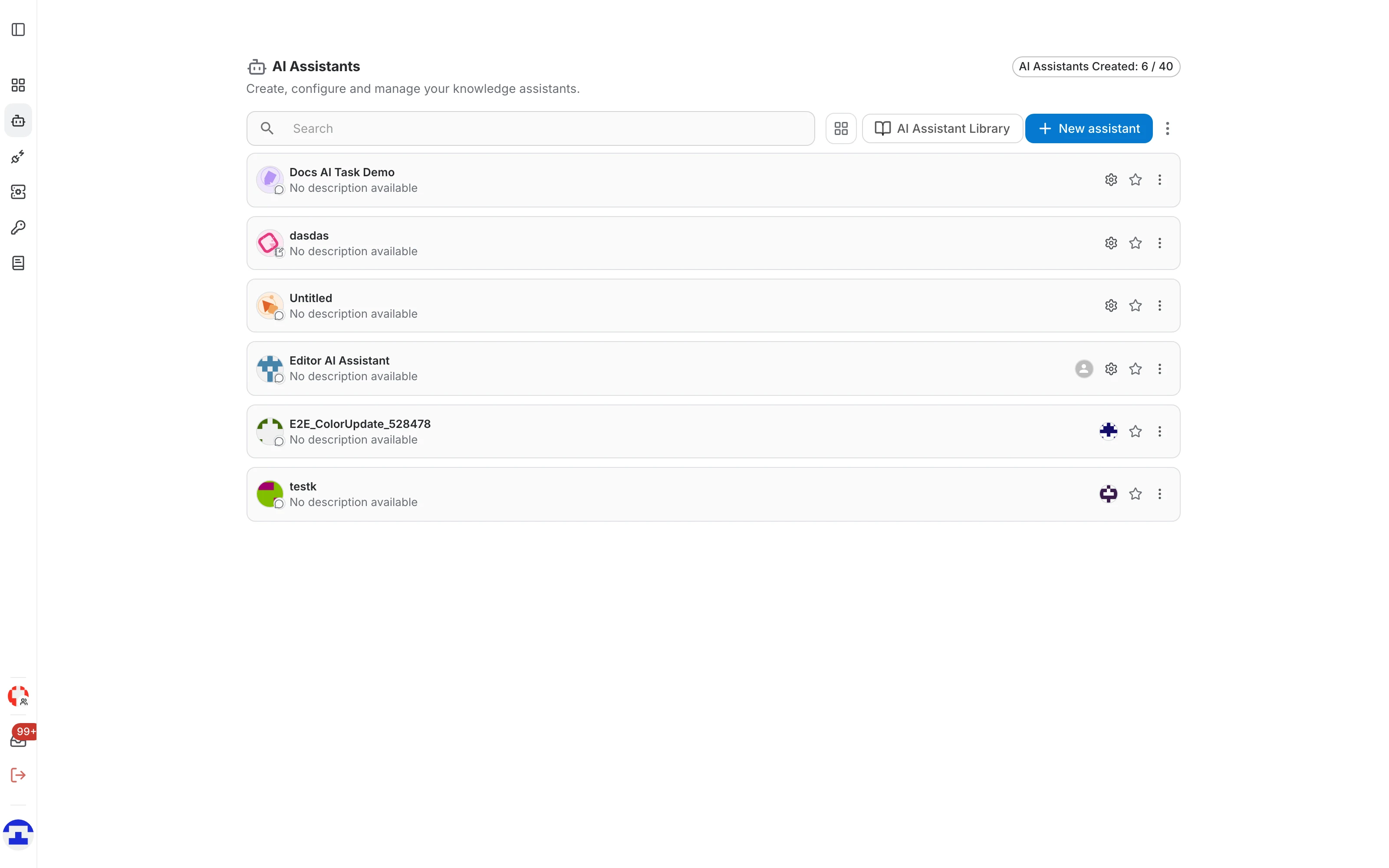
- Open AI Assistants in the left navigation bar.
- Click the gear icon on the assistant's row, or the Edit button on its page, to open the editor.
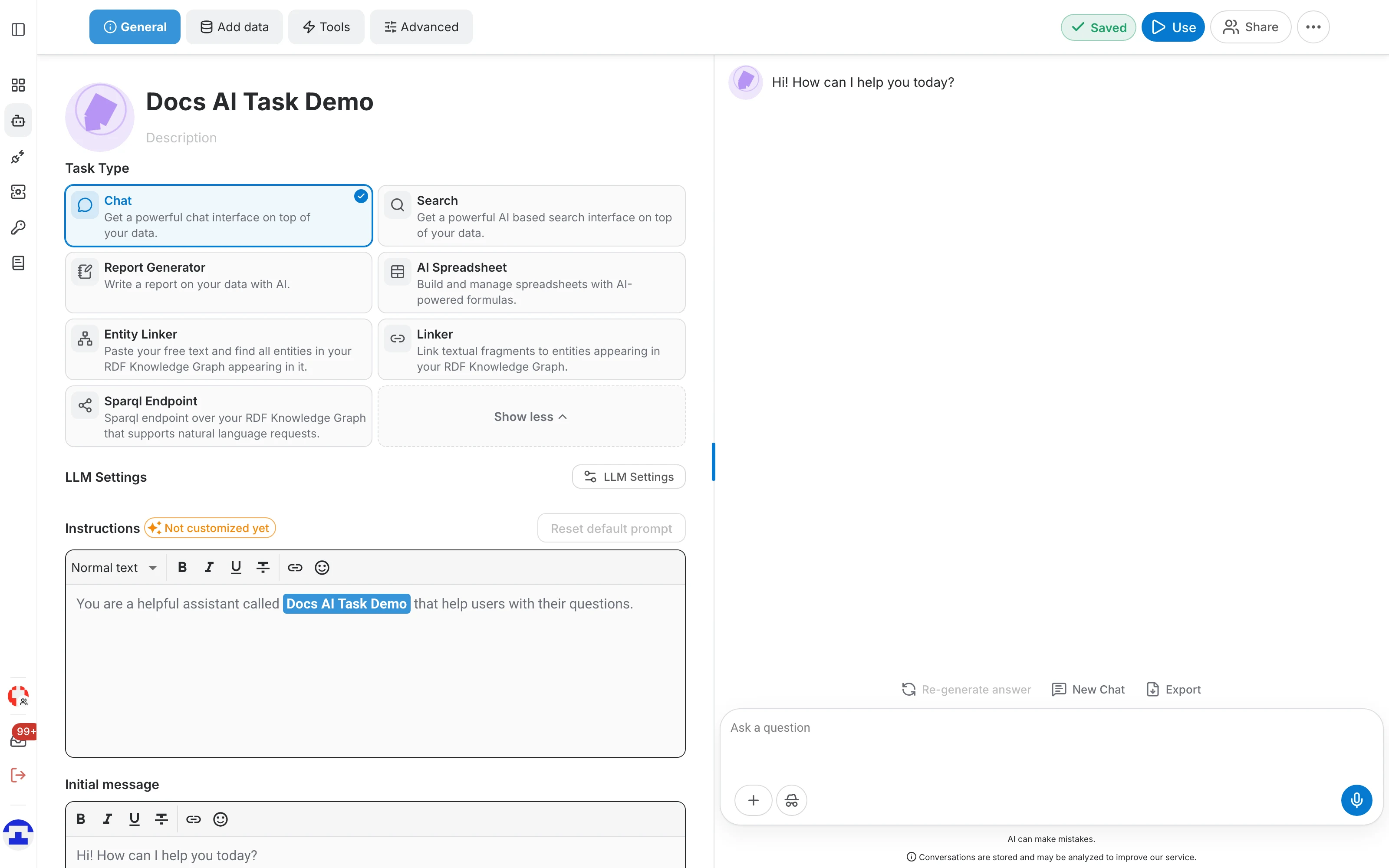
- Stay on the General tab and look at the Task Type tiles.
- Click a tile to select it. The selected tile is highlighted and carries a check badge.
Available tasks
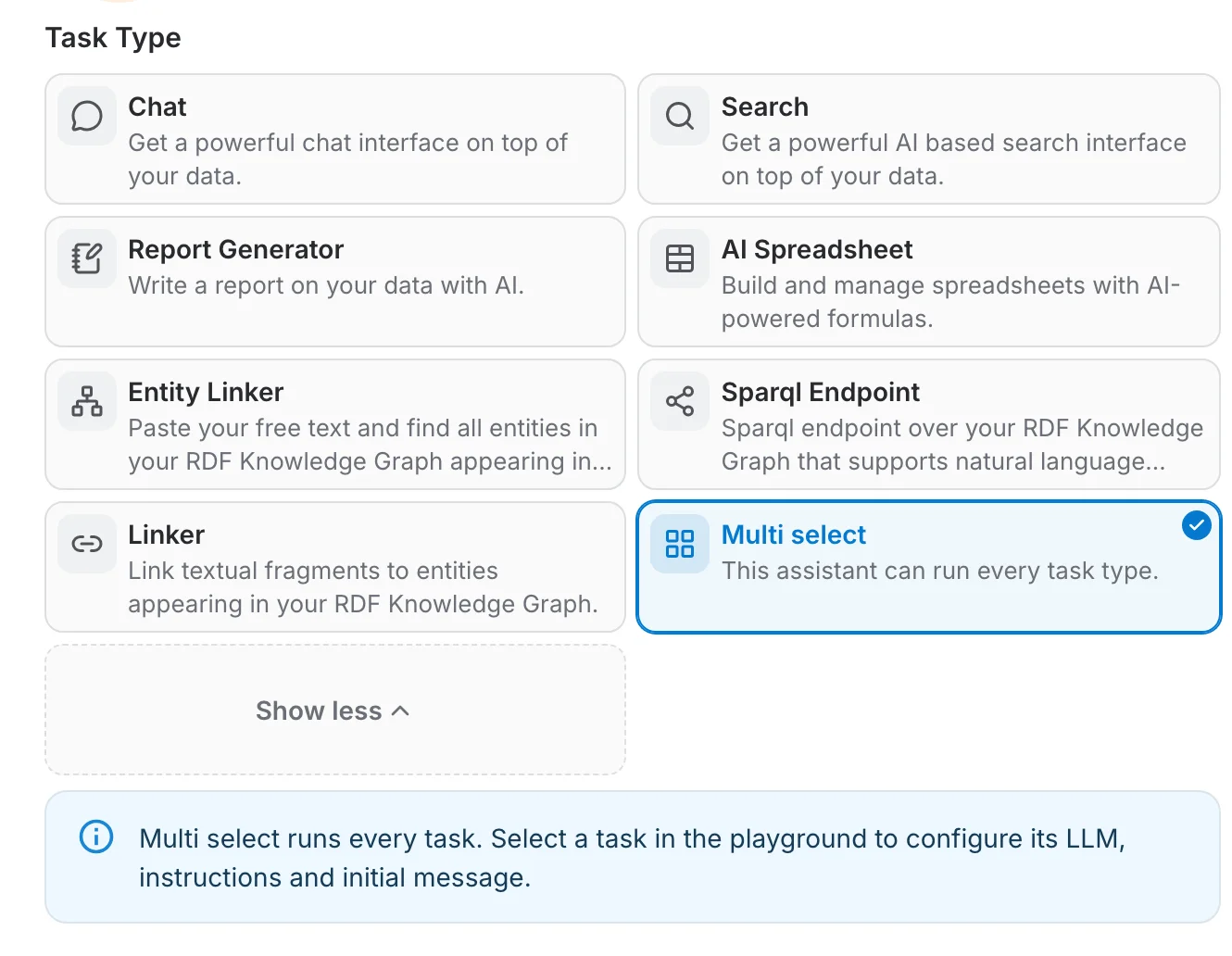
Seven task types are available, plus Multi select, which runs all of them:
- Chat — a conversational interface on top of your data. Always available, even with no data source at all.
- Search — an AI-powered search interface that returns a generated answer together with the source documents it came from.
- Report Generator — a document editor in which AI writer blocks draft whole sections from your data, from a reusable template.
- AI Spreadsheet — a spreadsheet whose cells are filled by AI-powered formulas running against your data.
- Entity Linker — paste free text and find every entity of your RDF knowledge graph that appears in it.
- Linker — link textual fragments to the entities of your RDF knowledge graph, one fragment at a time.
- Sparql Endpoint — a SPARQL endpoint over your RDF knowledge graph that also accepts natural-language requests.
- Multi select — every task type at once on the same data; whoever opens the assistant picks the task to run. Multi select
Open and run the task
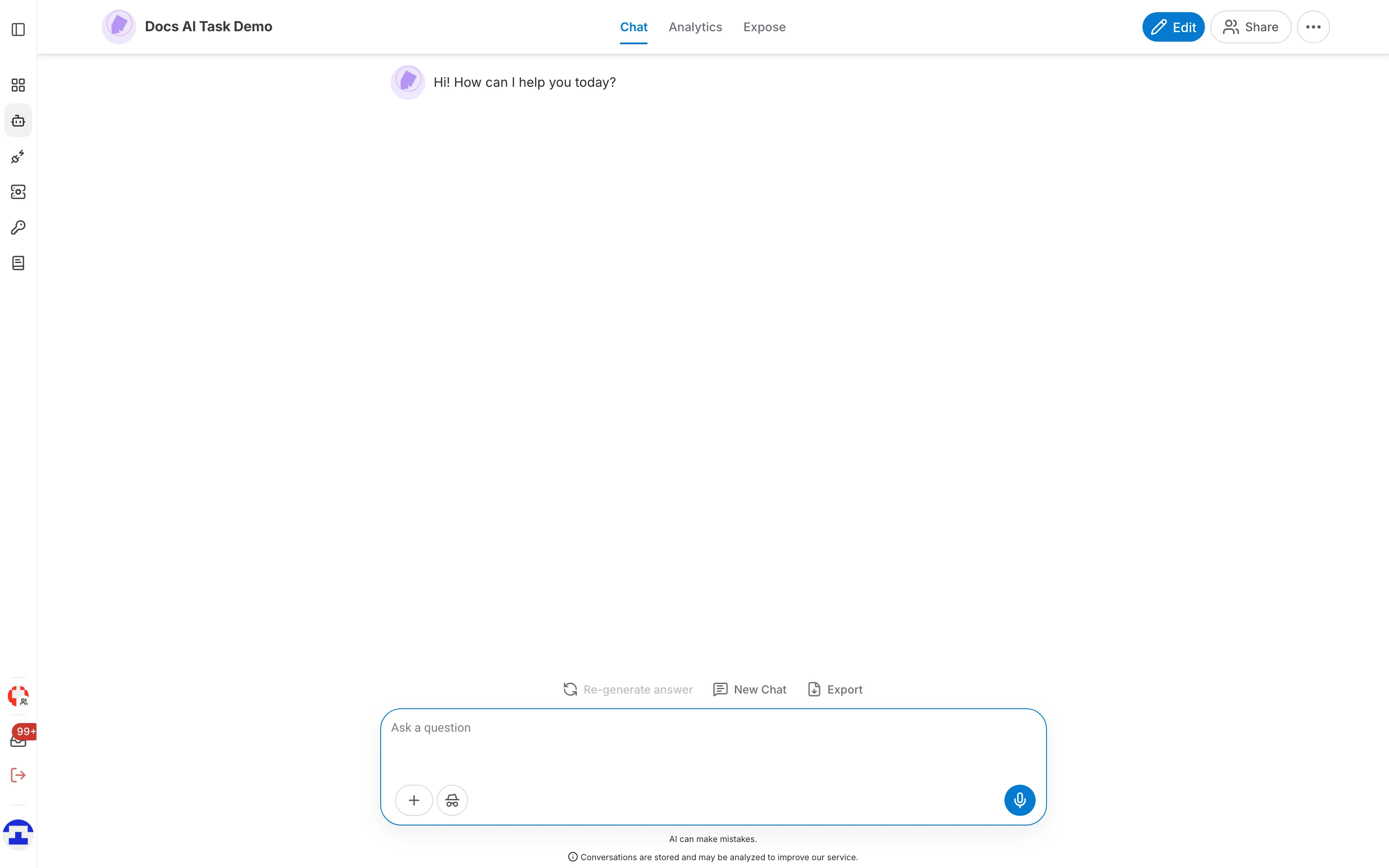
From the editor, click Use to leave the editor and open the assistant's own page. The first tab of that page is the task itself, and it is named after the task type you selected — Chat, Search, Report Copilot, and so on.
The assistant page has three tabs:
- The task tab — the working interface of the task, which is what your users see.
- Analytics — usage figures and the conversation history of the assistant.
- Expose — the ways to publish the assistant outside the platform, such as a website chatbot or an API.
Where the task settings live
There is no separate task settings drawer any more. Everything that used to sit in it is now spread across the four tabs of the assistant editor:
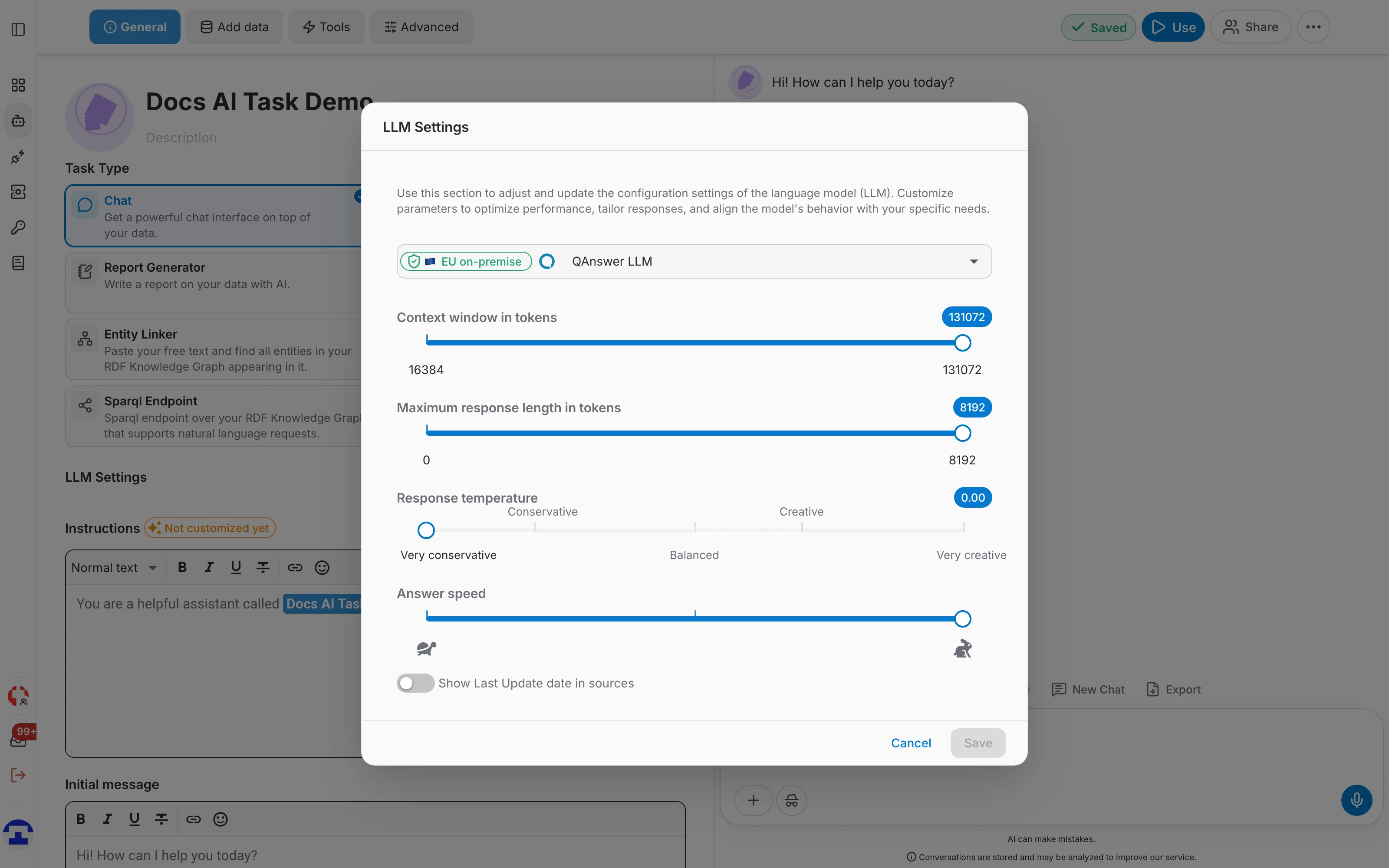
- General — the task type, the Instructions (the prompt, with a Reset default prompt button), the initial message, and the LLM Settings dialog: model, context window, maximum response length, response temperature, answer speed and whether sources show their last update date.
- Add data — the data sources themselves, plus each connector's Parsing Options, which is where retrieving, indexing, chunking, synonyms and query expansion are configured.
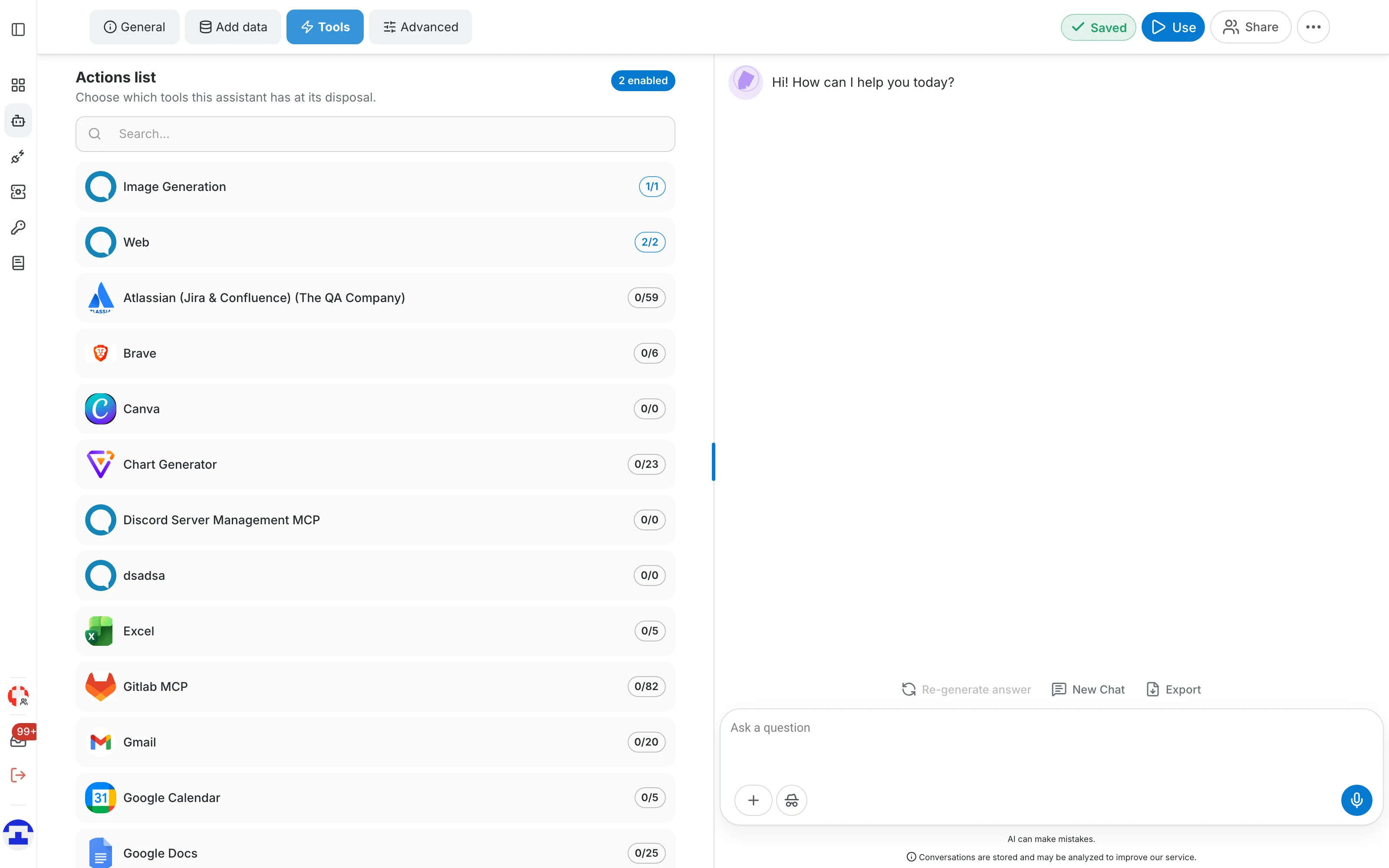
- Tools — which tools the assistant may call, such as Web search, Image Generation and any connected MCP server actions.
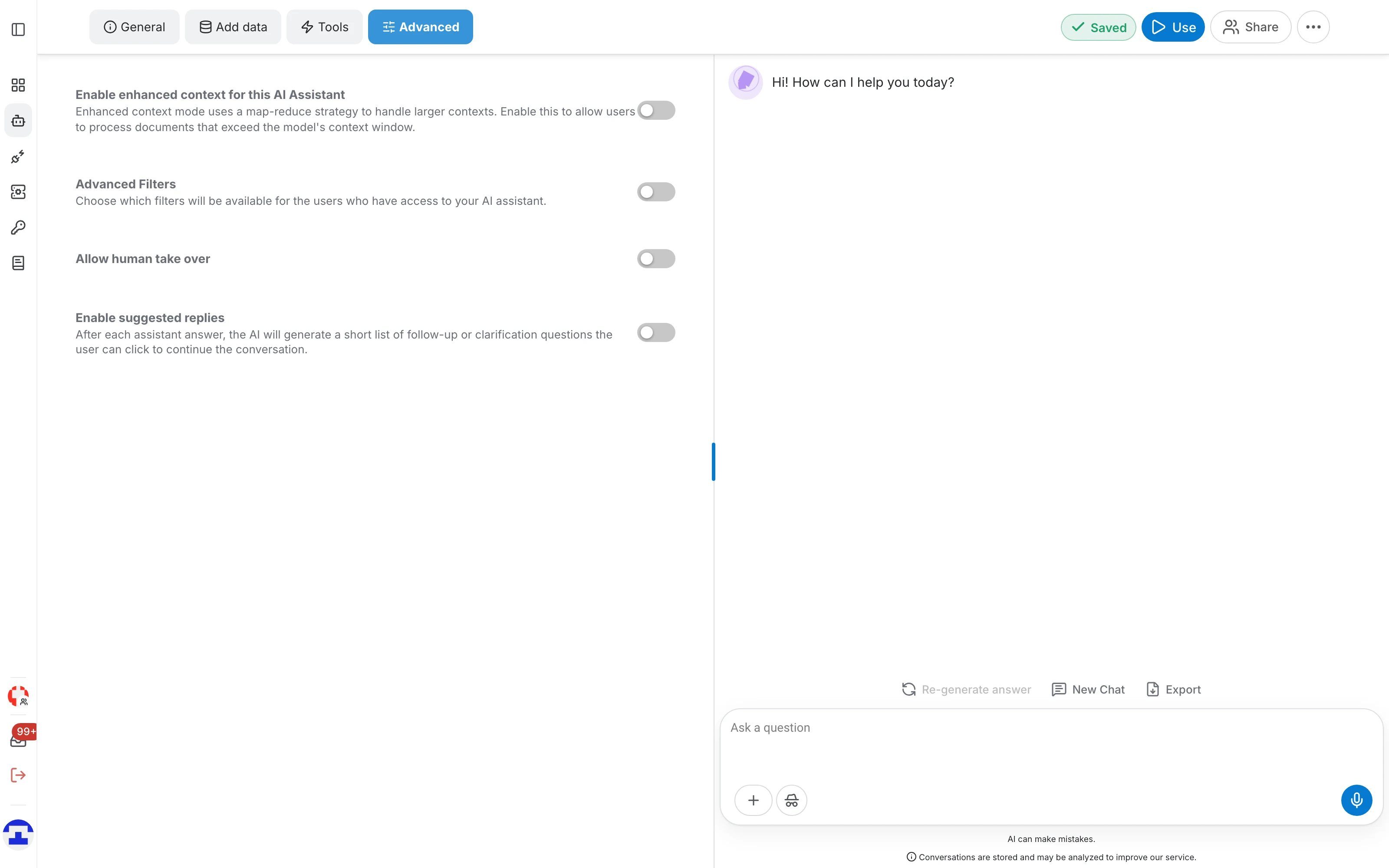
- Advanced — enhanced context (a map-reduce strategy for contexts larger than the model's window), the advanced filters offered to your users, human take-over, and suggested follow-up replies.
Where to start
All of your assistants are listed on the AI Assistants page. Each row carries a gear icon to open the editor, a star to mark the assistant as a favourite, and a ⋮ menu with Duplicate, Change owner and Delete.