Notifications
Notification System
QAnswer sends email notifications for key events. Notifications are triggered by the following actions:
Confirmation of registration
Need to activate your account
Welcome messages
Password reset requests
You are added to a team or an organization
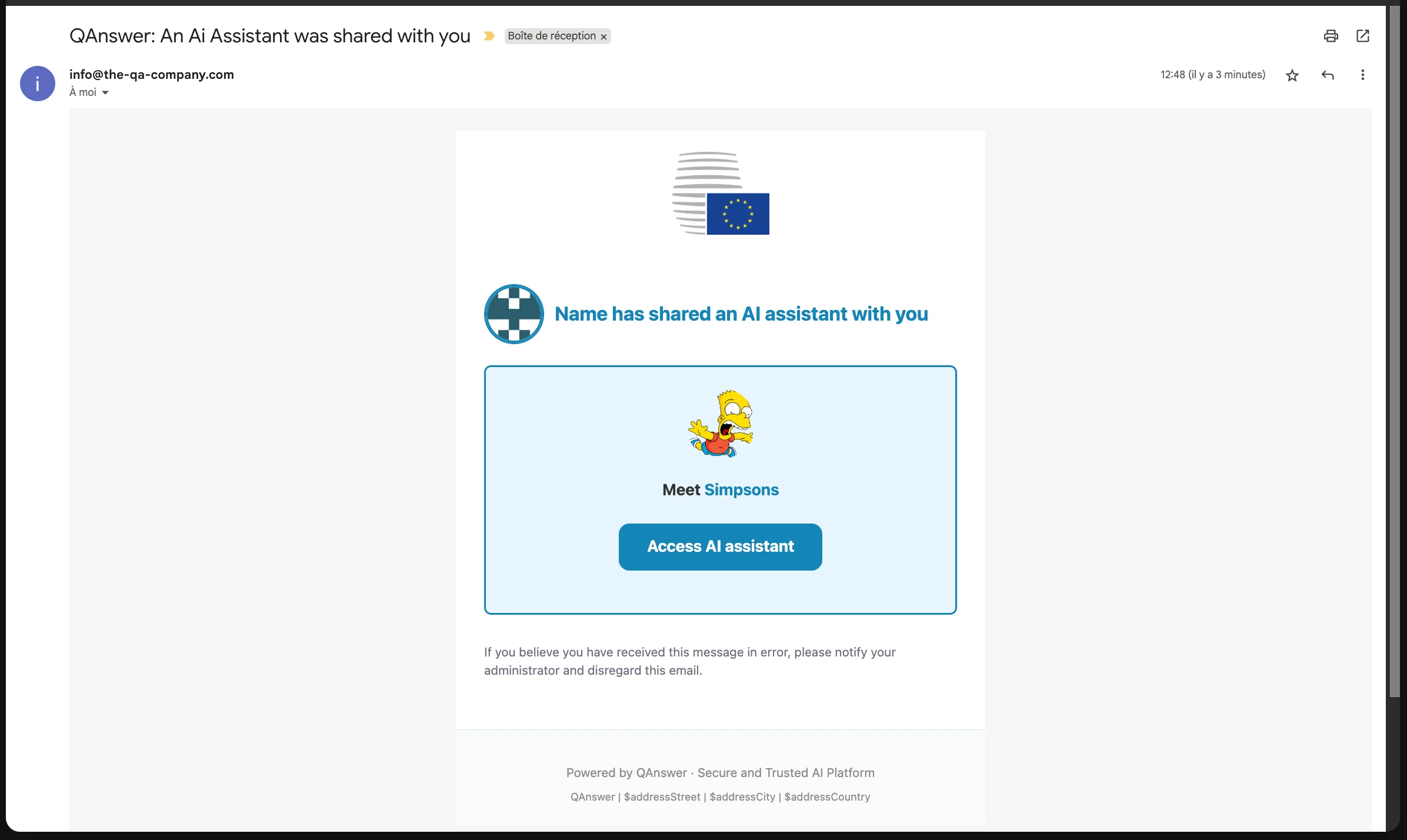
An AI assistant is shared with you
A human take over is requested for a chat AI assistant Task
You almost reach your plan quota
Your plan quota has been reached
Example of a notification email
In-App Notification System
In QAnswer, the in-app notification system keeps you informed about important events in real time, directly within the application — no need to check your email.
Notifications are delivered live via WebSocket, so new notifications appear instantly as events occur.
Notifications can be triggered by the following events:
Welcome messages
Password reset requests
You are added to a team or an organization
A conversation is shared with you
An AI assistant is shared with you
A human take over is requested for a chat AI assistant Task
You almost reach your plan quota
Your plan quota has been reached
Accessing Notifications
Navigate to the Notifications page by clicking at the bottom of the sidebar.
Notifications
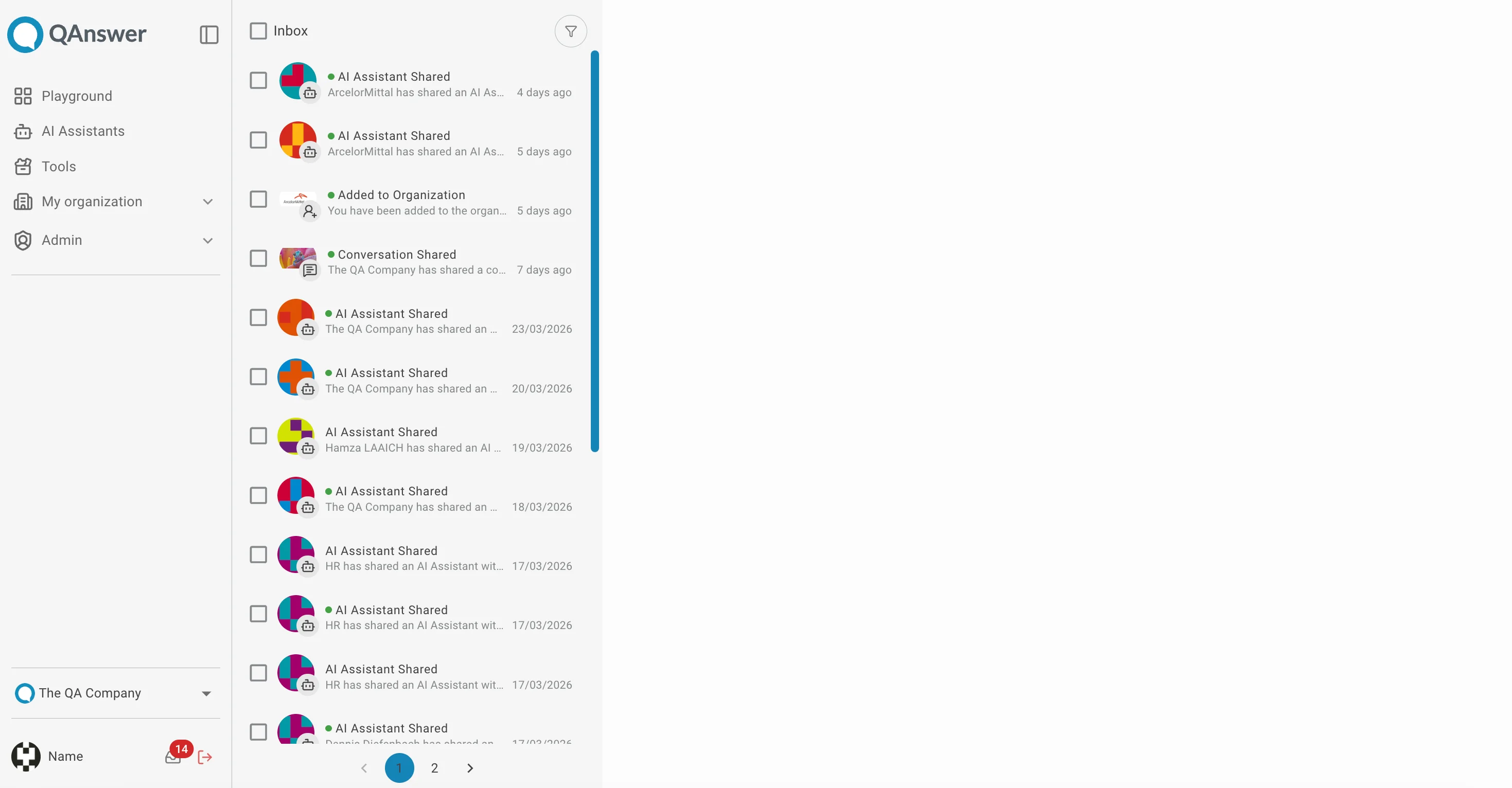
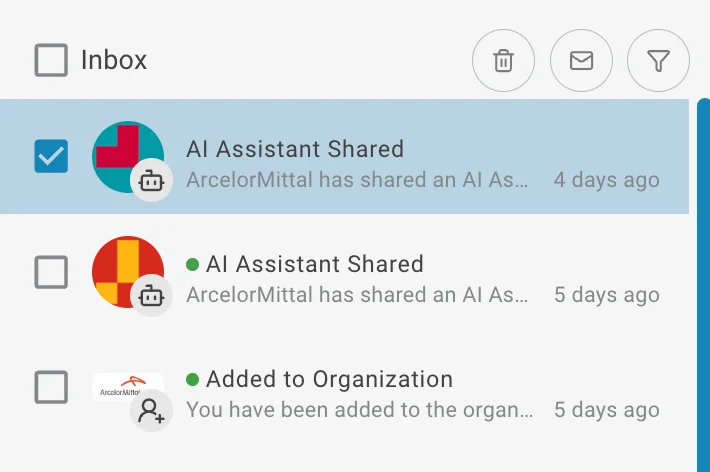
The Notifications page is divided into two panels: the notification list on the left and the notification detail on the right.
Left panel (Inbox)
Each notification displays:
- The notification title and message preview
- A relative timestamp
- A small green indicator for unread notifications
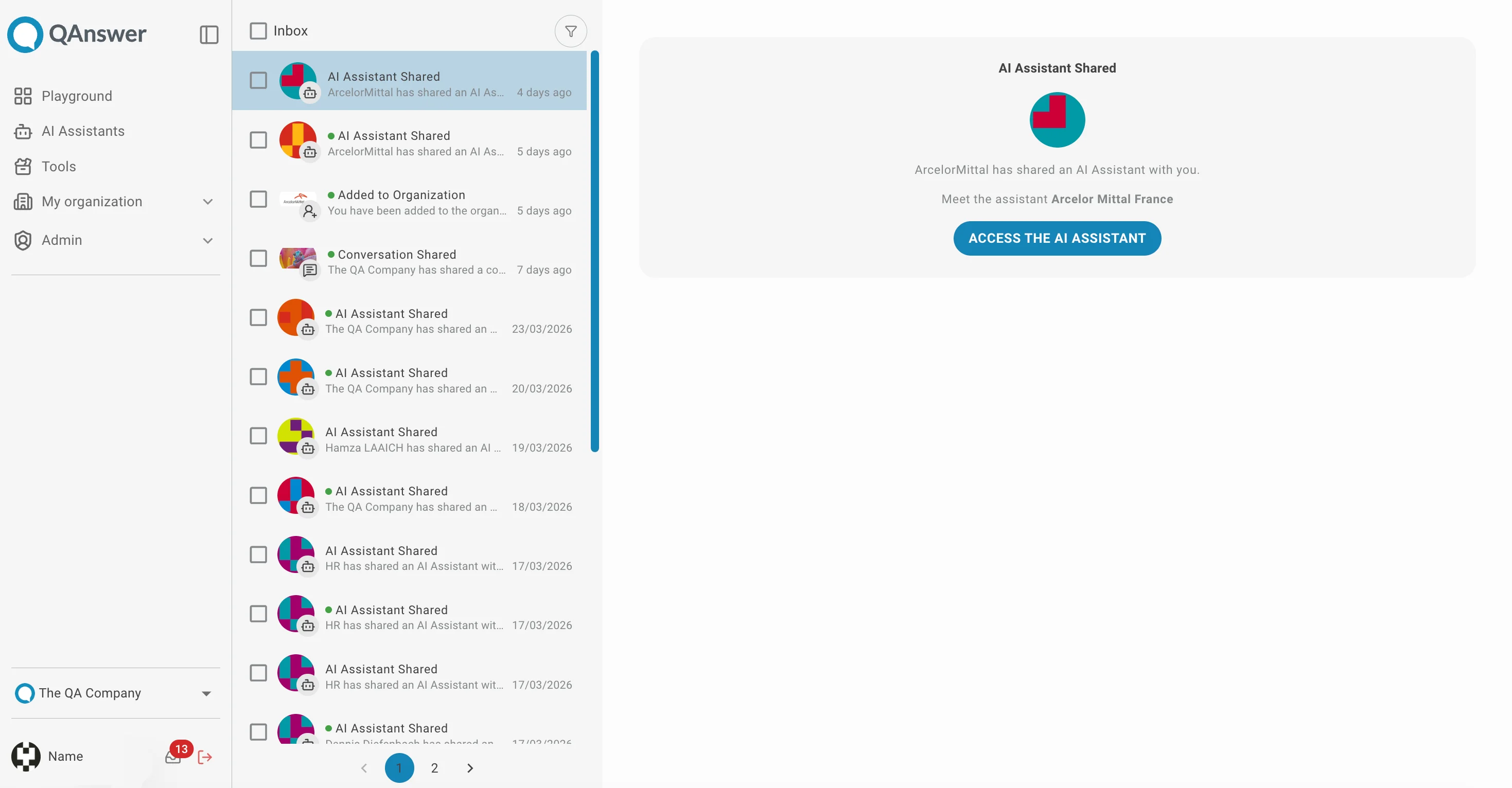
Right panel (Detail view)
Clicking a notification:
- Marks it as read
- Opens the full notification content in the detail view
Managing Notifications
Selecting Notifications
Use the checkbox on each item to select it individually. Use the select all checkbox in the header to select every notification on the current page at once.
Mark as Read / Unread
Select one or more notifications, then click to mark them as read, or the icon to mark them as unread.
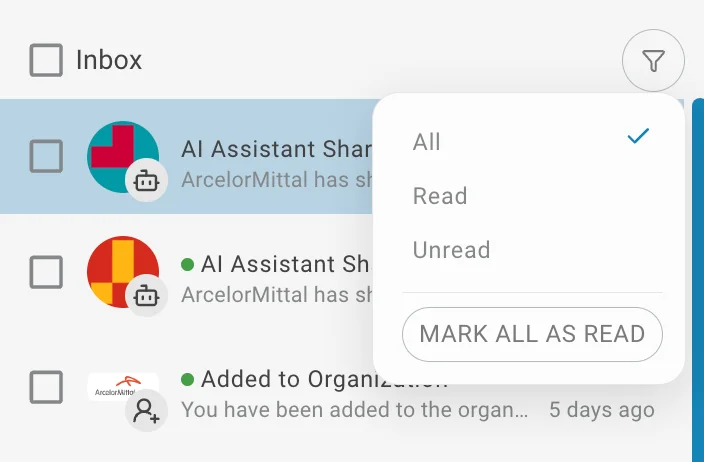
To mark every notification as read at once, open the filter popover and click Mark all as read.
Delete
Select one or more notifications, then click the icon to permanently remove them.
Filtering
Click in the header to filter notifications by status:
- All — show every notification
- Read — show only read notifications
- Unread — show only unread notifications