Shopify
Video Tutorial
Shopify
Watch on Tutorials page →
Follow these steps to embed your AI Assistant as a chatbot widget in Shopify.
Customize
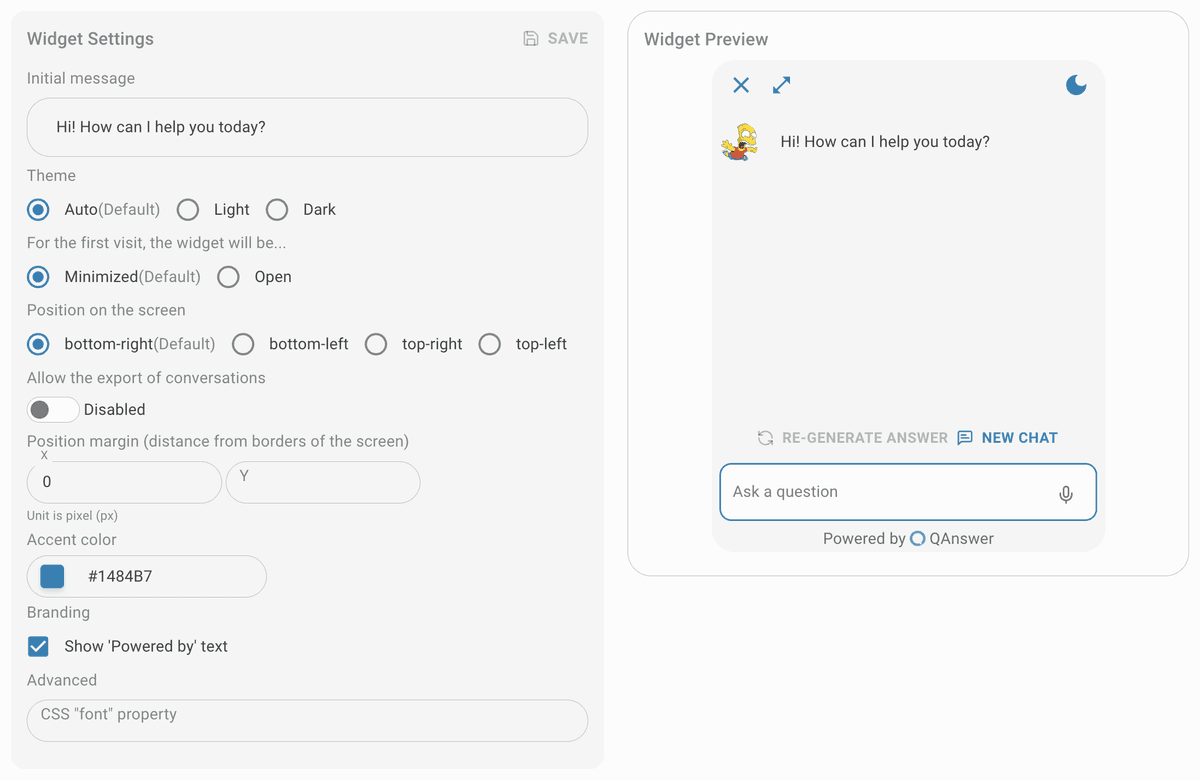
Customize the widget and save it.
Make public
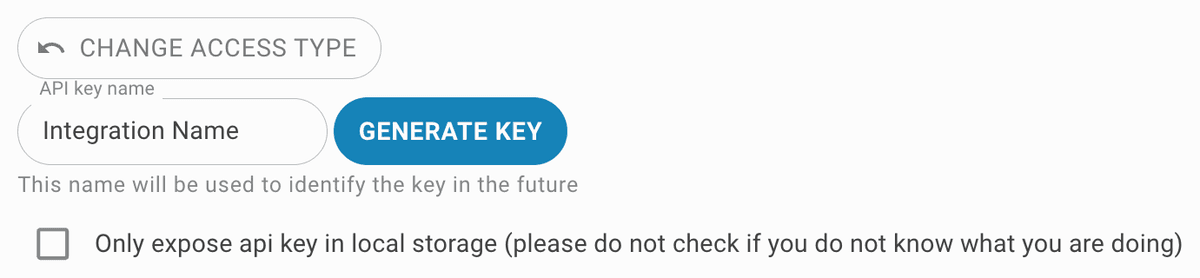
Set the access type to public. To restrict access, generate an API key for the widget integration.


Theme Editor
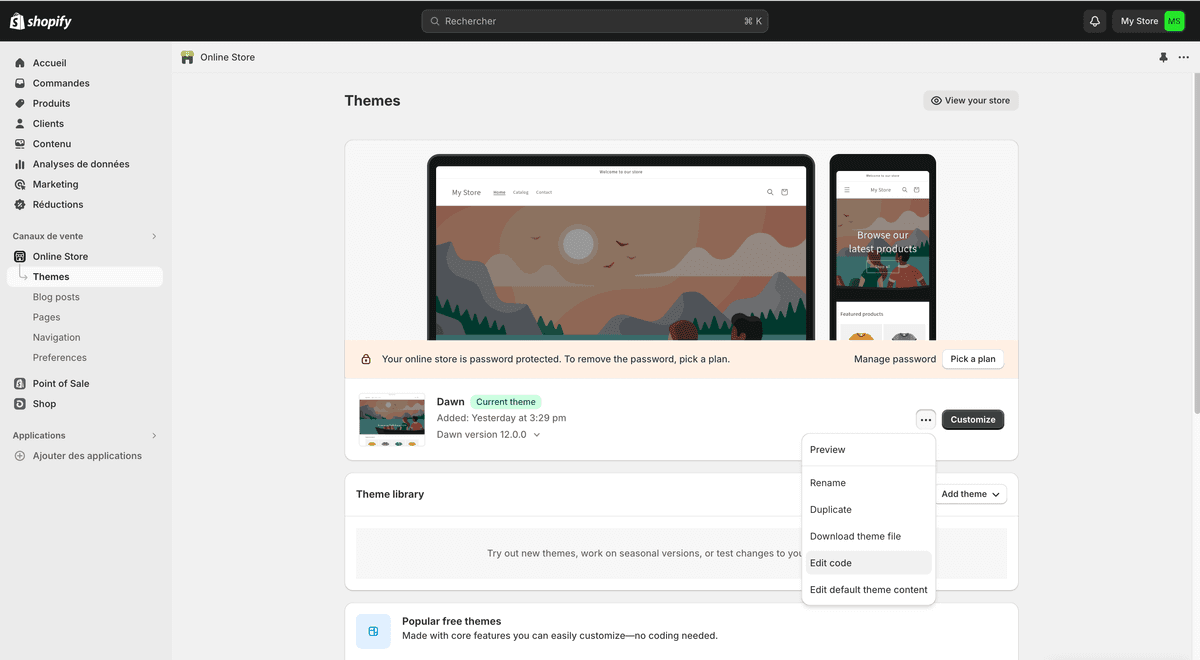
In your Shopify admin dashboard, on the left sidebar, click on Online Store and then Themes.
Backup
Back up your theme before proceeding so changes can be reverted if needed.
Edit code
Locate the active theme and click the action dropdown next to the customize button. Select Edit code. In the left panel of the code editor, open the theme.liquid file. This file contains the base markup for the theme and is the appropriate place to add global scripts.
Add script
In the theme.liquid file find the closing tag. Just before the tag, paste the script tag provided in QAnswer. Don't forget to click the Save button in the top right corner of the editor to save your changes.
Check everything
Navigate to your Shopify store's main page.
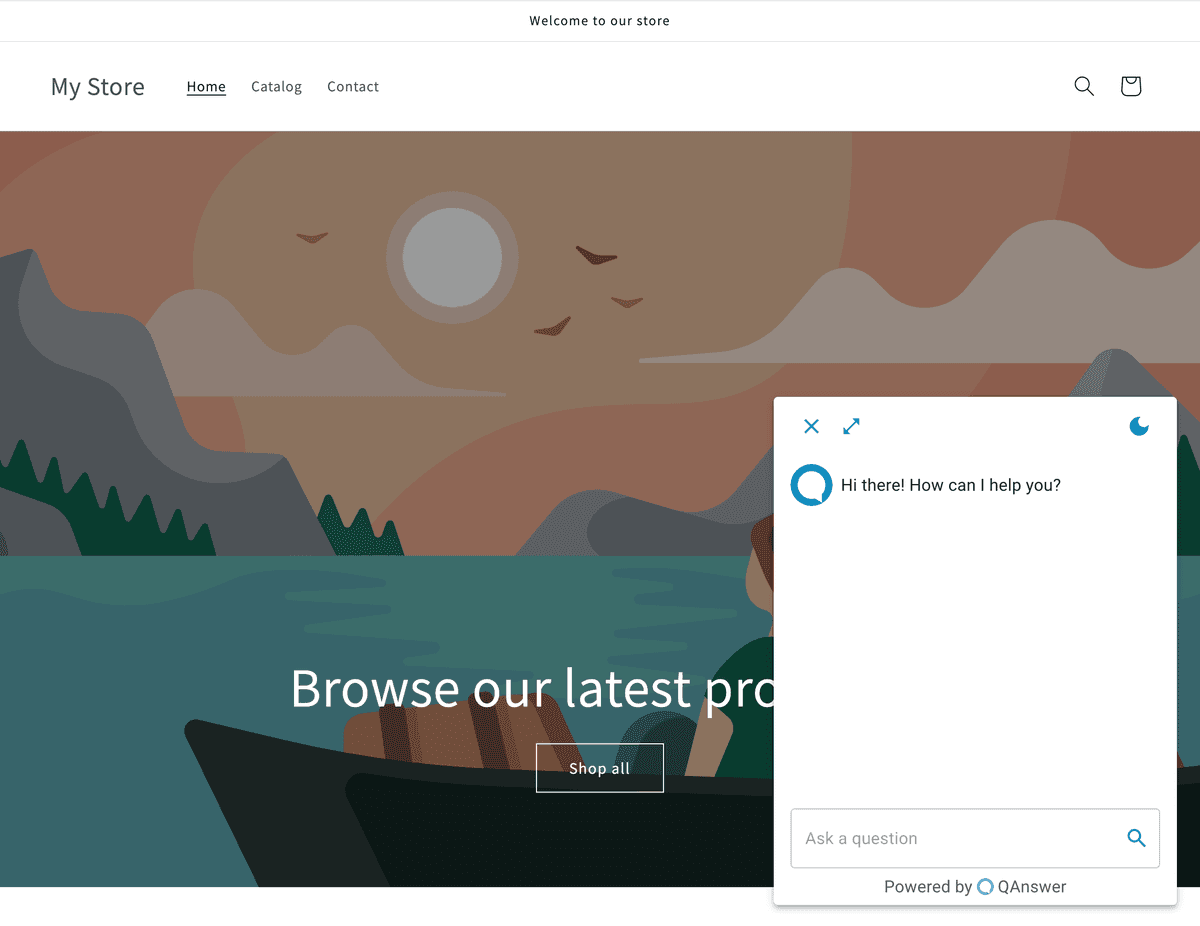
The QAnswer chatbot should now appear on the store. To confirm the script was added, right-click and select "View Page Source" or open browser developer tools (F12) to inspect the page source.