Chat Interface
The chat interface is a full page, hosted by QAnswer, where people hold a conversation with your assistant. You share it as a single link — there is nothing to install and no website of your own required.
Open the assistant, go to the Expose tab and select the Chat interface card. The page that opens is a five-step guide.
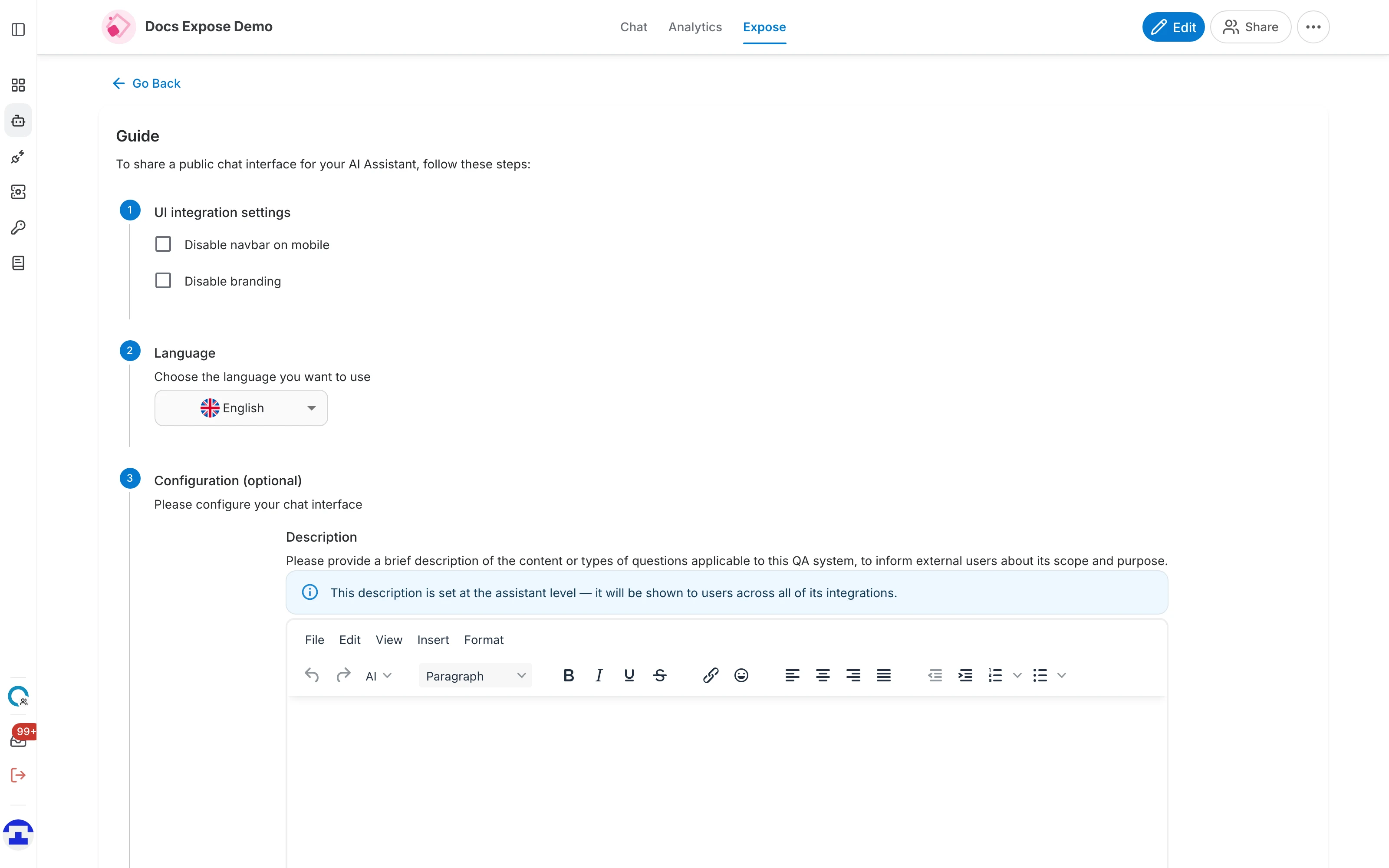
Step 1 — UI integration settings
Two checkboxes control how the hosted page is framed:
- Disable navbar on mobile — hides the top navigation bar for visitors on phones, leaving more room for the conversation.
- Disable branding — removes the QAnswer logo and footer, so the page carries nothing but your assistant.
Step 2 — Language
Choose the language the interface itself is displayed in — the labels, buttons and placeholder text. Visitors can still write in any language your assistant understands. This is the language of the shared page only, unrelated to the language of your own QAnswer account.
Step 3 — Configuration (optional)
This step holds two sub-sections that shape the first thing a visitor sees.
Description
A short explanation of what the assistant is for and what it can answer, shown to visitors on the public page. The rich-text editor lets you add links and formatting.
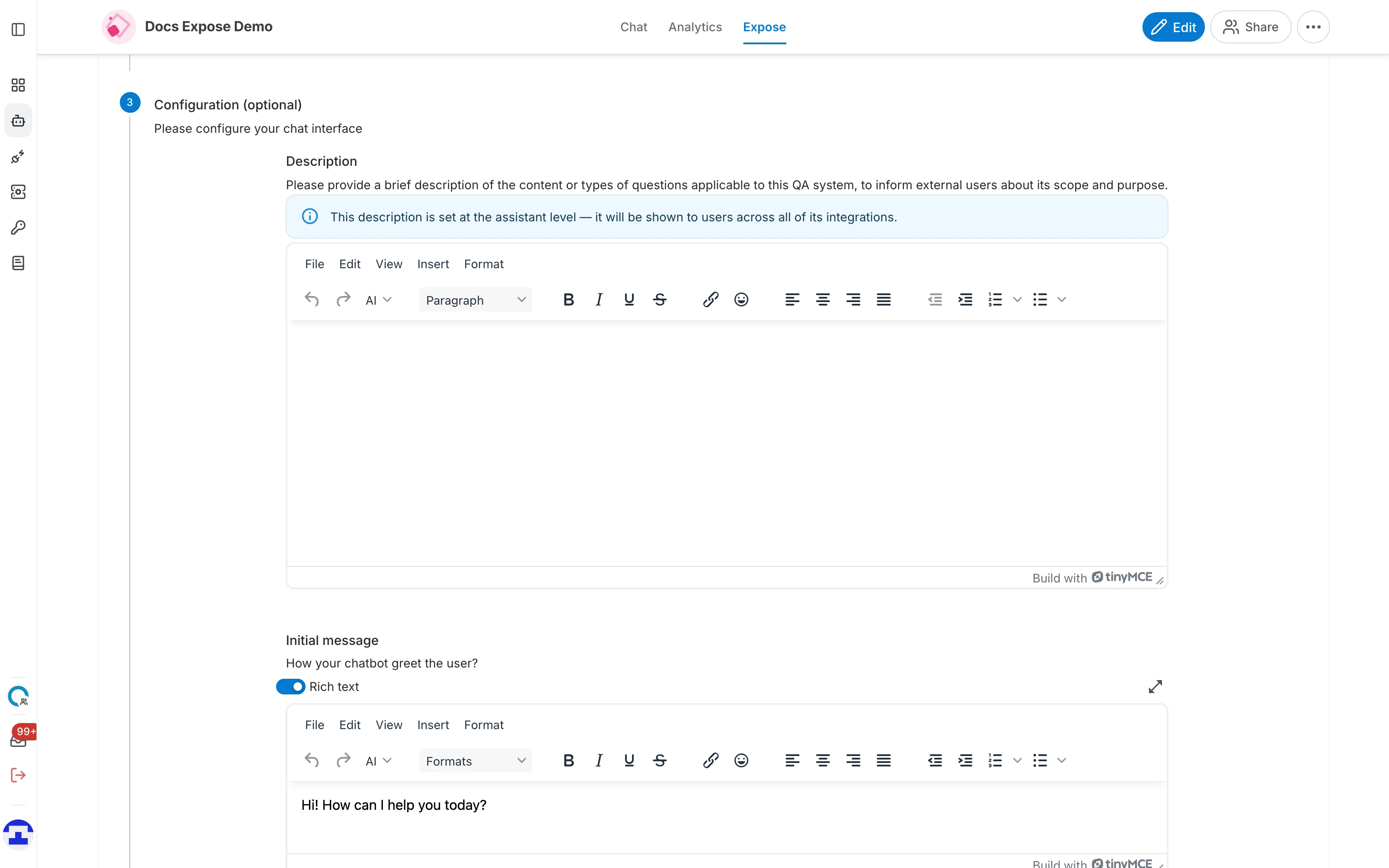
Initial message
The greeting the assistant opens the conversation with, before the visitor has typed anything. A good initial message says what the assistant knows about and invites a first question.
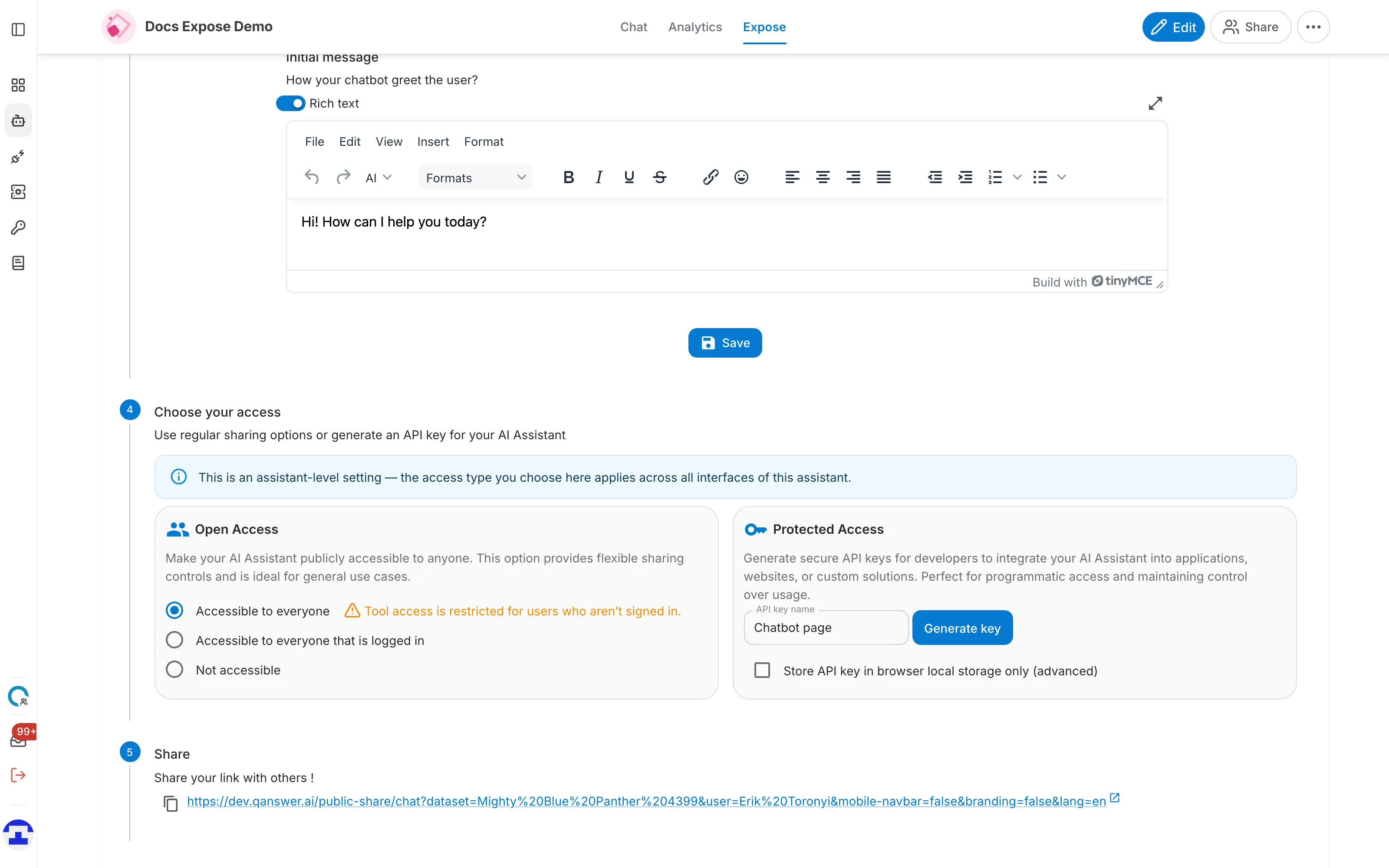
- Rich text — switches the field between a plain text box and a full editor with formatting and links. Leave it on if you want a formatted greeting.
- The expand icon — opens the editor in a larger dialog, which is easier for a longer message.
Step 4 — Choose your access
Nobody can open the link until you decide who is allowed in:
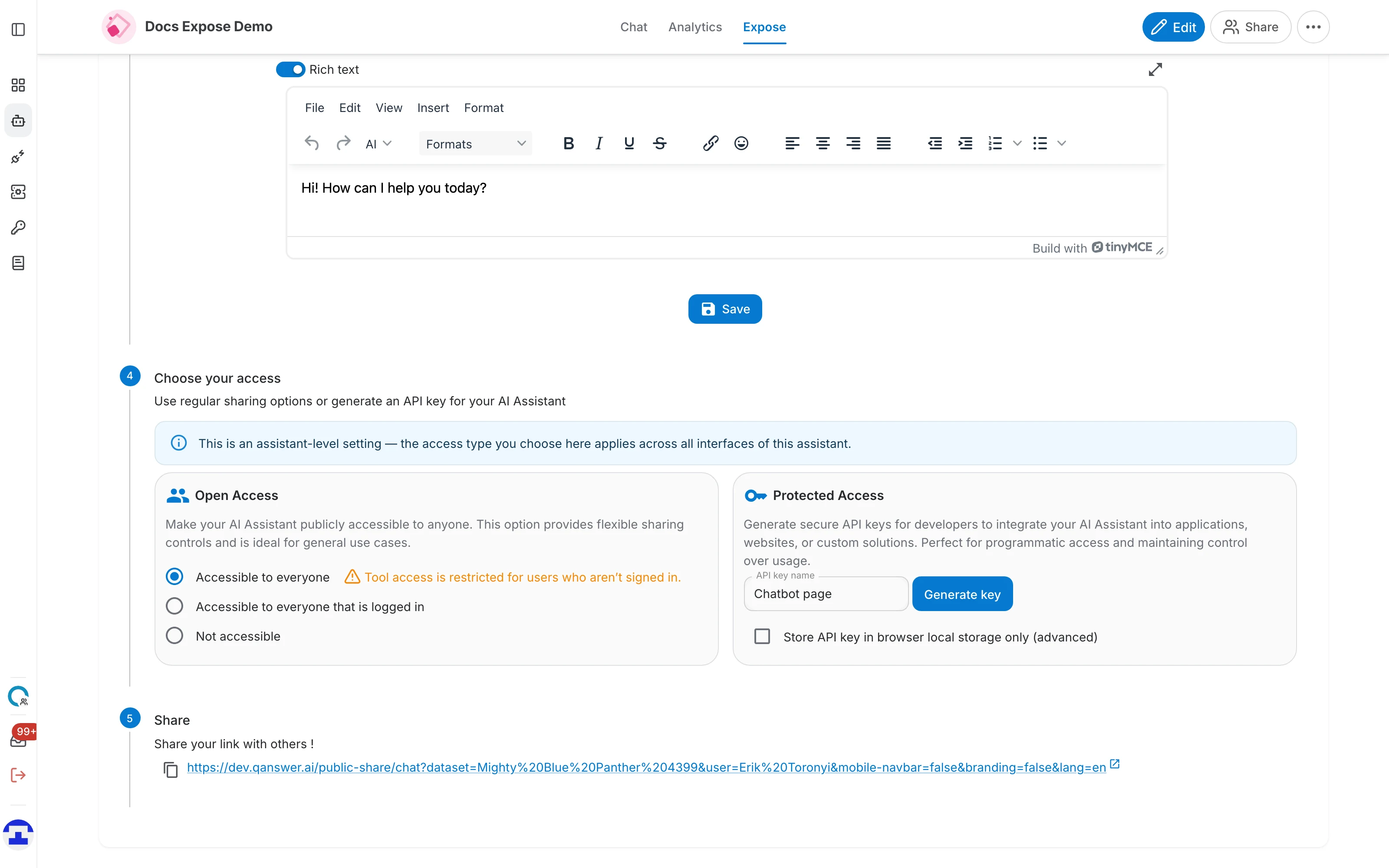
- Accessible to everyone — anyone with the link can chat, with no sign-in. This is the usual choice for a public link.
- Accessible to everyone that is logged in — the link works, but only after the visitor signs in to QAnswer. Useful for sharing inside a company.
- Not accessible — the link is dead. Select this to take a published interface offline again.
- Protected Access — instead of opening the assistant up, generate an API key that callers must supply. Meant for programmatic use rather than a link you send to people.
Step 5 — Share
Once access is set, the link appears. Use the copy icon beside it, or the arrow to open it in a new tab.
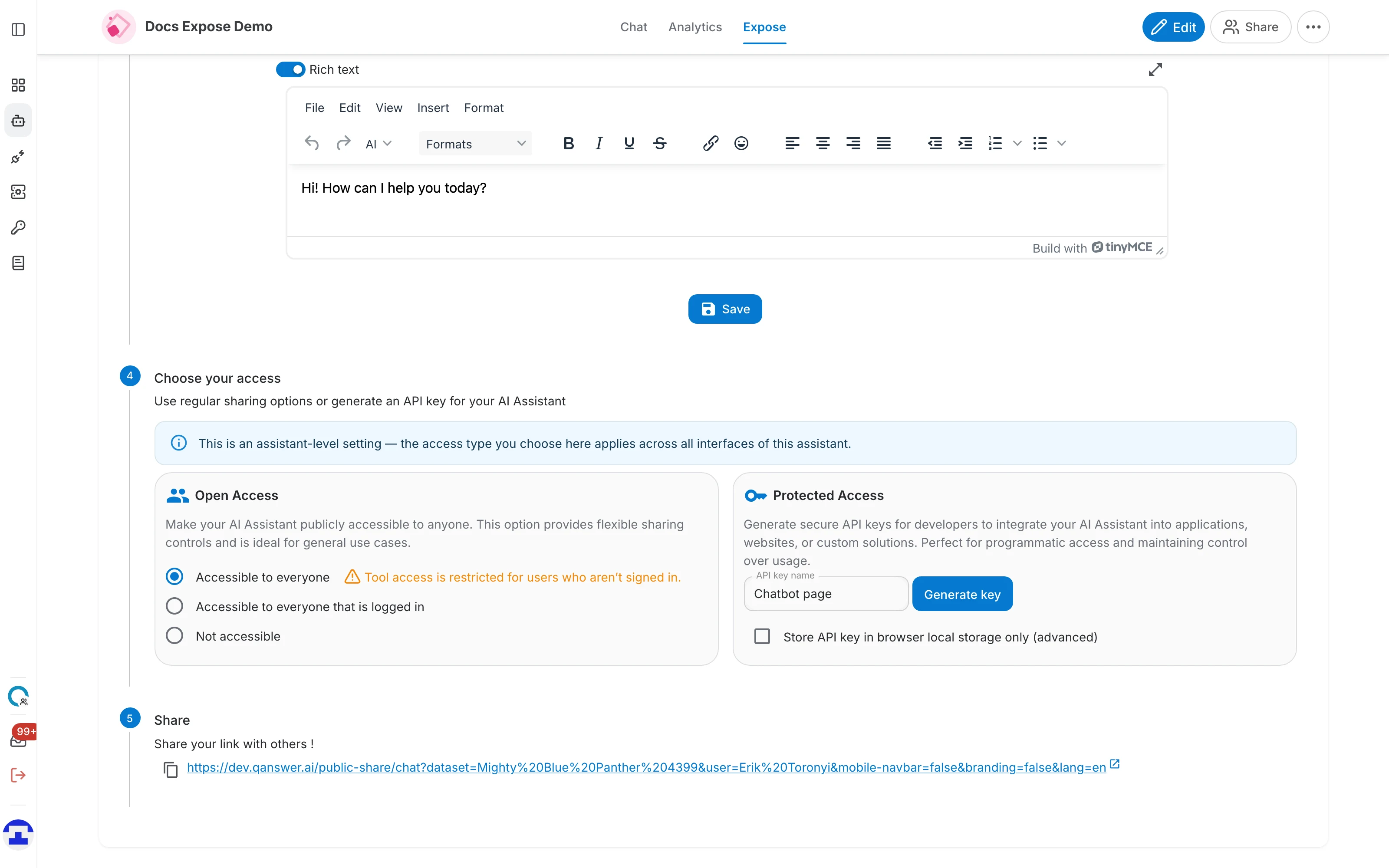
The link carries your choices from the earlier steps as parameters — the language, and whether the navbar and branding are hidden. Changing a step regenerates it, so copy the link again after you adjust anything.
What visitors see
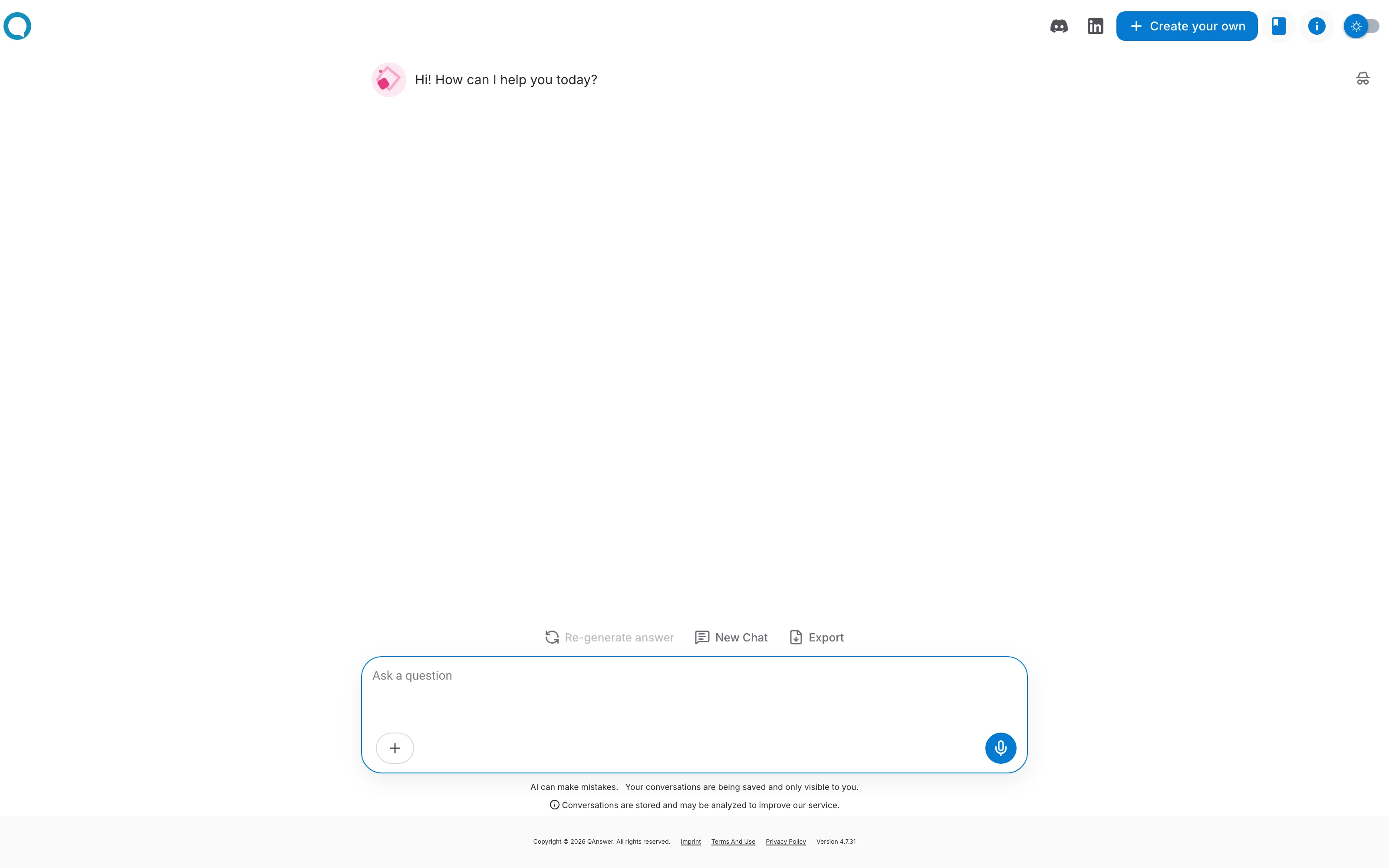
Opening the link gives a chat page named after your assistant, opening with the initial message you configured: