LLM Chat
Chatbot
Click General Chat in the left navigation bar to open the chatbot.
The chatbot is a Large Language Model (LLM) interface. When using QAnswer's own LLM, all queries are handled securely and your data remains private.
- By default, the chatbot has no access to documents from your AI Assistants.
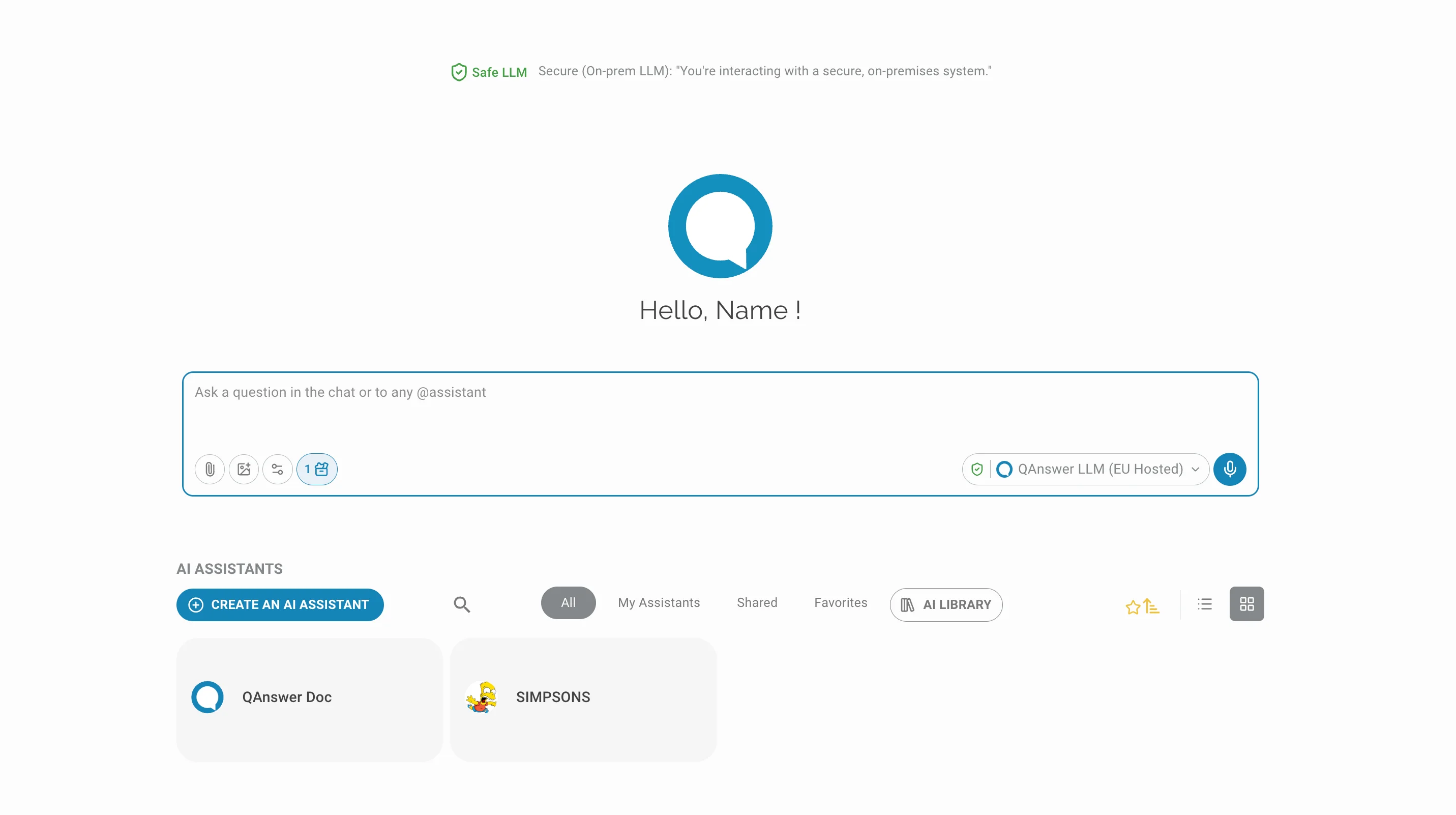
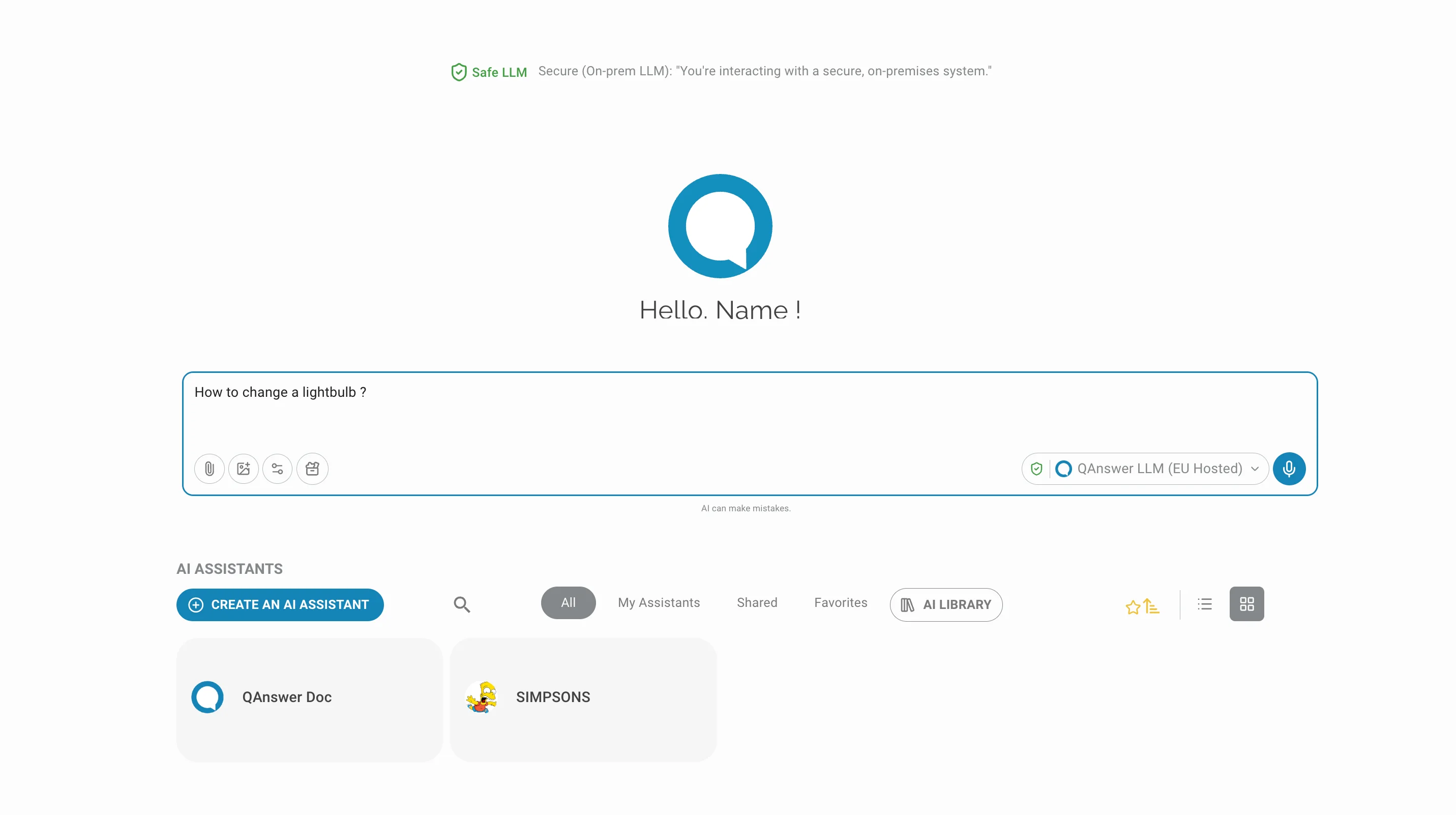
- A new conversation opens on a greeting screen: the model banner on top, the chat bar in the middle, and your AI Assistants listed underneath.
- Once a conversation has started, use New Chat under the last answer to start a fresh conversation.
The chat bar
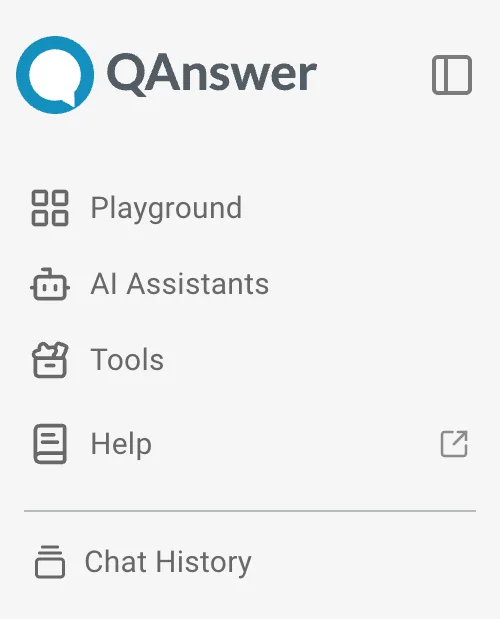
Everything you need to compose a message sits in the chat bar:
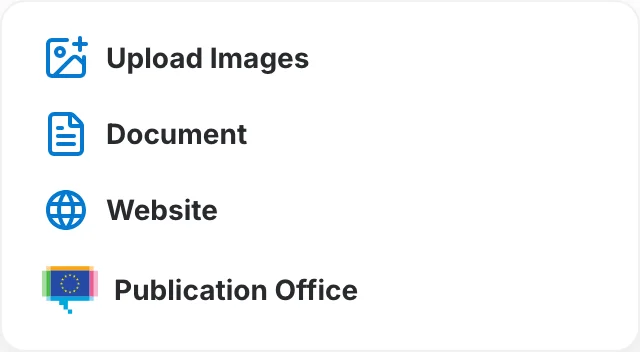
- Add Files — attach data to the conversation. The menu lists Upload Images (only when the selected model accepts images) and one entry per connector configured for your organisation, such as Document and Website.
- Actions — choose which tools this conversation may call. Web access and Image Generation are QAnswer core capabilities; the other entries come from your MCP servers.
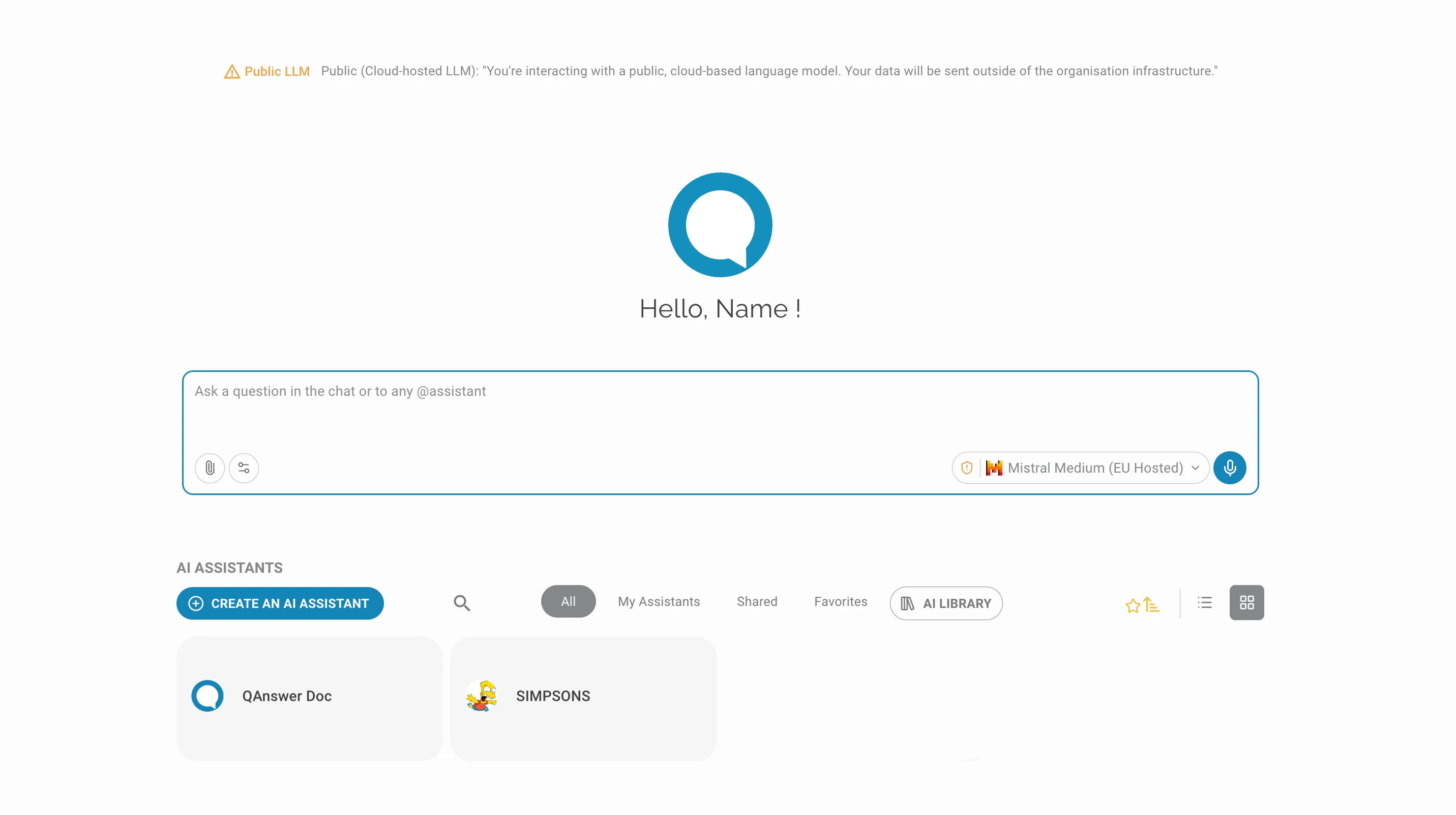
- Model selector — shows the model answering the conversation, next to a shield for where it is hosted. Click it to pick another model.
- Voice input — dictate your question instead of typing it.
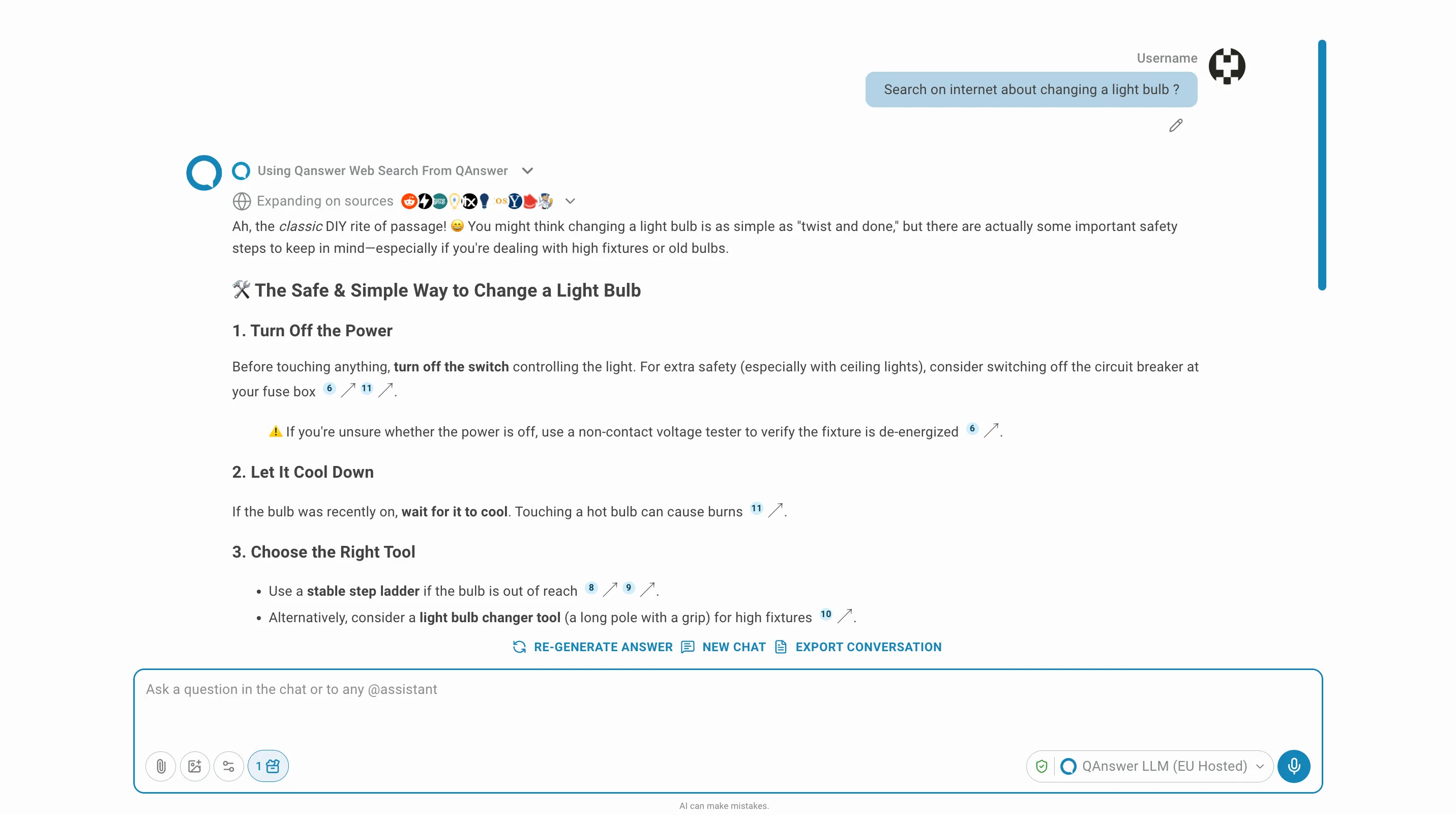
The number on the Actions button is how many actions are currently enabled for this conversation. See Use MCP Tools in Chat for the full workflow, including approving tool runs.
Web search is the Web action: enable it in the Actions list, then ask your question normally. See Web Search for the available providers and what each web tool does.
Secure and public models
- A banner above the chat tells you what kind of model you are talking to. With an on-premise model it reads "Safe LLM — You're interacting with a secure, on-premises system.".
- With a public model the banner turns orange: "Public LLM — You're interacting with a public, cloud-based language model. Your data will be sent outside of the organisation infrastructure.".
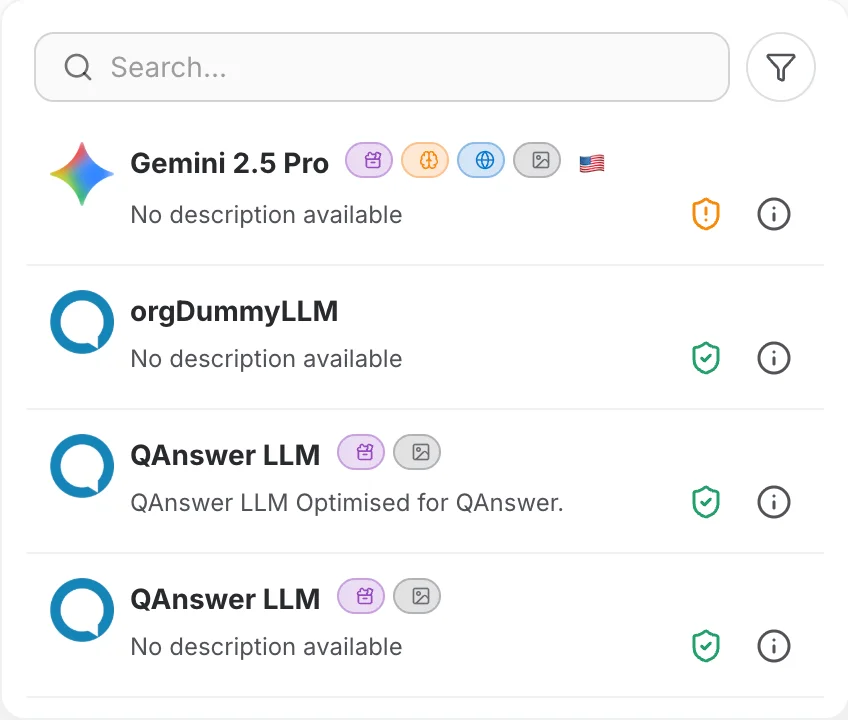
- The shield next to the model name repeats that information: a green shield marks an on-premise (secure) model, an orange shielda public one.
- Click the model name in the chat bar to open the model picker. You can search and filter the list, and open the info icon on any row for that model's details.
- The badges next to a model name are its capabilities:tool calling,reasoning,web search,image input. Public models also carry the flag of the region that hosts them.
Incognito mode
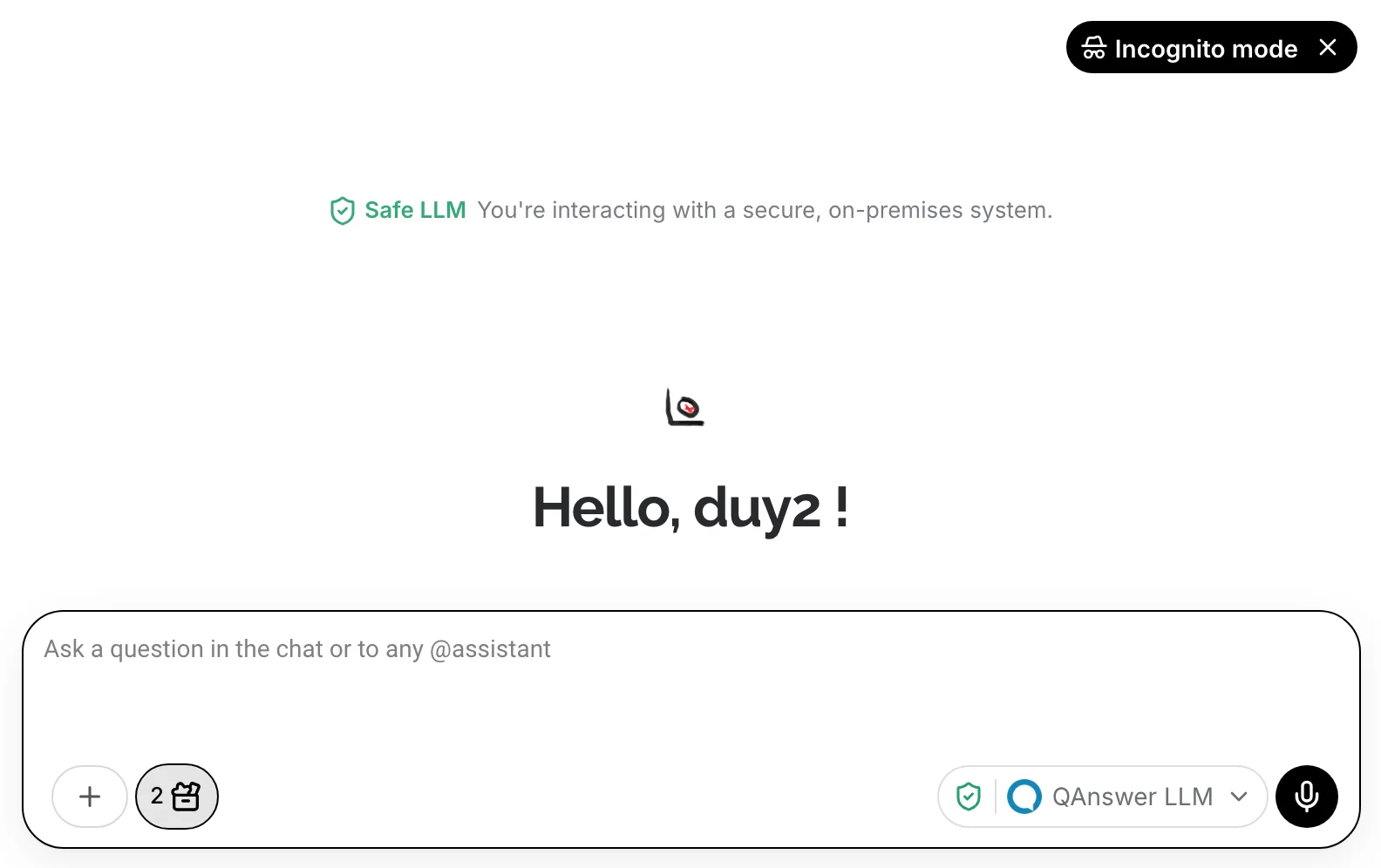
Incognito mode is the control in the top-right corner of the chat page. It keeps the conversation out of your history.
- While it is on, the control becomes a black "Incognito mode" pill and the chat bar switches to its incognito styling. Close the pill to turn it off again.
- It can only be switched before the first message is sent; once the conversation has started, the control disappears.
Ask a question
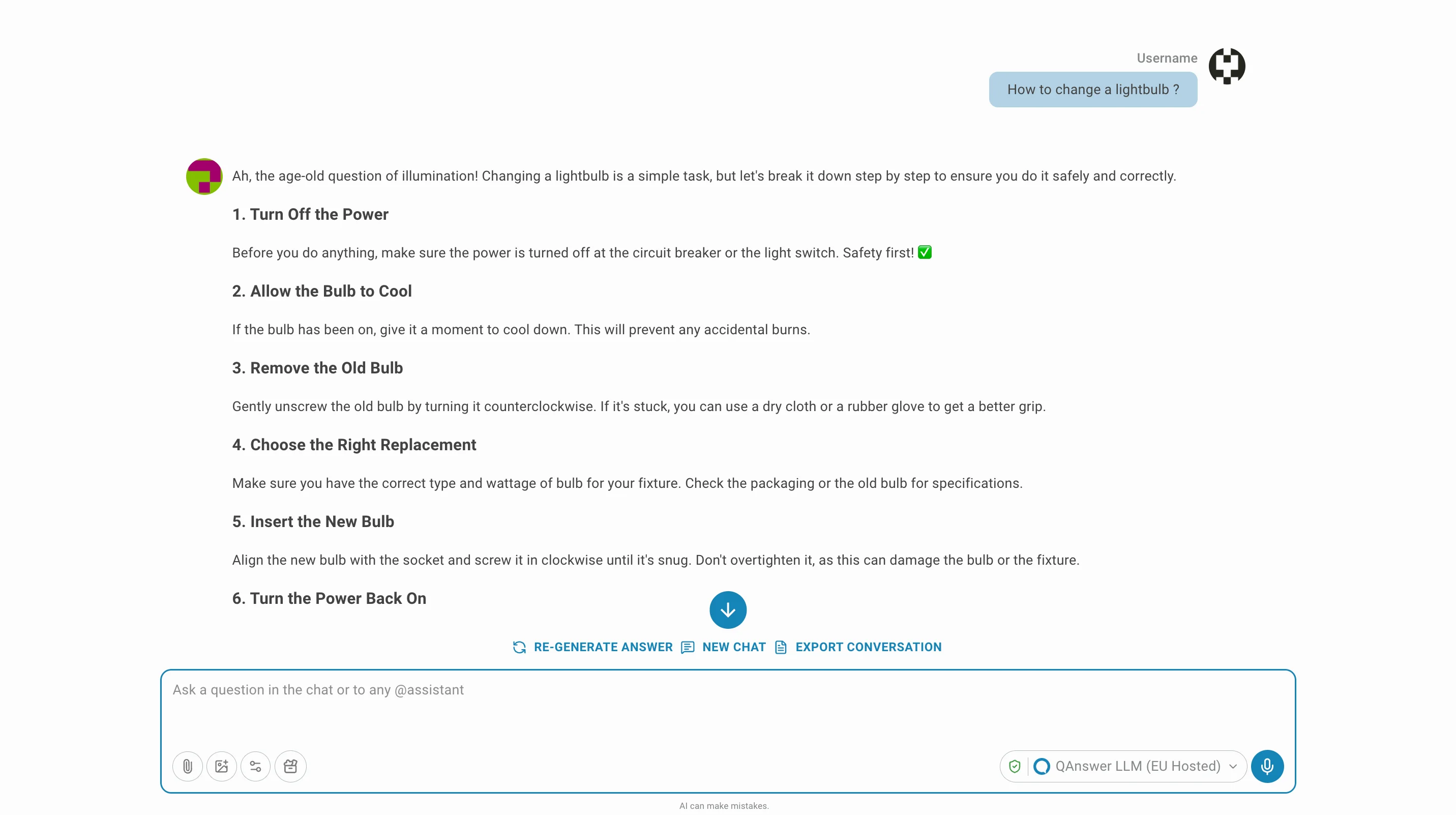
Ask questions on any topic: type your question in the chat bar and press Enter.
Answer actions
A row of actions sits under each answer:
- Copy the answer to the clipboard.
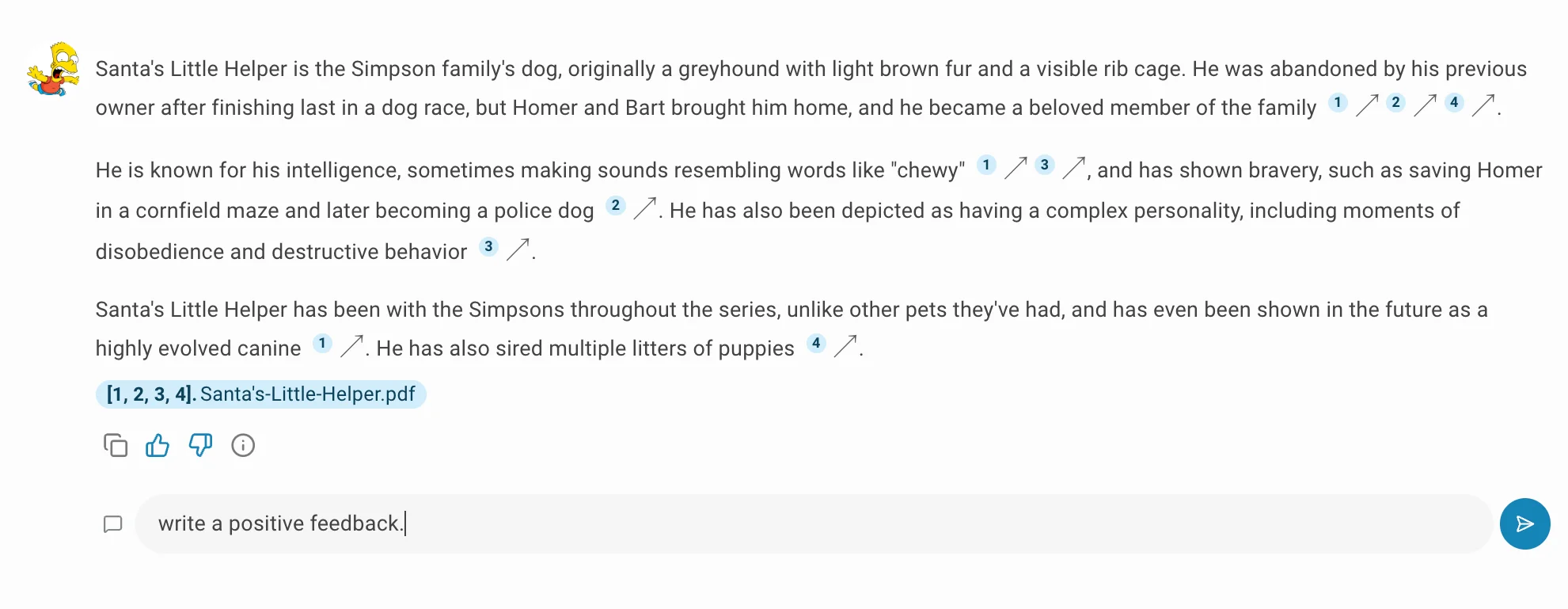
- Rate the answer with thumbs up or thumbs down.
- Open the details icon to see how the answer was produced.
Conversation actions
Just above the chat bar, a second row acts on the whole conversation:
- Stop answering — interrupts the model while it is still writing.
- Re-generate answer — asks the model the last question again.
- New Chat — starts a fresh conversation.
- Export — downloads the conversation as HTML or PDF.
Attach files
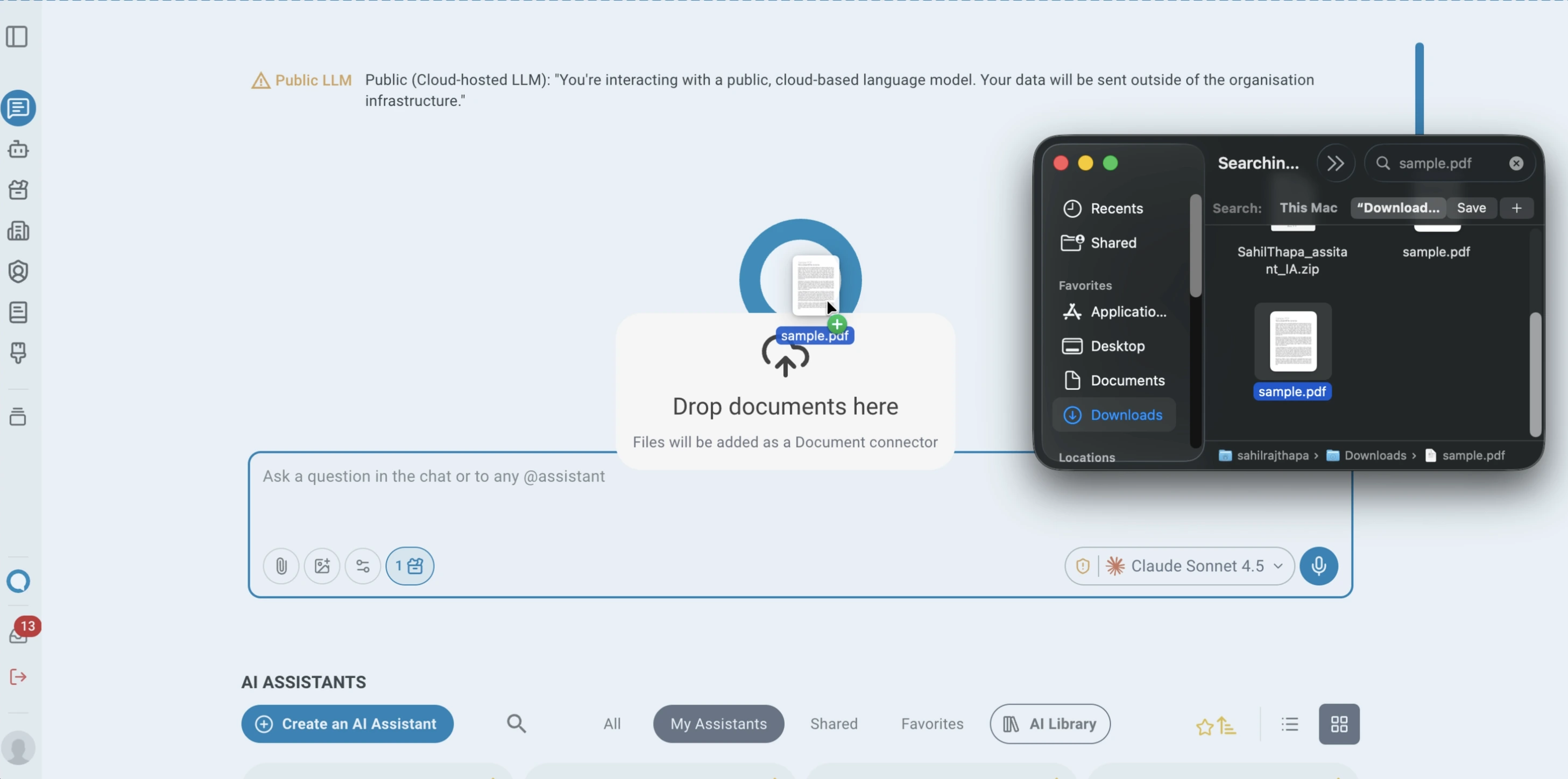
Besides the Add Files menu, you can drag files from your desktop and drop them anywhere on the chat page.
- Images are attached to the message you are writing. They are only accepted when the selected model supports image input — the same condition applies to pasting an image with Ctrl+V (Windows/Linux) or ⌘V (macOS).
- Documents are uploaded straight away and shown as a card above the chat bar; the message can be sent once indexing has finished.
- Audio and video files open the file upload modal instead, where you choose a connector and set the transcription options.
Conversation history
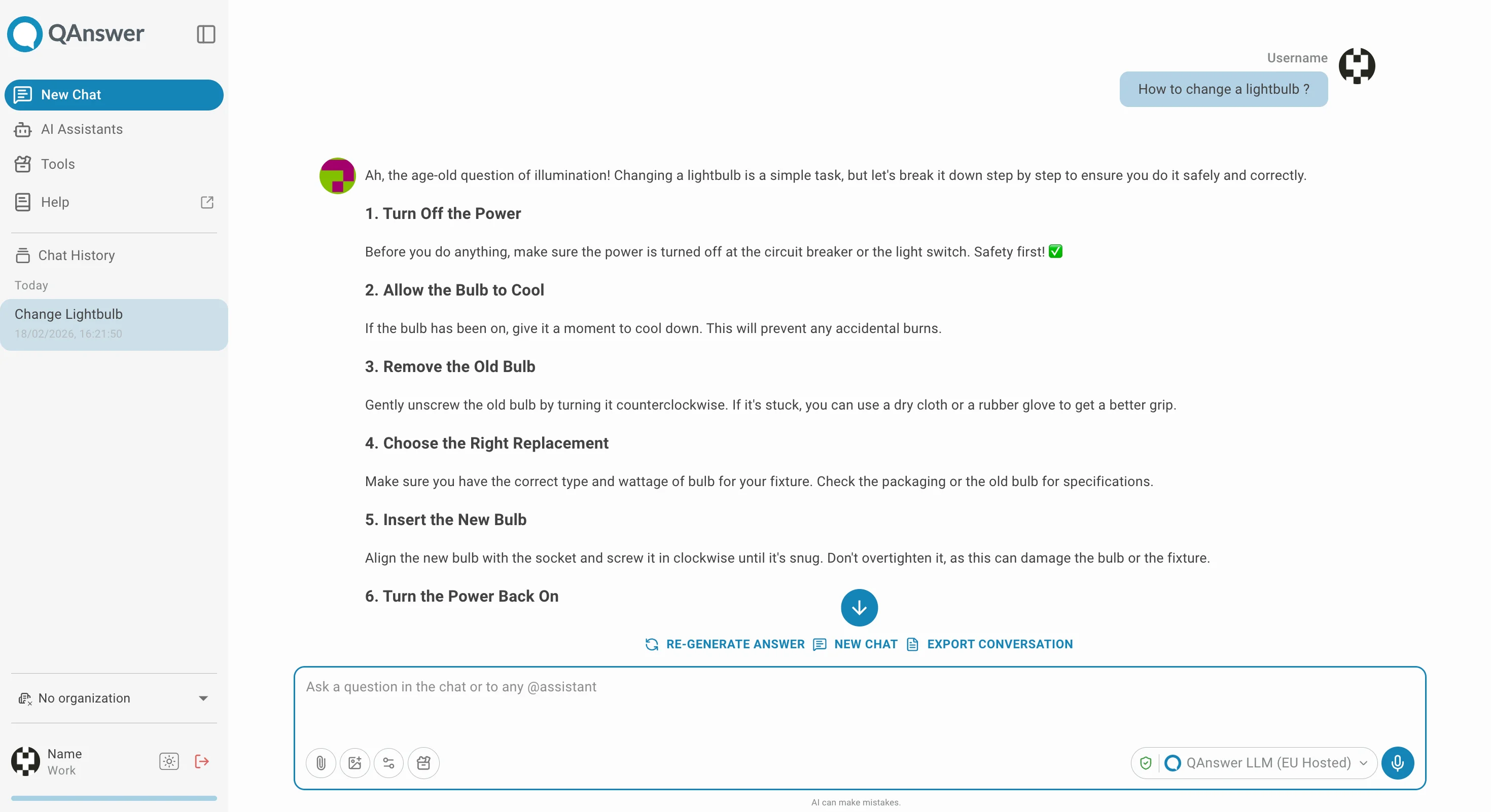
The left panel lists your previous conversations, grouped by date and labelled with the time they started. Pinned conversations stay at the top of the list.
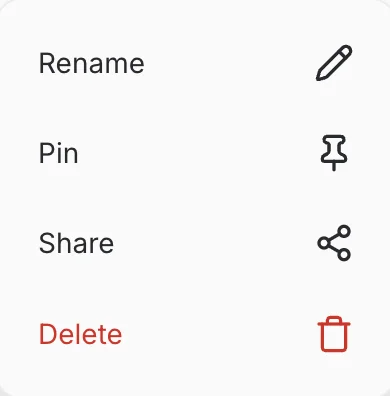
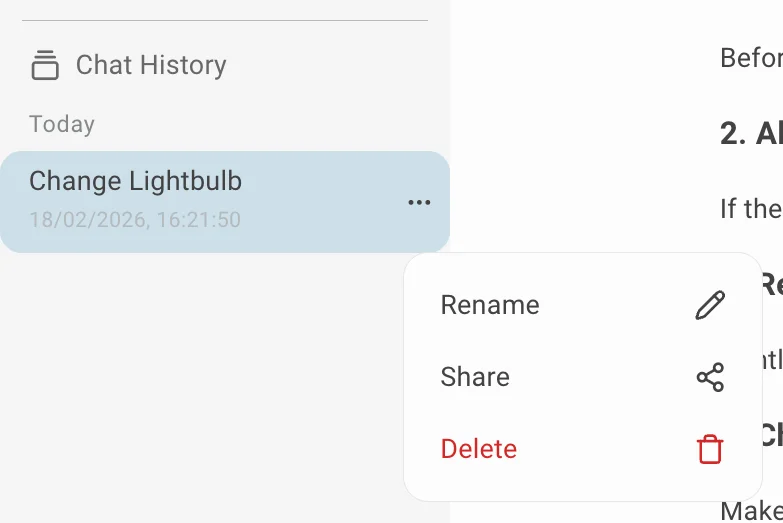
Access conversation actions via next to the conversation title:
- Rename — click .
- Pin — keep the conversation at the top of the list.
- Share — click .
- Delete — click .
AI Assistant
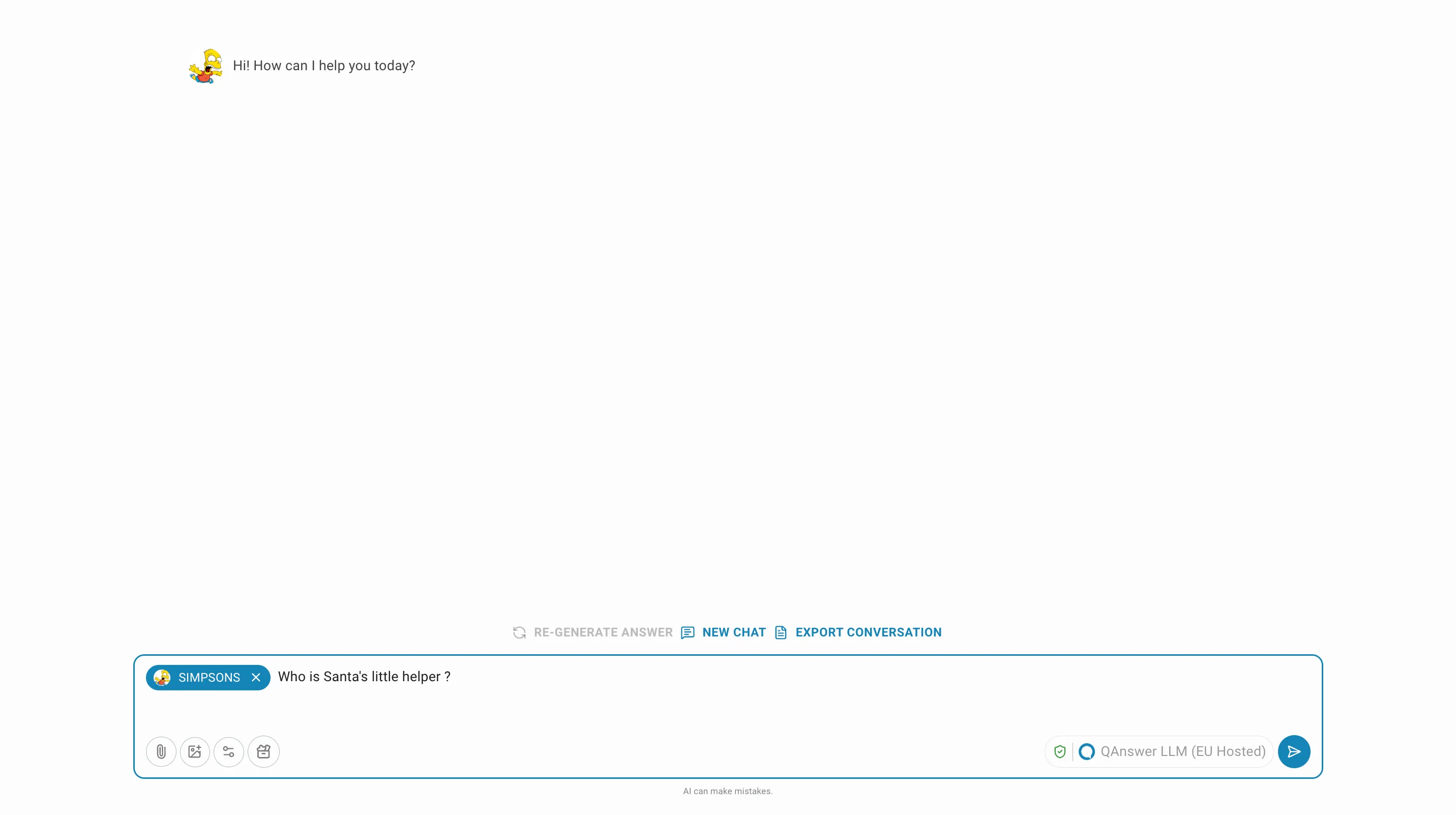
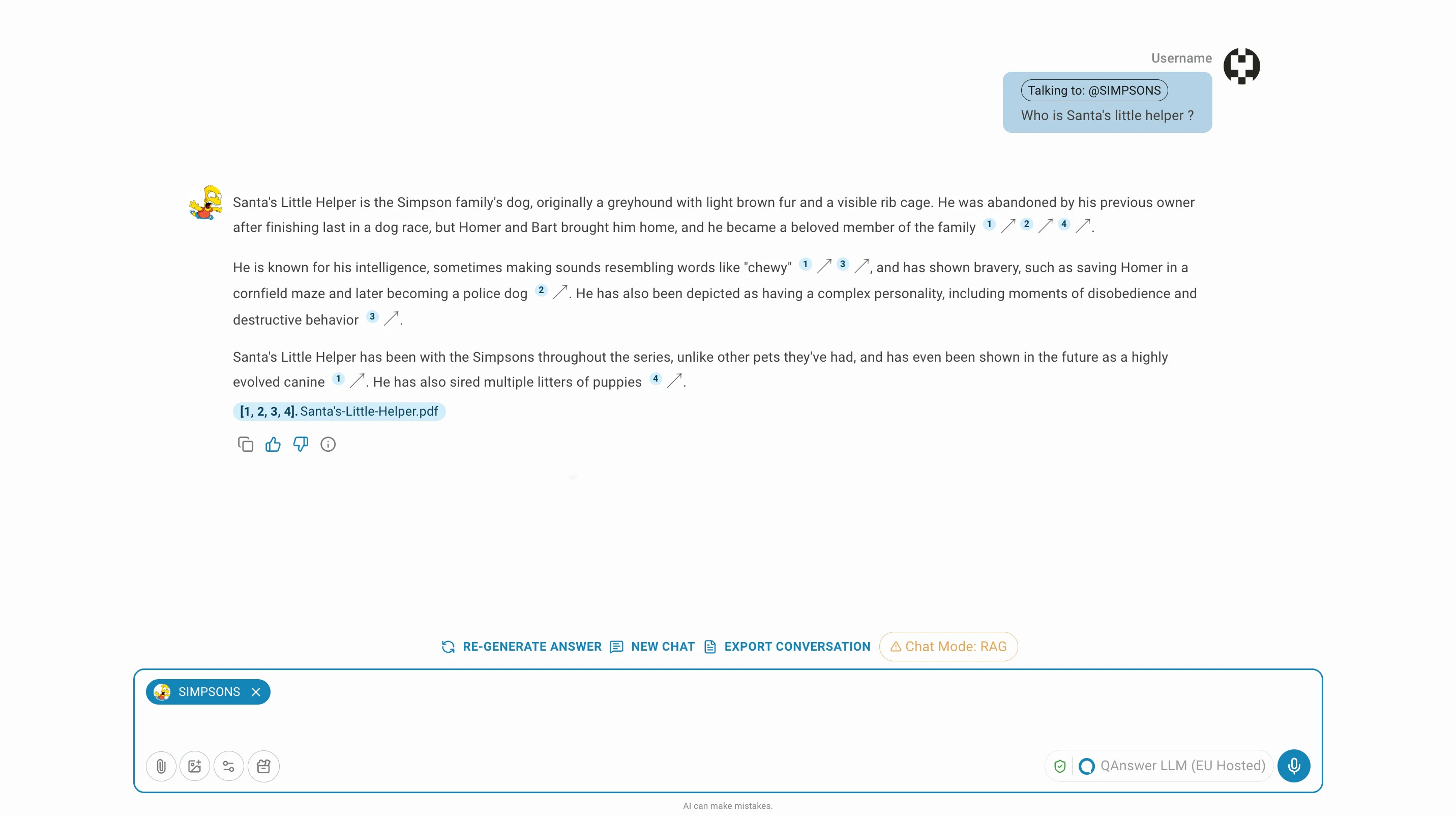
- Pick an AI Assistant from the list under the greeting to direct your question to it. Use the search box, the layout toggle, or the AI Assistant Library button to find one.
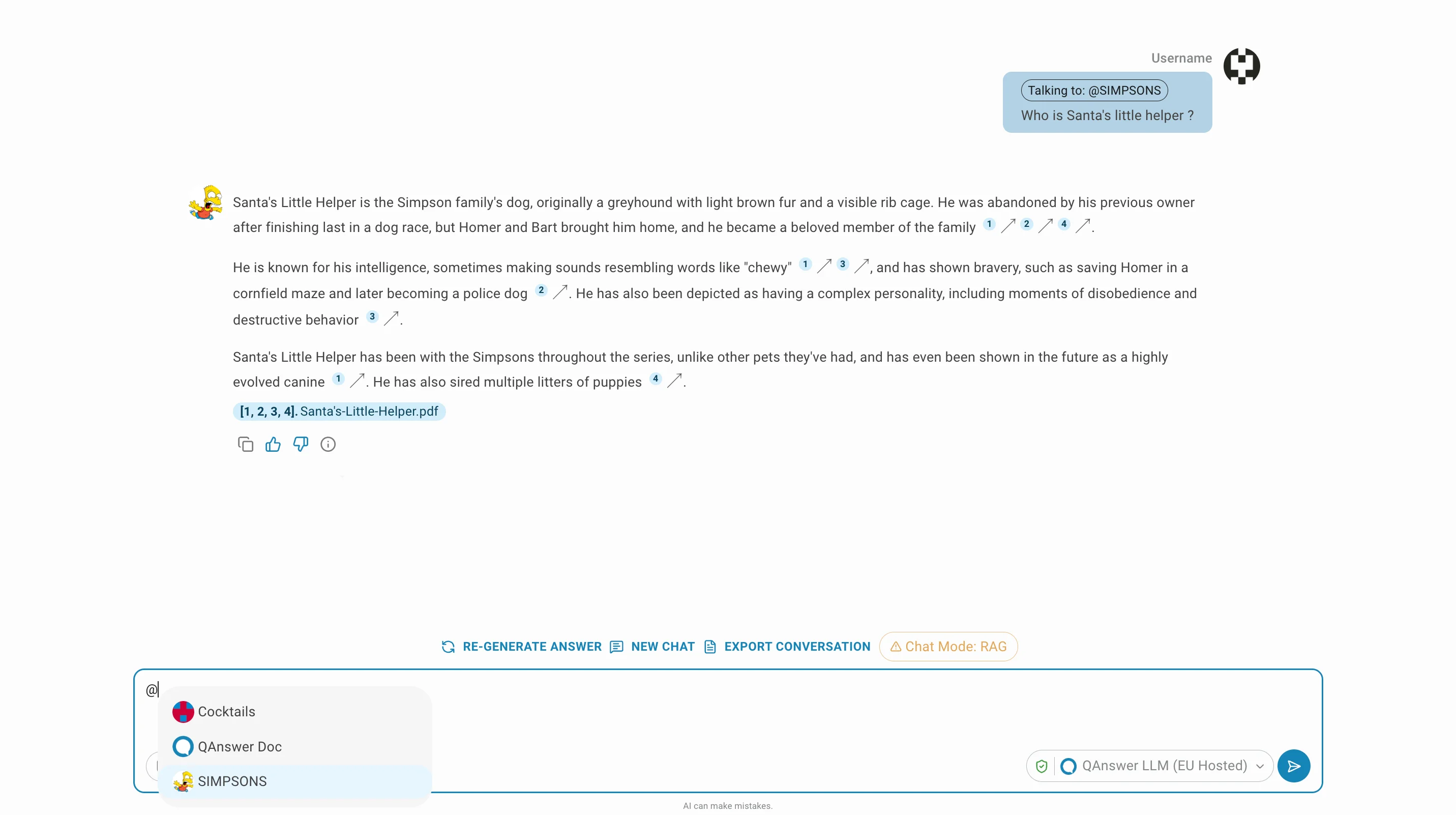
- Alternatively, type @ followed by the assistant's name directly in the chat bar.
- Remove the tag by clicking X next to the assistant name in the chat bar.
- Rate an AI Assistant response using or next to the response.
Share Conversation
Sharing
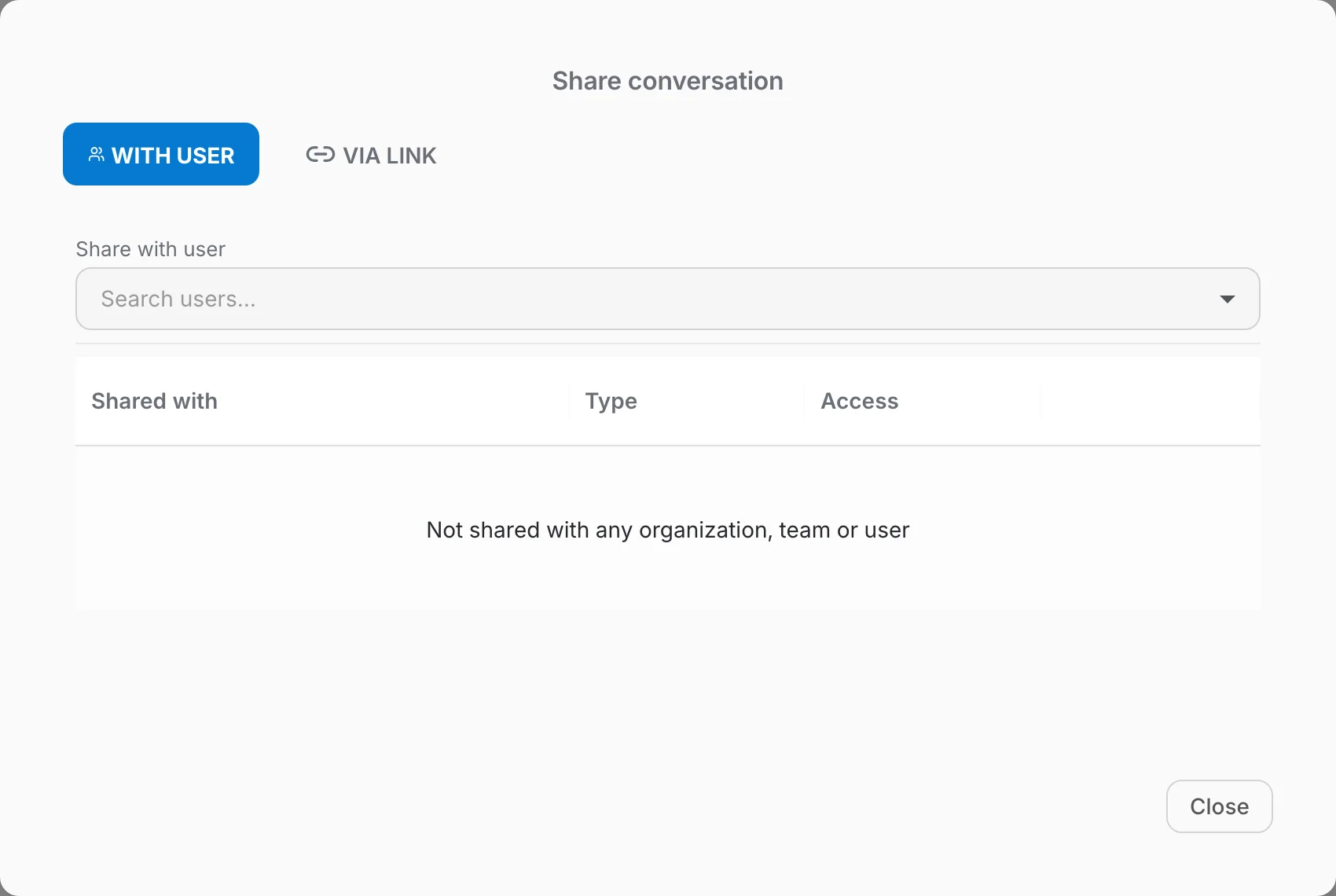
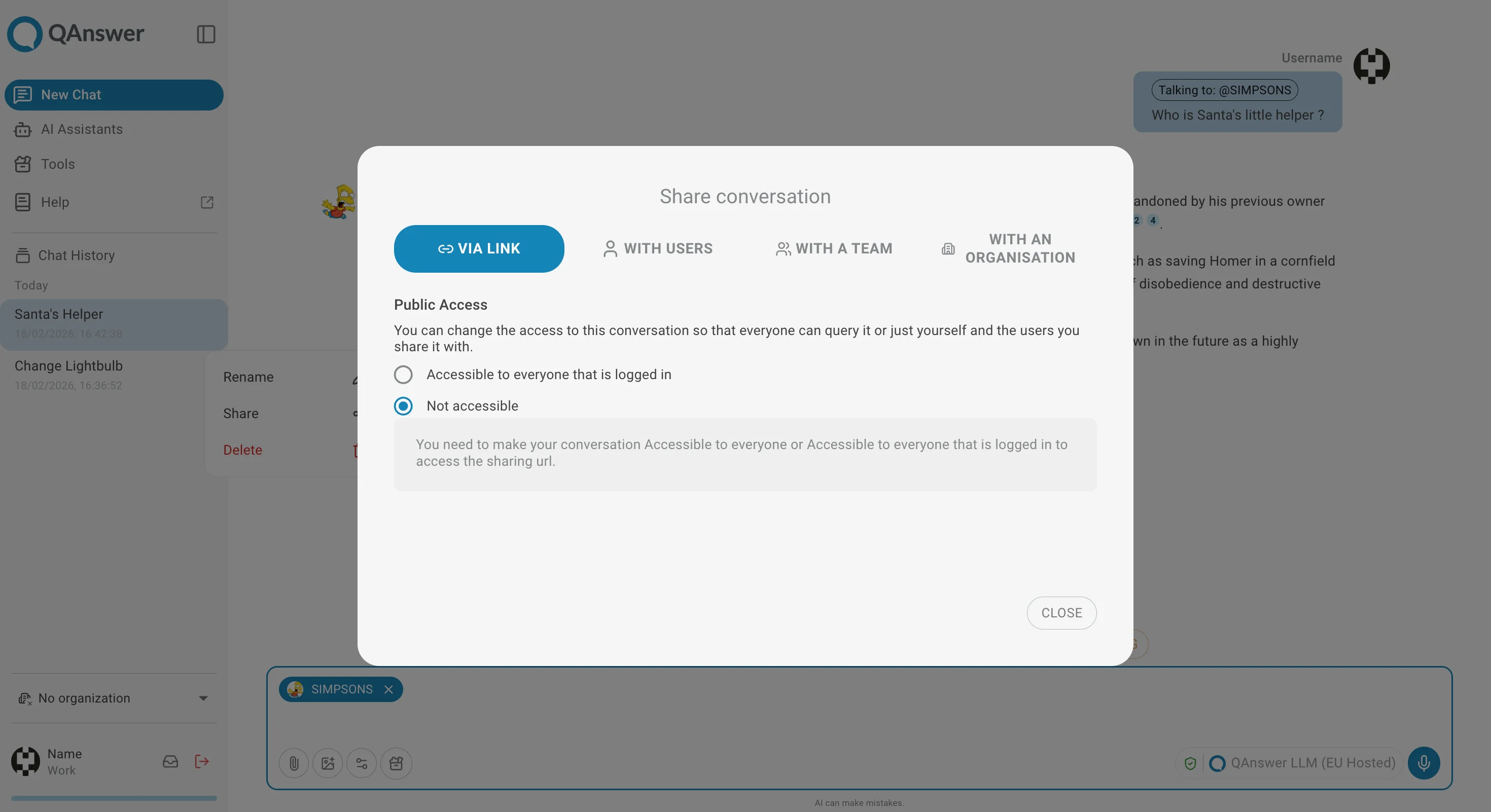
Click in the actions menu next to the conversation title. The Share conversation dialog has two tabs.
With user
- Search for a user by name under Share with user; picking one shares the conversation straight away.
- The table underneath lists who the conversation is shared with, the type of each target, and its access level.
- Access is either Read only or Read and write. Change it from the dropdown on the row.
- Revoke access by clicking .
Via link
- Public Access controls who can open the conversation's URL: Accessible to everyone that is logged in, or Not accessible.
- The sharing URL only works while the conversation is accessible.
Receiving
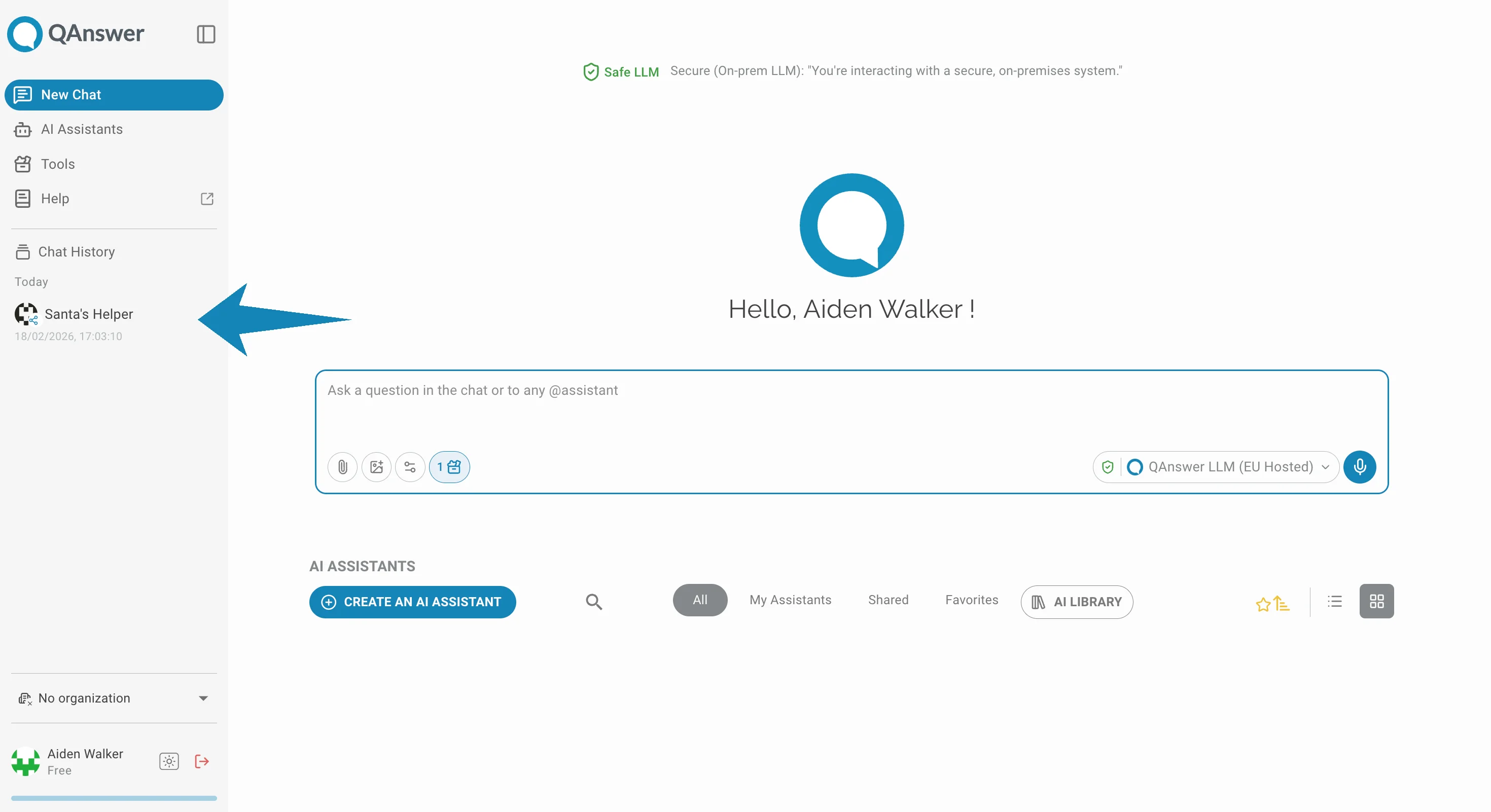
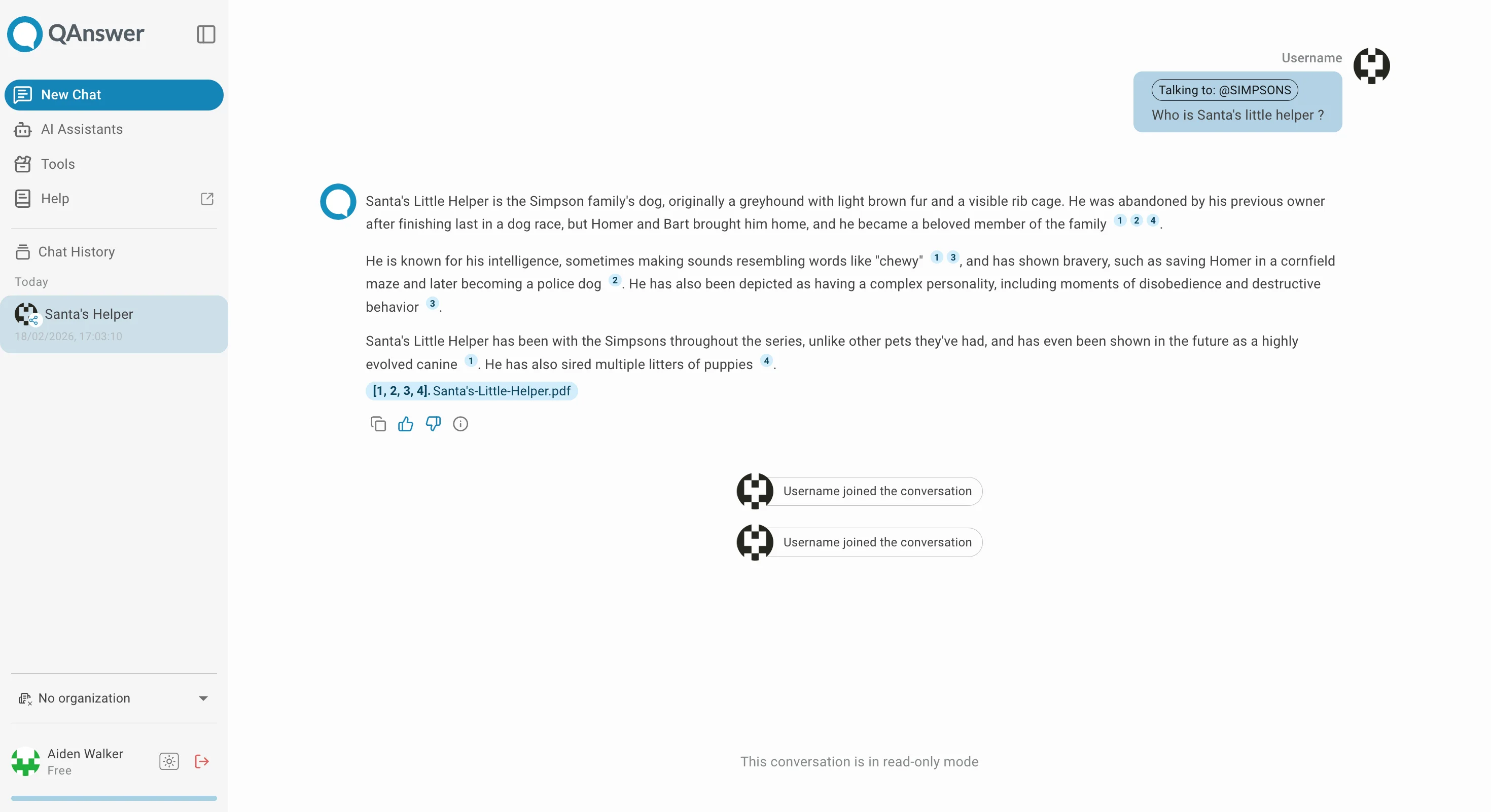
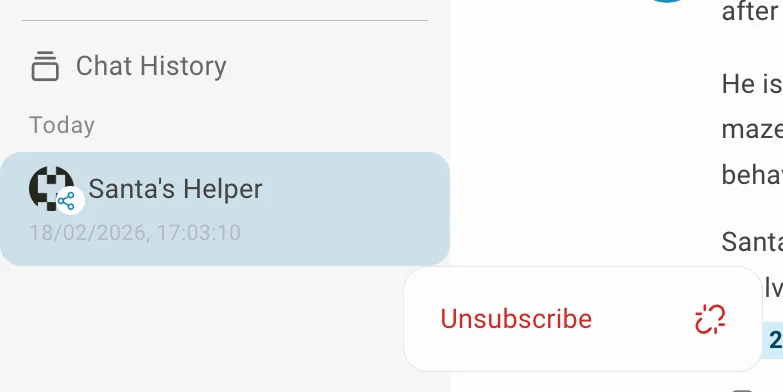
- A conversation shared with you appears in your Chat History with the owner's avatar and a share badge.
- Read only — you can view the conversation but cannot send messages.
- Read and write — you can send messages and add data sources.
- To unsubscribe from a shared conversation, open its actions menu, click and confirm.
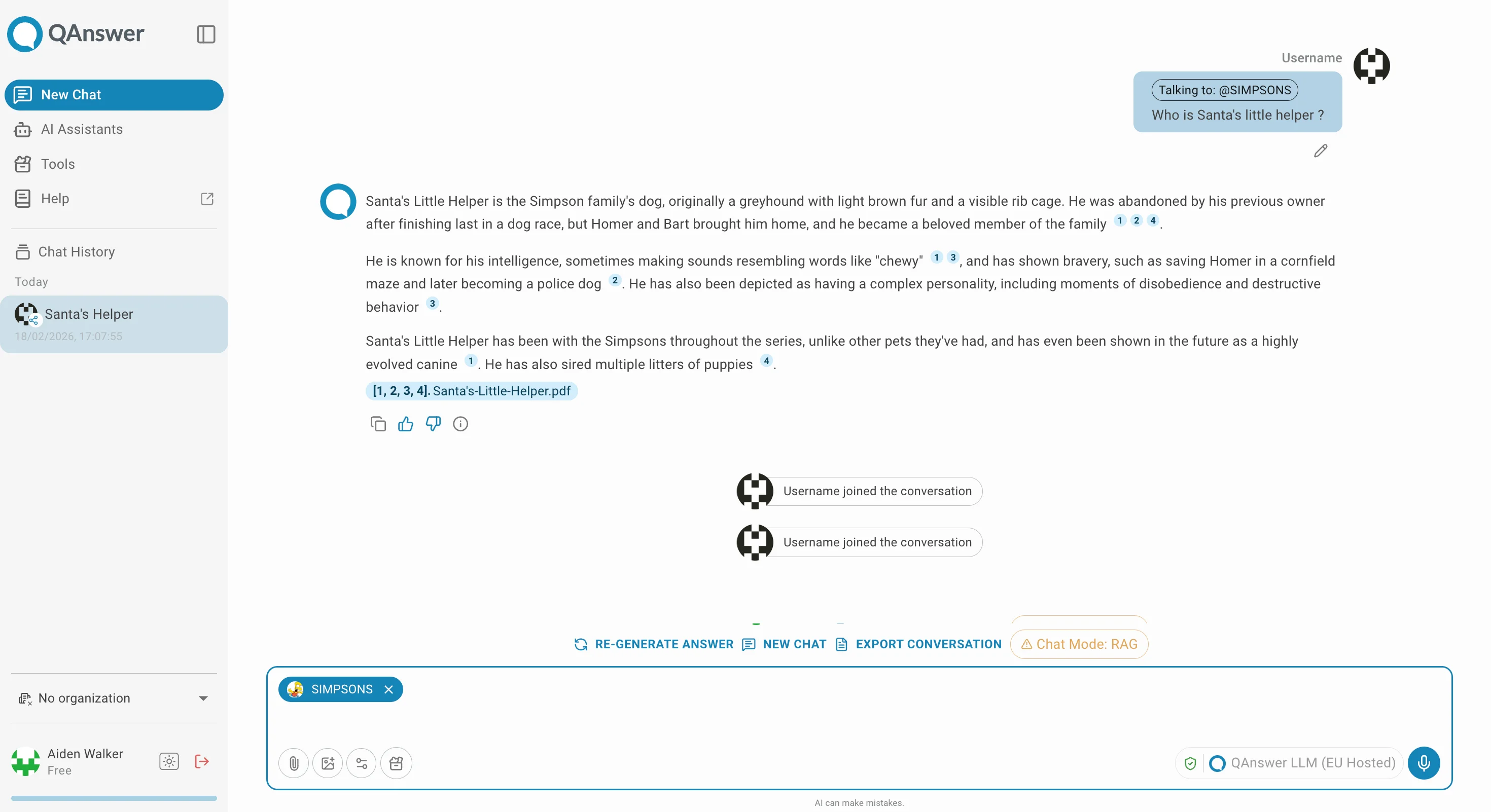
RAG Mode
When a document exceeds the LLM's context window, the chatbot switches to RAG (Retrieval-Augmented Generation) mode, retrieving only the most relevant excerpts to answer your question.