SharePoint
Info
Before following this section, add data to your AI Assistant as described in the Data Sources Section and test it in the AI Task Section.
Follow these steps to embed your AI Assistant as a chatbot widget in SharePoint.
Customize
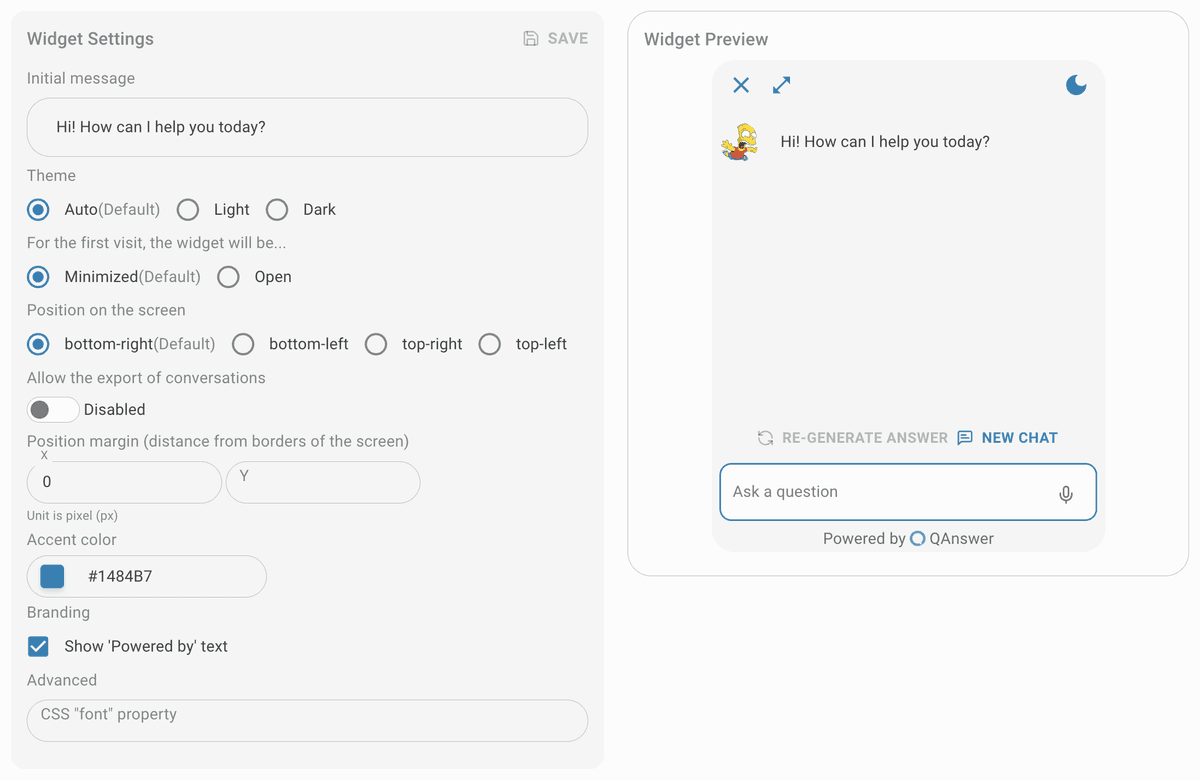
Customize the widget and save it.
Make public
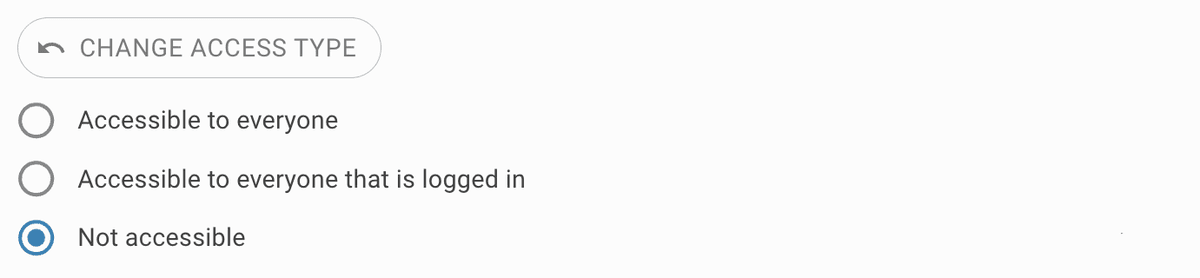
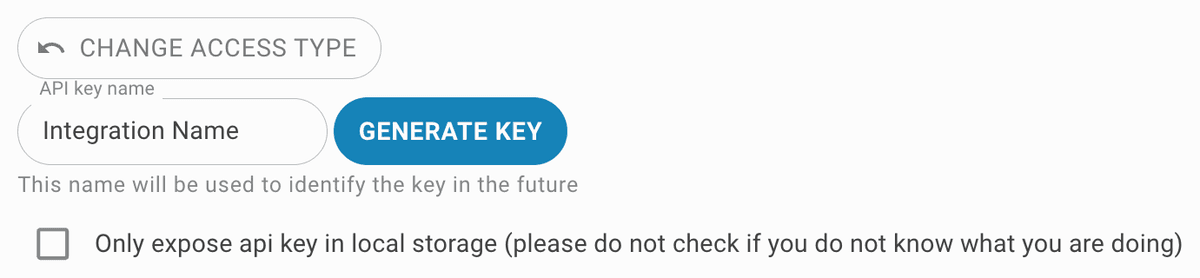
Set the access type to public. To restrict access, generate an API key for the widget integration.

Access SharePoint Site Settings
- Navigate to your SharePoint site.
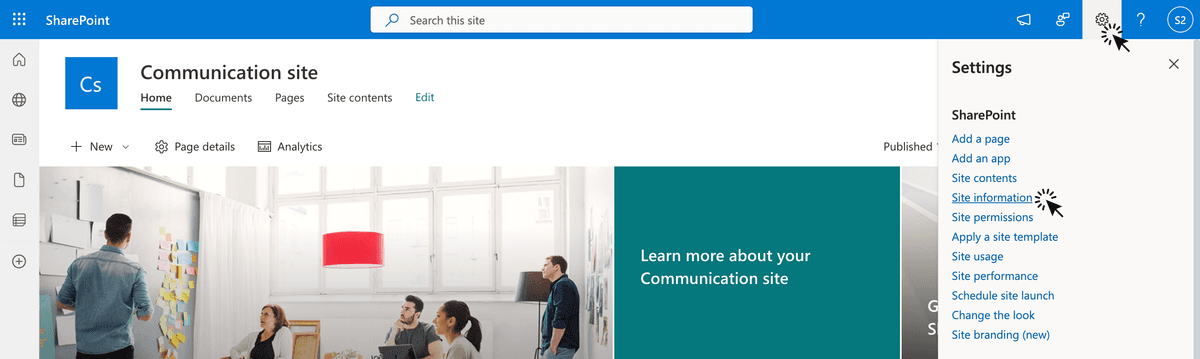
- Click on the gear icon in the top right corner of the page.
- Select 'Site Information' from the dropdown menu.
Access Advanced Site Settings
On the Site Information panel, click on 'View all site settings'.
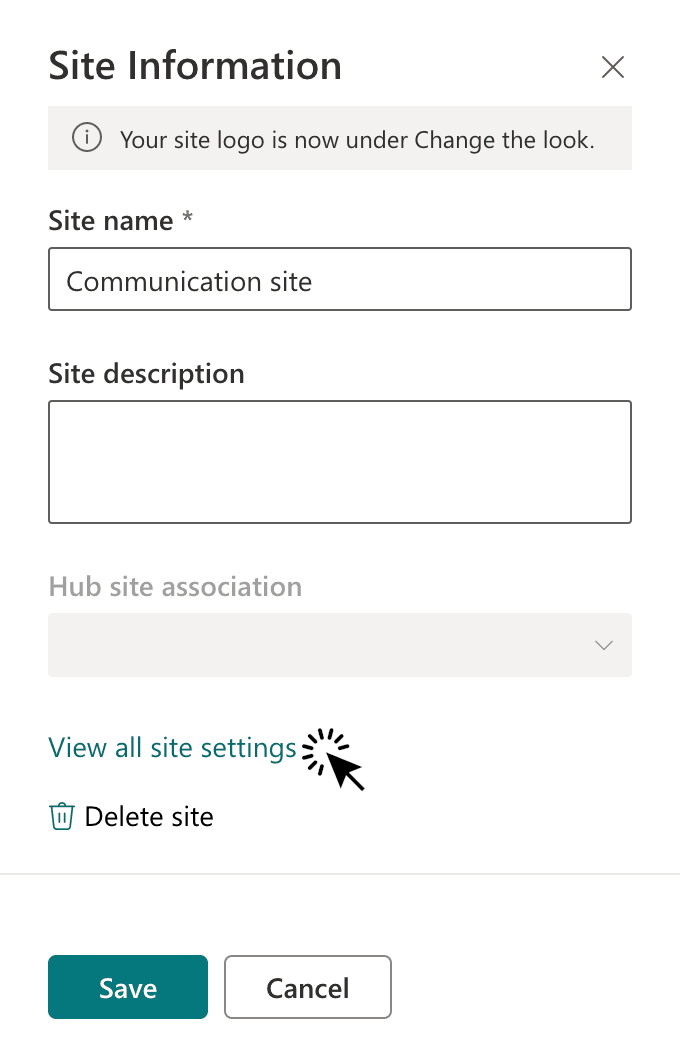
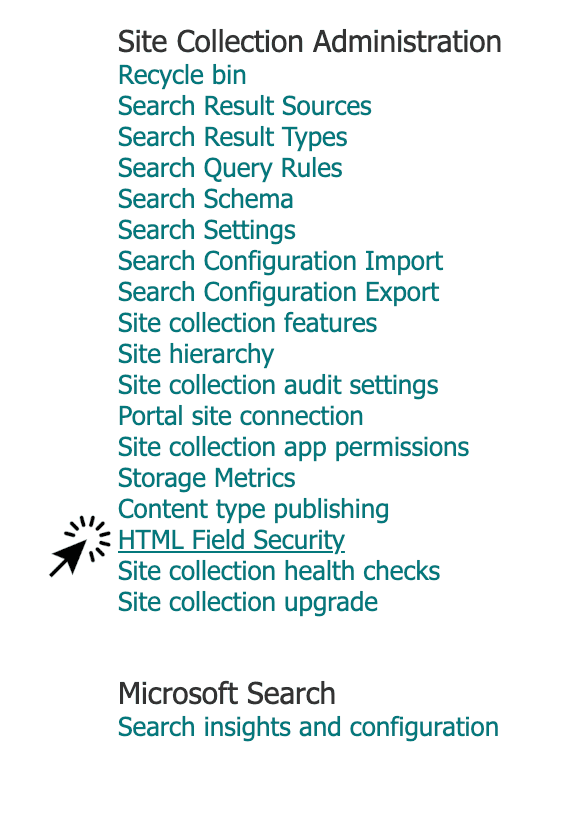
On the Site Settings page
- Under Site Collection Administration, select 'HTML Field Security'.
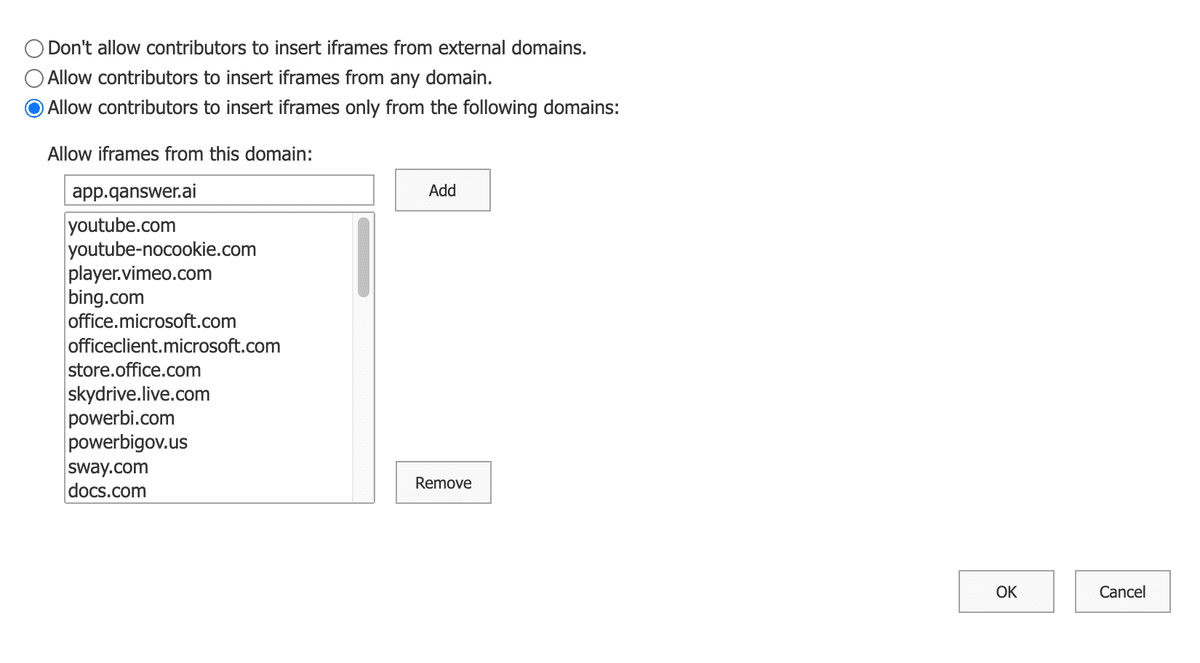
- Add your domain to the list of allowed websites.
- Use the "Allow contributors to insert iframes only from the following domains" setting to permit iframe content from your domain across the site collection.
Embed the iframe in Your SharePoint Site
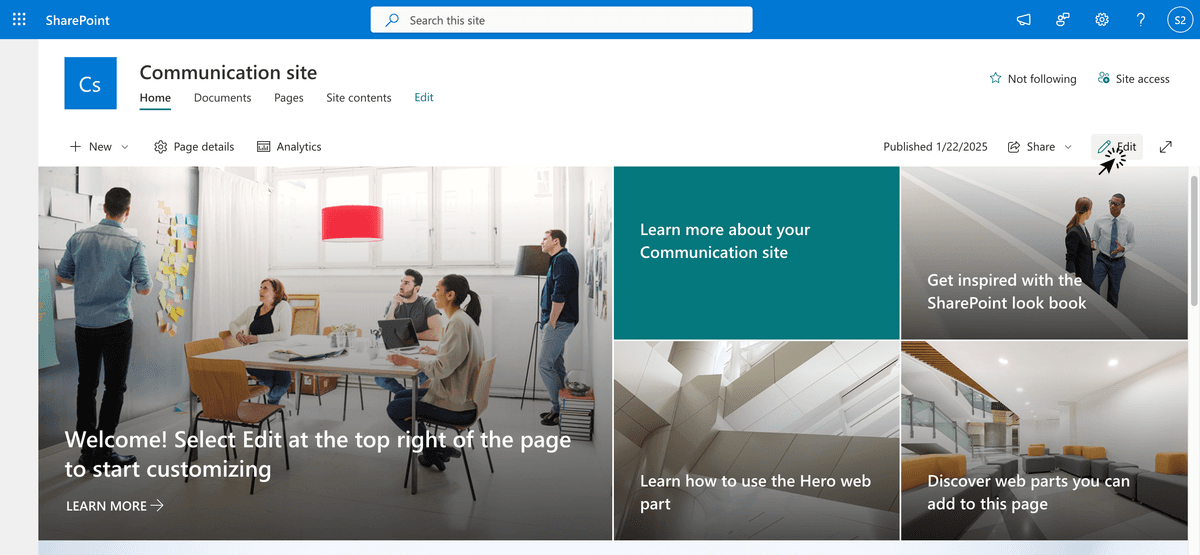
- Click on 'Edit' to open the page in edit mode.
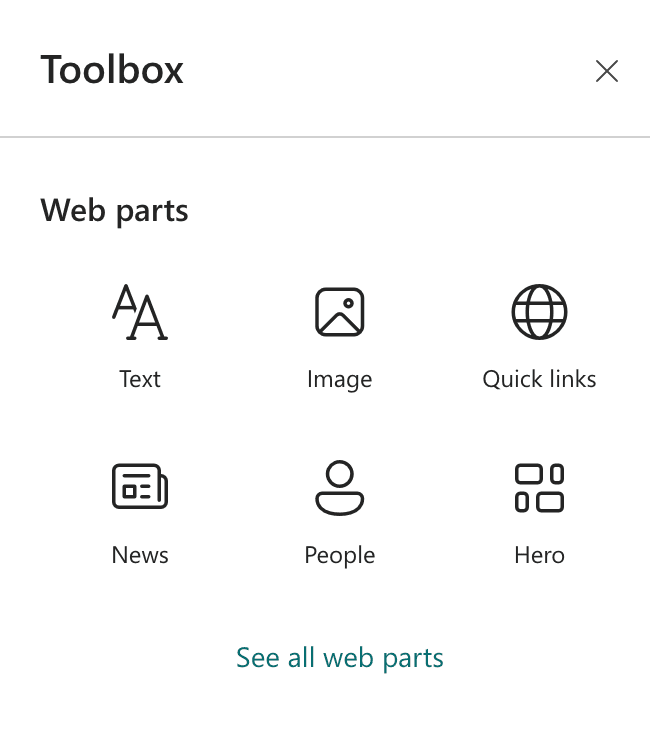
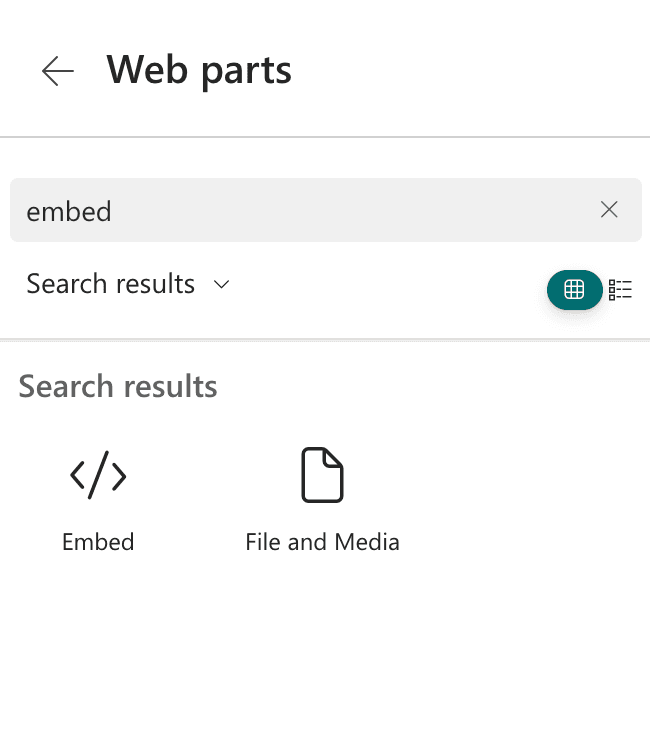
- Click on 'Seen all web parts' then search for Embed.
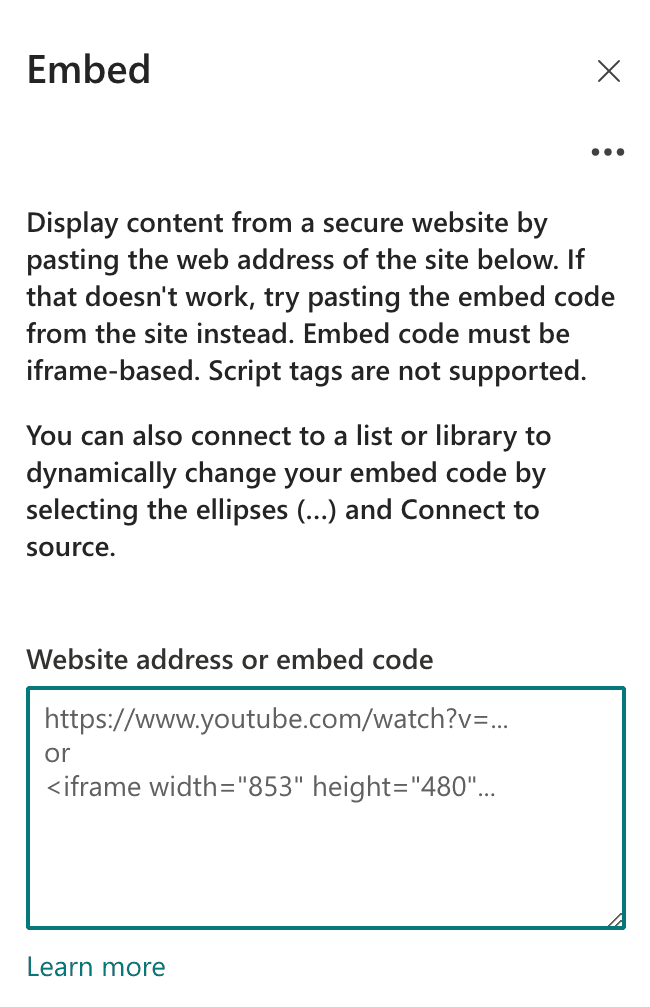
- Finally select 'Embed' and copy/paste the Iframe Export Script provided on QAnswer app.
- Adjust the iframe's height and width attributes as needed.
- Don't forget to click on 'Republish' to validate the changes.