
Joomla
Video Tutorial
Joomla
Watch on Tutorials page →
Info
Before following this section, add data to your AI Assistant as described in the Data Sources Section and test it in the AI Task Section.
Follow these steps to embed a chatbot for your AI Assistant in your Joomla website.
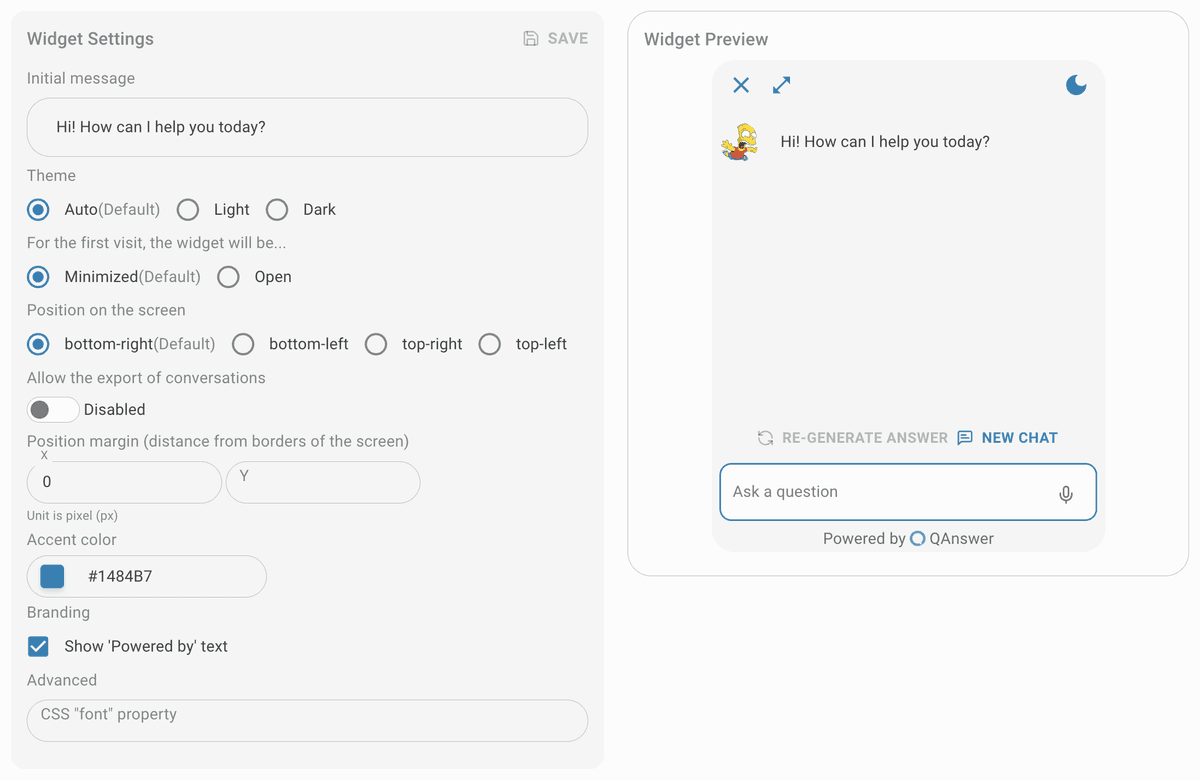
Customize
Customize the widget and save it.
Make public
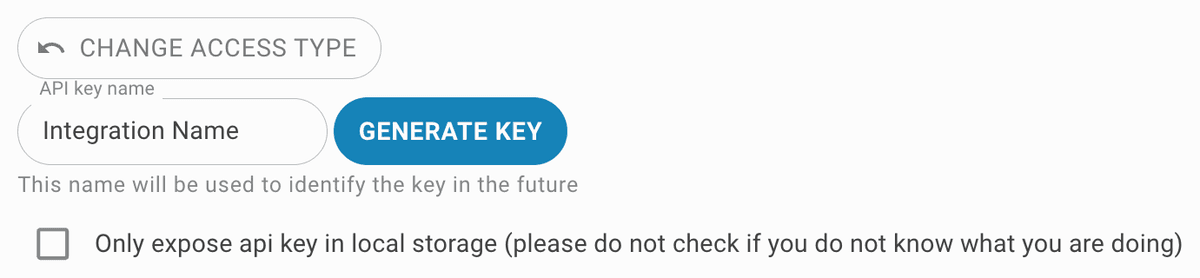
Set the access type to public. To restrict access, generate an API key for the widget integration.


Install Sourcerer
To embed the chatbot code in Joomla, install the Sourcerer plugin. Go to your Joomla Administrator page (usually at https://yoursite/administrator/index.php), navigate to System > Install > Extensions, search for "Sourcerer", and install it.
Add custom module
- In your Joomla Administrator menu bar, go to Content > Site Modules.
- Click on New and then select Custom from the list.
- Fill the Title field with something like "QAnswer chatbot".
- In the Module tab, in the editor, select Code mode.
- In the Code tab, paste the provided script (in QAnswer) and click Insert.
Module settings
- On the right, disable the Title visibility to "Hide".
- Select any Position other than ":: None ::".
- Click on Save & Close.
Check your website
Visit your website to verify the chatbot widget is working.