MCP
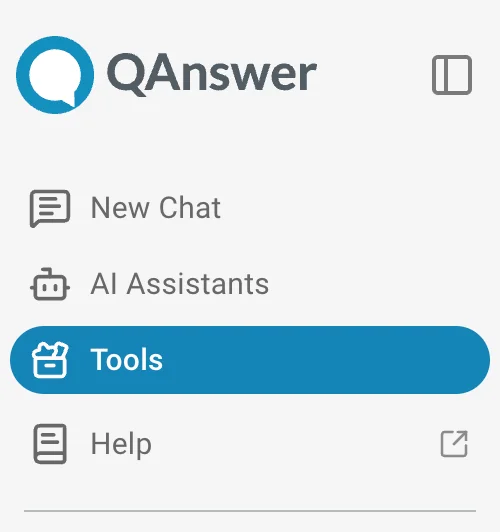
To access this section click on Tool on the left navigation bar.
What is MCP?
MCP (Model Context Protocol) extends QAnswer by connecting external tools and services. Connected tools allow the AI assistant to check calendars, access files, query databases, and more.
Accessing MCP Tools in the Playground
- Navigate to the Playground or AI Assistant Chat Task: Open the Playground or an AI Assistant chat task. A chat box is displayed.
- Open the Actions Menu: Click the Actions icon button in the chat box. A modal opens listing all available tools.
- Enable/Disable Tools:
- Toggle individual tools on or off as needed
- Multiple tools can be enabled simultaneously
- Set Confirmation Mode (Optional)
- Activate "Ask for confirmation" when enabling a tool
- Before execution, approve:
- The tool being called
- The parameters being used
- Modify parameters before accepting the request
Using MCP Tools in Chat
Basic Usage
With tools enabled, chat with the AI assistant naturally:
Example:
You: "What are the events in my calendar today?"
Two Scenarios:
Scenario 1: Connection Already Exists
- The LLM automatically calls the appropriate tool
- If confirmation mode is enabled, approve the action before it runs
- The response is returned immediately
Scenario 2: No Connection
- Add a connection when prompted
- Complete the connection setup process
- Return to the chat
- The tool is called automatically and returns an answer
Managing MCP Servers
Accessing the Tools Page
- Navigate to the Tools tab in the navigation bar
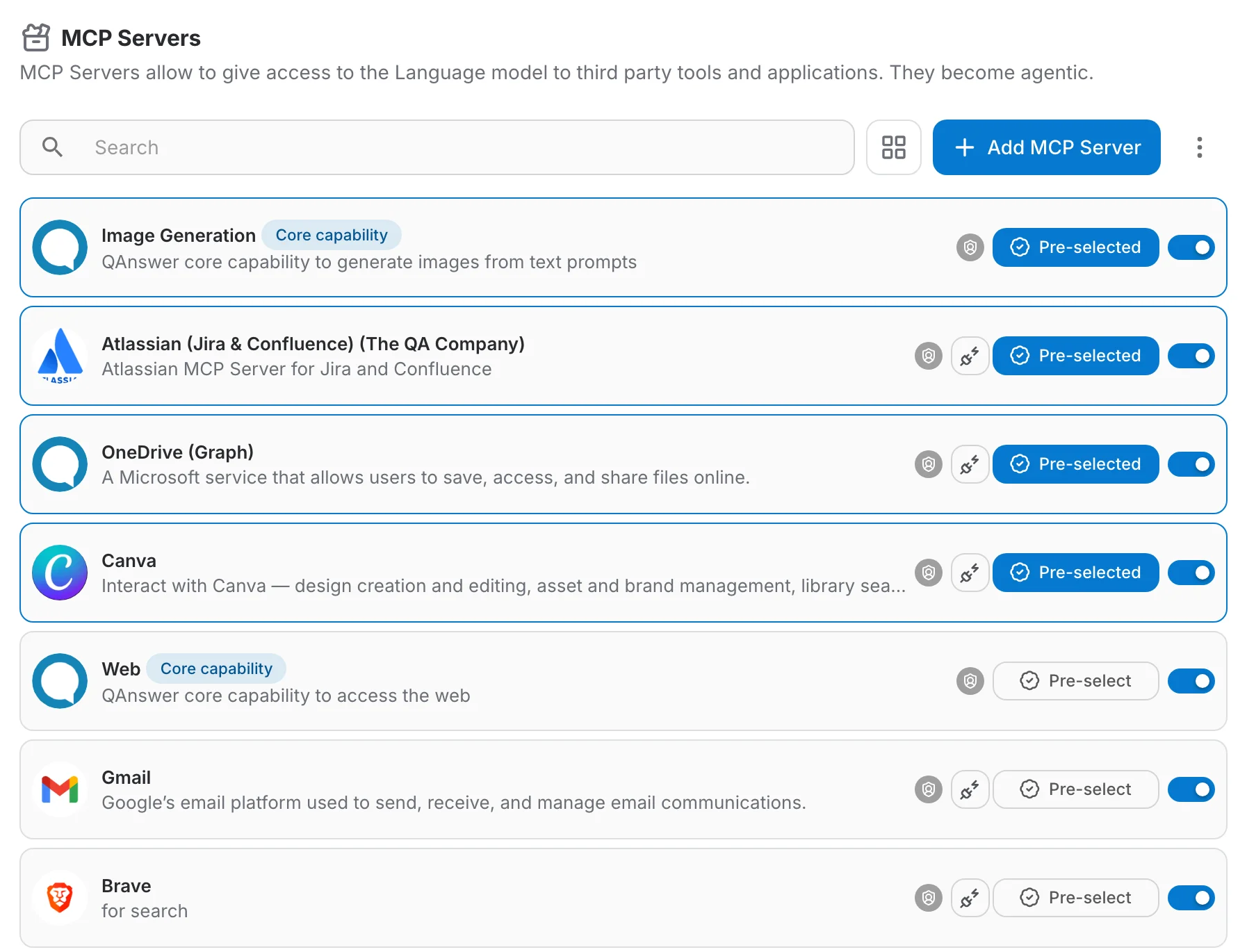
- A list of all available MCP servers is displayed
Adding Your Own MCP Server
- Click the Add MCP Server button
- Fill in the required information:
- Server name
- Server URL/endpoint
- Authentication details (if required)
- Other configuration parameters
- Click Save
Configuring Your MCP Server
After adding a server:
Add a Connection
- Set up the connection credentials
- Provide any necessary API keys or authentication tokens
Test the Connection
- Use the built-in test feature to verify everything works
- Check for any connection errors
View Available Tools
- Browse all tools that this MCP server provides
- Read descriptions of what each tool does
Enable Tools
- Select which tools you want to make available in the app
- You can enable or disable tools individually
Return to Playground
- Return to the Playground or AI Assistant
- Select which enabled tools the AI should use
- The tools are now available in chat
Exploring Pre-configured MCP Servers
Browsing Available Servers
- Click any server on the Tools page to:
- Read detailed descriptions
- View the list of tools they offer
- Understand their capabilities
- See usage examples
Available Integrations
The following integrations are available as MCP servers:
- Atlassian (Jira & Confluence) — manage issues and pages directly from QAnswer
- GitLab — interact with repositories, issues, and merge requests
- Google Workspace — access Drive, Calendar, Gmail, and more
Permission Levels
Actions available by role:
Regular Users
- Modify your own MCP servers
- Update configurations and settings
- Manage connections
- Enable/disable tools for personal use
- Add personal MCP server connections
- Use enabled tools in the Playground and AI Assistants
Organization Admin
- Enable or disable any MCP server for your organization
- Manage which tools your team can access
Admin (Platform)
- Enable or disable any MCP server platform-wide
- Full access to all server configurations
Setting Confirmation Defaults
You can define a default ask-for-confirmation behaviour per MCP tool. When a default is set, the tool always uses that behaviour without requiring per-session configuration.
Best Practices
- Start with Confirmation Mode
- Enable "Ask for confirmation" when testing new tools for the first time
- Review parameters before execution
- Disable confirmation mode once the tool behaves as expected
- Test Connections
- Always test connections after adding a new MCP server
- Verify tools are working before relying on them
- Enable Only What You Need
- Avoid enabling all tools at once
- Keep the Actions menu focused on relevant tools
- Fewer active tools improves AI performance and reduces ambiguity
- Read Tool Descriptions
- Understand what each tool does before enabling
- Check required parameters
- Note any limitations or requirements
Troubleshooting
Tool Not Working?
- Verify the connection is active
- Test the connection from the Tools page
- Check if the tool is enabled
- Ensure you have proper permissions
Can't See a Tool?
- Check if the MCP server is enabled for your organization
- Verify the tool is enabled in the server settings
- Confirm you've selected it in the Actions dialogue
Connection Issues?
- Re-test the connection
- Verify credentials and API keys
- Check server status
- Contact your organization admin