
Organizations
The Organizations page of the admin panel lists every organization on the platform. From here you create organizations, edit their information, manage their members and their teams, and remove the ones you no longer need.
The page belongs to the platform administration, so it is only reachable by platform admins. Organization admins work on their own organization from its own settings pages instead.
The toolbar
The controls above the list apply to the whole page:

- The search box filters the list by organization name.
- The icon next to it switches between the list and the grid layout. The choice is remembered, and shared with the other list pages of the app.
- Add Organization opens the creation dialog.
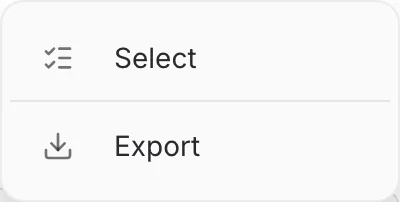
- The three-dot menu holds the two page-wide actions: Select, to tick several organizations for a bulk delete, and Export, to download the organizations as a CSV file.
The organizations list
Every row is one organization, sorted by name, with its logo, its name and its description.
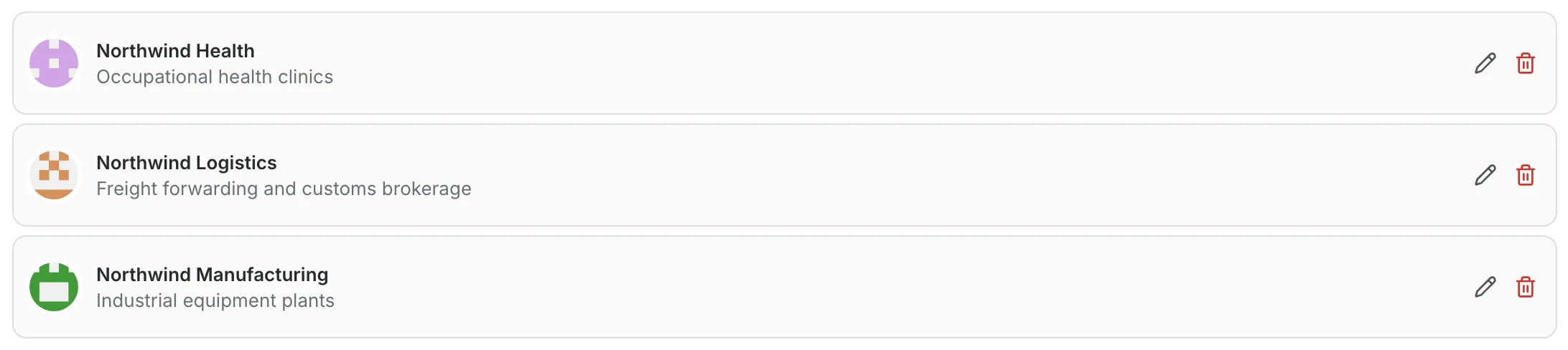
- Clicking a row — or the pencil icon on it — opens the organization's detail page.
- The red bin deletes the organization after a confirmation. It is greyed out on the platform's built-in "No organization" entry, which exists to hold users that belong to no organization and cannot be deleted.
- The list holds the first 50 organizations; on a platform with more than that, use the search box to reach the rest.
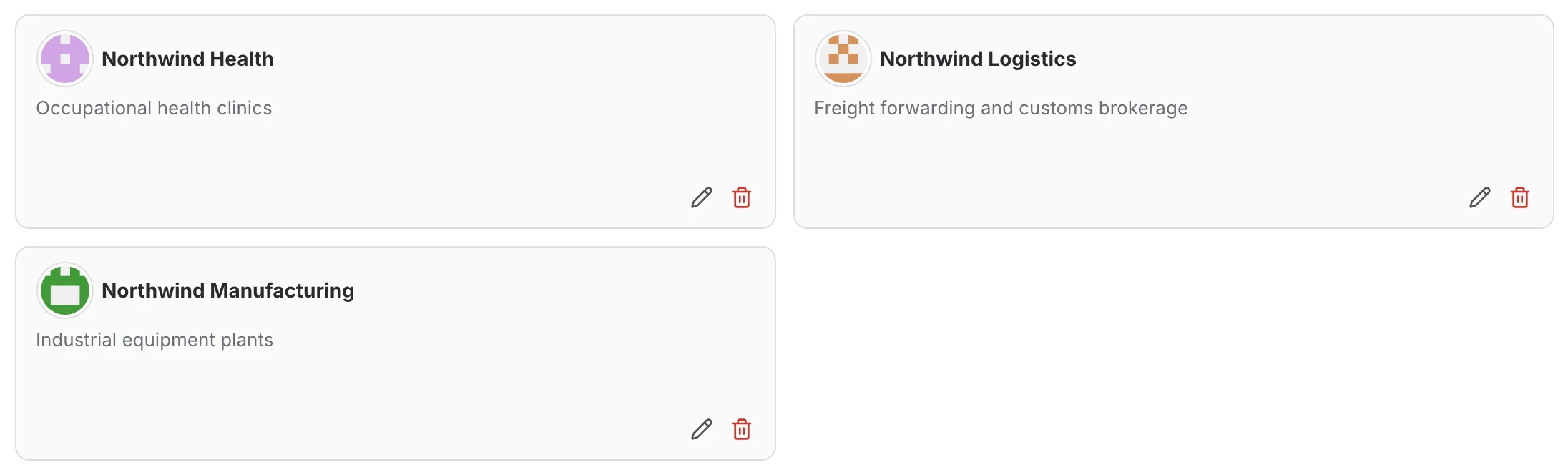
The grid layout shows the same organizations as cards.
Creating an organization
Add Organization asks only for what is needed to get started:
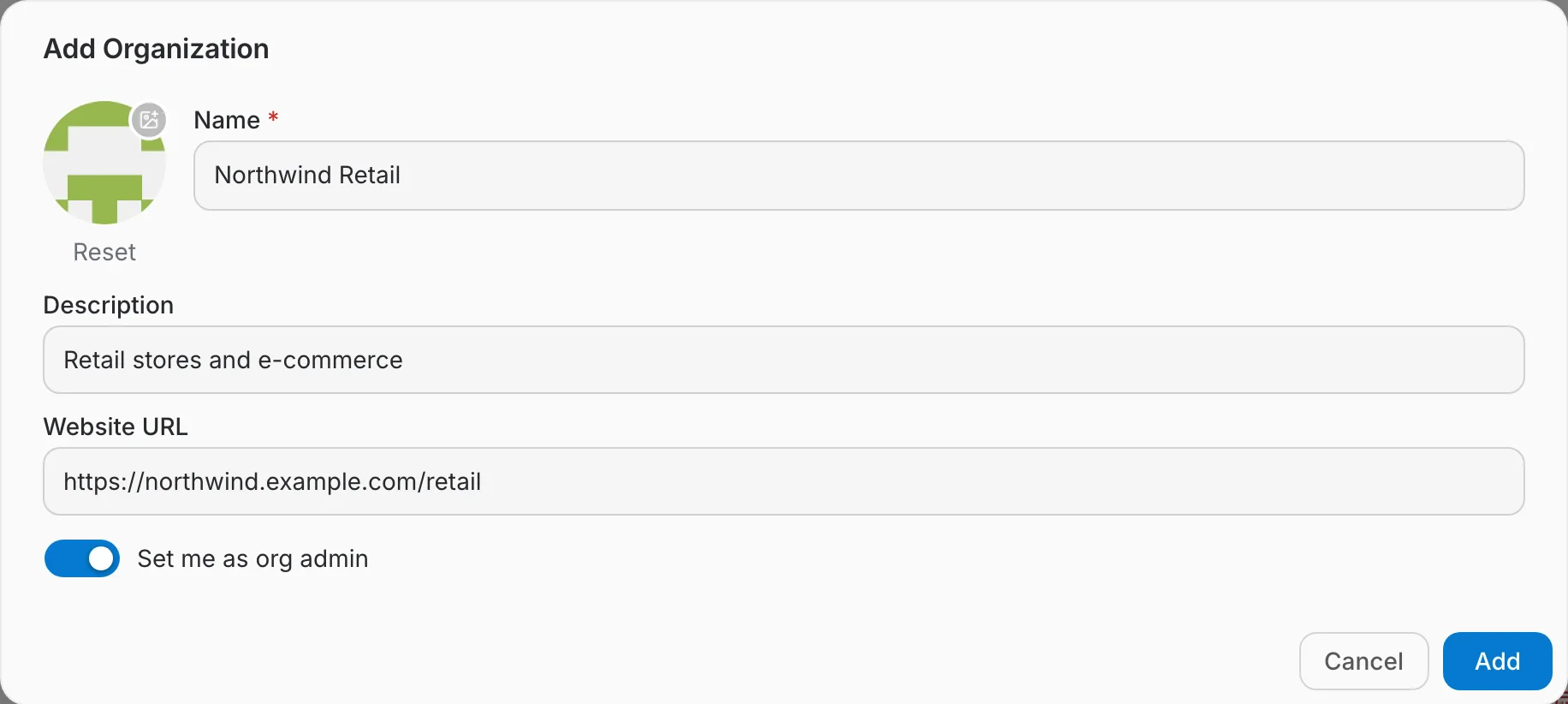
- Name is the only required field.
- Description and Website URL are optional. The website becomes a link in the header of the detail page.
- A logo is suggested at random. Click it to upload your own image, or Reset for another suggestion.
- Set me as org admin, on by default, adds your own account to the new organization as an organization admin.
Confirming creates the organization together with a Default Team and opens its detail page.
The organization detail page
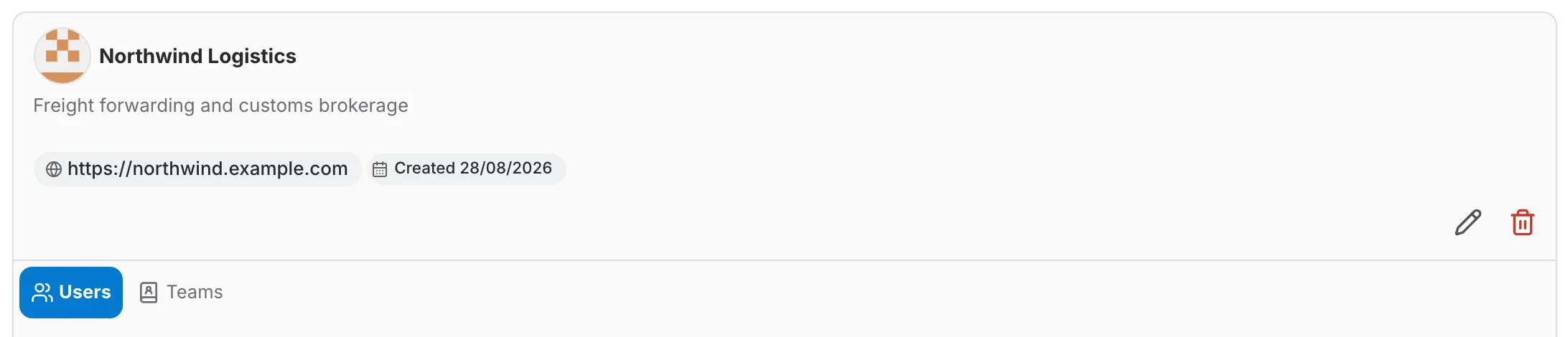
The header carries the organization's logo, name, description, website and creation date. The pencil icon edits that information, the red bin deletes the organization, and the two tabs underneath switch between its members and its teams. Back returns to the list.
Members
The Users tab lists the members of the organization together with their organization role. The search box matches name, username and email, and the controls above and below the list page through longer member lists.
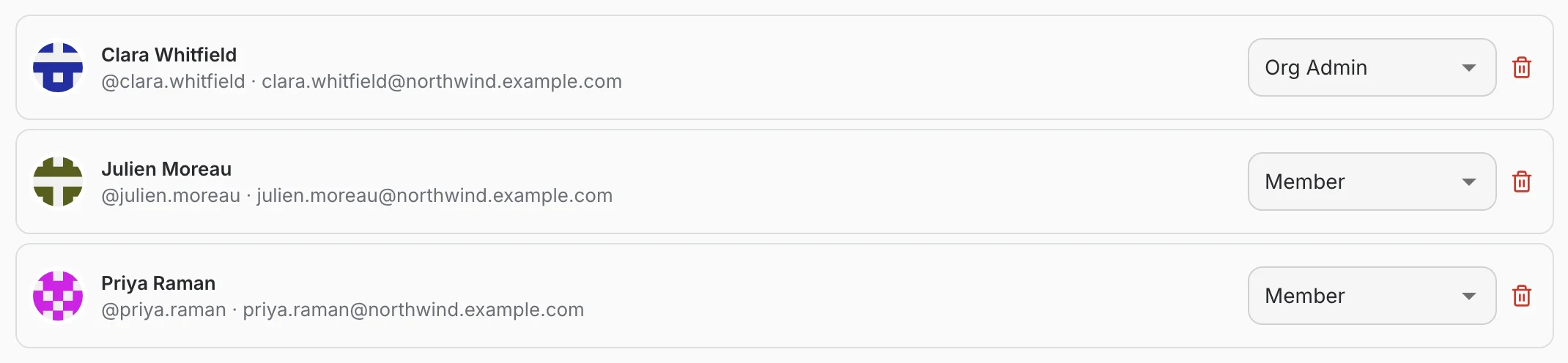
- The dropdown on a row sets that member's organization role — Member or Org Admin — and takes effect immediately.
- Clicking a member opens the organization's own Users page, where the full account card is available.
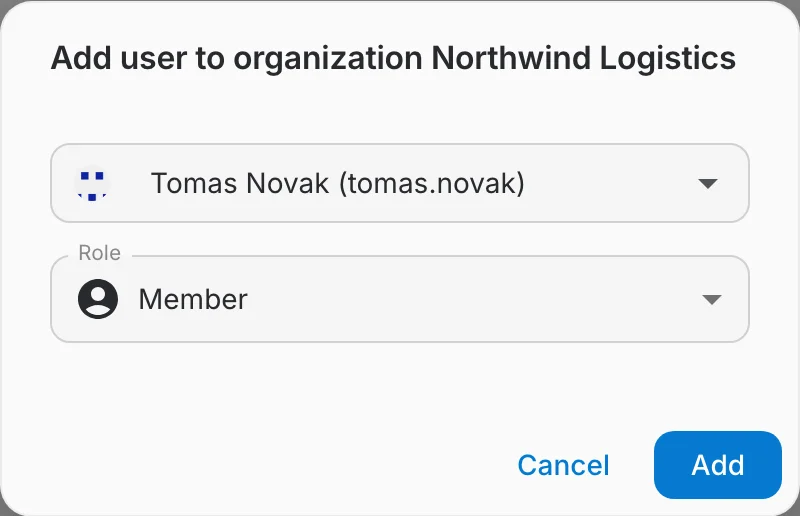
Add user searches the accounts that already exist on the platform and adds the one you pick with the role you select. It does not create an account — new accounts are created on the admin Users page.
Organization admins work with the same list from inside their organization; that view is documented in Users.
Kicking a member
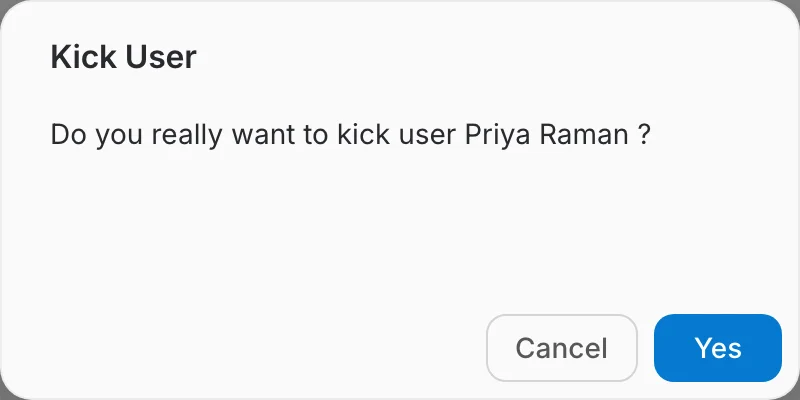
The bin icon on a member row kicks that user out of the organization. Only the membership goes away: the account itself stays on the platform and can be added back later.
Deleting the account itself is a different action, done from Users in the admin panel — it removes the account and, with it, every organization membership it had.
Teams
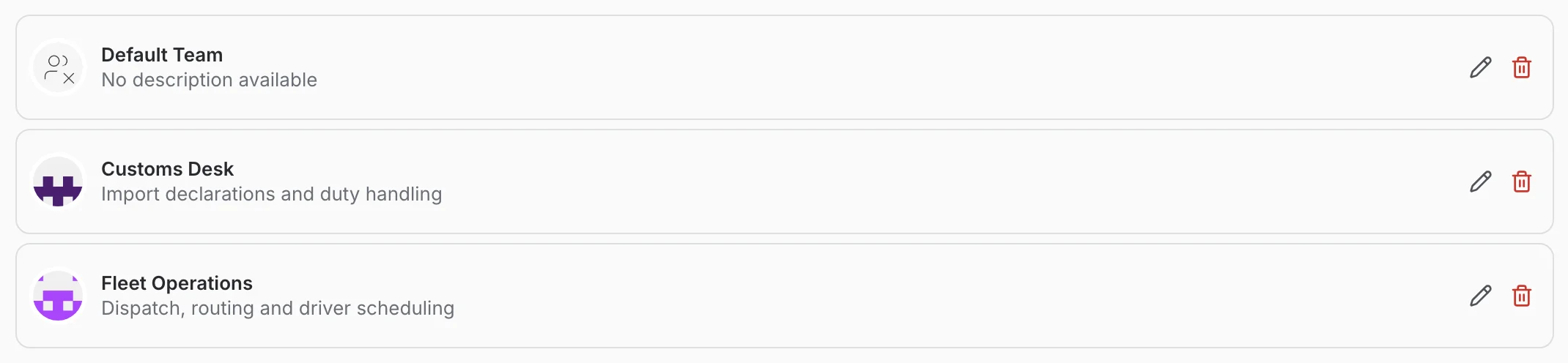
The Teams tab lists the teams inside the organization; every organization starts with a Default Team. Clicking a team opens it, the pencil icon edits its name and description, and the bin deletes it.
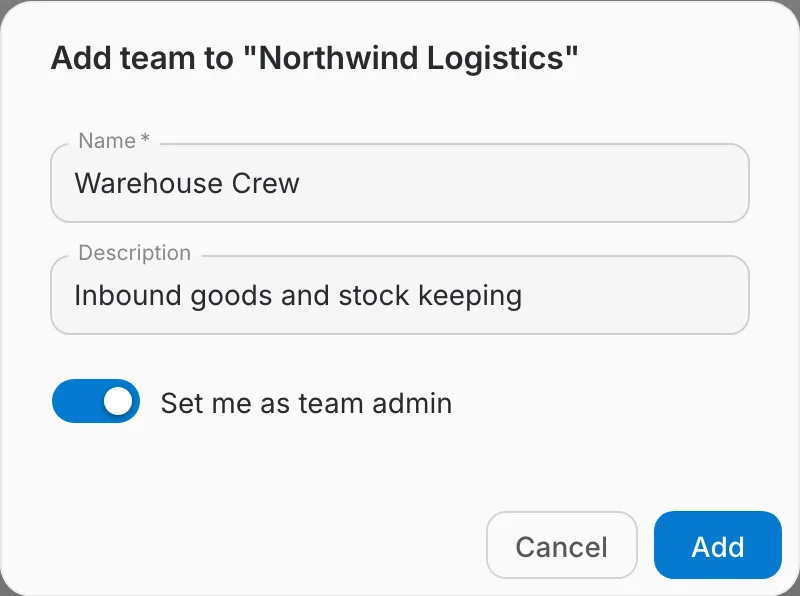
Add Team creates a team from a name and an optional description. Set me as team admin, on by default, makes your own account the team's admin — which also adds you to the organization if you were not a member yet.
Teams have their own page in the Organization section: Teams.
Editing an organization
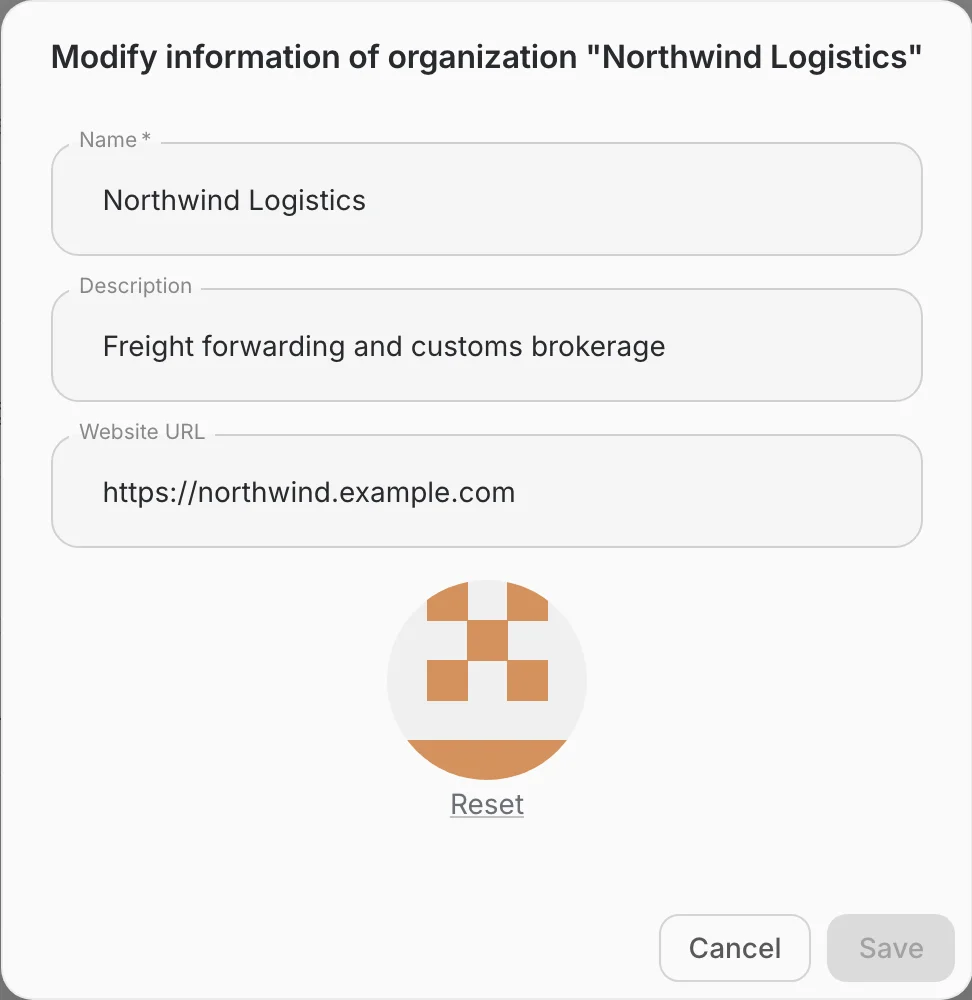
The pencil icon on the detail page opens the edit dialog, which covers the name, description, website and logo. Save stays disabled until something actually changes.
Deleting organizations
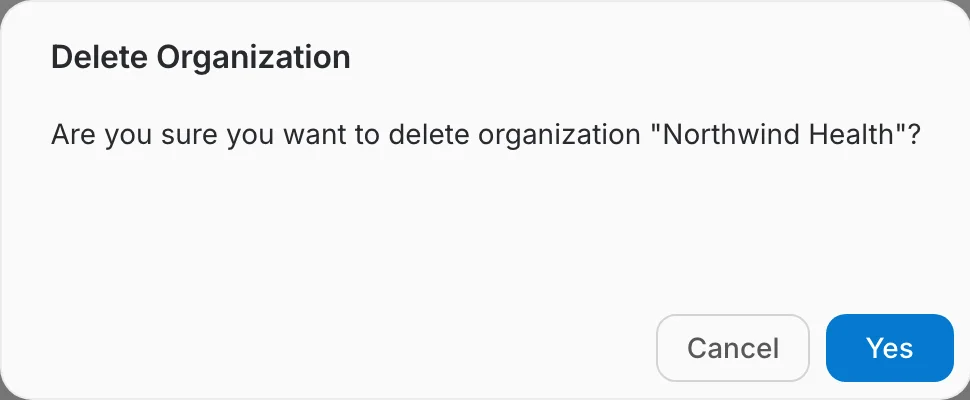
Deleting asks for a confirmation and cannot be undone, so check the Users and Teams tabs first — everything that belongs to the organization goes with it.
To remove several organizations in one go, pick Select in the three-dot menu and tick the ones you want.
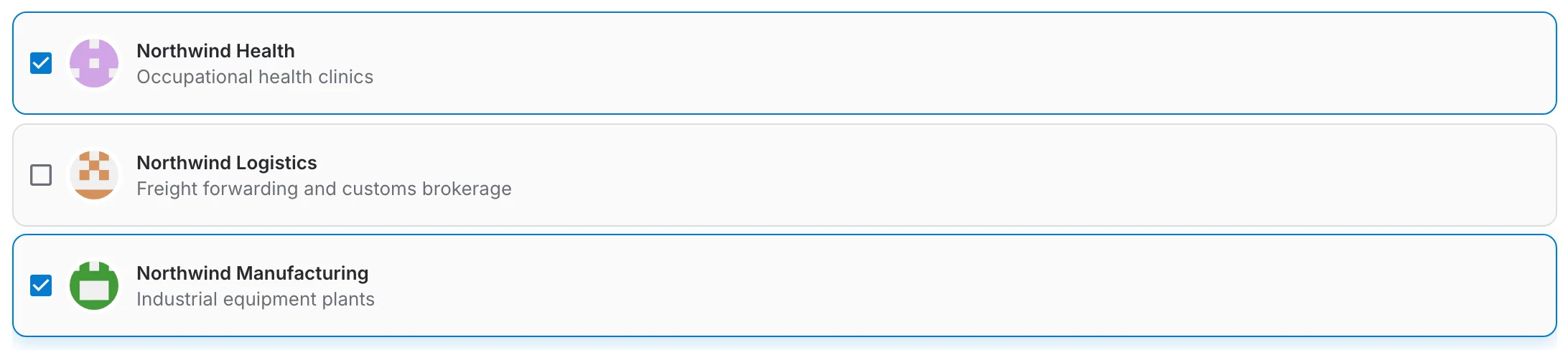
A bar at the bottom of the list counts the ticked organizations and holds the Delete button. Progress is shown while the deletions run, and anything that failed is listed afterwards.

Exporting the list
Export, in the three-dot menu, downloads a CSV file of every organization on the platform. The current search does not narrow the file.