
Microsoft Teams
Video Tutorial
Microsoft Teams
Watch on Tutorials page →
Info
Before following this section, add data to your AI Assistant as described in the Data Sources Section and test it in the AI Task Section.
Prerequisites
Your Teams administrator must grant permission to install third-party apps before proceeding. Attempt to install the QAnswer app to verify access. If installation fails, contact your Teams administrator to install it for the organization or to grant the required permissions.
Install
In Teams:
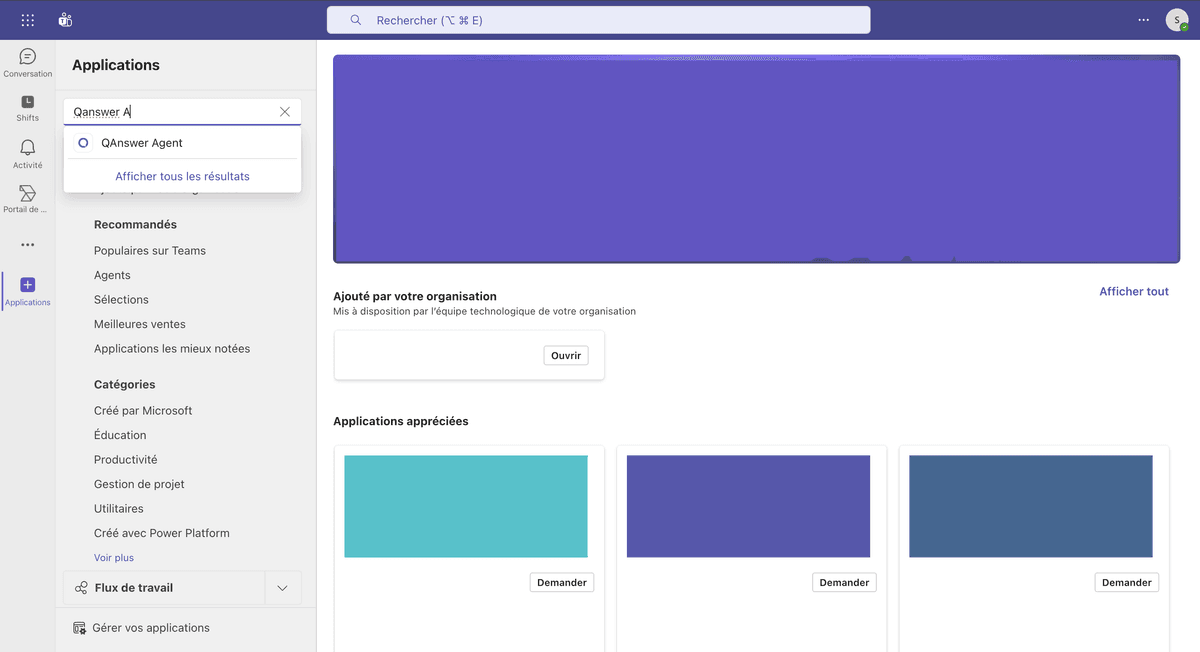
- Go to the Applications tab and Search for the QAnswer Agent app.
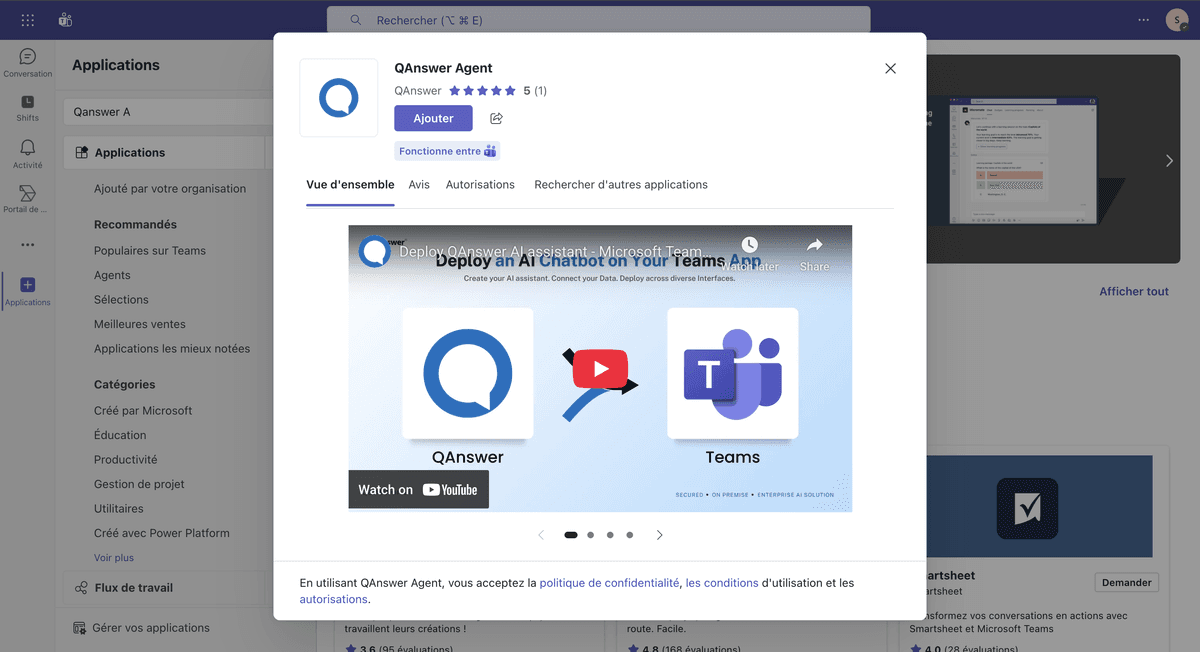
- Click on Add to install the app.
Setup
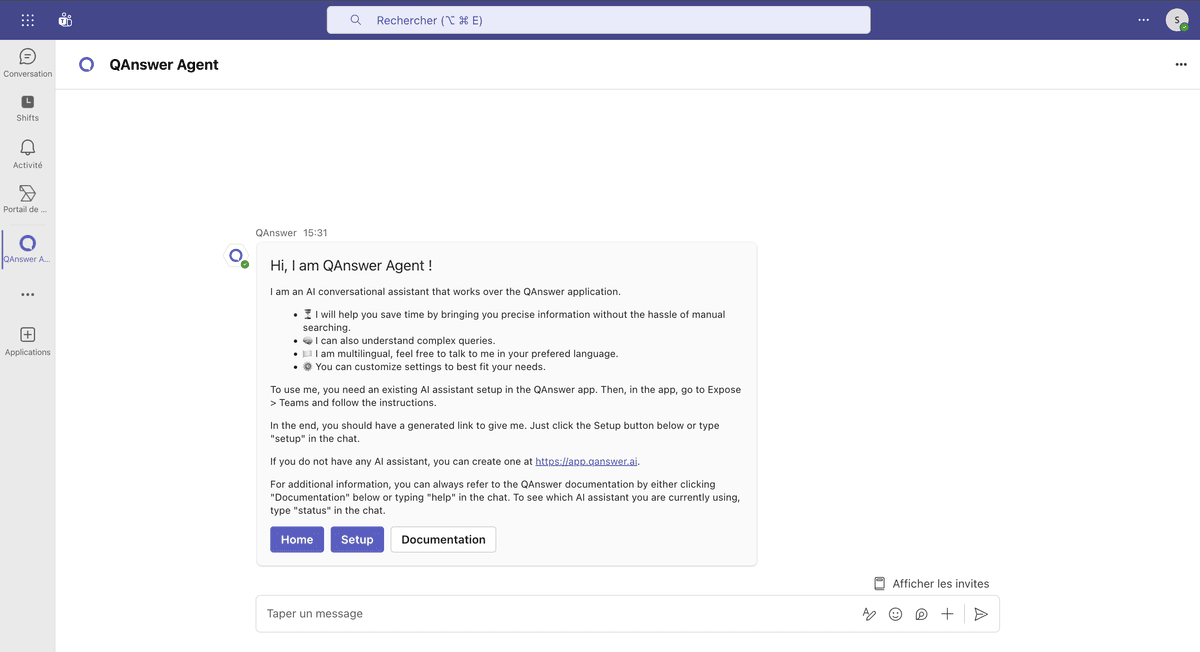
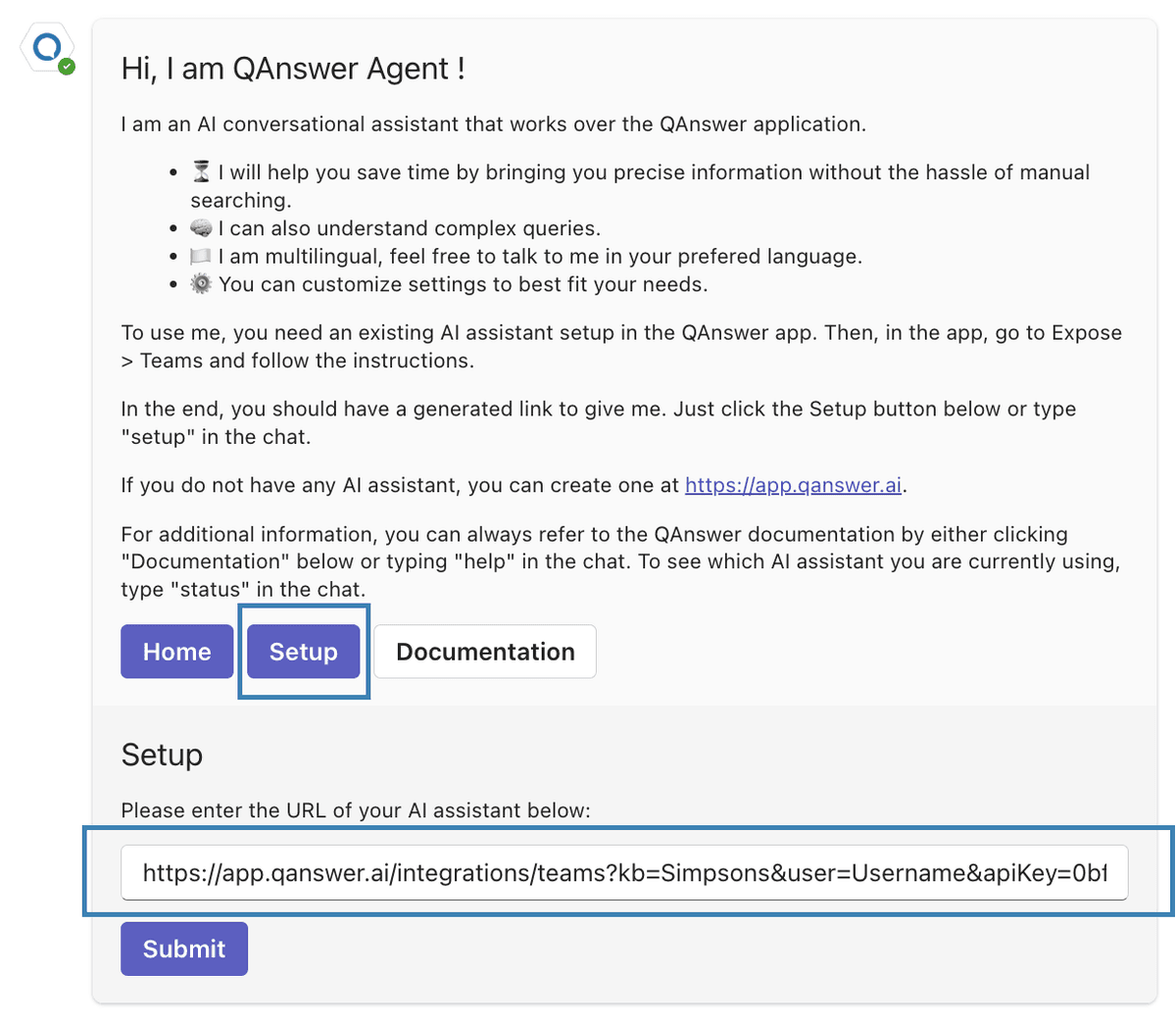
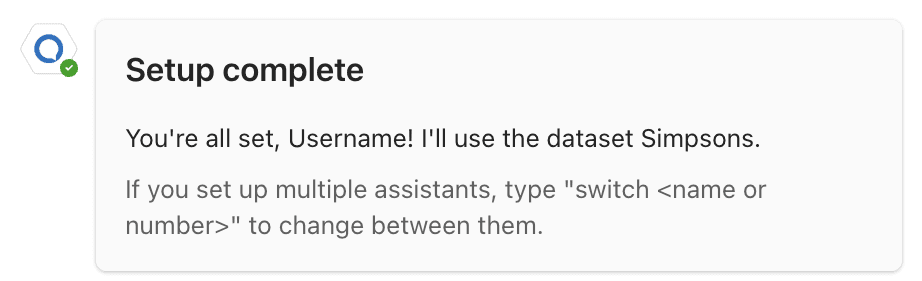
- In the new conversation with the bot, type in the setup text field.
- Enter the URL generated in the QAnswer Teams Expose page. This URL is unique to your AI Assistant — do not share it. Generating this link automatically creates a read-only API key for your AI Assistant.
Warning
You will only see it one time!

Use the QAnswer app on Teams
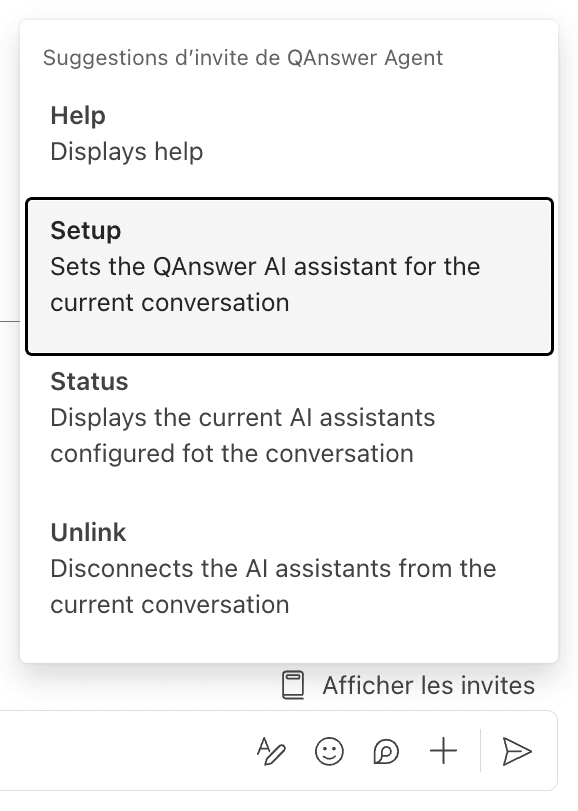
After setup, click the Show the prompt (Afficher les invites) button in the top right corner of the chat bar to view available commands.
- Help: display a link to this page.
- Setup: configure another AI Assistant.
- Status Switch: switch between assistants. The active assistant answers questions.
- Unlink: remove all current assistants from the QAnswer app.
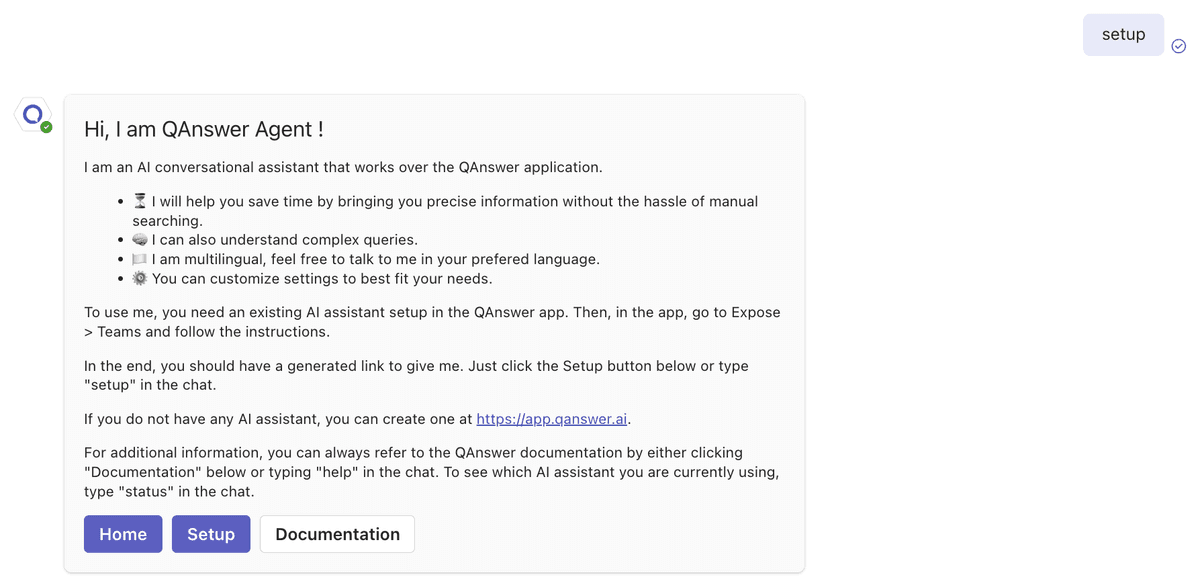
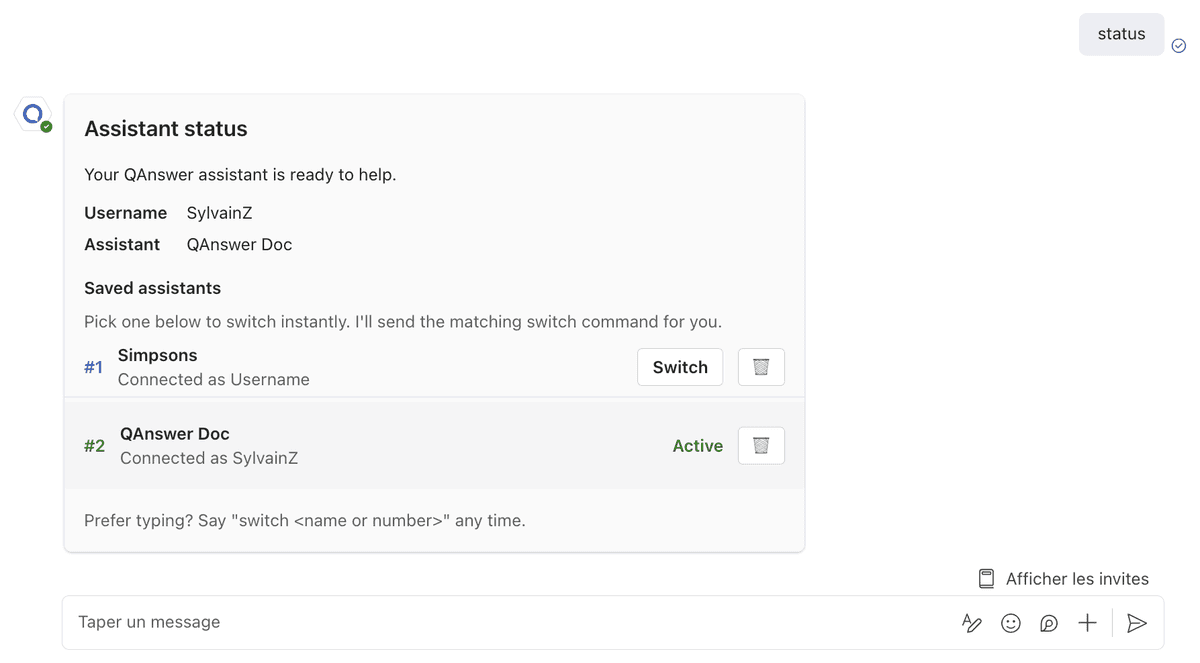
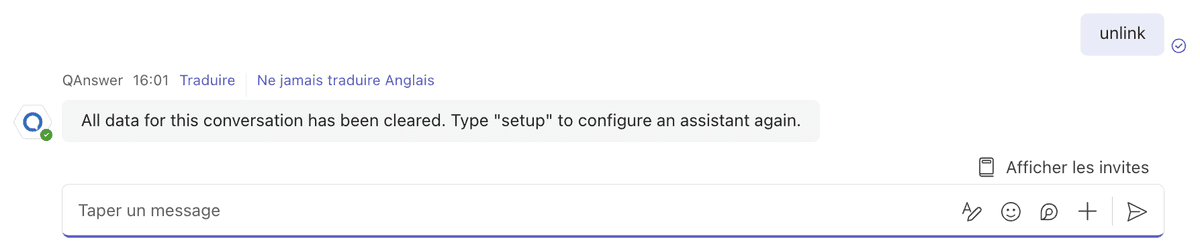
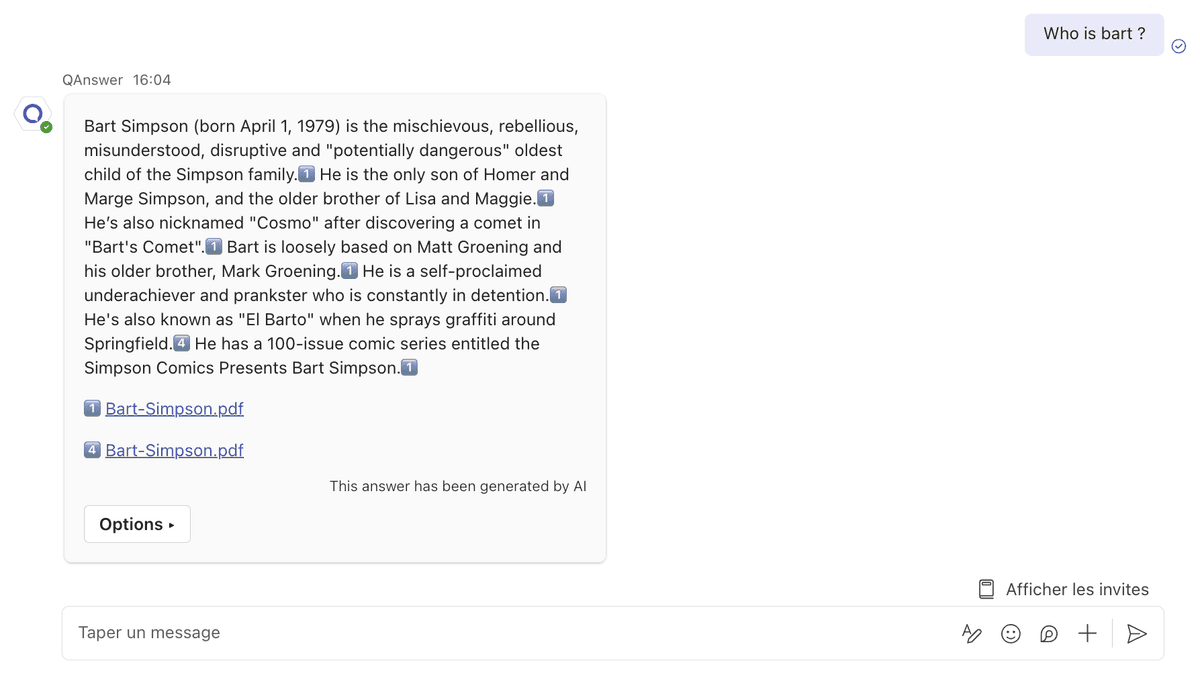
Once the QAnswer Agent is set up, ask questions to your AI Assistant directly from Teams.
For setup issues, contact info@the-qa-company.com.