
Wordpress
Video Tutorial
Wordpress
Watch on Tutorials page →
Follow these steps to embed your AI Assistant as a chatbot widget in WordPress.
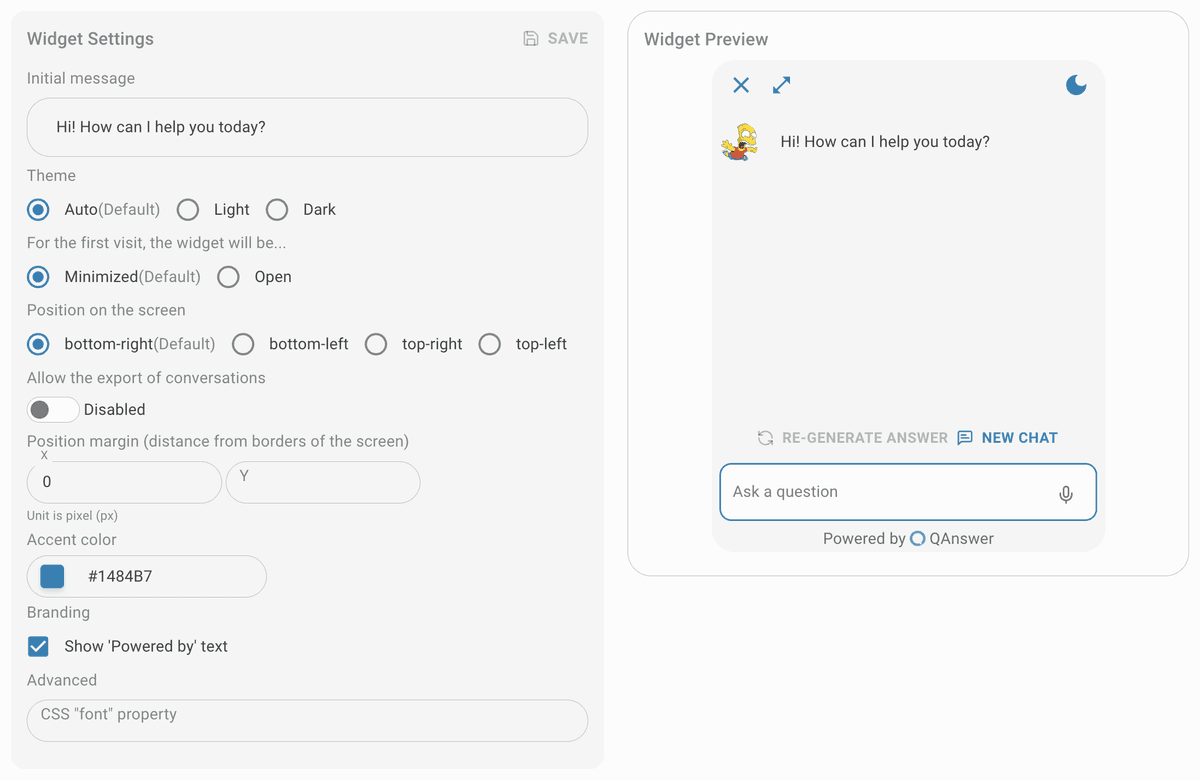
Customize
Customize the widget and save it.
Make public
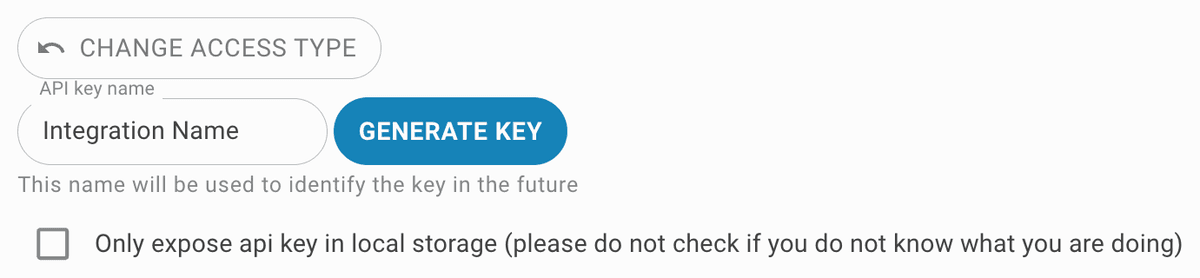
Set the access type to public. To restrict access, generate an API key for the widget integration.


Install
Go to the QAnswer plugin page directly or go to the Plugins page of your WordPress website and type "qanswer" in the search bar. Click the Install button to install the plugin.
Setup
In the "Settings" section of your dashboard, in the new QAnswer section, enter name of your AI Assistant as the dataset name and your QAnswer username as the username. Click the Save button.
Check
Navigate to your WordPress website. The QAnswer chatbot should now appear on the site. To confirm the script was added, right-click and select View Page Source or open browser developer tools (F12) to inspect the page source.