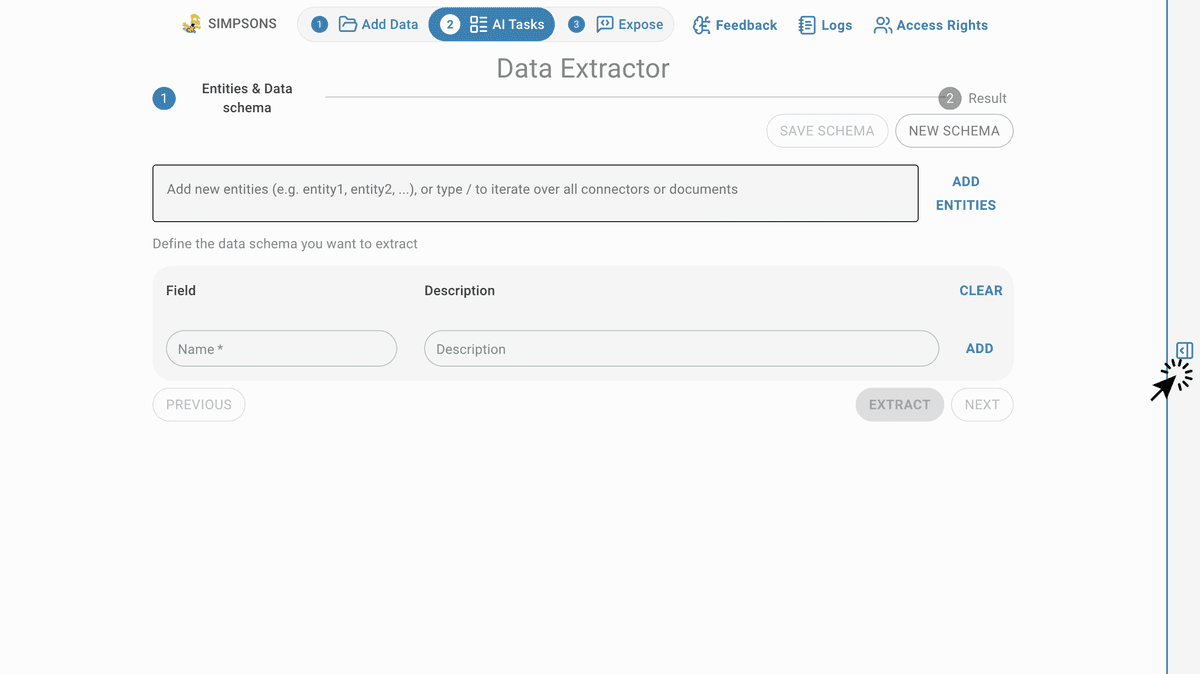
Data Extractor
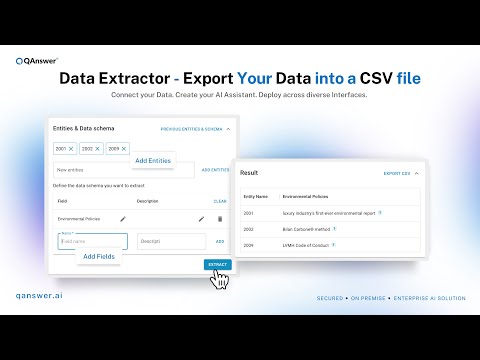
Video Tutorial
Data Extractor
Watch on Tutorials page →
The Data Extractor retrieves structured information from unstructured documents.
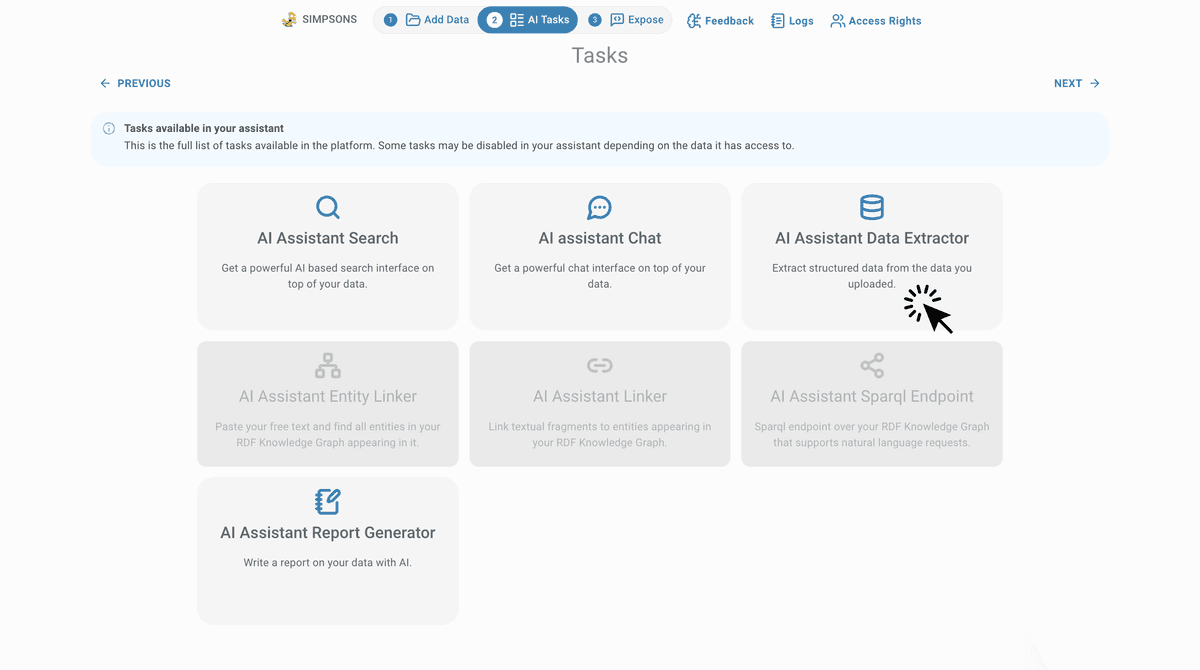
To access this AI task, click AI Tasks and then Data Extractor:
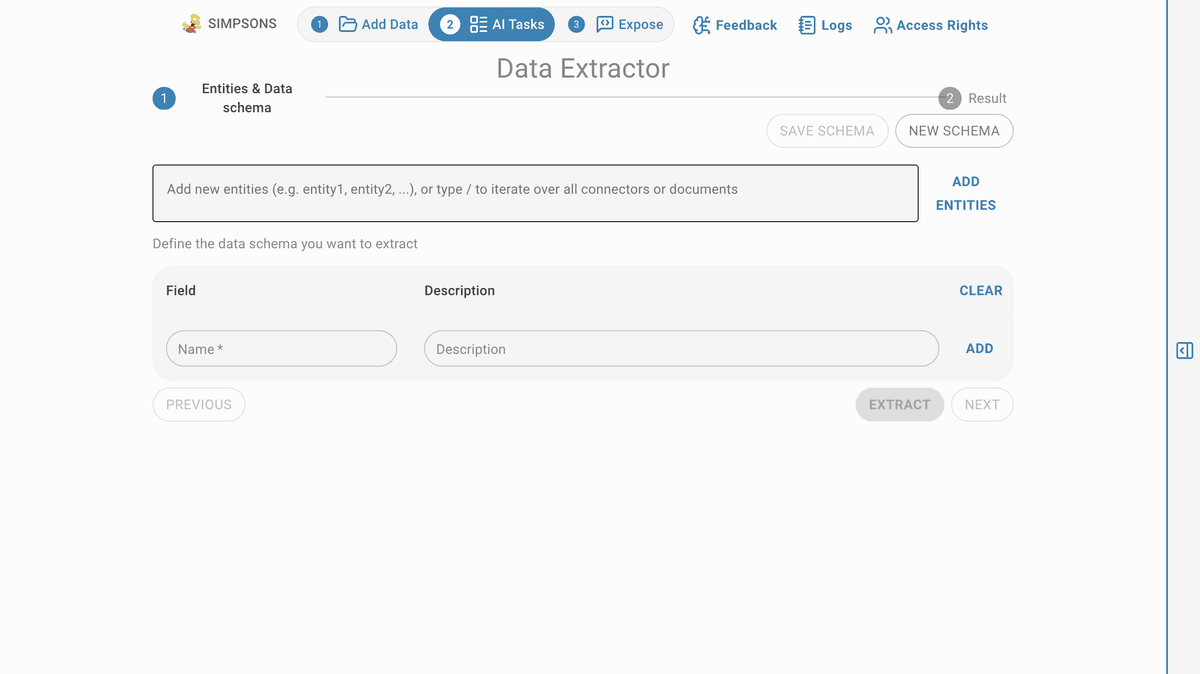
The extractor transforms unstructured text into structured, actionable information.
Example
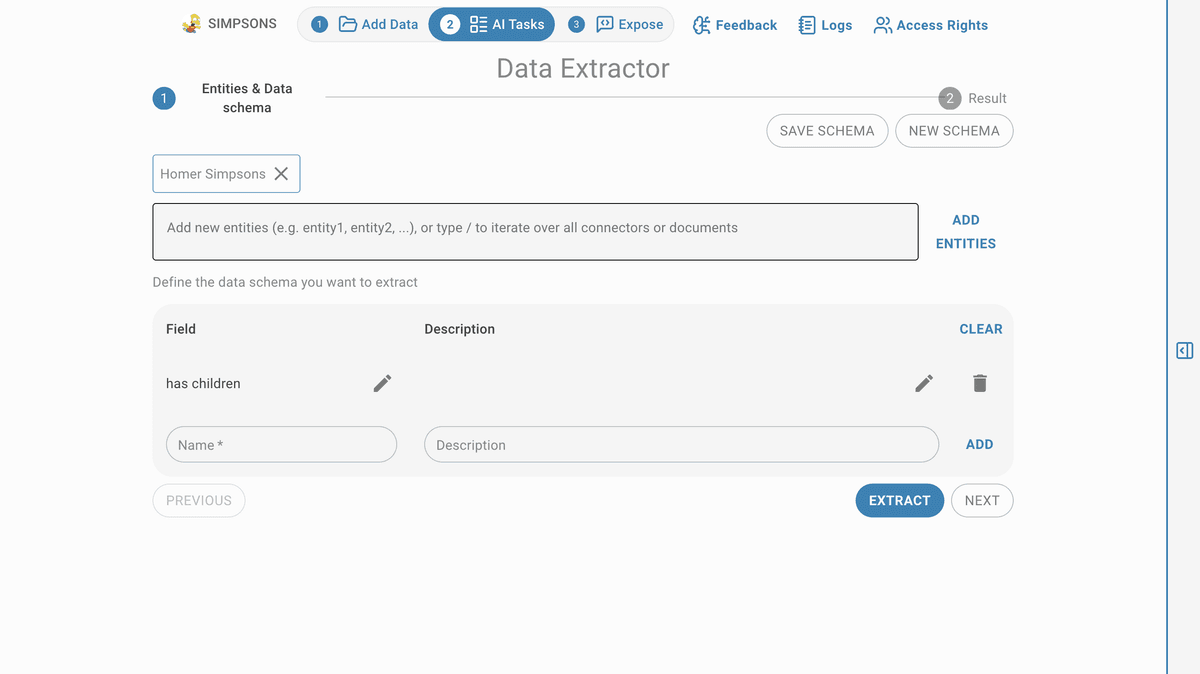
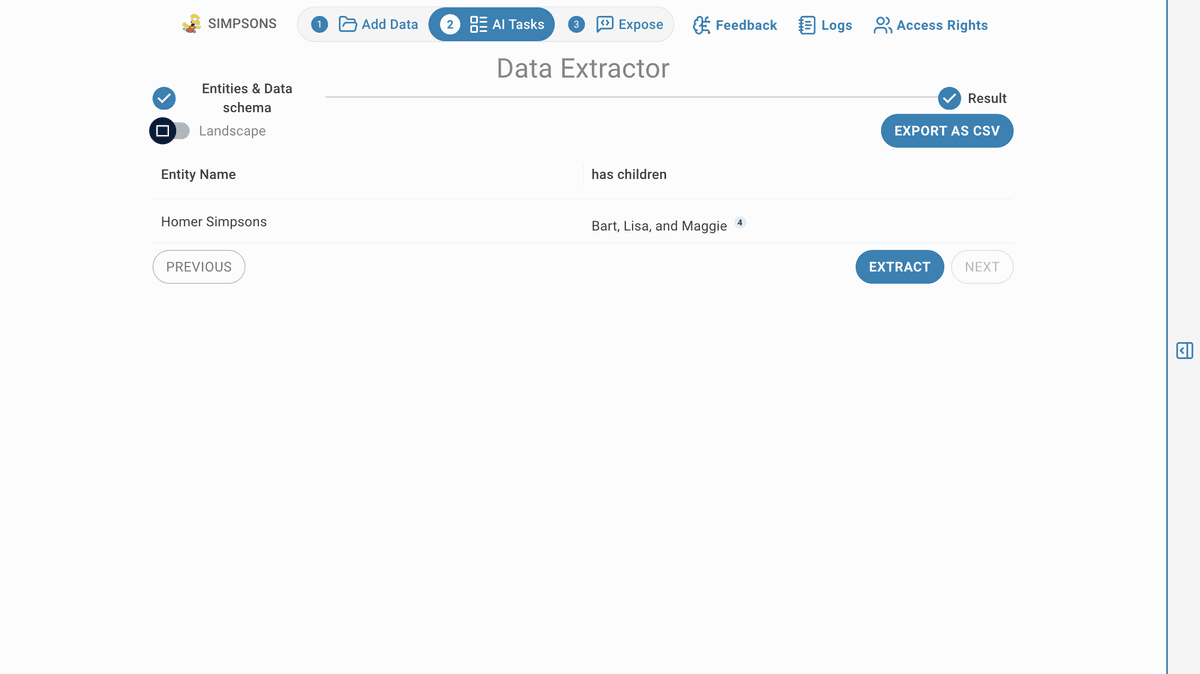
While entering the new entities, remember to hit Enter or click on ADD ENTITIES for each entity. Similarly, while entering the data schemas, remember to hit Enter or click on ADD for each schema.
You can click on CLEAR to delete all the schemas you entered, the entities will be preserved.
After extraction process, you can click on EXPORT CSV to download the CSV format of the extraction result.
The blue icon with a number stands for the link you can click on to open the data source that contains the information of this extracted information.
Task Settings
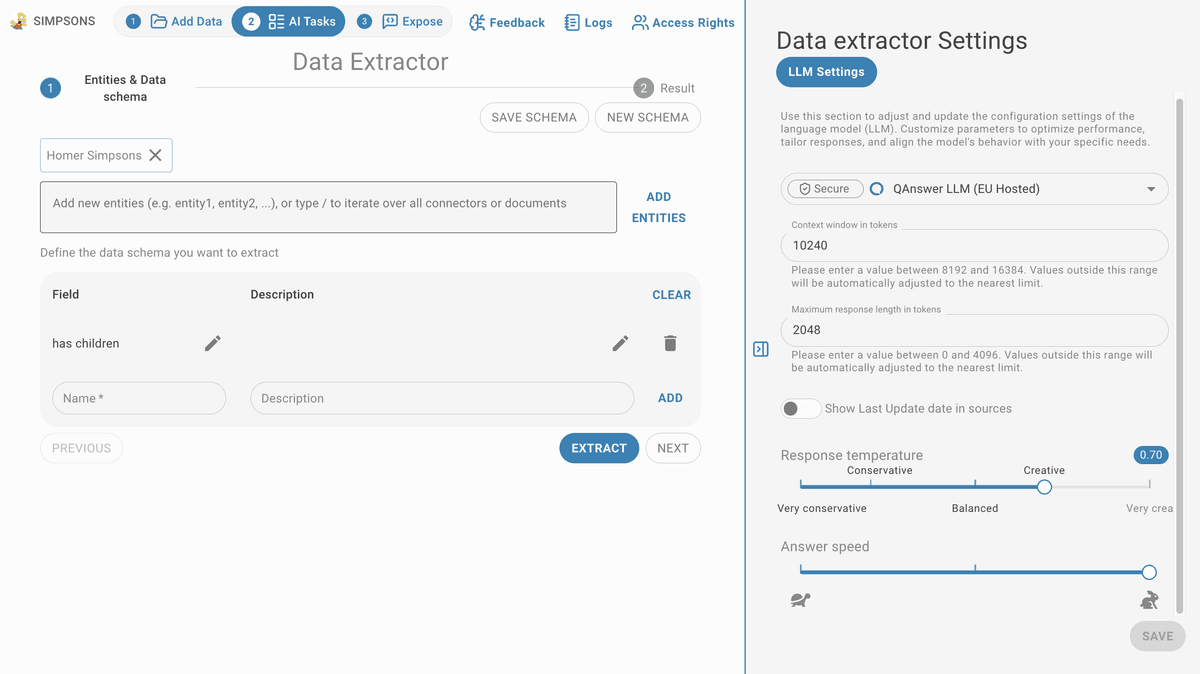
Customize the Data Extractor AI Assistant by clicking the settings icon:
Adjusting the LLM settings: choose the LLM, creativity level, answer speed, context window in tokens, and maximum response length.
- Context window (tokens): how much text (conversation + documents) the model can consider at once. If your input exceeds this, earlier content may be dropped.
- Maximum response length: cap on tokens the model returns; prevents overly long outputs.
Practical tip: use low temperature for factual extraction, increase context window to include long documents, and set a max response length to control output size and cost.