
Expose
Exposing an AI Assistant means making it reachable outside the QAnswer app — as a chat widget on your website, as a public link you can send to anyone, as a REST API for your own code, or through a tool your team already uses such as Slack or Confluence. Everything you need sits on the assistant's Expose tab.
Opening the Expose tab
Open an AI Assistant, then select Expose in the bar at the top of the assistant's page, next to Chat and Analytics.

The Expose page
The Expose page lists every available channel as a card. Selecting a card opens a short, numbered installation guide for that channel; the "Go Back" link at the top returns you to this list.
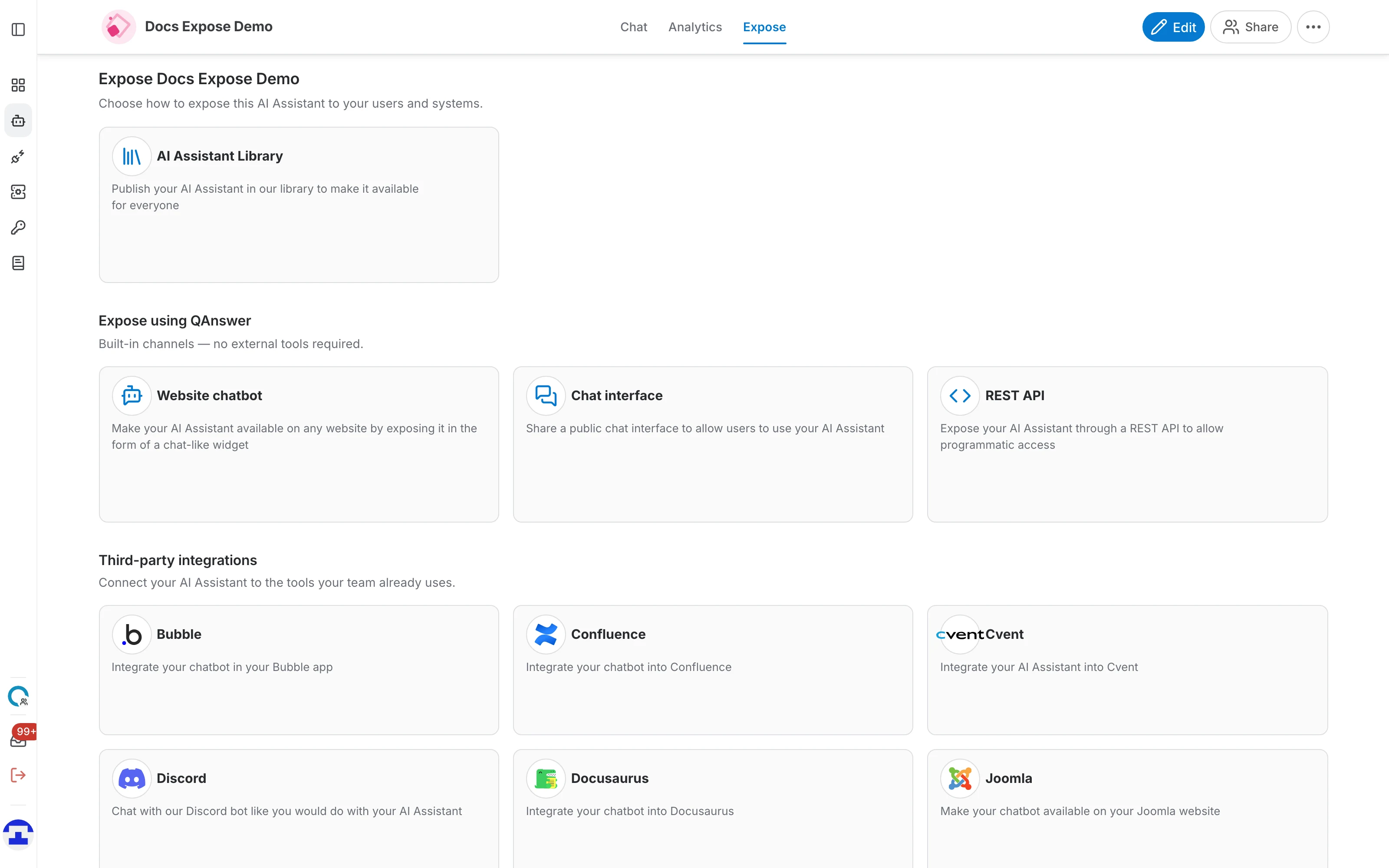
- AI Assistant Library — publishes the assistant in the public QAnswer library so anyone can find and use it. This card is only shown to platform administrators.
- Expose using QAnswer — the built-in channels, which need no external tools or accounts.
- Third-party integrations — ready-made connectors for the platforms your team already works in.
Built-in channels
The channels under "Expose using QAnswer" are hosted by QAnswer itself:
- Website chatbot — a chat-like widget you drop into any website with a script snippet.
- Chat interface — a full-page public chat, shared as a link.
- Search interface — a full-page public search over the assistant's data, shared as a link.
- Report Generator — a public version of one of your report templates that other people can fill in and run.
- REST API — programmatic access to the assistant for your own applications.
- SPARQL interface, Entity linker interface and AI Spreadsheet — public interfaces for the corresponding specialised task types.
Third-party integrations
Below the built-in channels, the Third-party integrations section connects the assistant to an external platform. Most of these wrap the same website-chatbot widget in the host platform's own way of adding custom code.
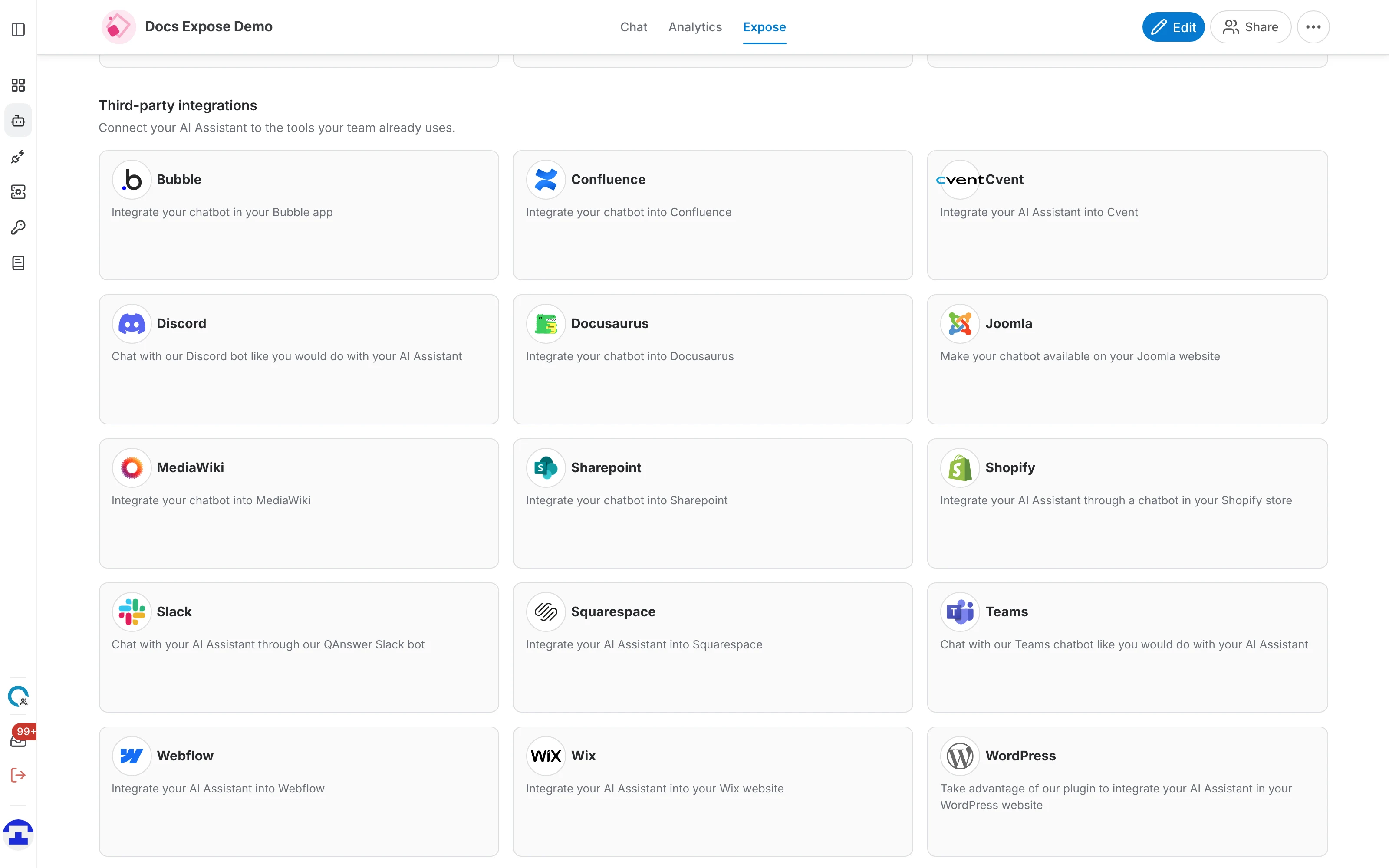
Each card opens step-by-step instructions for that platform. The dedicated pages in this section of the documentation cover them in detail.
Access is set once, for the whole assistant
Every built-in channel contains the same "Choose your access" step. It is an assistant-level setting: whatever you pick there applies to all of the assistant's interfaces at once, not just the one you are configuring. You choose between two ways of letting people in:
- Open Access — the assistant is reachable by everyone, by everyone who is signed in to QAnswer, or by nobody.
- Protected Access — an API key that your integration sends with each request.