
Report Generator
Exposing the report generator turns one of your report templates into a public page. Other people open a link, supply the documents the template asks for, and get the finished report back — without a QAnswer account and without being able to change the template itself.
Open the assistant, go to the Expose tab and select the Report Generator card. The page that opens is a six-step guide.
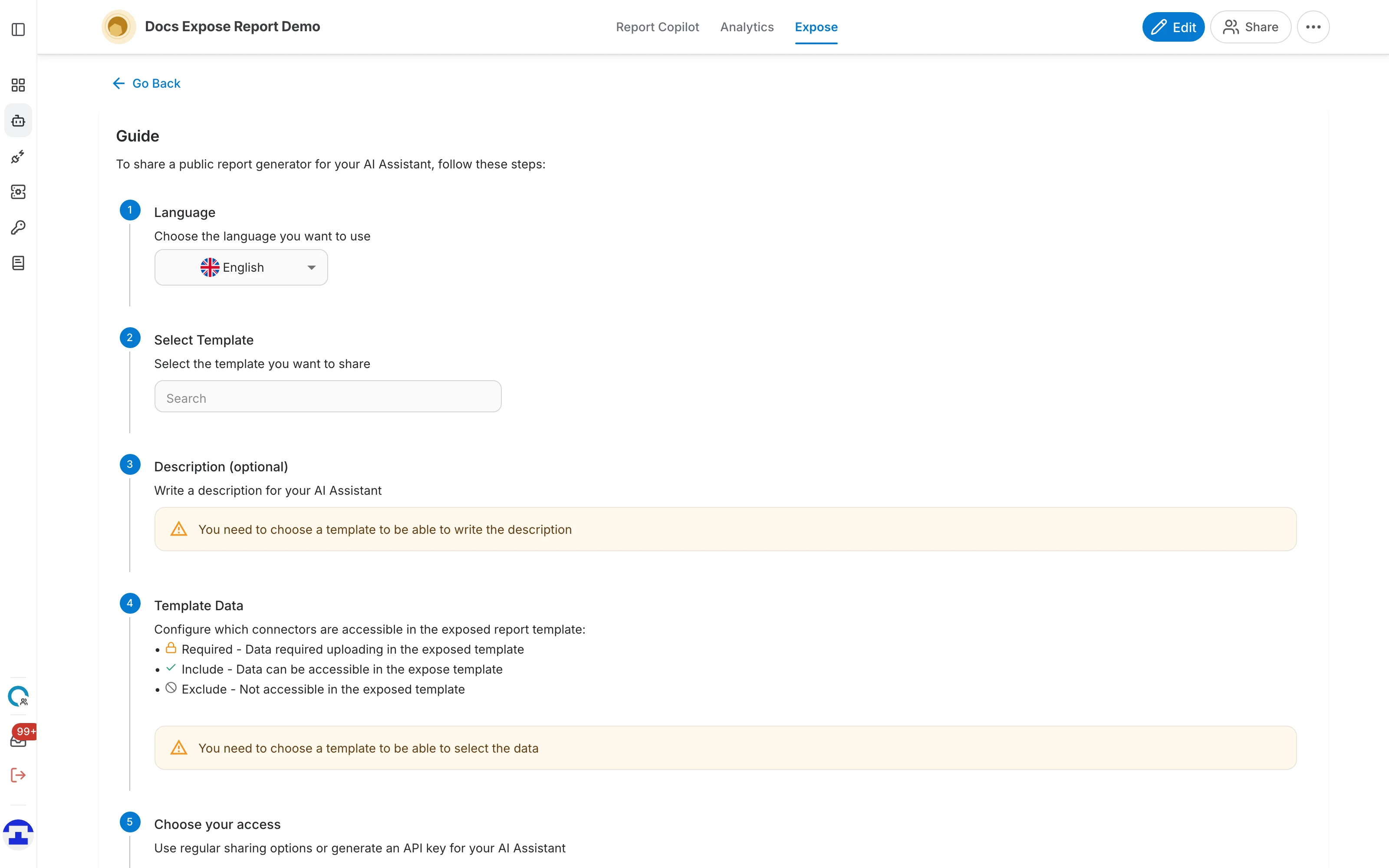
Step 1 — Language
Choose the language the public page is displayed in — its labels, buttons and placeholder text. Until a language is chosen, the share link in step 6 stays disabled with the message "choose a language in step 1".
Step 2 — Select Template
Pick which of your saved templates to publish. The field is a searchable list; type to filter it, or use the arrows to step through the templates one at a time.
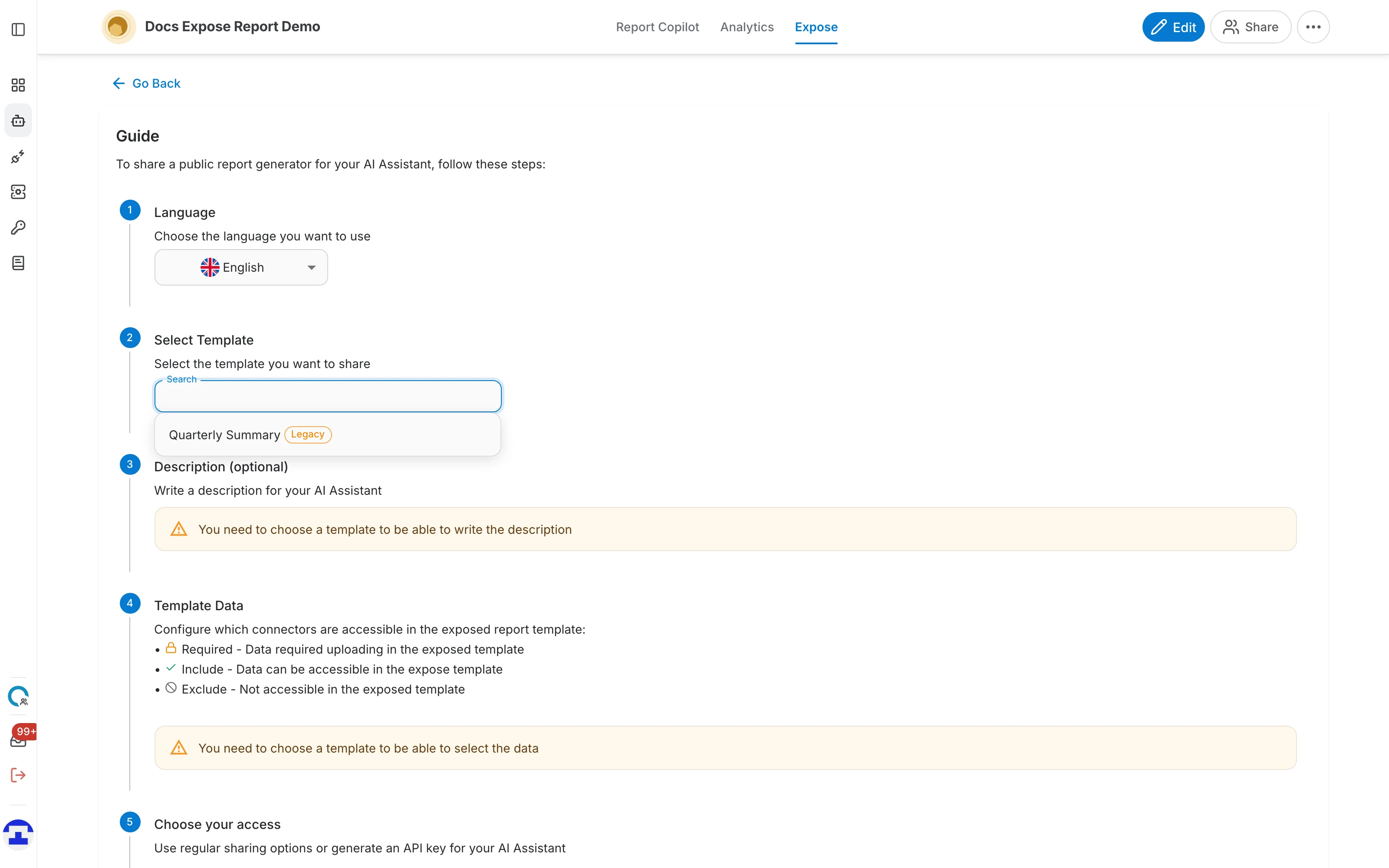
- Only one template is exposed per link. To publish a second template, come back and generate another link for it.
- Templates carry a chip showing their kind, so you can tell a legacy template from a newer one at a glance.
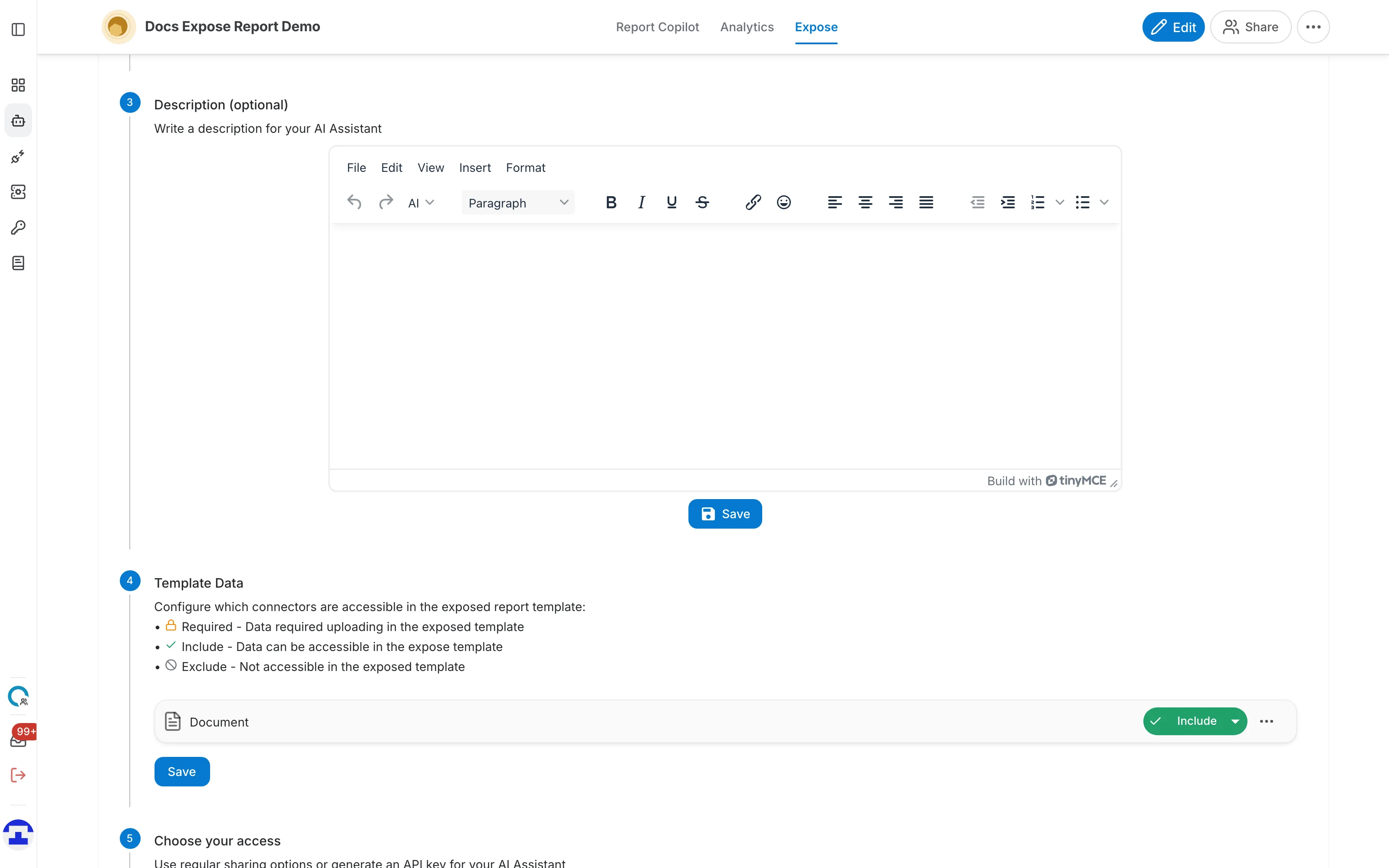
Step 3 — Description (optional)
A short explanation shown to whoever opens the link — what the report covers and what they are expected to supply.
Step 4 — Template Data
This is the step unique to the report generator. Your assistant's data connectors are listed, and for each one you decide how it behaves in the published template:
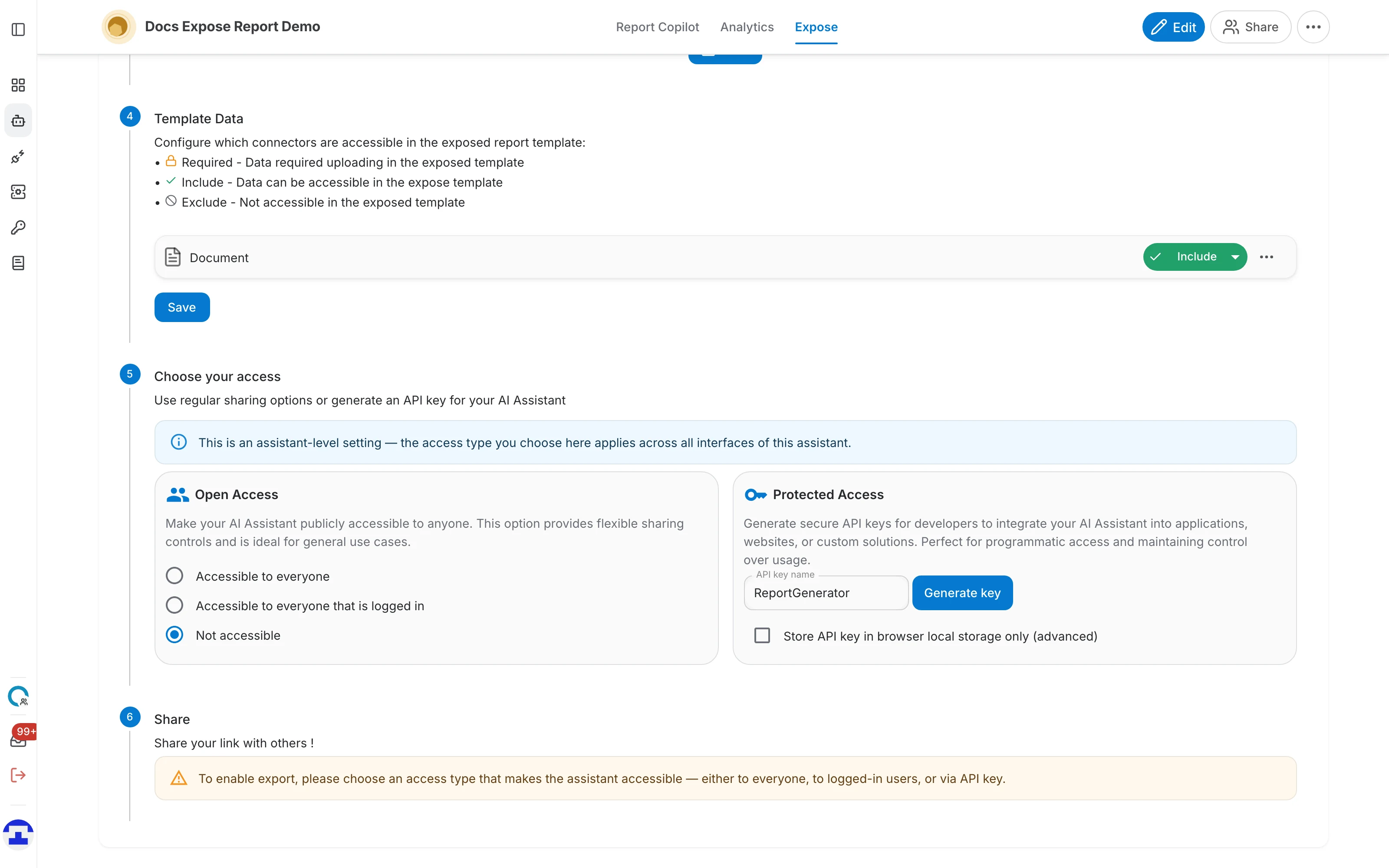
- Required — the person running the report must upload their own data for this connector before it will run. Use this for the input the report is about — a contract, a report to summarise.
- Include — your own data in this connector is available to the published report. Use this for reference material you want everyone's report to draw on.
- Exclude — the connector is not reachable from the published template at all. Use this for anything confidential.
With several connectors, the bulk actions set them all at once — Require All, Include All or Exclude All — and the ⋯ menu on each row offers the same choices per connector.
Step 5 — Choose your access
Nobody can open the link until you decide who is allowed in:
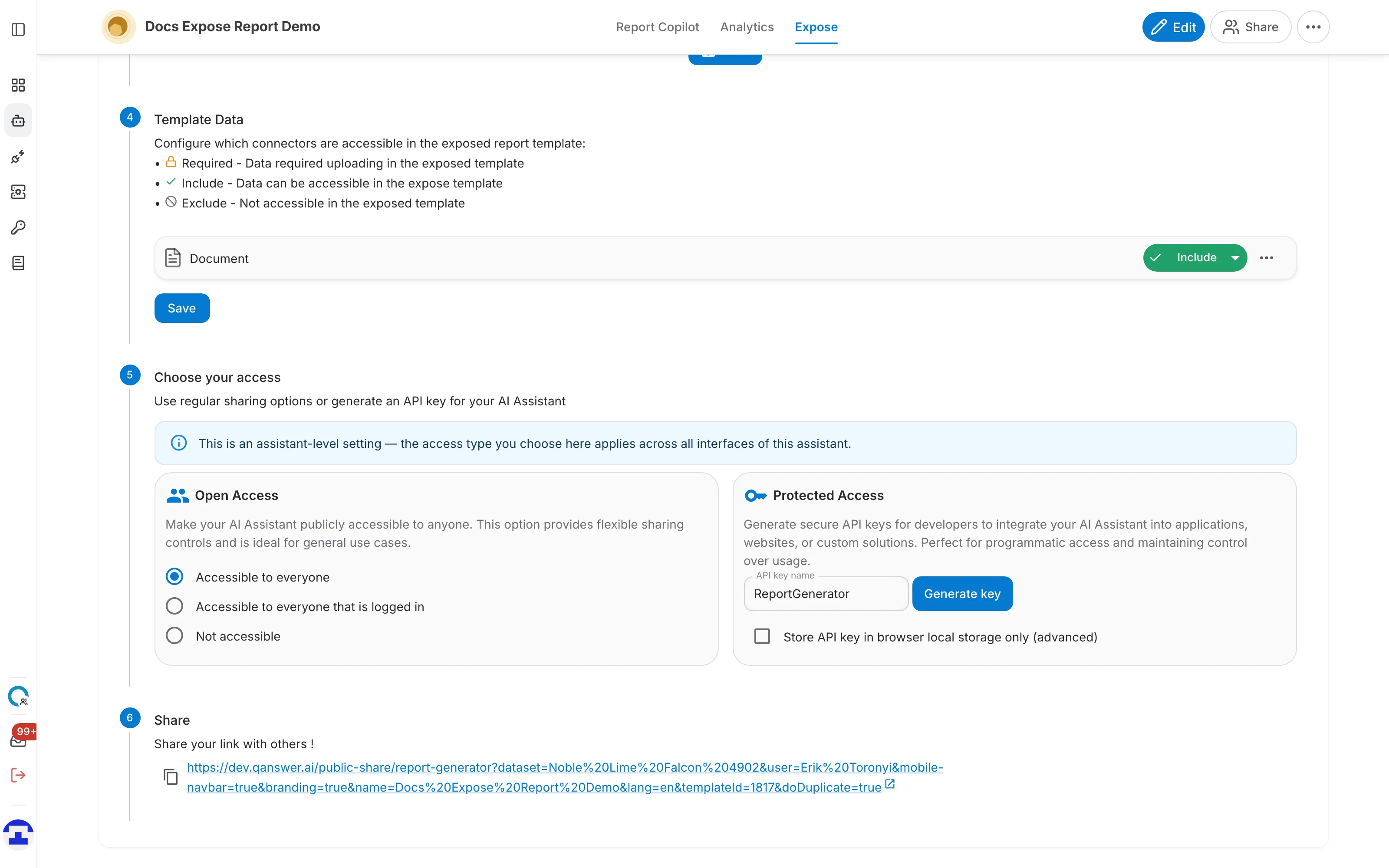
- Accessible to everyone — anyone with the link can run the report, with no sign-in.
- Accessible to everyone that is logged in — the link works, but only after the visitor signs in to QAnswer. Useful for sharing inside a company.
- Not accessible — the link is dead. Select this to take a published report generator offline again.
- Protected Access — instead of opening the assistant up, generate an API key that callers must supply.
Step 6 — Share
Once a language, a template and an access type are all set, the link appears. Use the copy icon beside it, or the arrow to open it in a new tab.
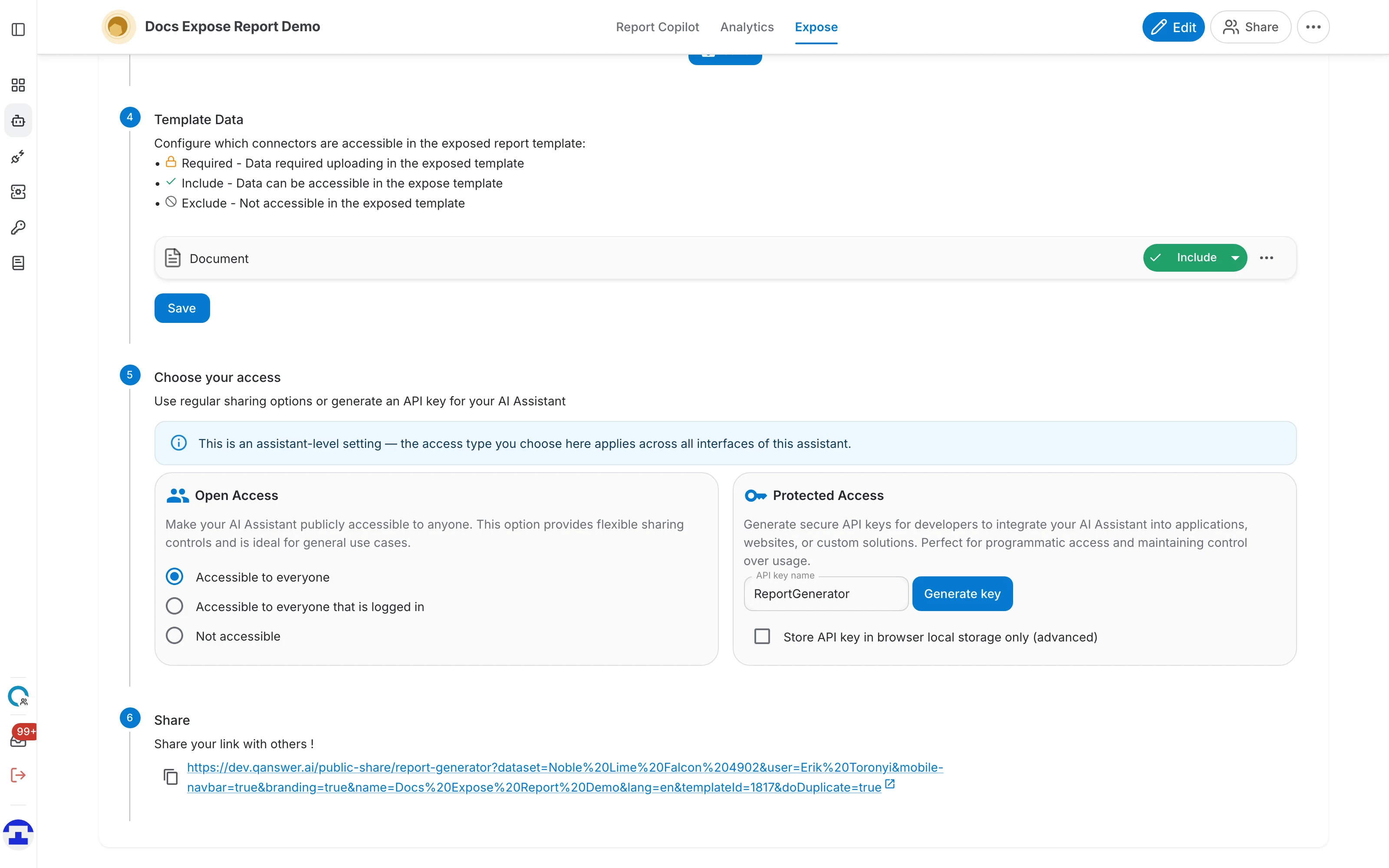
Until all three are set, this step shows a warning instead of a link, naming what is still missing — "choose a language in step 1", "choose a template in step 2", or a reminder to pick an access type.