
Bubble
Video Tutorial
Bubble
Watch on Tutorials page →
Info
Before following this section, add data to your AI Assistant as described in the Data Sources Section and test it in the AI Task Section.
Follow these steps to embed a chatbot for your AI Assistant in your Bubble website.
Customize widget
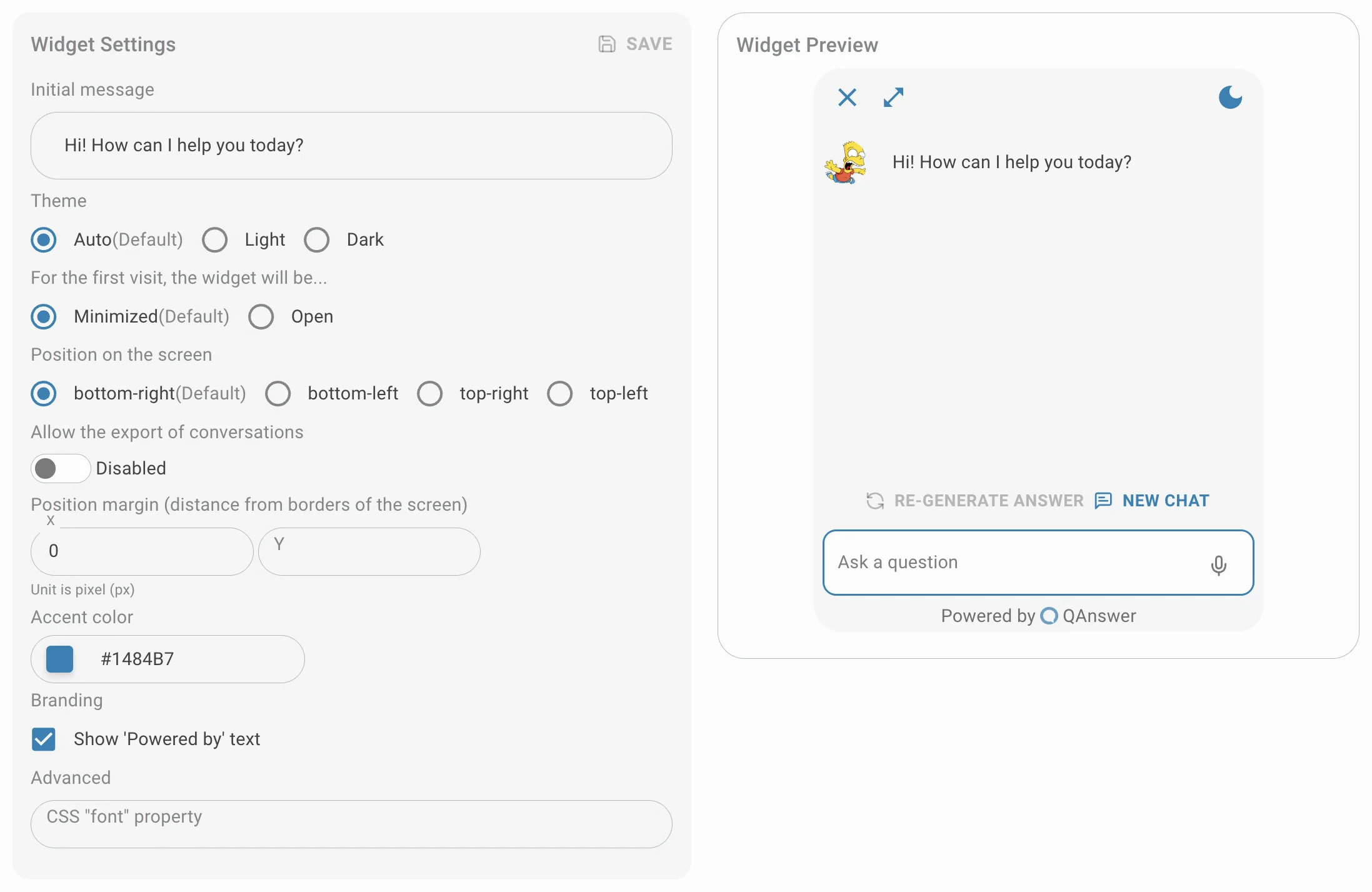
Customize the appearance of the widget:
- The initial message
- The theme
- If it's open or closed at the loading of the website
- Its position on the page
- Its accent color
- Its CSS font property
A live preview appears on the right.
Make public
Set the access type to public. To restrict access, generate an API key for the widget integration.

Setup
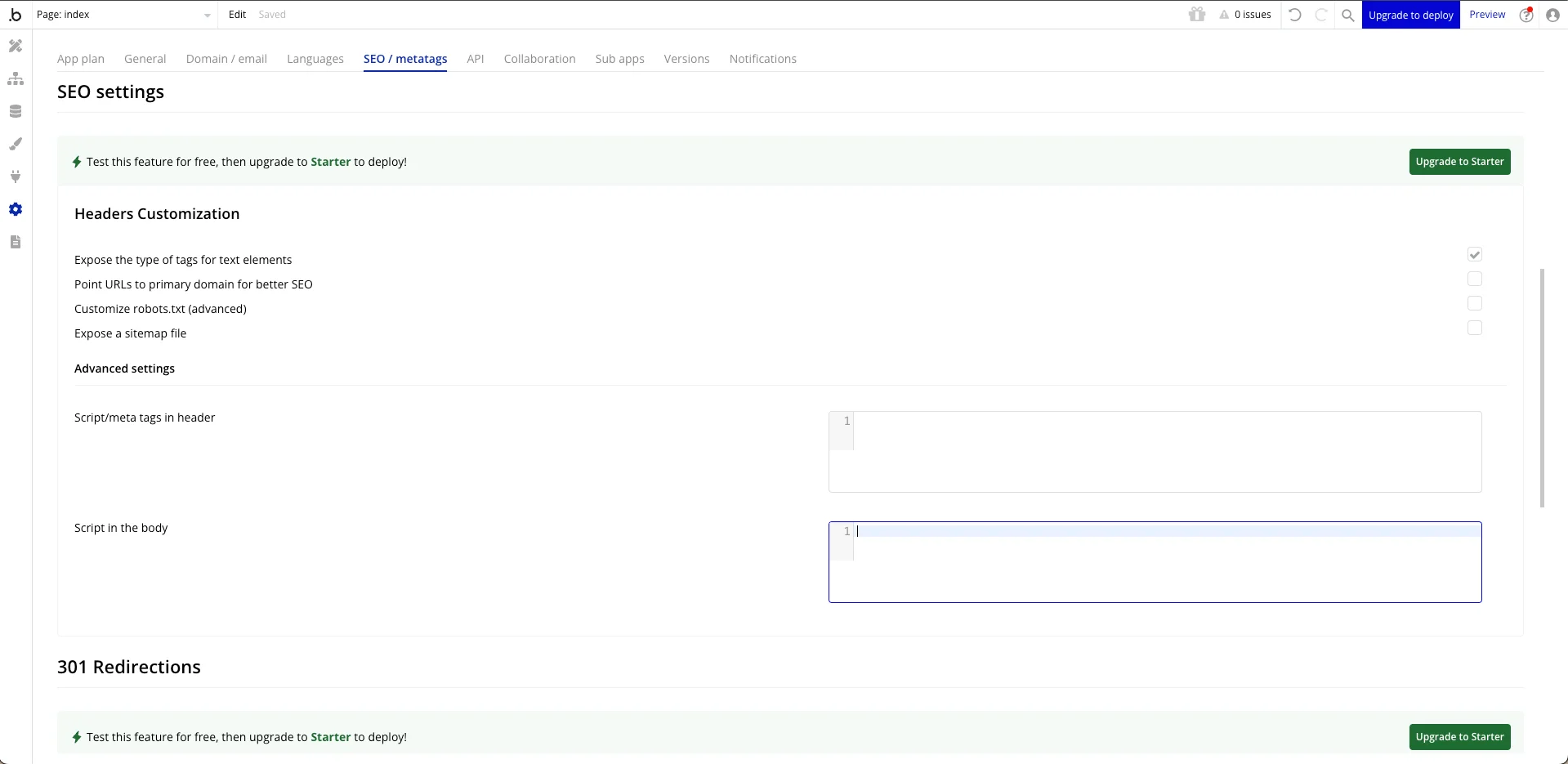
Go to your Bubble Home, select your app, and click Launch editor.
- In the left menu bar, go to "Settings".
- Click the "SEO / Metatags" tab.
- Paste the script from QAnswer (available only after selecting a share type or generating an API key) into the "Script in the body" box.
Visit your website to verify the chatbot widget is working.