Data Sources
A data source is what an assistant knows. You attach data sources as connectors on the Add data tab of the assistant editor, and QAnswer indexes their content so the assistant can answer from it and cite it.
The Add data tab
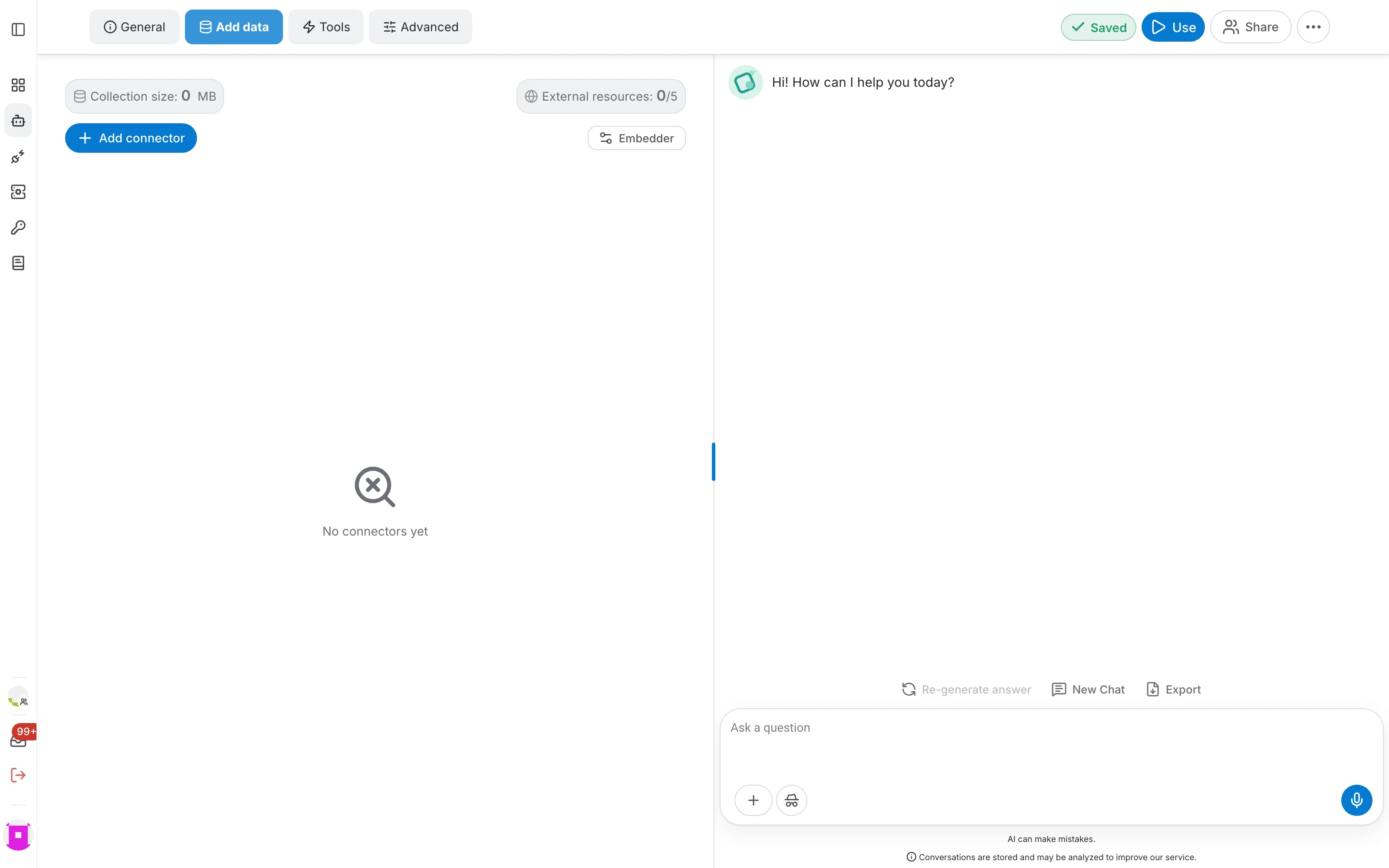
Open an assistant's editor and switch to Add data . Everything about the assistant's knowledge lives here:
- Collection size — how much indexed data the assistant holds.
- External resources — how many live sources, such as crawled websites, are in use against your quota.
- Add connector — attaches a new data source.
- Embedder — opens the parsing options, where the embedding model and chunking are configured.
Connector types
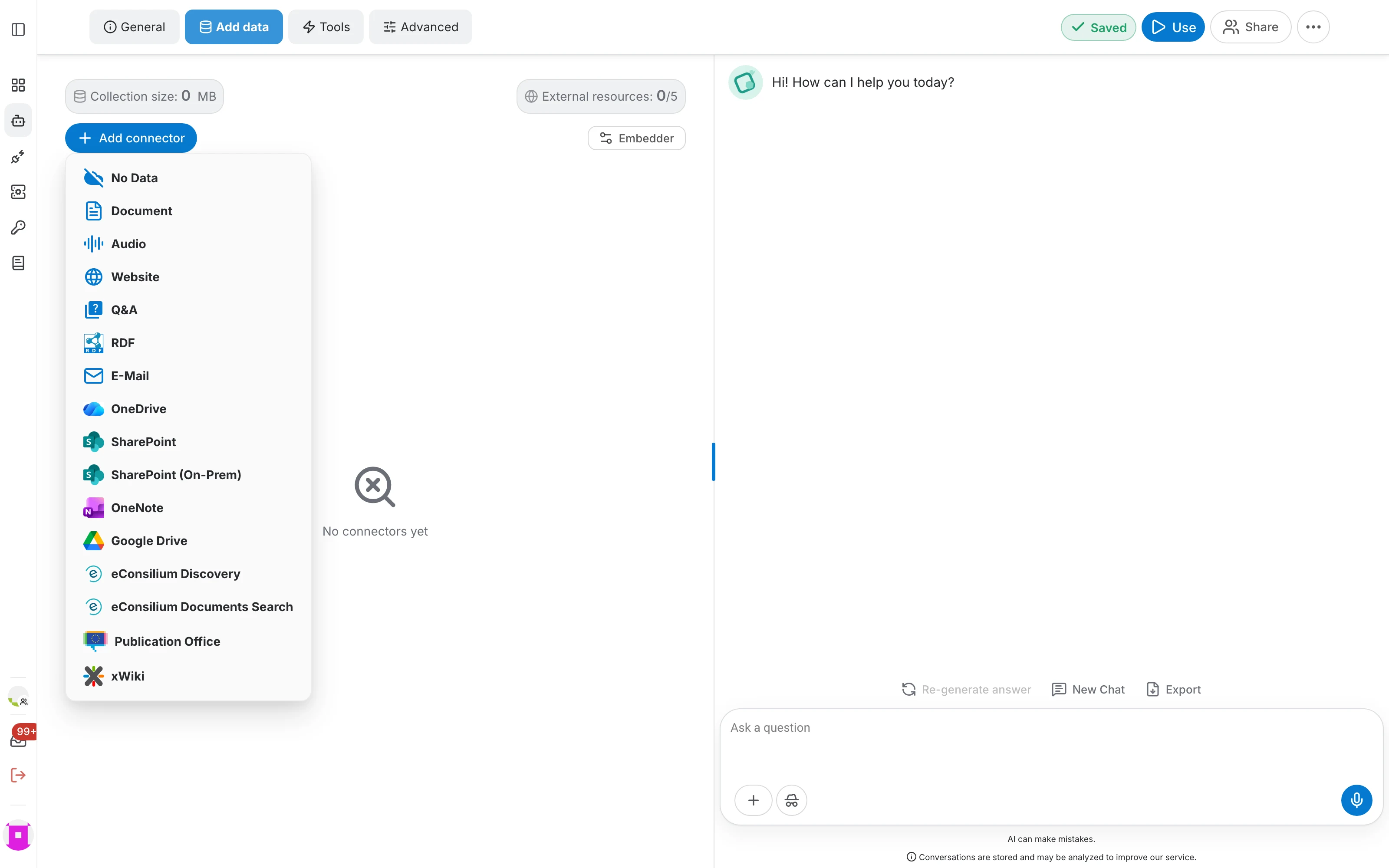
Each connector type reads a different kind of source. The pages below cover them one by one:
- Document — PDF, Word, text and other files you upload
- Audio — recordings that QAnswer transcribes
- Website — pages and sections of a site
- Q&A — curated question and answer pairs
- RDF Graph — a knowledge graph
- Email — an IMAP mailbox
- OneDrive
- SharePoint, including on-premise SharePoint
- OneNote
- Google Drive
Adding a connector
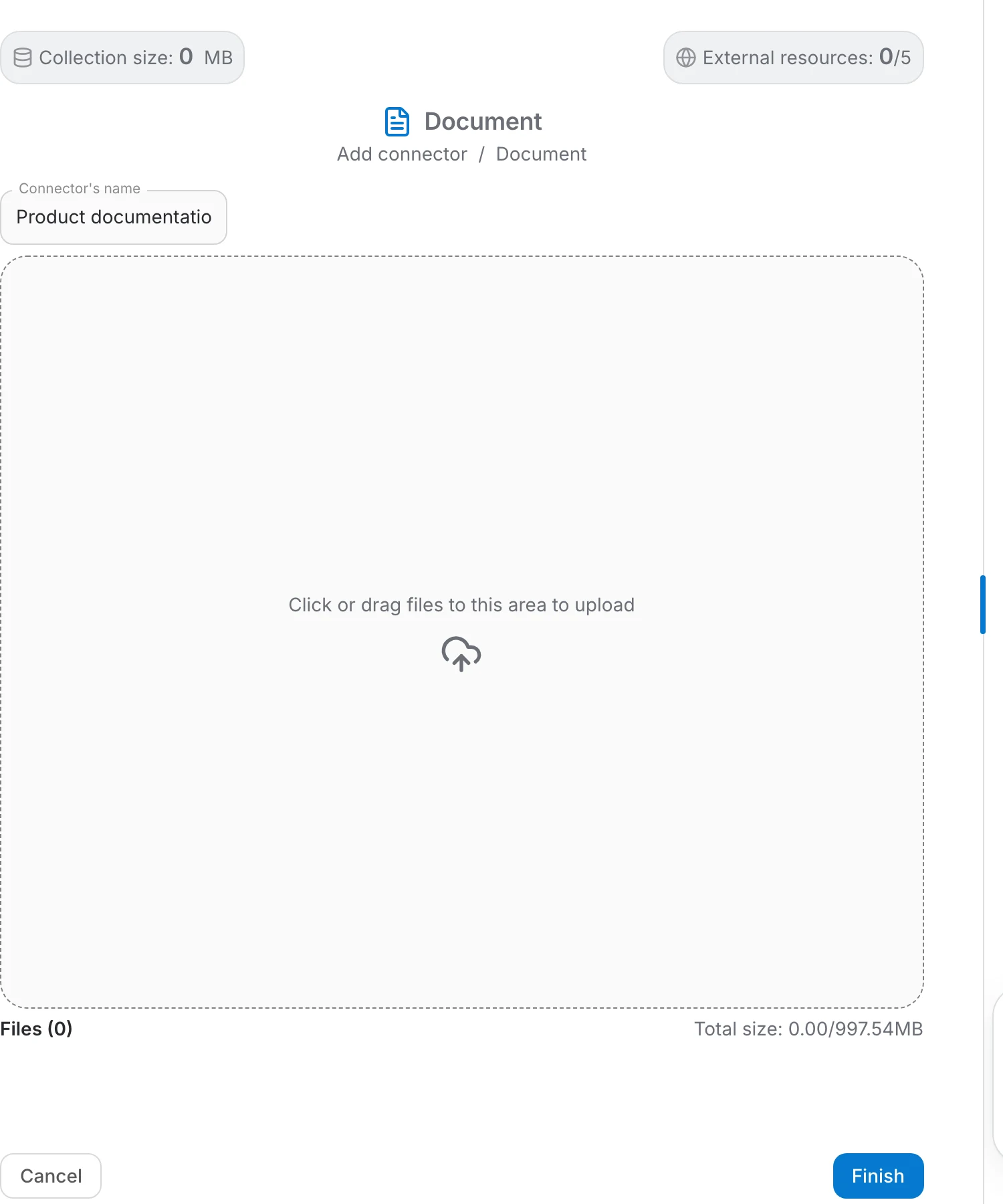
Pick a type from the Add connector menu. Every connector form follows the same three steps:
- Give the connector a name. It appears in the connector list and in the answer's sources, so name it after what it contains.
- Configure the source itself — upload files, enter URLs, sign in to an account.
- Click Finish to save it.
QAnswer then reads and indexes the content. The connector appears in the list right away and its files become answerable as they finish indexing.
Managing connectors
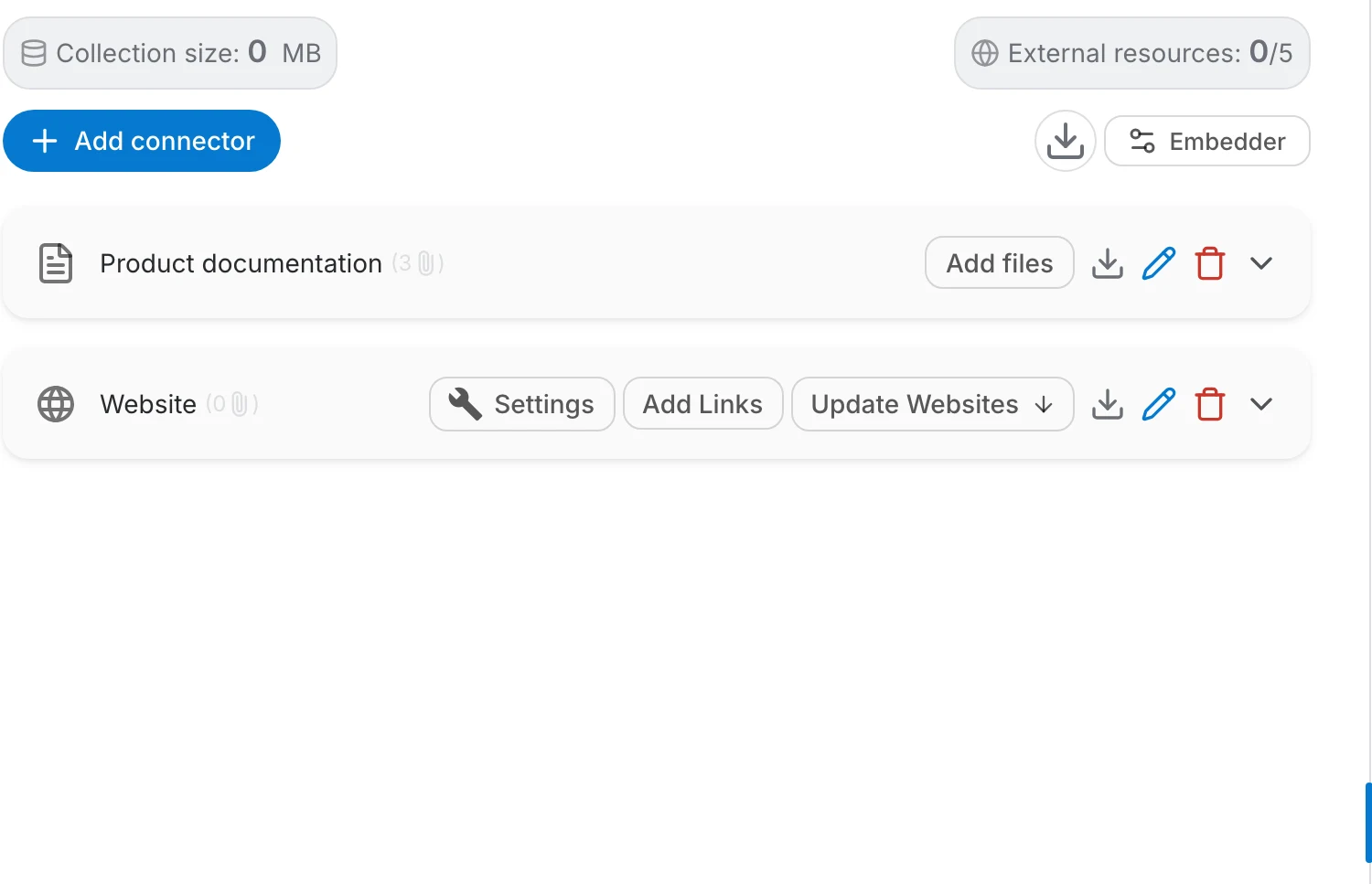
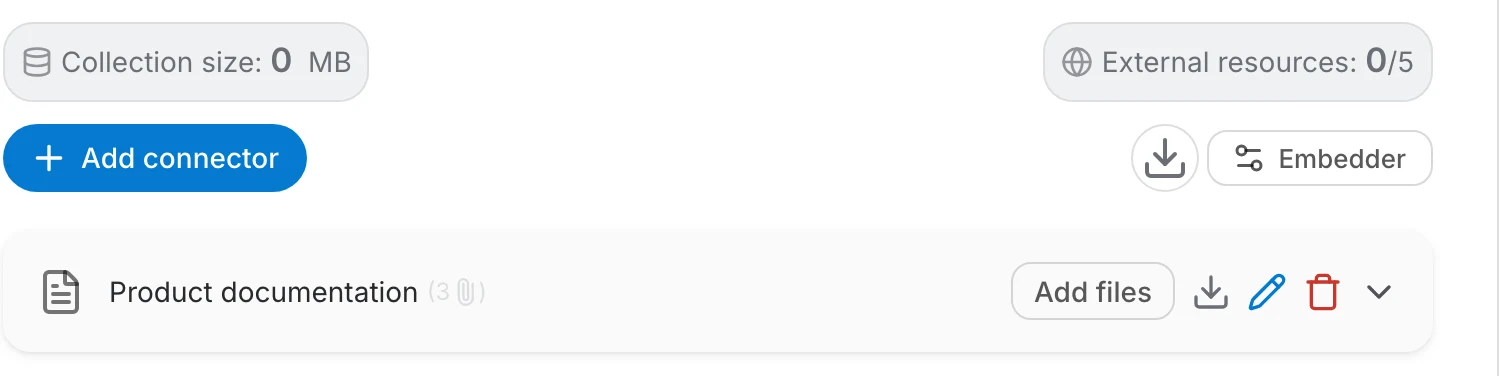
Each connector is a row in the list, with its own actions:
- Add files — adds more content to an existing connector instead of creating a second one.
- Download — downloads everything the connector holds.
- Rename (pencil) — renames the connector.
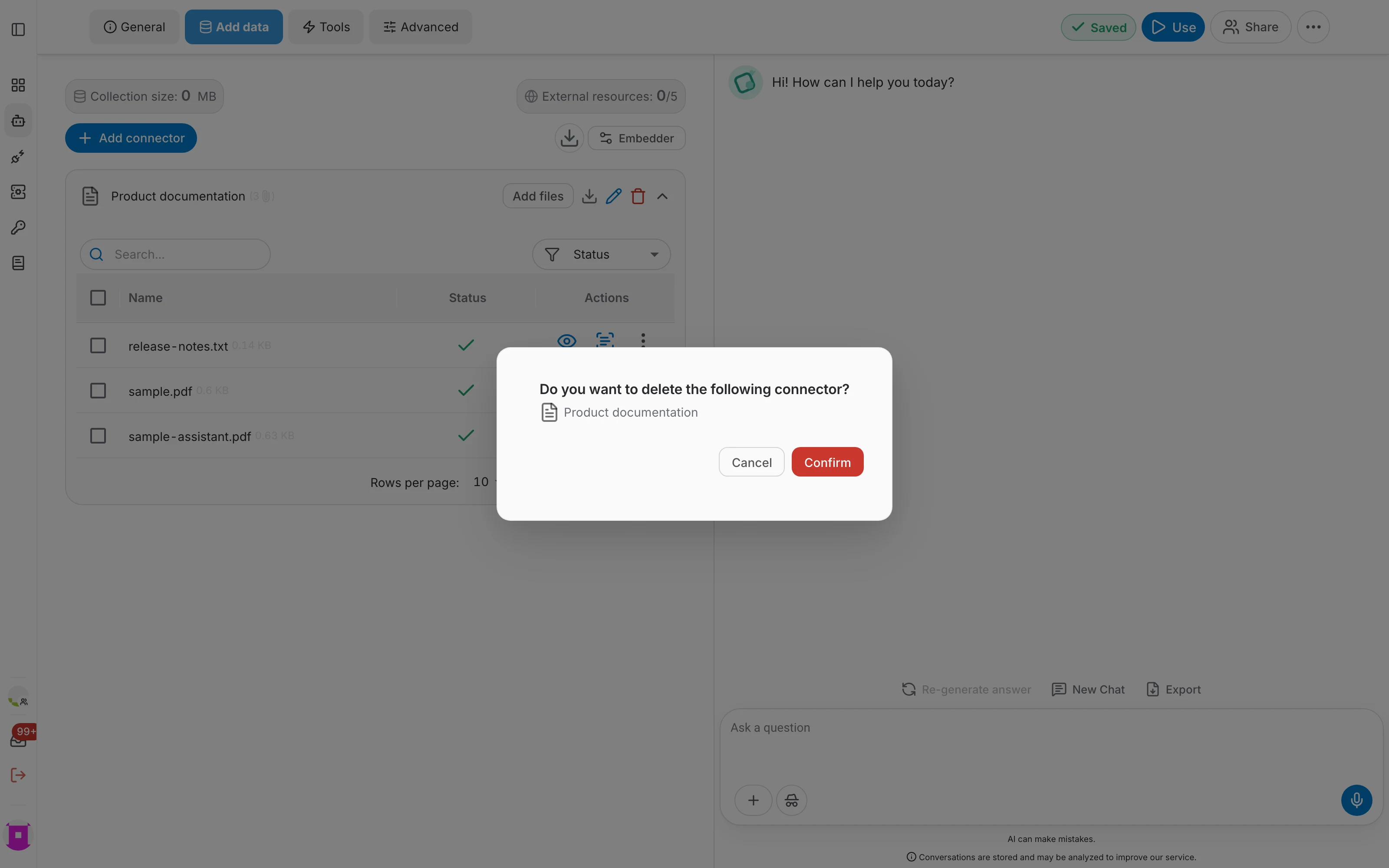
- Delete (bin) — removes the connector and the data it indexed.
- Expand (chevron) — opens the file table of that connector.
The file table
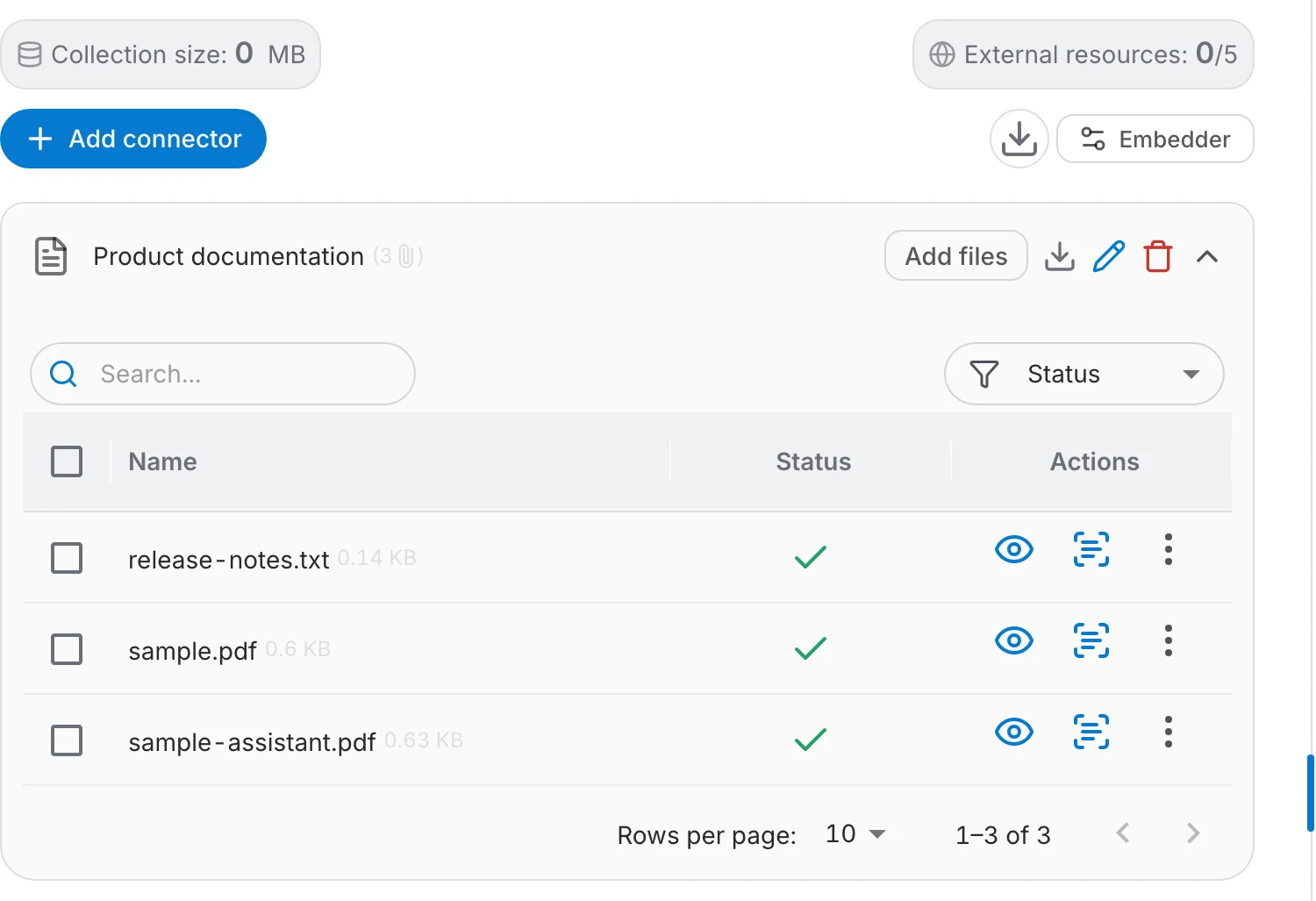
Expanding a connector lists everything it indexed, with the indexing status of each entry:
- Search by name to find one file in a large connector.
- Filter by status to see what failed or is still being processed.
- Tick several rows to act on them together.
- Long lists are paginated; change the rows per page at the bottom.
Actions on a single file
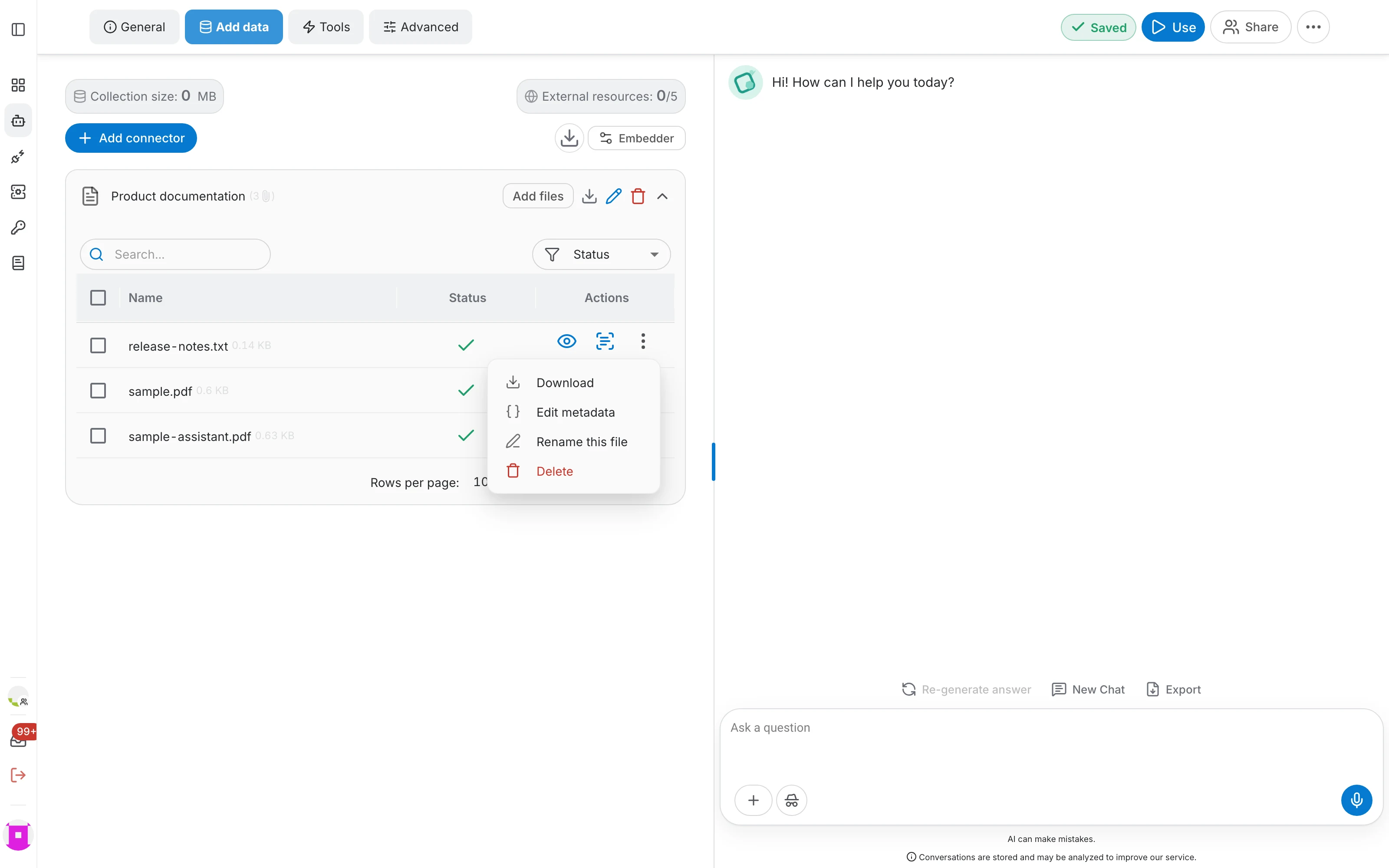
Each row offers two direct actions and a ⋮ menu:
- View source (eye) — opens the original file, exactly as an answer's citation does.
- View raw text — shows the text QAnswer extracted, which is what the model actually reads.
- Download — downloads that single file.
- Edit metadata — adds or edits the metadata attached to the file.
- Rename this file — changes the name shown to users and in citations.
- Delete — removes the file from the assistant's data.
Parsing options
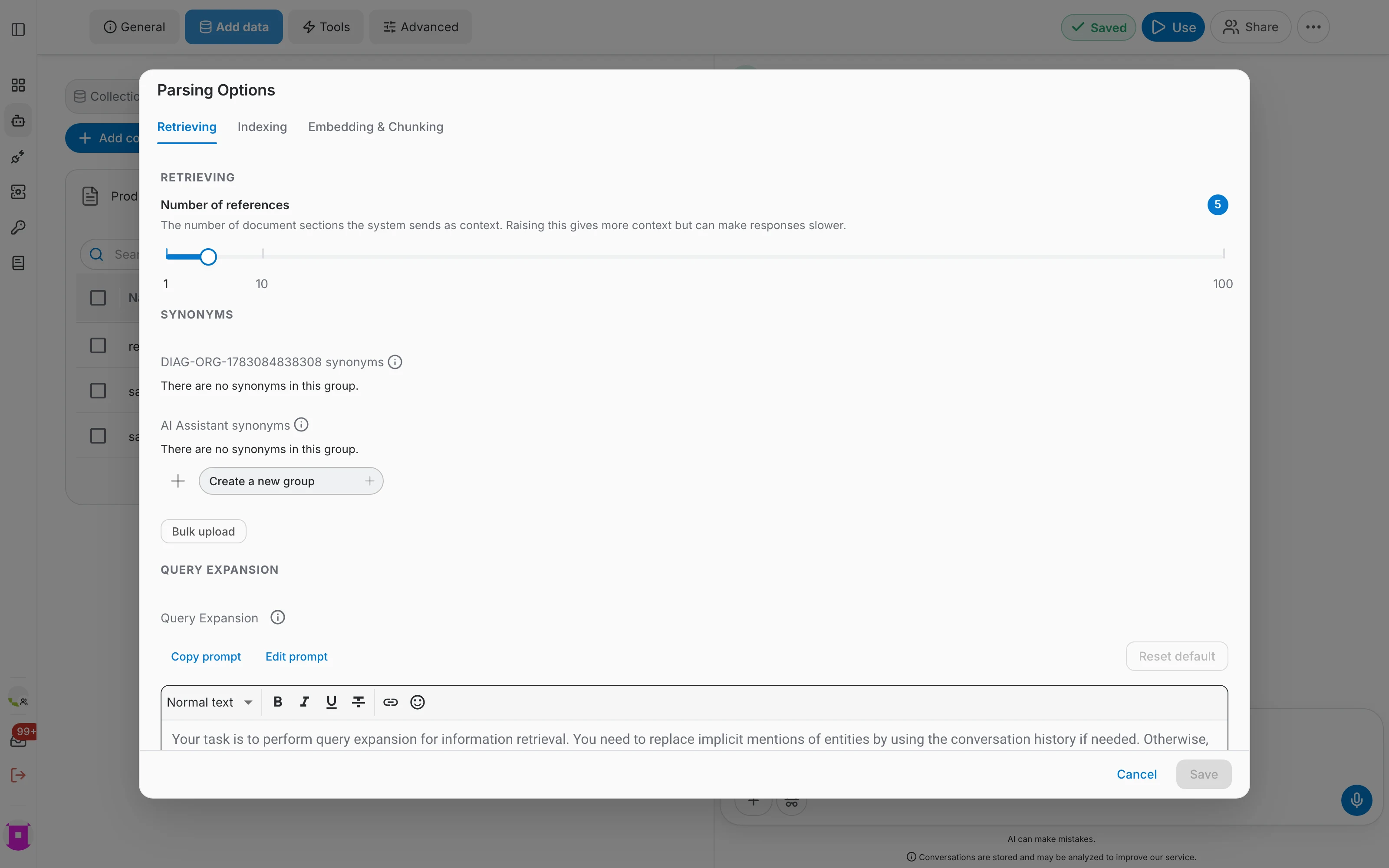
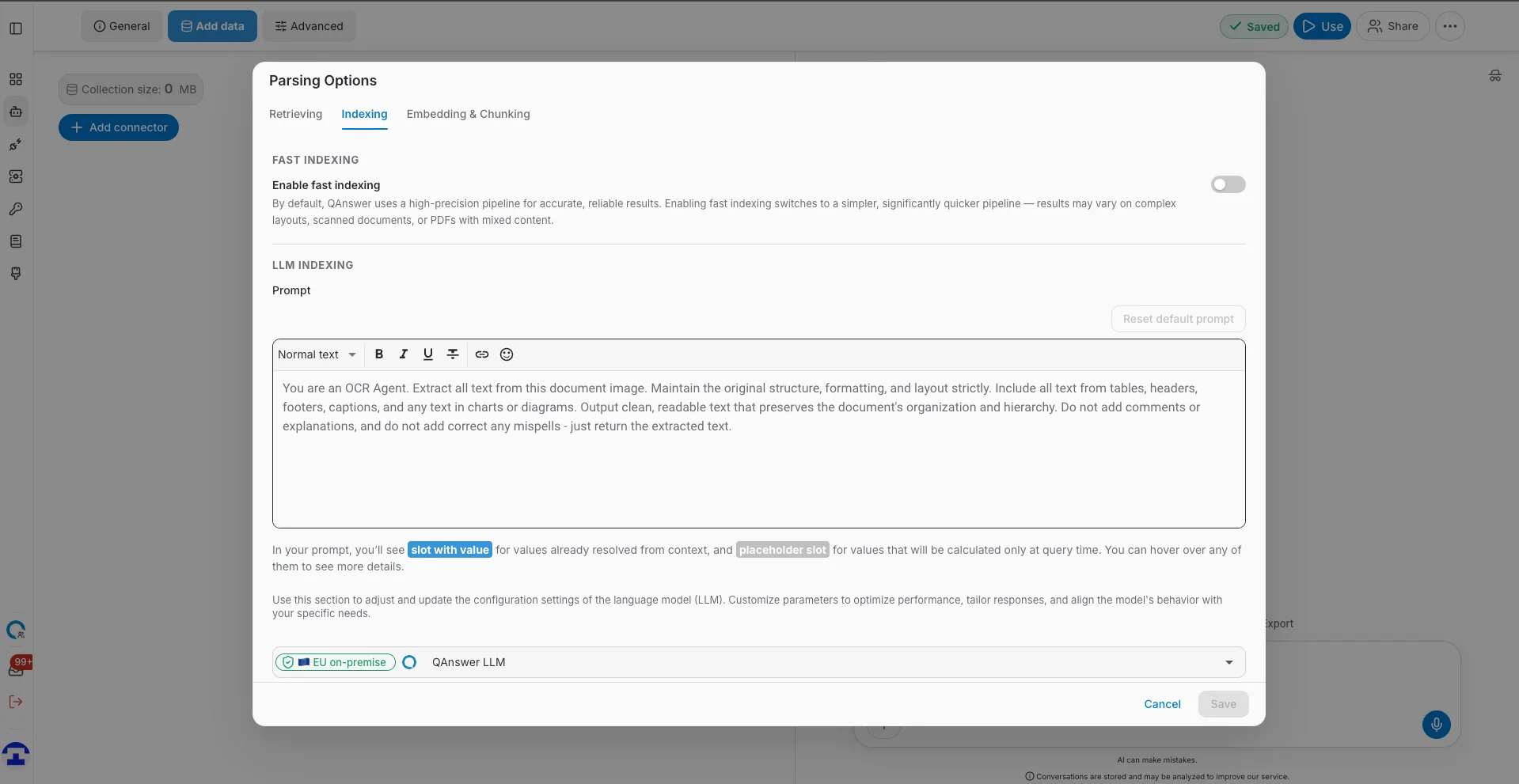
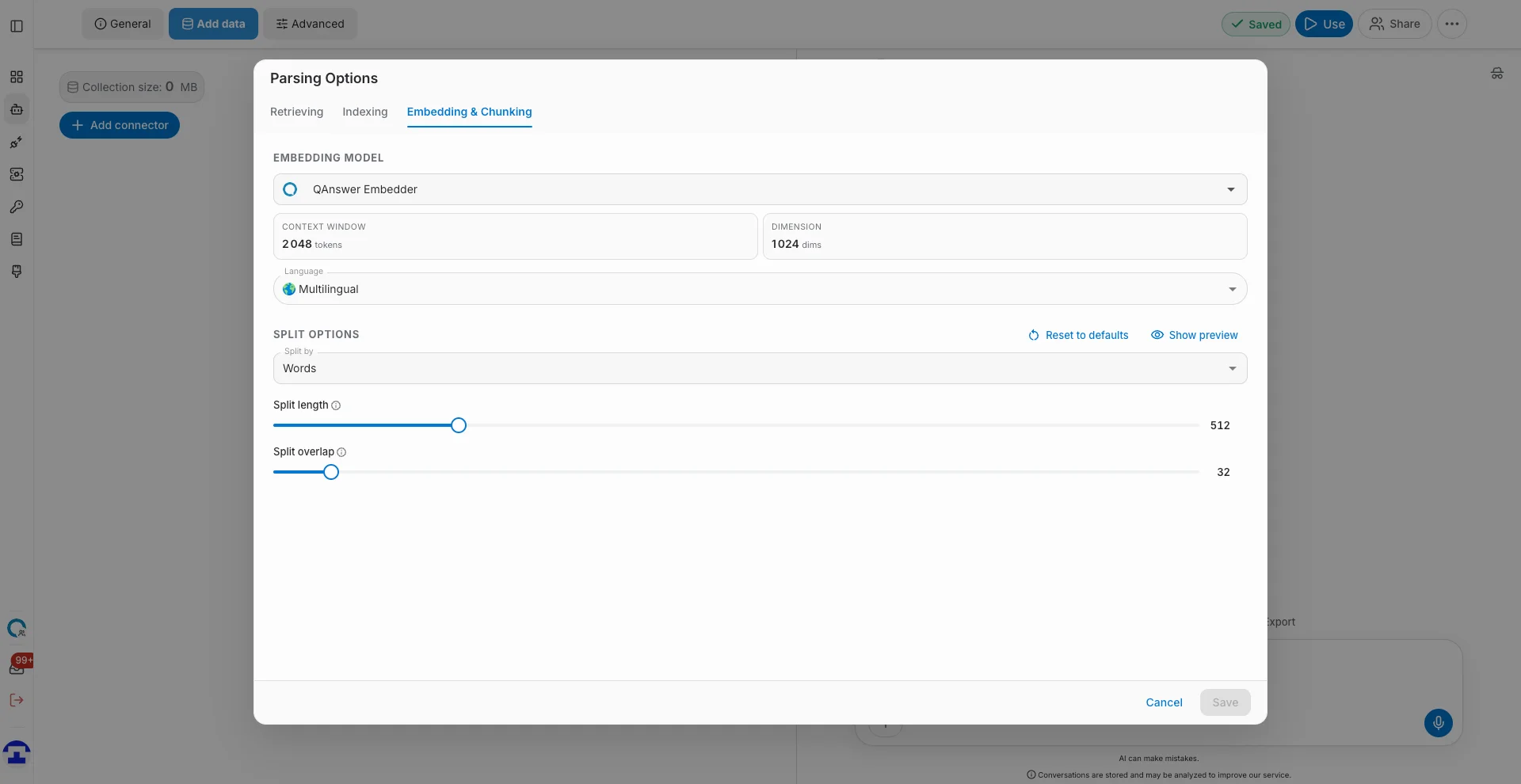
The Embedder button opens the parsing options, which control how your data is turned into something the model can search. They are grouped into three tabs:
- Retrieving — how many document sections are sent as context, synonym groups, and the query-expansion prompt.
- Indexing — how the source text is read and prepared.
- Embedding & Chunking — the embedding model and how documents are split into chunks.