
The Email connector indexes an IMAP mailbox, so an assistant can answer from past correspondence — support threads, supplier exchanges, or an archive nobody wants to read through.
The connector lives inside an assistant, so create or open one first and go to its Add data tab.
Connect the mailbox
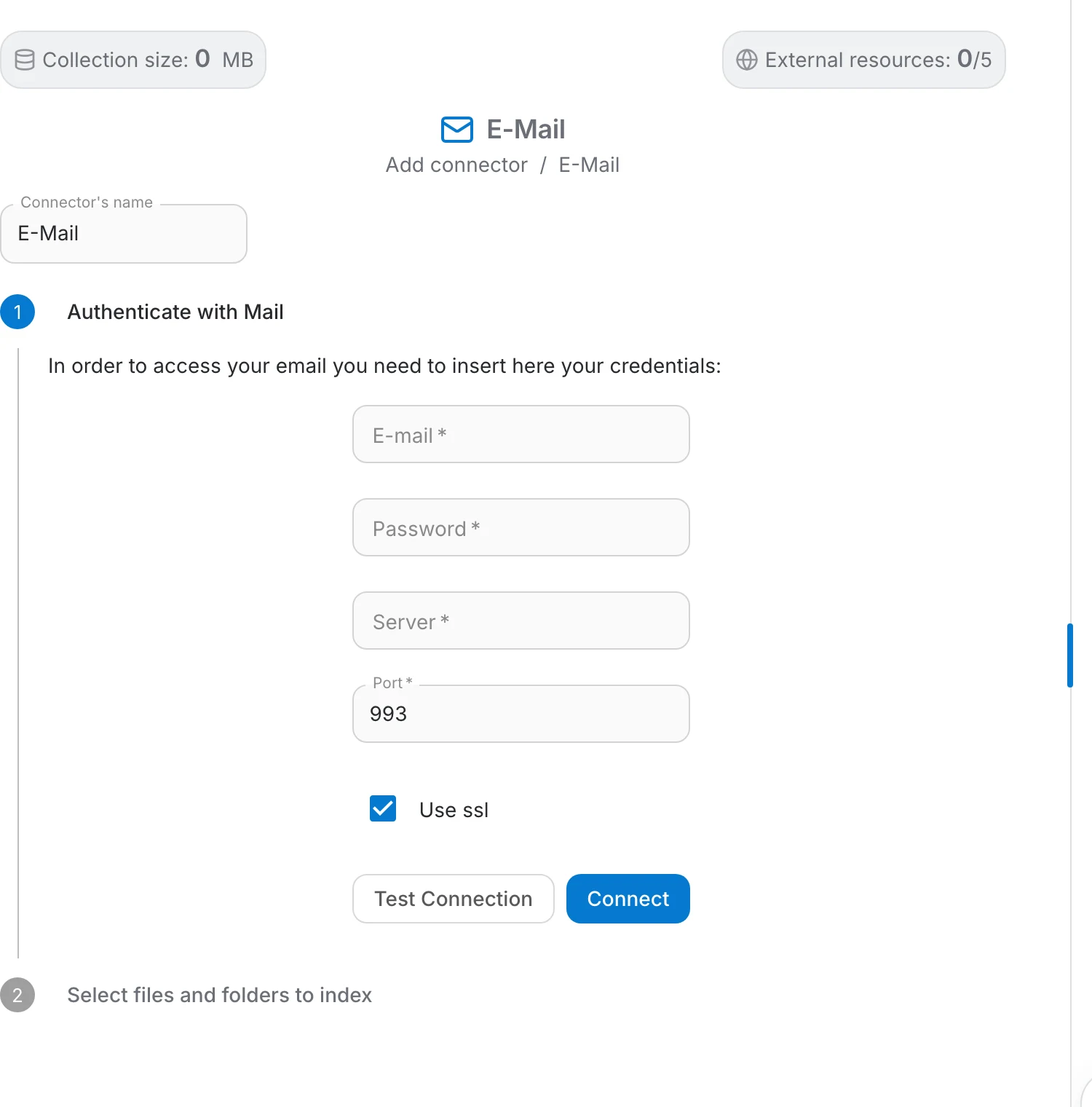
Choose E-Mail in the Add connector menu. The page is a two-step stepper — authenticate first, then choose what to index. You can click a step header to fold it away.
Connector's name is pre-filled with "Mail Connector". Rename it to something you will recognise in the connector list — "Support inbox", "Supplier mail", "Personal Gmail" — especially if the assistant ends up with several mailboxes.
The first step asks for the IMAP credentials of the mailbox. All five fields are required:
- E-mail — the address of the mailbox.
- Password — the mailbox password, or an app password where the provider requires one.
- Server — the IMAP host of your provider, for example imap.gmail.com or outlook.office365.com.
- Port — 993 by default, which is IMAP over SSL. 143 is the usual plain-text port.
- Use ssl — on by default; leave it on unless your server genuinely requires an unencrypted connection.
Common server settings
- Server: imap.gmail.com
- Port: 993
- SSL: on
- Gmail refuses your normal account password over IMAP. Generate an app password instead — Google's instructions.
Test the connection
Use Test Connection before you commit. It checks that the address and password are accepted, that the server and port are reachable, and that the SSL setting matches what the server expects. A green message means it worked; a failure shows the error the mail server returned, which is usually specific enough to fix the field that is wrong.
Then click Connect to create the connector. The credential fields lock once the mailbox is connected. If the mailbox cannot be listed afterwards, the page returns to the first step and asks you to authenticate again — that normally means the password was revoked or IMAP access was turned off.
Choose what to index
The second step lists what the mailbox contains, and nothing is indexed until you pick it:
- Tick the rows you want. Only ticked rows are added — finishing with an empty selection adds nothing.
- Each item keeps the folder it came from as metadata, so mail from different folders stays distinguishable in answers.
- The list is paged 15 items at a time and fetched from the server as you move through it, so a large mailbox stays usable.
- Click Finish to start indexing.
Indexing and updates
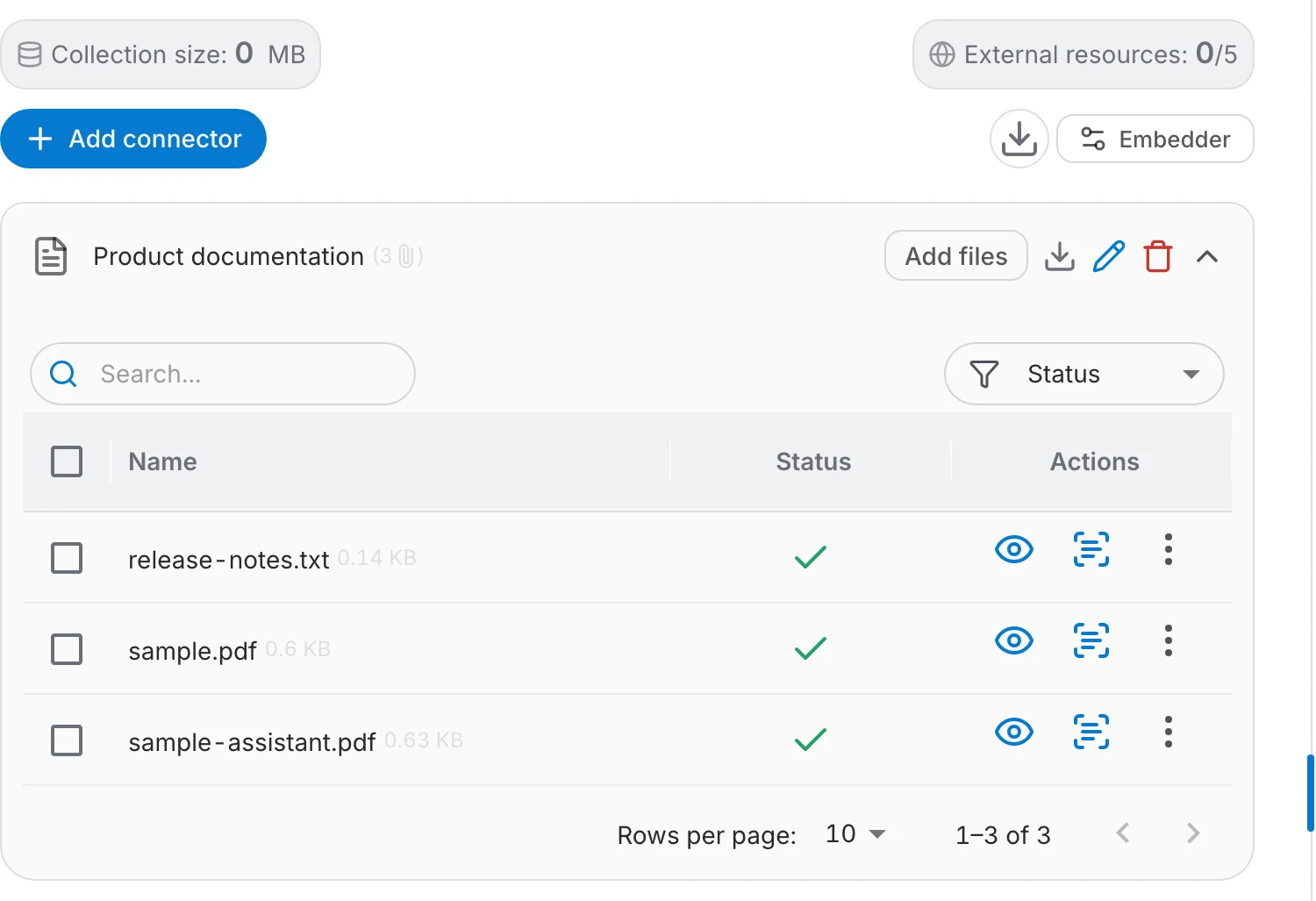
Messages appear in the connector's file table as they are indexed, each viewable as raw text so you can check what the assistant actually reads. Two buttons on the connector row keep it current:
- Add files — reopens the mailbox listing so you can select more messages for the same connector.
- Update — a menu with Never, Now, Daily, Weekly and Monthly. Now fetches new mail immediately after a confirmation; the other options set how often the connector refreshes on its own.
Troubleshooting
Connection failed
- Re-check the address and password, then run Test Connection again.
- Check whether the provider requires an app password — Gmail and most Microsoft accounts do once two-factor is on.
- Make sure IMAP access is enabled in the mailbox settings; it is off by default on some providers.
- Confirm the host and port with your provider or IT team.
SSL problems
- If the server has no SSL on the port you gave, either switch the port to 993 or turn Use ssl off.
- Ask your provider for the exact host, port and encryption combination they expect.
- Check that a firewall is not blocking outbound IMAP traffic.
Authentication errors
- Generate a fresh app password; they expire or get revoked when the account password changes.
- Check that the mailbox is not locked by the provider after failed sign-in attempts.
- Verify the account has IMAP permission — some organisations disable it centrally.
Still stuck
- The error text from Test Connection comes straight from the mail server; search for it in your provider's IMAP documentation.
- The assistant's logs page records indexing failures per message.
- If nothing helps, contact support with the exact error message and the host and port you used.
Next steps
Once the mailbox is indexed:
- Restrict who may use the assistant, since answers can quote any indexed message.
- Ask a few real questions to see whether the right mail is being found.
- Check the logs for messages that failed to index.
- Set an update frequency so the connector keeps up with new mail.