
Use Tools in Chat
Everything happens in the conversation: you choose which servers are available, ask your question, and the AI assistant calls the right tools. This page walks through the full flow.
Open the Actions list
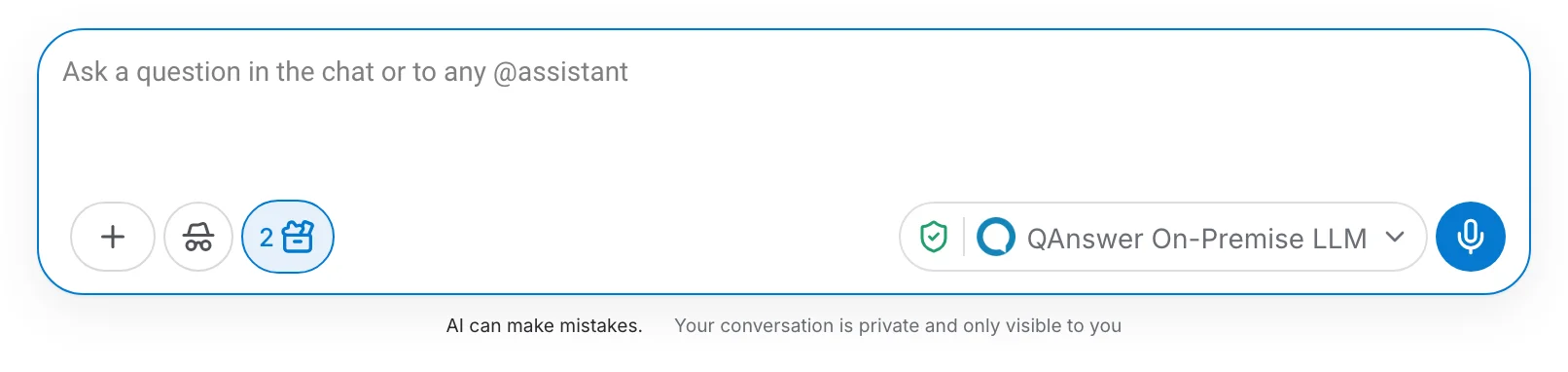
In the chat box, click the Actions button. Its badge shows how many servers are currently enabled for this conversation.
Enable servers for the conversation
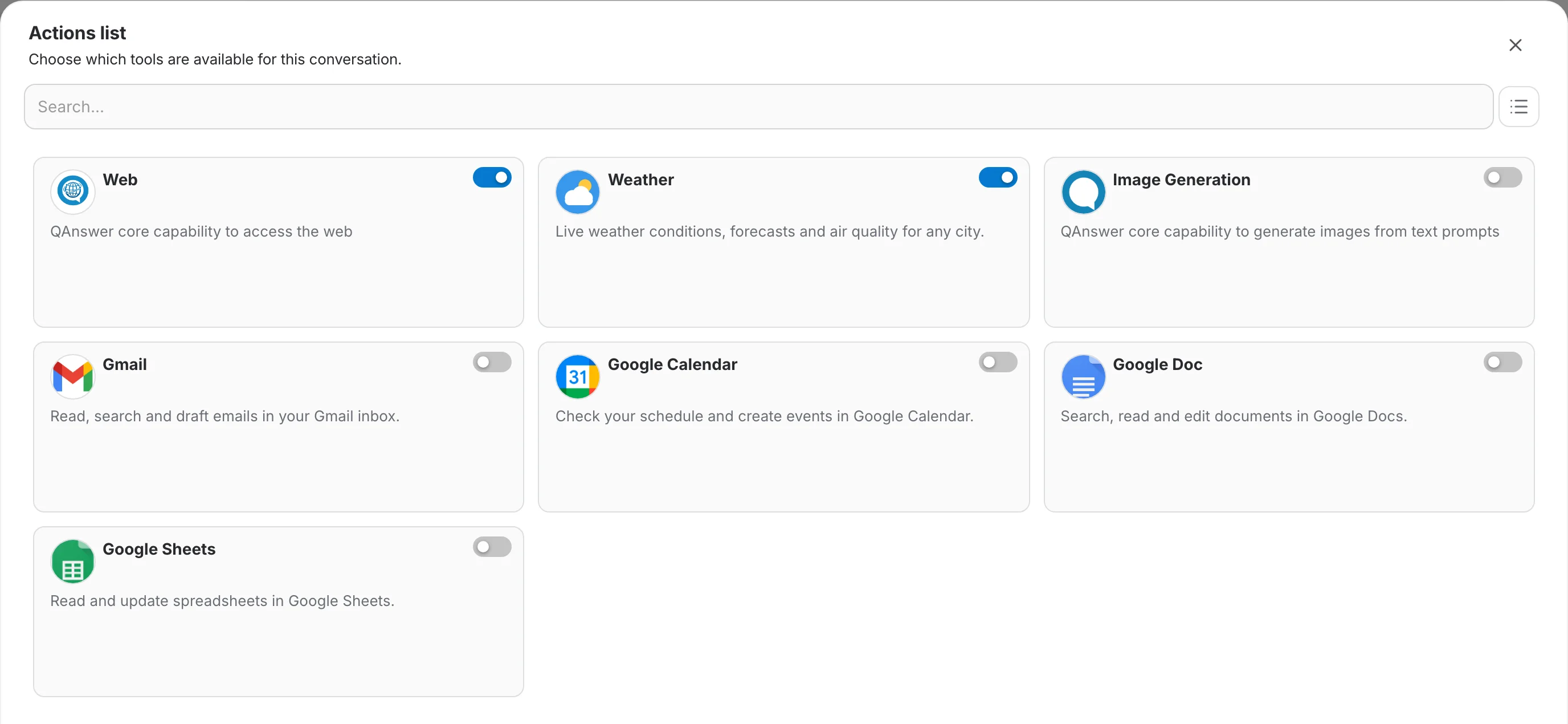
The Actions list shows every MCP server you can use. Choose which ones this conversation may call:
- Use the switch on a card to enable or disable all of the server's tools at once.
- Enable several servers at the same time — enabled ones move to the front.
- Search by name or description to find a server quickly.
- Switch between the card grid and a compact list with the view toggle next to the search field.
Ask your question
With servers enabled, just chat naturally. The AI decides when a tool helps — no special syntax needed.
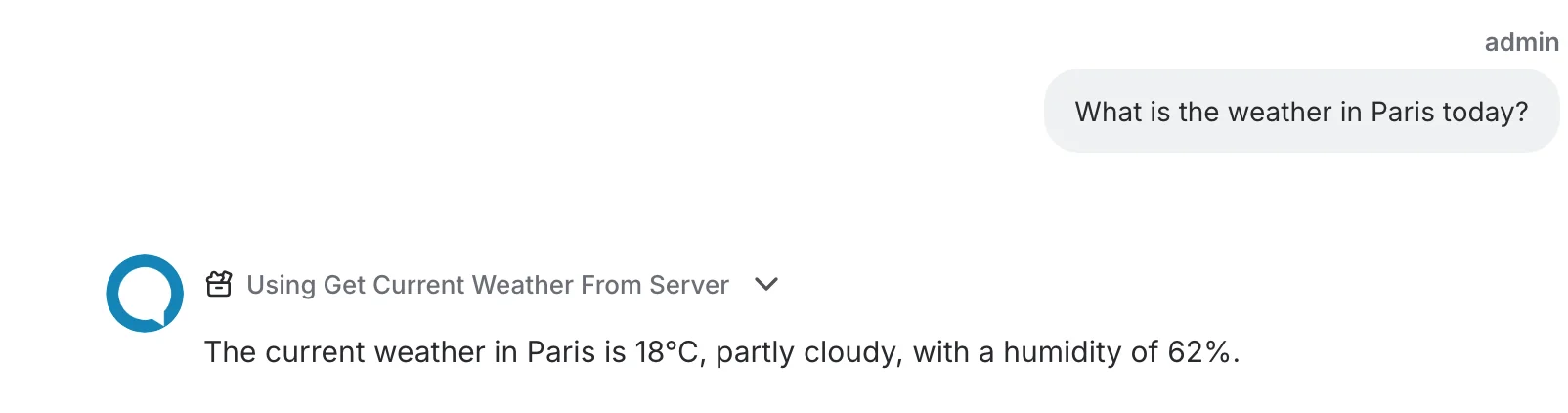
Example: "What is the weather in Paris today?"
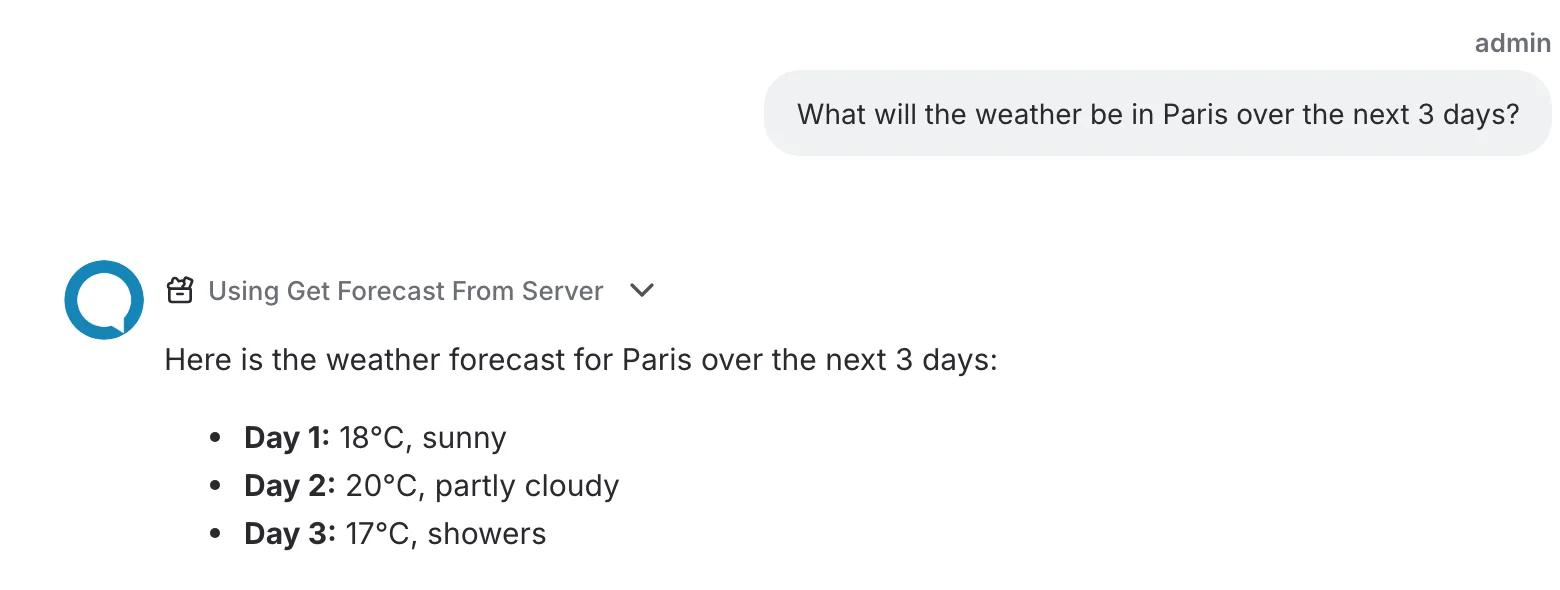
While answering, the assistant shows a step for each tool it uses. Click the step to expand the parameters that were sent and the result that came back.
Approve tool runs
Some tools ask for your confirmation before they run — typically tools that modify data or that an administrator marked as sensitive. The conversation pauses and shows a confirmation card:
- Review which tool is about to run and with which values.
- Edit any field before approving — for example correct the city or the number of days.
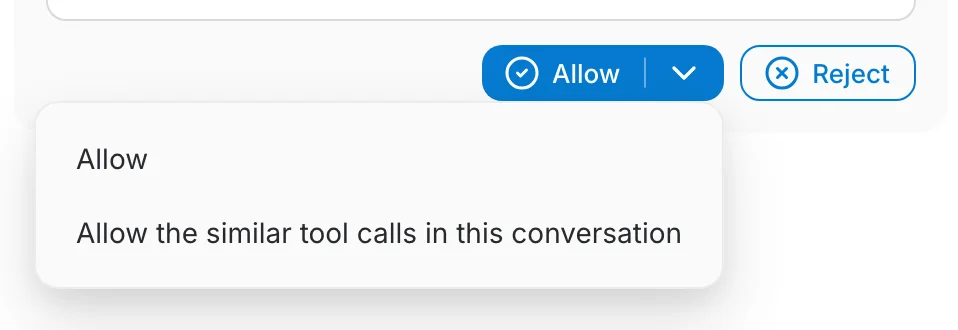
- Click Allow to run the tool, or Reject to skip it and let the assistant continue without it.
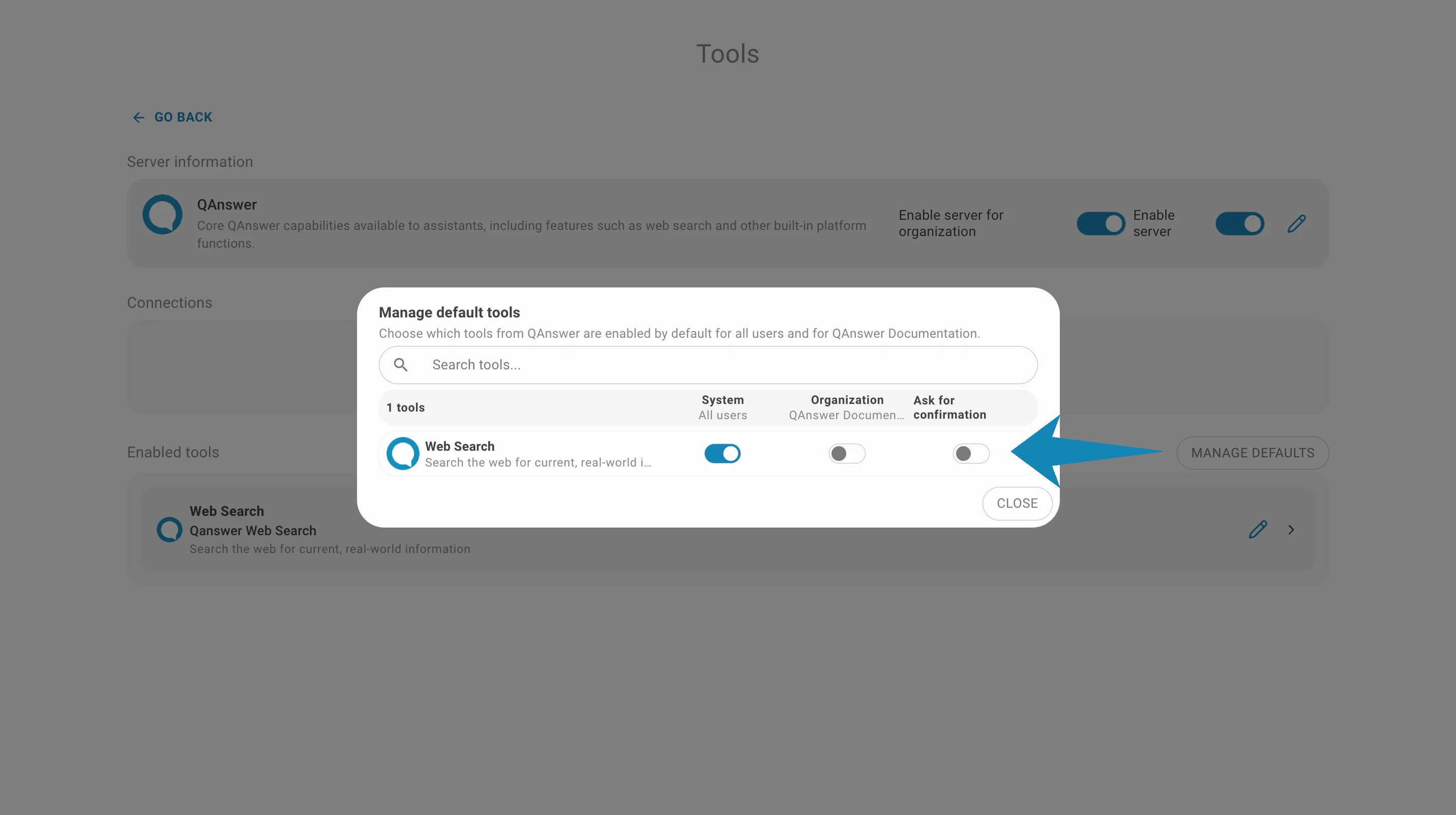
The arrow next to Allow offers a second option: allow all similar tool calls for the rest of the conversation, so you are not asked again for the same tool.
After you approve, the tool runs and the assistant completes its answer:
Connect your account when asked
If a tool needs credentials you have not provided yet (an API key or an OAuth login), the conversation pauses and asks you to connect:
- Click the connect button on the card and fill in the requested fields.
- For OAuth servers you are redirected to the provider's consent screen and back.
- Once connected, the tool runs automatically and the answer continues — no need to re-ask your question.
Connections are created once and reused. Learn how they work in Connections & Authentication.
Generate documents
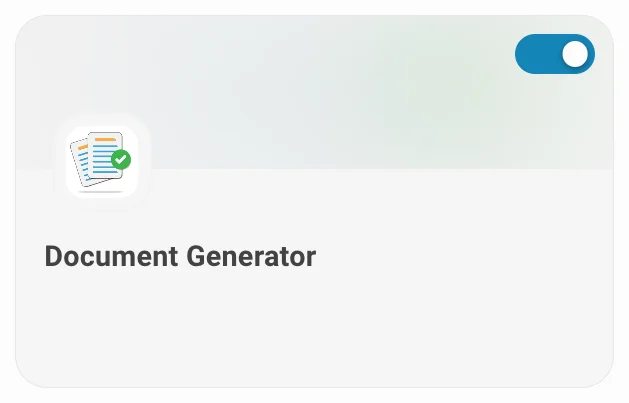
With the Document Generator server enabled, the assistant can produce downloadable files — PDF, Word, Excel or PowerPoint — from your conversation. Ask for the format you need:
Example prompt:
Summarize this conversation as a PDF report.The assistant replies with a download link:




Troubleshooting
The assistant answered without using my tool
- Check the server is enabled in the Actions list of this conversation — selections are per conversation.
- Mention the task explicitly ("check my calendar") — the AI picks tools from their descriptions.
- If the server needs a connection, make sure yours is still valid.
A server is missing from the Actions list
- It may be deactivated on the MCP page — switch it back on there.
- In an organization, an administrator may have disabled it for your scope.