
Logs
Every conversation your AI assistant has can be kept, read and analysed. The Logs tab shows you what people asked, which sources answered them, where the users came from, and which questions your assistant could not answer — plus the two settings that decide whether any of it is recorded at all.
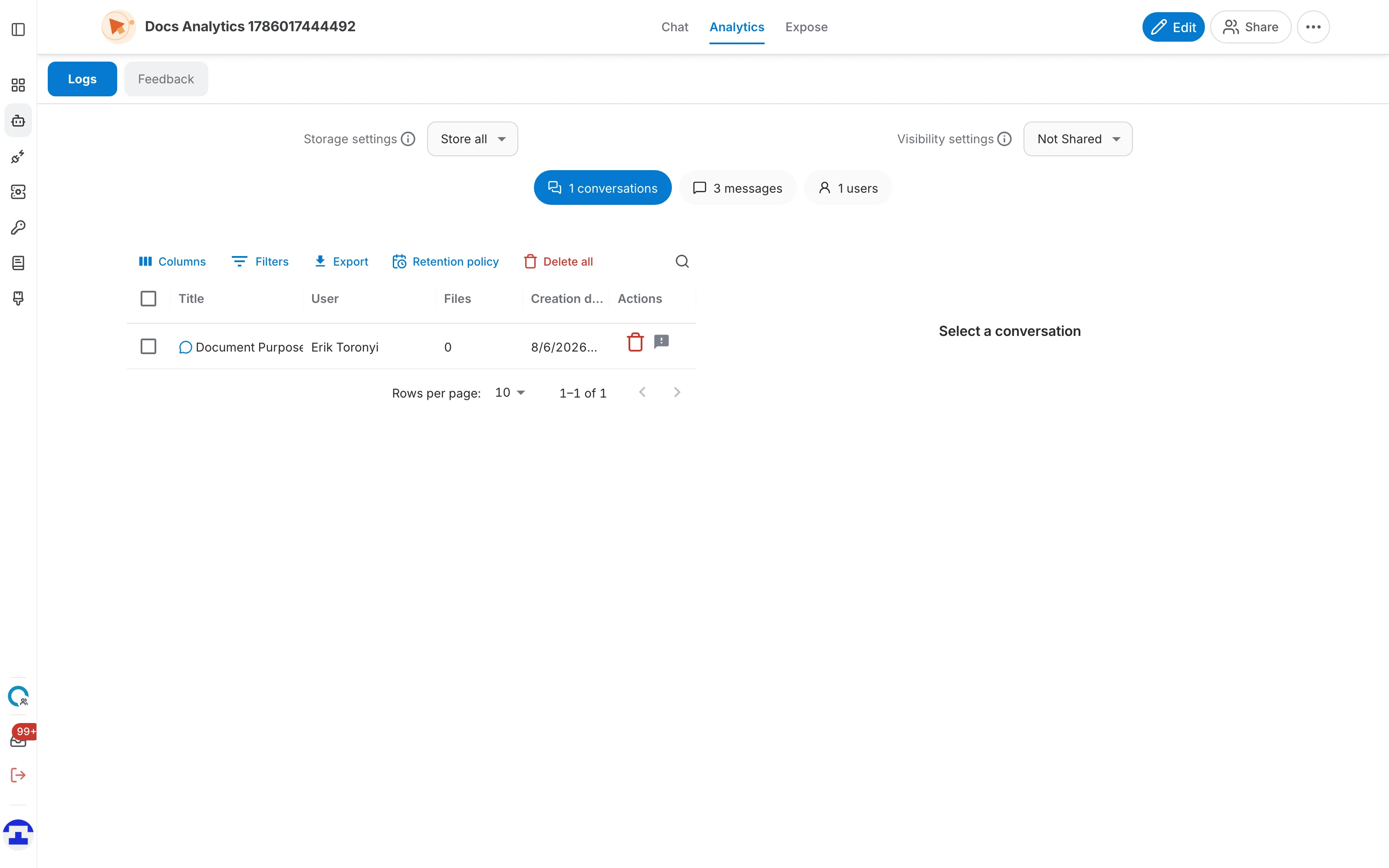
Opening the Logs tab
Open the assistant and go to Analytics. The page has two tabs:
- Logs – conversations, messages, users and the storage settings. This page.
- Feedback – the ratings users left on individual answers — see Feedback.

Storage and visibility
Two dropdowns sit at the top of the Logs tab, side by side. Together they decide whether conversations are recorded and who is allowed to read them. Both save immediately and confirm with a short message.
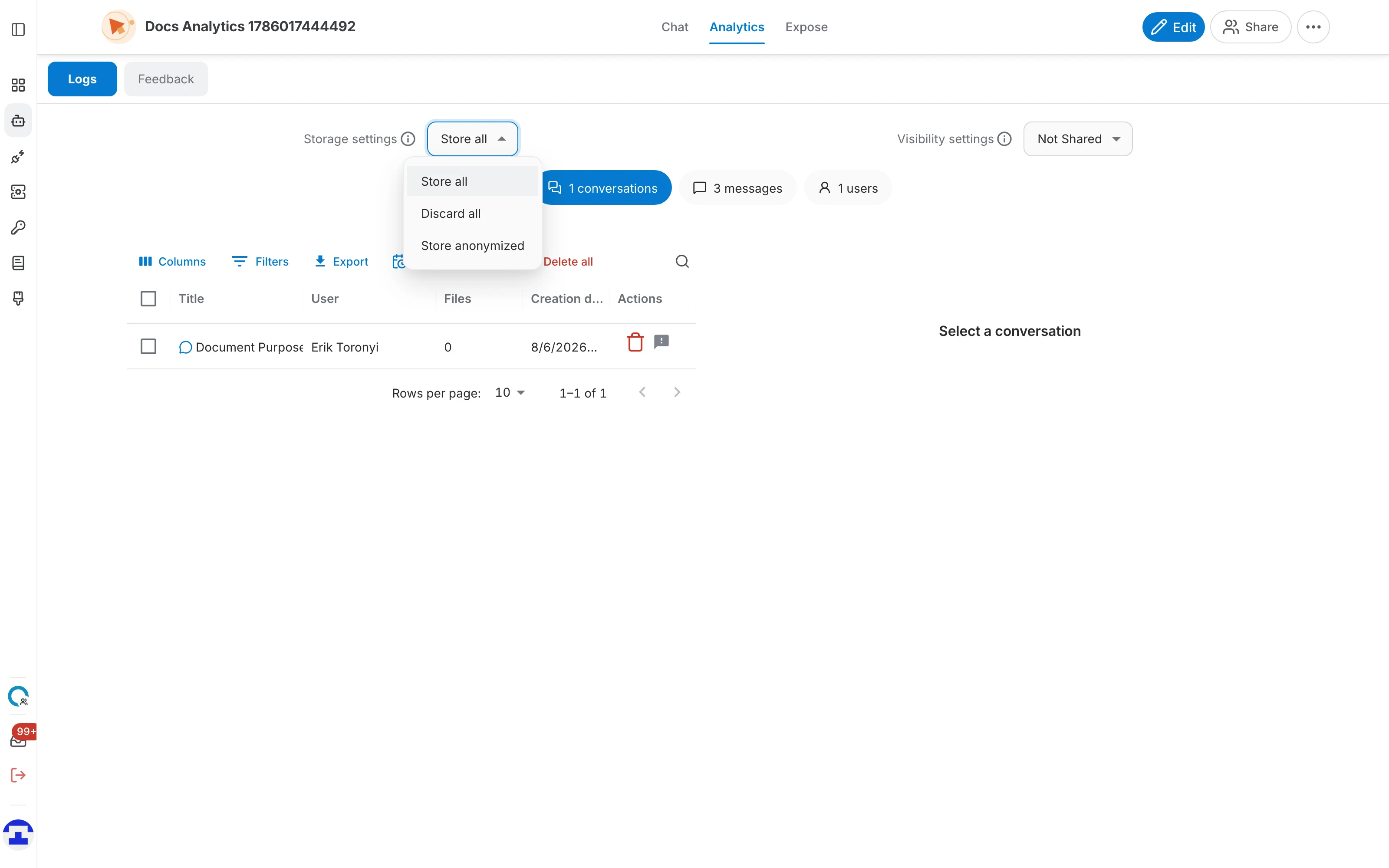
Storage settings
Storage settings decides what is written down in the first place:
- Store all – Your conversations are saved and accessible to users of this assistant.
- Discard all – Your conversations are not saved.
- Store anonymized – Your conversations are saved anonymously and accessible to users of this assistant.
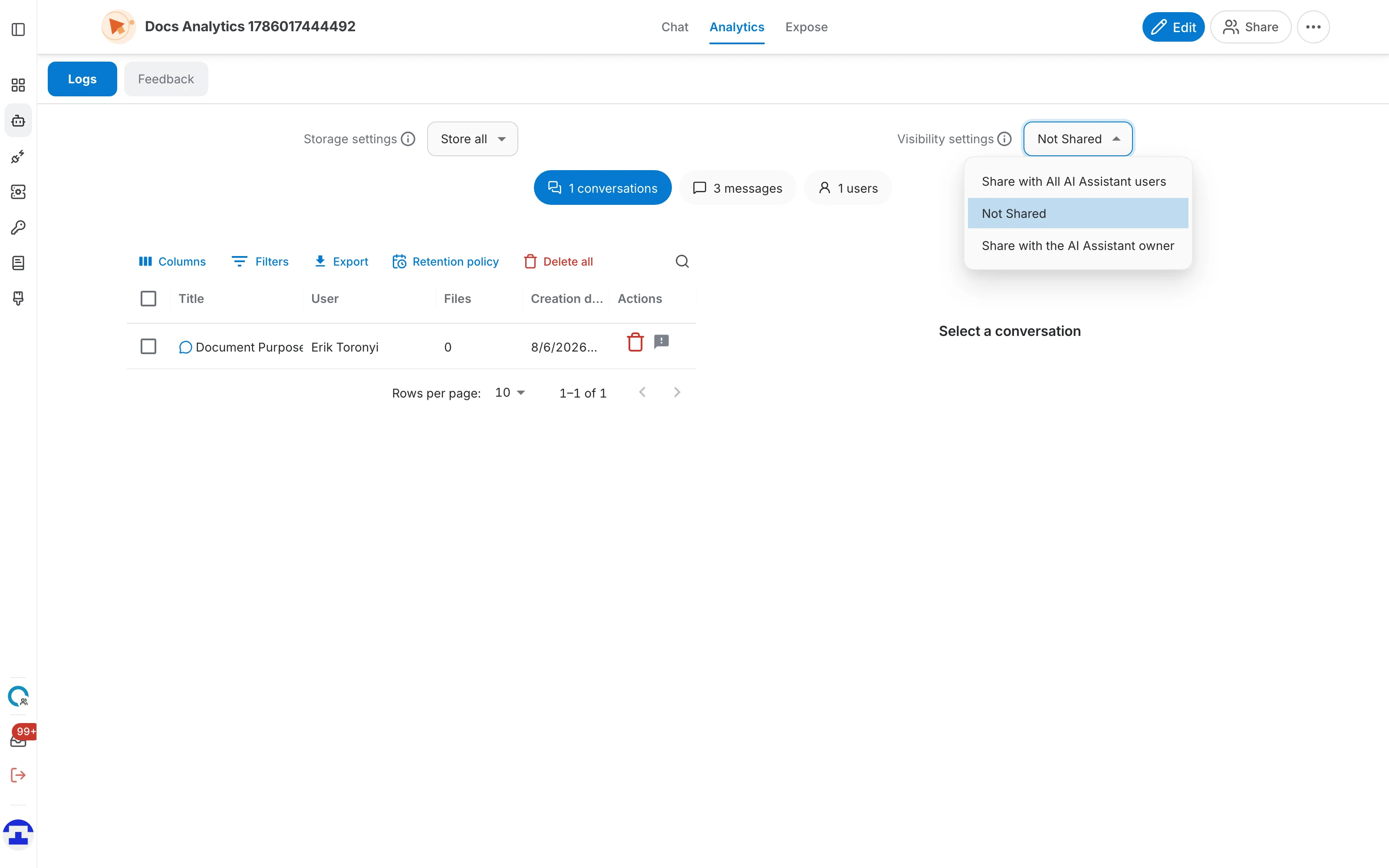
Visibility settings
Visibility settings decides who may read what was recorded:
- Share with All AI Assistant users – Logs are visible to all AI Assistant users.
- Share with the AI Assistant owner – Logs are also visible to the AI Assistant owner.
- Not Shared – Logs are not shared with anyone.
What each storage option means in practice
The storage option you pick determines what actually appears in the tabs below.
| Storage option | Conversations recorded | User identity kept | Feedback can be collected |
|---|---|---|---|
| Store all | ✅ Yes | ✅ Yes | ✅ Yes |
| Store anonymized | ✅ Yes | ❌ No — users appear anonymously | ✅ Yes |
| Discard all | ❌ No | ❌ No | ❌ No — the rating buttons are hidden |
The log tabs
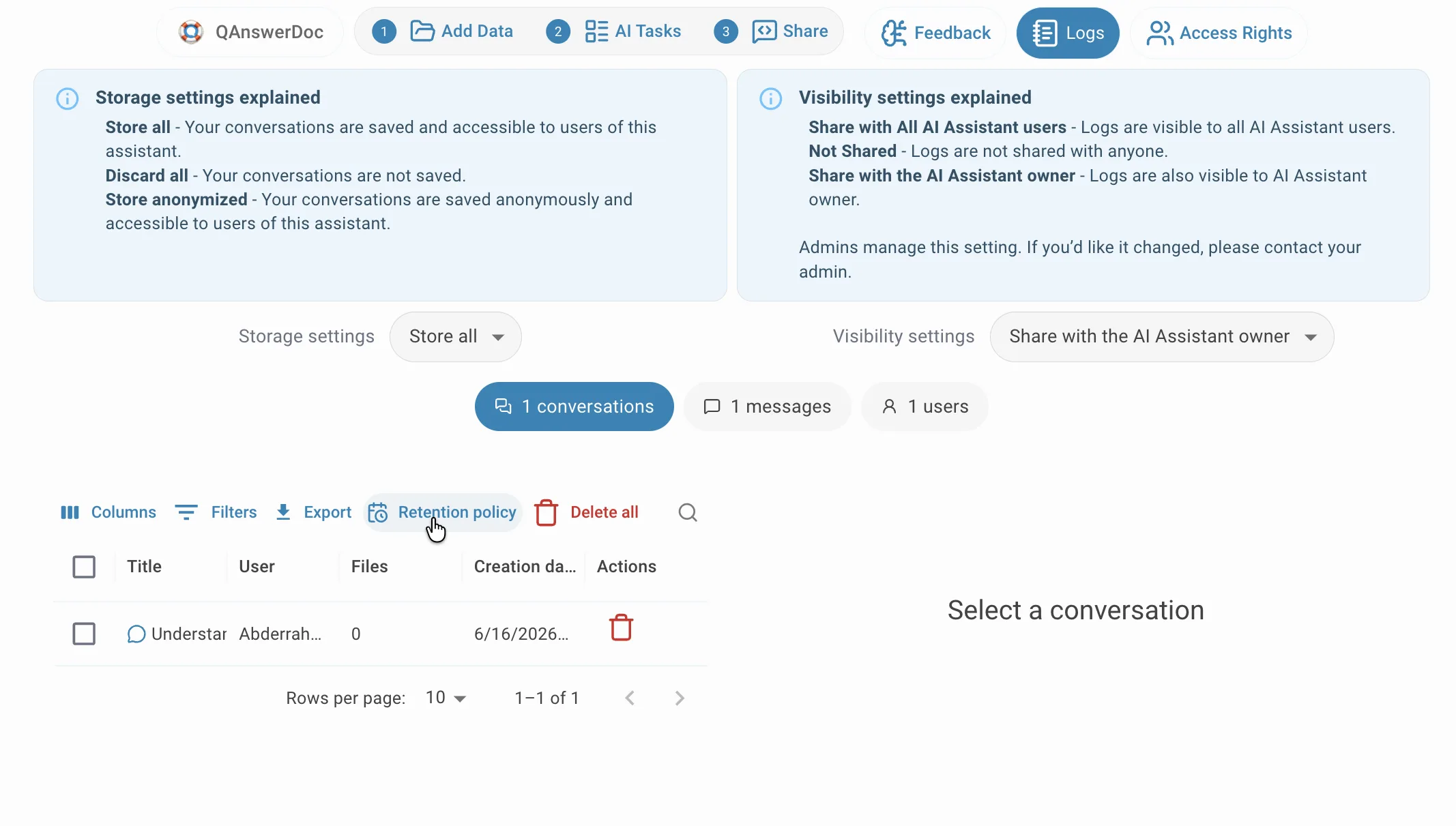
Below the settings, the logs are split across tabs that each carry a live count — Conversations, Messages and Users, plus a Forks tab that only appears for administrators on a template assistant.

Conversations
One row per conversation. The columns are:
- Conversation ID – the internal identifier, handy when you need to quote a specific conversation to support.
- Title – the conversation's title. A small icon marks conversations that carry feedback, with the hint that the details live in the Feedback tab.
- User – who held the conversation — empty when storage is set to Store anonymized.
- Files – how many files were attached to the conversation.
- Origin – the interface the conversation came through — the playground, the public page, a widget, the API and so on.
- Creation date – when it started. The column header carries a date-range filter.
- Actions – per-row actions, including deleting that single conversation.
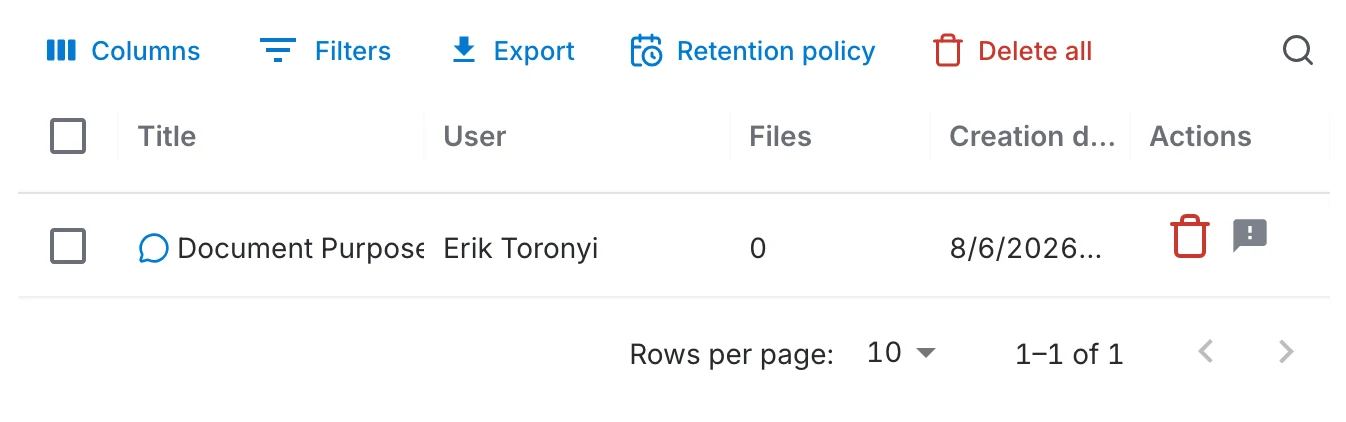
The toolbar
Above the table:
- Columns – show or hide individual columns.
- Filters – filter the table on any column.
- Export – downloads every conversation as a CSV file named after the assistant.
- Retention policy – opens the automatic-deletion settings. Only shown if you have write access.
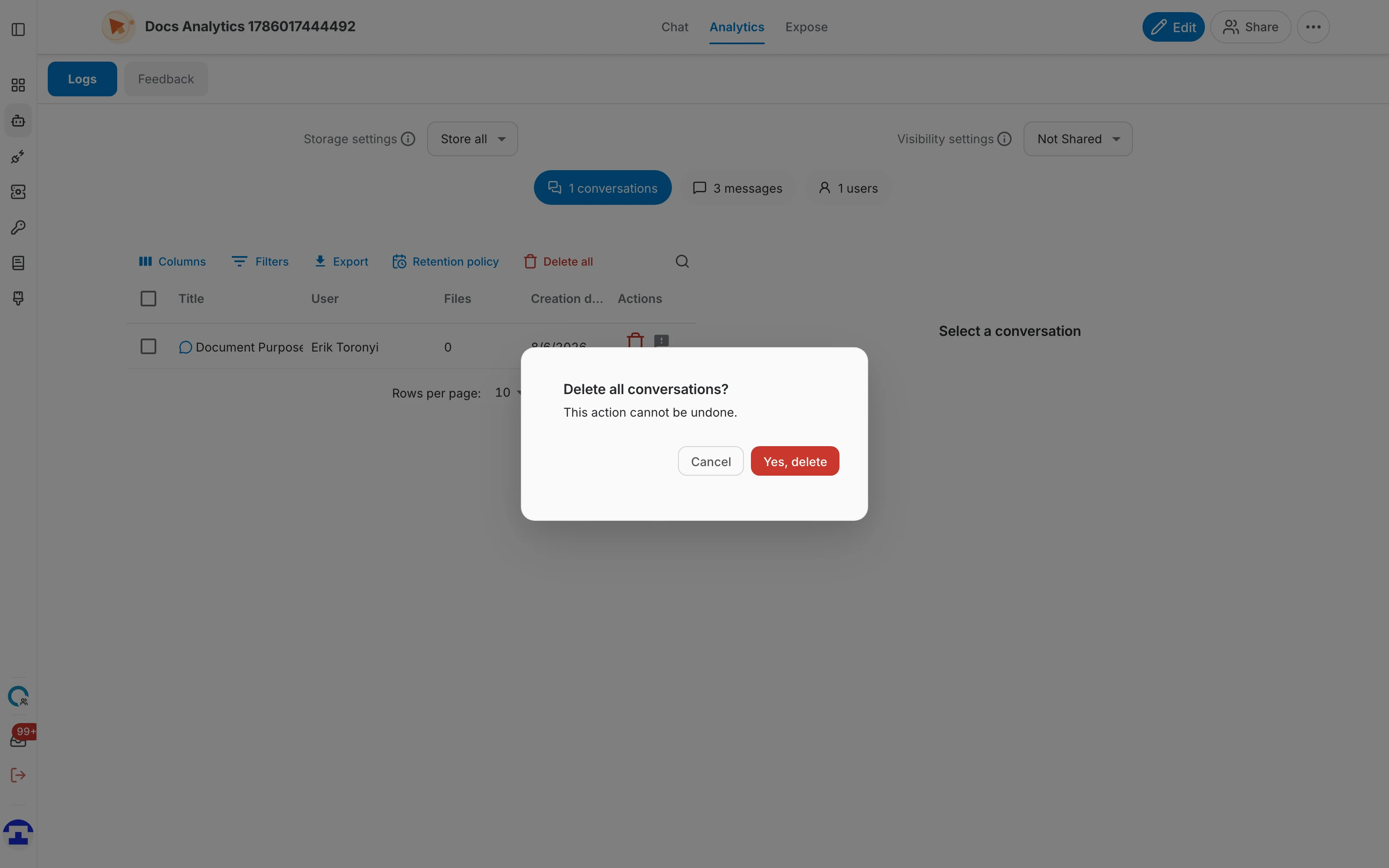
- Delete selected / Delete all – the same button changes label depending on whether you have ticked any rows. Both ask for confirmation, and the confirmation warns that the action cannot be undone.
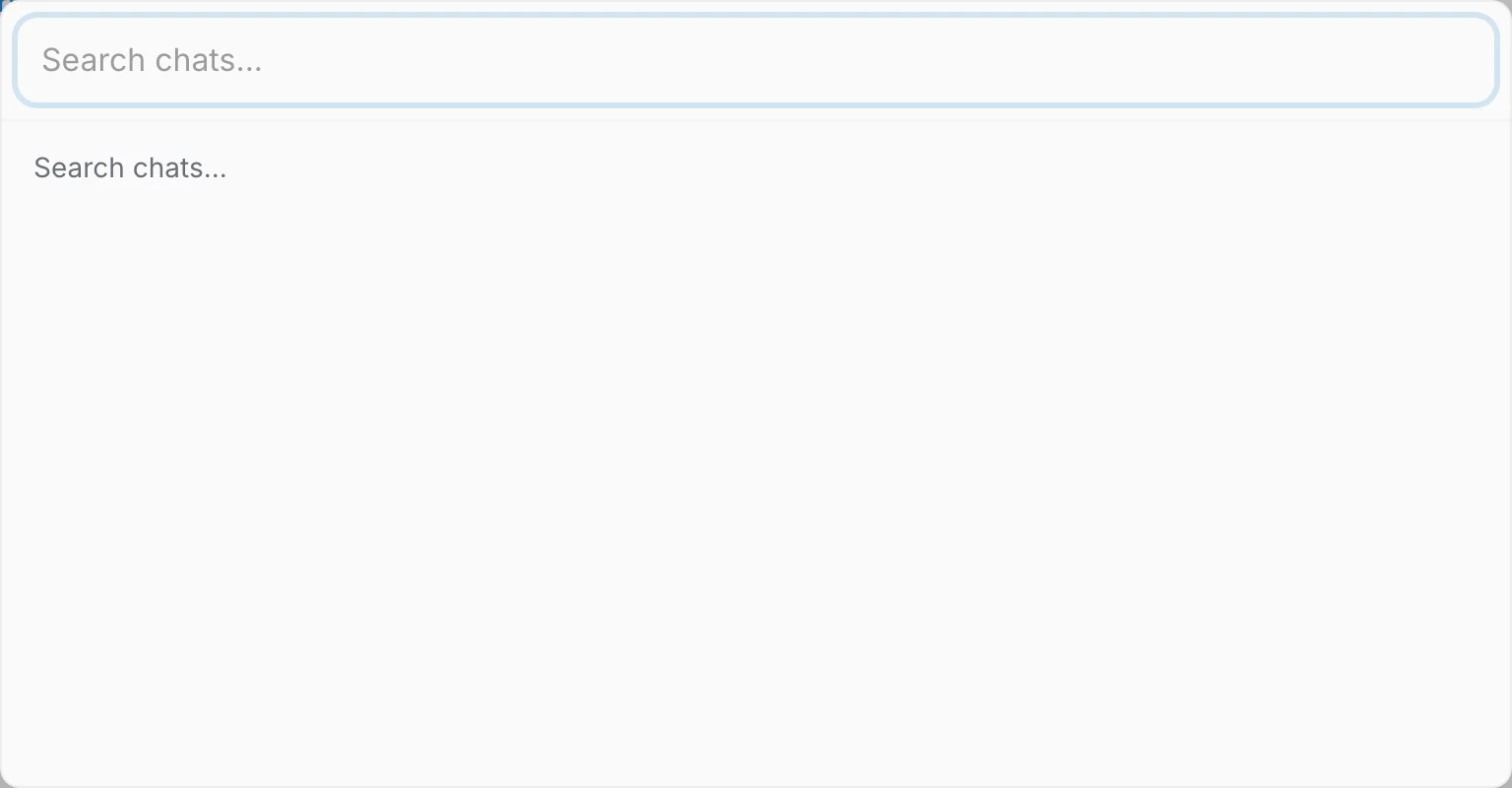
- Search logs – the magnifier on the right opens a dialog that searches across the recorded conversations.
Reading a single conversation
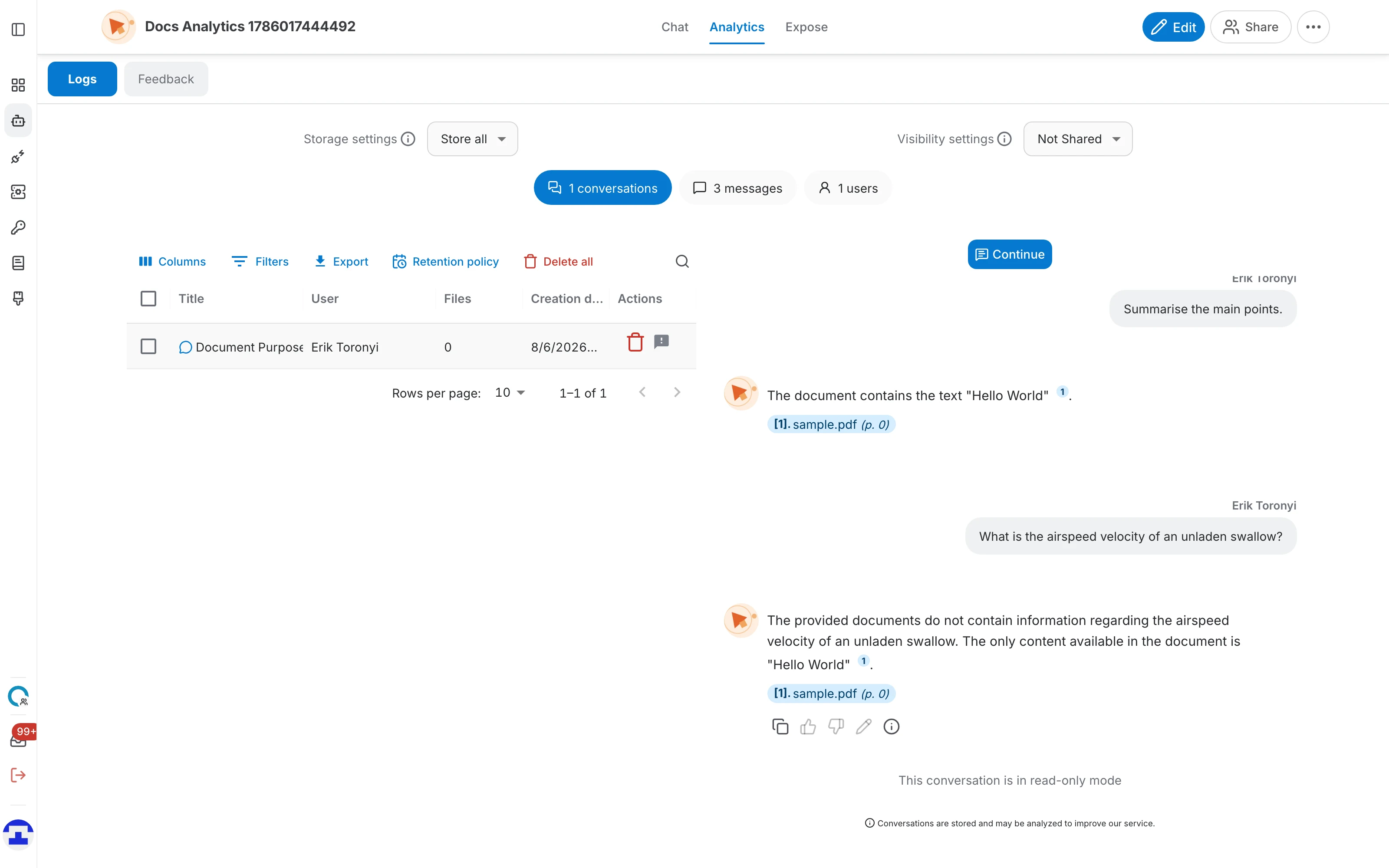
Click a row and the conversation opens beside the table in read-only mode, with Continue at the top to pick the thread back up in the chat — the quickest way to reproduce a problem a user reported. Until you pick one, that side reads "Select a conversation".
- Chat Logs – the chat messages exchanged, with a count in the header. Answers keep their source citations, so you can see exactly which document was used.
- Search Logs – shown for conversations that ran search queries: each query with the results it returned. Pick a query on the left to see its results on the right, and use Show results / Hide results to expand them.
A conversation that only involved chat shows the messages alone; the Search Logs section appears only when there were search queries to show.
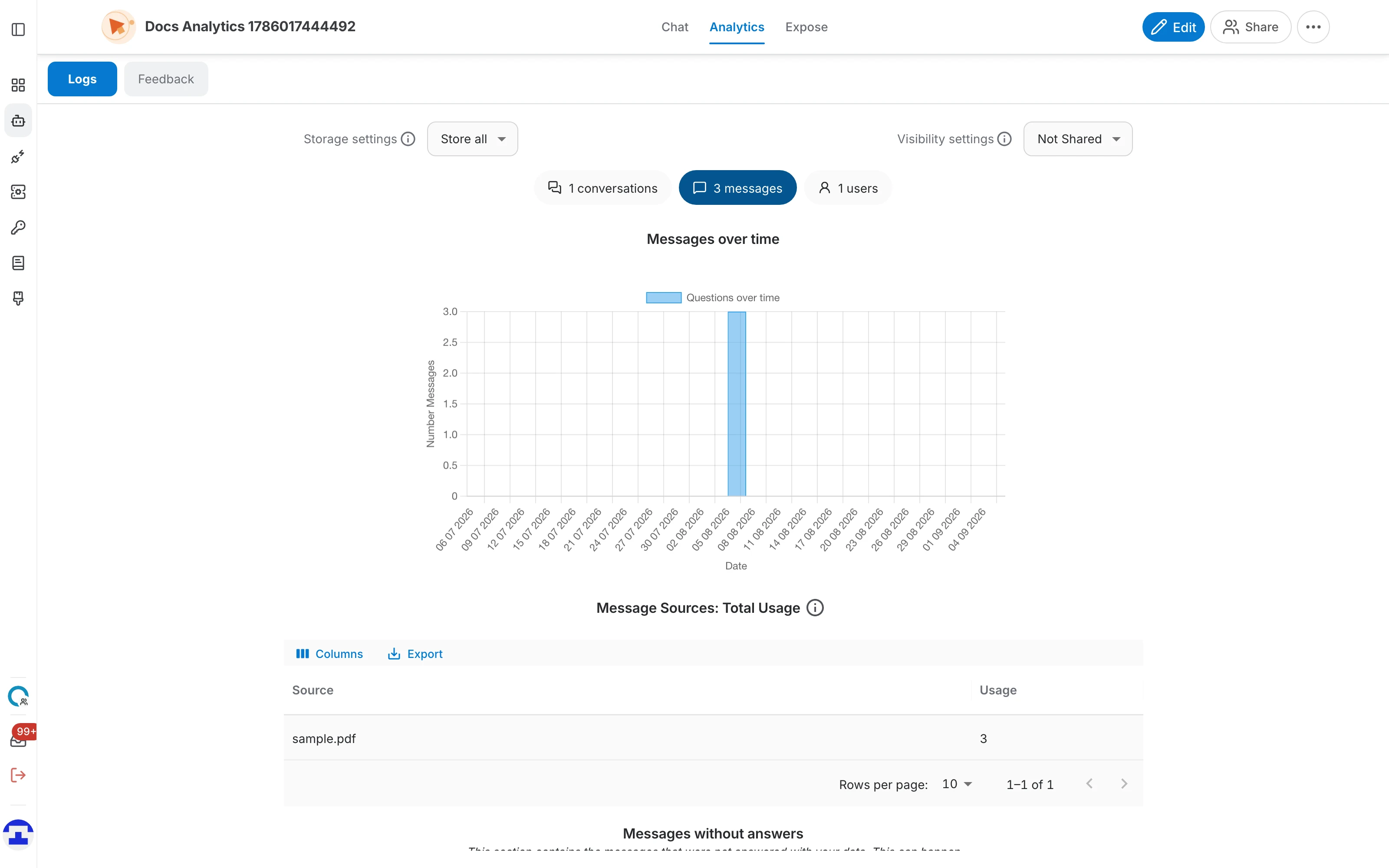
Messages
The Messages tab aggregates individual messages rather than whole conversations:
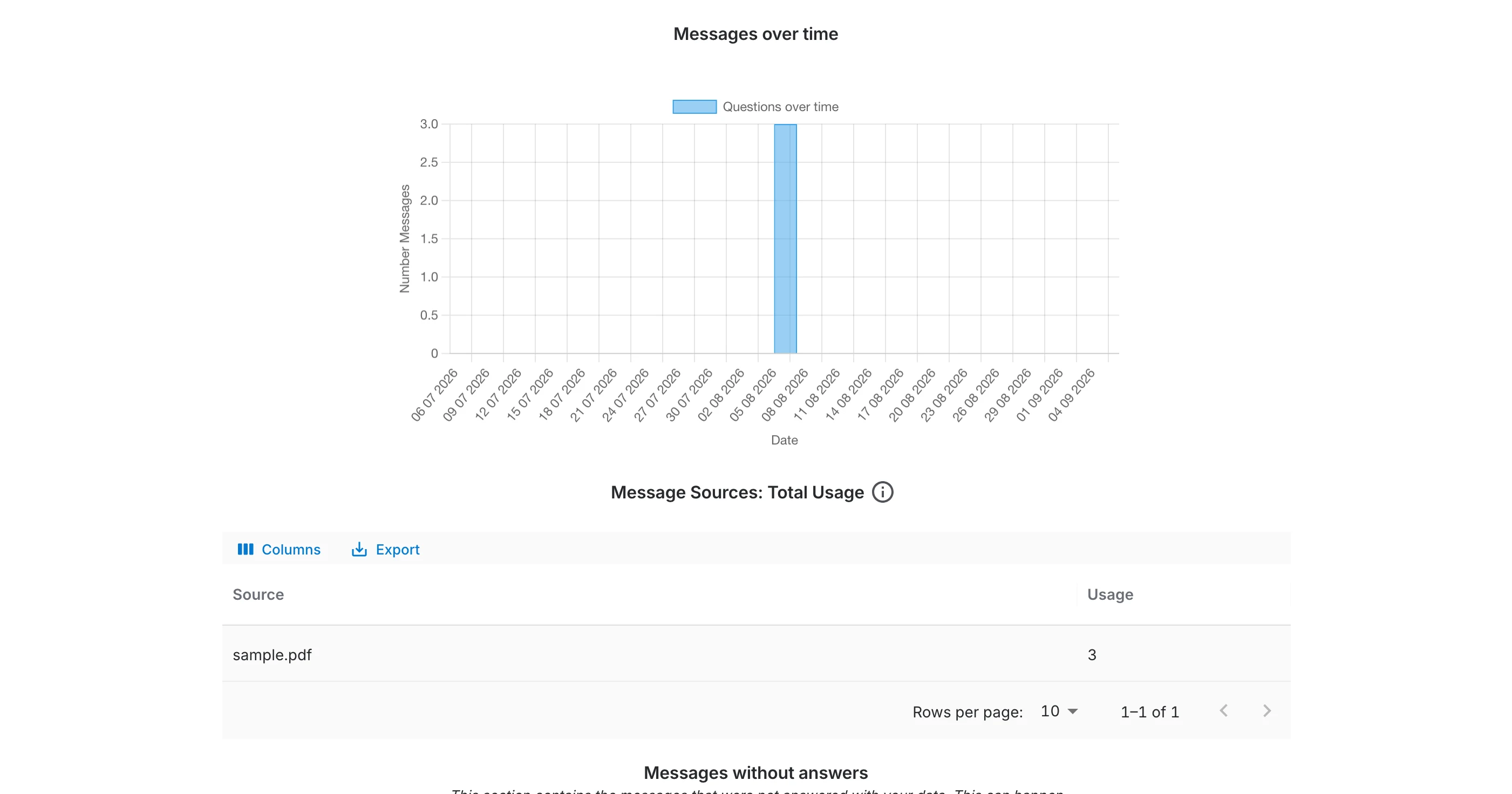
- Messages over time – a chart of message volume per day, so you can see adoption and spot spikes.
- Message Sources: Total Usage – which data sources actually answered, and how often. It tracks every message involving this assistant, whether sent in a chat task or triggered by an @assistant mention.
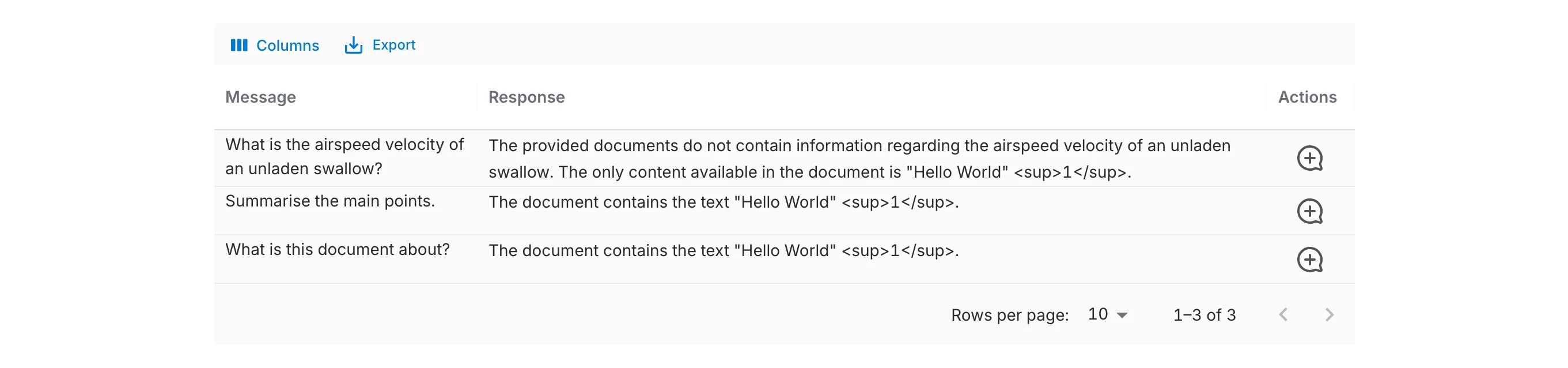
- Messages without answers – the questions your data could not answer, with the response that was given instead. This is the most useful list on the page — it tells you exactly which content is missing.

Users
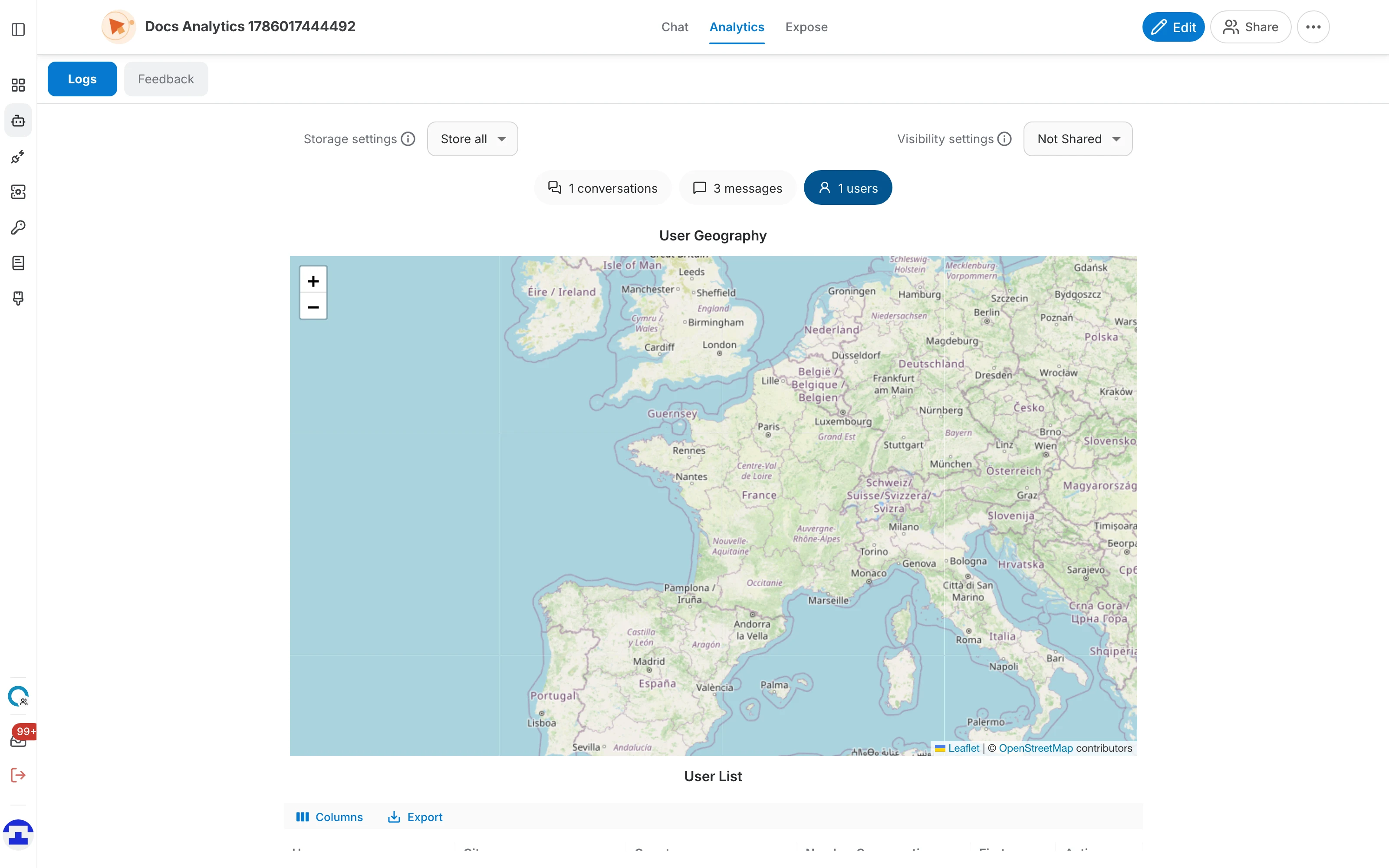
Who is using the assistant:
- User Geography – a map of where the conversations came from.
- User List – one row per user with their city, country, number of conversations and when they were first seen.
Each row has a Delete user conversations action, which removes everything that user ever sent to this assistant — useful for honouring a deletion request from one person without clearing the whole log.
Forks
If the assistant is published as a template, administrators get a fourth tab listing everyone who cloned it. Until someone does, it reads "No one clonned this assistant yet."
Automatic deletion (retention policy)
Retention is the time-based half of your log settings: the saving policy decides what gets stored, retention decides how long it is kept. When retention is on, QAnswer permanently deletes every conversation older than a period you choose, every night.
Retention can be configured at three levels, each one overriding the level above it:
- System default – set by platform admins and applied everywhere unless something below overrides it.
- Organization – overrides the system default for the organization's general chat conversations. Assistant conversations are not affected.
- Assistant – overrides both, for this assistant's conversations only. That is the policy you configure from the Logs page.
Opening the retention settings
On the Conversations tab, click Retention policy in the toolbar. The button is only shown if you have write access to the assistant.
When retention is off
Retention is off until you set it up: the dialog says “Retention is off — conversations are kept indefinitely” and offers a single Set up button. Nothing is ever deleted while it is in this state.
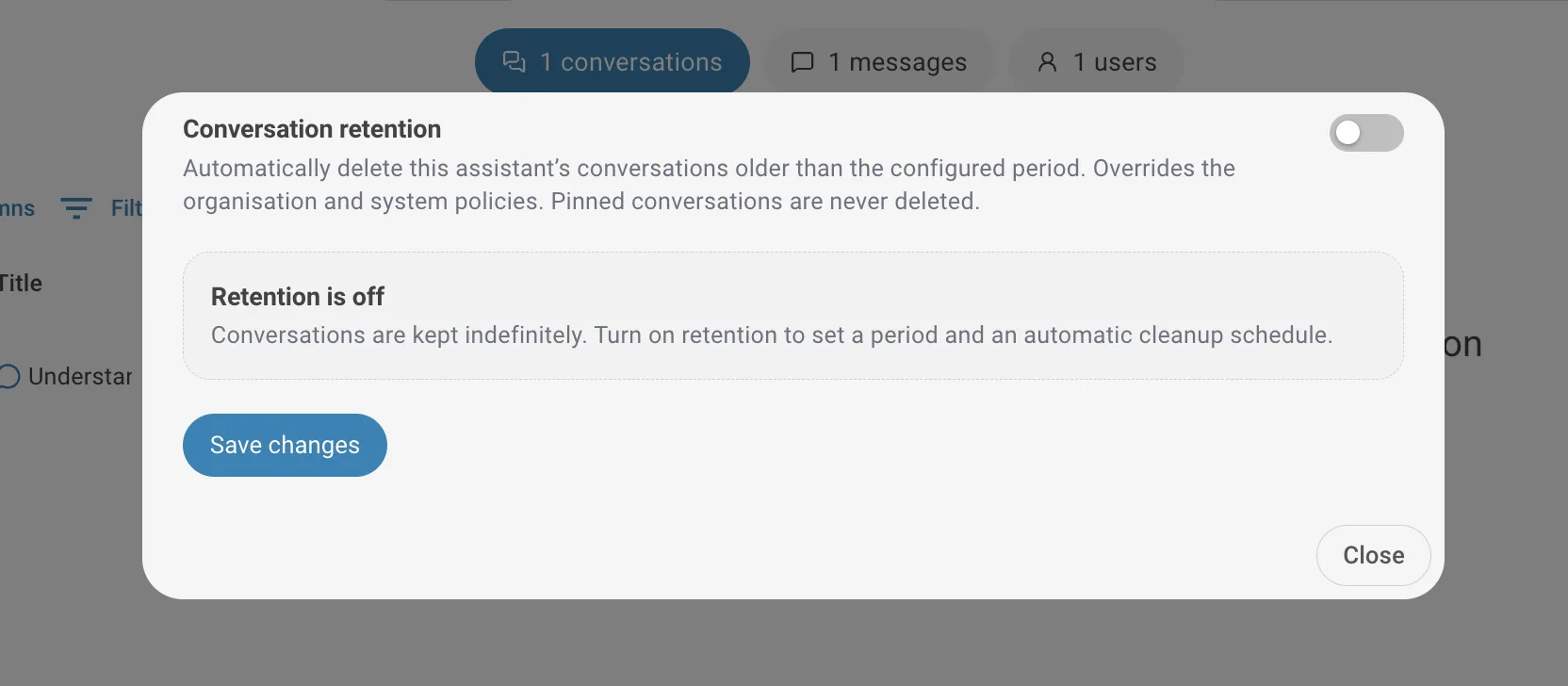
Setting up retention
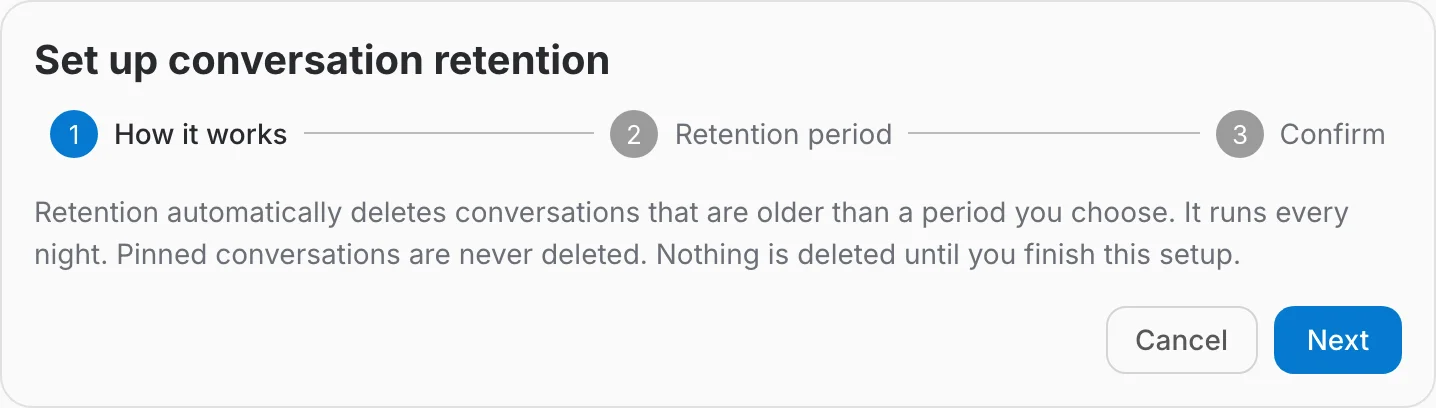
Turning retention on arms an automatic, irreversible deletion schedule, so it runs through a short three-step setup inside the dialog rather than a single toggle.
- How it works — a summary of what you are about to enable: the sweep runs every night, it deletes anything older than the period you pick, pinned conversations are never touched, and nothing is deleted until you finish the setup.
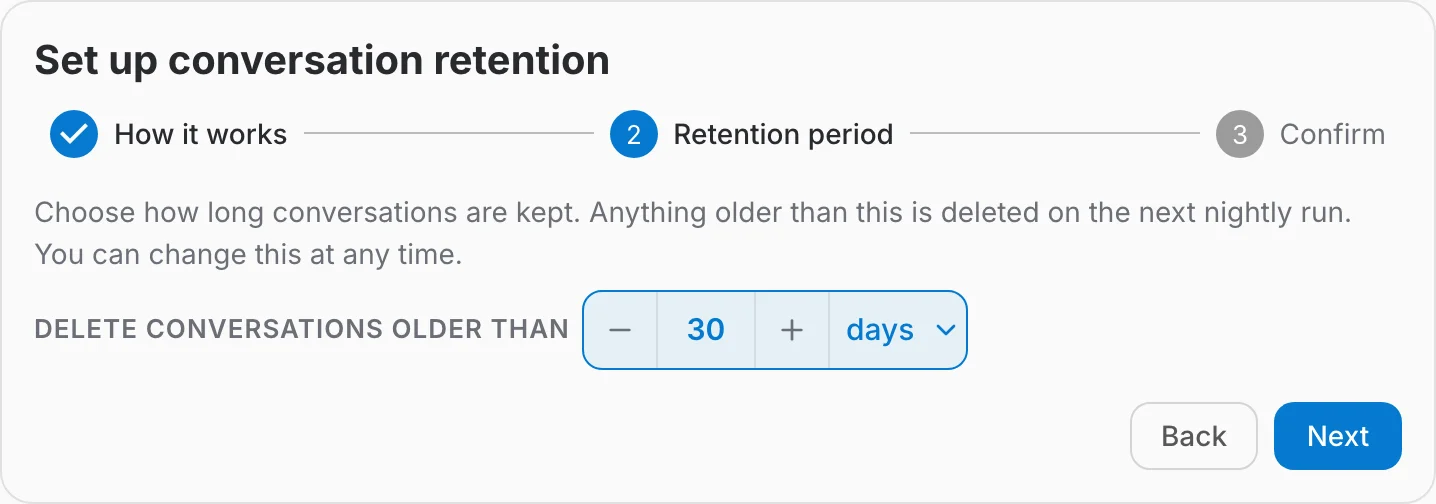
- Retention period — set Delete conversations older than with the − / + stepper, and pick days, months or years from the unit menu. The default is 30 days.
- Confirm — the last step spells out the consequence: conversations older than that period will be automatically and permanently deleted every night, and deleted conversations cannot be recovered. Enable retention applies the policy.
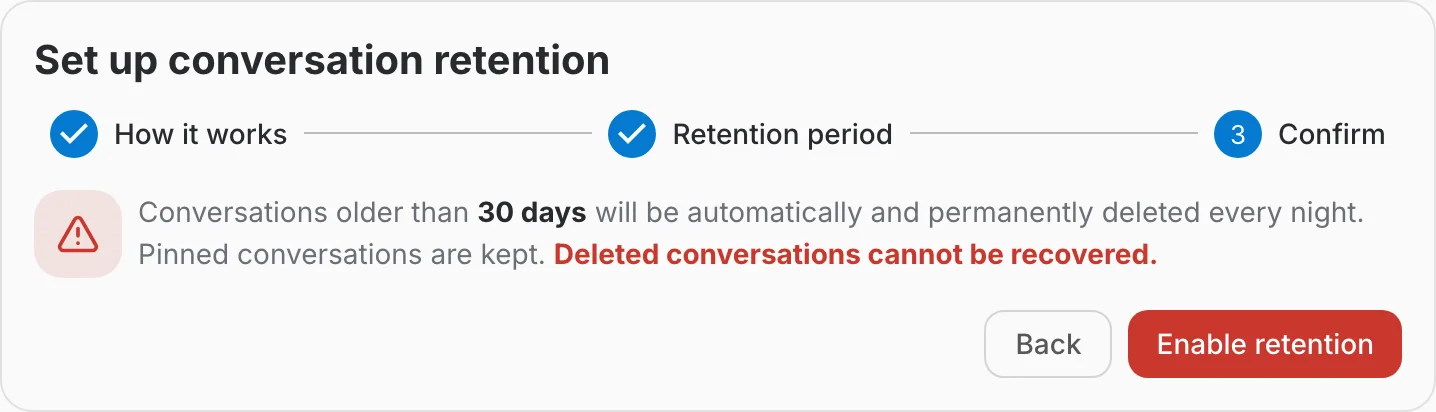
There is no separate Save button. The policy is stored the moment you confirm, and any later change to the period saves itself as you make it.
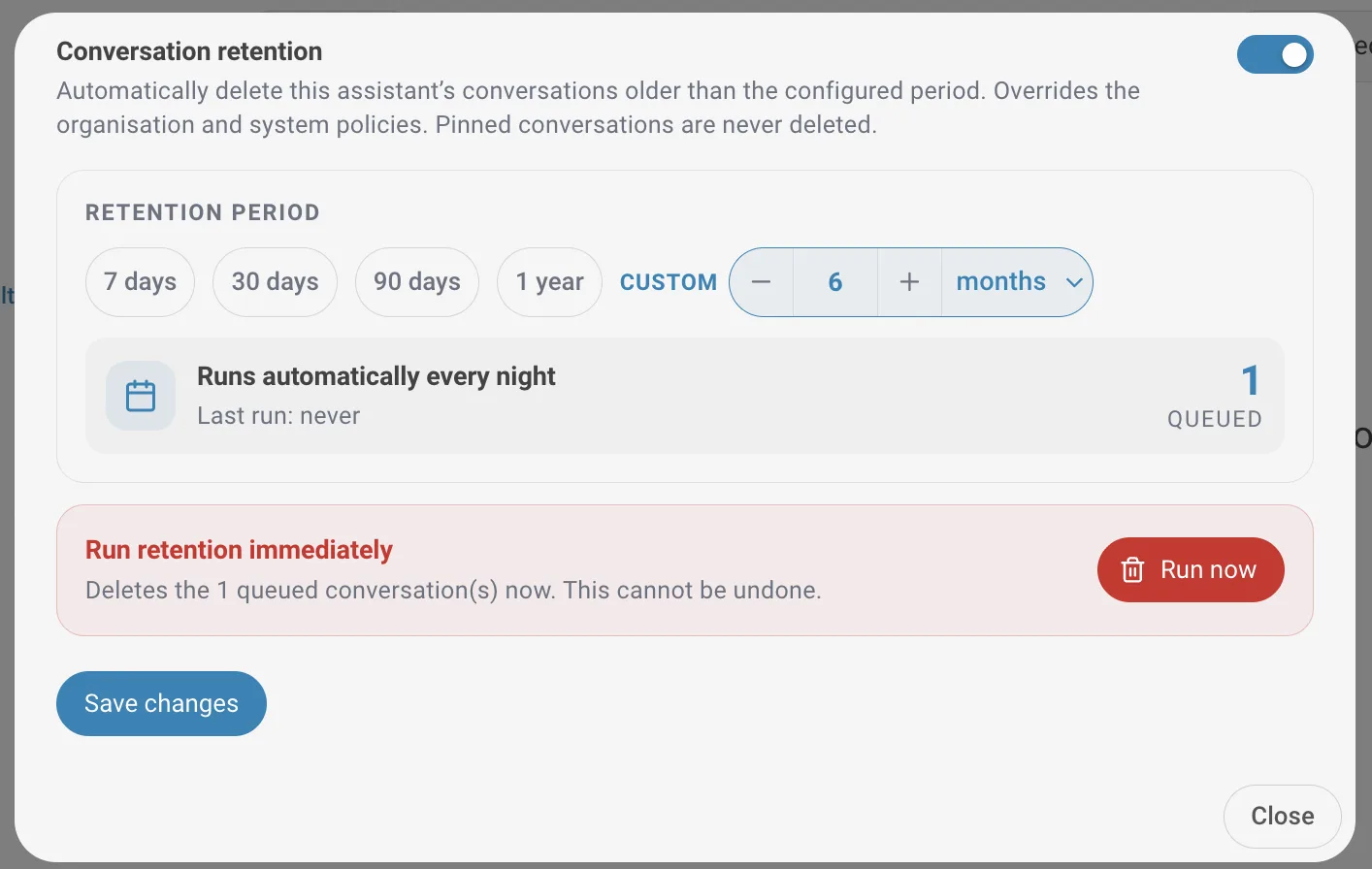
Once retention is on
The dialog then shows the live policy:
- Retention period – the same stepper and unit menu. Changing it re-arms the schedule straight away — there is nothing to save.
- Runs automatically every night – the schedule card, showing when the sweep last ran (“never” until the first one) and the date and time of the next run.
- Queued – how many conversations currently match the policy and would be deleted on the next run. Use it to check the period is what you intended before you close the dialog.
- Turn off – disables retention. It applies immediately, with no confirmation, and conversations are kept indefinitely again. The period you had set is remembered if you turn it back on.
Running the sweep immediately
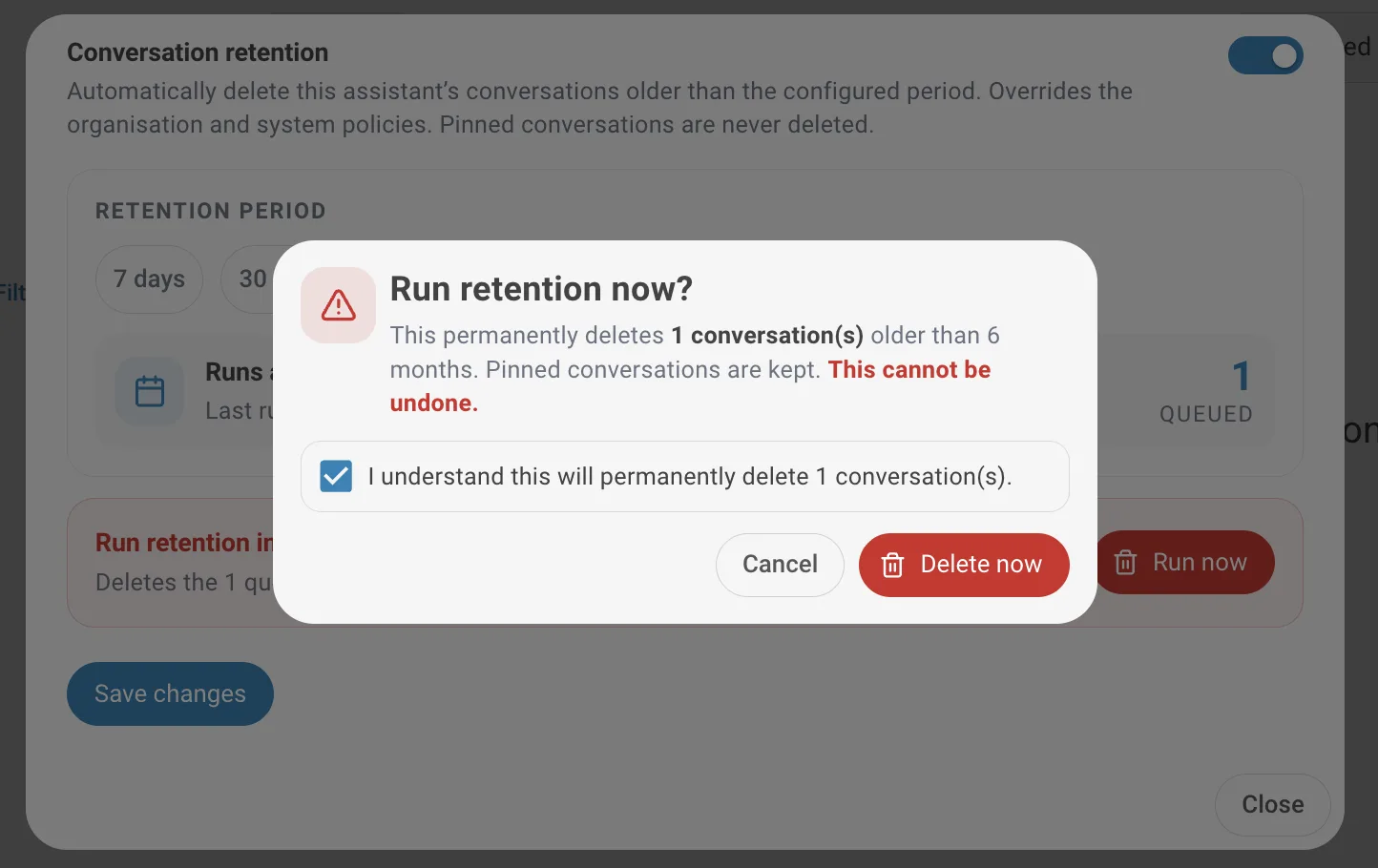
Run retention immediately is the red panel at the bottom of the dialog, for when you do not want to wait for the night run. Run now opens a confirmation that names the exact number of conversations and the period they must be older than, and the Delete now button stays disabled until you tick the acknowledgement box. While the sweep runs, a progress bar reports how many of the queued conversations have been deleted.
Best practices
A few habits that keep logs useful without collecting more than you need:
- Match storage to your purpose. Store anonymized gives you every analytic on this page without recording who asked. Only choose Store all when you genuinely need to trace a conversation back to a person.
- Keep visibility as narrow as the job allows. Not Shared is the safe default; widen it only when colleagues actually need to read the logs.
- Set a retention period early. It is far easier than periodically remembering to clear logs by hand, and it keeps you honest about how long you hold user data.
- Work the "Messages without answers" list. It is a ready-made backlog of content gaps, and Create Q&A closes each one in a few clicks.
- Export before you delete. Both the manual Delete all and the retention sweep are permanent, so take the CSV first if the data has any reporting value.
What changed from the previous design
If you knew the old Logs page, here is what moved:
- Logs is no longer its own entry in the assistant menu — it is the first tab of the Analytics page, alongside Feedback.
- Storage and visibility are two dropdowns at the top of the tab rather than settings tucked away elsewhere, and choosing Discard all now locks visibility to Not Shared automatically.
- The old "Overview" dashboard was reorganised into counted tabs: Conversations, Messages and Users, with Message Sources, Messages without answers and User Geography sitting inside them.
- The retention policy is new — scheduled nightly deletion with a preview, a Run now action and inheritance from the organization and system policies.
- Search logs, per-conversation Chat Logs / Search Logs views and the Forks tab for template assistants are all new.