
Q&A
A Q&A connector holds question and answer pairs you write yourself. It is the way to make an assistant answer certain questions exactly as your organisation wants them answered — opening hours, prices, internal procedures, anything where a paraphrase of a document is not good enough.
Add a Q&A connector
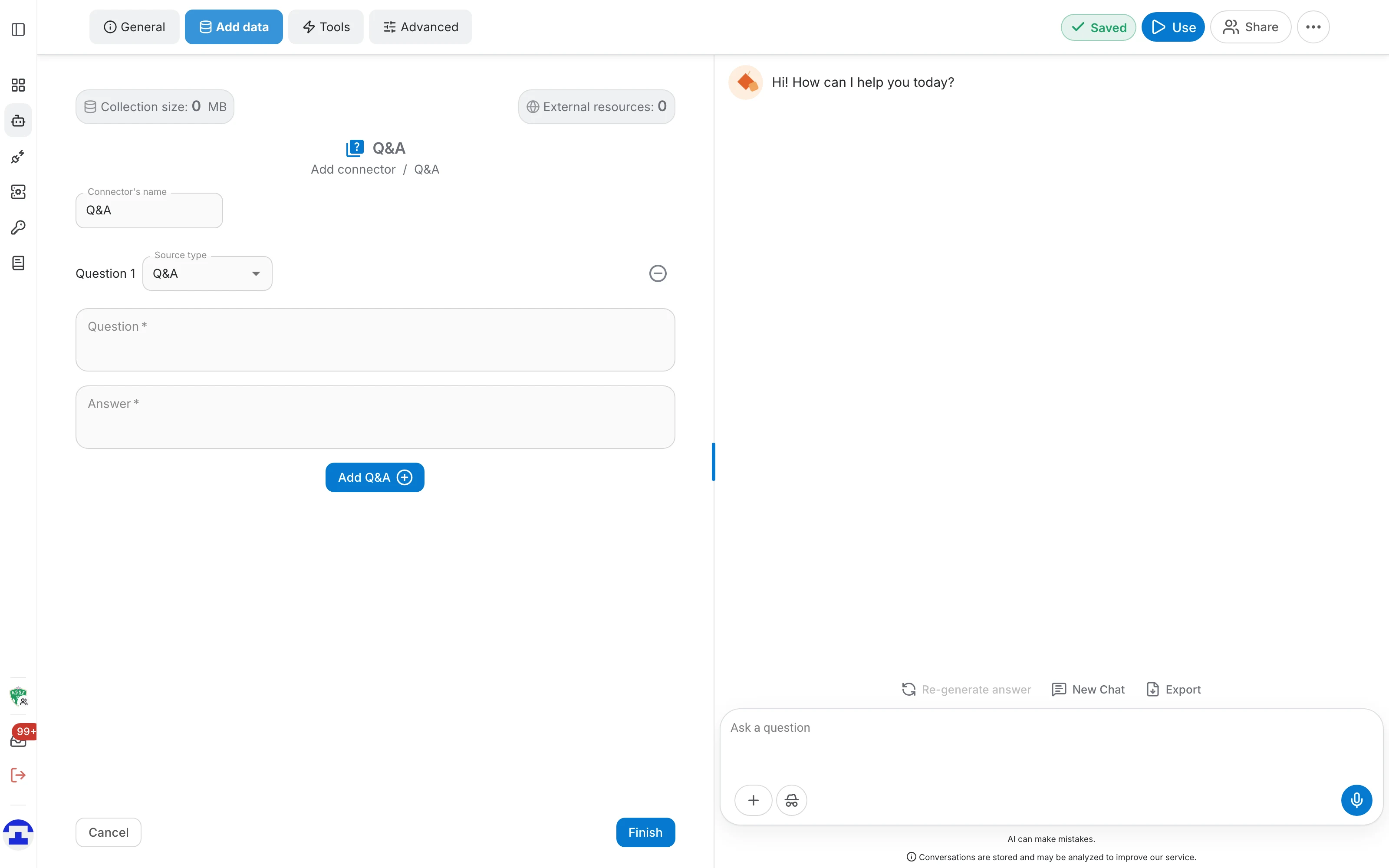
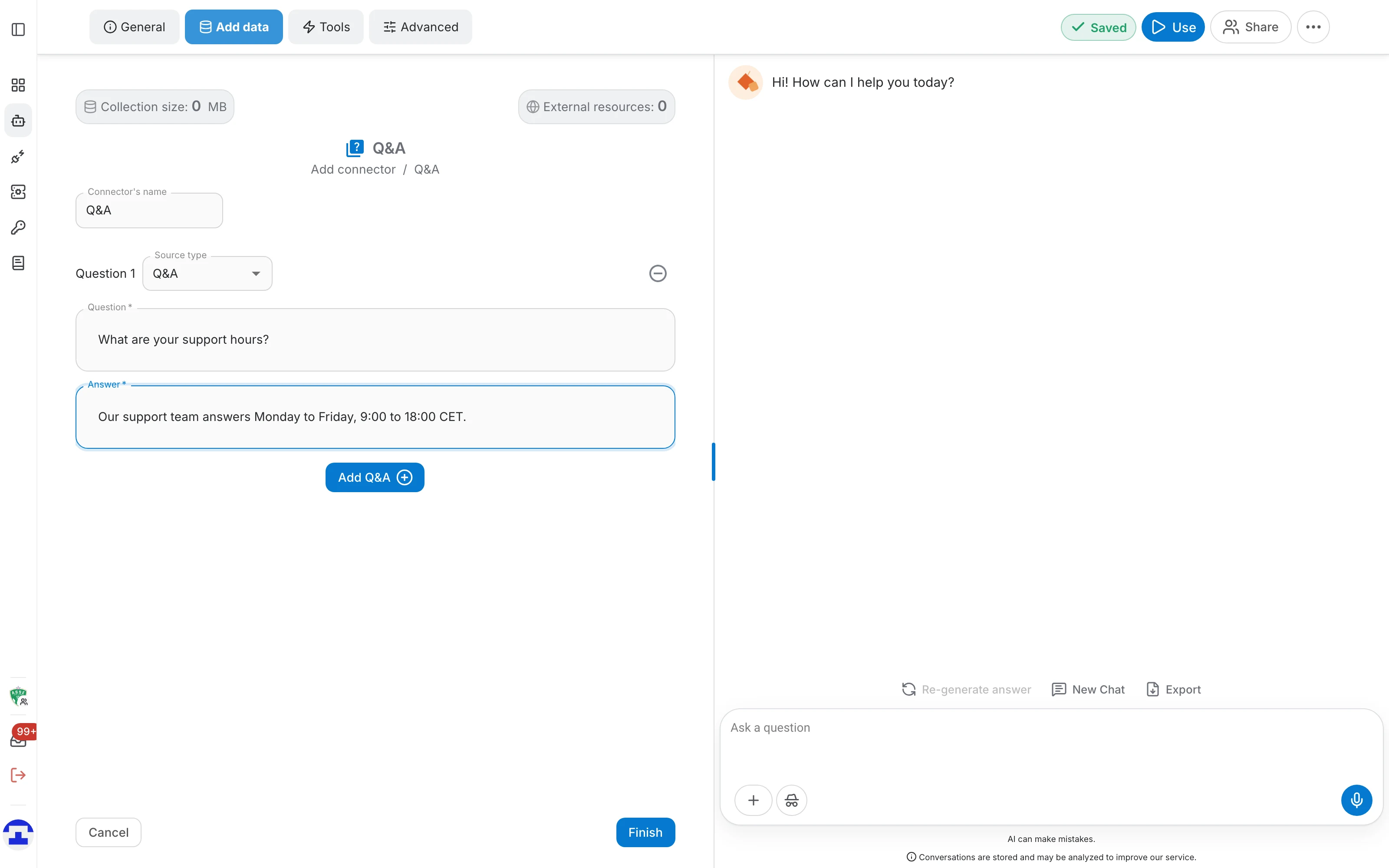
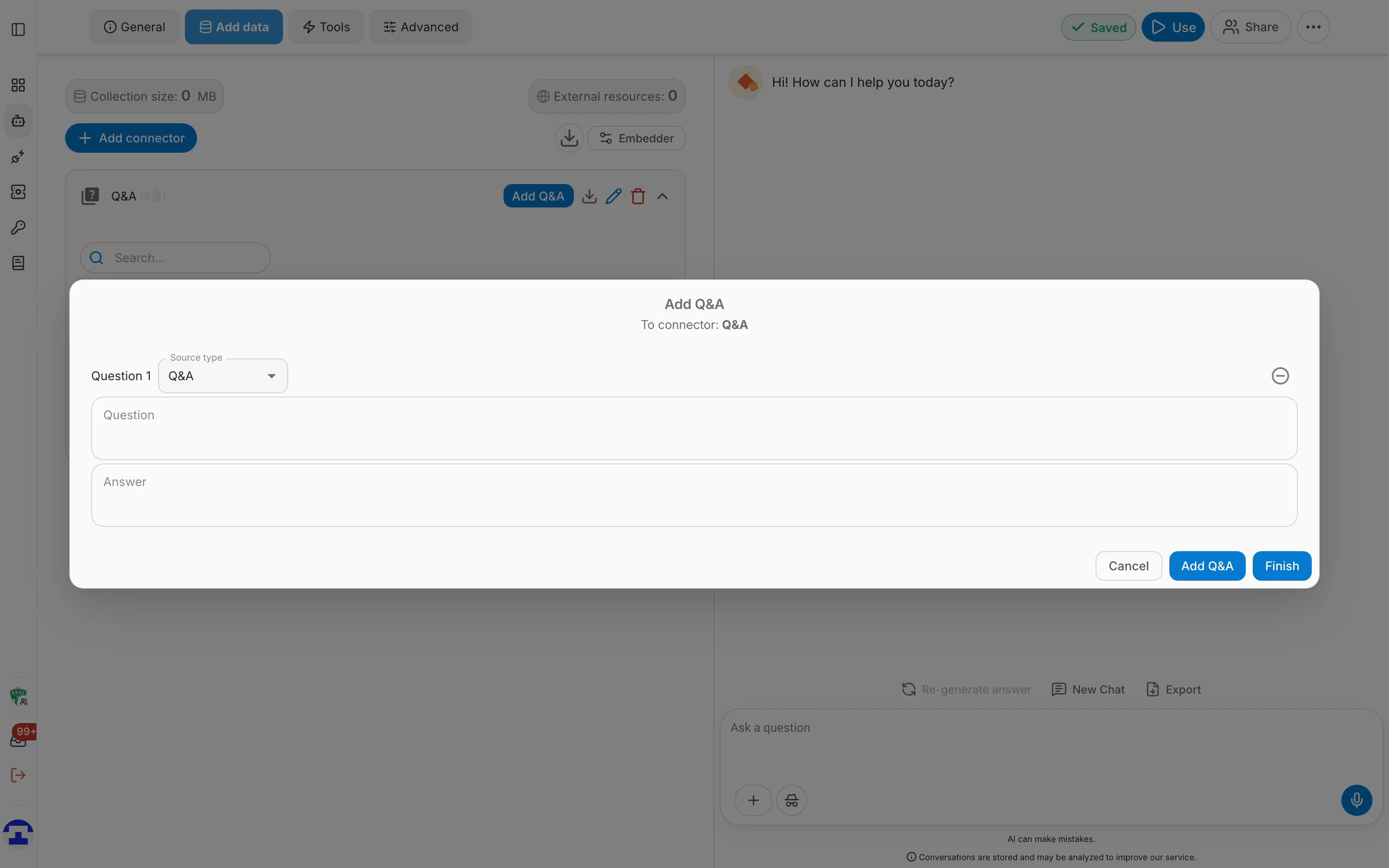
Choose Q&A in the Add connector menu. The form opens on an empty pair:
- Give the connector a name, for example "Support FAQ". The default is simply "Q&A".
- Type the question a user would ask in the Question field.
- Type the exact wording you want back in the Answer field. Both fields grow as you type and accept several lines.
- Click Finish to create the connector and index the pairs.
Several pairs at once
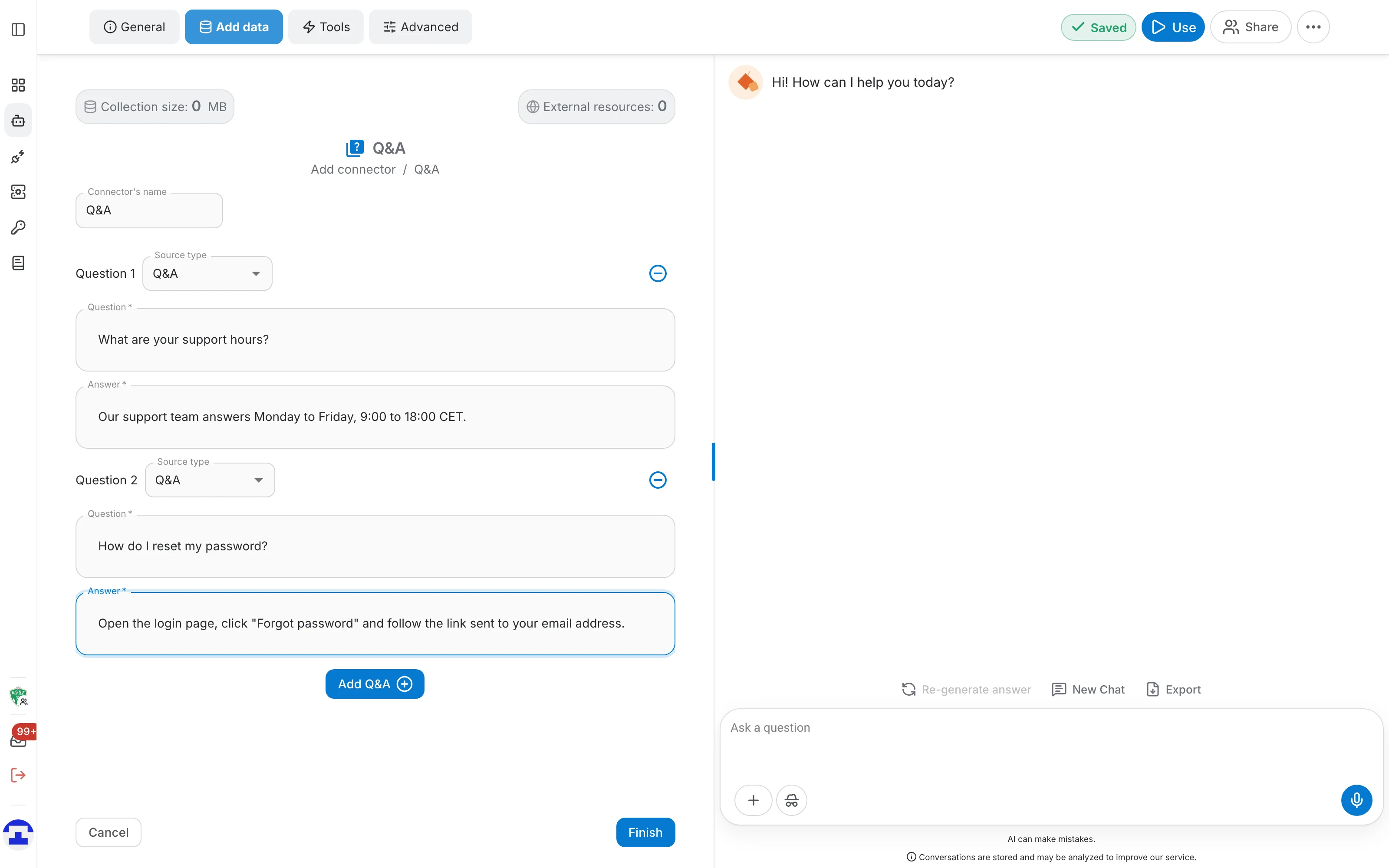
Add Q&A appends another block to the form, numbered Question 2, Question 3 and so on. There is no limit, so a whole FAQ can go in before you ever click Finish. The minus button next to a block removes it again; it is disabled while only one pair is left.
Source type and source
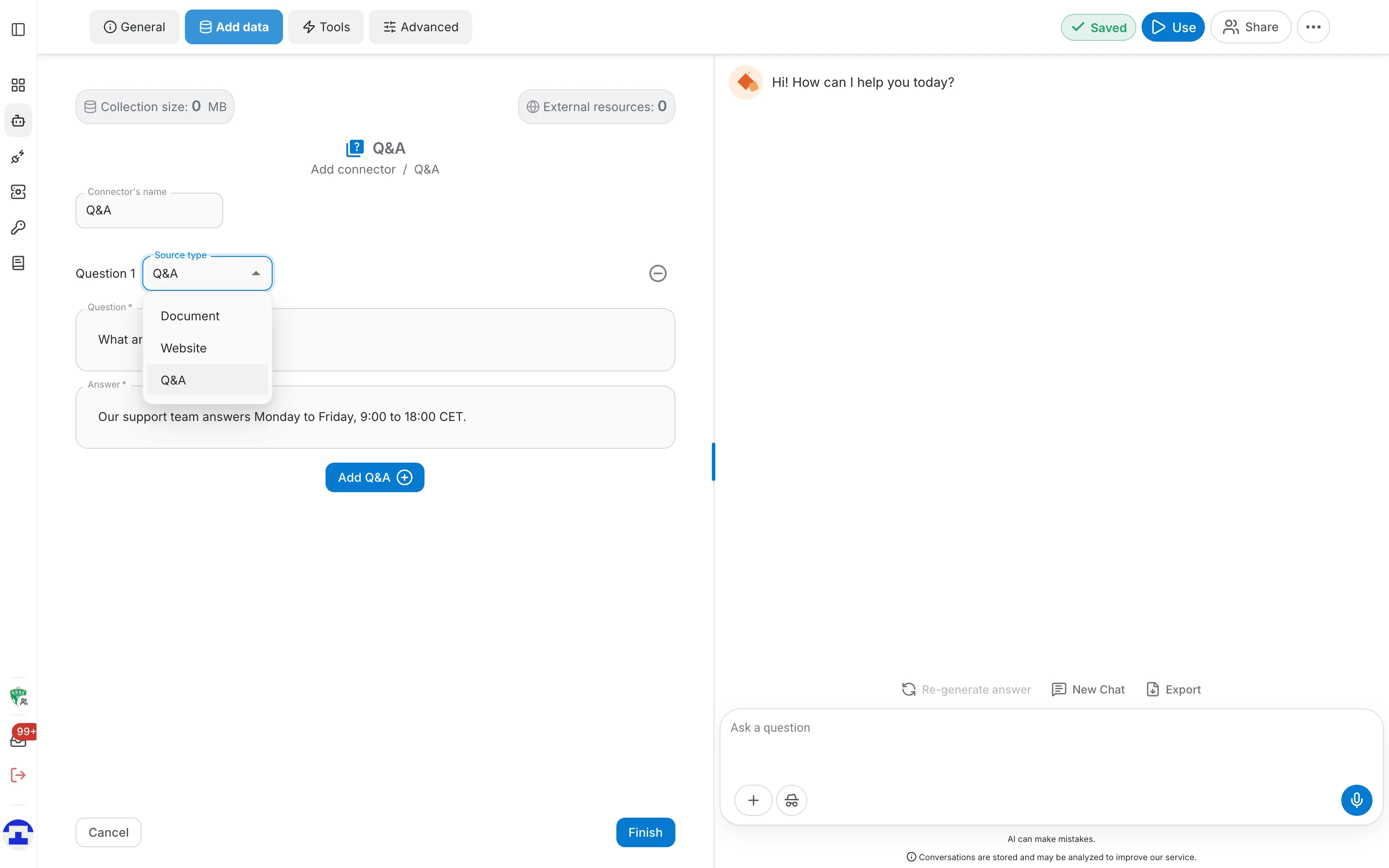
Each pair carries a Source type, which decides what the assistant shows as the origin of the answer:
- Q&A — the default. The pair stands on its own and is cited as a Q&A entry.
- Document — attributes the answer to a document already in the assistant. A search field appears where you pick the file, so the citation points at it.
- Website — attributes the answer to a URL you type in the Source field. Useful when the pair summarises a page and you want users to be able to open it.
Managing the pairs
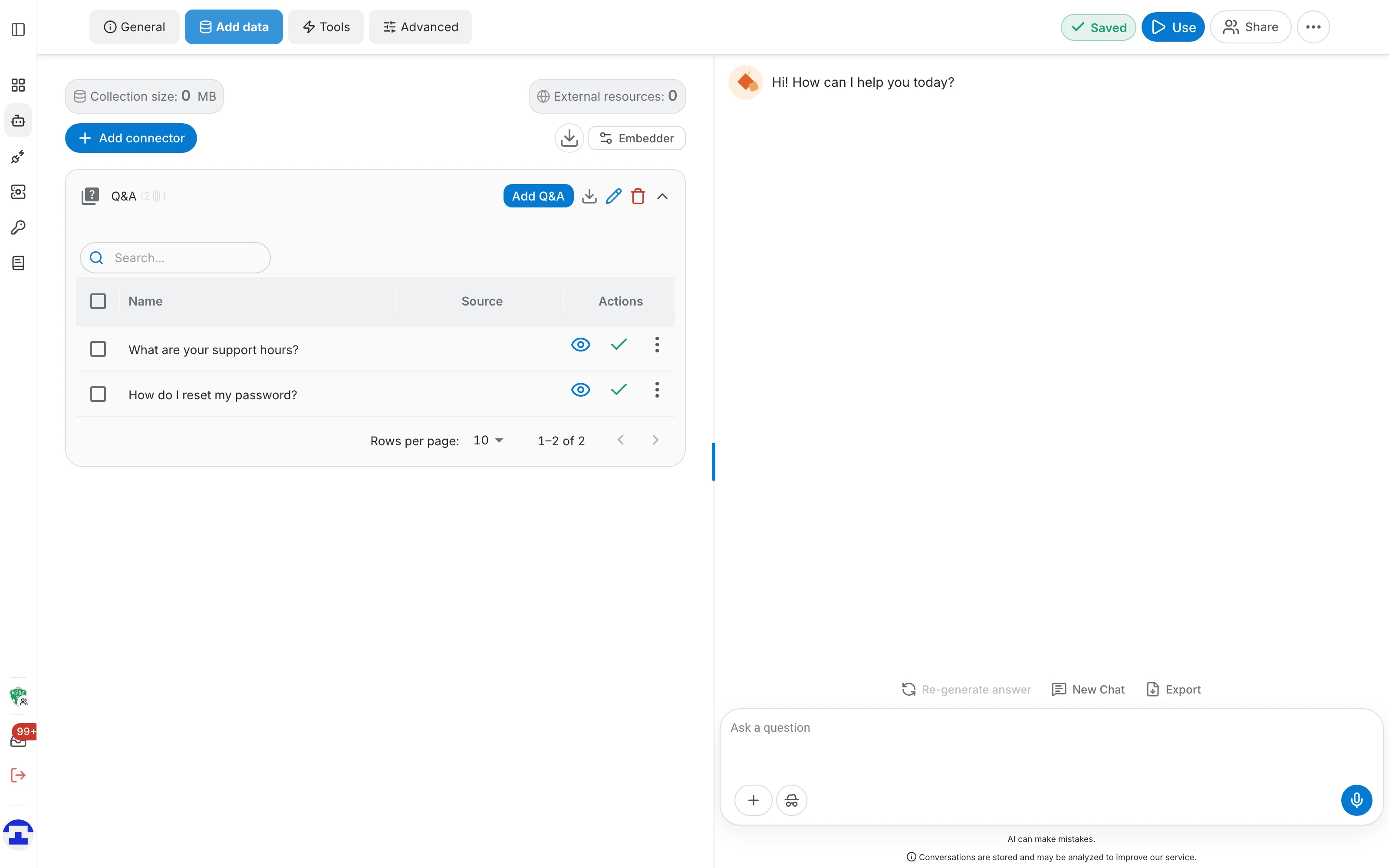
Expand the connector to see every pair it holds. The table lists the question under Name, the attributed origin under Source, and the actions on the right:
- The eye icon opens the pair on its own — see below.
- The check icon is the indexing status; hover it for the exact state.
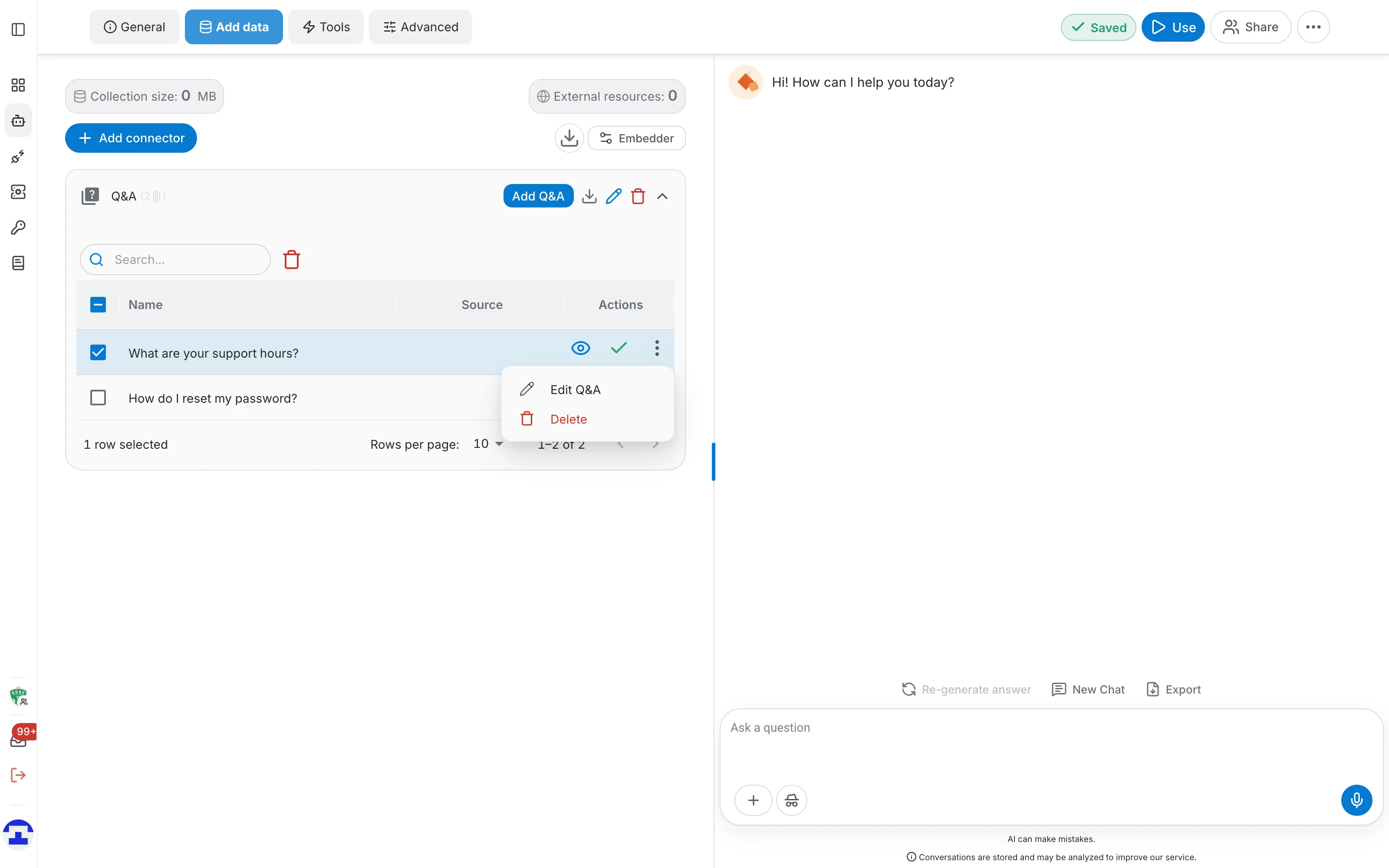
- The ⋮ menu holds Edit Q&A and Delete for that one pair.
- The search box above the table filters by question text, which is how you find one entry in a long FAQ.
- Tick several rows and a delete button appears next to the search box, so a batch of outdated pairs goes in one step. The footer sets rows per page, up to 500.
Editing a pair
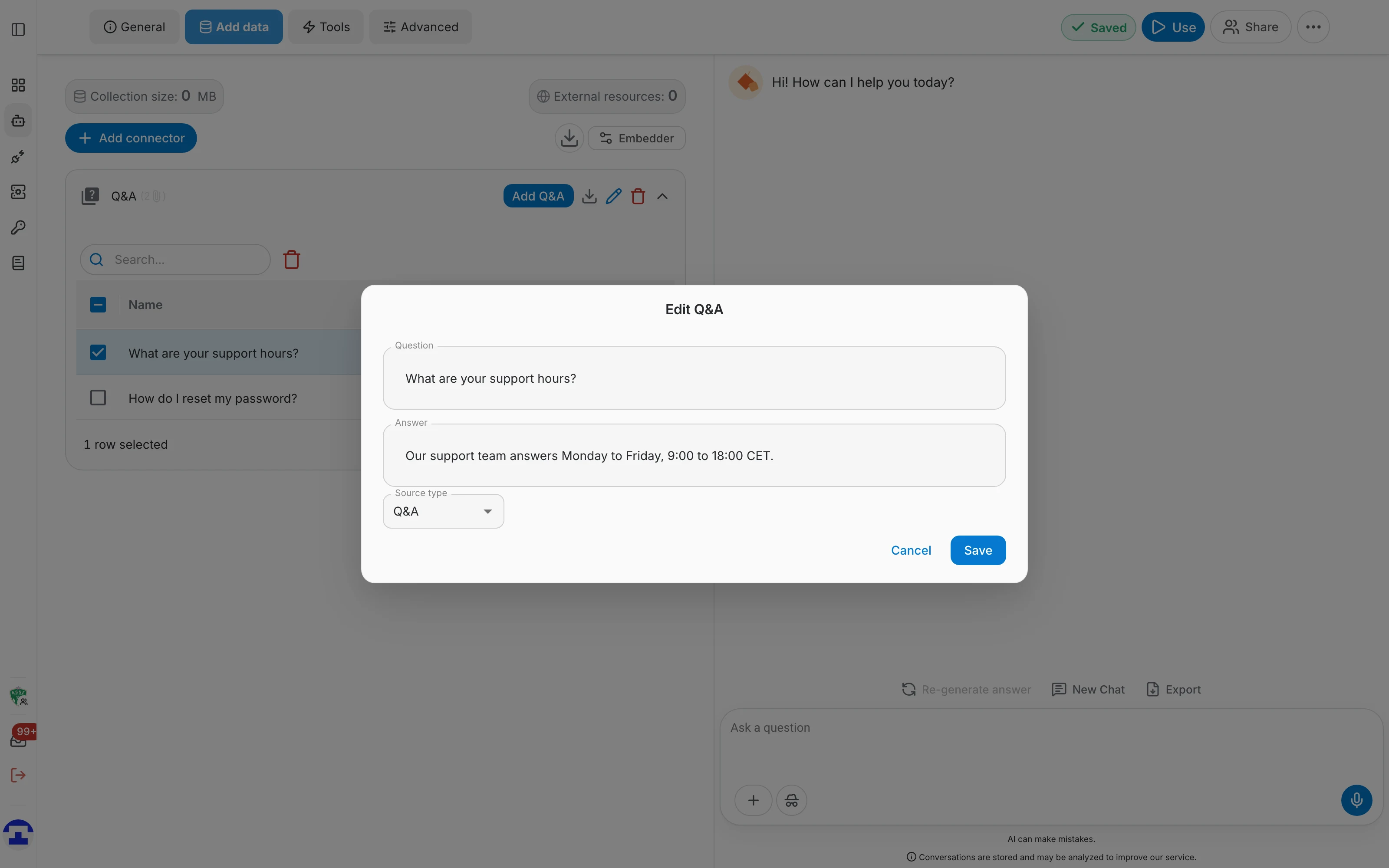
Edit Q&A opens the pair in a small dialog with its question, answer and source type. Save re-indexes it straight away — there is no need to delete the entry and add it again.
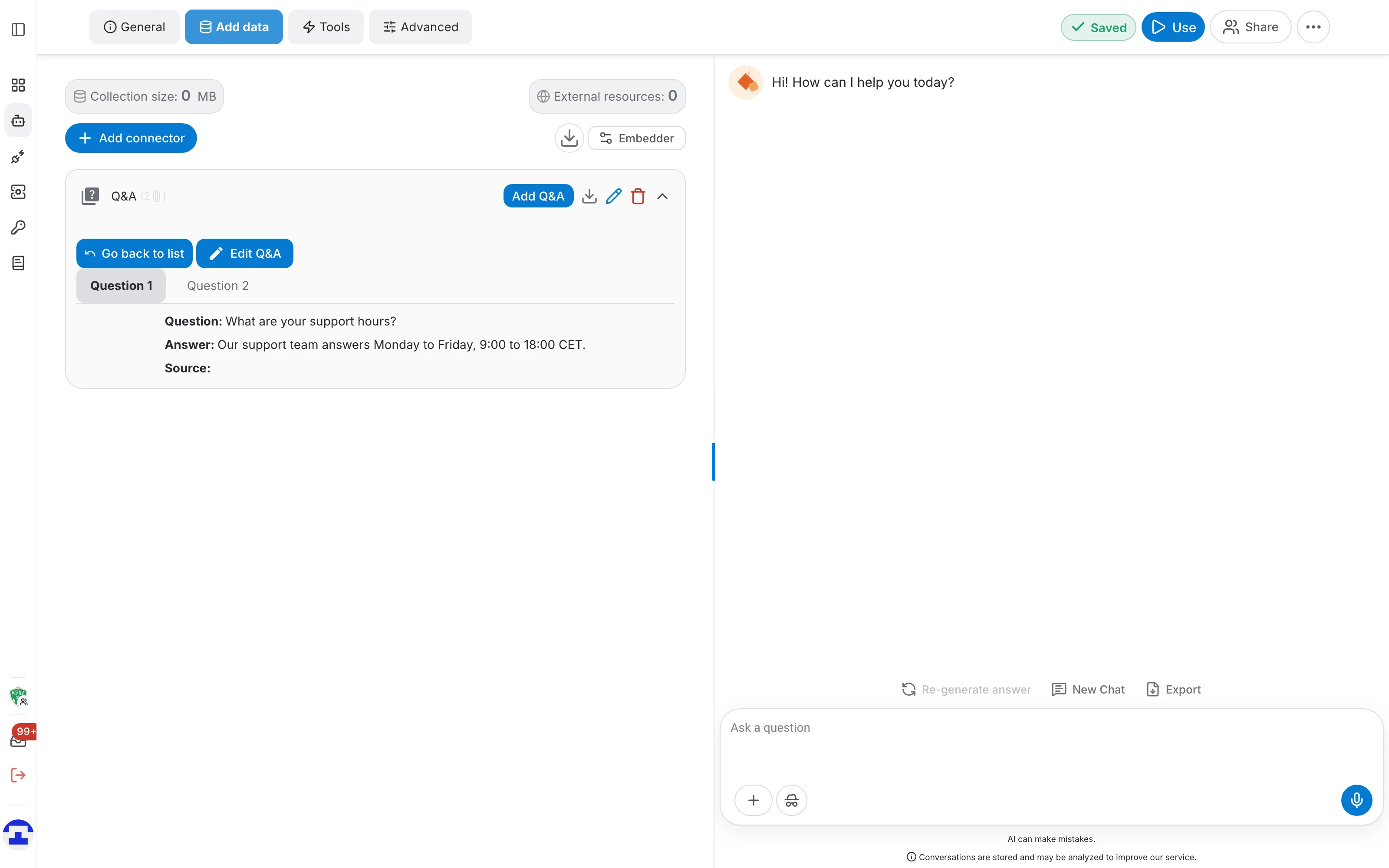
The eye icon instead opens the reading view, with one tab per pair, showing the question, the answer and the source as the assistant stores them. Edit Q&A works there too, and Go back to list returns to the table.
Adding pairs later
The Add Q&A button on the connector row reopens the same form in a dialog, so new pairs can be added to an existing connector at any time. Add Q&A adds another block, Finish saves them all and the table refreshes.
How the pairs are used
A Q&A pair behaves like any other indexed passage, with one difference: it already contains the exact wording you want.
- When a question closely matches one of your pairs, the assistant answers from it.
- Q&A pairs live alongside documents, websites and every other connector in the same assistant.
- A wrong answer is fixed by editing the pair, not by re-uploading anything.