
LM Providers
Language Model (LM) Providers are the outside AI services QAnswer talks to: the models that write answers, the ones that turn your documents into searchable vectors, and the tools that search the web, generate images or transcribe audio. This section explains what they are, where they are managed, and what each kind is for.
This page covers the providers of your own workspace: which ones you use by default, and the ones you plug in yourself with your own API key.
The five kinds of provider
Each tab of the LM Providers page holds one kind of provider, and each kind has its own page here. You do not have to touch all of them — the ones you were given already work.
- LLM — the models that read a question and write the answer. This is what users pick in the model selector of the chat.
- Embedder — the models that turn documents into vectors so an assistant can search them. Every assistant is tied to one embedder.
- Image Generation — lets the chat and your assistants create images from a text prompt.
- Speech-to-Text — powers the microphone button in the chat, so users can dictate instead of typing.
- Web Search — lets a model look things up on the live web during a conversation.
Opening the page
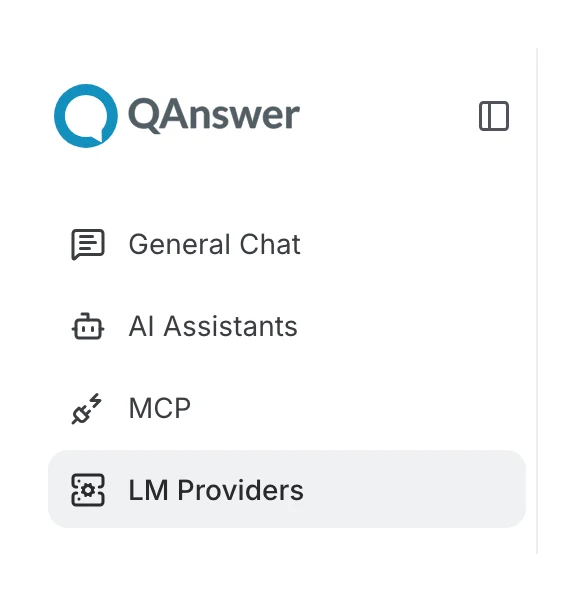
Click LM Providers in the main left menu.
The page opens on the LLM tab. The tabs across the top switch between the five kinds of provider; everything below the tabs works the same way on every tab.
What you can do here
What is specific to your own workspace:
- Pick your default for each kind with Set as default. It applies to your own chats and assistants, and overrides the default you were given.
- Add a provider of your own with Add provider and your own API key. What you add here is yours: it is billed to your key and nobody else sees it.
- Use Test connection on a provider you added to check the key works before you rely on it in a conversation.
Where you manage providers
The same LM Providers page exists at four levels. It looks and works the same everywhere — what changes is who your choices apply to.
- Platform — the admin space of the installation. Providers created here form the catalogue of the whole platform: every organization can see and activate them. Reserved for platform administrators.
- Organization — the organization settings. Organization admins activate platform providers for their organization, add their own, and pick the organization defaults.
- Team — the same organization settings with a team selected in the workspace switcher. Team admins choose which of the organization's providers their team uses.
- Your workspace — LM Providers in the main left menu. Everyone can pick their personal defaults there and plug in their own API keys.
This is what the page looks like at each level:
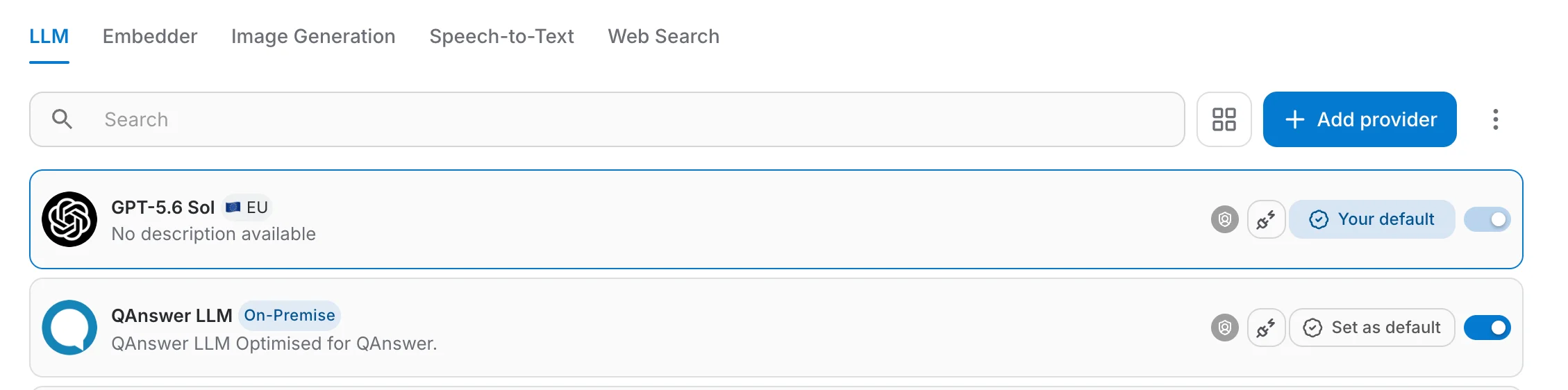
Each level picks its own default provider. When several levels have set one, the most specific level wins: personal over team, team over organization, organization over platform.
You normally do not need to change anything — a default LLM and embedder are already selected for you, which is enough to chat and to build assistants. Come back here when you want a specific model, or when you would rather use your own API key.
How the list, the defaults, testing, adding and copying providers work is described once for all levels in Managing LM Providers. What your own conversations have cost is in Usage and Costs.