
Parsing Option Settings
The Parsing Options dialog controls how QAnswer turns your uploaded documents into a searchable index. From a single place you can pick the embedding model, tune how documents are split into chunks, switch between the high-precision and fast indexing pipelines, adjust the LLM indexing prompt, and force a full reindex after changing any setting.
Opening the dialog
Go to your assistant's Add Data page and click the button
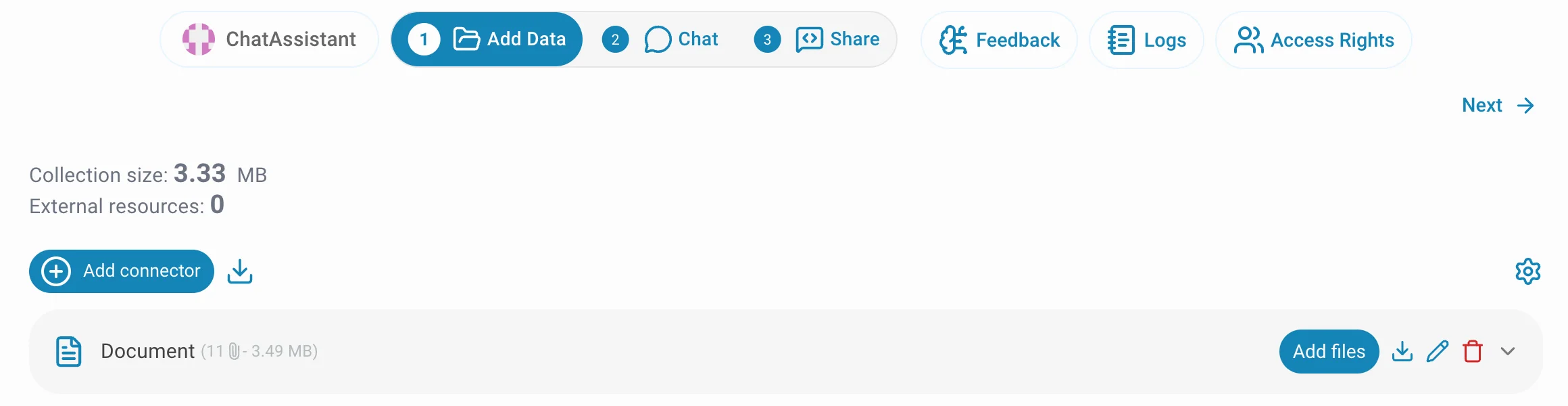
The dialog is organized into two tabs:
- Indexing — how text is extracted from your files and how the assistant is reprocessed.
- Embedding & Chunking — which embedding model is used and how documents are split into chunks.
Indexing tab
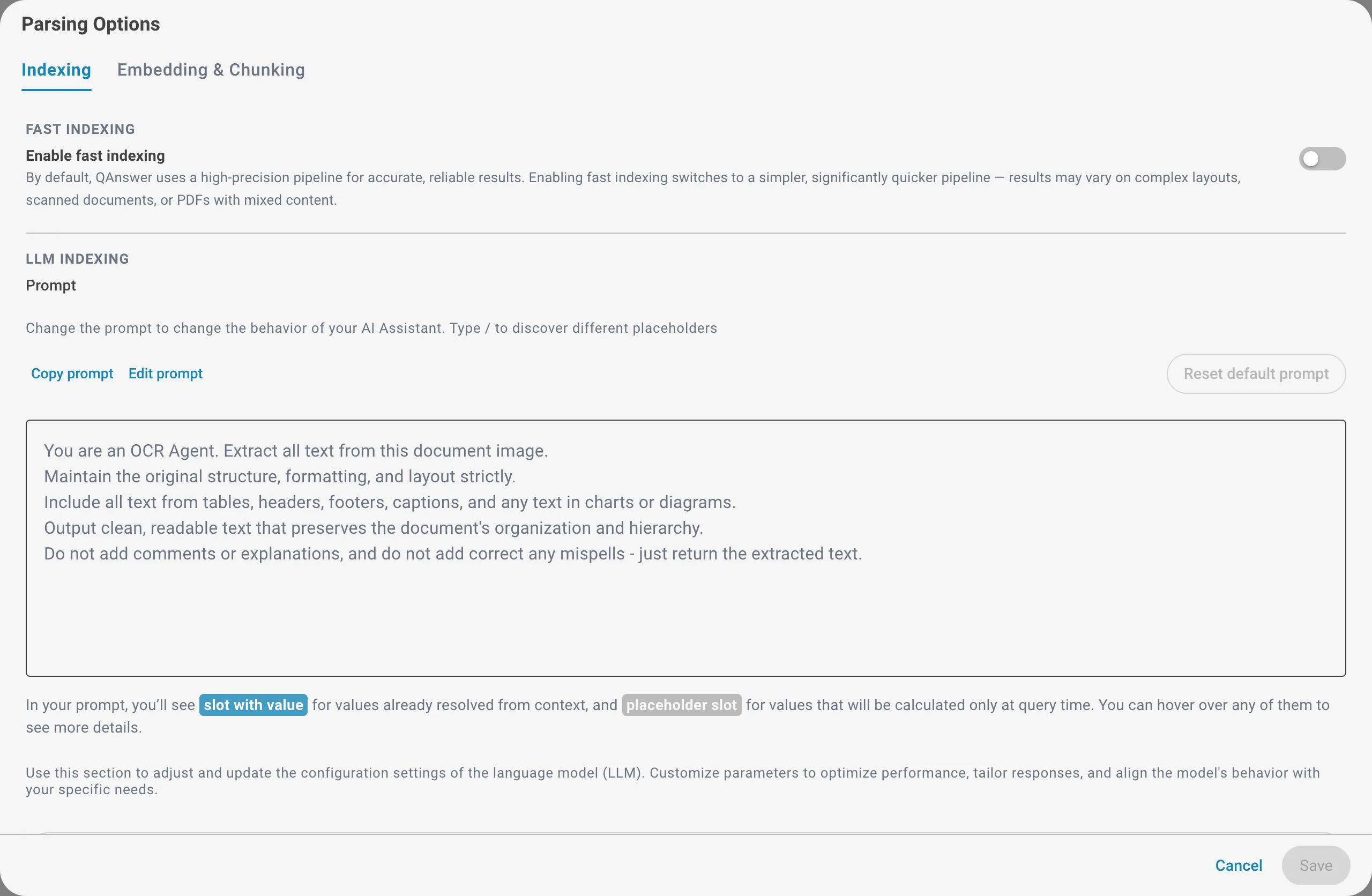
Fast Indexing
By default, QAnswer uses a high-precision pipeline for accurate, reliable results. Enabling fast indexing switches to a simpler, significantly quicker pipeline. Use it when you need to index large volumes quickly and your documents have a simple layout.
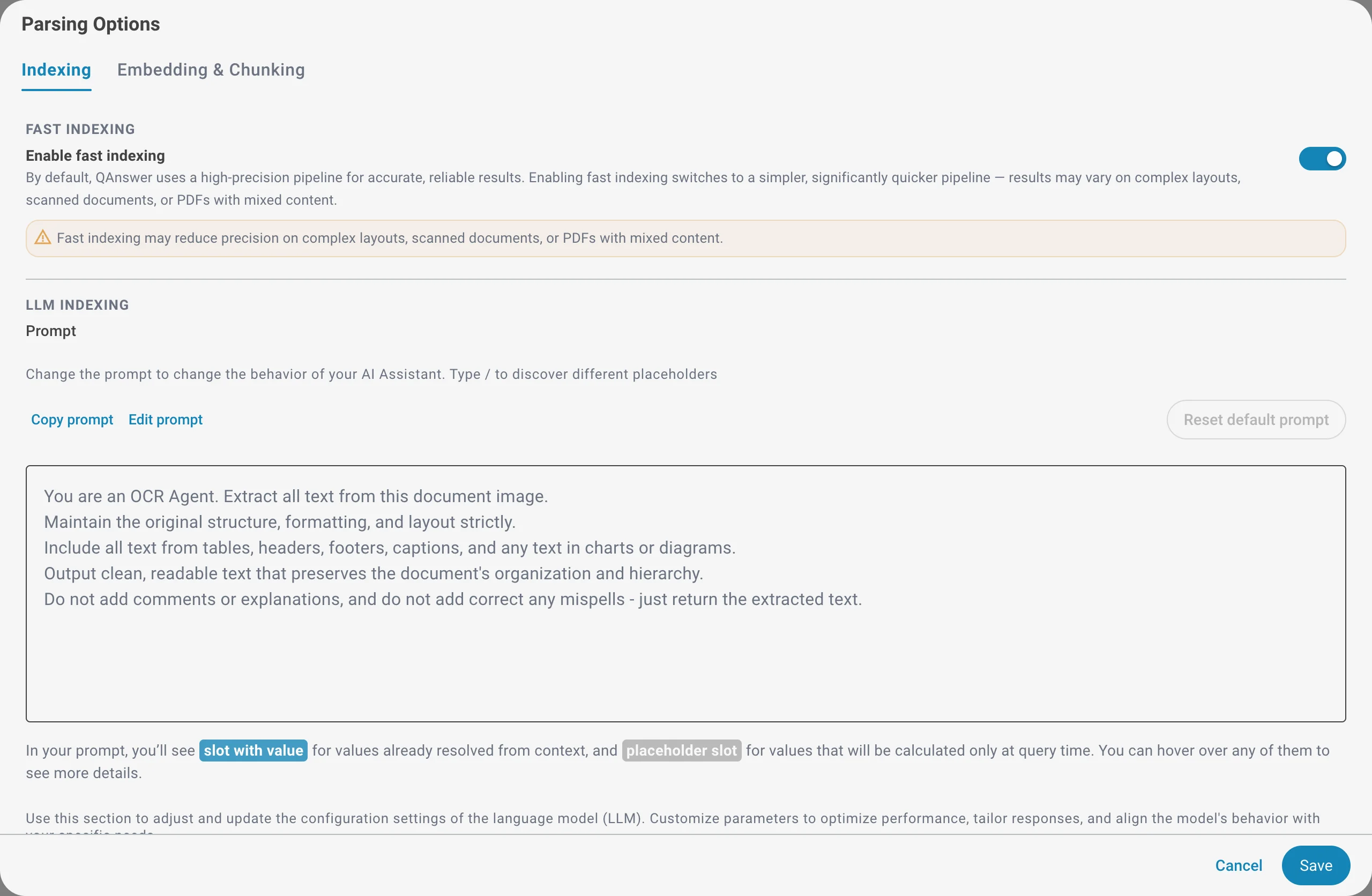
LLM Indexing
When your plan supports it, a language model reads each document during indexing — especially useful for scanned pages and images. You can customize the extraction prompt and choose the LLM and its parameters (context window, maximum response length, temperature).
Force Reindex
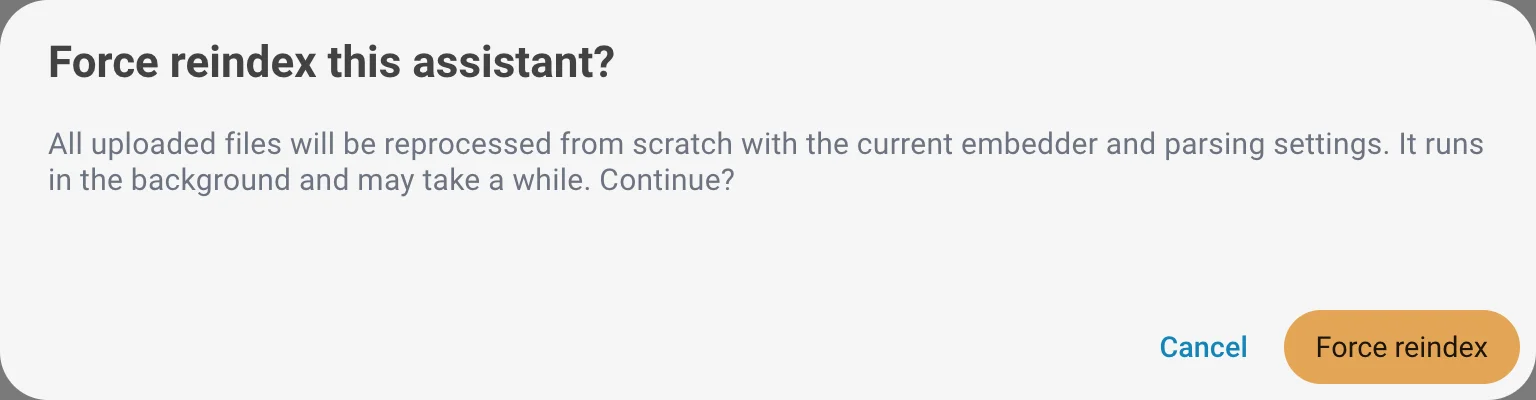
Reprocess all uploaded files through the full pipeline so the whole assistant is rebuilt with your latest embedder and parsing settings. This is useful after changing the embedding model or any parsing option, because existing files keep the settings they were indexed with until they are reprocessed.
A confirmation is required before the reindex starts. It runs in the background and may take a while depending on the number and size of your files.
Embedding & Chunking tab
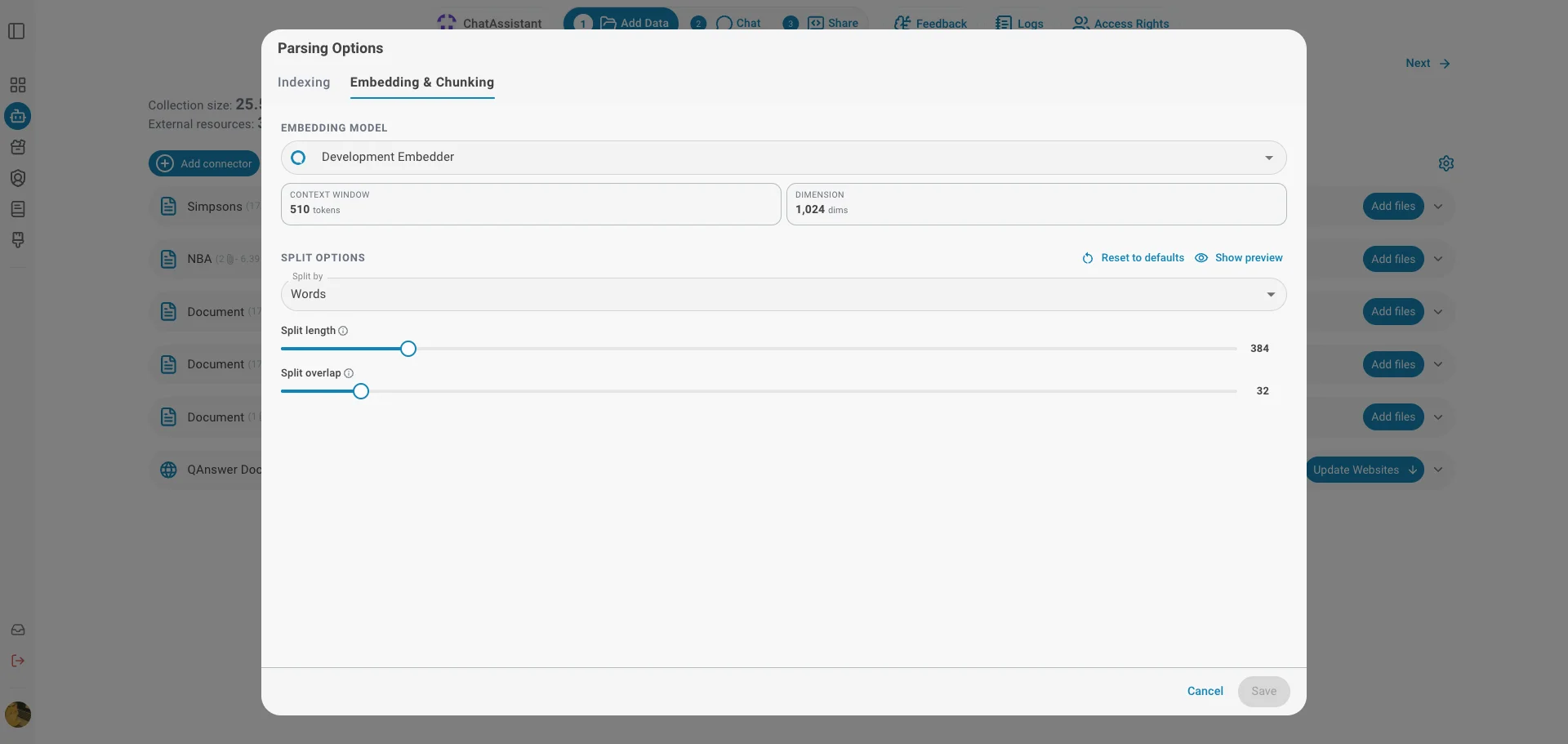
Embedding Model
Choose the embedding model used to vectorize your documents. The model determines how text is represented for semantic search. Two key properties are shown for the selected model:
- Context Window — the maximum number of tokens the model can embed at once. Your chunk size must stay within this limit.
- Dimension — the size of the vector each chunk is turned into.
Split Options
Documents are broken into smaller chunks before they are embedded. These options control how the split is performed:
- Split by — the unit used to measure each chunk: words, sentences, pages, or a regex pattern.
- Split length — how many units each chunk contains.
- Split overlap — how many units are repeated between consecutive chunks, so context is not lost at chunk boundaries (fixed at 0 for page-based splitting).
Use Reset to defaults to restore the selected embedder's recommended split settings.
Splitting on a regex pattern
Choose Regex pattern under Split by when your documents have a structure worth preserving — numbered sections, chapter headings, or article markers. Instead of counting words or sentences, QAnswer starts a new chunk at every match of your pattern, so each section stays whole.
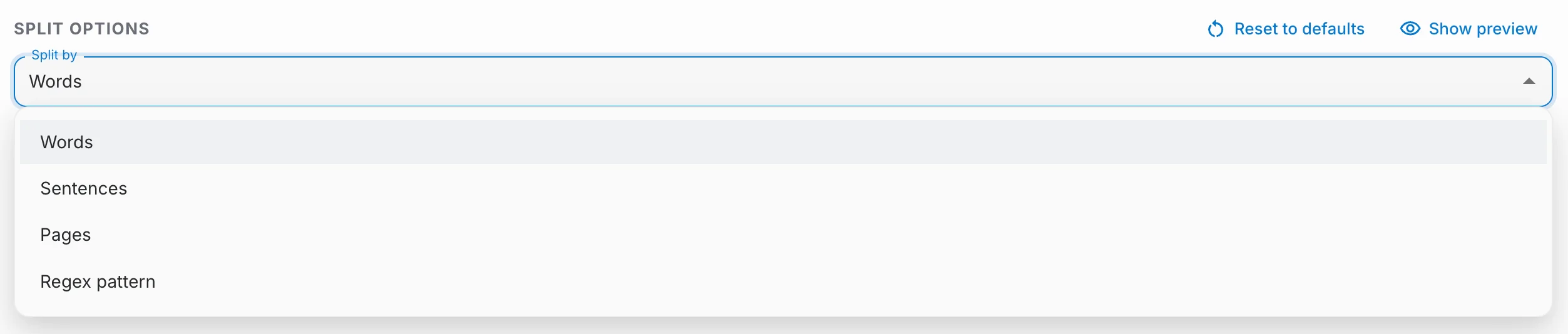
Type the pattern in the Regex pattern field. It is matched line by line, so anchors such as ^ apply to the start of every line. For example, ^#\s starts a new chunk at each top-level Markdown heading (# Working Hours) and keeps the sub-headings below it (## Remote work) inside the same chunk.


Files that are already uploaded keep the chunking they were indexed with. Use Force Reindex on the Indexing tab to re-chunk them with your new pattern.
Chunk layout preview
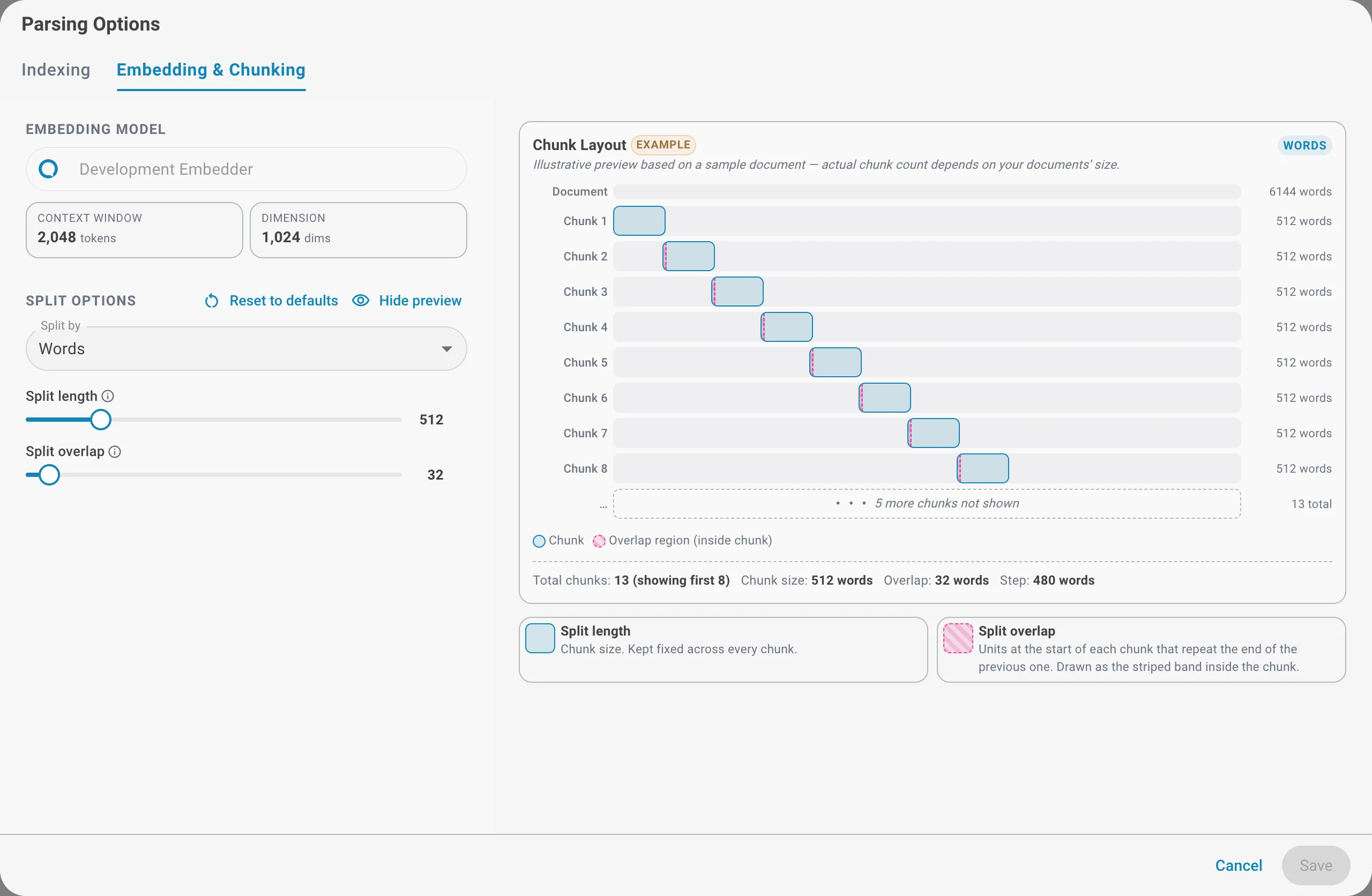
Click Show preview to see an illustrative layout of how a sample document would be split with the current settings — the chunk count, chunk size, overlap, and the resulting step between chunks. The preview is only an example; the actual number of chunks depends on your documents' size.
Saving your changes
The Save button is enabled only when there are unsaved changes. If you changed the embedding model you must confirm the change before saving, since it triggers a full re-index of the assistant.