MCP

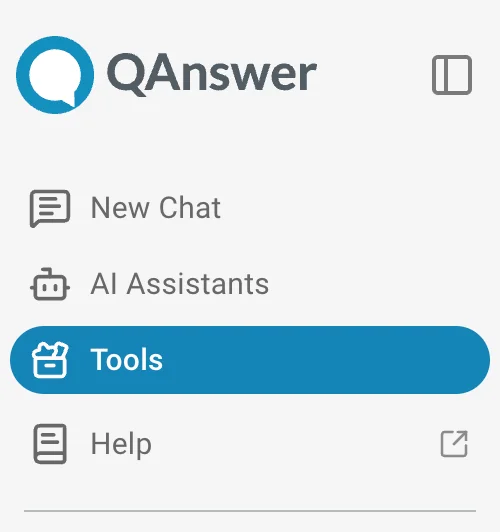
To access this section click on Tool on the left navigation bar.

Navigation bar for MCP

What is MCP?

MCP (Model Context Protocol) extends QAnswer by connecting external tools and services. Connected tools allow the AI assistant to check calendars, access files, query databases, and more.

Accessing MCP Tools in the Playground

  • Navigate to the Playground or AI Assistant Chat Task: Open the Playground or an AI Assistant chat task. A chat box is displayed.
  • Open the Actions Menu: Click the Actions icon button in the chat box. A modal opens listing all available tools.
MCP tool list
  • Enable/Disable Tools:
    • Multiple tools can be enabled simultaneously
    • Toggle individual tools on or off as needed according to your needs by clicking the switch
  • Set Confirmation Mode (Optional)
    • Activate "Ask for confirmation" when enabling a tool
    • Before execution, approve:
      • The tool being called
      • The parameters being used
    • Modify parameters before accepting the request

Using MCP Tools in Chat

Using MCP with an tagged AI Assistant
If you want to use an MCP tools with an AI Assistant, make sure to enable the tool in the AI Assistant Chat Task page before tagging it in the chatbot playground.AI assistantTo learn how to tag an AI Assistant, check the LLM Chat AI Assistant section.

Basic Usage

With tools enabled, chat with the AI assistant naturally:

Example:

You: "What are the events in my calendar today?"

Two Scenarios:

Scenario 1: Connection Already Exists

  • The LLM automatically calls the appropriate tool
  • If confirmation mode is enabled, approve the action before it runs
  • The response is returned immediately
AI assistant response about calendar events

Scenario 2: No Connection

  • Add a connection when prompted
  • Complete the connection setup process
  • Return to the chat
  • The tool is called automatically and returns an answer
AI assistant response about calendar events

Document Generator

MCP Document Generator

You can ask the chatbot to generate documents such as pdfs, word files, excel or powerpoint presentations using tools connected through MCP. For example, "Generate a sales report for last quarter in Excel format".

Example Prompt Used:

Fetch the content of example.pdf file in my sharepoint and create a summary and generate a pdf file out of it

LLM Answer Extract with document

MCP Document Generator

To download the generated document, click the provided link in the chat response.

Managing MCP Servers

Accessing the Tools Page

  • Navigate to the Tools tab in the navigation bar
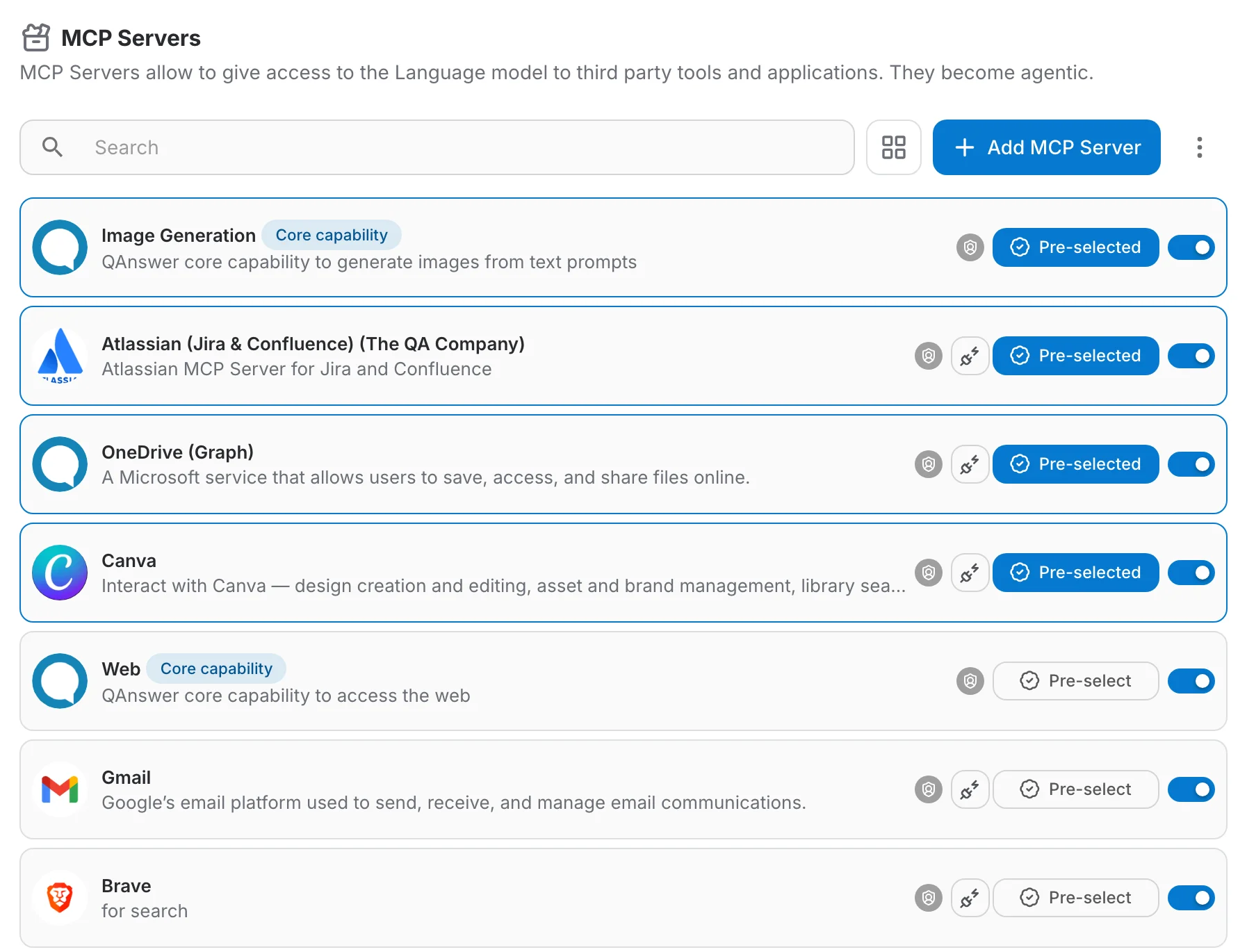
  • A list of all available MCP servers is displayed
List of MCP servers

Adding Your Own MCP Server

  • Click the Add MCP Server button
  • Fill in the required information:
    • Server name
    • Server URL/endpoint
    • Authentication details (if required)
    • Other configuration parameters
  • Click Save
Adding an MCP server

Configuring Your MCP Server

After adding a server:

Add a Connection

  • Set up the connection credentials
  • Provide any necessary API keys or authentication tokens

Test the Connection

  • Use the built-in test feature to verify everything works
  • Check for any connection errors

View Available Tools

  • Browse all tools that this MCP server provides
  • Read descriptions of what each tool does

Enable Tools

  • Select which tools you want to make available in the app
  • You can enable or disable tools individually
Configuring an MCP server

Return to Playground

  • Return to the Playground or AI Assistant
  • Select which enabled tools the AI should use
  • The tools are now available in chat

Authentication & Custom Headers

When adding or editing an MCP server, the Authentication step controls how QAnswer authenticates against the server, and the Custom Headers step lets you attach extra HTTP headers — either shared by everyone or supplied individually by each user.

Authentication Methods

Pick an authentication method from the Method dropdown:

  • NoneNo authentication is sent. Use this for open servers or when authentication is handled entirely through custom headers.
  • API KeyAuthenticate with an API key sent in an HTTP header. You choose how the key is presented (see below).
  • OAuth 2.0 (Advanced)Delegate authentication through an OAuth 2.0 flow for servers that support it.

Custom API Key Header

When the method is API Key, a Header Name selector lets you choose how the key is sent. The first three options are ready-made presets; the last lets you define your own:

  • Bearer tokenSends the key as an Authorization: Bearer header.
  • X Api keySends the key in the X-Api-Key header.
  • X Litellm Api keySends the key in the x-litellm-api-key header, for LiteLLM-style gateways.
  • CustomDefine an arbitrary header name and value format yourself.

Choosing Custom reveals a Custom header configuration block where you describe exactly how the key should be sent:

  • Header name — any HTTP header name, e.g. X-My-Auth.
  • Value template — optional. Leave it empty to send the raw key, or define a format such as Bearer {api_key} where the placeholder is replaced by the user-supplied key.
The {api_key} placeholder
Inside the value template, write {api_key} wherever the key should appear. A live Resulting header preview shows the exact header that will be sent.

End-user form

You can also customise how the API key input looks to end users when they create a connection:

  • Display namethe label shown above the key input (falls back to the header name).
  • Placeholderthe hint shown inside the empty input, e.g. sk-…
  • Descriptionhelper text shown under the input, e.g. where to find the key.
Custom API key header configuration

Custom Headers

The Custom Headers step lets you attach additional HTTP headers to every request. It has two tabs: All Users for shared static headers, and Per User for values each user fills in themselves.

All Users (shared headers)

Static name/value headers sent on every MCP request for all users. Use these for non-secret routing or versioning headers. Do not use them for authentication, since the same value is shared across everyone.

Per User (per-user custom headers)

Define fields that each user fills in when they create their own connection. Each field's value is sent as an HTTP header (the header key is the field name) on every MCP request made for that user's connection. Each field has:

  • Header namethe HTTP header key sent on requests, e.g. X-Subdomain.
  • Display namethe label the user sees in the connection dialog.
  • Value typehow the value is stored and displayed:
    • Plainvisible value, stored as-is.
    • Secretmasked value, stored securely — use for tokens and other sensitive data.
  • Requiredwhen on, a connection cannot be created without a value.
  • Placeholder & descriptionoptional hint and helper text shown to the user.
Per-user custom header configuration

What end users see

When a user connects to the server, they are prompted to fill in the per-user fields you defined. Required fields must be completed before the connection can be created, and Secret fields are masked as they are typed.

End-user connection dialog collecting per-user header values
Keep secrets in the right place
Use per-user Secret fields (or the API key auth method) for anything sensitive. Shared All Users headers are visible to everyone with access to the server, so never put tokens or credentials there.

Exploring Pre-configured MCP Servers

Browsing Available Servers

  • Click any server on the Tools page to:
    • Read detailed descriptions
    • View the list of tools they offer
    • Understand their capabilities
    • See usage examples

Available Integrations

The following integrations are available as MCP servers:

  • Atlassian (Jira & Confluence) — manage issues and pages directly from QAnswer
  • GitLab — interact with repositories, issues, and merge requests
  • Google Workspace — access Drive, Calendar, Gmail, and more

Permission Levels

Actions available by role:

Regular Users

  • Modify your own MCP servers
  • Update configurations and settings
  • Manage connections
  • Enable/disable tools for personal use
  • Add personal MCP server connections
  • Use enabled tools in the Playground and AI Assistants

Organization Admin

  • Enable or disable any MCP server for your organization
  • Manage which tools your team can access

Admin (Platform)

  • Enable or disable any MCP server platform-wide
  • Full access to all server configurations

Setting Confirmation Defaults

You can define a default ask-for-confirmation behaviour per MCP tool. When a default is set, the tool always uses that behaviour without requiring per-session configuration.

MCP tools list

Best Practices

  1. Start with Confirmation Mode
    • Enable "Ask for confirmation" when testing new tools for the first time
    • Review parameters before execution
    • Disable confirmation mode once the tool behaves as expected
  2. Test Connections
    • Always test connections after adding a new MCP server
    • Verify tools are working before relying on them
  3. Enable Only What You Need
    • Avoid enabling all tools at once
    • Keep the Actions menu focused on relevant tools
    • Fewer active tools improves AI performance and reduces ambiguity
  4. Read Tool Descriptions
    • Understand what each tool does before enabling
    • Check required parameters
    • Note any limitations or requirements

Troubleshooting

Tool Not Working?

  • Verify the connection is active
  • Test the connection from the Tools page
  • Check if the tool is enabled
  • Ensure you have proper permissions

Can't See a Tool?

  • Check if the MCP server is enabled for your organization
  • Verify the tool is enabled in the server settings
  • Confirm you've selected it in the Actions dialogue

Connection Issues?

  • Re-test the connection
  • Verify credentials and API keys
  • Check server status
  • Contact your organization admin