Quotas
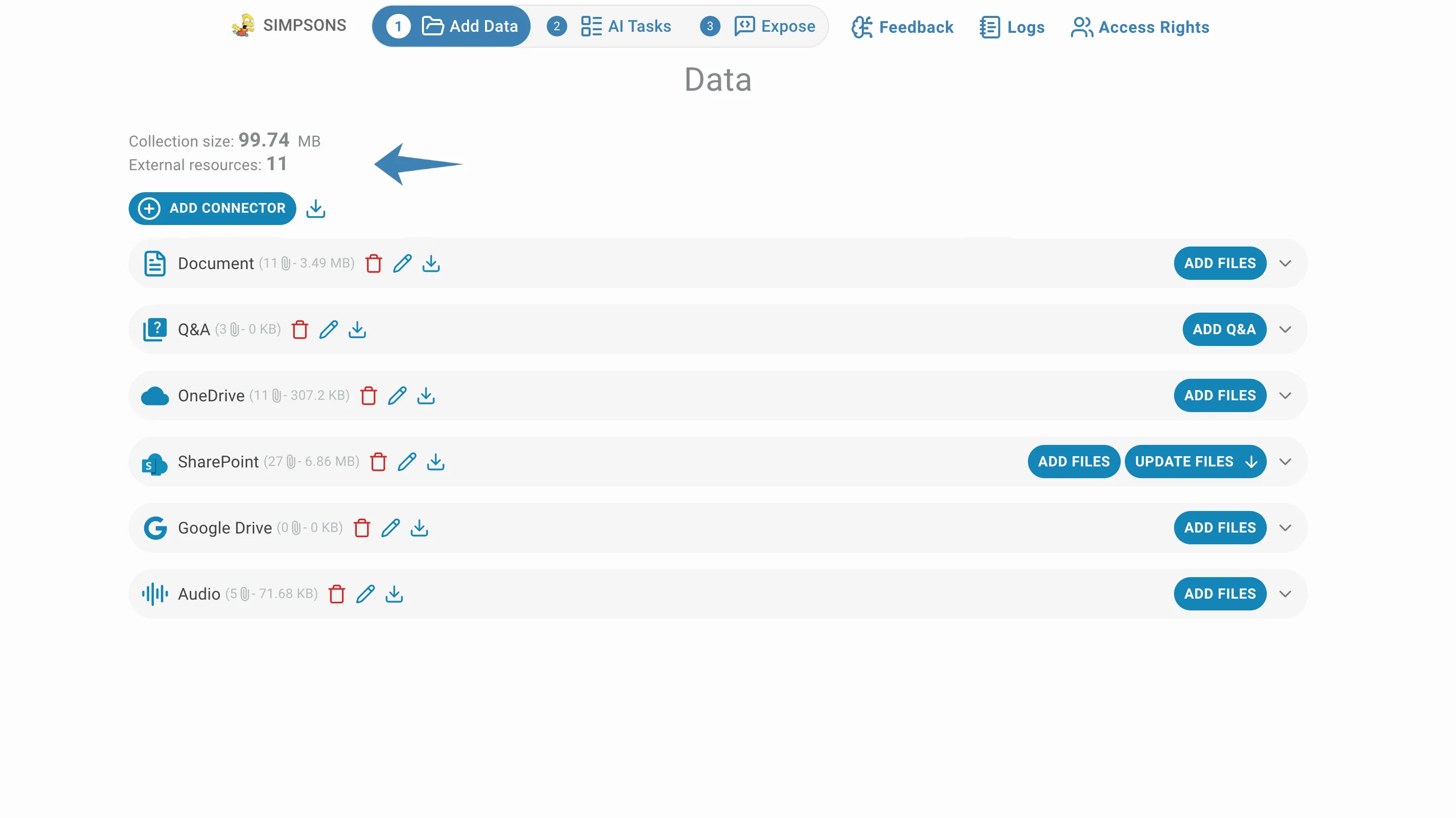
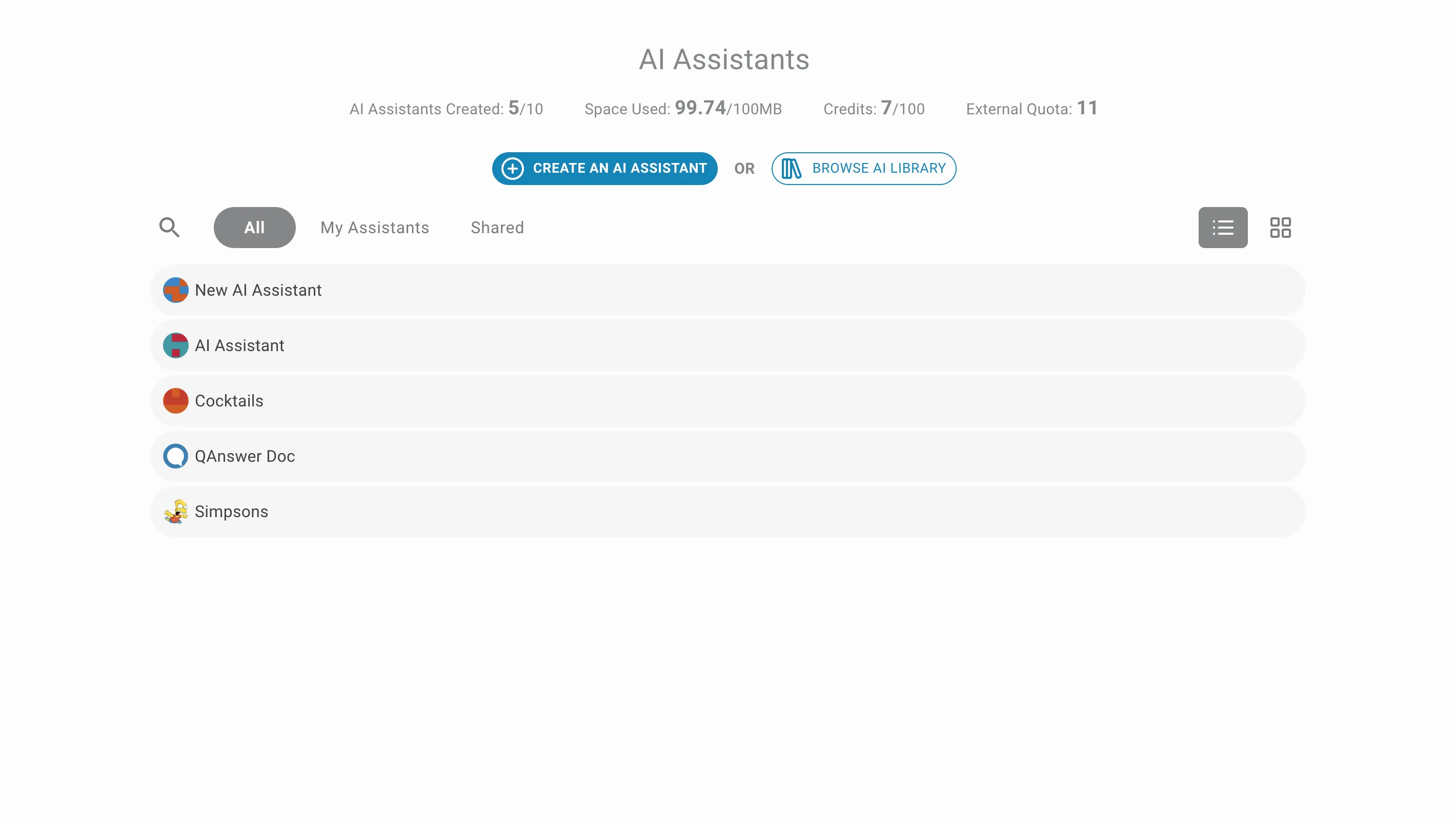
The home page shows quotas for the number of concurrent AI Assistants, the total size of imported files, and the number of questions asked. Each quota has a default value that an administrator can change.
Quotas Bar
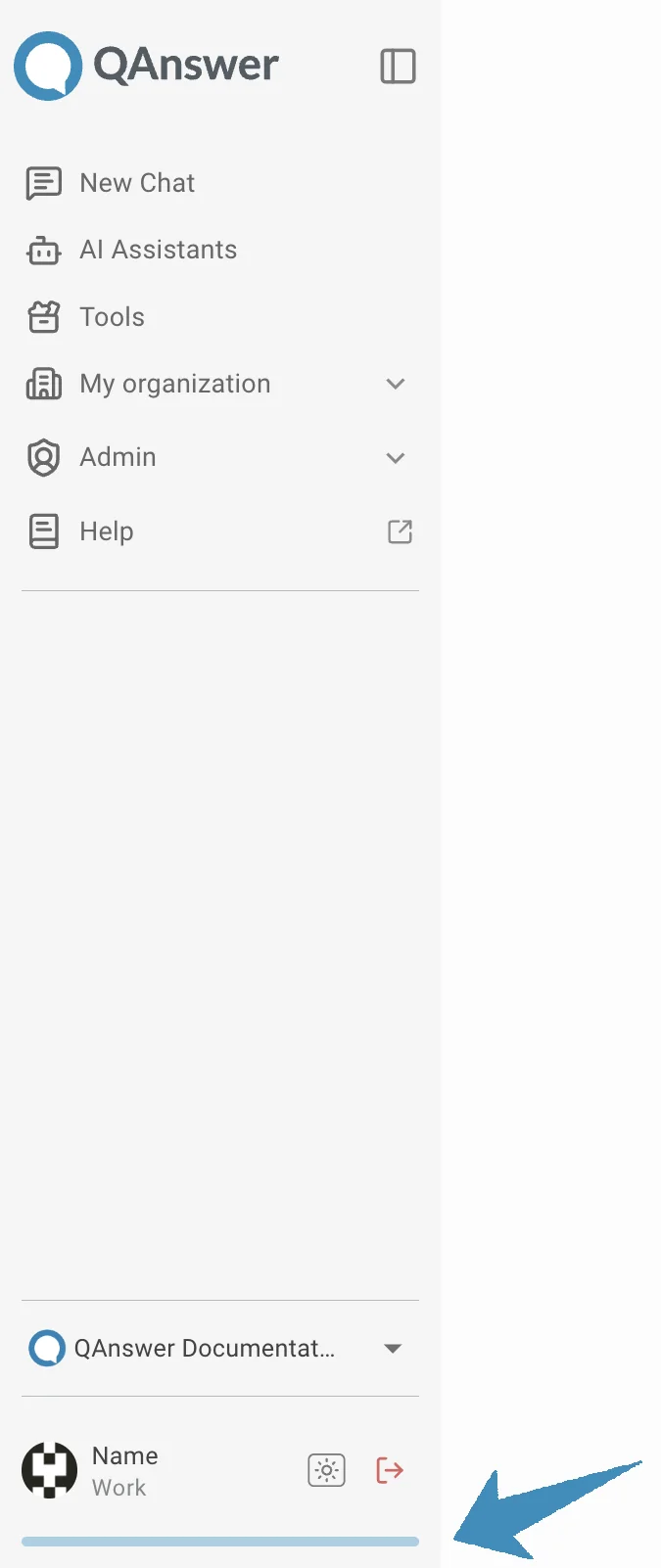
Check current quota usage in the bar at the bottom of the left sidebar.
AI Assistant quotas
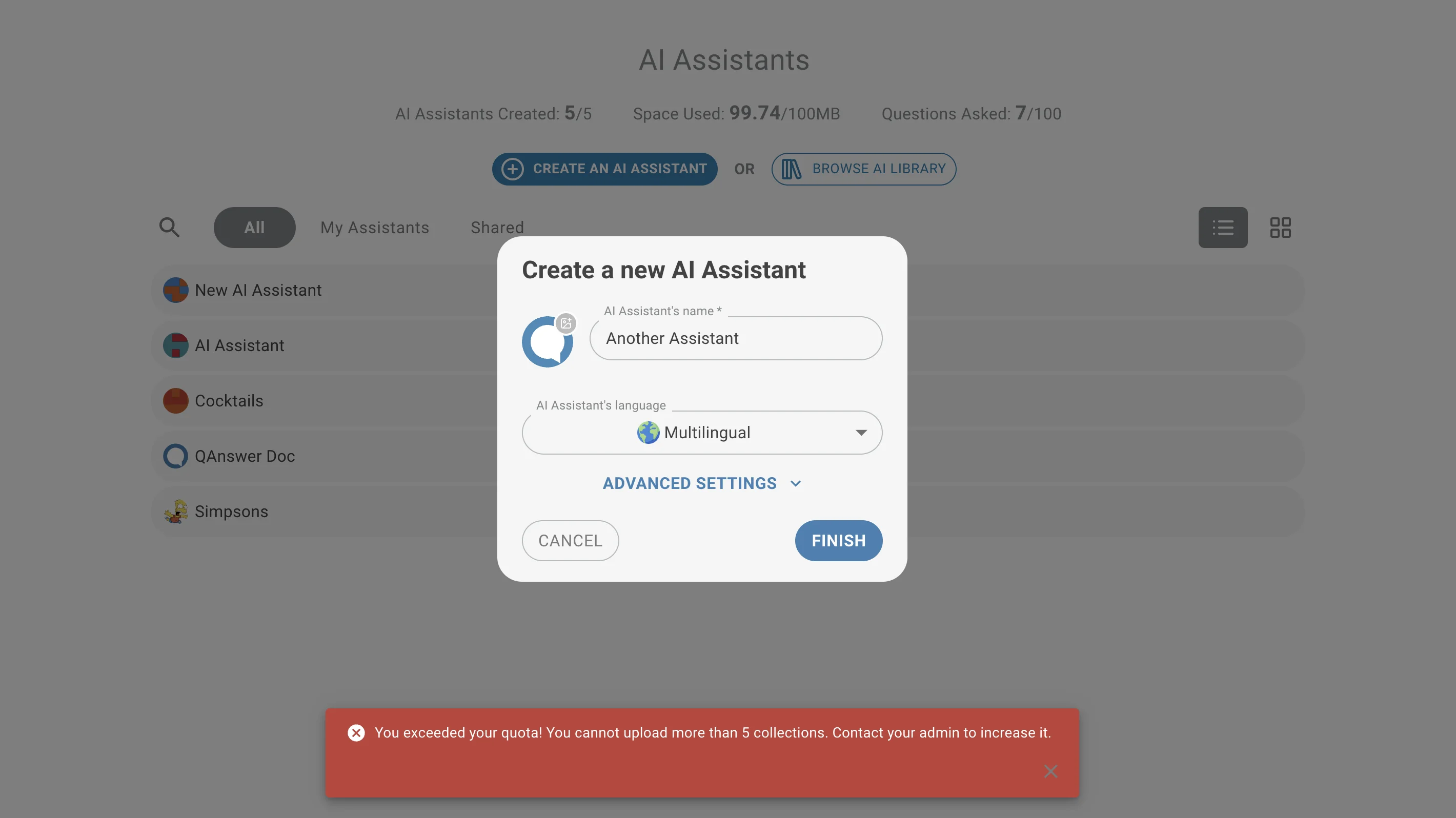
When the quota is reached, creating new AI Assistants is blocked. Delete existing AI Assistants or remove uploaded documents to free up capacity.
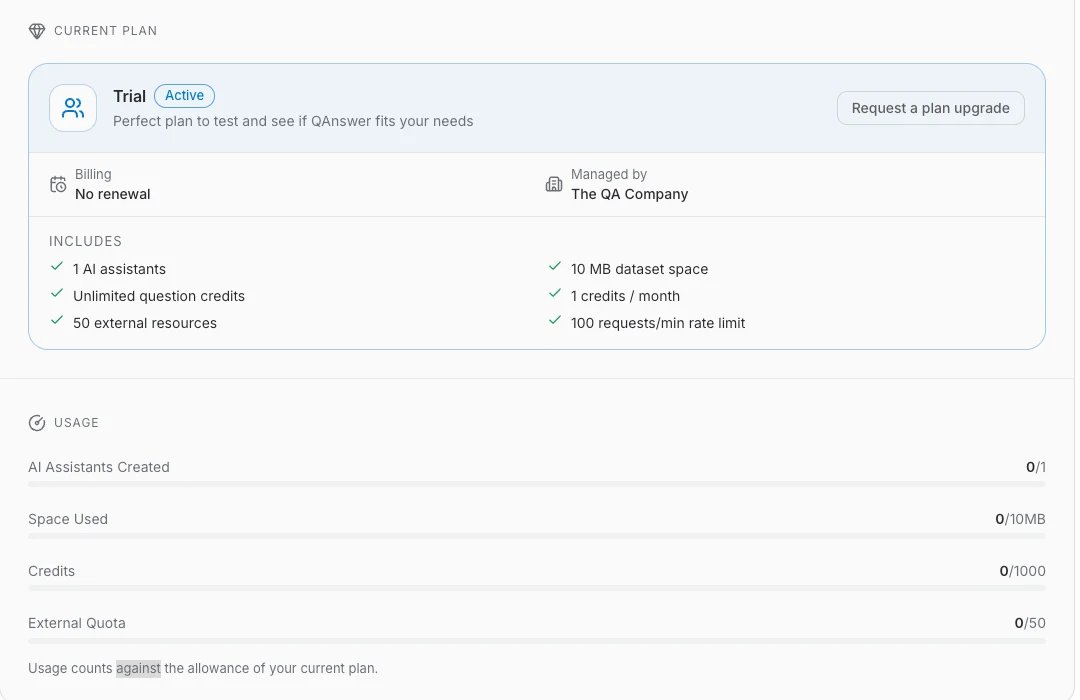
Current plan
Your profile page shows the plan your account currently runs on, its status, when it renews, and which organization manages it. The Includes list spells out the allowances the plan grants: the number of AI Assistants, dataset space, question credits, external resources, and the API rate limit.
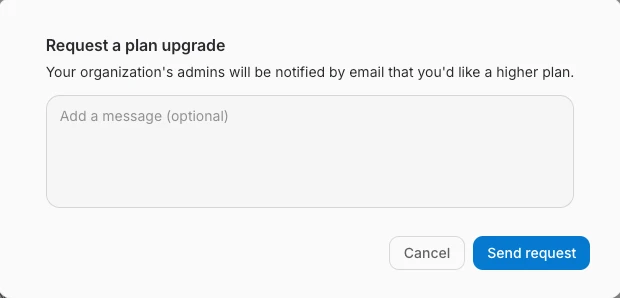
Requesting a plan upgrade
If you are not an organization administrator you cannot change the plan yourself — you ask for it instead. Click Request a plan upgrade on the plan card to open the request dialog.
The dialog notifies your organization's administrators by email that you would like a higher plan. Add an optional message explaining why you need more capacity — which quota you are hitting and what you are trying to do — then click Send request.
Usage
The Usage section below the plan tracks what you have consumed against those allowances: AI Assistants created, space used, credits, and external quota. Each row shows the current value and the limit of your plan.
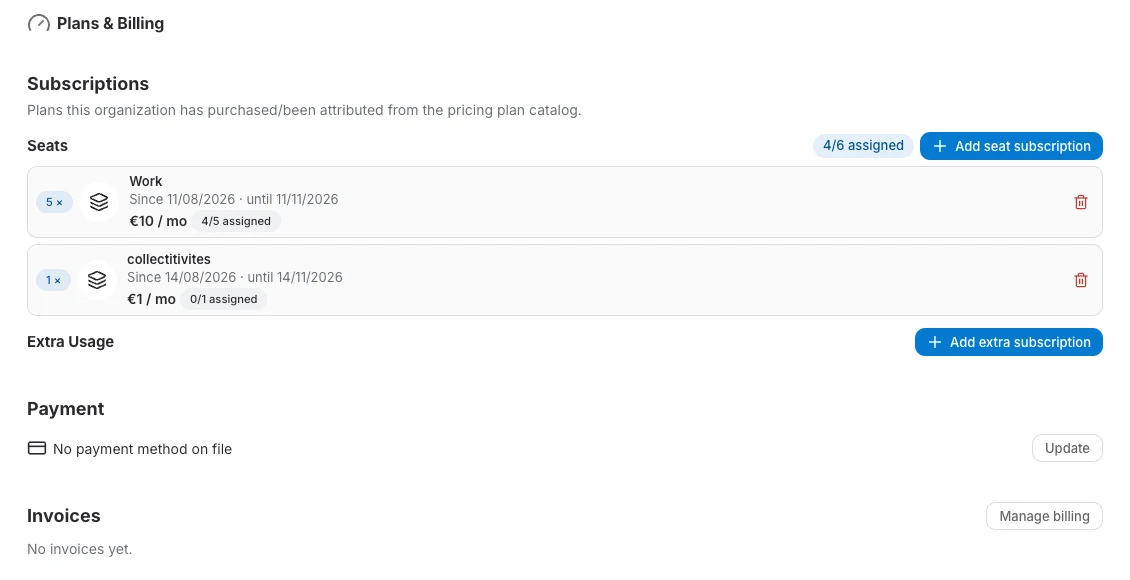
Managing the subscription
Plans are purchased and assigned at the organization level. Organization administrators open Plans & Billing in the organization settings to add seat or extra-usage subscriptions, assign seats to users, update the payment method, and download invoices.
Datas source quotas
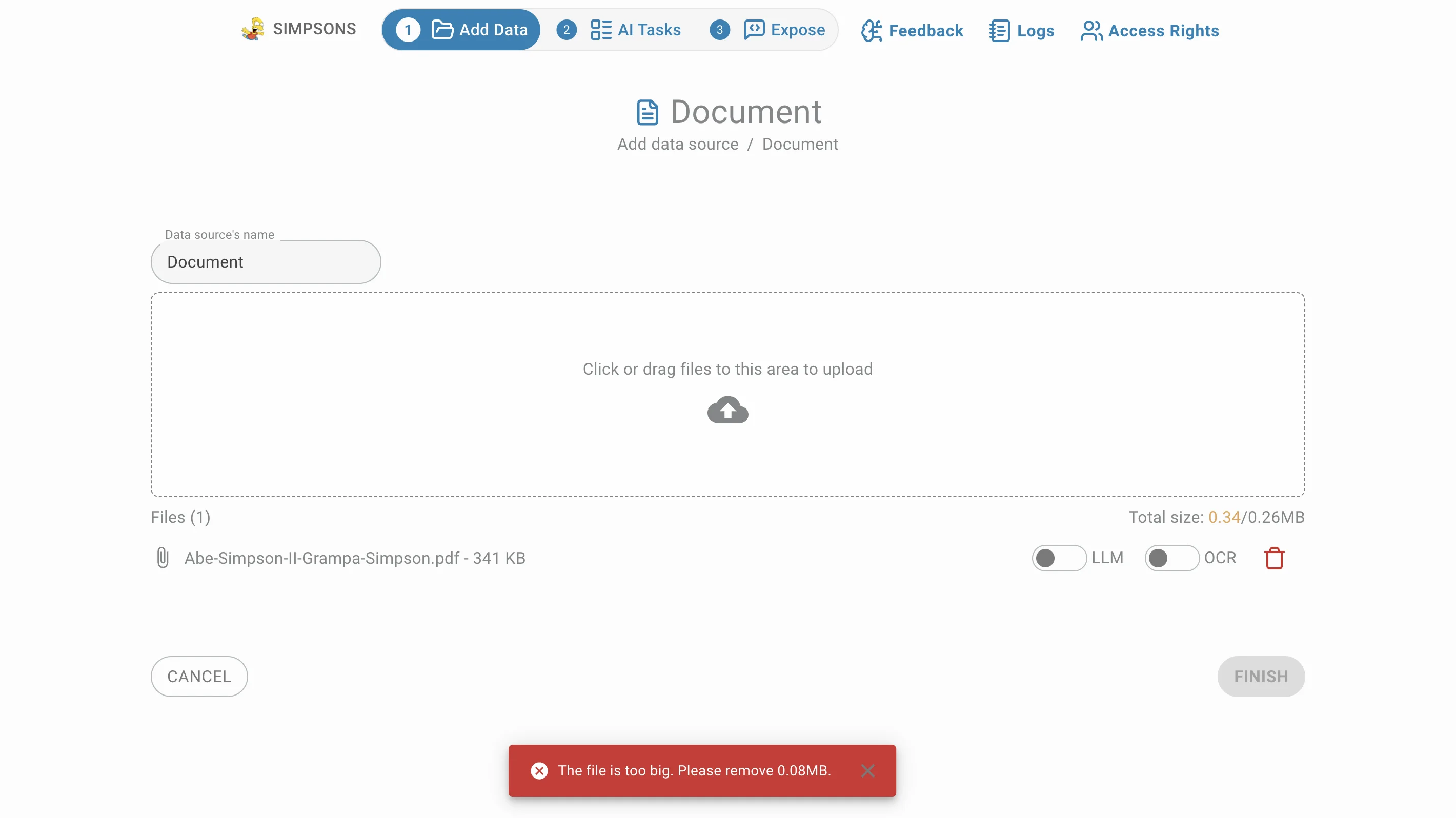
For document data source AI Assistants, the combined size of all uploaded files must stay within the quota. On the free plan, a 10 MB quota allows 10 files of 1 MB each, or a single 10 MB file, and so on.
The total remaining space is shown when uploading documents, so select files to add or remove accordingly.
Subscription plans impose limits on the number of external resources (links, SharePoint, OneDrive) that a user can index.