
Google Drive
The Google Drive connector indexes files from a Drive account, including Google Docs, Sheets and Slides, so an assistant can answer from documents that stay in Drive.
Connect your account
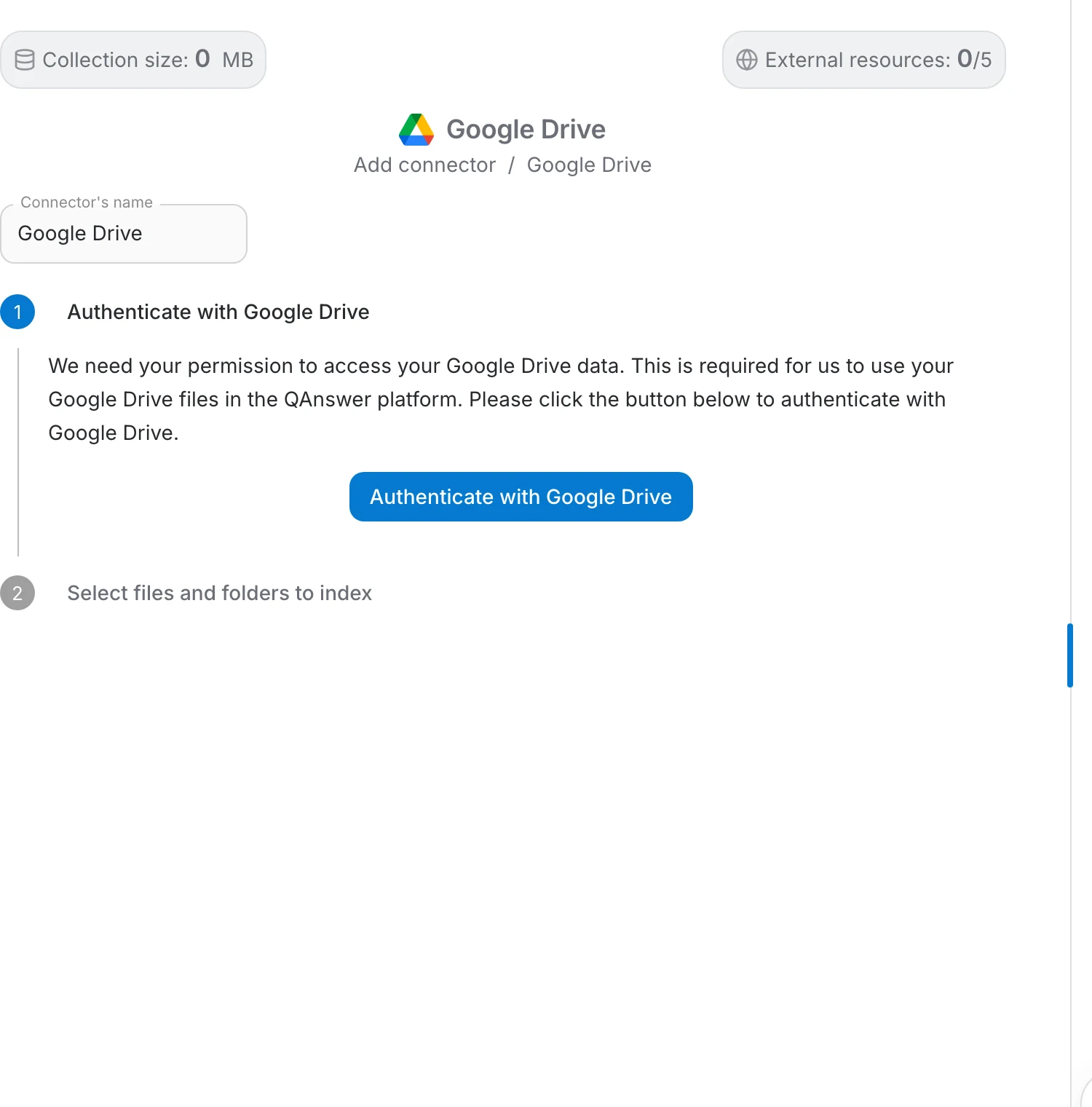
Choose Google Drive in the Add connector menu. The page is a two-step stepper, and nothing is read from your Drive until you finish the second step.
- Authenticate with Google Drive — explains that QAnswer needs permission to reach your Drive data, and holds the button that starts the Google sign-in. A tick appears on it once the account is connected.
- Select files and folders to index — stays closed until authentication succeeds, then opens with Google's own file picker.
Clicking a step header folds it away, which helps when you come back to a connector later.
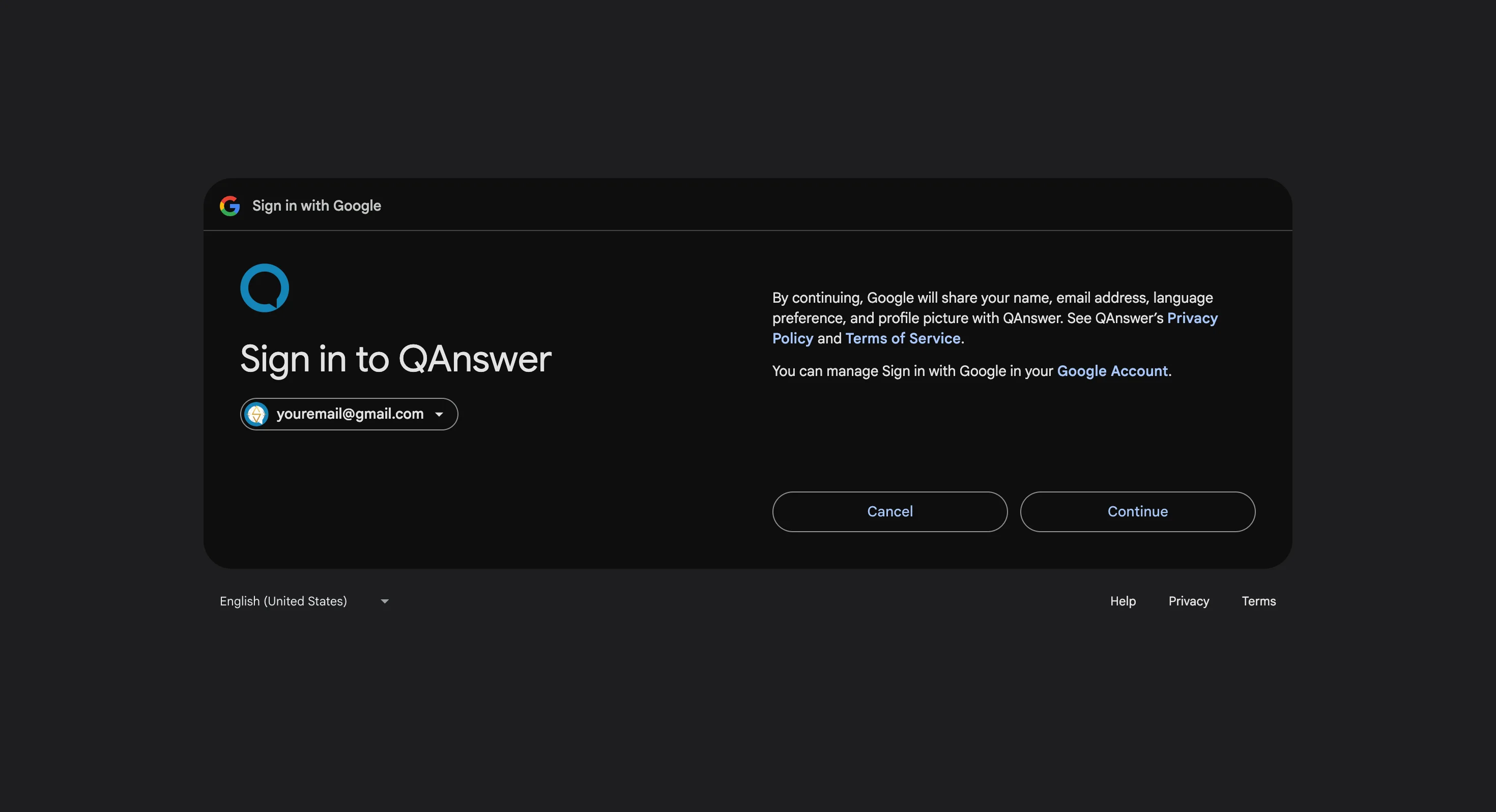
Sign in with Google
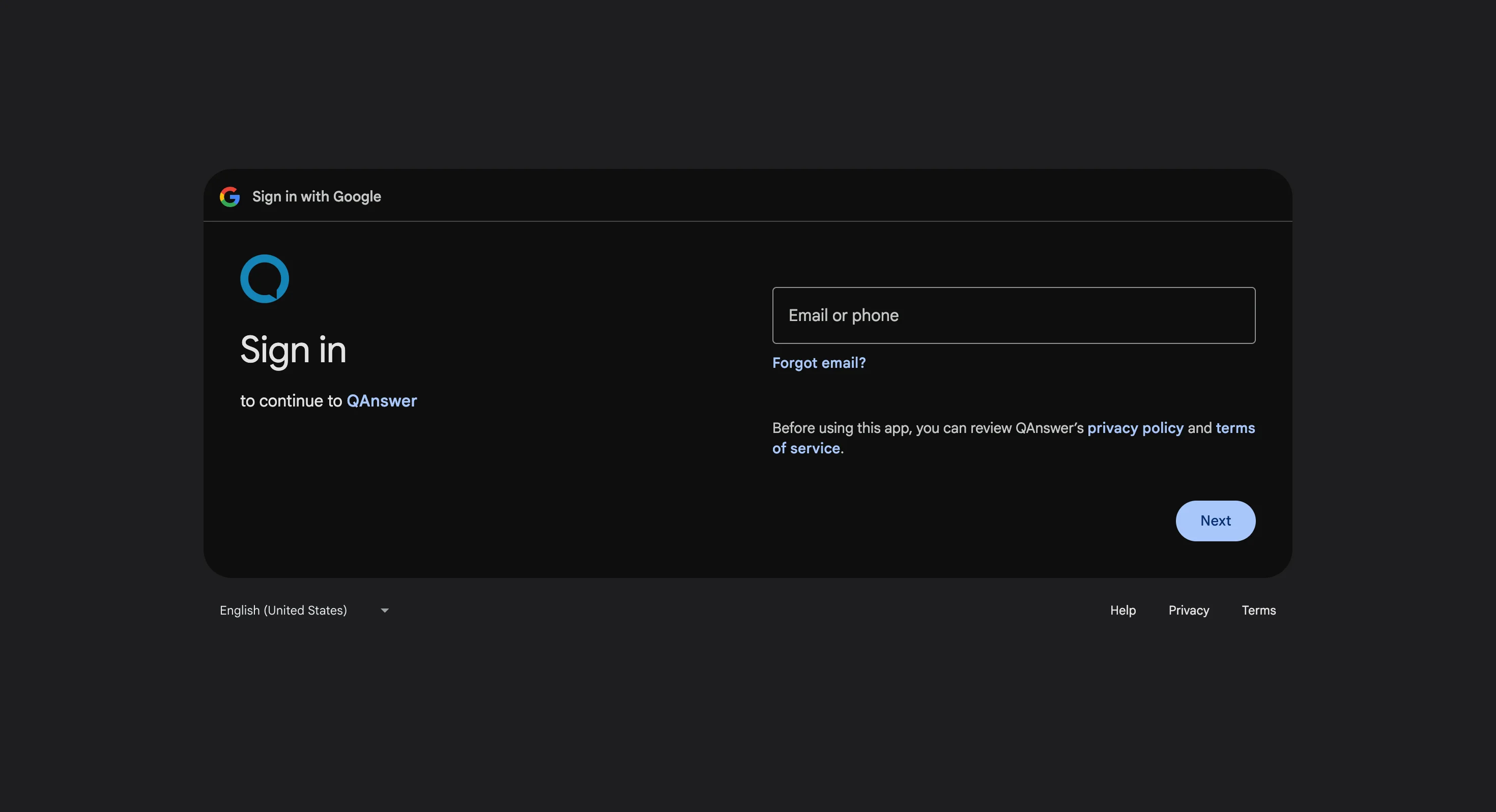
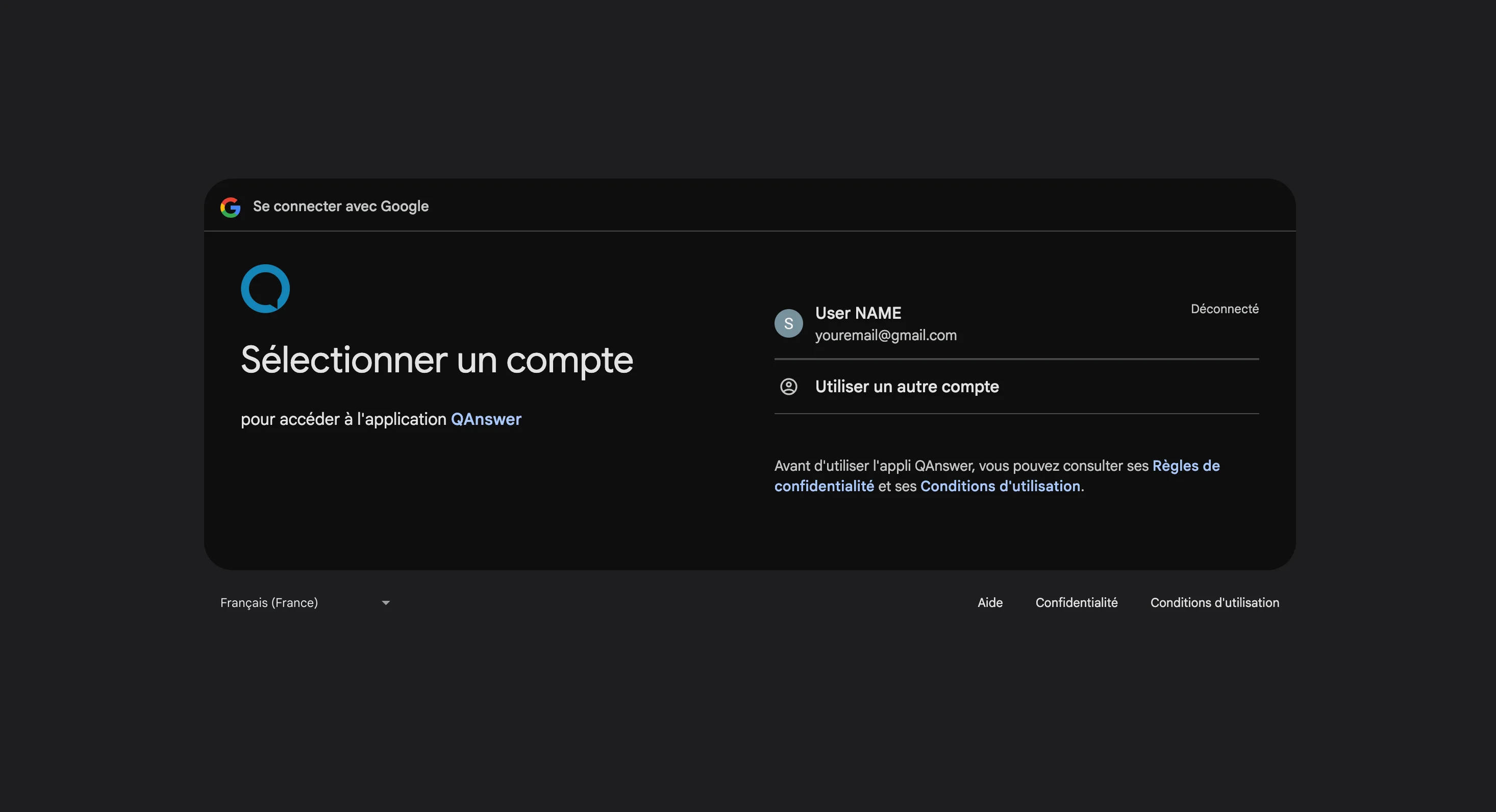
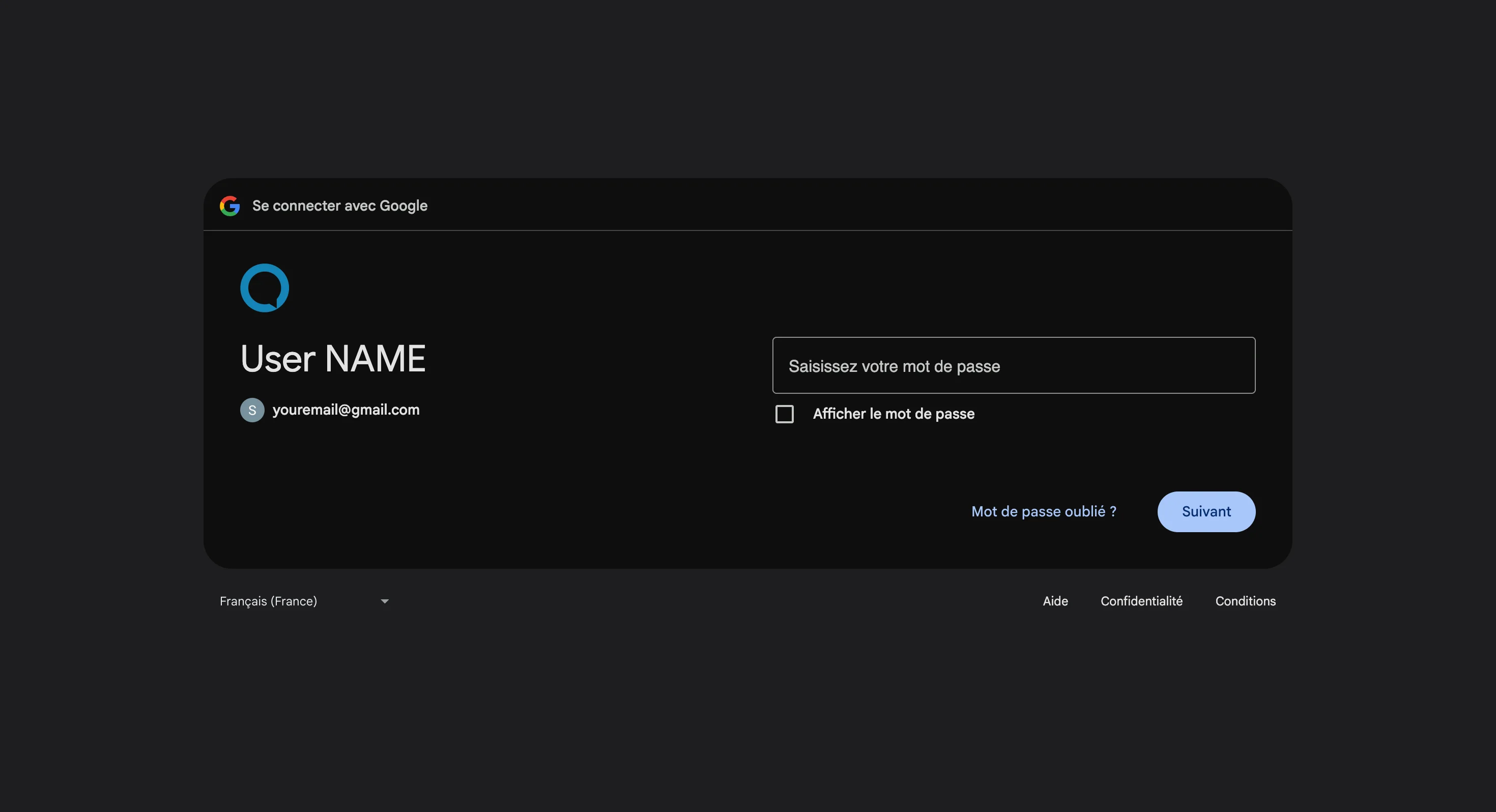
Google opens its own sign-in page. Pick the account that owns the files if it is already listed, or choose to use another account and type its address, then click Next and enter the password. Use the account the files really belong to — a personal account cannot reach a company Drive, and the reverse is also true.
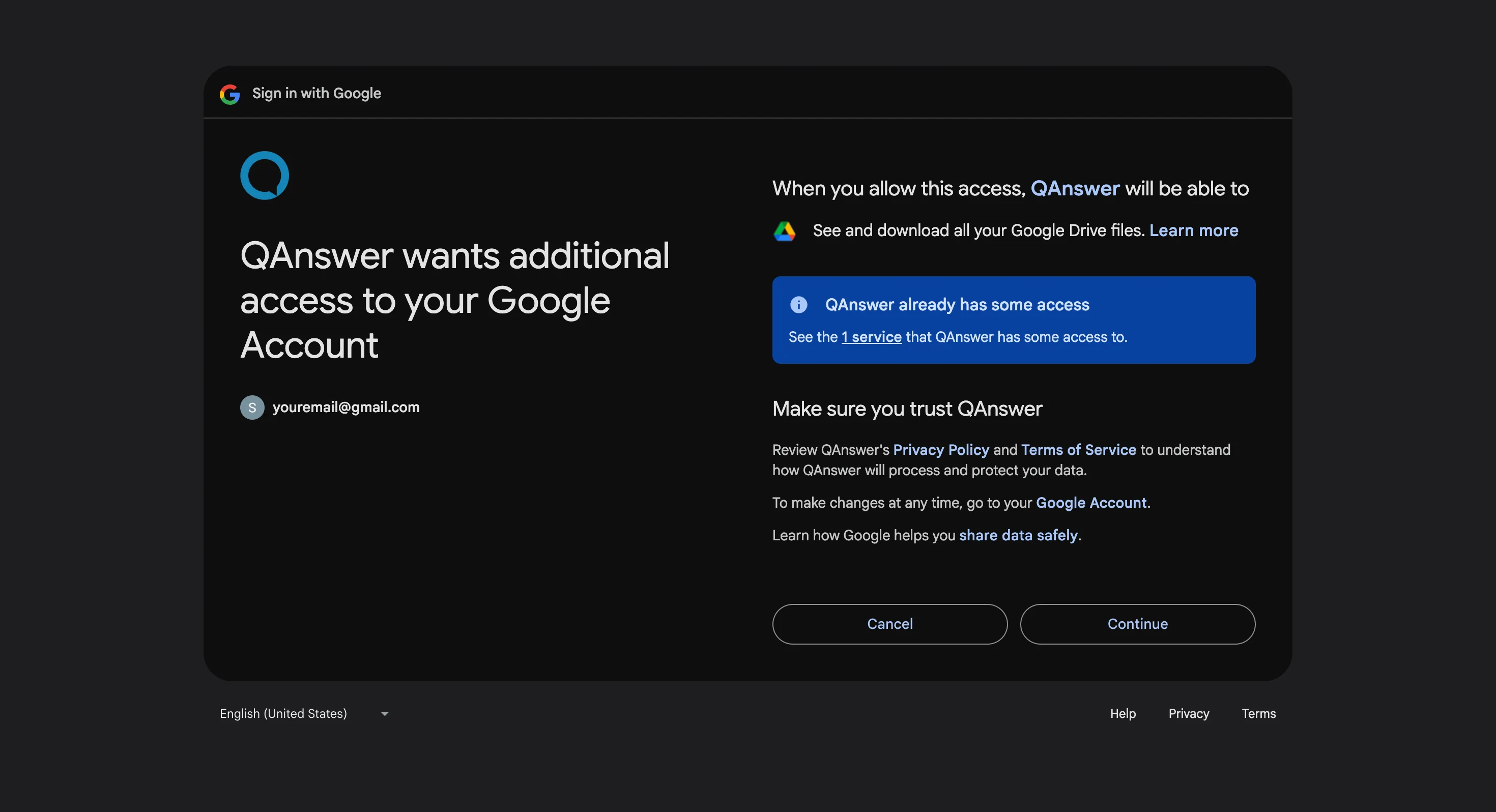
Google then asks for consent twice: first to confirm you are signing in to QAnswer, then to grant the Drive permissions it needs. Both have to be accepted; declining either ends the flow with nothing connected.
Choose what to index
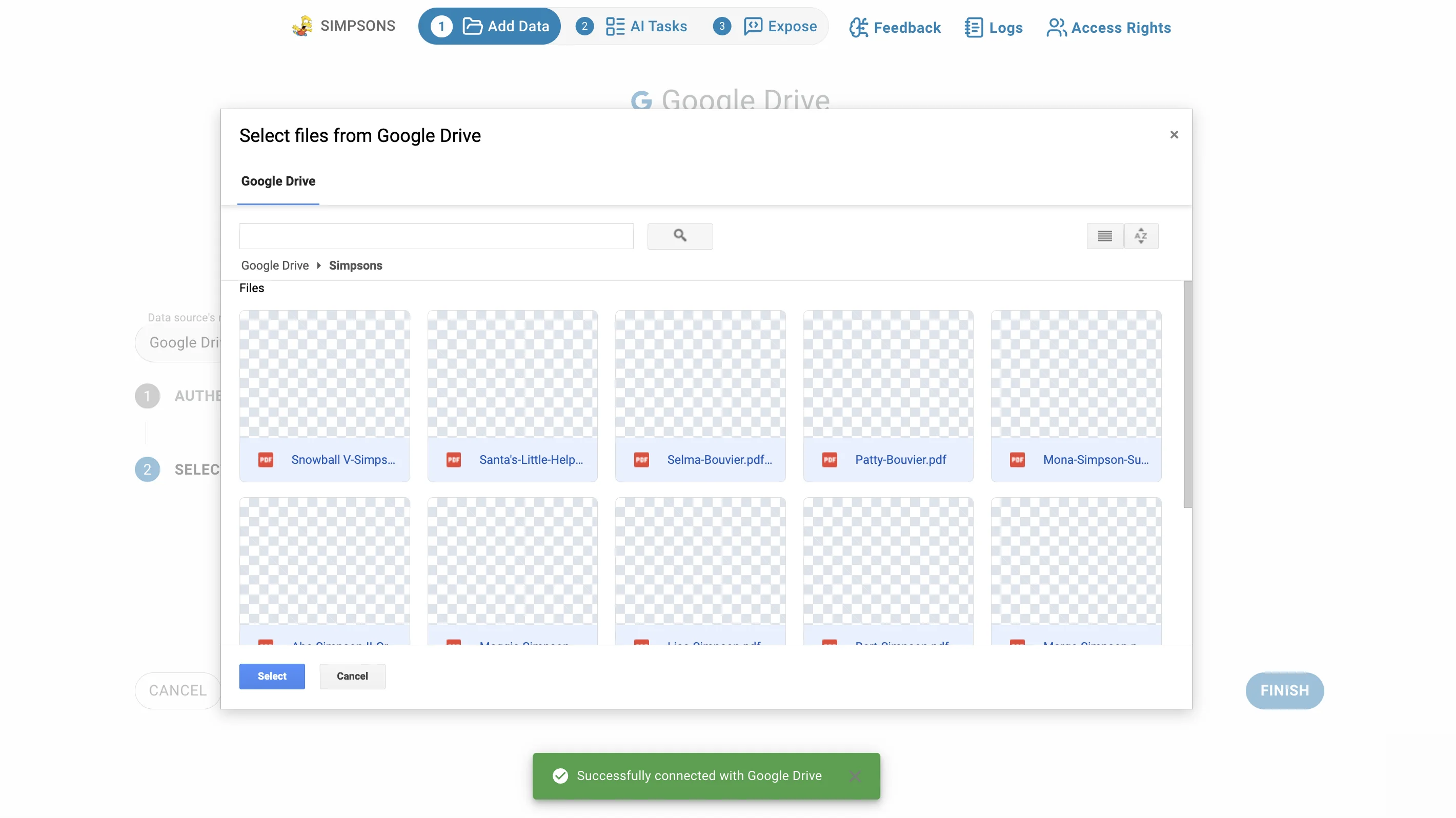
Google Drive does not list your files in QAnswer. Instead the second step opens Google's own picker, titled "Select files from Google Drive", which behaves the way it does everywhere else in Google:
- Browse My Drive and any shared drive you can reach, in list view, and pick as many items as you like at once.
- Folders can be picked as well as files. Picking a folder takes everything inside it.
- Only file types the connector can read are offered: Google Docs, Sheets, Slides, Drawings, Forms and Scripts, PDF, Word, RTF, plain text, Markdown, CSV, HTML, Excel and OpenDocument spreadsheets, PowerPoint and OpenDocument presentations and text.
- Reopening the picker adds to what you already chose rather than replacing it, and duplicates are dropped.
Review the selection
What you pick is staged, not indexed, so you get a review list under the picker before anything happens:
- The heading counts the selected items; folders are marked as "(folder — all contents)" so you can see what is being taken wholesale.
- The bin icon on a row removes that item from the selection.
- Each supported file has an LLM switch: extract this file with the vision model, which is better on scans, tables and complex layouts but slower. A toggle above the list turns it on for every supported file at once.
- The switch is not offered where a vision model adds nothing — plain text, Markdown, CSV, HTML, spreadsheets, Forms and Scripts.
- LLM extraction can only be chosen on files you pick individually. Files discovered inside a picked folder use the default extraction, and the review list says so.
The picker has no button of its own. Click Finish on the dialog to index the staged selection.
Indexing and updates
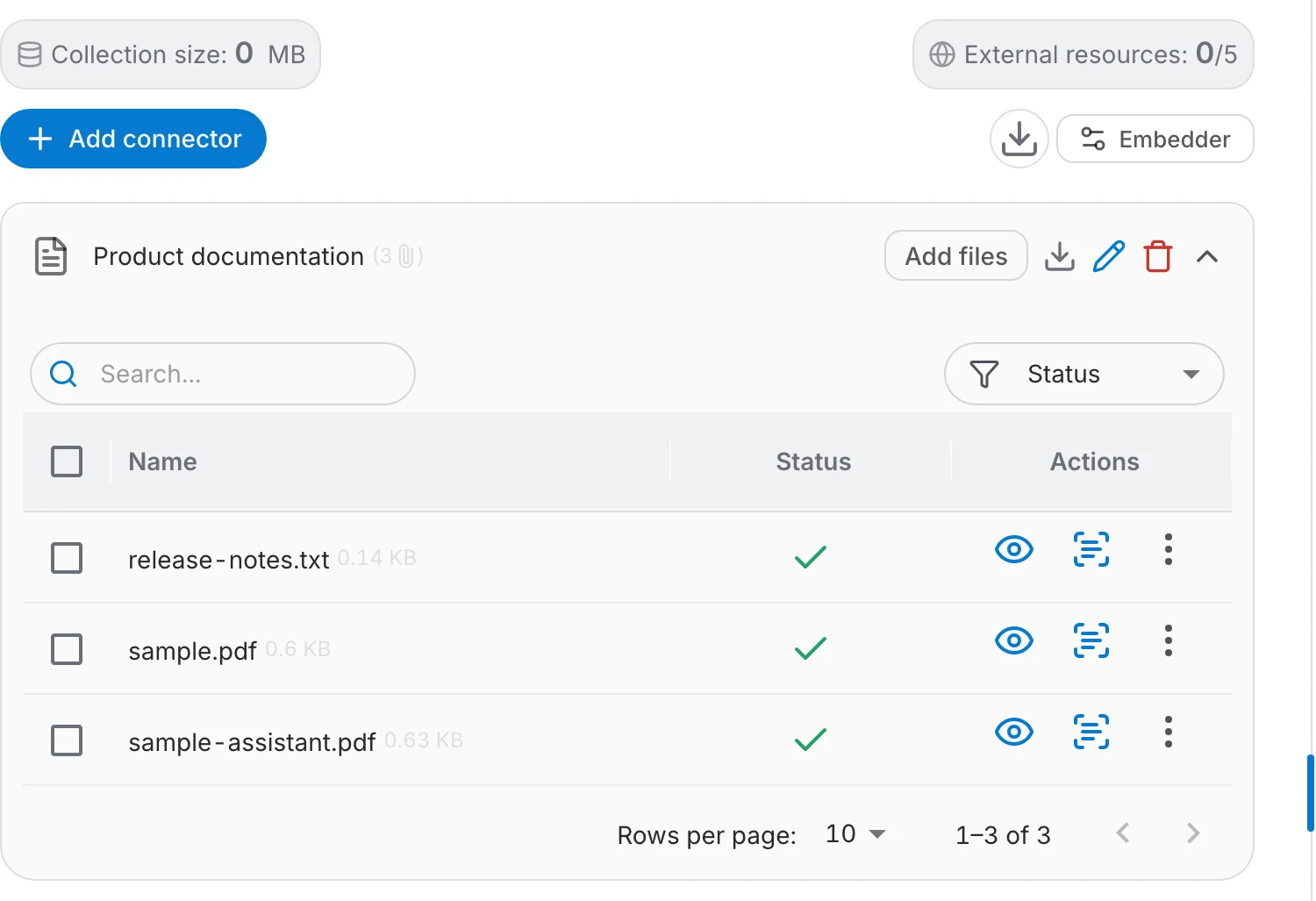
The connector's file table shows every file it pulled in and where the indexing got to:
- A green check means the file is indexed; failures are marked so you can see what did not make it.
- Add files on the connector row reopens the picker, so you can index more files into the same connector later.
- Update Files re-reads what the connector already holds. Its menu runs the update Now after a confirmation, or sets an automatic Daily, Weekly or Monthly refresh — Never turns the schedule off.
- Files the account loses access to stop being refreshed.
Access
Once files are indexed, their content is available to everyone who can use the assistant, whatever the sharing settings were in Drive — the assistant answers from the indexed text, not from each reader's permissions. Index only what that audience may read, and share the assistant accordingly.