
Tools
Data lets an assistant answer questions about things. Tools let it do things — look something up in a live system, file a ticket, run a query. The Tools tab is where you decide which of those abilities this assistant is allowed to use.
What tools are
A tool is a single action the assistant can invoke while it is composing an answer — for example "search the issue tracker" or "fetch today's exchange rate". When a question needs one, the model calls it, reads the result, and works it into the reply.
Tools are not configured one by one here. They arrive in groups from MCP servers — connected systems that each publish a set of tools. This tab lists the servers available to you and lets you choose, per server or per tool, what this assistant may use.
Connecting and managing the servers themselves is covered in MCP.
Finding a tool
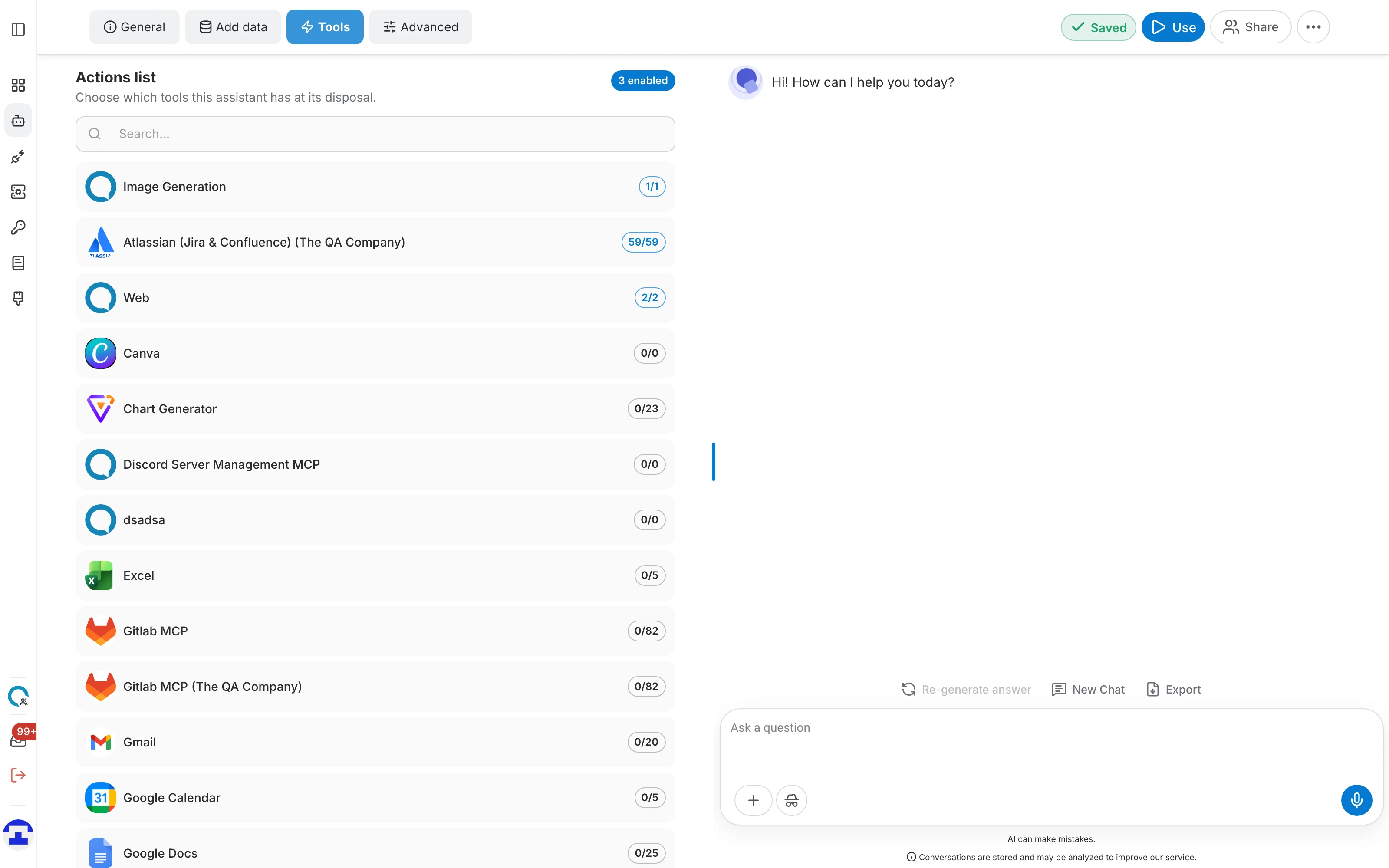
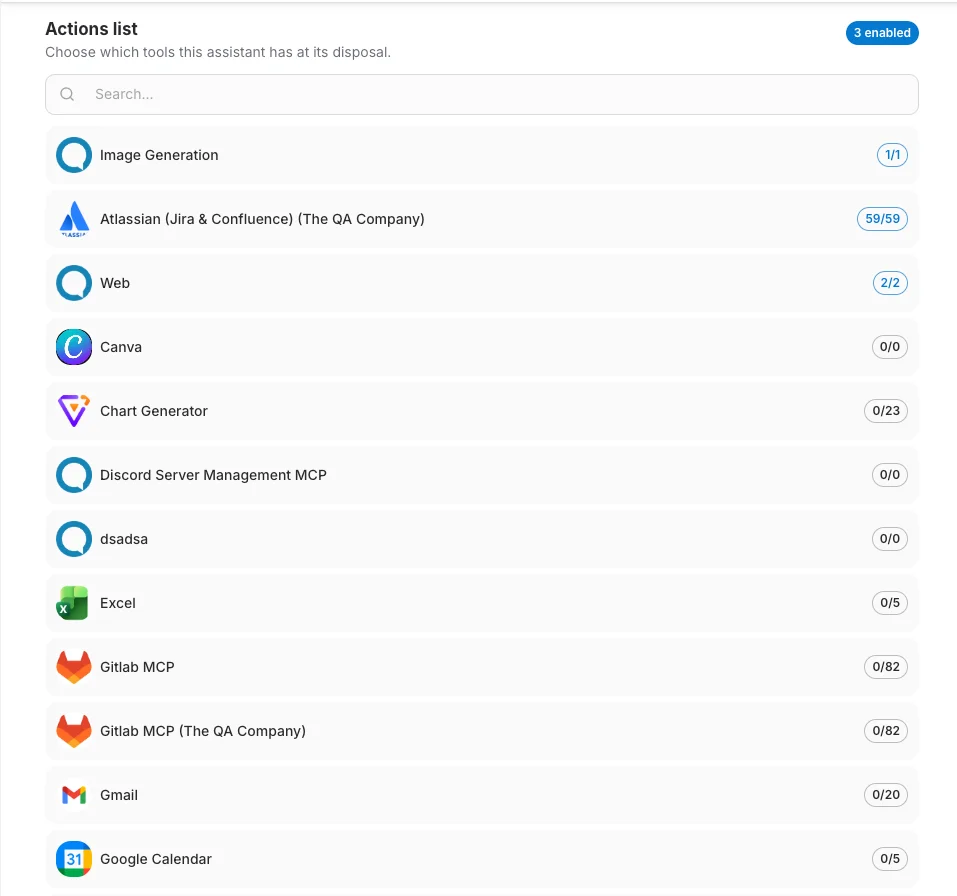
The tab is a single list called Actions list — one row per connected MCP server:
- The enabled count – a chip at the top right reading e.g. "3 enabled" — how many individual tools this assistant currently has, across every server.
- The search box – filters the list as you type. It matches tool names as well as server names, so you can find an action without knowing which server publishes it.
- The server rows – each shows the server's name and a count of how many of its tools you have enabled — "0/23", "59/59", and so on. The count turns blue once at least one is on.
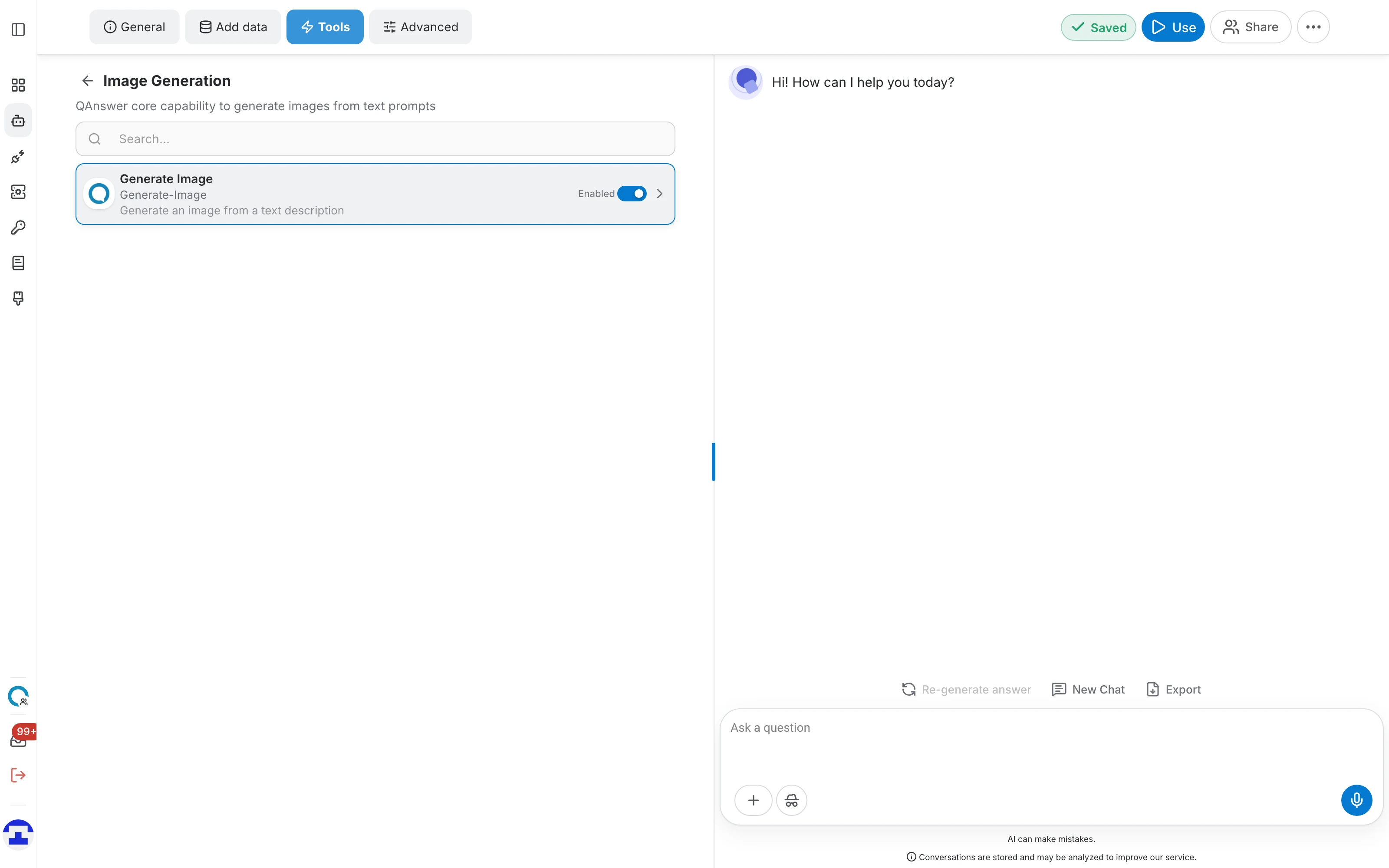
Click a row to open that server and see its tools individually. A back arrow beside the server's name returns you to the list.
Enabling tools
Tools are enabled one at a time, from inside the server that publishes them:
- Click the server's row in the Actions list.
- Each tool is listed with its display name, its internal name and a one-line description of what it does. A search box filters them.
- Flip the Enabled switch on a tool to give it to the assistant, and off to take it away. The change saves with the rest of the editor.
Go back with the arrow beside the server's name and its row now shows the updated count, while the chip at the top of the tab tracks the total across all servers.
Empty states
- No tools available. – no MCP server is connected, or none is shared with you. Nothing is wrong with the assistant — there is simply nothing to enable yet.
- No servers match your search. / No tools match your search in this server. – your filter is too narrow — clear the search box to see everything again.
Tools and anonymous visitors
If you make the assistant accessible to everyone, QAnswer warns that tool access is restricted for users who aren't signed in. The assistant still answers those visitors, but it will not run tools for them. See External Access for the visibility options.
Where to go next
Fine-tune filters, human takeover and suggested replies in Advanced.