Website
The Website connector crawls pages you point it at and indexes their text, so an assistant can answer from a public site, a documentation portal or an intranet page.
Both server-side and client-side rendered pages are supported: the crawler drives a real browser, so text that only appears after JavaScript has run is indexed too.
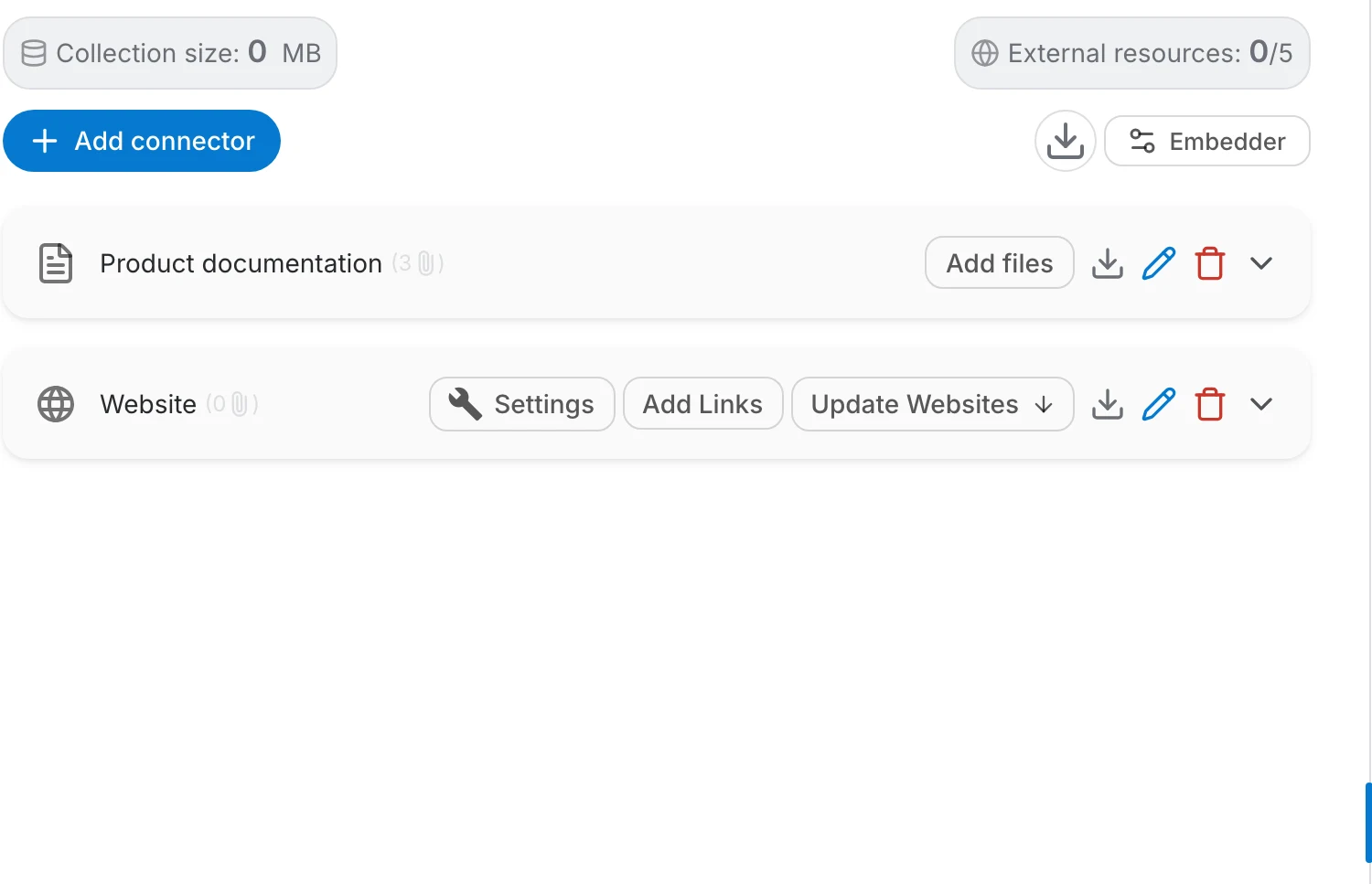
Add a Website connector
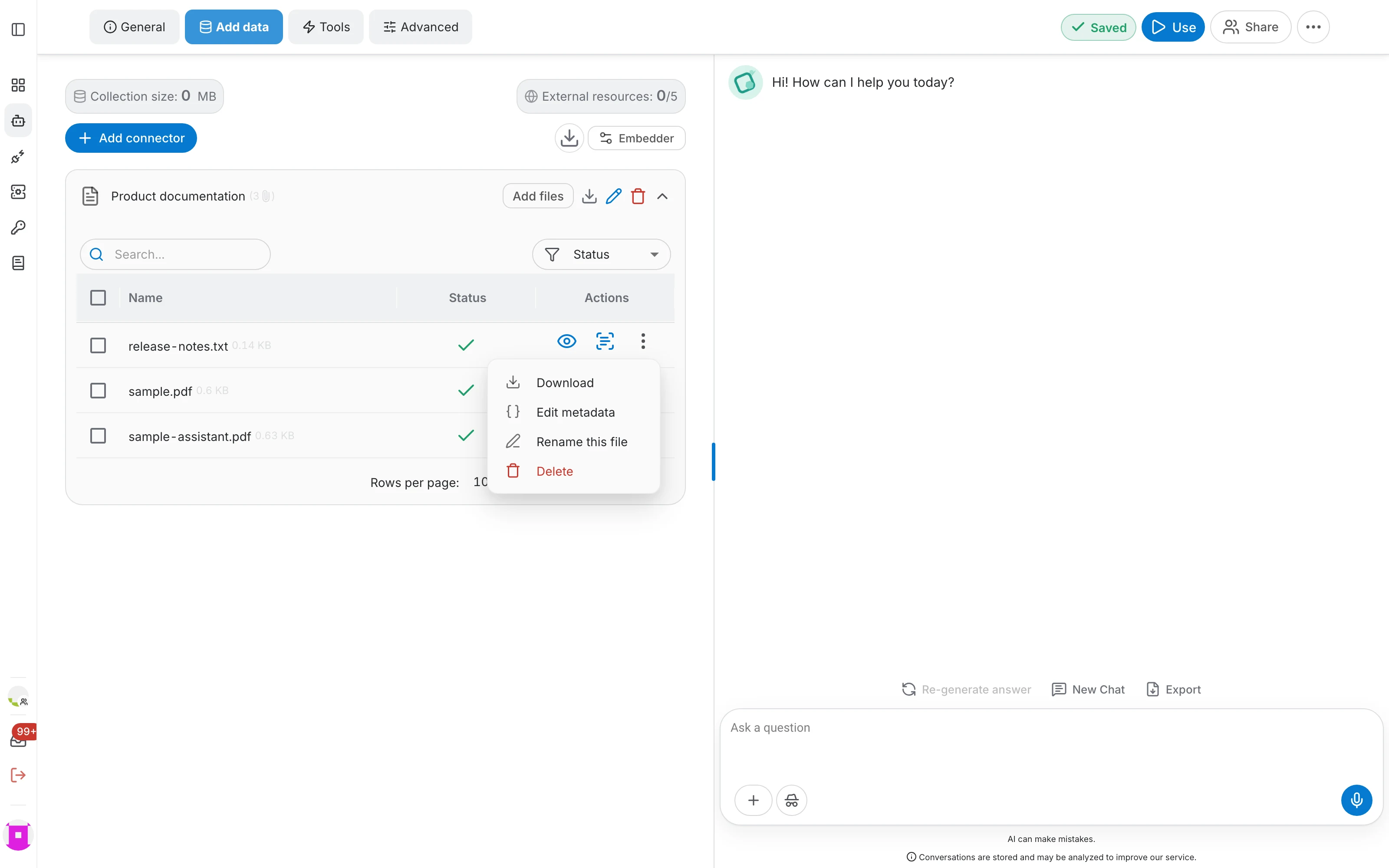
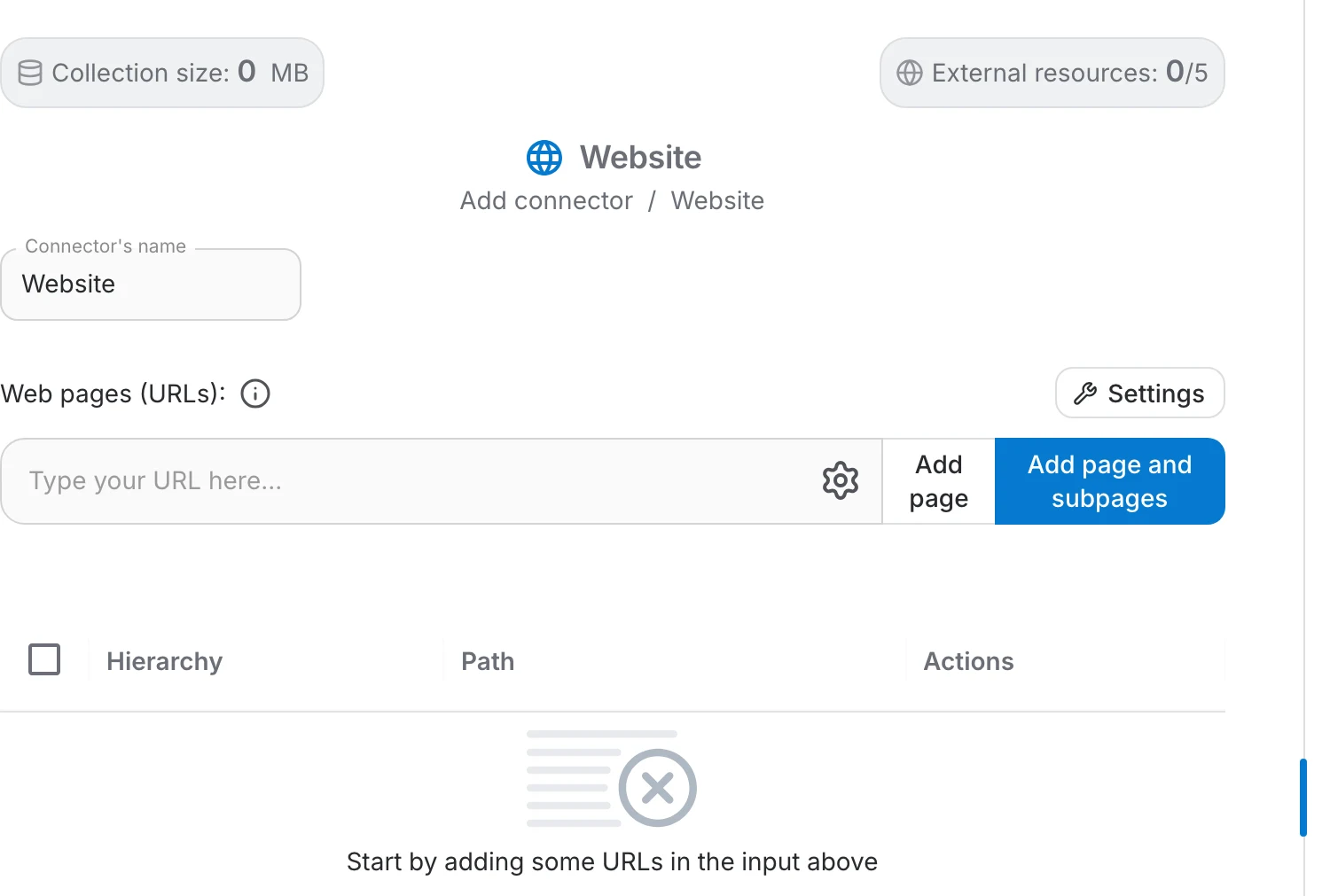
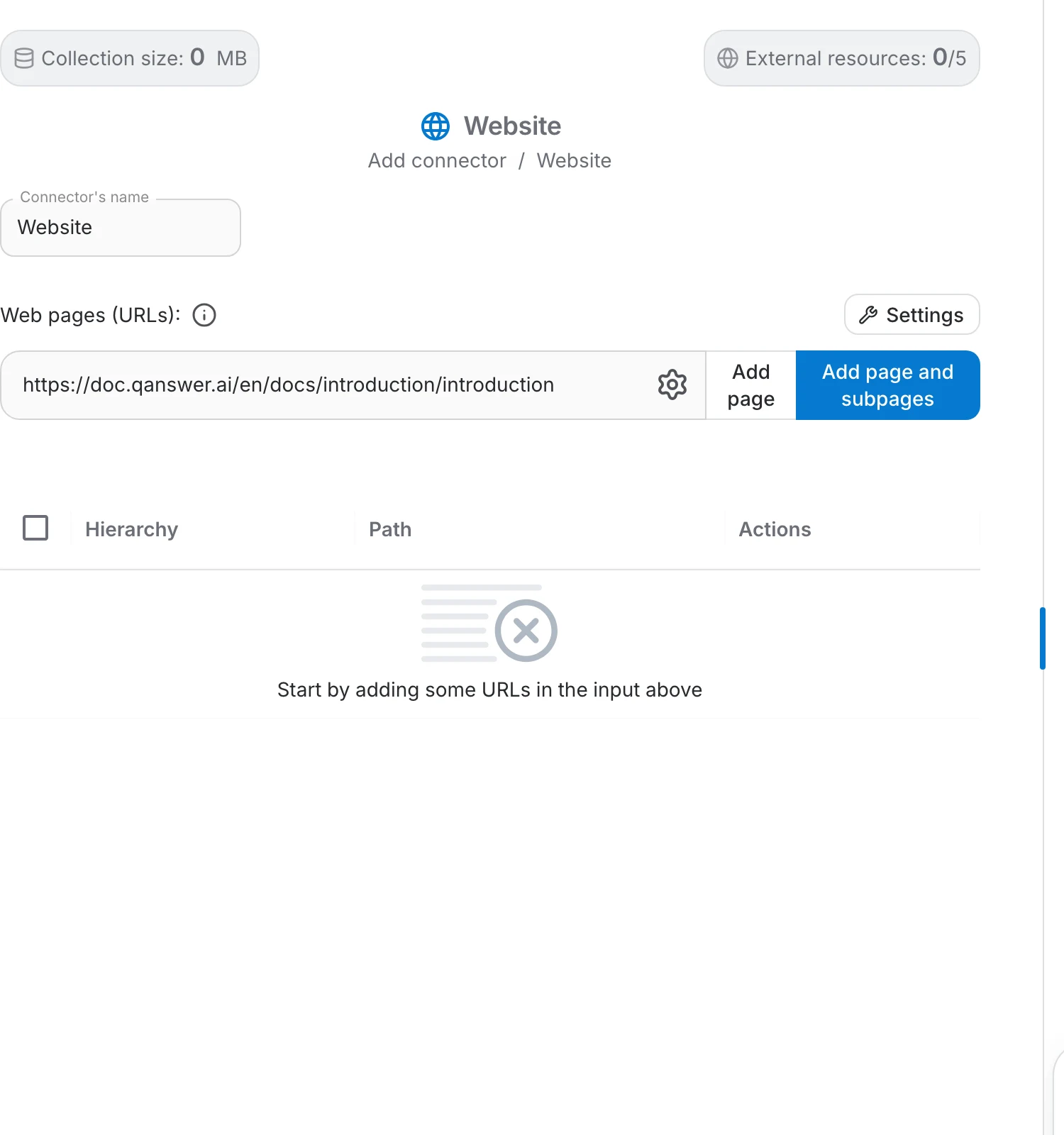
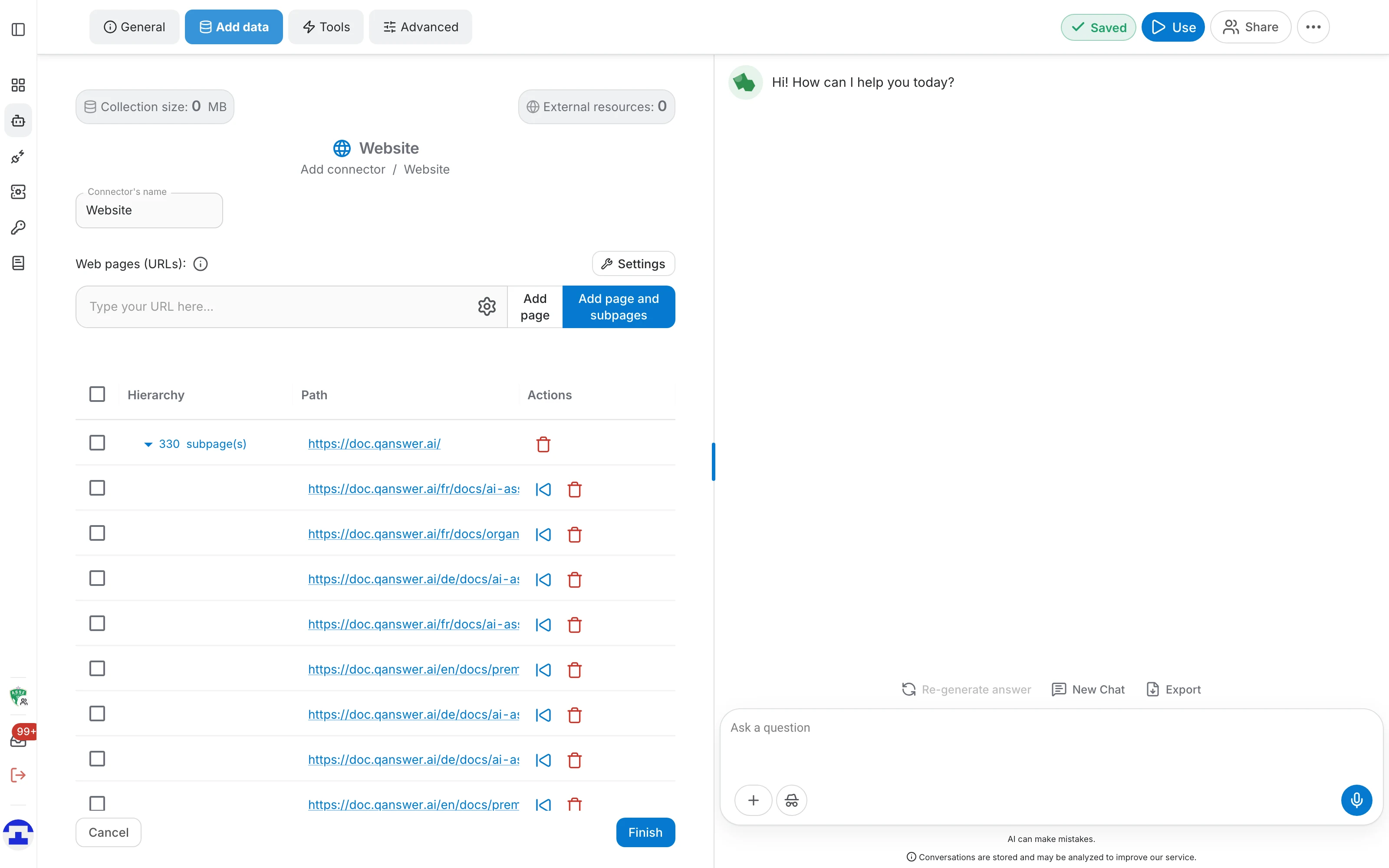
Choose Website in the Add connector menu, name it, then paste a URL into Type your URL here . Two buttons decide how much is taken:
- Add page — indexes exactly that one URL.
- Add page and subpages — follows the links under that URL and adds the pages it finds.
The input takes several URLs at once — paste one per line. Pressing Enter crawls them, Ctrl/Cmd + Enter adds them as single pages. URLs already in the list are ignored, and a warning tells you how many were skipped.
The table below the input lists what will be indexed, with the hierarchy and path of each page, so you can remove anything you do not want before saving.
Crawling settings
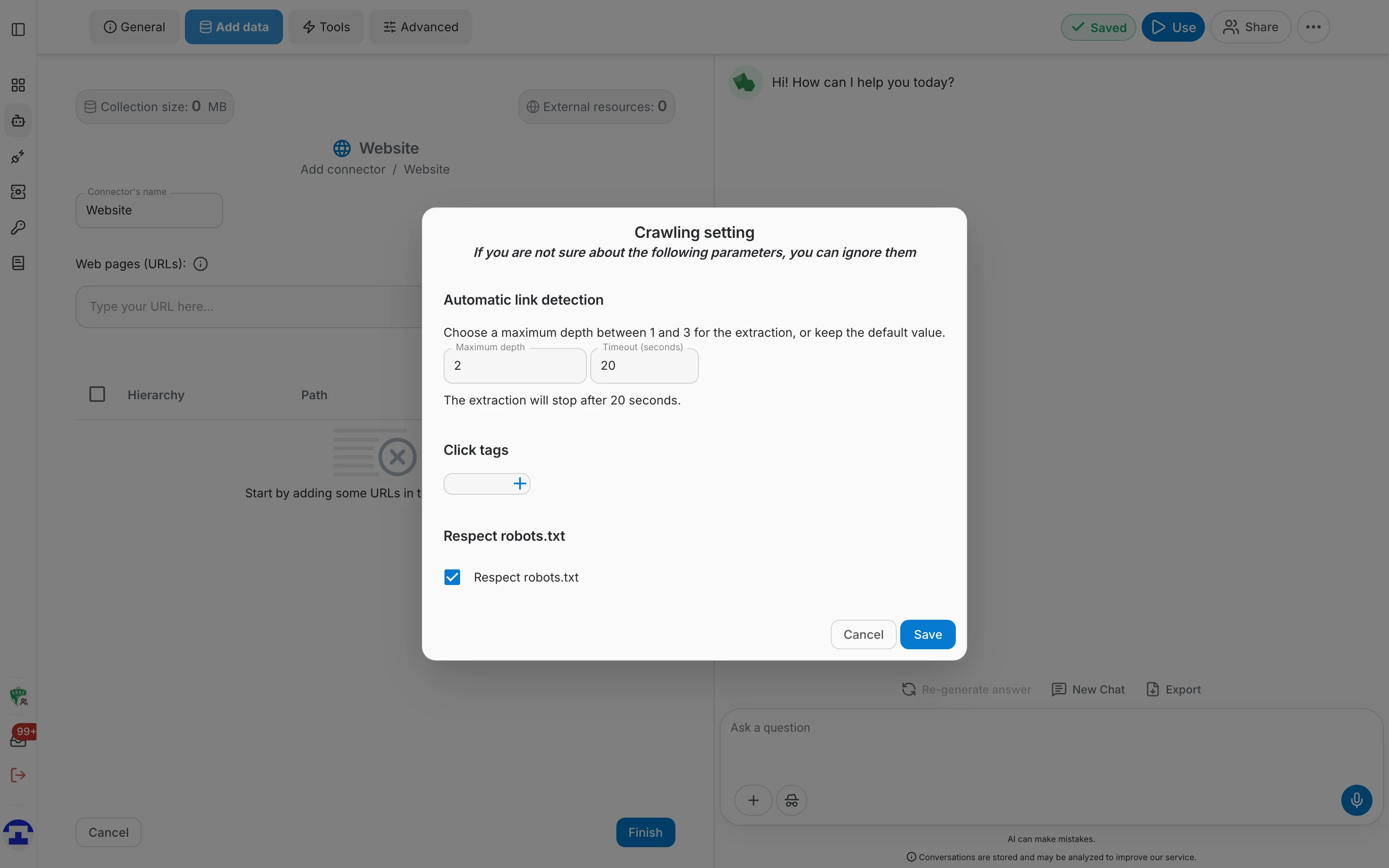
The gear icon inside the URL field opens the link detection settings. They only control how subpages are discovered — how a page is read is set in the advanced settings.
- Maximum depth — how many link levels below the URL the crawler follows. A website is a tree of pages, and this decides how far down that tree it goes. Between 1 and 3, 2 by default.
- Timeout — how long link discovery may run, 20 seconds by default. When the limit is reached the crawler stops and keeps the links it already found; the rest are listed as skipped.
- Click tags — elements the crawler clicks before collecting links, for navigation menus or "load more" buttons that only reveal links once opened. Type a tag and press Enter to add it as a chip.
- Respect robots.txt — on by default. Pages the site disallows are left out and listed separately, so you can still add them back deliberately.
Working with the page list
Every URL you add lands in the table below the input, with subpages grouped under the page they came from. From there you can:
- Click a URL to open it in a preview window, so you can check you have the right page without leaving the dialog.
- Use the arrow on a parent row to expand or collapse its subpages. Groups stay as you left them while you keep adding URLs.
- Tick rows to choose exactly what gets indexed — selecting a parent selects its subpages as well. If you select nothing, everything in the table is added.
- Move a subpage out of its group with the move button in the Actions column. It becomes a top-level entry, so it survives if you later delete the group.
- Delete a single row with the delete button, or several at once by selecting them and using Delete selected rows in the toolbar.
Skipped links
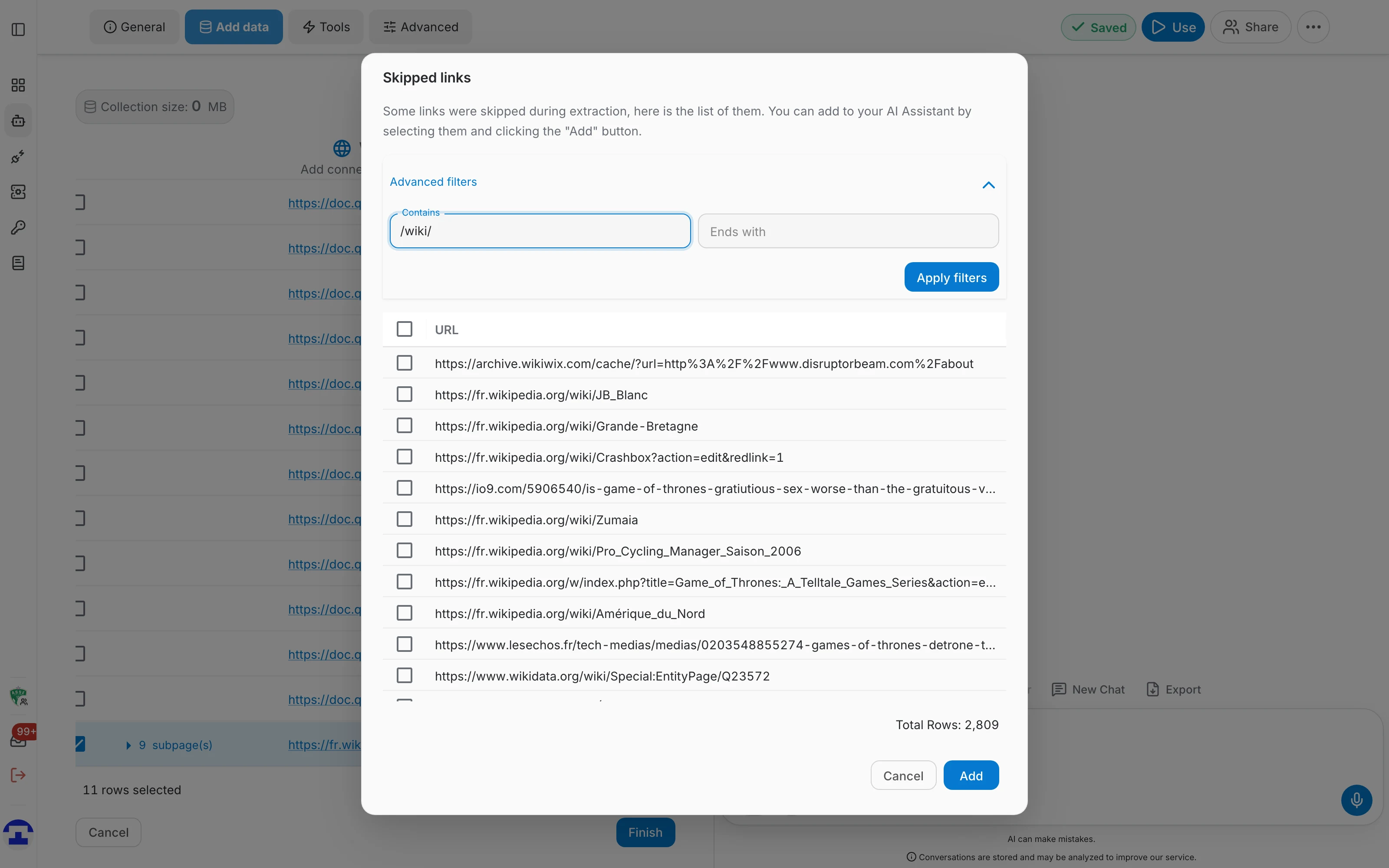
During link discovery some URLs are set aside instead of added — a timeout was hit, robots.txt disallowed them, or they point outside the URL you started from. The Skipped links window lists them so you can decide which ones belong in the connector.
Two filters help with long lists:
- Contains — selects every URL holding the text you typed. Filtering on "/blog/" picks all skipped links under a /blog/ path.
- Ends with — selects every URL ending in that text. Filtering on ".pdf" picks all links to PDF files.
Click Apply filters and the matching rows are ticked. Selection is additive: each filter adds to what is already selected, and neither filter ever clears rows you picked by hand. So selecting one URL manually, then applying a filter that matches two more, leaves all three selected.
Add puts the selected URLs into the connector as subpages of the page they were skipped from, and they disappear from the skipped list.
Advanced settings
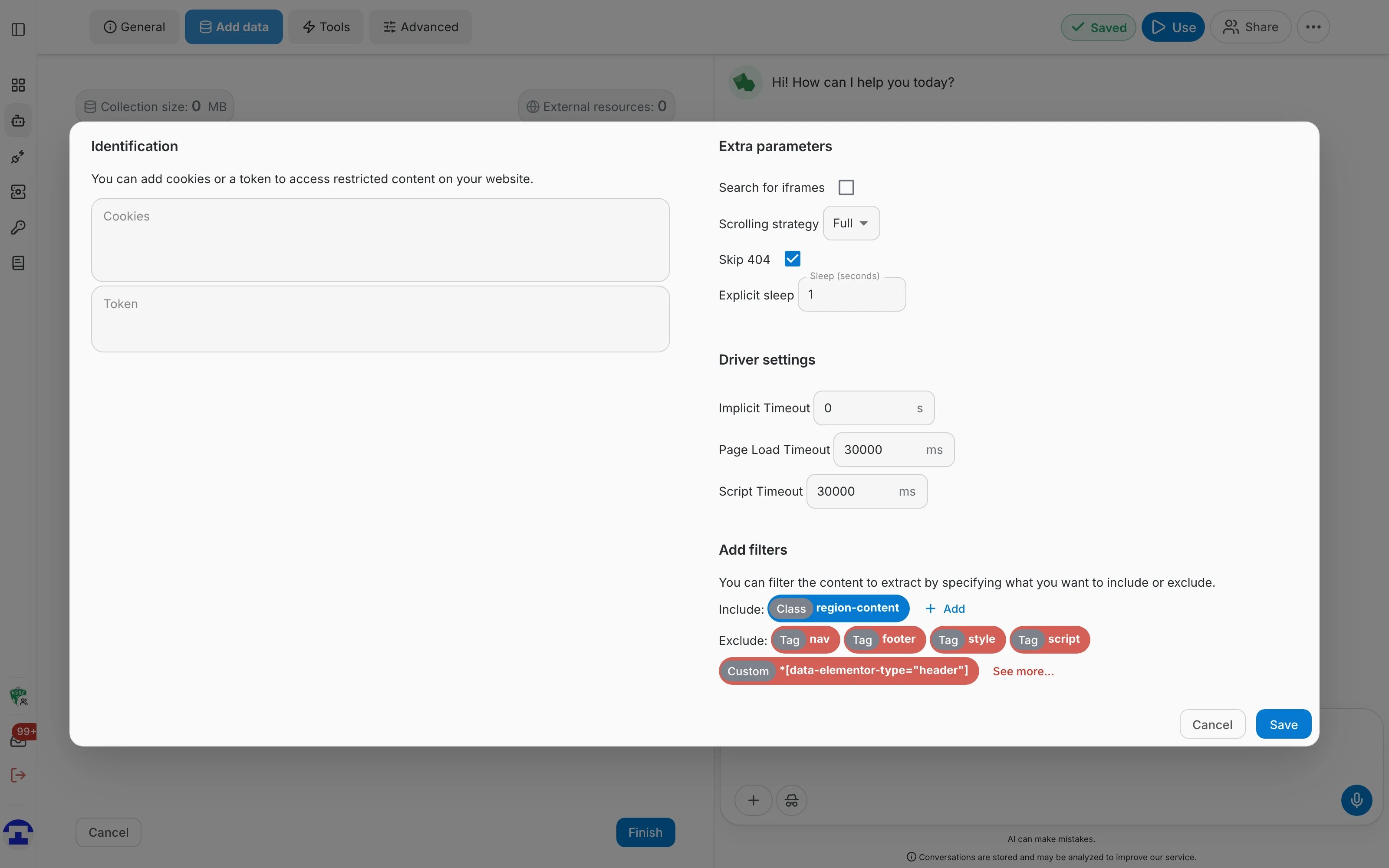
The Settings button opens the advanced settings, which control how each page is loaded and what is kept from it. The defaults suit most sites; change them when a site needs a login, loads slowly or wraps its content in a lot of navigation.
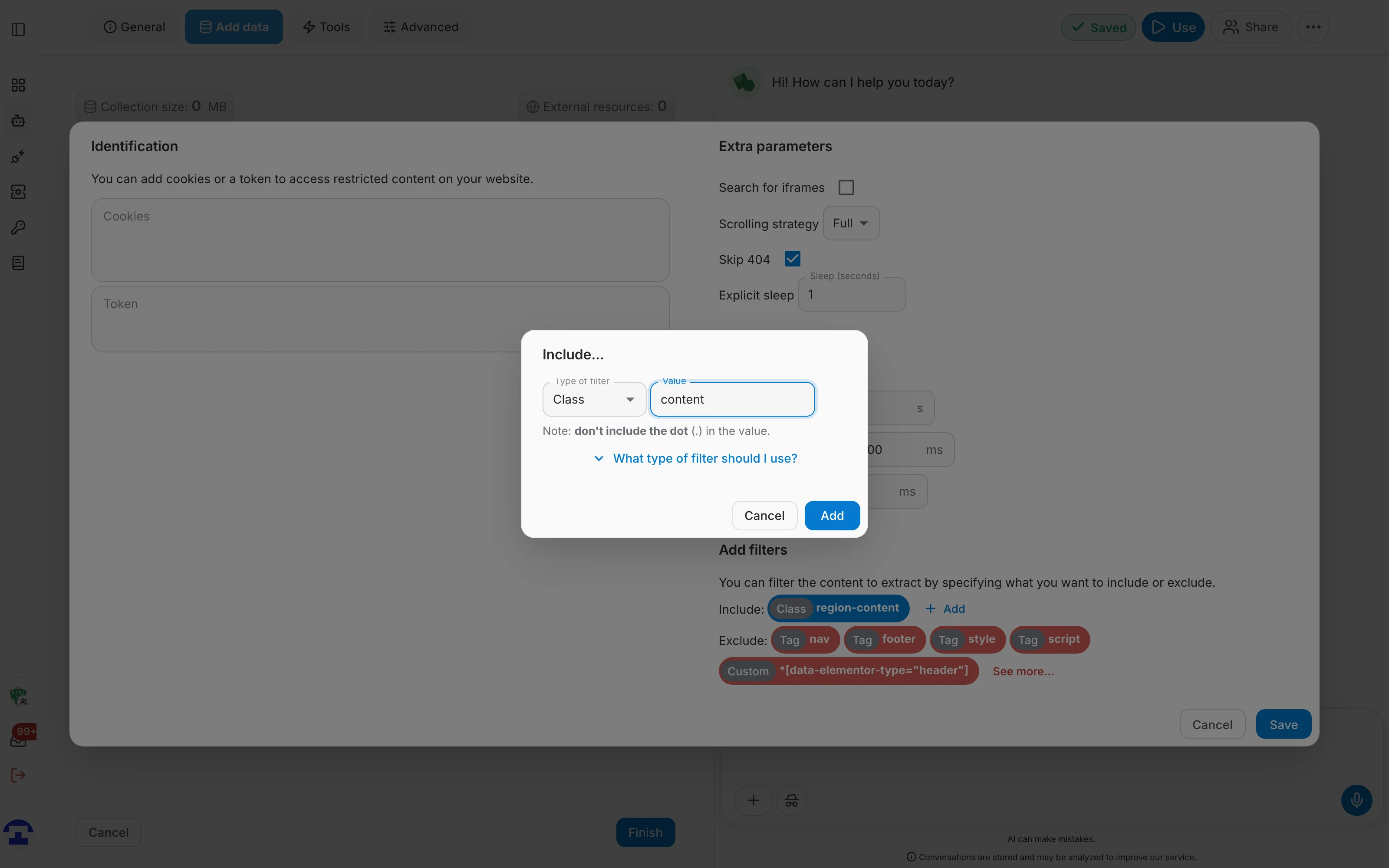
Identification
- Cookies — for sites that need a session. Give them as key=value pairs, one per line or separated by semicolons.
- Token — for sites behind a token. The name and value are written into the page's local storage and the page is reloaded before it is read.
Extra parameters
- Search for iframes — off by default, in which case iframes are inspected only when the page looks like it needs it. Turn it on to always read iframe content.
- Scrolling strategy — how the page is scrolled to trigger lazy-loaded content. Full jumps to the bottom, Step scrolls gradually, which works better on infinite lists.
- Skip 404 — on by default: broken links are ignored instead of failing the crawl.
- Explicit sleep — extra seconds to wait after a page has loaded, before the text is read. Raise it for pages that render slowly.
Driver settings
- Implicit timeout — how long, in seconds, the browser waits for an element to appear before giving up.
- Page load timeout — how long, in milliseconds, to wait for a full page load including images and scripts. 30000 by default.
- Script timeout — how long, in milliseconds, to wait for the page's JavaScript to finish. 30000 by default.
Add filters
Filters decide which parts of a page are kept. Add a filter by tag, class or ID, or write a CSS selector yourself:
- Include — when set, only the matching parts of the page are indexed. Useful when the content sits in a single container, such as .content or #app.
- Exclude — the matching parts are dropped. Use it for navigation, headers, footers and cookie banners that would otherwise repeat on every page.
A useful set of filters is already in place — typically the main content container under Include, and nav, footer, script and style under Exclude. Adjust them rather than starting from nothing.
Create the connector
Finish closes the dialog and starts the crawl straight away. The connector appears in the list with its progress, and you can keep working while it runs.
Keeping a site up to date
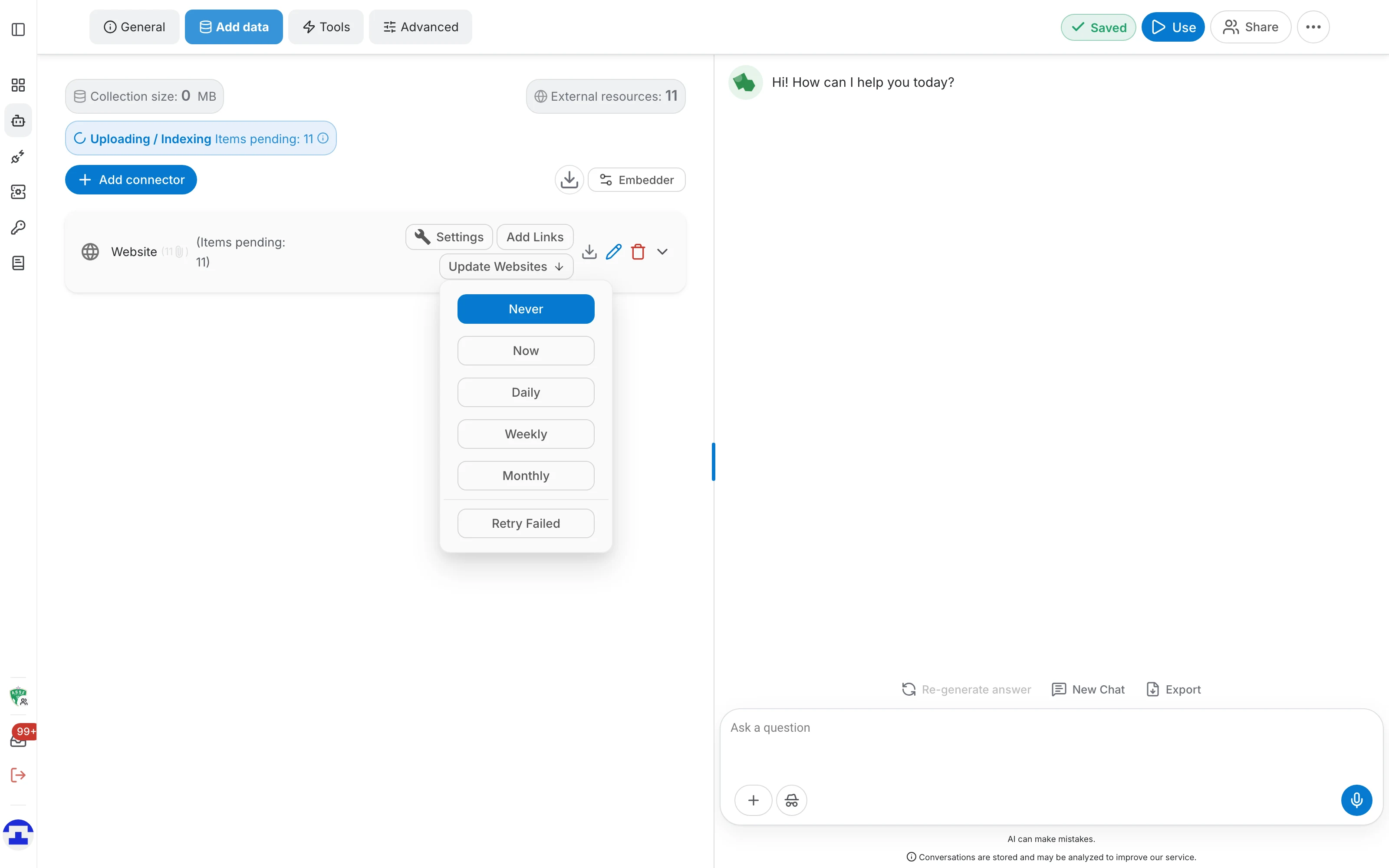
A crawled site goes stale. On the connector row you get three website-specific actions:
- Settings — the same crawling options, for the pages already added.
- Add Links — adds more URLs to the existing connector.
- Update Websites — crawls the pages again and refreshes what changed.
Update Websites also sets how often the crawl repeats on its own — Now runs it straight away, and Never, Daily, Weekly or Monthly set the schedule. The same menu holds Retry Failed, which re-crawls only the pages that did not come through.
Indexed pages
Expand the connector to see every page it holds:
- The status column shows which pages were indexed and which failed.
- View raw text shows what was extracted from a page — useful when a site relies heavily on scripts.
- The ⋮ menu deletes a single page or renames how it appears in citations.