
Feedback
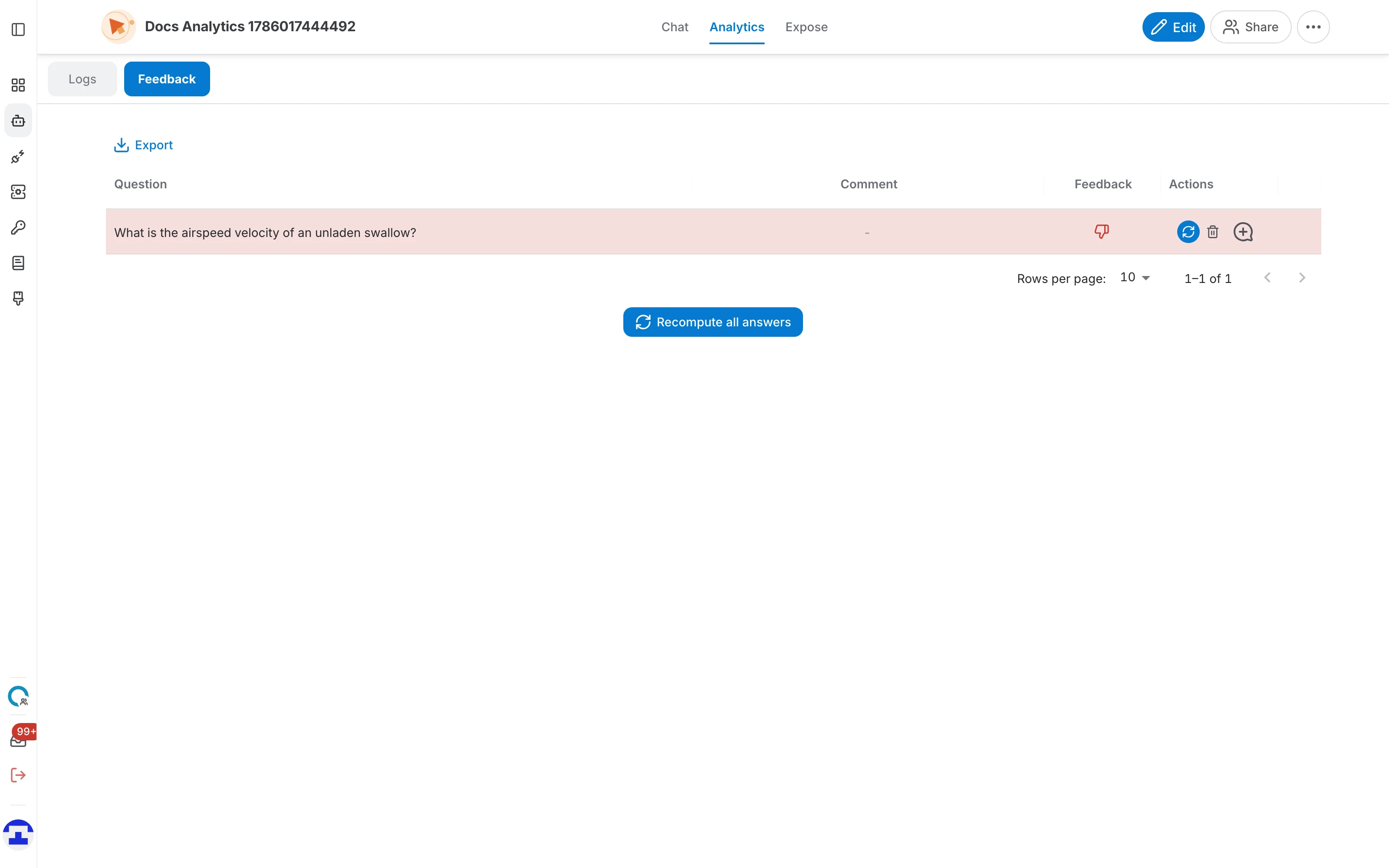
When someone rates an answer, that rating lands in the Feedback tab together with the question, any comment they left, and the conversation it came from. From there you can recompute the answer with your assistant's current data, compare it against the one that was rated, and turn a bad answer into a Q&A so it never happens again.
Opening the Feedback tab
Open the assistant, go to Analytics and pick the Feedback tab. The other tab is Logs, which holds the conversations these ratings came from.

How feedback is collected
You do not create feedback yourself — users do, from the chat:
- Under every answer, the assistant shows a thumbs-up and a thumbs-down button.
- Clicking one records the rating straight away. Clicking the same button again withdraws it.
- Users can add a written comment explaining what was wrong, which shows up in the Comment column.

The feedback table
One row per rated answer:
- Question – what the user asked.
- Comment – the note the user left, or a dash when there is none. Long comments are truncated — hover to read the whole thing.
- Feedback – a green thumbs-up or a red thumbs-down. A small globe icon marks feedback that arrived from an external source rather than a signed-in user.
- Actions – recompute this answer, delete the feedback, and create a Q&A from it.
- Similarity score – the last, unlabelled column. After a recompute it shows a ring with a percentage — how close the new answer is to the one that was rated.
With nothing rated yet the table shows "No Data Found".

Reading the row colours
Rows are tinted so you can scan the table for problems rather than reading every row:
| Row | What it means |
|---|---|
| Green | positive feedback, and a recompute produced an answer at least 75% similar — the assistant still answers this well. |
| Amber | positive feedback with a similarity between 50% and 75% — the answer has drifted somewhat since it was praised. |
| Red | positive feedback with a similarity below 50% — the assistant no longer gives the answer the user liked. Worth investigating. |
| Red (thumbs-down) | negative feedback, regardless of any score. |

Recomputing answers
Recomputing re-asks the question using the assistant's current data, prompt and model, so you can tell whether a change you made fixed or broke something:
- One row – the circular refresh button in the Actions column recomputes just that answer.
- Recompute all answers – the button below the table re-runs every question that has feedback. QAnswer describes it as recomputing "the answer for all questions where feedback was given, using the current data and settings of the assistant."
Recomputation runs in the background and the table updates live as each answer comes back — a spinner marks the rows still in flight, and the buttons stay disabled until the run finishes.

The conversation panel
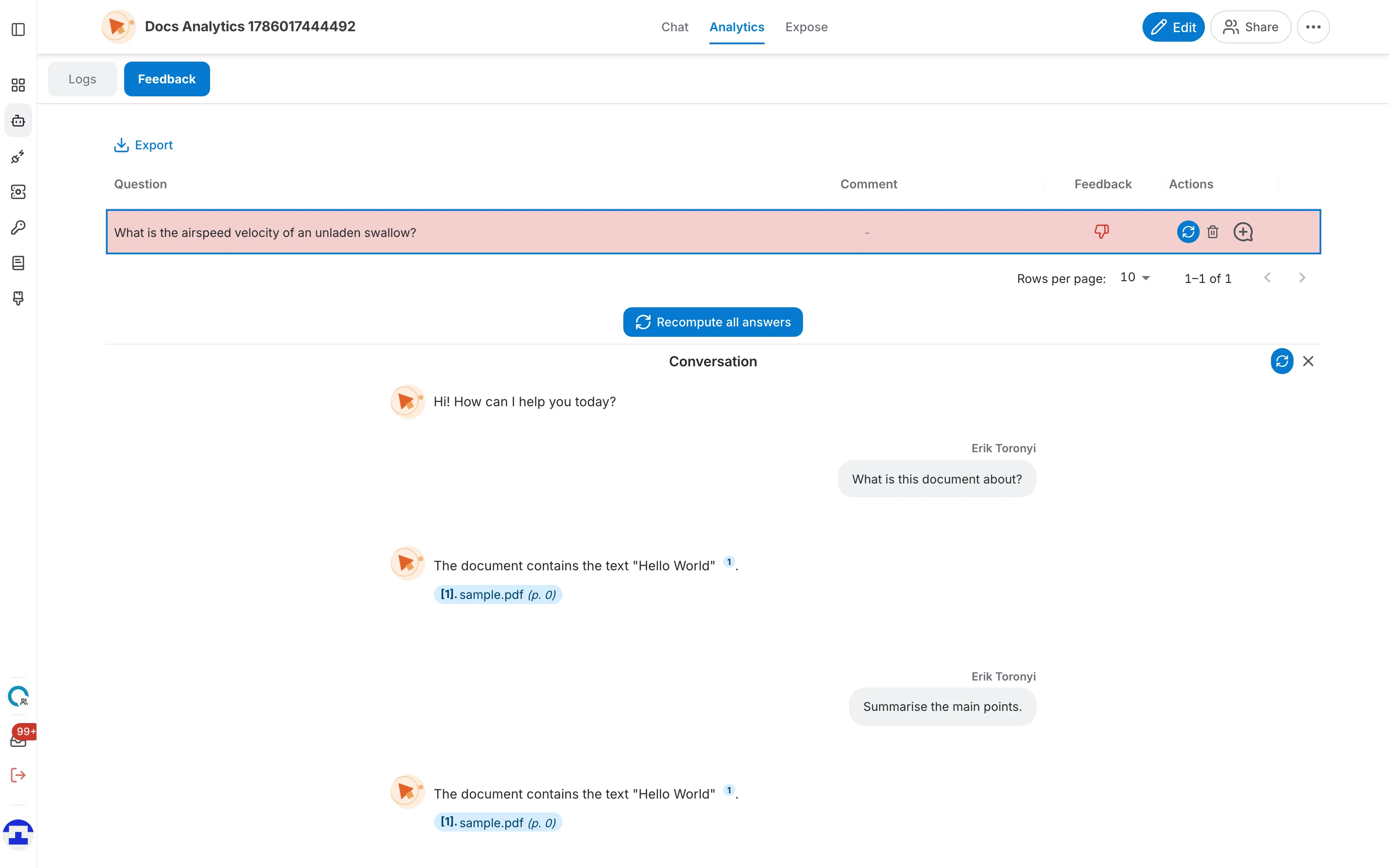
Clicking a row opens the original conversation underneath the table, in read-only form:
- Old and Current – once an answer has been recomputed, both versions are shown side by side so you can judge the difference yourself.
- Prefer this answer – accepts the recomputed answer as the better one; it is then marked "Answer accepted".
- The refresh button – recomputes just this conversation's answer without going back to the table.
- The ✕ button – closes the panel and returns the table to full height.
Turning feedback into a Q&A
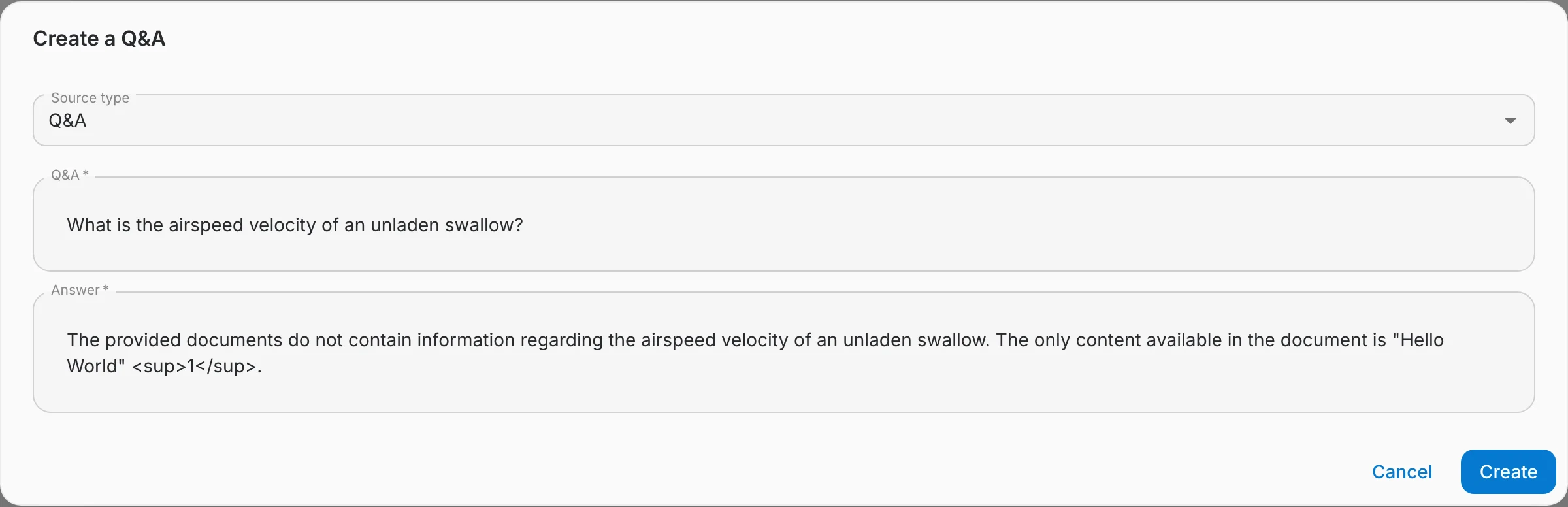
The most useful thing you can do with a bad answer is make sure it is answered correctly next time. Create a Q&A does exactly that:
- Click the Create a Q&A action on the row.
- The question is filled in for you; write the answer you wanted.
- Pick the Source type — Q&A, Document or Website — and, for the last two, point at the source document or URL.
- Save. The entry joins the assistant's data and is used from then on.
Exporting and deleting
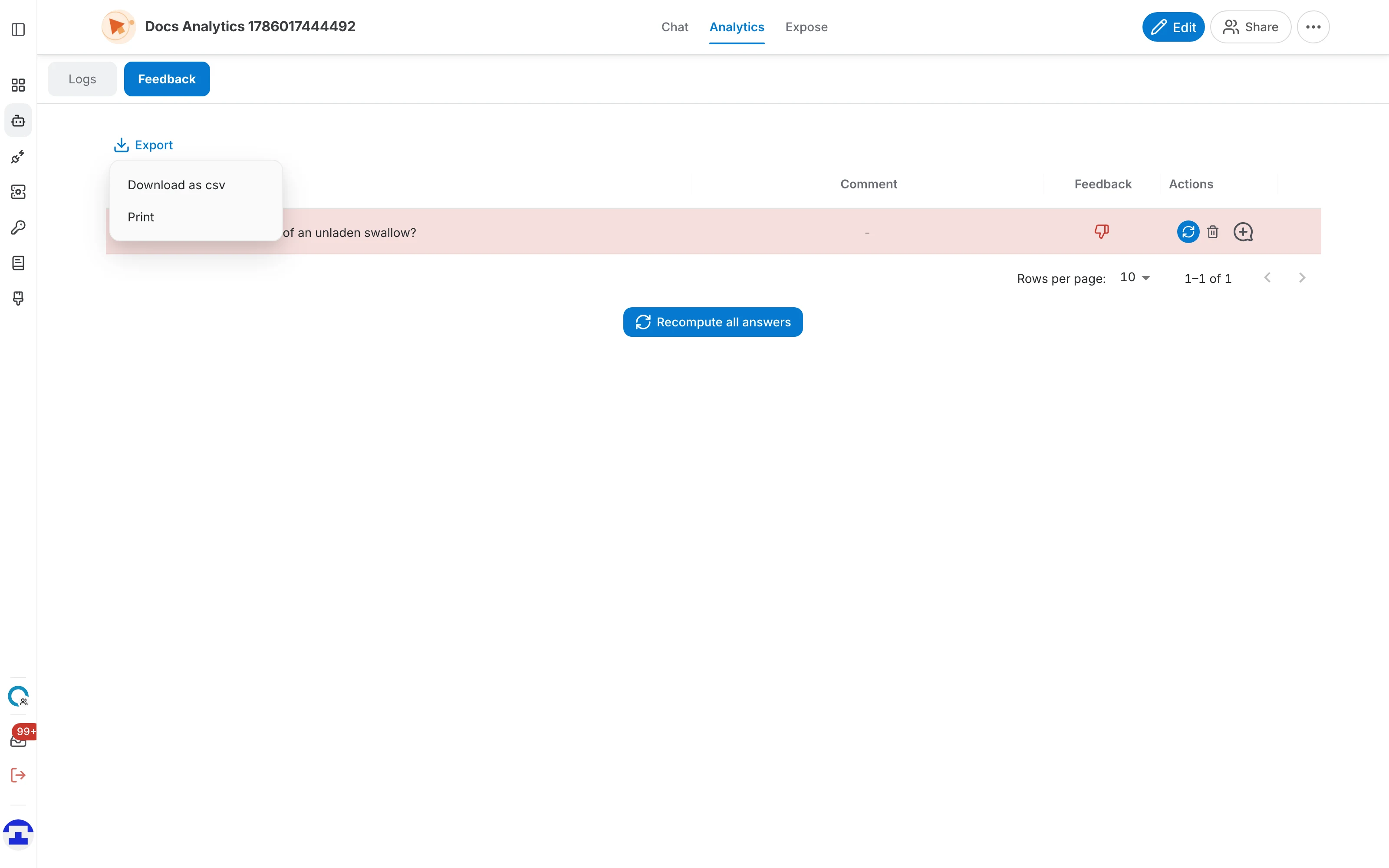
- Export – the Export button above the table offers Download as CSV, which saves every feedback row to a file, and Print.
- Delete – the red bin on a row removes that piece of feedback. It removes the rating, not the conversation — the conversation stays in the Logs tab.
Reviewing feedback as an administrator
Feedback shown here belongs to a single assistant. Organization administrators additionally get a consolidated view covering every assistant in the organization, which is the better starting point when you are looking after many of them at once.
What changed from the previous design
If you knew the old Feedback page, here is what moved:
- Feedback is no longer its own entry in the assistant menu — it is the second tab of the Analytics page, next to Logs.
- Row colours are now driven by the similarity score, with distinct green, amber and red bands, instead of only marking positive and negative.
- The similarity score is shown as a percentage ring in its own column, and recomputation streams its progress into the table live rather than requiring a reload.
- The selected conversation opens in a panel below the table with the old and current answers side by side, rather than on a separate screen.