
Connections & Authentication
A connection stores one user's credentials for one MCP server. Server owners configure how users authenticate; each user then connects once and reuses that connection in every conversation.
Authentication methods
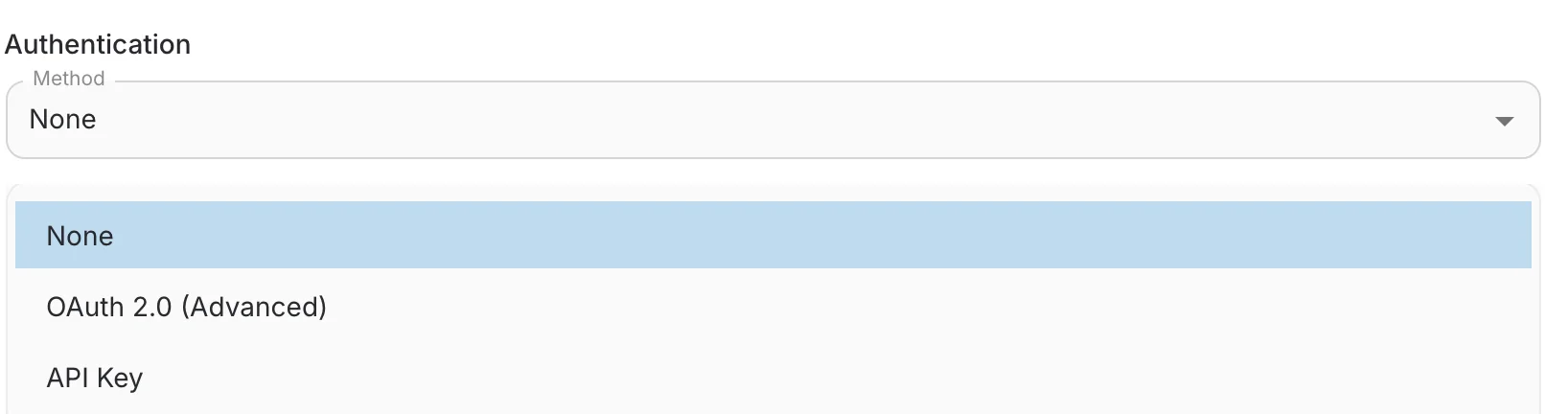
Pick the method in step 3 of the server form:
- None — the server is open — no connection is required.
- API Key — each user supplies a personal key, sent as an HTTP header on every request.
- OAuth 2.0 (Advanced) — users sign in through the provider's consent screen; QAnswer stores and refreshes the tokens. Requires client ID, client secret, scopes and the authorization/token URIs.
API key configuration
Choose how the key is transmitted with the Header Name preset:
- Bearer token — Authorization: Bearer your-key — the most common scheme.
- X-API-Key — sends the raw key in the X-API-Key header.
- x-litellm-api-key — for LiteLLM proxy deployments.
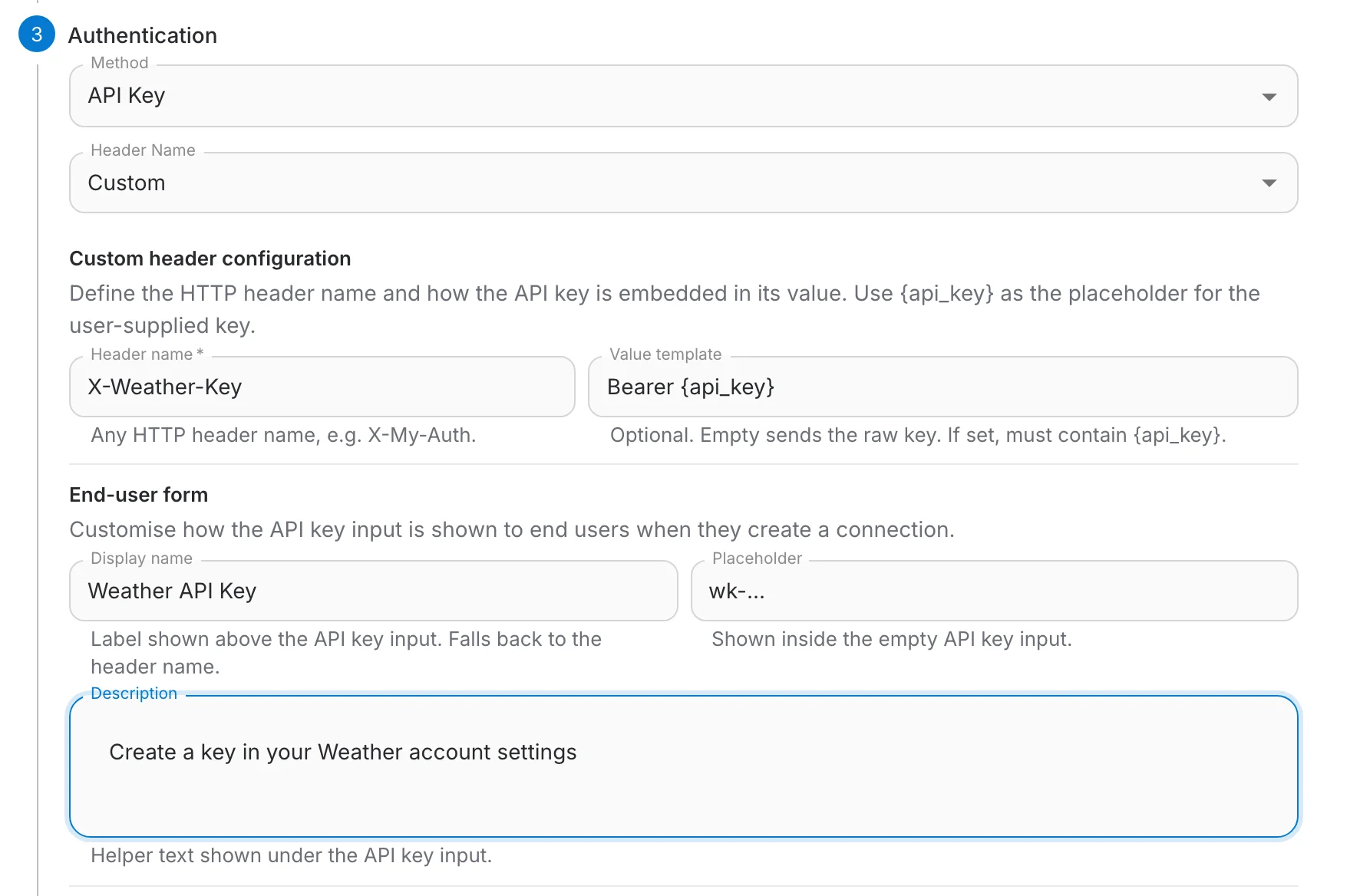
- Custom — define your own header name and value template.
Custom header configuration
- Header name — any HTTP header, e.g. X-Weather-Key.
- Value template — how the key is embedded, e.g. Bearer {api_key}. Leave empty to send the raw key.
End-user form
Customize the input users see when they connect: a display name, a placeholder and a helper description telling them where to find their key.
Custom headers
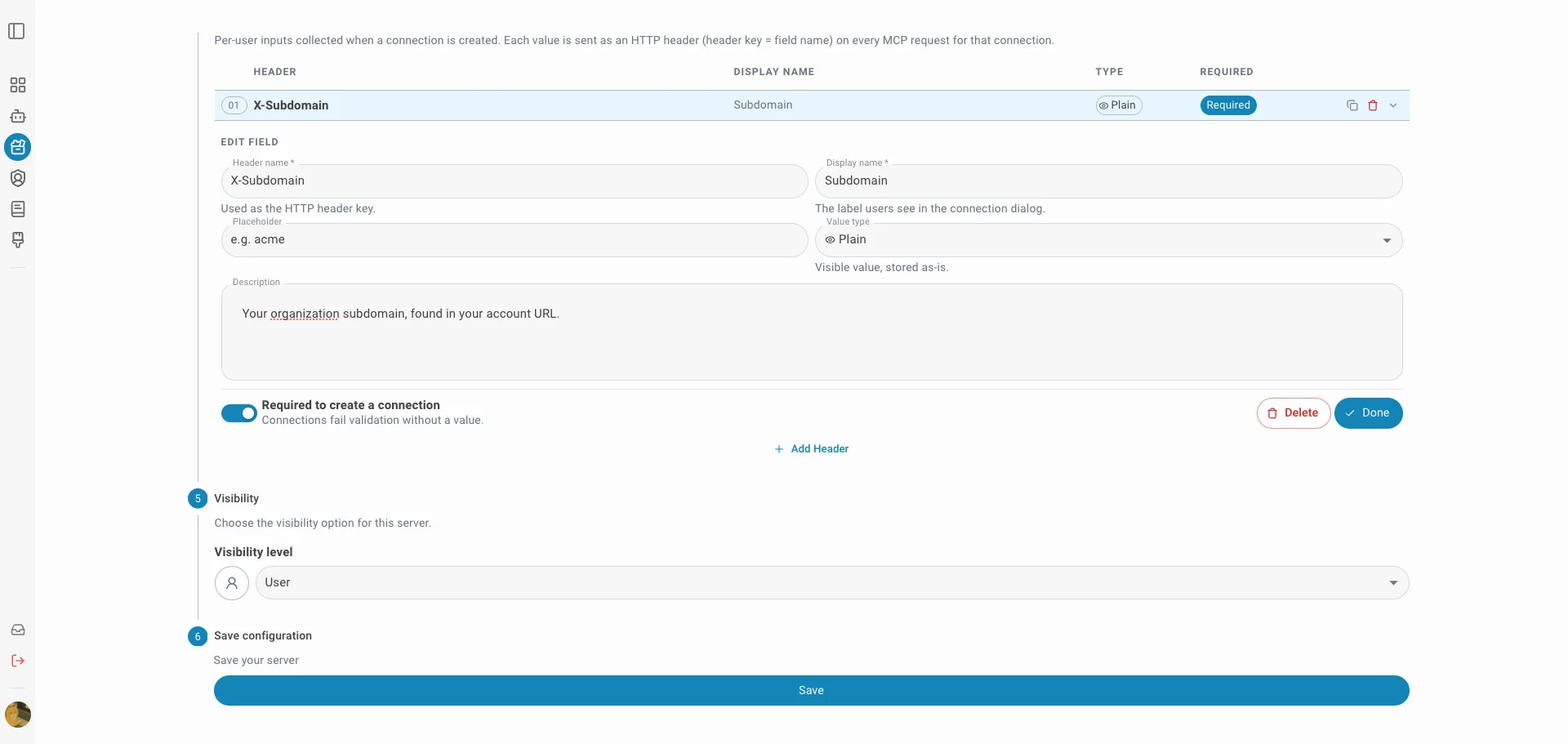
Step 4 of the server form adds extra HTTP headers on every MCP request. Two tabs cover two situations:
- All Users — fixed name/value pairs sent for everyone. Never put secrets or personal tokens here.
- Per User — fields each user fills in when creating their connection; the value is sent as a header (header key = field name).
Each per-user field defines:
- Header name — used verbatim as the HTTP header key, e.g. X-Account-Id.
- Display name — the label users see in the connection dialog.
- Type — Plain (visible) or Secret (masked and stored securely).
- Required — required fields must be filled before the connection can be created.
What end users see
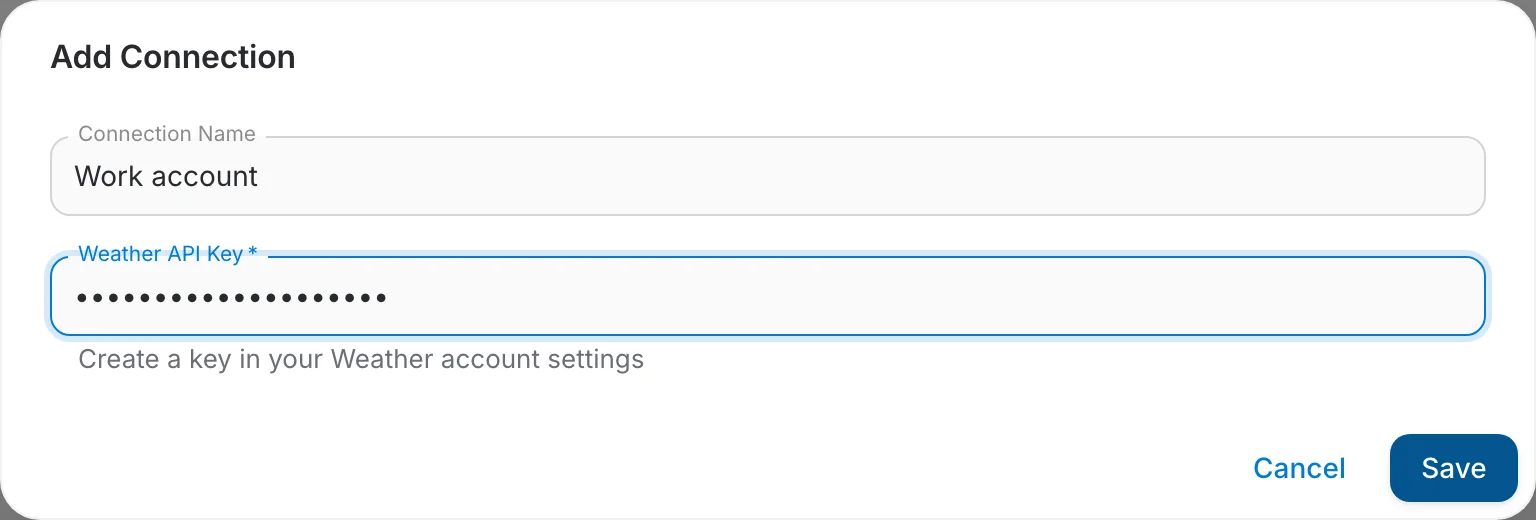
When users add a connection — from the server page or when the chat asks them to connect — a dialog collects exactly what you configured: the API key input plus your per-user fields.
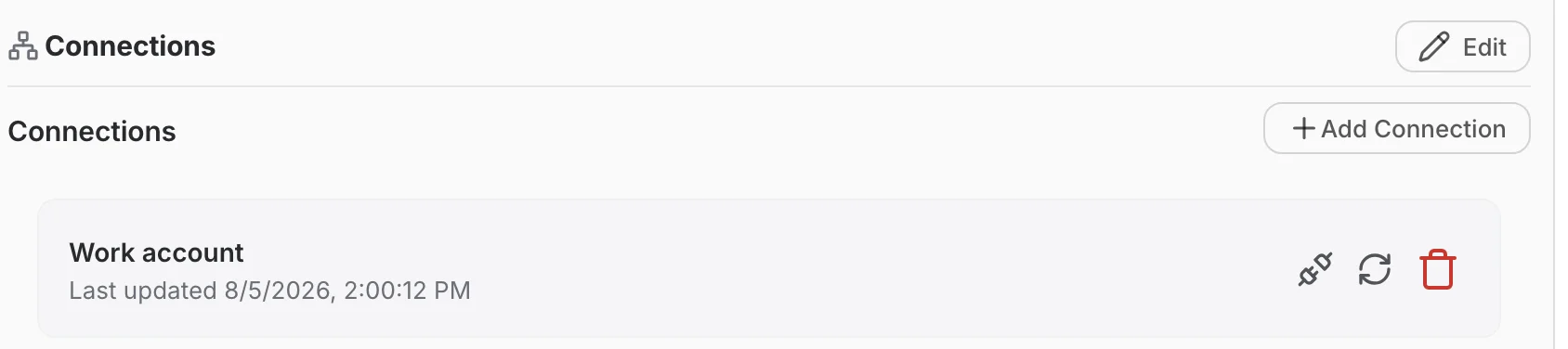
Existing connections are listed on the server page, where users can also delete them:
OAuth 2.0 notes
- Users are redirected to the provider's consent screen and come back to the exact page they started from.
- If a refresh token dies, the stored connection is removed and the chat asks the user to reconnect.
- Deleting a connection in QAnswer does not revoke the grant on the provider side — do that in the provider's security settings.