
Add data
Add data is where an assistant stops being a generic chatbot and starts answering from your material. The tab holds the assistant's connectors — one per source of data — along with what each has ingested, how much storage it takes and whether it has finished indexing.
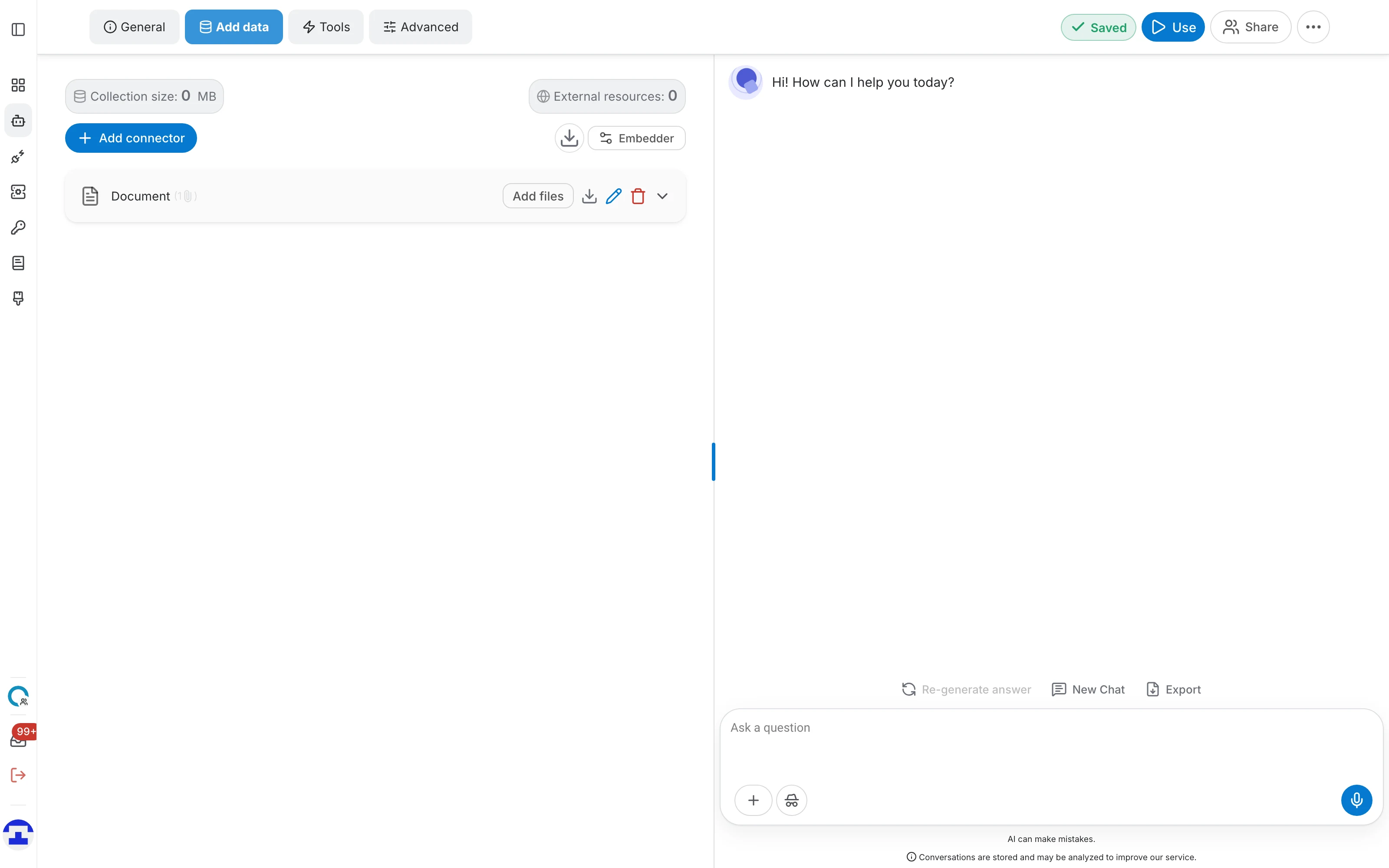
What is on the tab
The tab has three parts:
- The Add connector button – opens a menu of every source type available to you.
- The connector list – one row per source already attached, each expandable to show what it has ingested and the actions it supports.
- The storage pills – a running total of how much room the assistant's data occupies.
On a brand-new assistant the list is empty and reads "No connectors yet". On an assistant whose data is fixed by its template, it reads "The data is locked. No input is required." instead.
Adding a source
The flow is the same whichever source type you pick:
- Click Add connector and choose a type from the menu.
- Give the connector a name — this is how it appears in the list, so name it after what it holds rather than what it is.
- Provide the source itself: drop in files, enter a URL, sign in to the third-party service, and so on. This step is what differs between connector types.
- Click Finish. The connector is created and QAnswer starts indexing.
Not sure which type you need? The overview at Data Source.
Indexing and status
Data is not usable the moment it arrives — QAnswer has to parse and index it first. While that happens:
- An "Uploading / Indexing" indicator appears with the number of items still pending.
- Each row in the file table carries its own status icon, so you can see exactly which item is waiting, done or failed.
- Failures are counted separately, so a single bad file does not hide behind an otherwise healthy import.
Storage
The pills at the top of the tab track how much room the assistant uses:
- Collection size – how much the indexed data occupies, in MB.
- External resources – material pulled from connected third-party services rather than uploaded directly.
- Storage available – what is left of your allowance.
Allowances come from your plan — see Quotas.
Parsing options
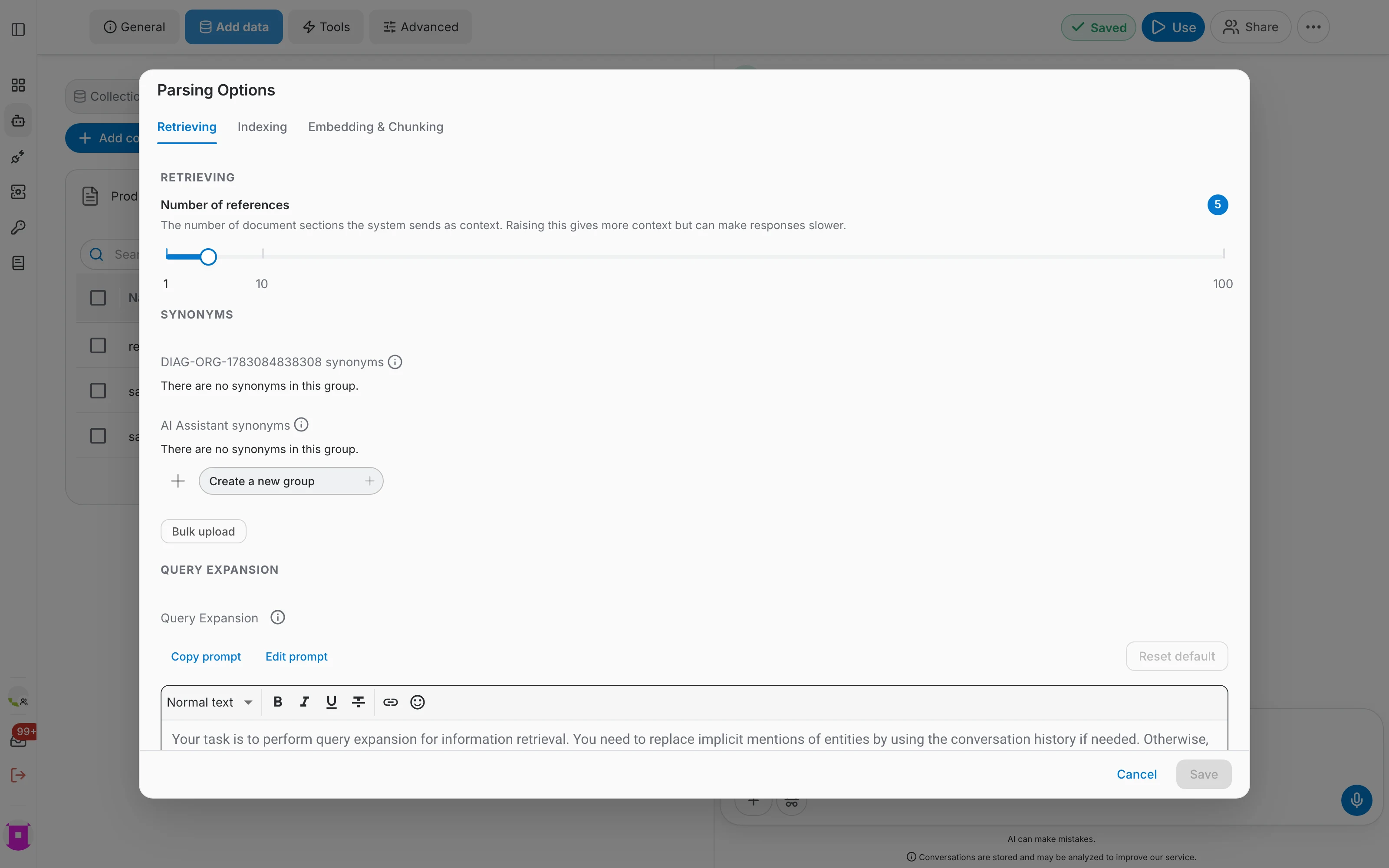
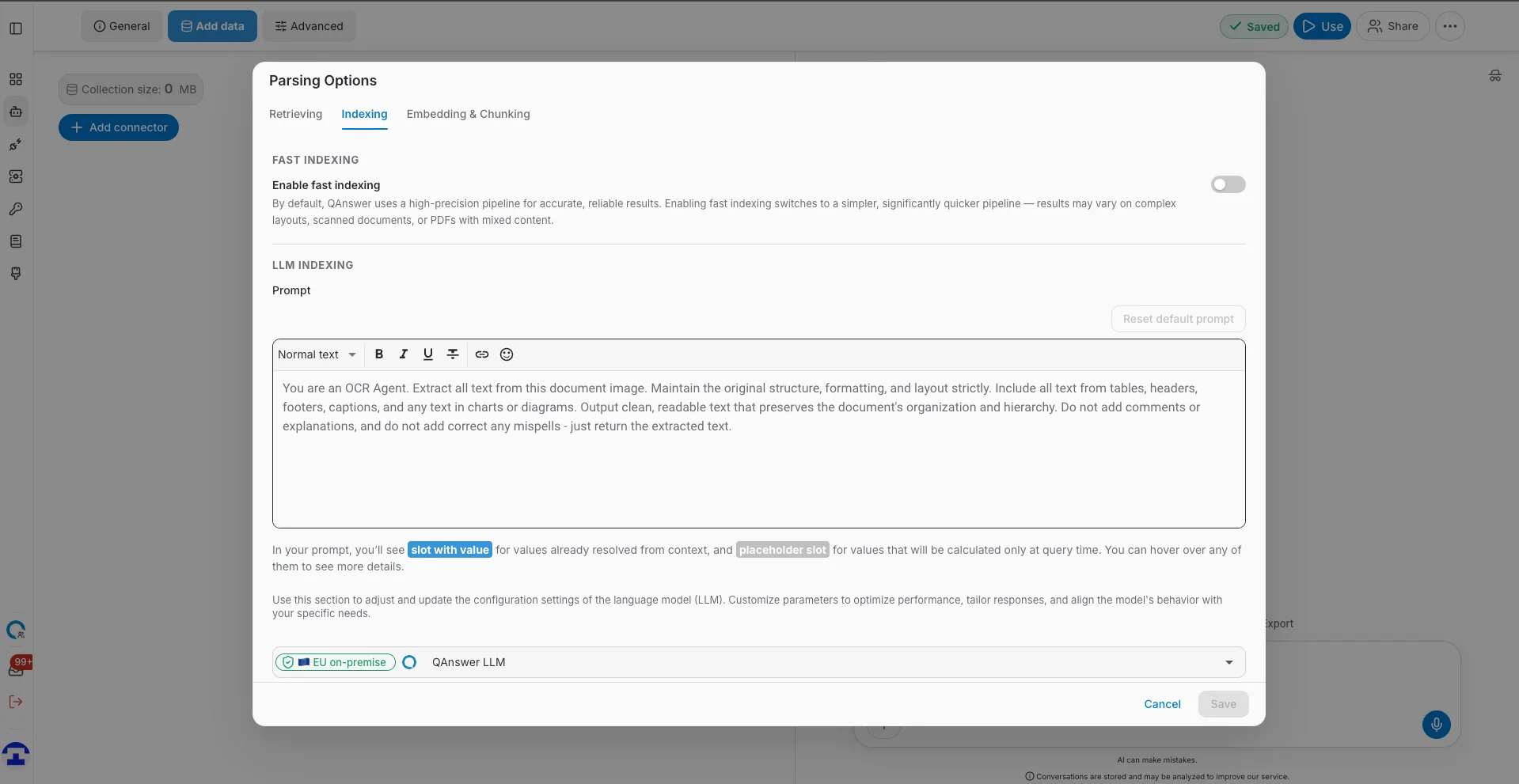
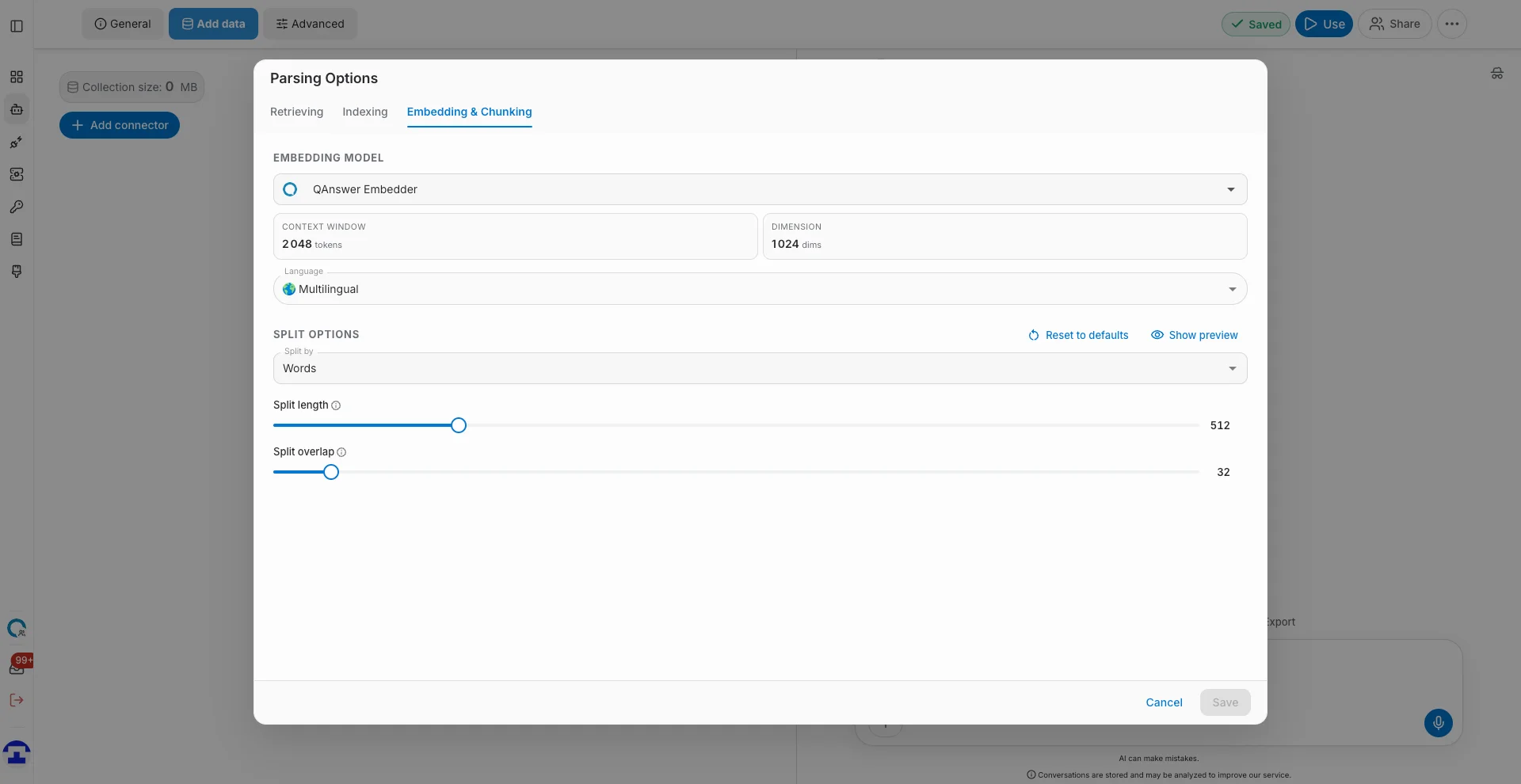
Document connectors expose a Parsing Options dialog that controls how files are turned into searchable text. It has three tabs:
- Retrieving – how many references are pulled in as context when the assistant answers.
- Indexing – synonym groups and the query-expansion prompt used to widen a search.
- Embedding & Chunking – how documents are split before they are embedded. Chunking has a real effect on answer quality: chunks that are too small lose context, too large and retrieval gets vague.
Who can change data
Adding, renaming and deleting connectors needs write access to the assistant. Read-only viewers can open this tab and inspect the connector list and its contents, but every control that would change something is disabled.
Where to go next
With data in place, give a chat assistant abilities in Tools, or tune retrieval and behaviour in Advanced.