
Add an MCP Server
Any MCP-compatible service can be plugged into QAnswer — public SaaS endpoints or servers running in your own infrastructure. You need the server's HTTP endpoint URL and, if it requires authentication, its access details.
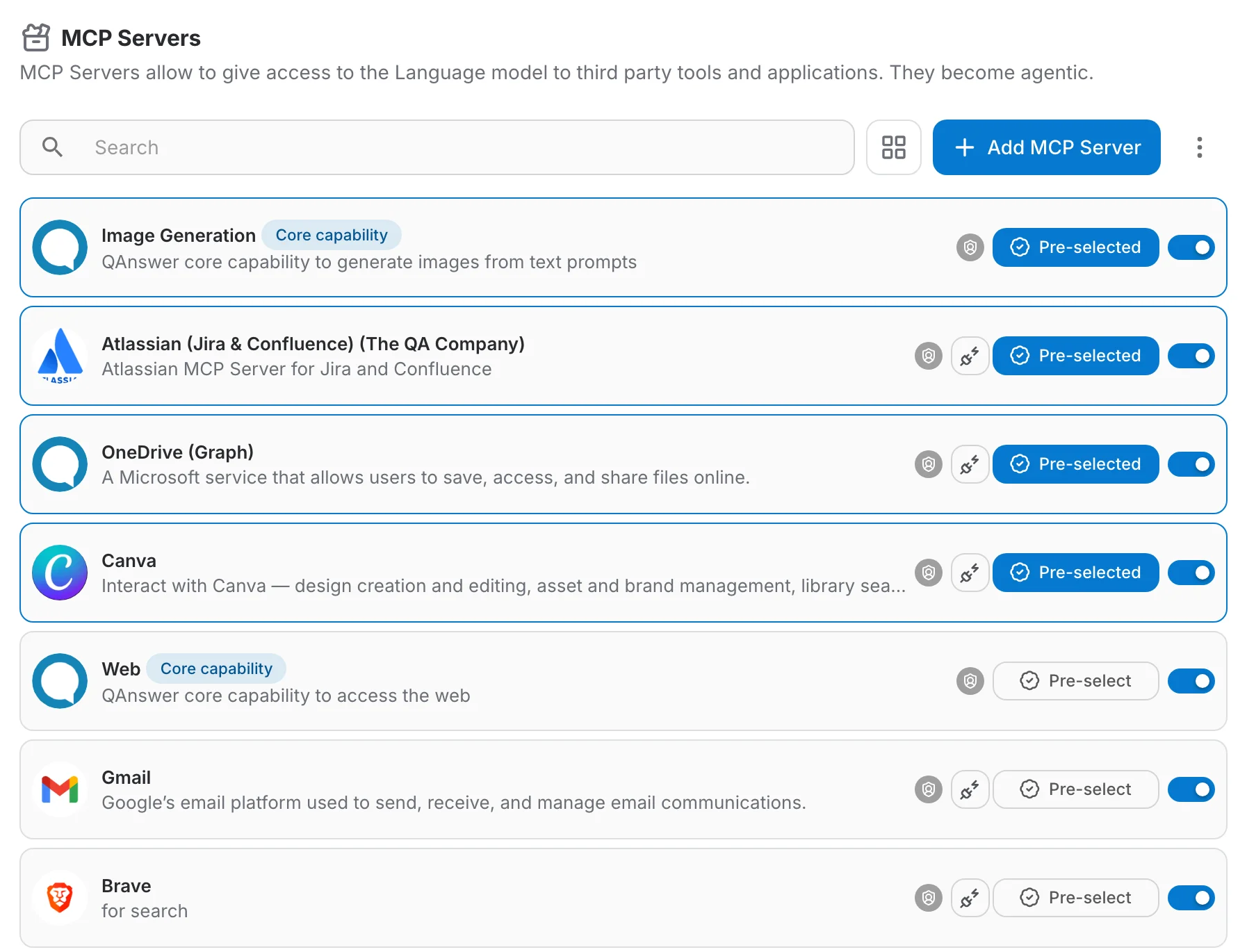
The MCP Servers page
Click MCP in the left navigation. The page lists every server available to you:
- The switch on the right activates or deactivates a server for your space.
- "Set as default" preselects the server in new conversations.
- Servers you own also show edit and delete actions.
Create the server
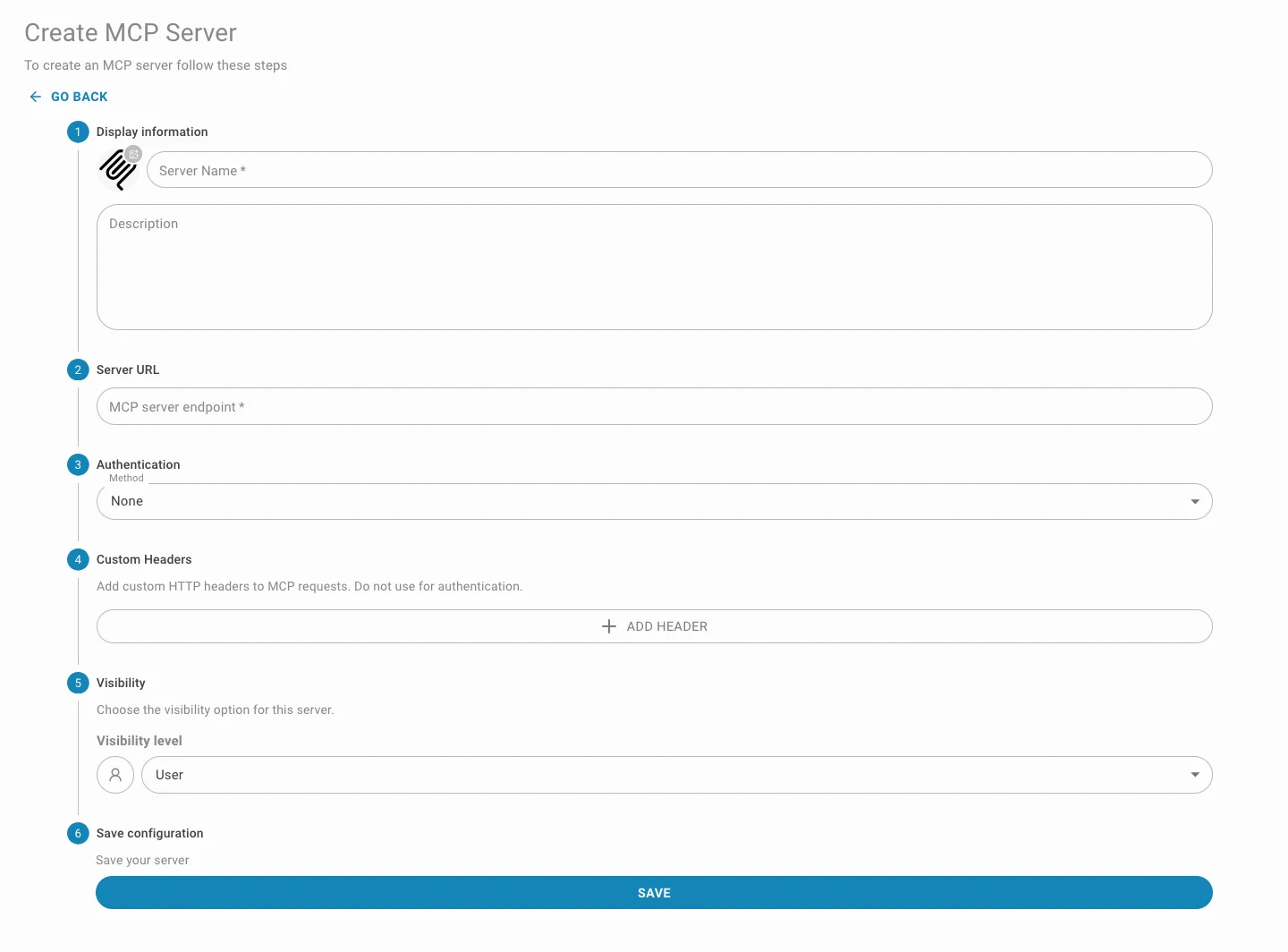
Click Add MCP Server and follow the numbered steps:
- Display information — name, description and an optional logo. Write a description that says what the tools do — the AI reads it too.
- Server URL — the MCP endpoint, e.g. https://weather.example.com/mcp. Enable On-Premise for servers inside your own network.
- Authentication — None, API Key or OAuth 2.0 — details in Connections & Authentication.
- Custom headers — optional extra HTTP headers, shared for all users or collected per user.
- Save configuration — creates the server and unlocks the validation steps below.
Validate the connection & choose tools
After saving, two more steps appear:
- Click Validate connection — QAnswer contacts the server and confirms it answers.
- The live tool list appears. Tick the tools you want to expose and untick the rest.
- Click Sync tools to store the selection. Re-run it any time the server adds new tools.
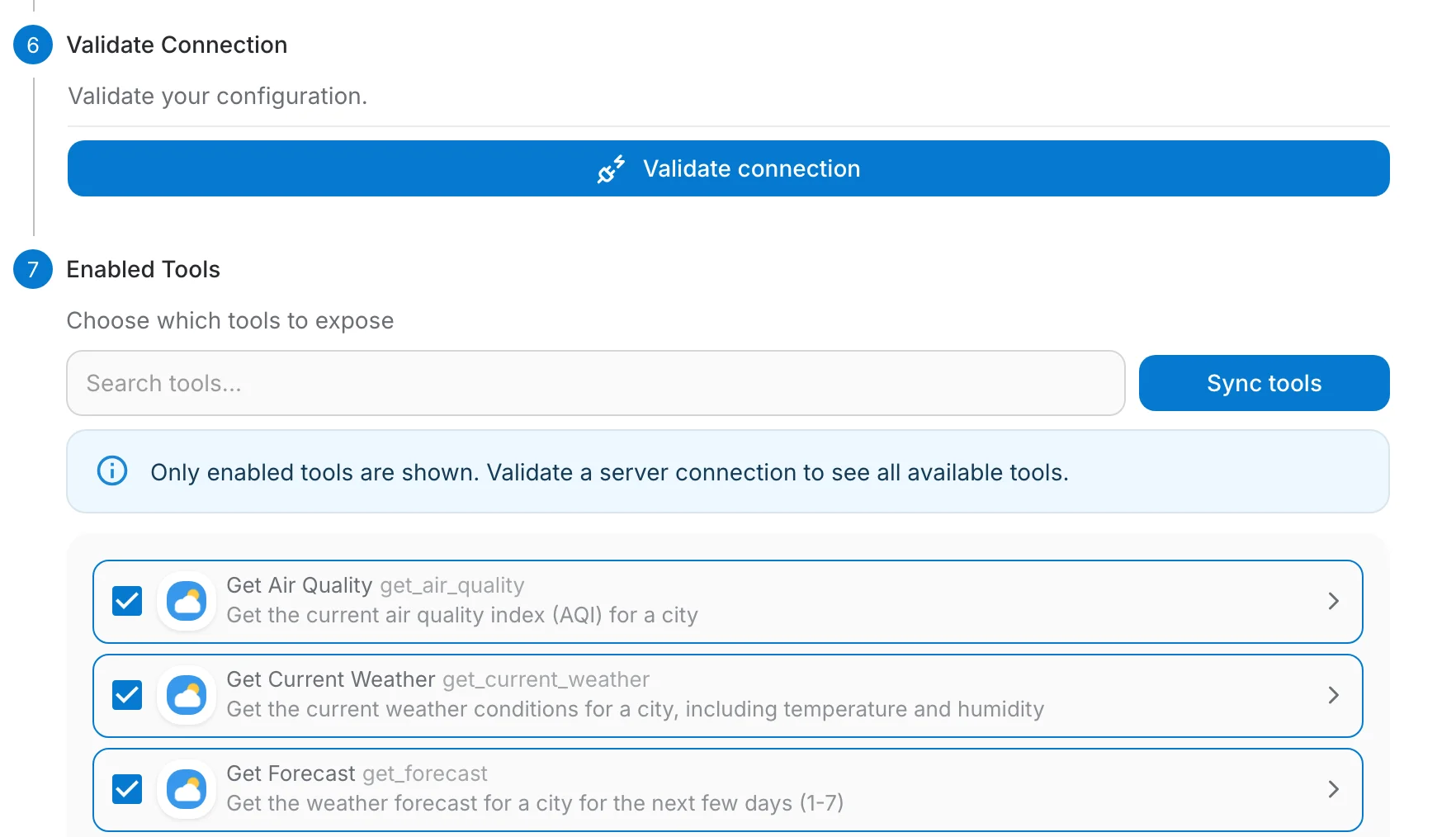
Only enabled tools are shown
Before a successful validation the tools step only lists tools already stored in QAnswer. Validate the connection to see everything the server offers.
Manage the server
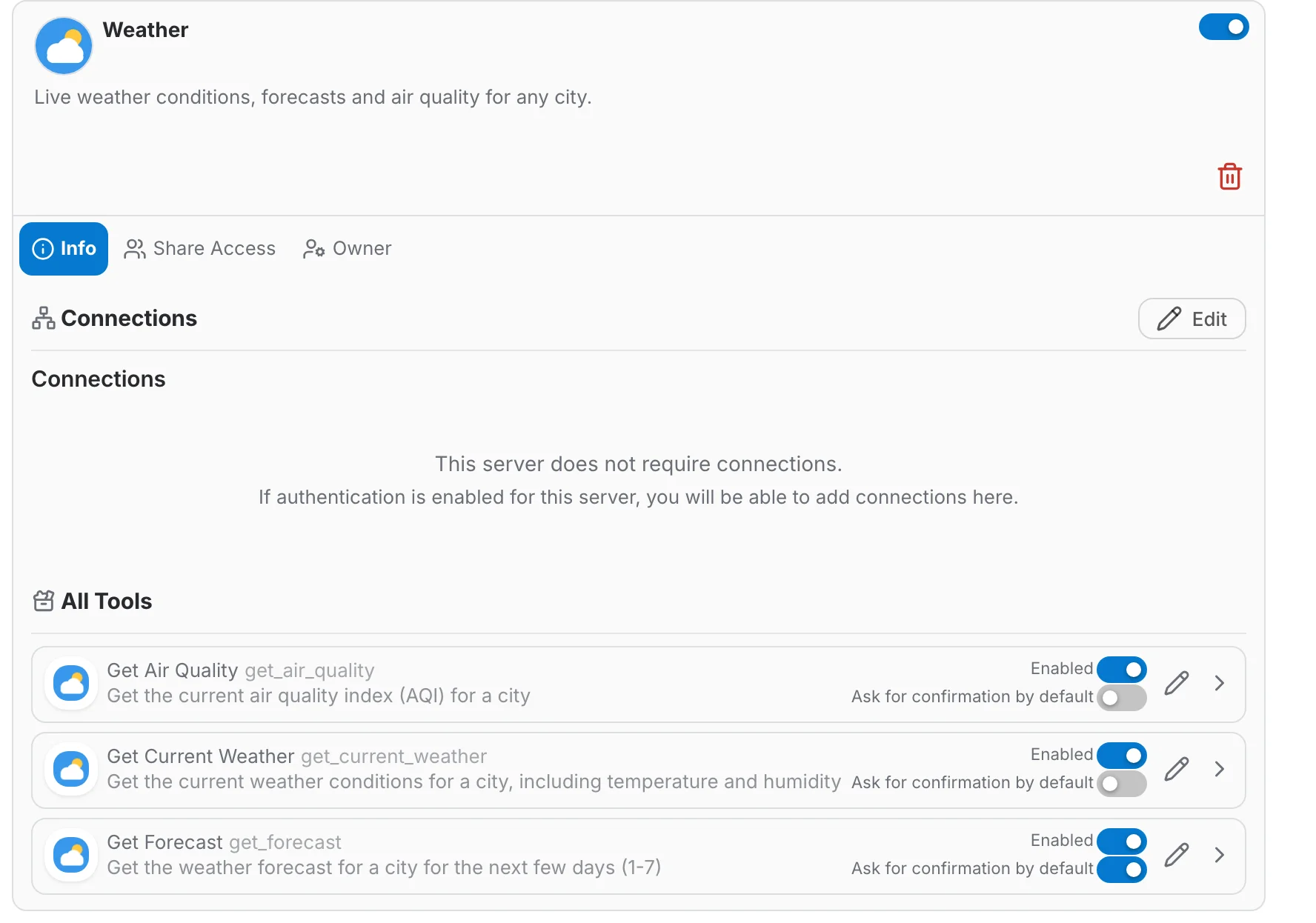
Open a server from the list to reach its management page:
- Connections — the credentials users created for this server (only shown when the server requires authentication).
- All Tools — enable or disable each tool, set "ask for confirmation by default", or use the pencil to edit the display name, description and response format prompt.
- Share Access & Owner — share the server with other users, teams or your organization, or transfer ownership.
Tool descriptions matter
The AI chooses tools by reading their names and descriptions. Clear, action-oriented descriptions ("Get the weather forecast for a city") make tool calls far more reliable.