
Conversation Feedback
Whenever someone in your organization rates an assistant's answer with a thumbs up or thumbs down, that answer lands on the Feedback page under Insights. It gives organization admins one place to see which answers users were happy with, which they were not, and to check whether the current setup would answer any better.
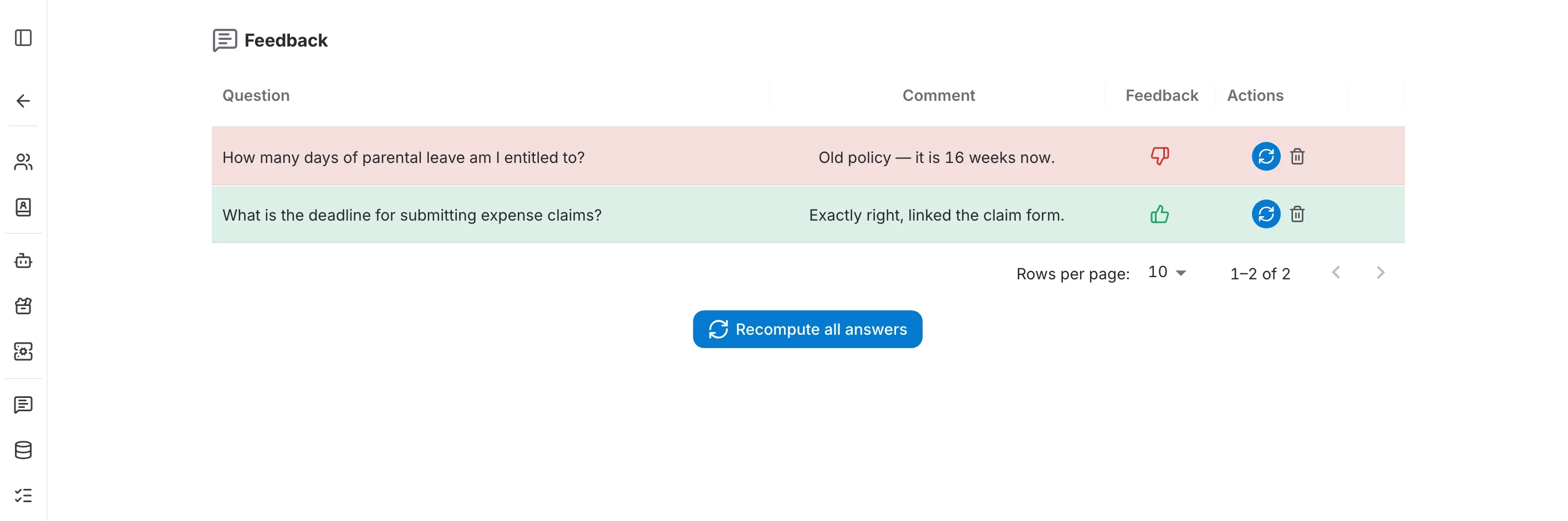
The feedback table
Every rated answer gets one row:
- Question — the question the user asked.
- Comment — the note the user added when rating. Hover a truncated comment to read it in full; a dash means no comment was left.
- Feedback — a green thumbs up or a red thumbs down. A globe icon next to it marks feedback that came in from outside the app, for instance through an embedded chatbot.
- Actions — recompute this answer, or delete the feedback entry.
Rows are tinted by their rating: green for a thumbs up, red for a thumbs down. Once an answer has been recomputed, a positive row is shaded by how close the new answer came to the one the user approved — green when it matches closely, amber in between, red when it has drifted.
Reading the conversation behind an answer
Click a row and the whole conversation opens below the table, in read-only form. The rated answer is highlighted, with the user's comment underneath, so you can see what was actually asked and in what context. Once the answer has been recomputed, it is shown as Old next to the freshly generated Current answer:
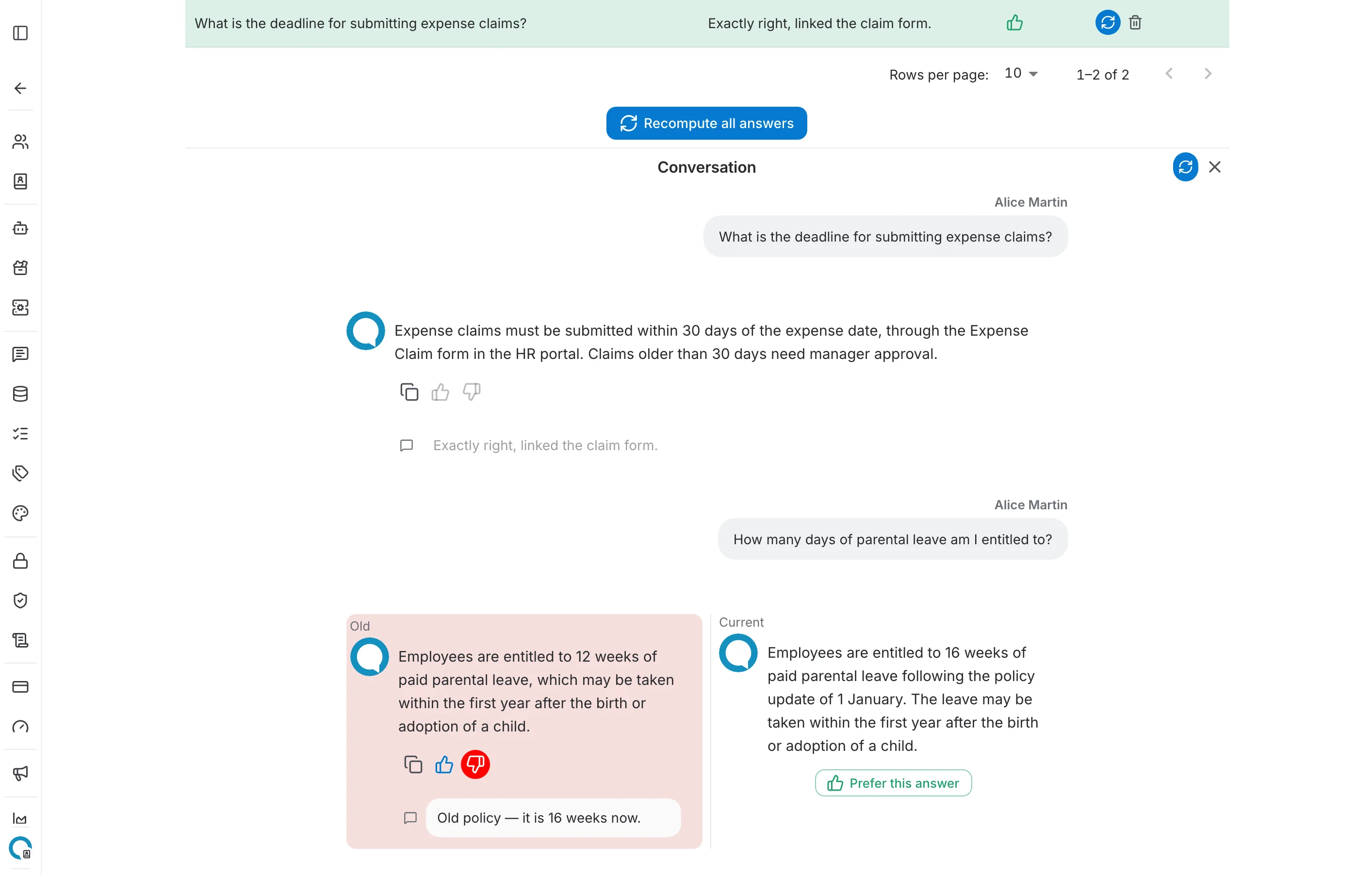
Recomputing an answer
Recomputing re-runs the question against your assistant as it is configured today and puts the result side by side with the answer the user rated. That is how you check whether a change you made since — a new prompt, a different model, updated documents — actually fixes what the user complained about.
- Click the blue recompute button in the row's Actions column, or the one at the top right of the conversation panel.
- The new answer appears in the Current column next to the original, which is labelled Old.
- If the new answer is the better one, click Prefer this answer to store it as the accepted answer for that question.
When to use it
Recomputing is most useful straight after you change something that affects how answers are produced:
- you rewrote an assistant's prompt and want to see whether the answers users disliked improve;
- you moved the assistant to a different language model;
- you changed the retrieval settings, such as the number of documents used to answer;
- the underlying documents were corrected or re-indexed and the old answers may now be out of date.
Deleting an entry
The red bin icon in the Actions column removes a feedback entry for good. Use it for test conversations and duplicates so the list keeps reflecting real user reactions.