
Config
The Config page holds the platform-wide switches for a QAnswer deployment: how the app behaves on-premise, whether the API is rate limited, whether members may delete their own accounts, and — behind Advanced settings — the conversation upload limit, third-party integrations and the page users land on after login.
Open it from Configuration → Config in the admin panel. Only platform administrators can reach it, and every block saves on its own.
The main switches
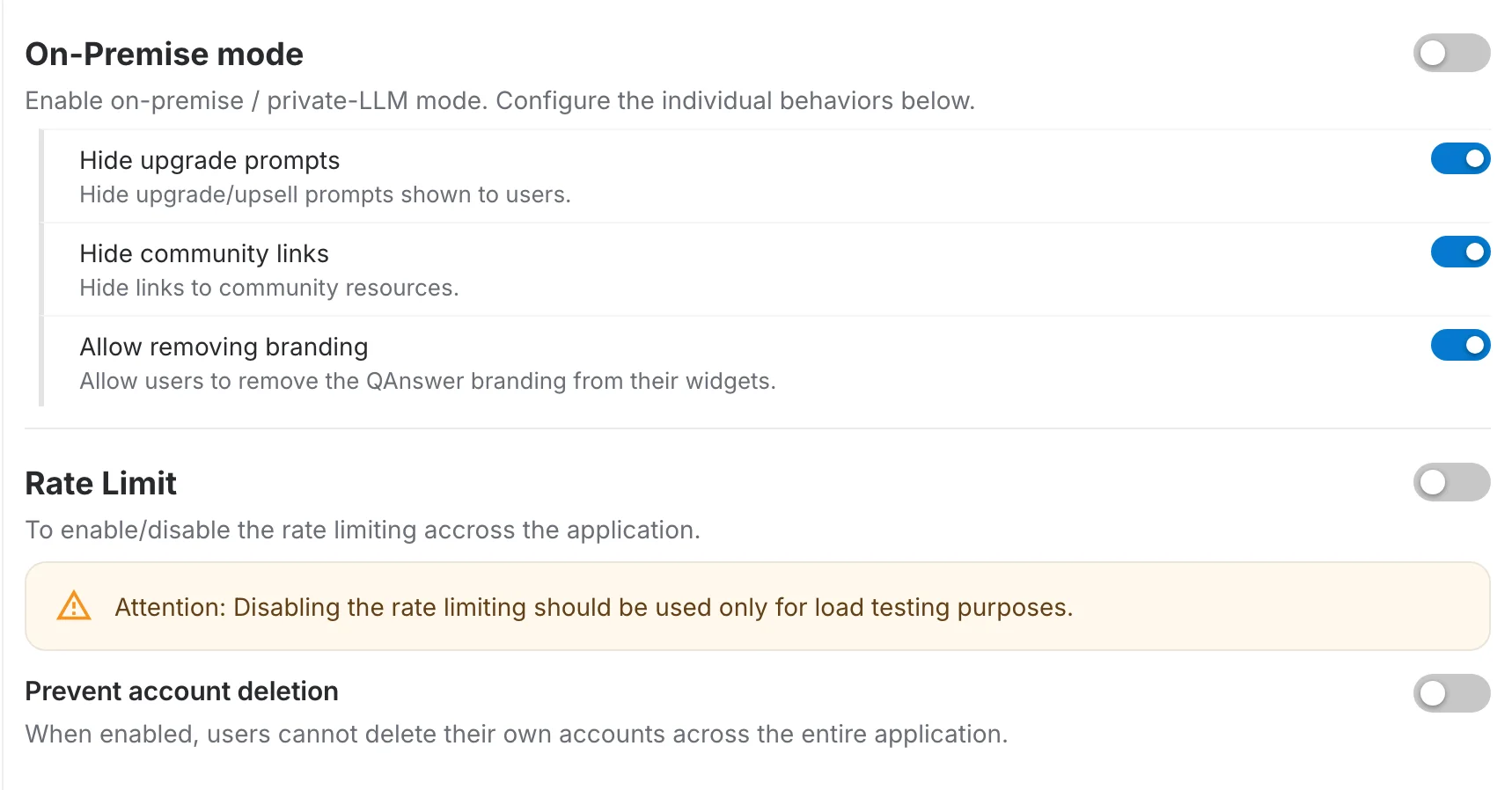
On-Premise mode
Turns the deployment into a private-LLM installation. The three switches nested underneath tune what that actually changes, and stay available whether or not the parent is on:
- Hide upgrade prompts — hides the upgrade and upsell prompts shown to users.
- Hide community links — hides the links to community resources.
- Allow removing branding — lets users take the QAnswer branding off the widgets they publish.
Rate Limit
Enables or disables API rate limiting across the whole application.
Prevent account deletion
When enabled, members cannot delete their own accounts anywhere in the application — useful where accounts have to survive for audit or retention reasons.
Installable app (PWA)

Offer to install the app
Lets people install QAnswer as a Progressive Web App (PWA) on their computer, phone or tablet and open it in its own window. When it is on, supported browsers show their install option and QAnswer shows its Install QAnswer prompt; when it is off, neither appears. It is on by default.
Advanced settings
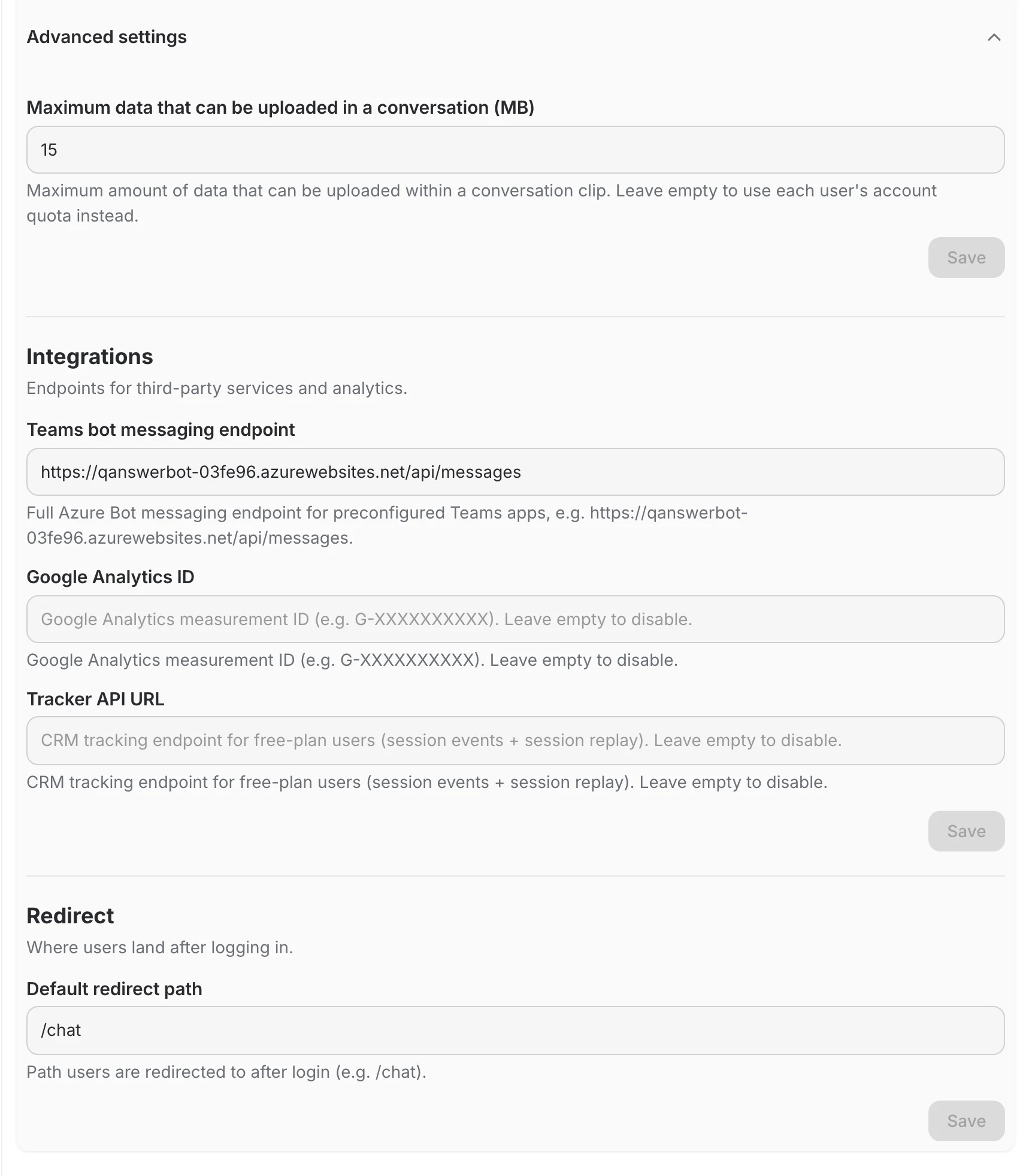
The rest of the page sits behind an Advanced settings panel that starts collapsed. It holds three blocks, each with its own Save button:
- Maximum data that can be uploaded in a conversation (MB) — caps how much a single conversation clip may hold. Leave it empty and each user's own account quota applies instead.
- Integrations — endpoints for third-party services and analytics:
- Teams bot messaging endpoint — the full Azure Bot messaging endpoint for preconfigured Teams apps.
- Google Analytics ID — the measurement ID. Leave empty to disable analytics.
- Tracker API URL — the CRM tracking endpoint used for free-plan users. Leave empty to disable.
- Redirect — where users land after logging in — a single Default redirect path field, covered in detail below.
Configuration: defaultRedirectPath
Overview
defaultRedirectPath is an optional configuration key that controls where the user is redirected immediately after login. The value is a plain string with no automatic validation, so ensure the path is correct in every environment.
How It Works
After a successful login, the application checks whether defaultRedirectPath is defined.
- If present, the user is redirected to that path.
- If not, the system falls back to the default post-login page, which is
/chat.
Important Behavior
Because the value is not validated, the application redirects even if the path is:
- misspelled
- not registered in the router
- not available in the current environment
This may result in navigation errors or blank pages.
- Incorrect:
/chaat - Correct:
/chat
Always verify that the path:
- exists
- is reachable
- is spelled correctly