
LM Providers
Language Model (LM) Providers are the outside AI services QAnswer talks to: the models that write answers, the ones that turn your documents into searchable vectors, and the tools that search the web, generate images or transcribe audio. This section explains what they are, where they are managed, and what each kind is for.
This page is the organization's entry point: what each kind of provider is for, where the organization and its teams sit in the hierarchy, and which of your choices apply to whom.
The five kinds of provider
Each tab of the LM Providers page holds one kind of provider, and each kind has its own page in this documentation. You do not have to configure all of them — start with the ones your users actually need.
- LLM — the models that read a question and write the answer. This is what users pick in the model selector of the chat.
- Embedder — the models that turn documents into vectors so an assistant can search them. Every assistant is tied to one embedder.
- Image Generation — lets the chat and your assistants create images from a text prompt.
- Speech-to-Text — powers the microphone button in the chat, so users can dictate instead of typing.
- Web Search — lets a model look things up on the live web during a conversation.
Opening the page
In the organization settings, open LM Providers under Resources in the left menu.
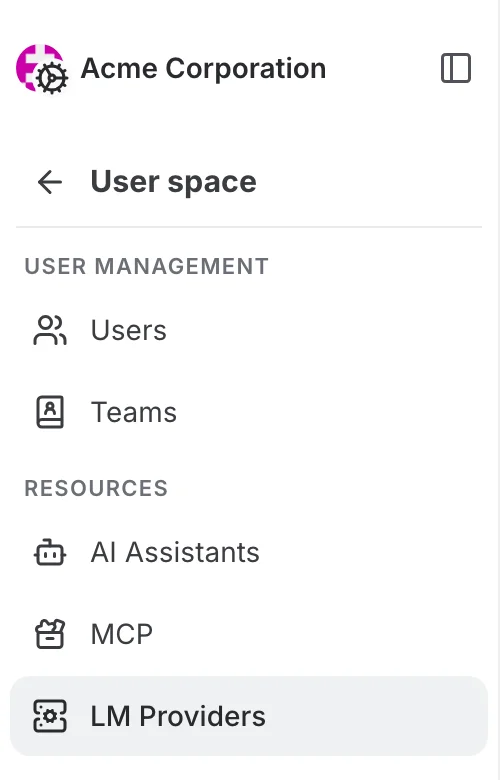
The page opens on the LLM tab. The tabs across the top switch between the five kinds of provider; everything below the tabs works the same way on every tab.
What is specific to the organization and its teams
What is specific to the organization level:
- The default provider you pick here is what your users get when neither they nor their team picked anything else.
- When you create a provider, Enable for all teams decides whether your teams get it switched on immediately or have to activate it themselves.
- Teams have the same page: pick the team in the workspace switcher and the switches then apply to that team only.
Where you manage providers
The same LM Providers page exists at four levels. It looks and works the same everywhere — what changes is who your choices apply to.
- Platform — the admin space of the installation. Providers created here form the catalogue of the whole platform: every organization can see and activate them. Reserved for platform administrators.
- Organization — the organization settings. Organization admins activate platform providers for their organization, add their own, and pick the organization defaults.
- Team — the same organization settings with a team selected in the workspace switcher. Team admins choose which of the organization's providers their team uses.
- Your workspace — LM Providers in the main left menu. Everyone can pick their personal defaults there and plug in their own API keys.
This is what the page looks like at each level:
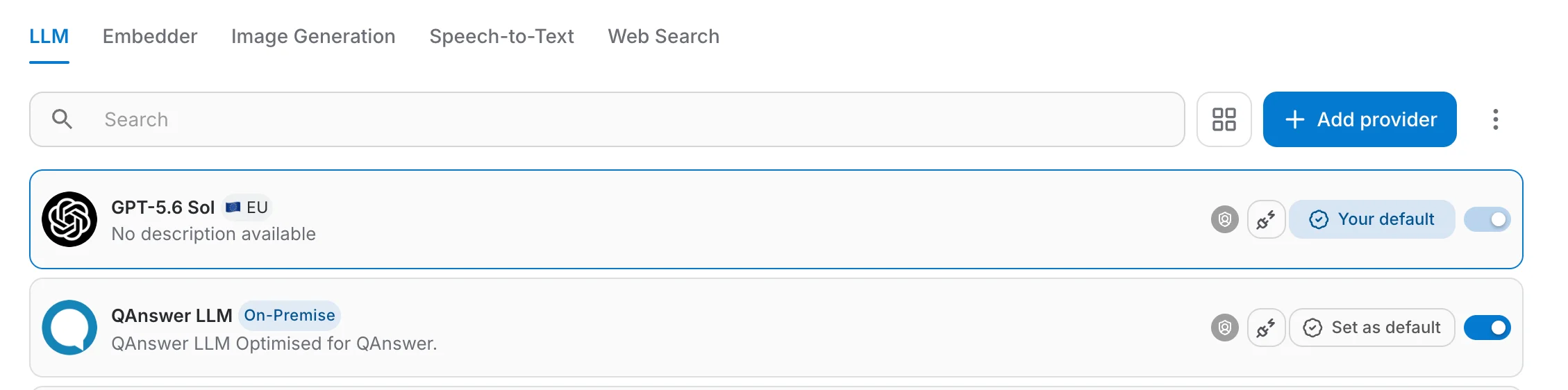
Each level picks its own default provider. When several levels have set one, the most specific level wins: personal over team, team over organization, organization over platform.
Do the minimum first: on the LLM tab, switch one model on and click Set as default, then do the same on the Embedder tab. Your organization can chat and build assistants with just those two. Image generation, speech-to-text and web search are optional extras you can add later.
How the list, the defaults, testing, adding and import/export work is described once for all levels in Managing LM Providers. What it all costs is in Usage and Costs.