
Prerequisites
A team is a workspace inside an organization. A team admin manages who belongs to the team and the resources shared with it — AI assistants, MCP servers, LM providers, connectors and tasks — and can read the team's logs, statistics and provider usage. Everything that applies to the organization as a whole stays with the organization admins.
Opening the team settings
Open the workspace selector at the bottom of the left sidebar, pick the organization on the left and the team on the right, then click the gear next to the team. The sidebar is replaced by the team's own settings menu.
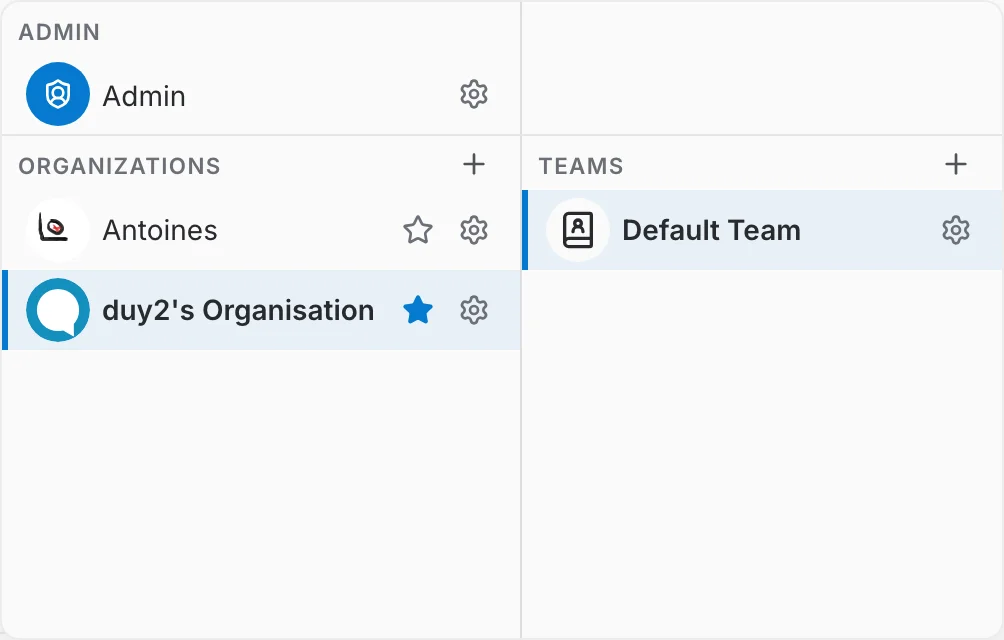
Changing your workspace re-scopes everything you see: the sidebar's admin pages, the members you manage, and the resources (assistants, MCP servers, LM providers, connectors) shared with you all update to match the selected team.
What a team admin can manage
The team menu is grouped the same way as the organization one, without the entries that only make sense for a whole organization. It holds nine pages in five groups:
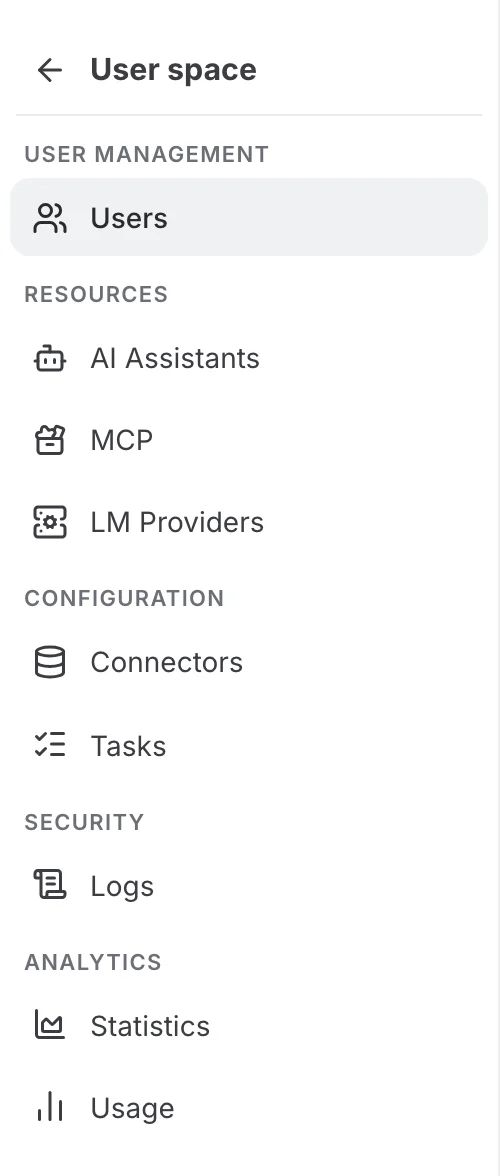
- User Management — Users: the members of the team, their team role, and whether their account is active.
- Resources — AI Assistants, MCP and LM Providers: the resources shared with the team, and which of the organization's providers it uses.
- Configuration — Connectors and Tasks, scoped to the team.
- Security — Logs: the security log of the actions taken in the team.
- Analytics — Statistics and Usage: the team's conversations and its provider consumption.
User space, at the top of the menu, leaves the team settings and returns you to the chat interface.
The pages of the team settings
Every entry of the menu is documented on its own page. Several of them are shared with the organization and platform scopes, where the same page does the same job at a wider scope.
- Team Members — add and remove members, and set each member's team role.
- AI Assistants — the assistants shared with the team, and how to create one for it.
- MCP — the MCP servers available to the team and the tools they expose.
- LM Providers — which language models the team uses, and its team default.
- Connectors — which data source connectors the team can use.
- Tasks — which AI tasks the team's assistants can be built on.
- Security Logs — the audit trail of the actions taken in the team. The menu labels this entry Logs.
- Statistics — conversation and user activity for the team.
- Usage and Costs — calls, tokens and cost per provider for the team. The menu labels this entry Usage.