
Team members
A team admin manages the members of the team from the Users page of the team settings: who belongs to the team, the role each of them holds in it, and whether their account is active.
The members table
Each row is one member of the team. The table has six columns:
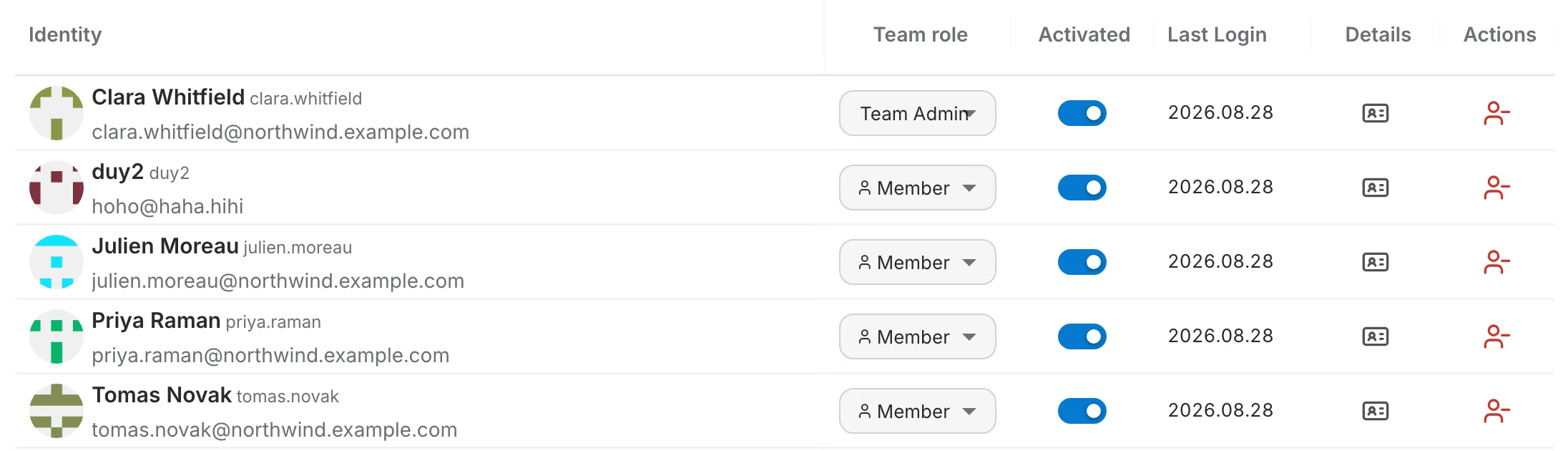
- Identity — avatar, display name, username and e-mail address.
- Team role — the member's role in this team, changed inline from the dropdown.
- Activated — whether the account is active. A deactivated account cannot sign in.
- Last Login — the date the member last signed in.
- Details — opens the member's details card over the table.
- Actions — removes the member from the team.
Team roles
A member holds one of two roles in the team. The dropdown in the Team role column switches between them:
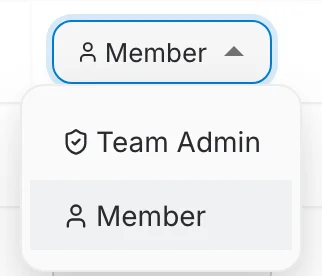
- Team Admin — manages the team: its members, their roles, and the resources shared with the team.
- Member — a regular member, who can use the resources shared with the team.
Search, views and export
The toolbar sits above the table:

- Search — filters the members by name, username or e-mail.
- View toggle — switches between the detailed table and a grid of member cards.
- Add user — adds a member to the team.
- The ⋮ menu — Select, to act on several members at once, and Export, to download the current member list.
Adding a member
Click Add user, then pick the person to add — type a name or username to narrow the list.
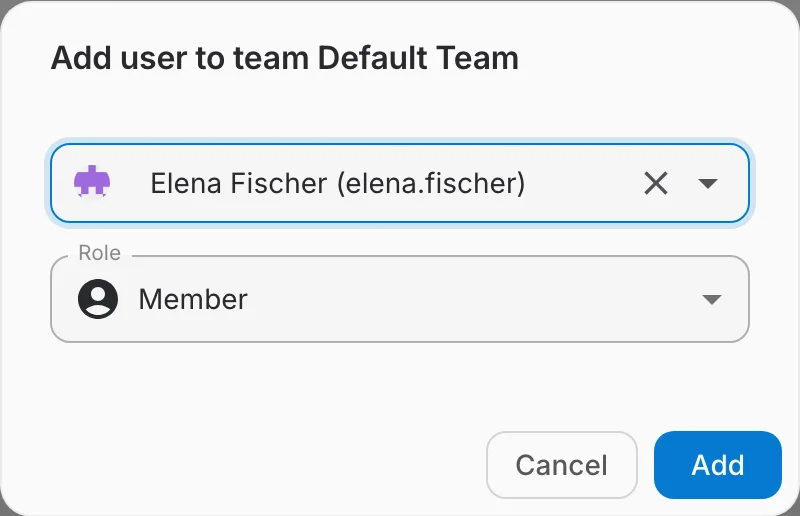
The Role select decides which role the member joins with, Member or Team Admin; it defaults to Member. Add stays disabled until a user is selected.
The member details card
The Details column opens a card over the table. It has two tabs.
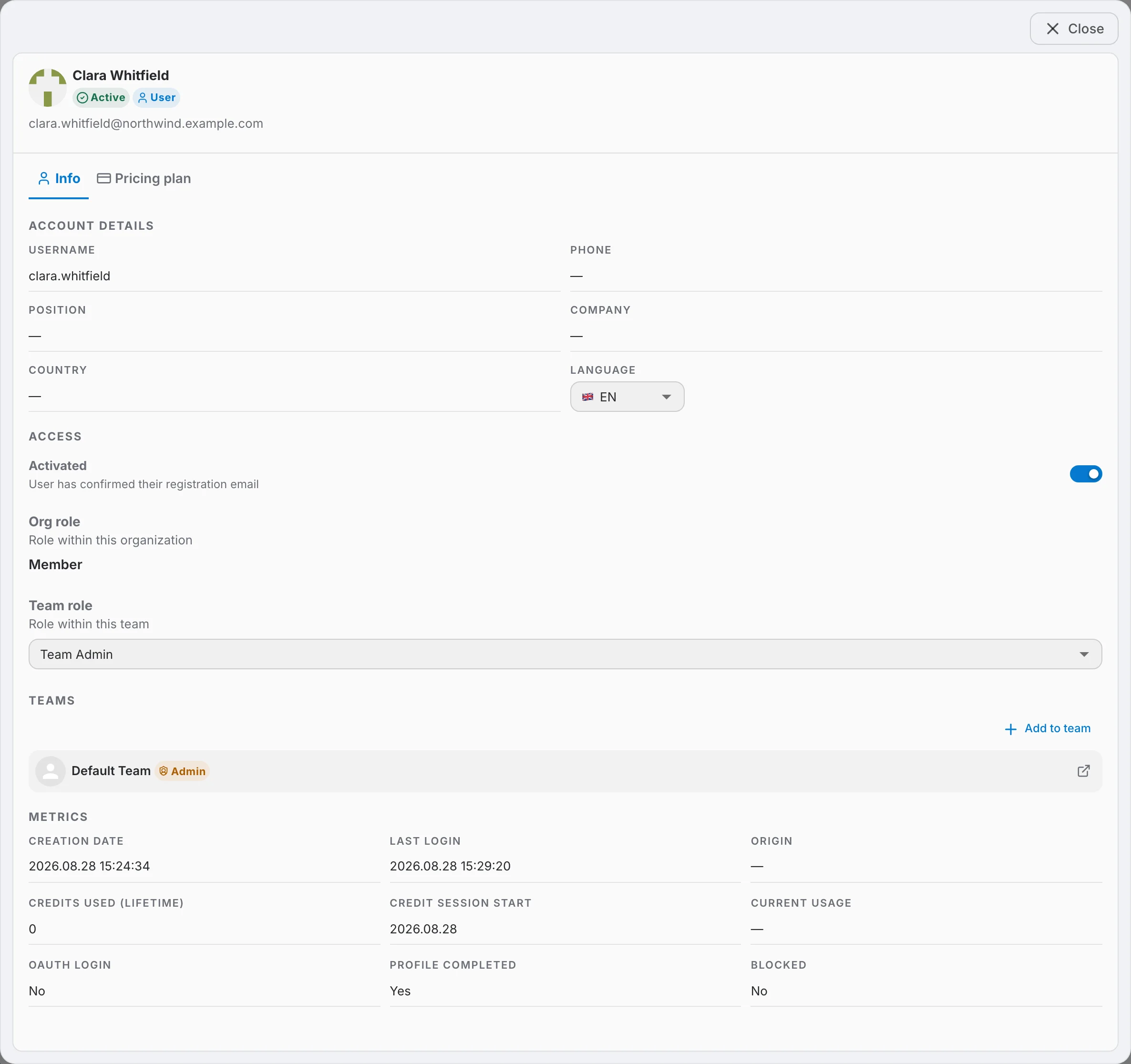
Info
Four sections, in this order:
- Account details — username, phone, position, company, country and interface language.
- Access — the Activated toggle, the member's organization role, and the Team role select.
- Teams — the teams the member belongs to in this organization, with an Add to team button.
- Metrics — creation date, last login, credits used, whether the account signs in via OAuth, and whether it is blocked.
Pricing plan
The plan the member's account is on.
Removing a member
The red icon in the Actions column removes the member from the team. They remain a member of the organization and of any other team they belong to, and their account itself is untouched.
Hovering that icon currently shows "Kick from organization", which is wrong inside a team's settings. The confirmation dialog and the action itself only remove the member from the team.