Connectors
Overview
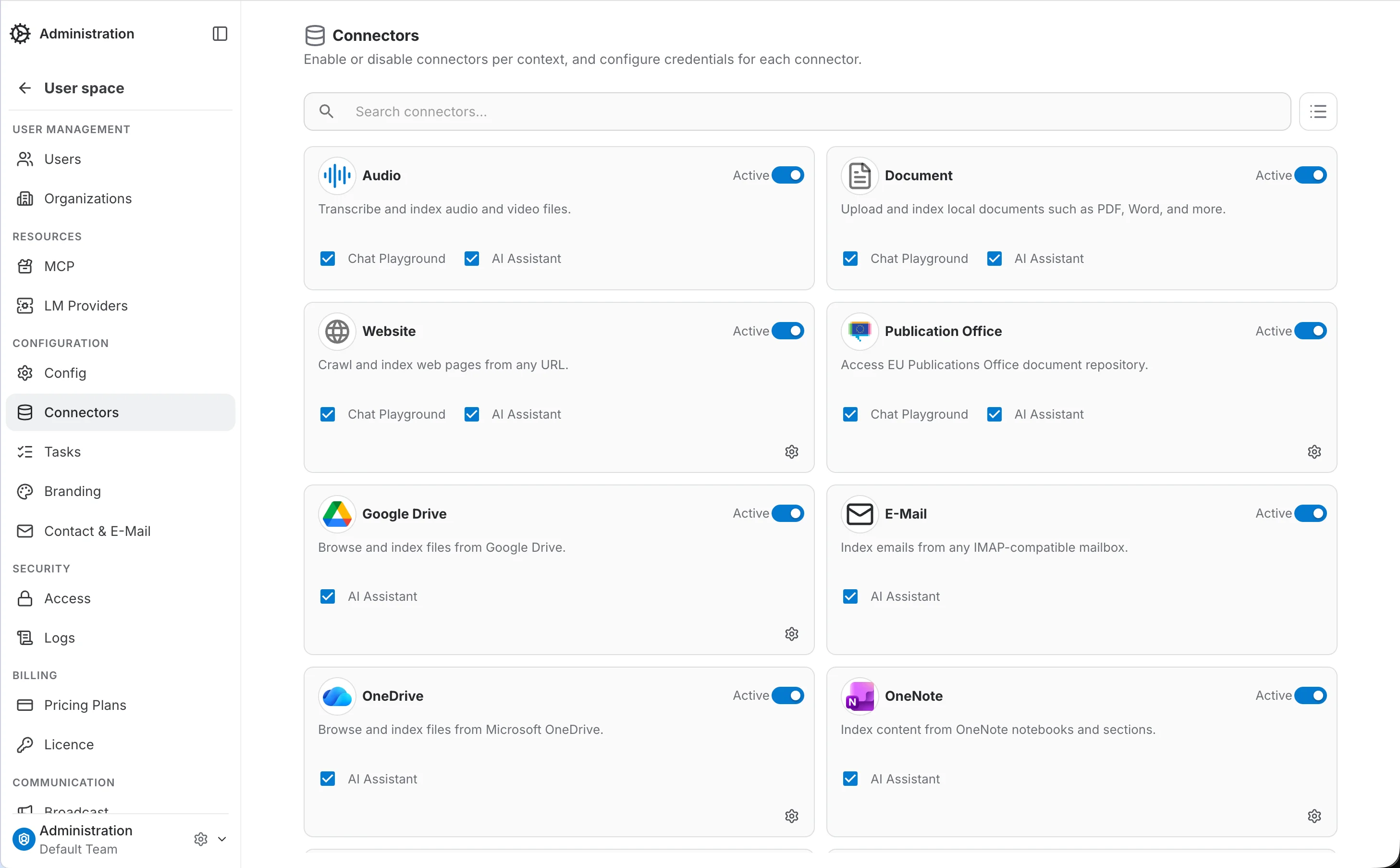
Connectors are the data sources QAnswer can index and query — documents, websites, audio and video, Google Drive, SharePoint, and more. The Connectors admin page controls, for each connector type, whether it's active and where it can be used, without touching any data already indexed through it.
Admin, Organization, and Team scope
The page is available at the Admin, Organization, and Team levels, each with its own independent settings for every connector type. A team's own setting for a connector always takes priority for that team's members — so a team can keep a connector available for itself even if its organization disabled it, and vice versa.
Per-Connector Controls
Each connector type is shown as a card with independent controls:
- Active — the master switch for the connector at the current scope. Turning it off greys out the card and hides the connector everywhere at this scope, regardless of the two checkboxes below.
- Chat Playground — when checked, the connector is offered as a data source from the paperclip (attach) menu in the Chat Playground. Only connector types that support inline chat use show this checkbox.
- AI Assistant — when checked, the connector is offered as a data source when adding data to an AI Assistant.
- Configuration (gear icon) — platform administrators can open a connector's credentials and configuration form. Organization and team admins can toggle the switches above but can't access this configuration.
- Search — filters the list by connector name as you type.
Every toggle applies immediately — there's no separate Save step.
Example: removing a connector from the Chat Playground
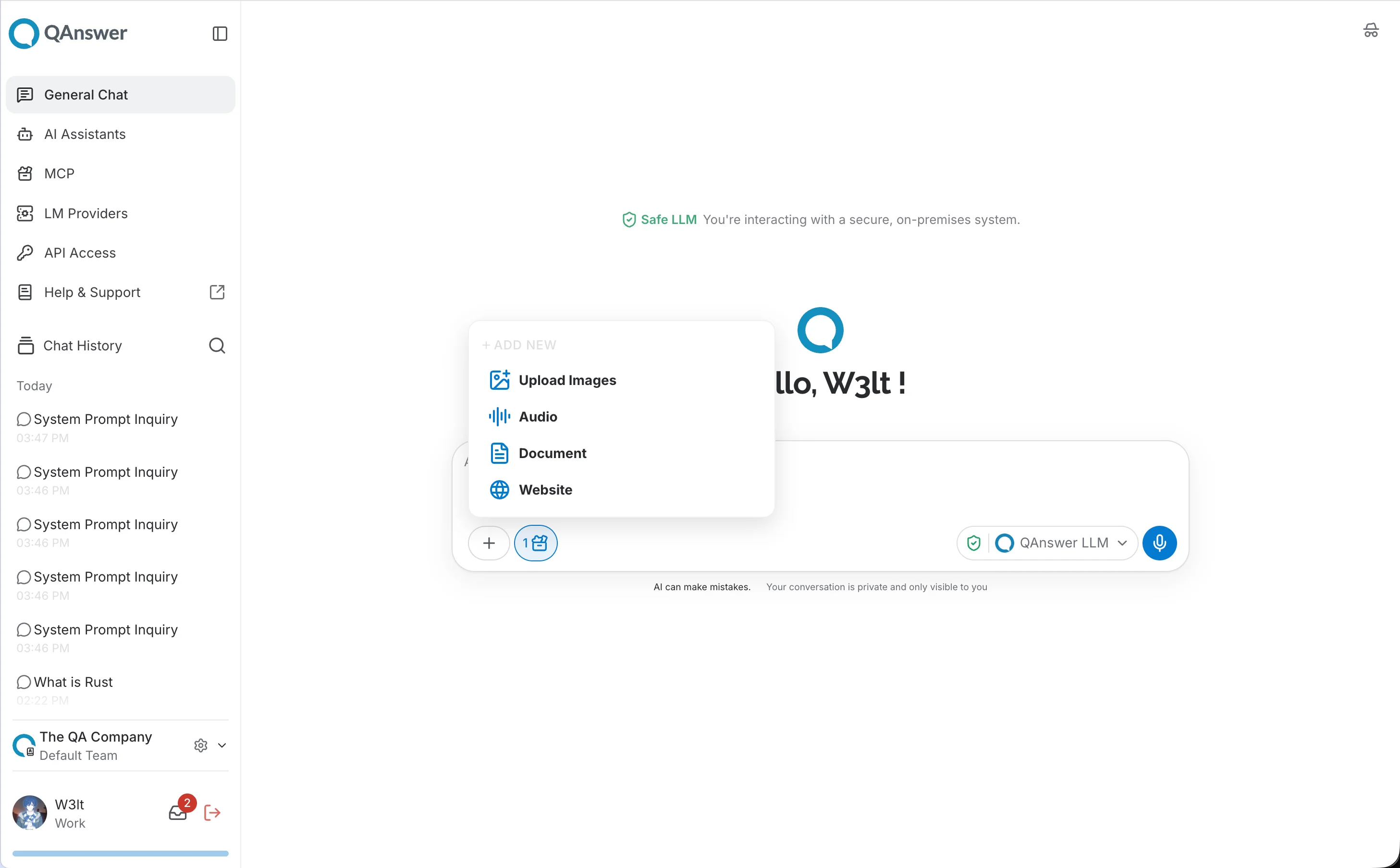
Unchecking Chat Playground for a connector removes it from the attach menu in the Chat Playground right away. Before, with Audio enabled, the attach menu offers Audio, Document, and Website:
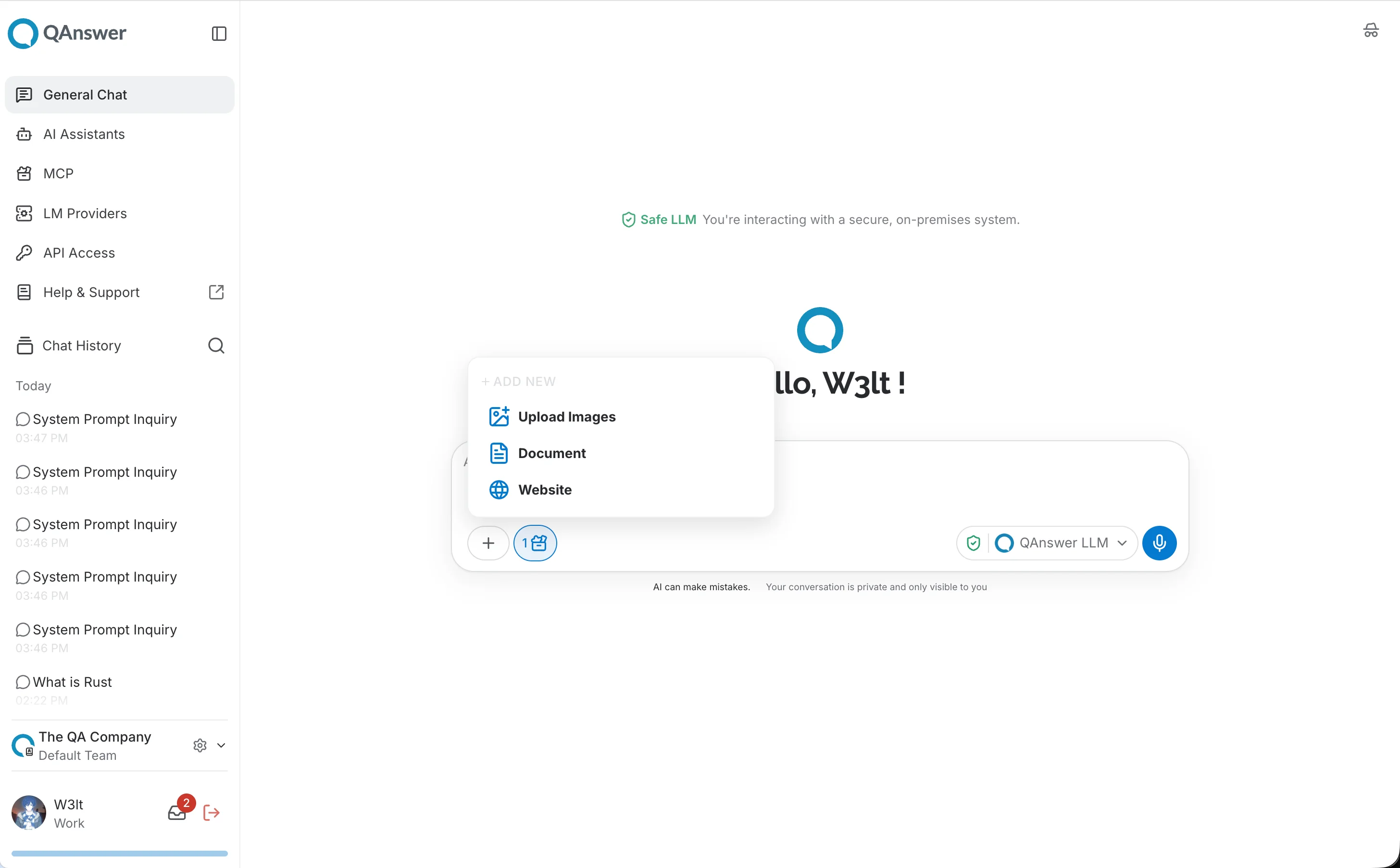
After unchecking Chat Playground for Audio, only Document and Website remain:
Example: removing a connector from AI Assistant data sources
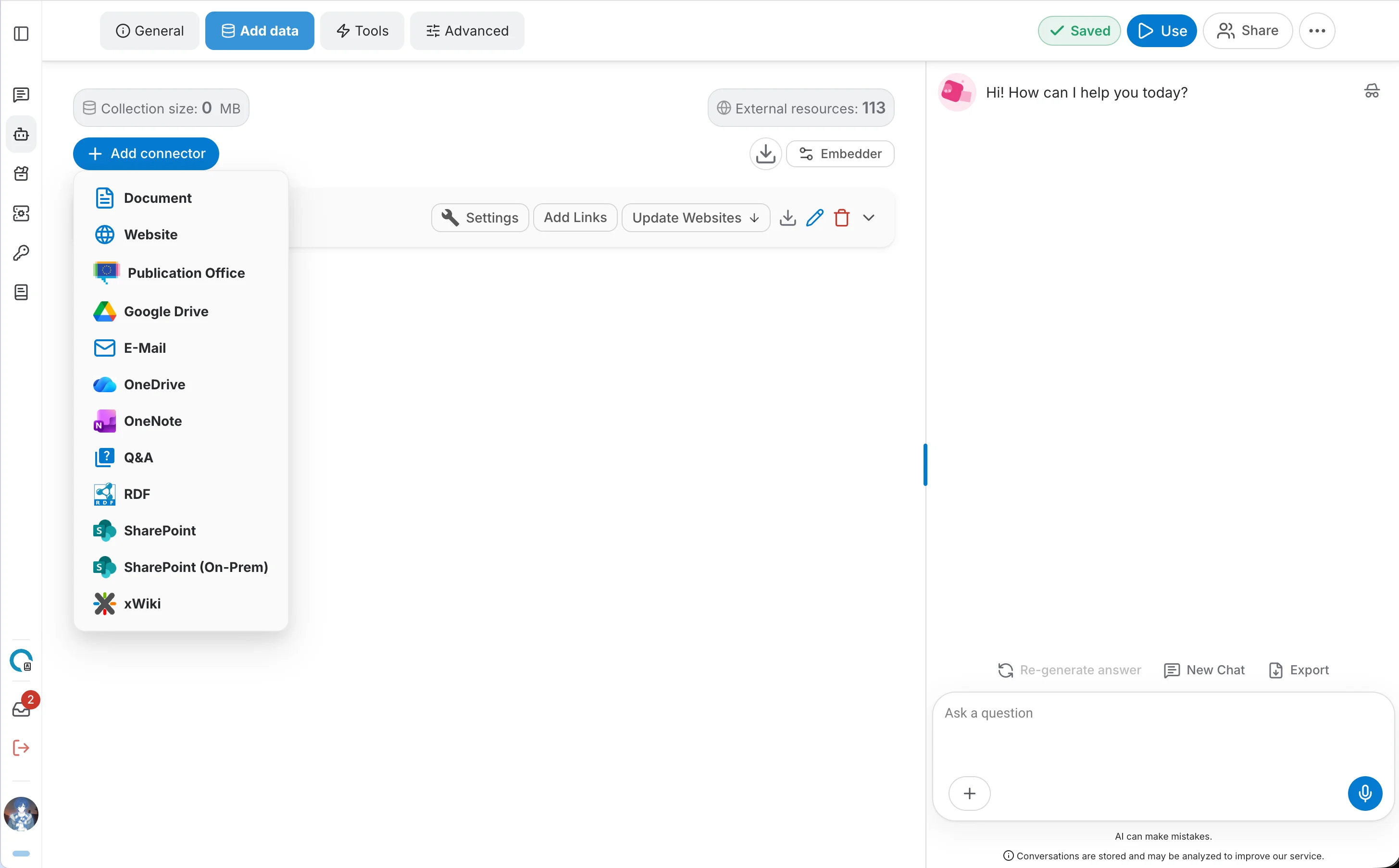
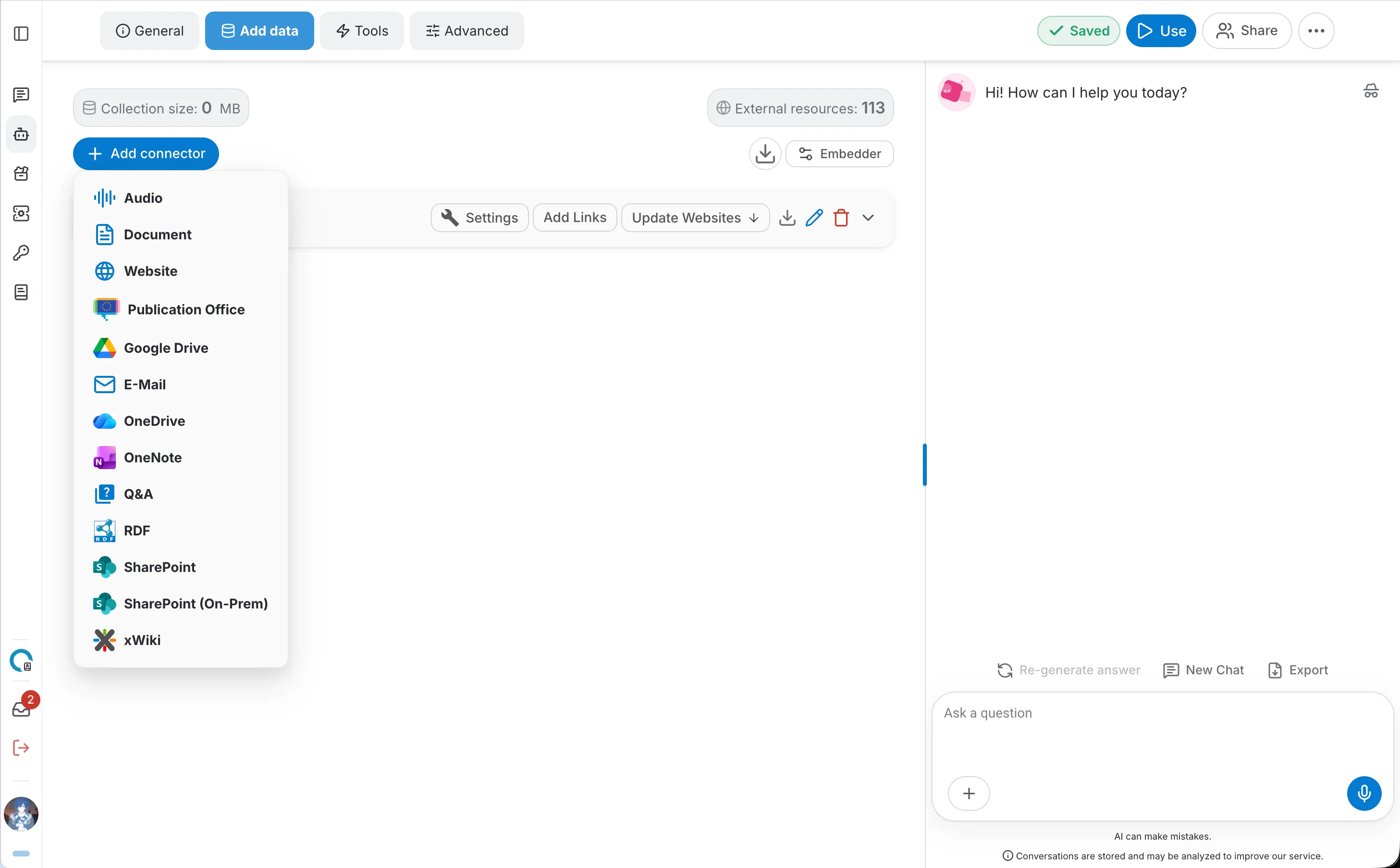
The AI Assistant checkbox controls the same connector's availability in the Add connector menu on an AI Assistant's Add Data tab. Before, with AI Assistant enabled, Audio appears in that menu:
After unchecking AI Assistant for Audio, it no longer appears there either: