
Advanced
Advanced holds the settings you reach for once the assistant basically works: which filters your users may apply, whether a human can step into a conversation, whether the assistant offers follow-up questions, and — for administrators — how it handles oversized documents.
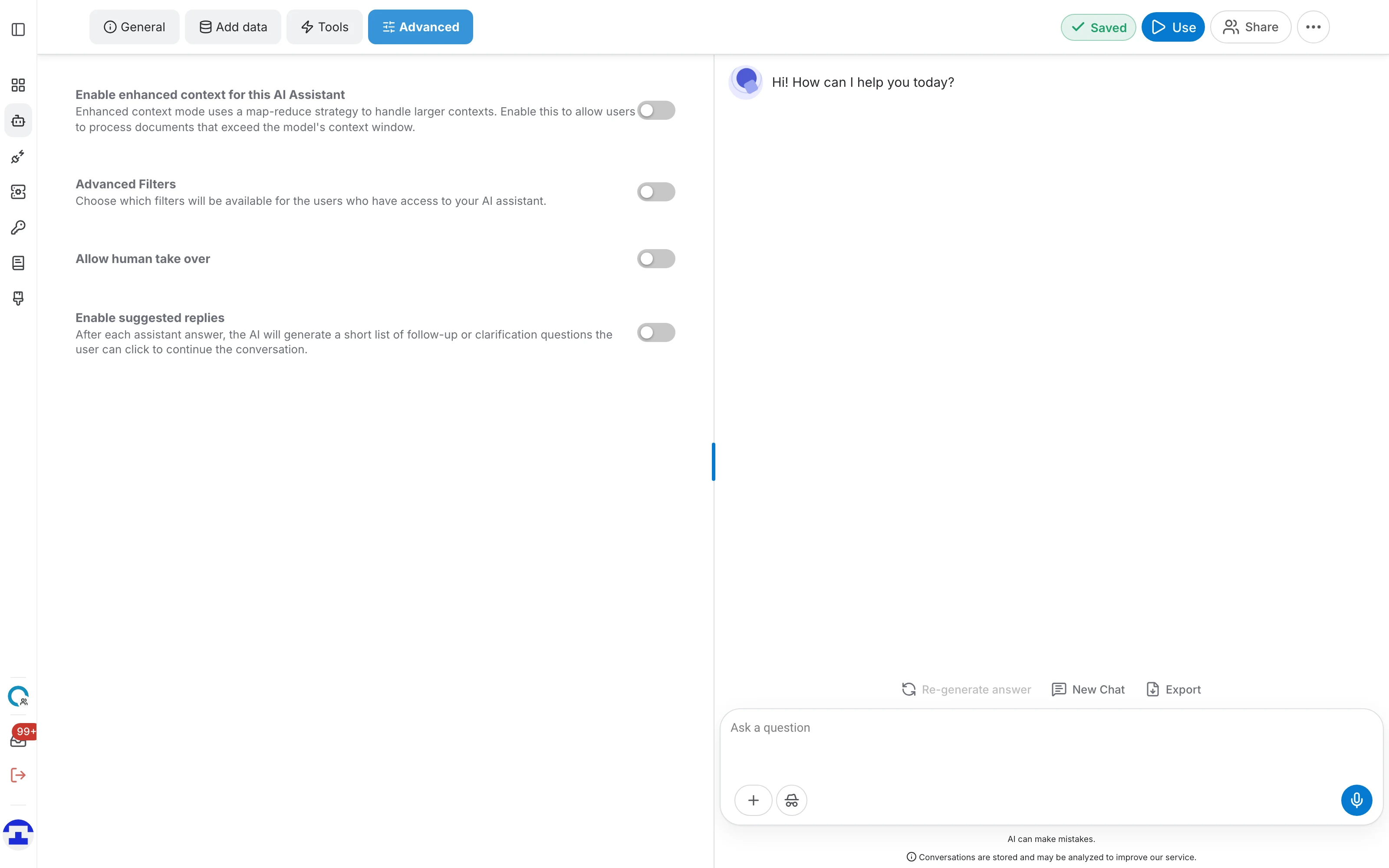
Which sections you see depends on the task type and on your role:
| Section | Shown when |
|---|---|
| Enhanced context (Admin settings) | You are a platform administrator and the task is Chat or Search |
| Advanced Filters | The task is Chat or Search |
| Allow human take over | The task supports it (chat-style assistants) |
| Enable suggested replies | The task supports human takeover |
Enhanced context
Enhanced context lets the assistant work with material larger than the model's context window, using a map-reduce strategy: the content is processed in pieces and the results combined.
Turn it on when users need answers over documents that are simply too big to fit in one prompt. It costs time and tokens, so leave it off when your documents comfortably fit.
Advanced filters
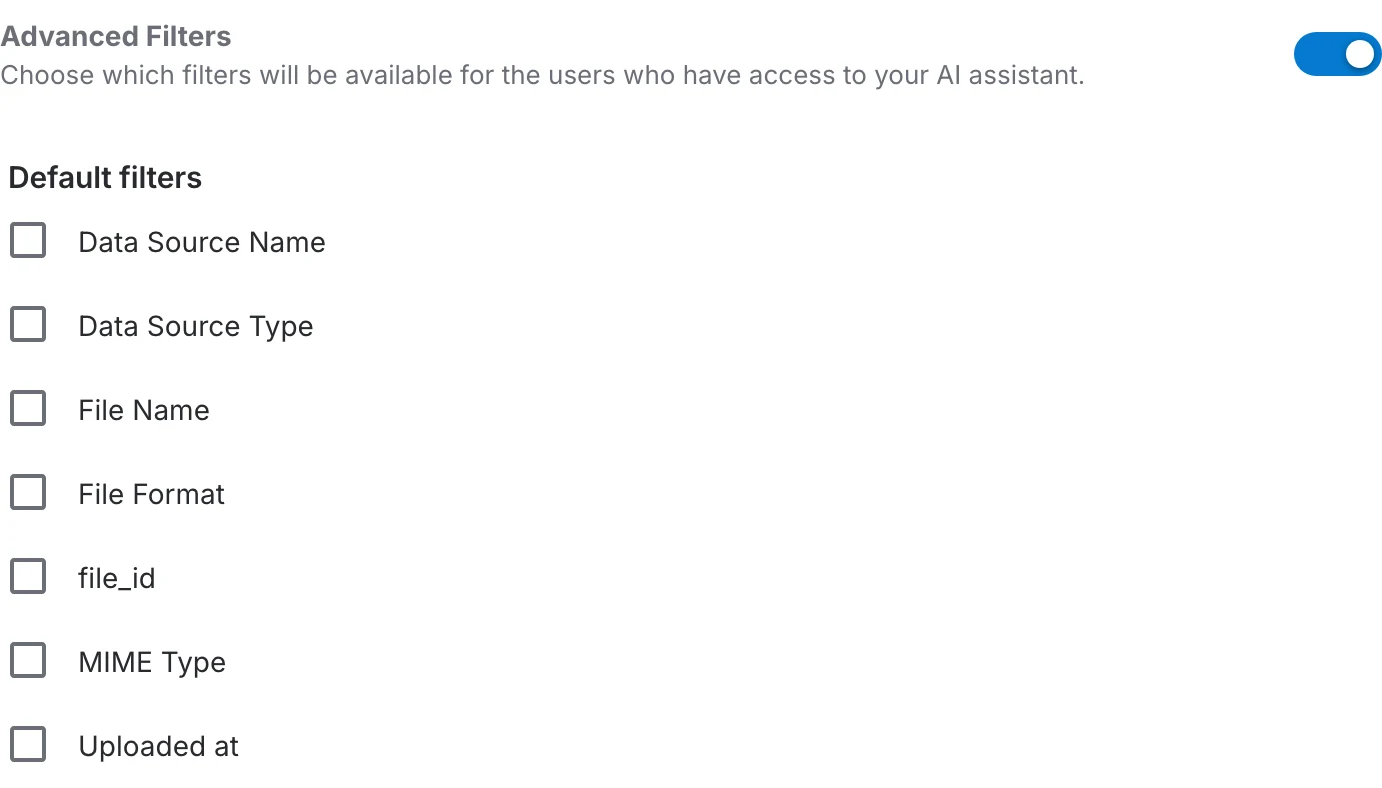
Filters let the people using your assistant narrow what it searches — by document type, by department, by date, by whatever metadata your data carries. This section chooses which of those filters they are allowed to see.
The section is a switch: turn it on and the filter configuration appears beneath it. QAnswer opens it automatically if the assistant already has filters selected, so an existing configuration is never hidden from you.
Two kinds of filter
- Default filters – the standard ones QAnswer offers for every assistant.
- AI Assistant Specific Filters – filters that exist only because of the metadata on this assistant's connectors. Add a data source with richer metadata and more of these appear.
Default values
Each filter can carry default values, pre-applied for users the moment they open the assistant. They stay active until the user clears them, so use them to scope an assistant to the material most people want — this year's documents, say — without hiding the rest. A Clear action removes the defaults again.
Human takeover
Allow human take over lets a conversation escalate from the assistant to a person. It is the honest answer to the fact that no assistant handles everything.
With the switch on, the assistant can offer to hand the conversation to a human when it cannot help, and the user can accept. Leave it off and the assistant will keep trying to answer on its own, however unhelpfully.

Suggested replies
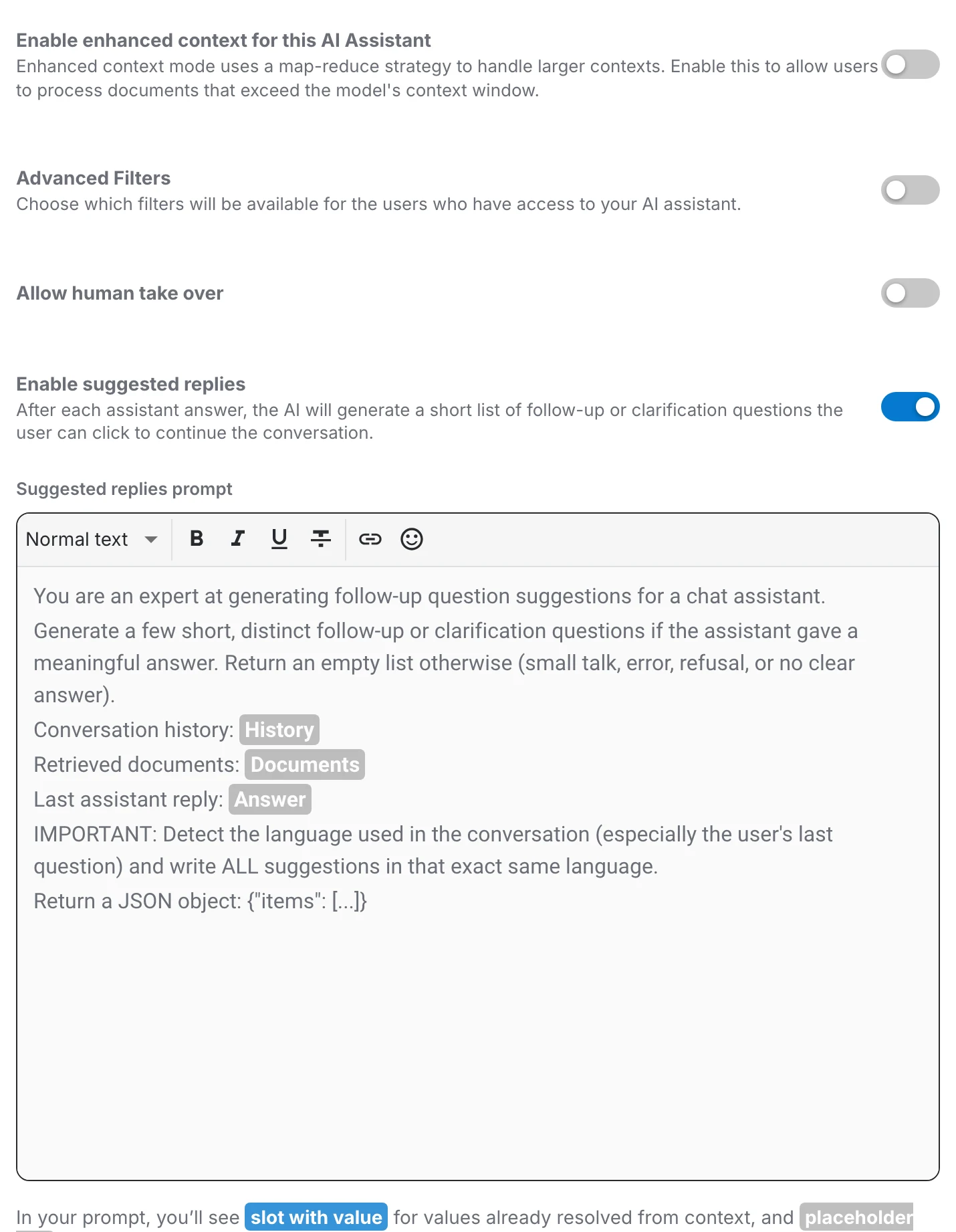
With suggested replies on, the assistant generates a short list of follow-up or clarification questions after each answer, which the user can click to continue. They are a good way to show people what an assistant is capable of when they do not know what to ask next.
Turn the switch on and the prompt field appears below it.
The suggested replies prompt
You can control how those follow-ups are written. The prompt accepts four variables:
{{history}}– the conversation so far.{{documents}}– the documents retrieved for the current answer.{{answer}}– the answer that was just given.{{limit}}– how many suggestions to produce.
Leave the field empty to use QAnswer's default prompt, which is a sensible starting point. Only write your own when the defaults miss the tone or the subject matter.
Saving your changes
Like the rest of the editor, this tab saves on its own — there is no Save button and the toolbar pill reports the state. Two things are worth knowing:
- Switching a section off does not erase what was inside it. Turn Advanced Filters back on and your selection is still there.
- Changing the task type in the General tab can change which sections exist here, because each task has its own settings.
Where to go next
Revisit the assistant's identity and instructions in General, or publish it with Expose.