
AI Assistants
An AI assistant bundles instructions, data and tools into something the organization's members can reuse for recurring work. The organization's AI Assistants page is the catalogue of those assistants — the ones the organization owns, and the ones its members and teams have shared with it.
Building an assistant works the same way in every scope, so this page covers what is specific to running that catalogue: reading the list, switching an assistant on or off for everybody, and approving the shares that are waiting for you.
Opening the page
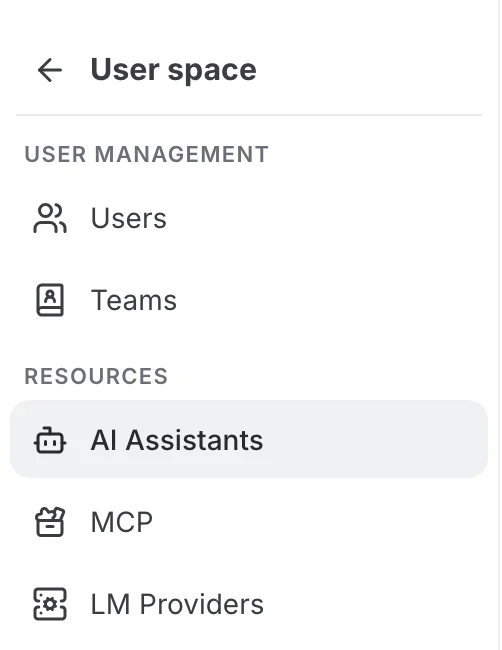
Open the workspace selector at the bottom of the navigation drawer, click the gear next to your organization, then open the Resources group of its settings menu and pick AI Assistants.
The page at a glance
The header names the scope you are managing, the toolbar sits below it, and the assistants follow as rows.
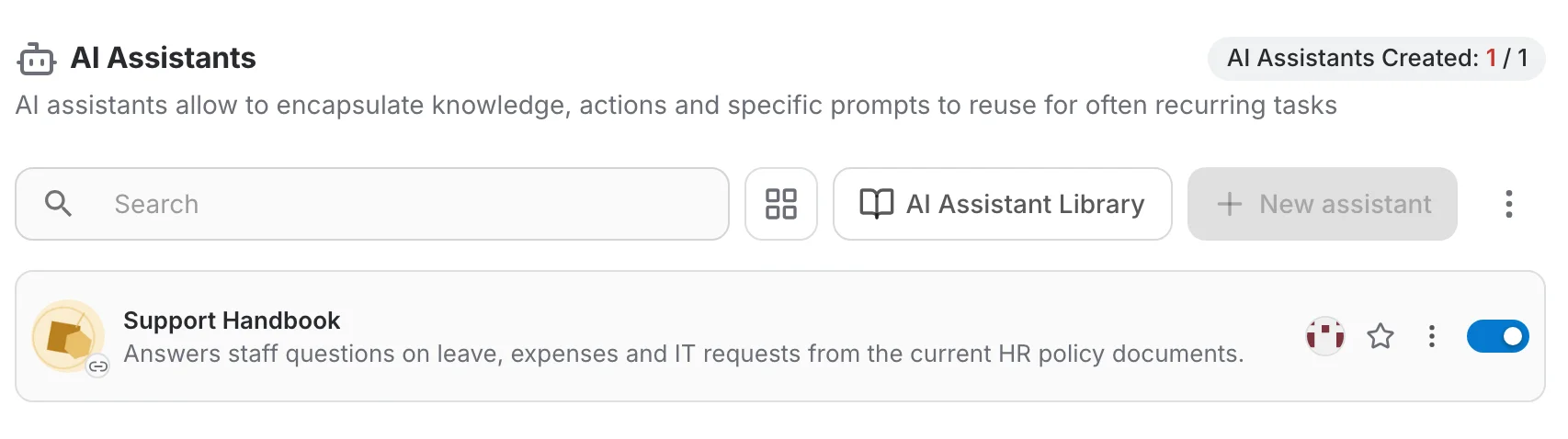
- Assistant counter — a chip in the header reads "AI Assistants Created: used / limit" and turns the used figure red once the limit is reached. It reports the allowance of the administrator who is signed in, not the organization's total, and it is hidden when that allowance is unlimited.
- Search — filters the list as you type, matching an assistant's name and description. It queries the whole catalogue, not only the assistants already on screen.
- List and grid — switches between the compact rows shown here and a grid of cards. The page opens in list view, and your choice is remembered for every resource list in the app.
- AI Assistant Library — opens the catalogue of ready-made assistants. Reached from here, an assistant you add is created in the organization rather than in your personal space.
- New assistant — creates an empty assistant in the organization immediately, under a generated name, and opens it with the instructions field focused. It is greyed out once your assistant allowance is used up.
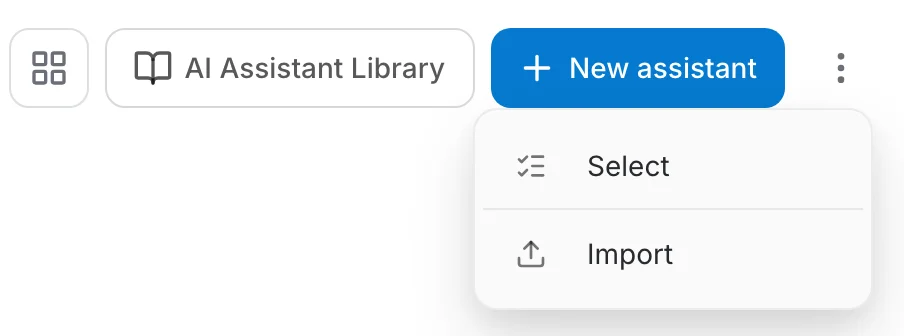
- The ⋮ button — holds Select, which turns on multi-select so several assistants can be deleted in one pass, and Import, which recreates an assistant from a configuration bundle exported earlier.
"AI Assistants Created" reports the allowance of the administrator who is signed in, not a total for the organization, and the used figure turns red once the limit is reached. The chip is hidden altogether when your allowance is unlimited.
What the list shows
The list holds every assistant the organization can use, whatever its origin:
- Assistants the organization owns — created here, from the toolbar or from the library. They belong to the organization, so its administrators can configure, hand over and delete them.
- Assistants shared with the organization — created by a member or a team and shared in. They carry a badge naming their owner; the organization can use them, but only the owner can delete them.
- Order — the assistants you may edit come first, then the read-only ones; inside each group favourites lead and the most recently created follow. Fifty are loaded at a time and the rest as you scroll.
- Deactivated assistants — stay listed for administrators, with their switch off, so they can be turned back on. Members do not see them at all.
The controls on a row
Clicking a row opens the assistant in the task it was built for. The controls at the right end act on it without leaving the page:
- The gear — opens the assistant's configuration. It appears only on assistants you have write access to; read-only ones do without it.
- The star — marks the assistant as a favourite, which pins it to the top of your lists. It is a personal marker and changes nothing for other members.
- The ⋮ menu — holds the per-assistant actions, listed further down.
- Active toggle — a switch on every card, shown to platform and organization administrators, that turns the assistant on or off for the whole scope. Deactivating takes the assistant away from the scope's members without deleting anything.
The overflow menu on a card offers the following, depending on your rights over that particular assistant:
- Duplicate — asks for a name and creates the copy in the scope you are administering. It is disabled once your assistant allowance is used up.
- Change owner — hands the assistant to a different owner. Offered to owners only.
- Delete — removes the assistant for everyone and frees one slot of the allowance. Offered to owners only.
- Remove from my list — drops an assistant that was shared with the scope, without deleting it. It is not offered for assistants the scope receives automatically by belonging to the team or organization, because there is no individual share to withdraw.
The new owner is picked as a cascade: an organization, narrowed down to a team, narrowed down to a person — whichever level you stop at becomes the owner. Leaving the cascade empty is a destination in its own right, "Admin (no owner)", which moves the assistant to the platform so that only platform administrators can manage it; that option is offered to platform administrators only. Handing an assistant to a person also changes its web address, so existing links and embeds stop working and have to be created again.
Reviewing pending share requests
When a member shares an assistant they own with a whole team or organization, the share waits for an administrator to approve it. Platform, organization and team administrators find the waiting ones in a Pending Share Requests panel at the top of the page, with their number next to the title. The panel is absent when there is nothing to review.
Each row names the requester and what they want to share — "Dana Whitfield wants to share Support Handbook" — and offers three controls:
- The settings icon — opens the assistant's configuration so you can look it over before deciding. It is the only way to see it: until the request is approved, the assistant is not yours to browse.
- Approve — grants the scope access, after which the assistant appears in the list like any other.
- Reject — declines the share and drops the row from the panel.
While requests are waiting, the AI Assistants entry in the organization's sidebar carries a red badge with their count, so a pending review is visible without opening the page.
How a member files such a request in the first place, and the access levels a share can carry, are covered in Access Rights.
Teams and the organization's assistants
An assistant created in the organization is enabled for every team inside it, so a newly created team needs no separate grant. Assistants a team owns are its own and are managed from the team's AI Assistants page, not from here.
That team page is this same screen with a narrower scope, so everything described here applies to it as well, with the team's members and administrators in place of the organization's.
Related pages
- Create an AI Assistant — building an assistant and configuring its instructions, data, tools and tasks.
- Access Rights — how sharing works, the access levels a share carries, and how a member asks for one.
- LM Providers — the models the organization's assistants can be pointed at, and the embedders their data is indexed with.
Creating an assistant and configuring its instructions, data, tools and sharing is the same in every scope, and is documented in Create an AI Assistant.