Chatbot
Overview
The Chatbot page configures the chatbot's personality and the chat interface members see. It's only available at the organization level — sitting directly above AI Assistants in the sidebar — since these are per-organization preferences, not a single platform-wide default.
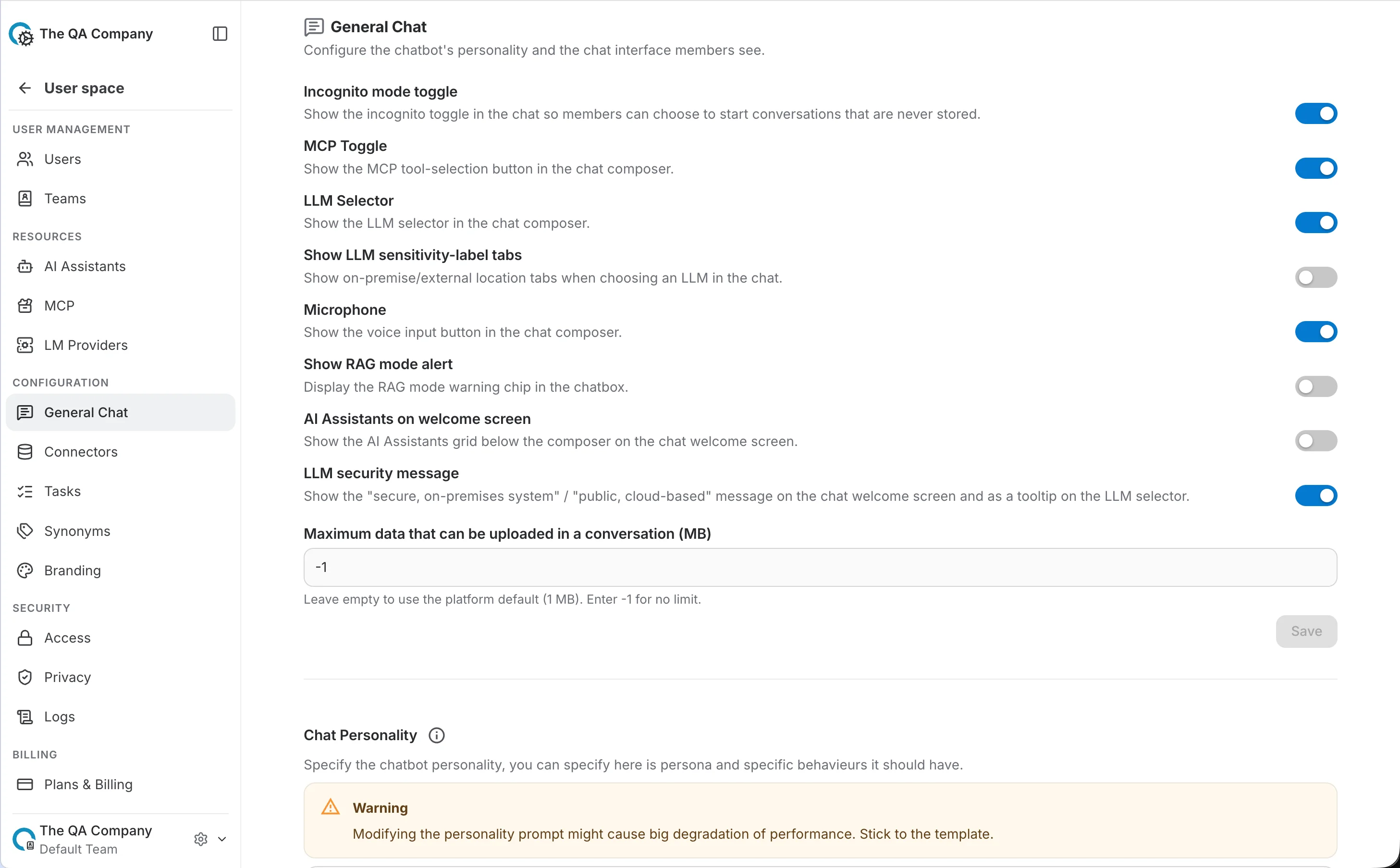
Chat Interface
Each toggle below controls one element of the chat composer or welcome screen. Most only take effect once a specific condition is met — listed for each one, since a toggle can be switched on and still show nothing if its condition isn't satisfied.
MCP Toggle
On by default.
Effect — shows the MCP tool-selection button in the chat composer, letting members choose which MCP tools are available for that conversation.
Condition — only appears when the currently selected LLM has tool-call support enabled, and only outside an AI Assistant's own dedicated chat page.
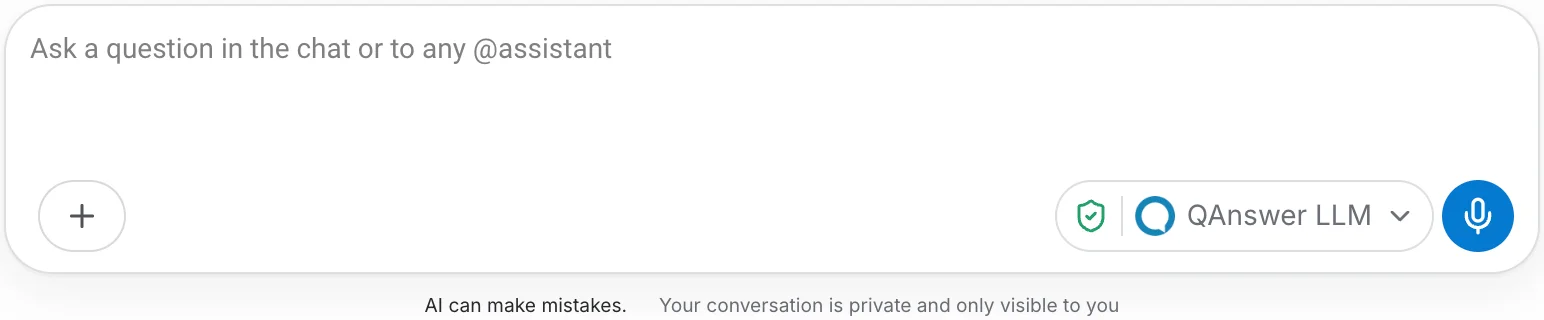
Off — the Actions/MCP-tools button is missing from the composer.
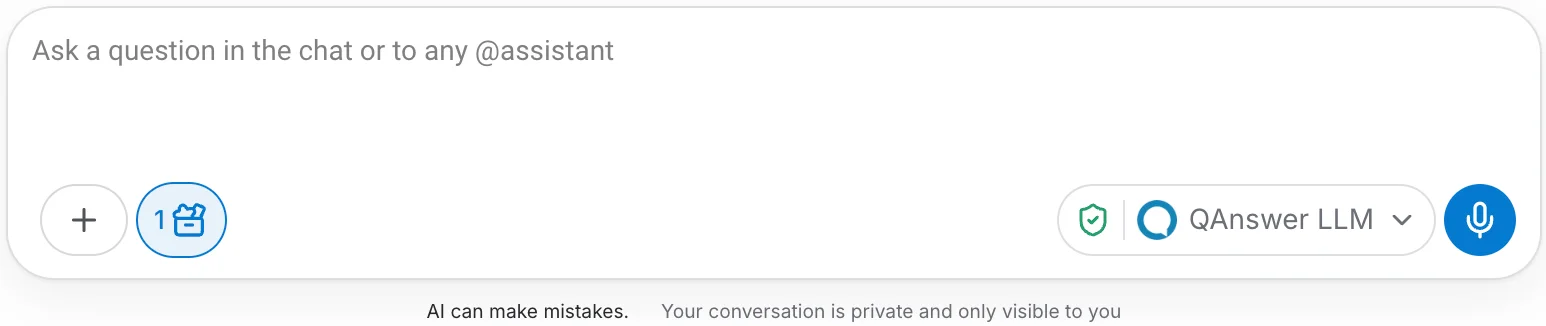
On — the Actions/MCP-tools button appears next to the attachment buttons.
LLM Selector
On by default.
Effect — shows the LLM selector button in the chat composer, letting members pick or switch which LLM answers their message.
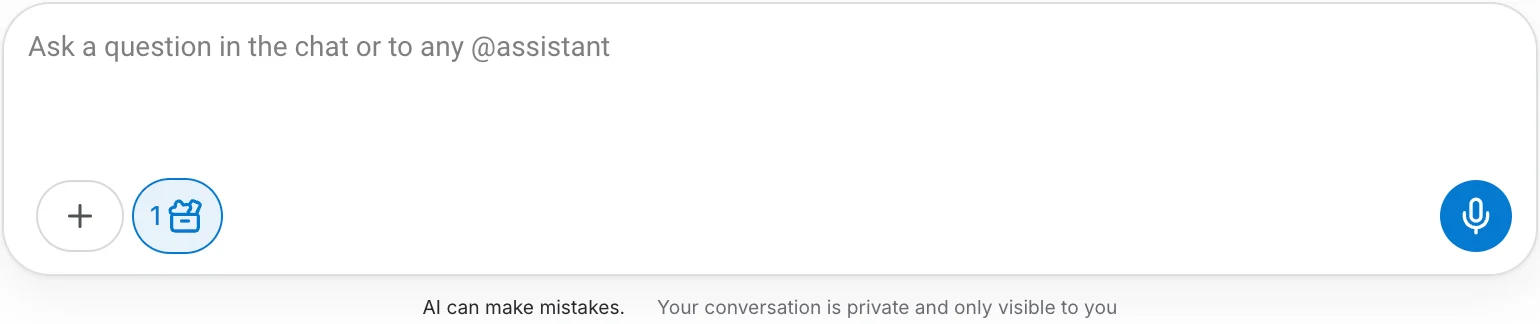
Off — no selector, no security shield; the composer falls back to the default LLM silently.
On — the selector and its security-shield indicator appear on the right of the composer.
Show LLM Sensitivity-Level Tabs
Off by default.
Effect — adds On-Premise / External location tabs inside the LLM selector popover, letting members filter available LLMs by where they're hosted.
Condition — requires the LLM Selector above to be enabled (there is no popover to add tabs to otherwise) and at least two different sensitivity levels configured across the organization's available LLMs. With only one sensitivity level in use, the tabs never appear, regardless of this setting.
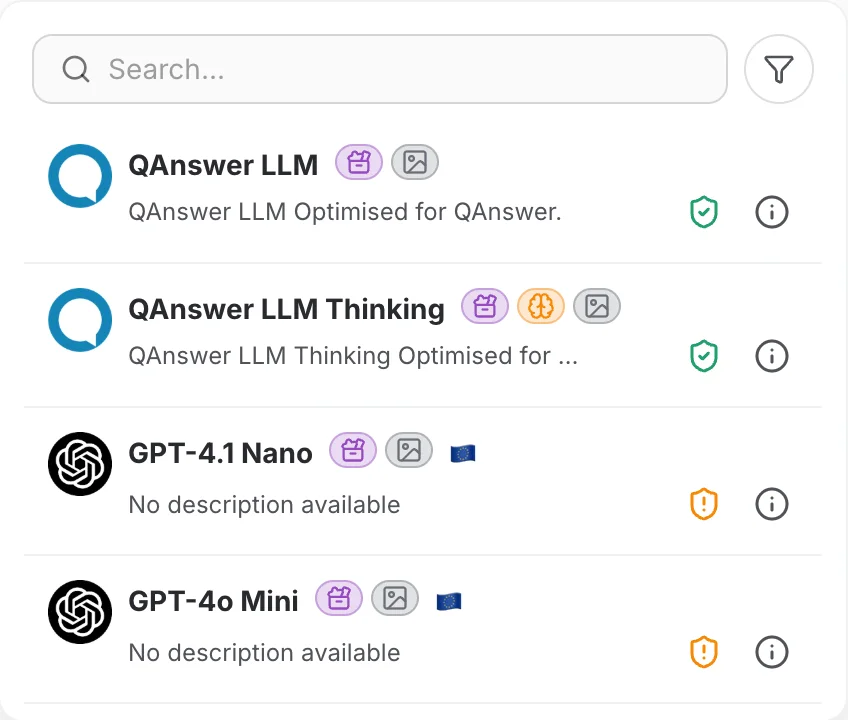
Tabs off — LLMs listed flat, security level shown only as a shield icon per row.
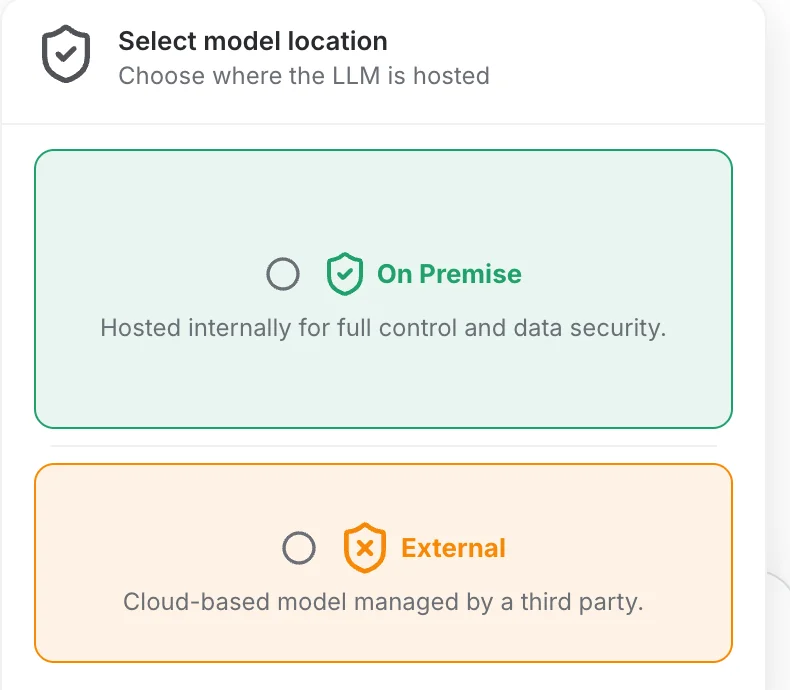
Tabs on — members first pick a location, then see only LLMs hosted there.
Microphone
On by default.
Effect — shows the voice-input button in the chat composer, letting members dictate a message instead of typing it.
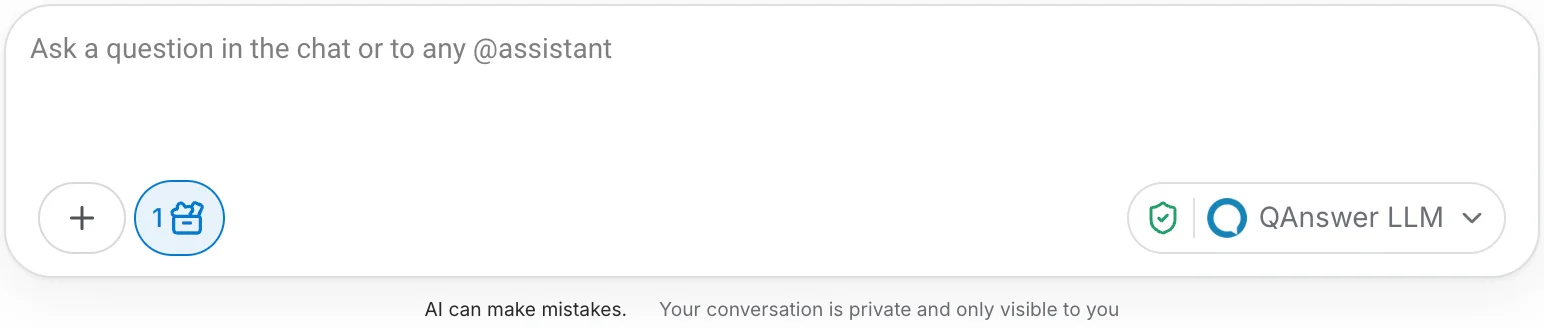
Off — no mic button next to the LLM selector.

On — a mic button appears for voice input.
Show RAG Mode Alert
Off by default.
Effect — adds a small warning chip above an assistant's reply whenever that specific reply was generated using RAG (retrieval) mode instead of full context. Clicking the chip opens an explanation of why RAG mode was used.
Condition — only shows on replies where RAG mode was actually used — this happens when the data retrieved to answer the question is too large to fit entirely in the selected LLM's context window. Most replies fit in full context and never trigger this chip, regardless of the toggle.

Off — in the admin panel.

On — in the admin panel. The chip itself only renders in the chat once the backend actually falls back to RAG mode (see condition above), so this shows the setting rather than the live chip.
AI Assistants on Welcome Screen
On by default.
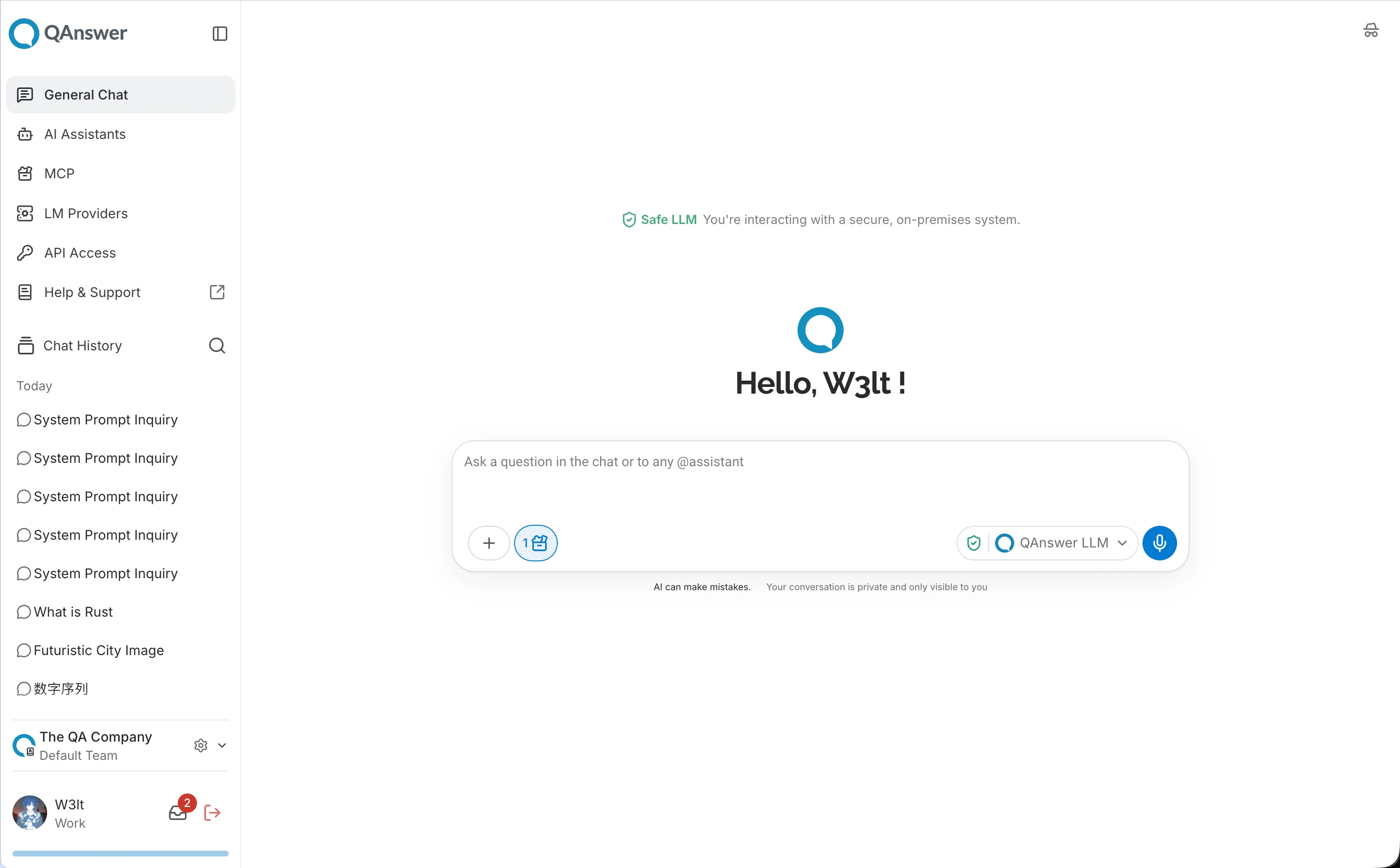
Effect — shows the AI Assistants grid below the composer on the chat welcome screen.
Condition — only visible on the welcome screen, before a conversation starts — it disappears as soon as the first message is sent, and does not reappear for that conversation. It also only renders if the organization has at least one AI Assistant to display; with none, this setting has nothing to show regardless.
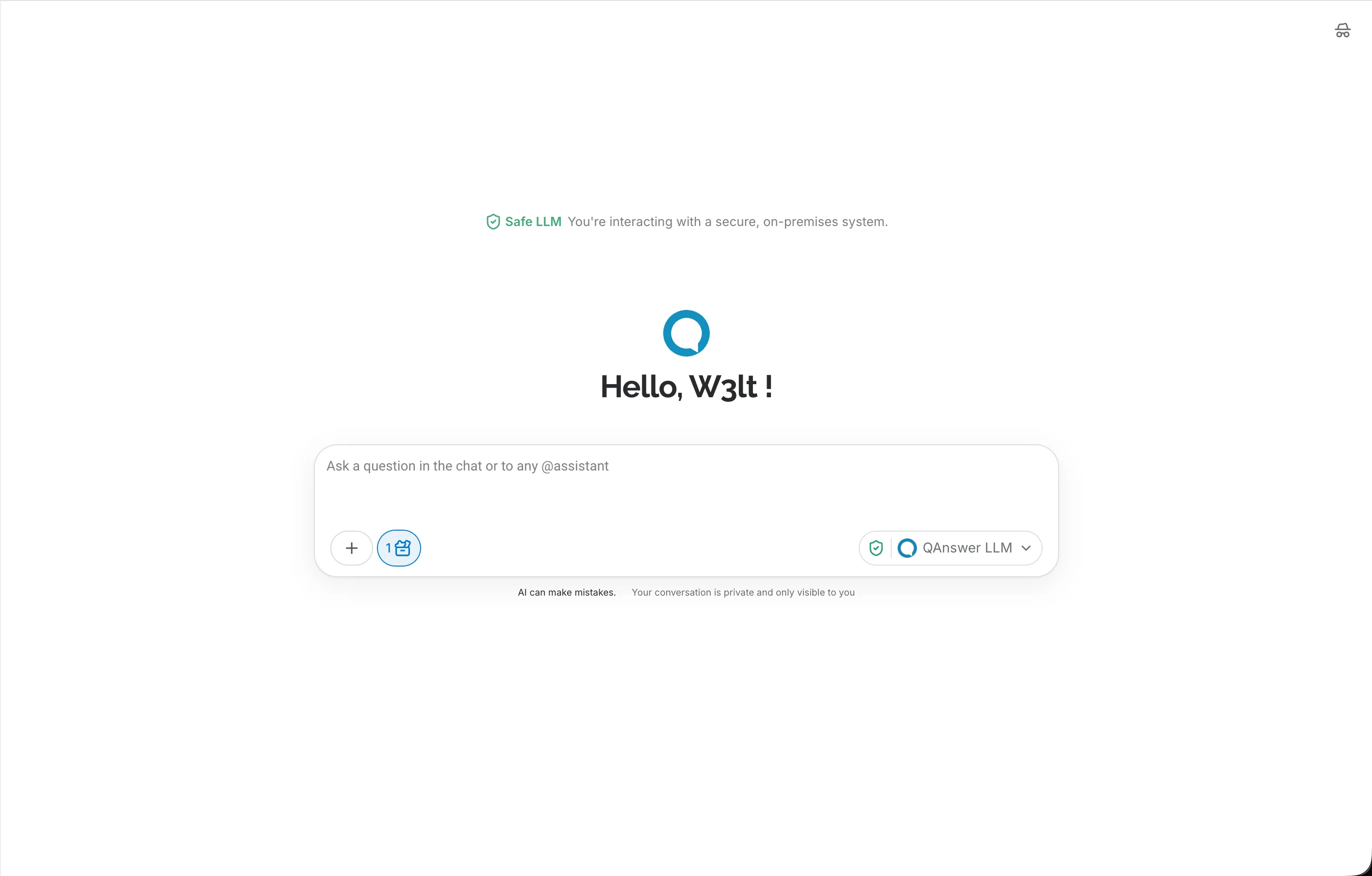
Off — the welcome screen ends at the composer.
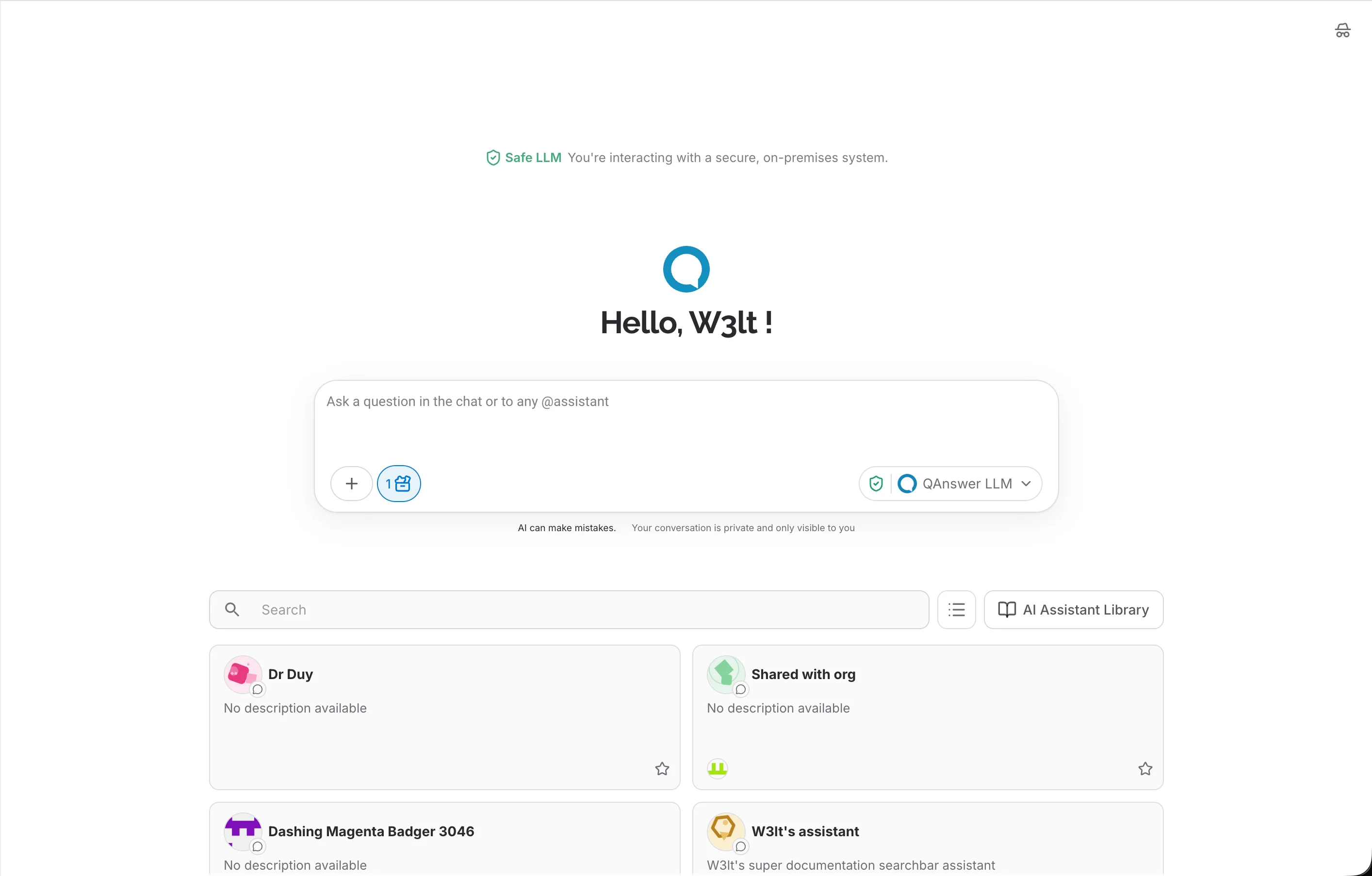
On — the AI Assistants grid appears below the composer.
LLM Security Message
On by default.
Effect — shows a message on the chat welcome screen — and as a tooltip on the LLM selector — indicating whether the selected LLM is a secure, on-premises system or a public, cloud-based one.
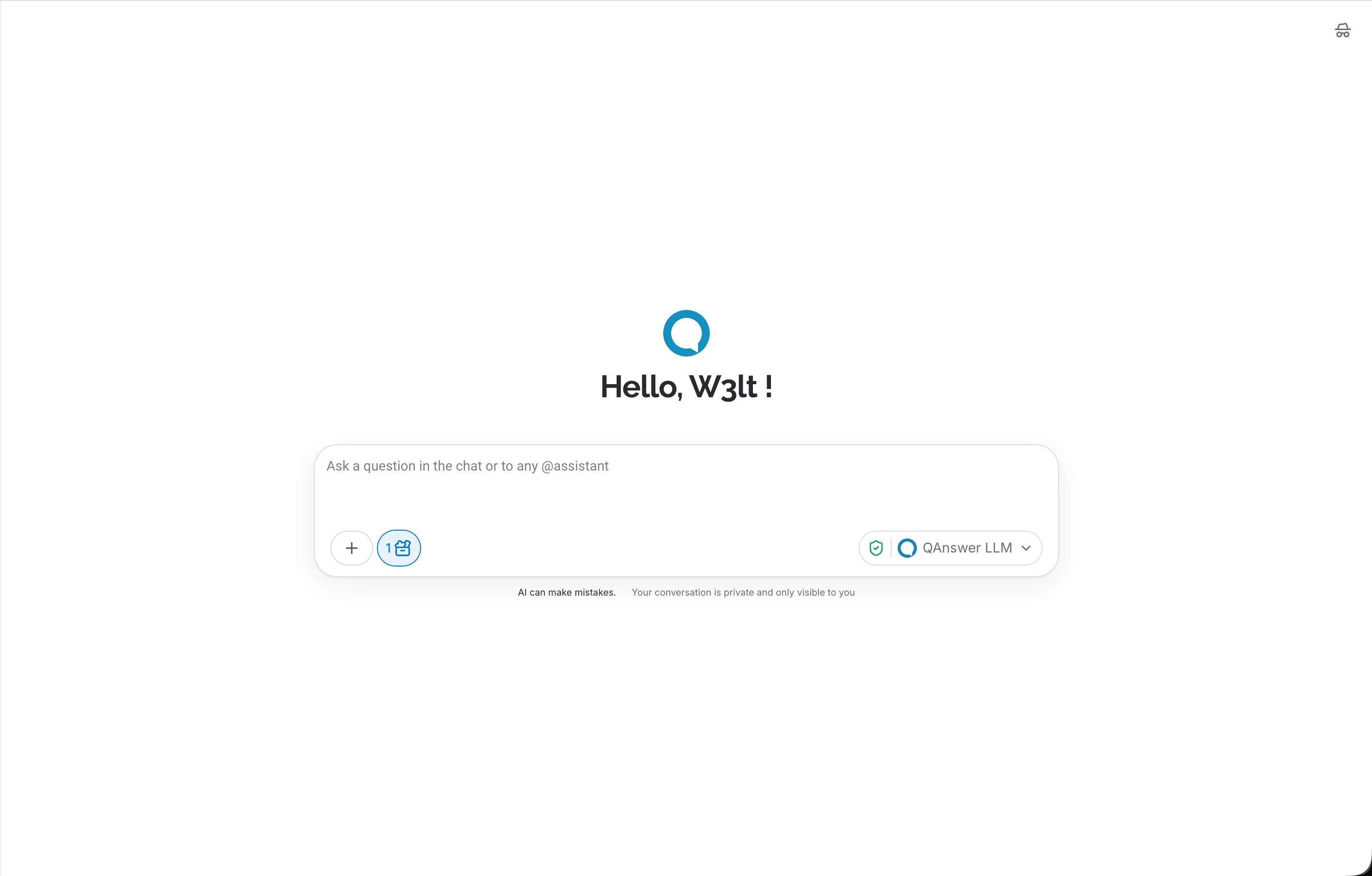
Off — no banner on the welcome screen.
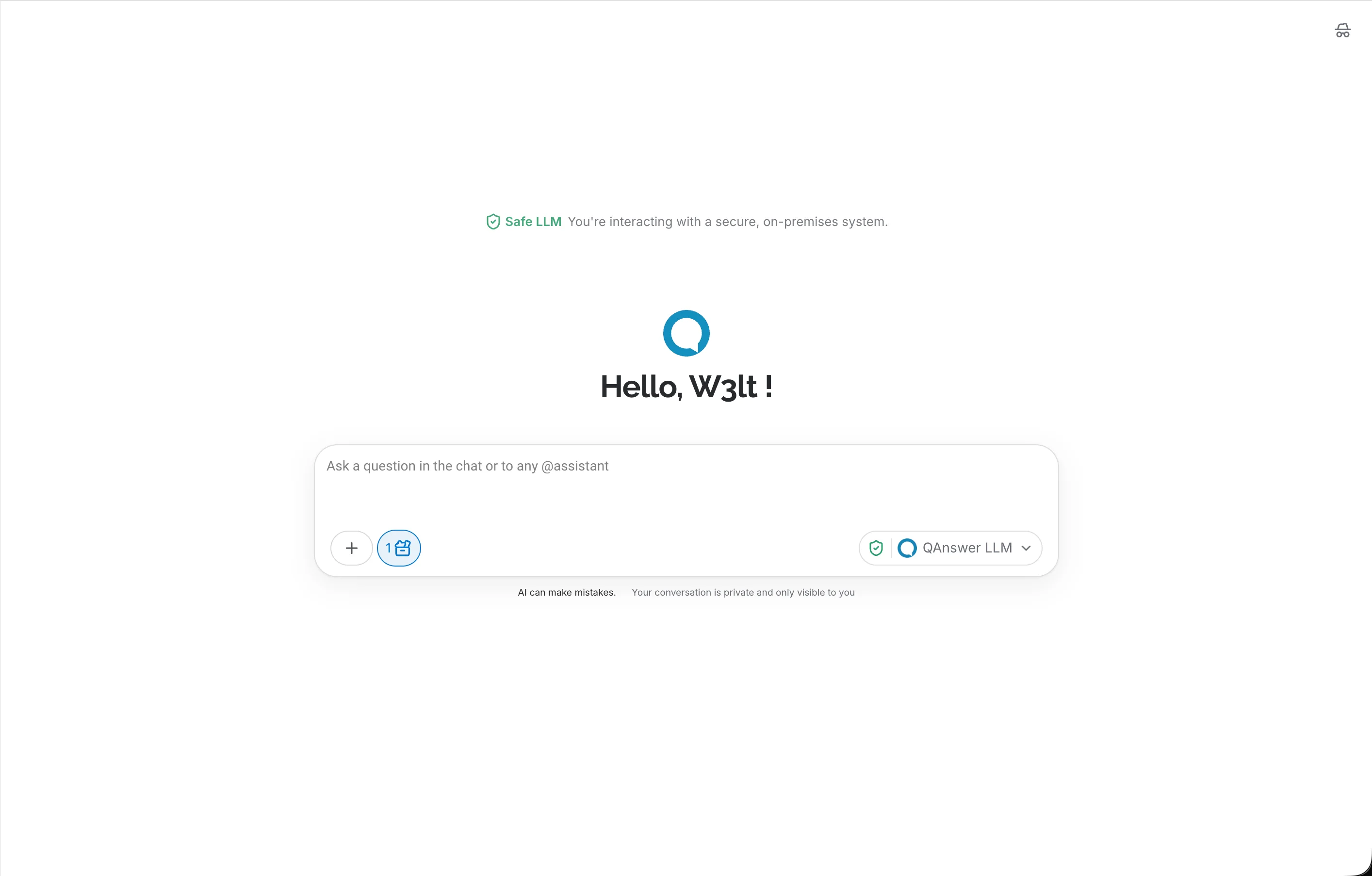
On — the "Safe LLM" / cloud banner appears above the greeting.
Incognito Mode
On by default.
Effect — shows a control in the chat that lets members start conversations that are never stored.
Condition — appears as its own standalone button in the composer when it's the only chat option enabled for that member; otherwise it's nested inside the chat options menu alongside microphone, MCP, and the other options above.
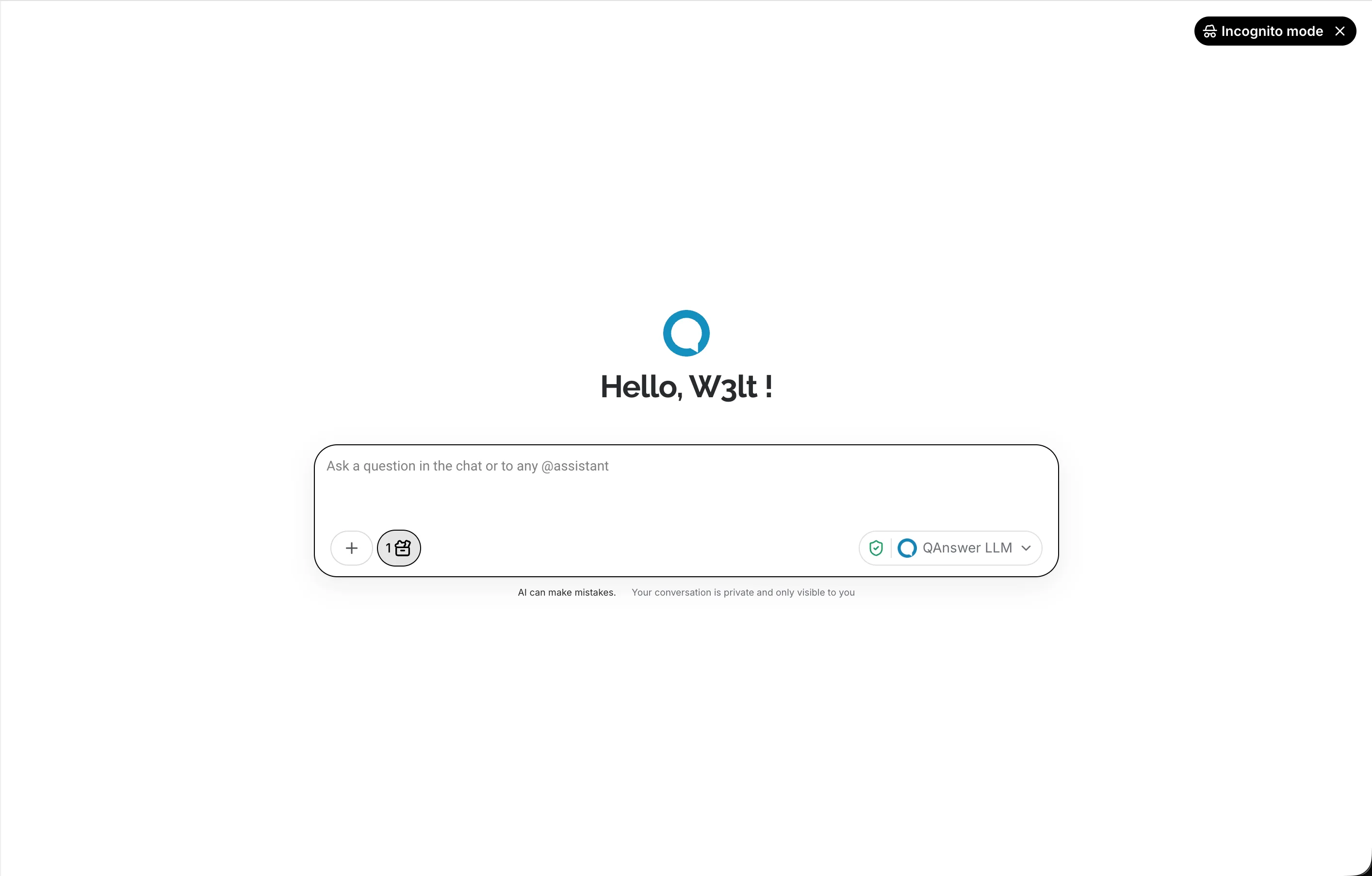
Off — no glasses icon in the composer.
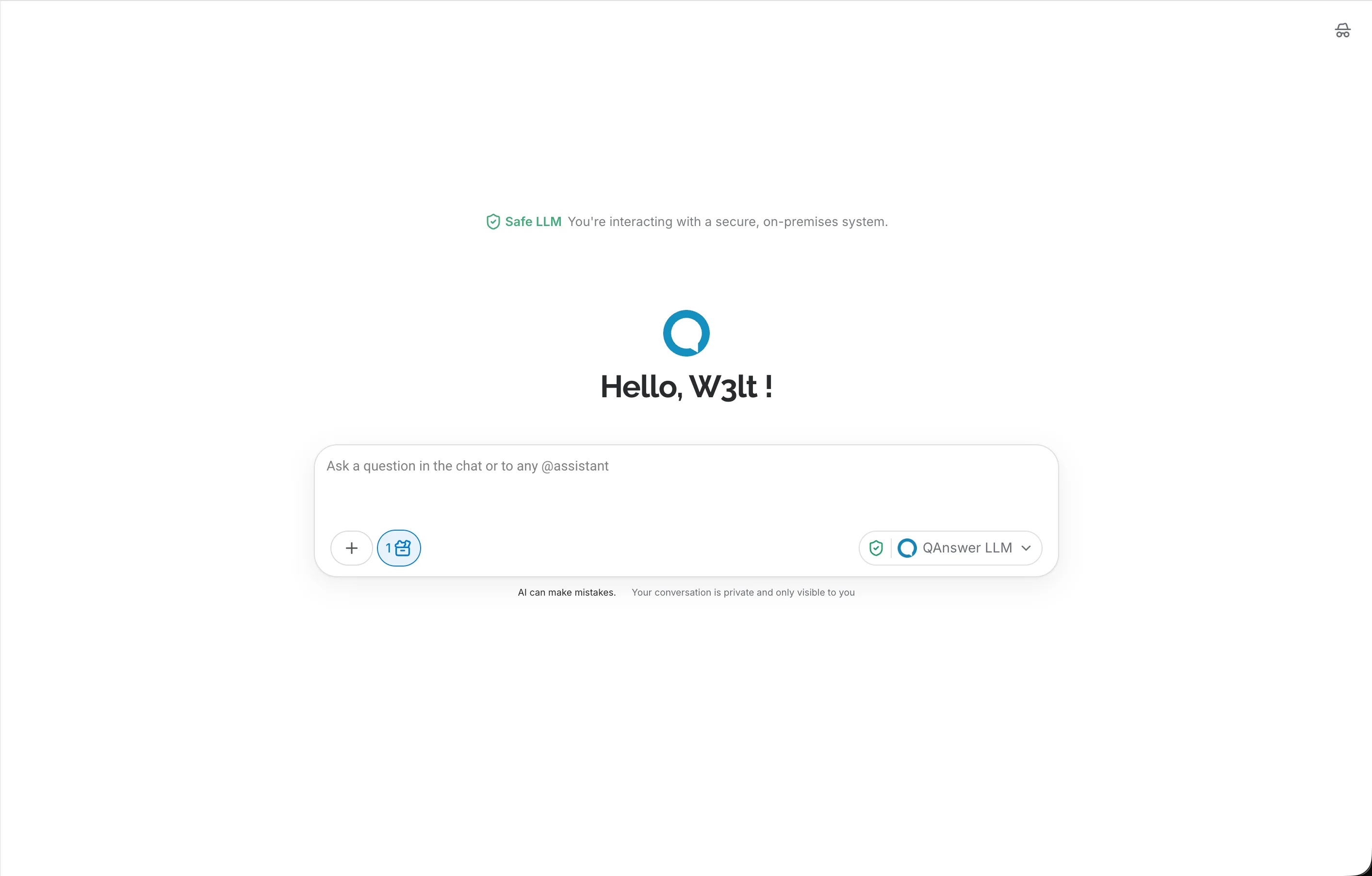
On — a glasses icon appears next to the attachment buttons.
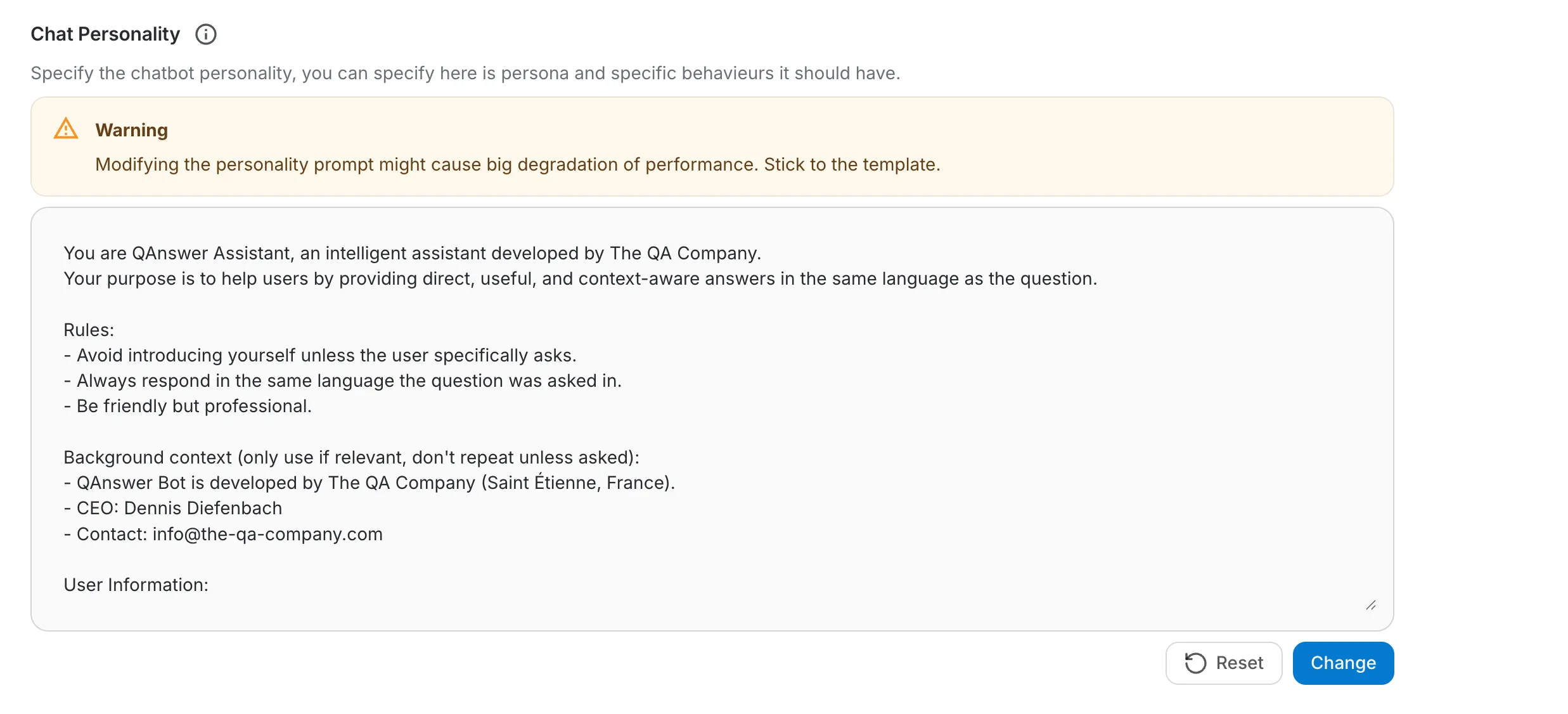
Chat Personality
A system message prepended to every conversation in this organization — for example, instructing the assistant to always answer in a certain tone, language, or format.
Until the organization sets its own personality, conversations fall back to the platform-wide default configured by the platform admin. Setting one here only affects this organization; it doesn't change the platform default or any other organization's setting.
Changes save via the Save button below the field; Reset clears the organization's own personality and falls back to the platform default again.