
Maintenance
The Maintenance page lets a platform admin plan a maintenance window and announce it with a banner shown across QAnswer — including the login page, so users see it before they even sign in. It is a platform-wide setting: there is exactly one maintenance window for the whole instance.
Opening the page
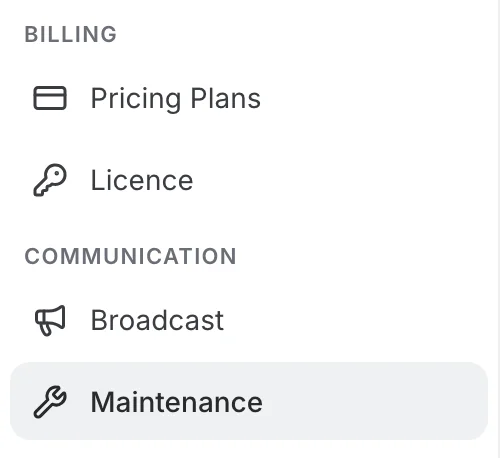
In the Admin Panel, Maintenance sits in the Communication group of the administration menu, right below Broadcast. Only platform admins can reach it.
Configuring the banner
Everything about the announcement is set on a single form:
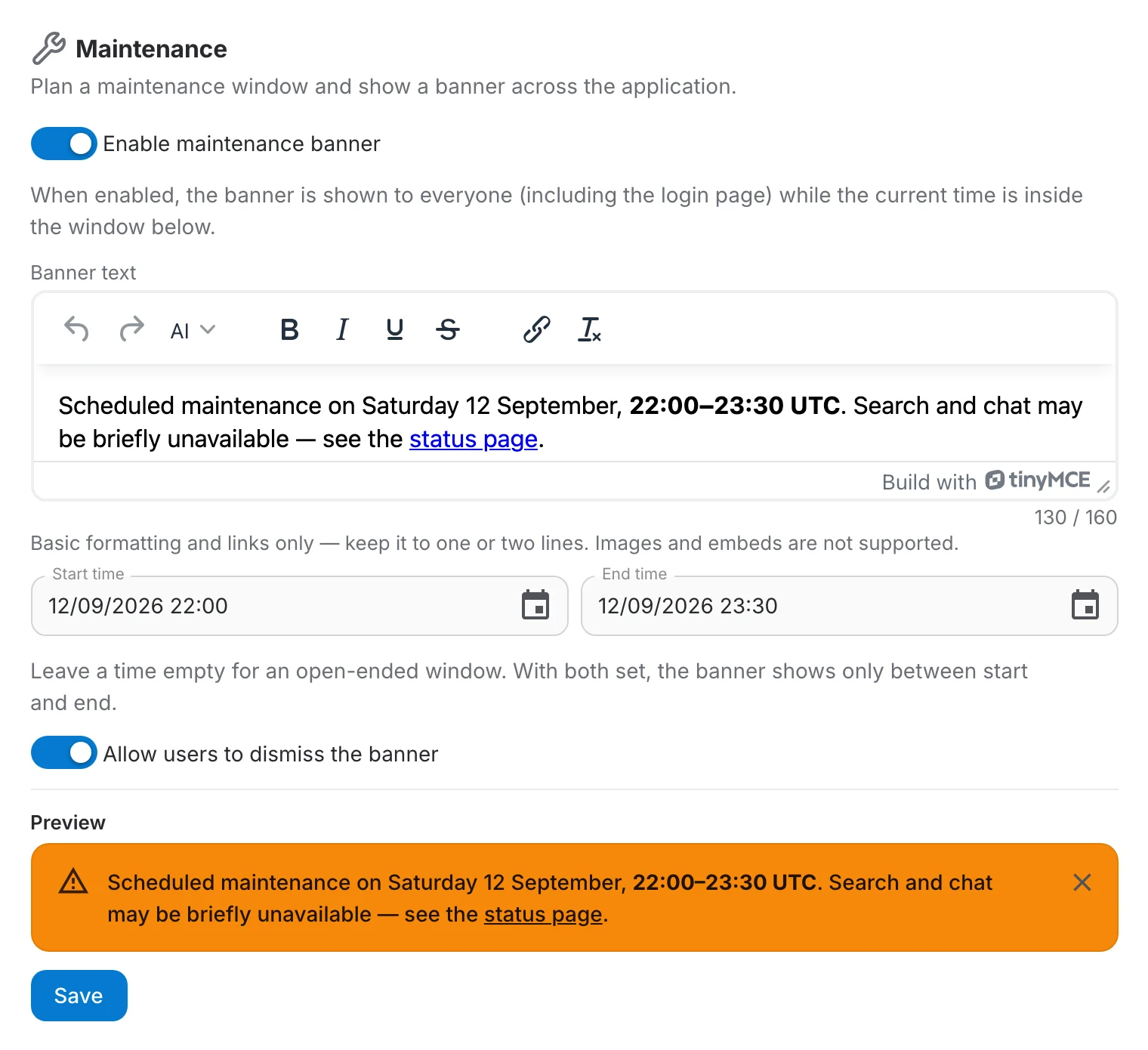
- Enable maintenance banner — the master switch. While it is off, nothing is shown, whatever else is configured.
- Banner text — the message itself, written in a small rich-text editor. Text is required while the banner is enabled.
- Start time and End time — the window during which the banner is shown, entered as DD/MM/YYYY HH:mm. Both are optional; leaving one empty makes the window open-ended on that side. The end must be after the start.
- Allow users to dismiss the banner — when on, each user can close the banner; when off, it stays visible for everyone until the window ends.
- Preview — the message as users will read it, updated as you type. The preview is filled in a stronger orange than the live banner, but the wording, the formatting and the close button are the same.
Click Save to apply the configuration. Changes take effect immediately — no restart and no redeployment.
Writing the banner text
The editor is deliberately narrow: a banner is a one- or two-line strip at the top of every page, not a document.
- The message is capped at 160 characters of plain text. A counter under the editor shows how much of that you have used, and anything typed or pasted past the cap is ignored.
- The toolbar offers bold, italic, underline, strikethrough, a link and clear formatting — nothing else. Headings, lists, alignment and font sizes are not available.
- Pressing Enter does nothing: the message always stays a single paragraph.
- Pasting Markdown (**bold**, a [link](url), …) converts it to real formatting instead of inserting the raw syntax.
- Images, videos and embeds cannot be inserted, and are stripped out of anything you paste.
Two things block saving: an enabled banner with no text (“Banner text is required when the banner is enabled.”), and an end time earlier than the start time (“End time must be after the start time.”). Fix the field the message points at and Save becomes available again.
Scheduling the window
The banner is shown only while it is enabled and the current time falls inside the configured window:
| Start time | End time | What happens |
|---|---|---|
| Set | Set | The banner appears at the start time and disappears by itself at the end time. This is the usual way to announce planned downtime in advance. |
| Set | Empty | The banner appears at the start time and stays until you turn it off. |
| Empty | Set | The banner is shown immediately and disappears at the end time. |
| Empty | Empty | The banner is shown immediately and stays until you turn it off. Useful for an unplanned incident. |
What users see
While the window is active, the banner is pinned to the very top of the application for every user, and on the login page for visitors who have not signed in yet.

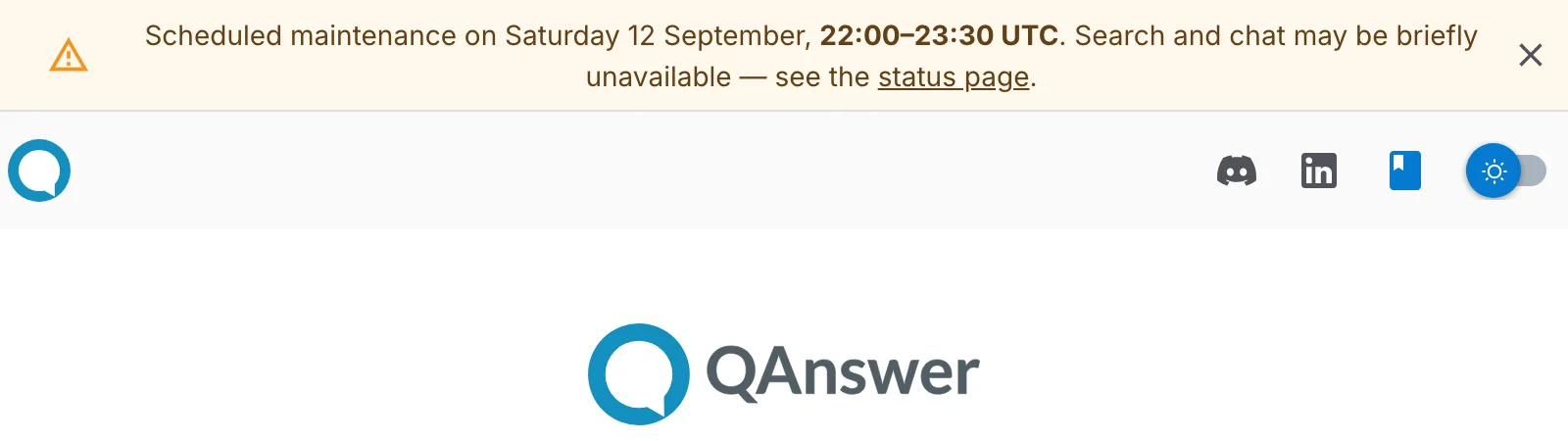
Open sessions re-check the window about once a minute, so the banner appears when the window opens and disappears when it closes without anyone reloading the page. An edit you save reaches users just as quickly.
When the banner is dismissable, closing it hides it for that user only, and only for that version of the message: if you later edit the text or the window, the banner reappears — so an updated announcement is never missed.
Ending the maintenance window
If you set an End time, the banner disappears on its own when it passes. Otherwise, return to the Maintenance page, switch Enable maintenance banner off, and Save.
The banner only shows inside its window, which is too late for anyone who needs to plan around the downtime. A few days earlier, send the same wording as a broadcast — it reaches notification inboxes, and email addresses, straight away.