
Plans & Billing
Billing in QAnswer has two halves. A platform admin defines the catalog on the Pricing Plans page — the seat plans and add-ons available on this instance, with their quotas, capabilities and prices. Each organization then buys or is assigned from that catalog on its own Plans & Billing page.
The pricing plan catalog
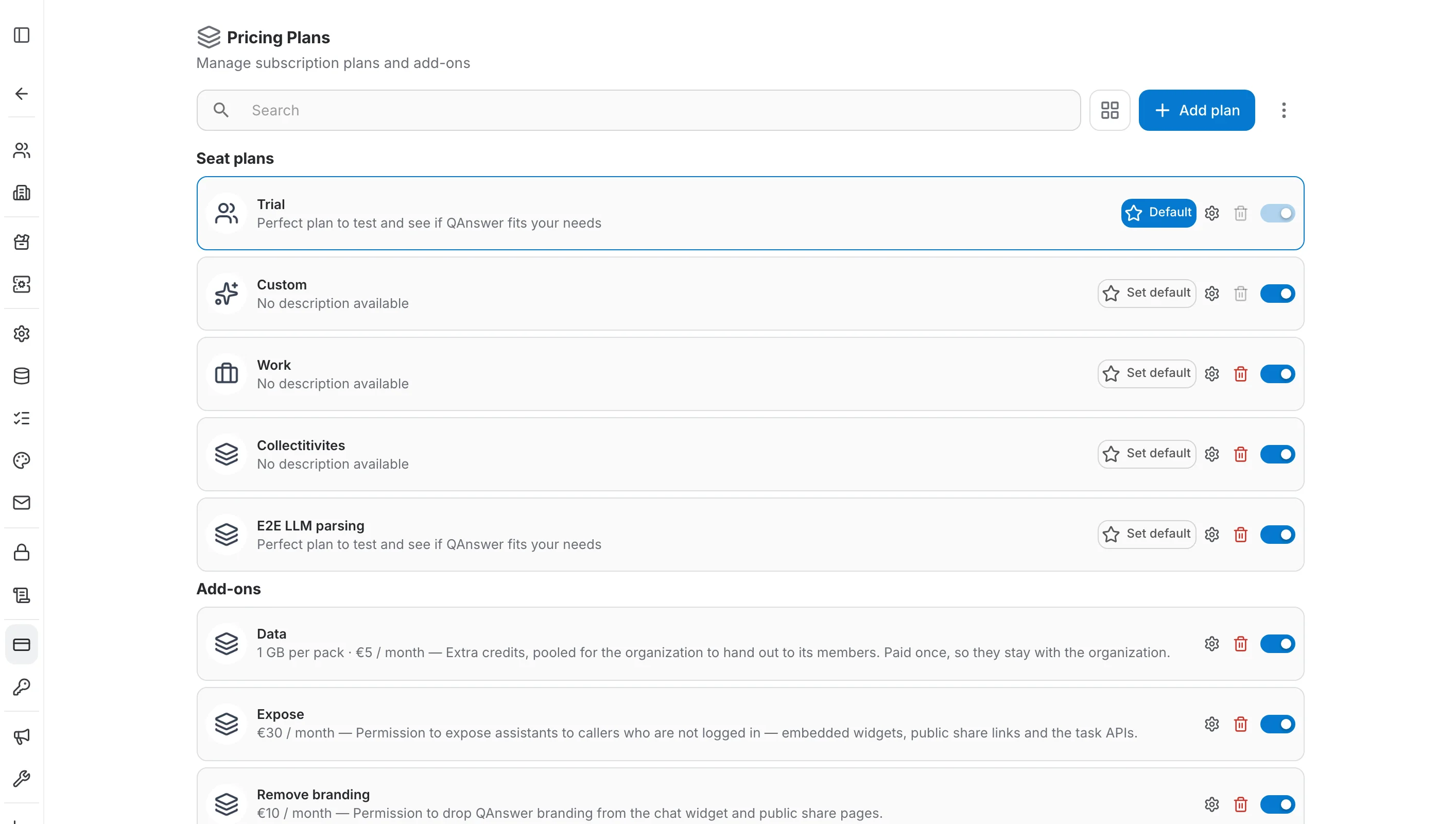
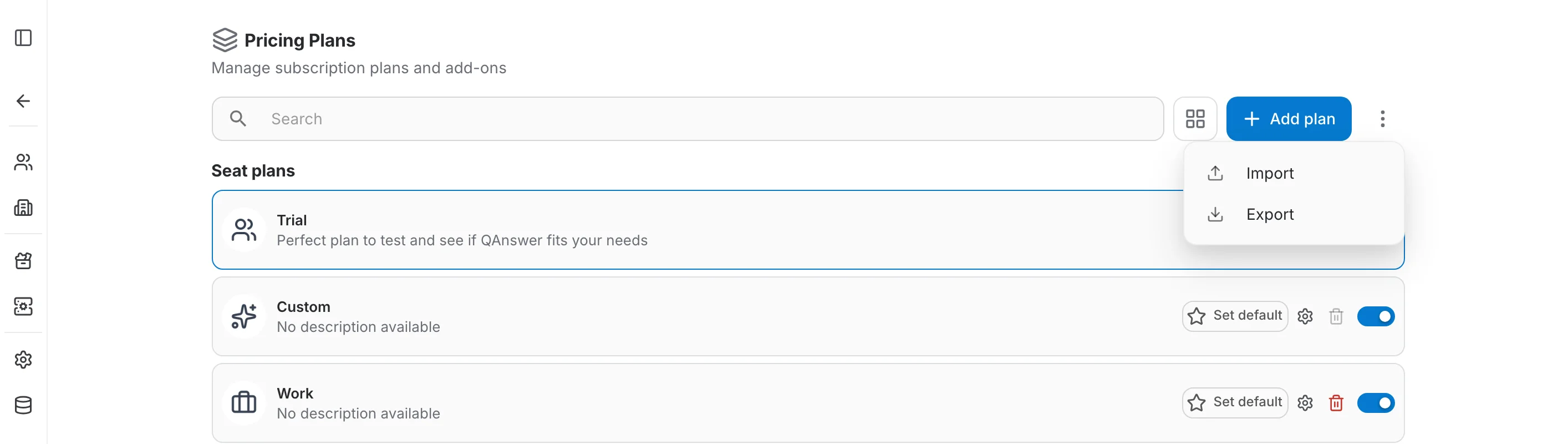
The Pricing Plans page in the platform admin panel lists every plan on the instance, split into Seat plans and Add-ons, with the Stripe configuration at the bottom.
Seat plans and add-ons
A pricing plan is either a seat plan or an add-on:
- Seat plan — what a user or organization is actually subscribed to (Trial, a paid Work plan, Custom, …); it sets the baseline quotas and capabilities.
- Add-on — a top-up that stacks on an existing plan instead of replacing it, granting exactly one extra thing.
Trial and Custom are seeded by the system and protected from deletion: Trial is the automatic default for anyone without a paid plan, Custom is a manual, unpriced plan used for bespoke arrangements and for members whose capabilities were set individually.
Activating, deactivating and the default plan
The switch on each card activates or deactivates the plan; a deactivated plan is hidden from self-serve checkout but remains manageable by admins. Exactly one active seat plan carries the Default badge and is applied automatically to new users — use Set default on another card to move it. The default plan cannot be deactivated or deleted while it holds the badge.
Creating a plan
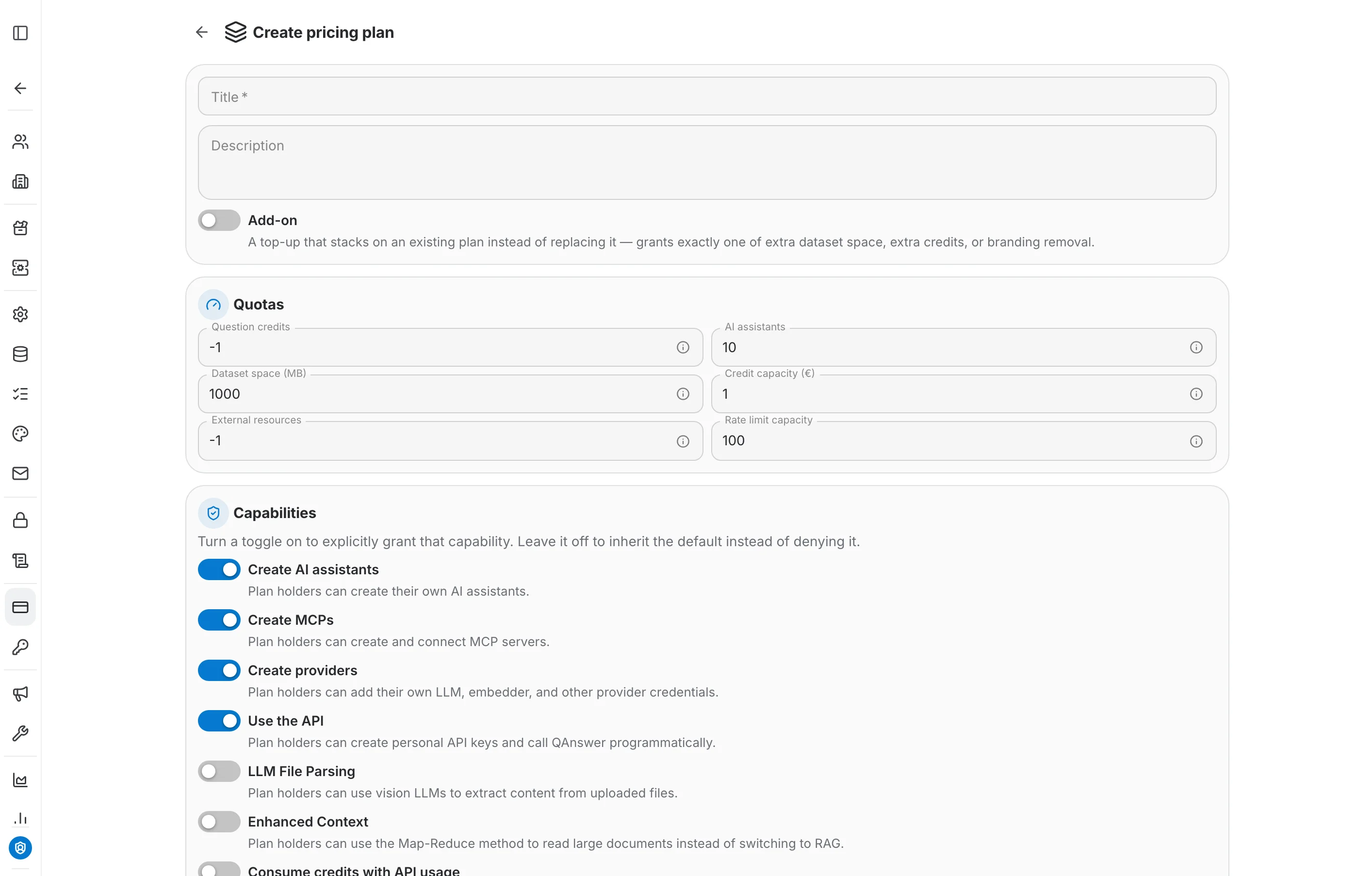
Add plan opens the create form. A title is the only required field; everything else starts from a sensible default.
Quotas
Question credits, AI assistants, dataset space, credit capacity and external resources each take a number, or -1 for unlimited. Every field carries an info icon explaining how that quota is applied.
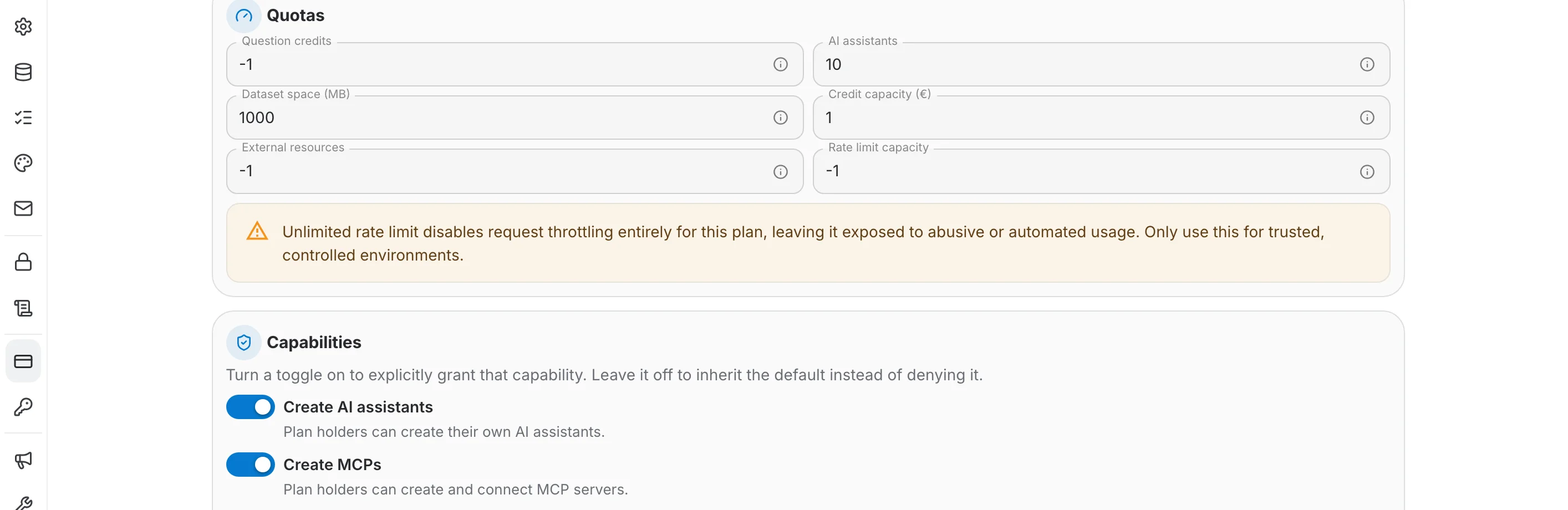
Rate limit capacity behaves differently from the rest: new plans start at a concrete 100 requests/min, and setting it to -1 removes throttling altogether. The form warns you when you do, because an unthrottled plan is exposed to abusive or automated usage.
Capabilities
Turning a capability toggle on explicitly grants it to plan holders. Leaving it off does not deny it — the plan simply inherits whatever the default is. The seven capabilities are:
- Create AI assistants — plan holders can create their own AI assistants.
- Create MCPs — plan holders can create and connect MCP servers.
- Create providers — plan holders can add their own LLM, embedder and other provider credentials.
- Use the API — plan holders can create personal API keys and call QAnswer programmatically.
- LLM File Parsing — plan holders can use vision LLMs to extract content from uploaded files.
- Enhanced Context — plan holders can use the Map-Reduce method to read large documents instead of switching to RAG.
- Consume credits with API usage — API calls draw from the plan holder's shared credit pool instead of being blocked once credits run out.
Add-on plans
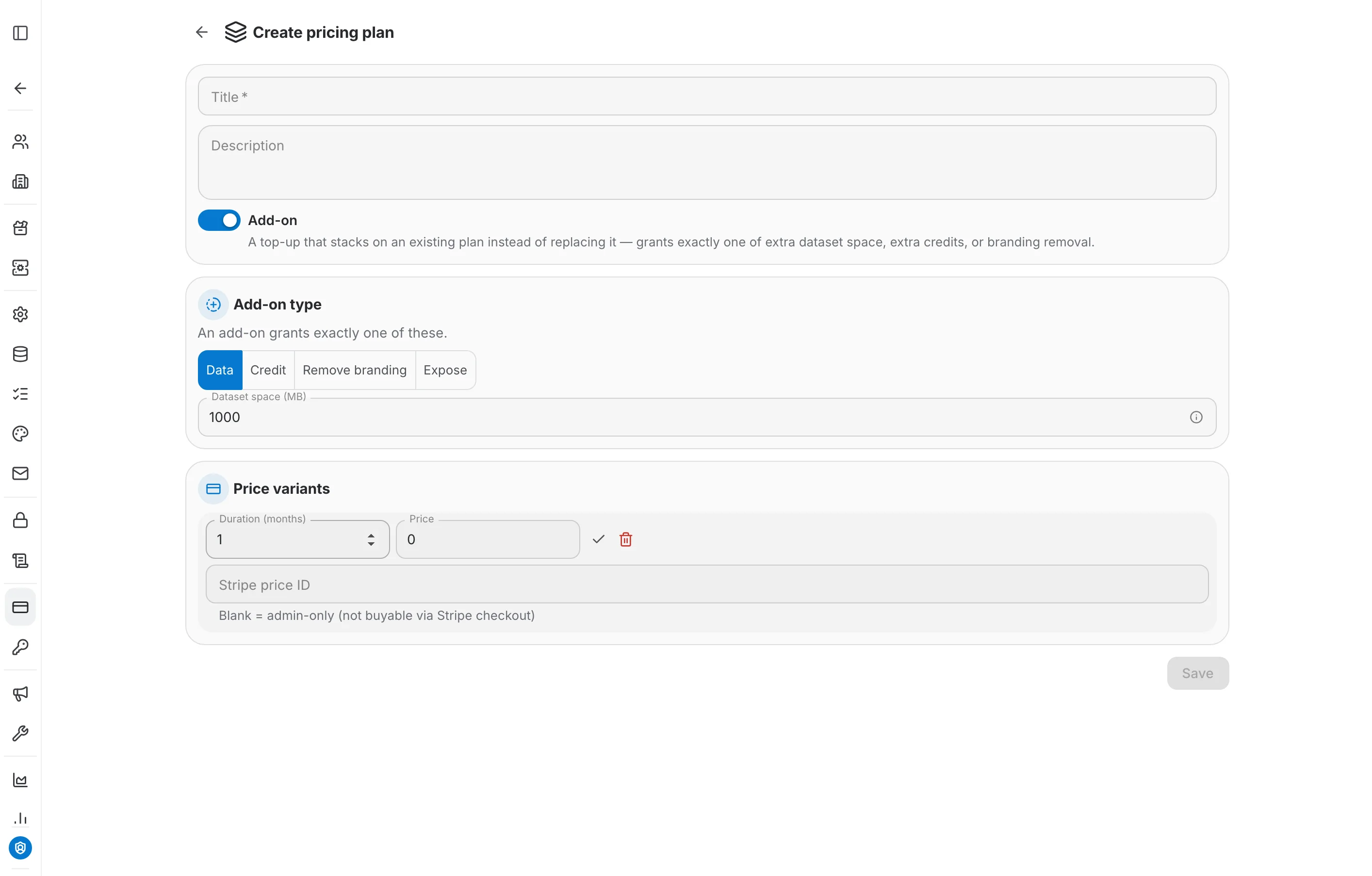
Turning on the Add-on toggle replaces the Quotas and Capabilities sections with a single Add-on type picker, because an add-on grants exactly one thing: Data (extra dataset space), Credit (extra credits), Remove branding (drops QAnswer branding from the widget and public share pages), or Expose (permission to expose assistants to callers who are not logged in). Only the field belonging to the selected type is shown and saved.
Price variants
A plan can carry several price variants, each a billing duration in months plus an amount — typically one monthly and one annual. The Stripe price ID field links a variant to a Stripe price so it can be bought through self-serve checkout; leaving it blank makes the variant admin-only, assignable from the admin panel but not purchasable.
Editing a plan
Clicking a plan's card opens it read-only; the gear icon on the card goes straight into edit mode. The bin icon deletes a plan — it is greyed out on the protected Trial and Custom plans and on the plan currently marked as default.
Import and export
The ⋮ menu to the right of Add plan holds Import and Export. Export writes the current catalog to a file; Import reads one back in — useful for backing up a configuration or replicating it across environments.
Stripe configuration
The Publishable key, Secret key and Webhook signing secret at the bottom of the catalog page connect this instance to a Stripe account for self-serve checkout. Test credentials verifies the secret key against Stripe; Test webhook sends a test event to confirm the webhook secret is correct. Without a secret key, payment features stay disabled and plans can only be assigned manually.
An organization's Plans & Billing page
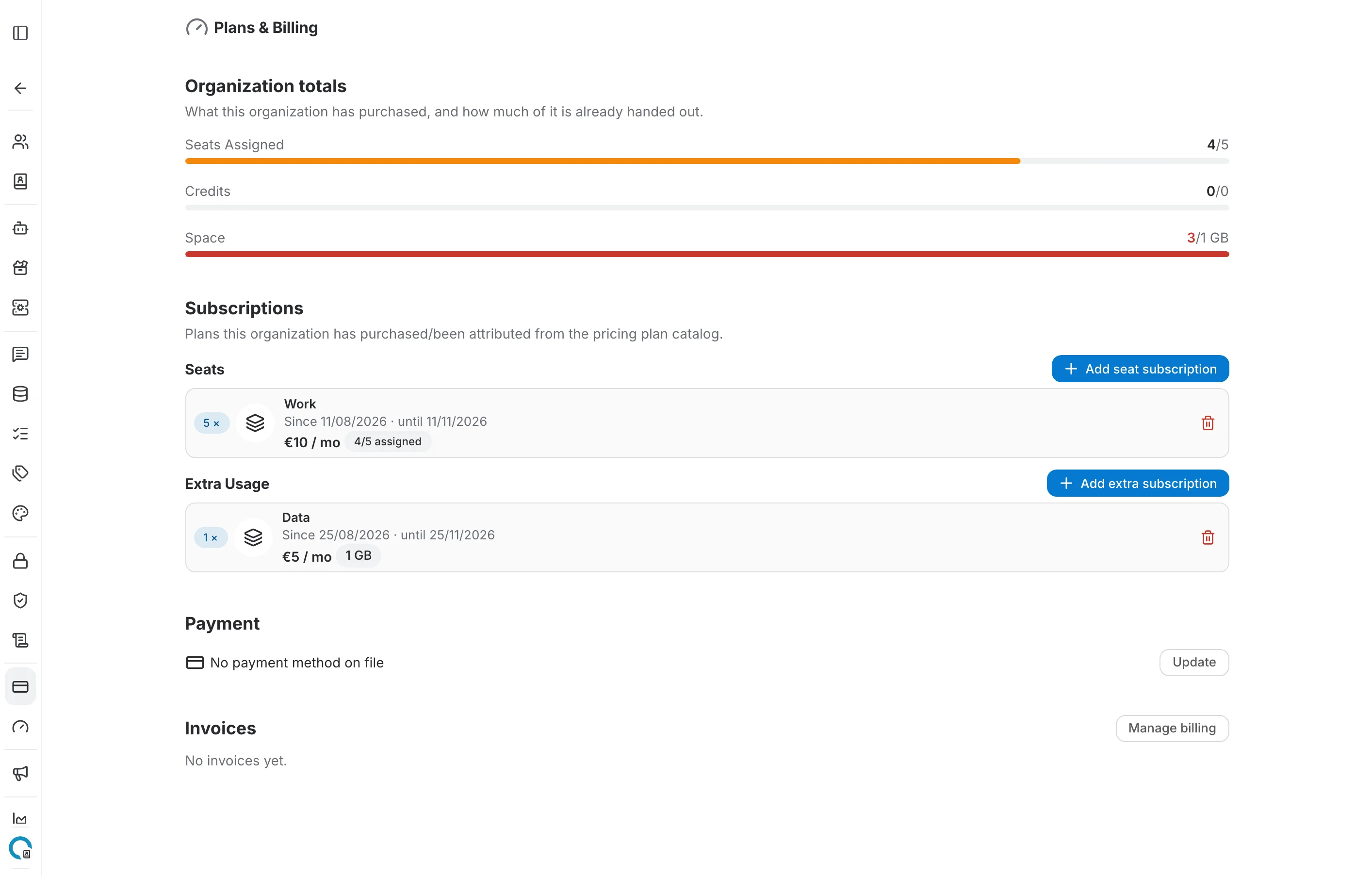
Each organization has its own Plans & Billing page, where an organization admin sees what has been bought, buys more, and manages the payment method and invoices.
Organization totals
Three bars at the top show what the organization has purchased against how much of it is already handed out:
- Seats Assigned — how many of the purchased seats are attached to members.
- Credits — credits handed out to members against the credits the organization owns.
- Space — storage handed out against storage owned. The bar turns red when more has been handed out than was bought, which is allowed: limits are not reservations.
Subscriptions
Below the totals, Seats and Extra Usage list what the organization holds. Each entry shows its quantity, the plan or add-on name, the period it runs for, its price, and — for seat plans — how many of its seats are assigned. The bin icon on a row removes that subscription.
Buying seats
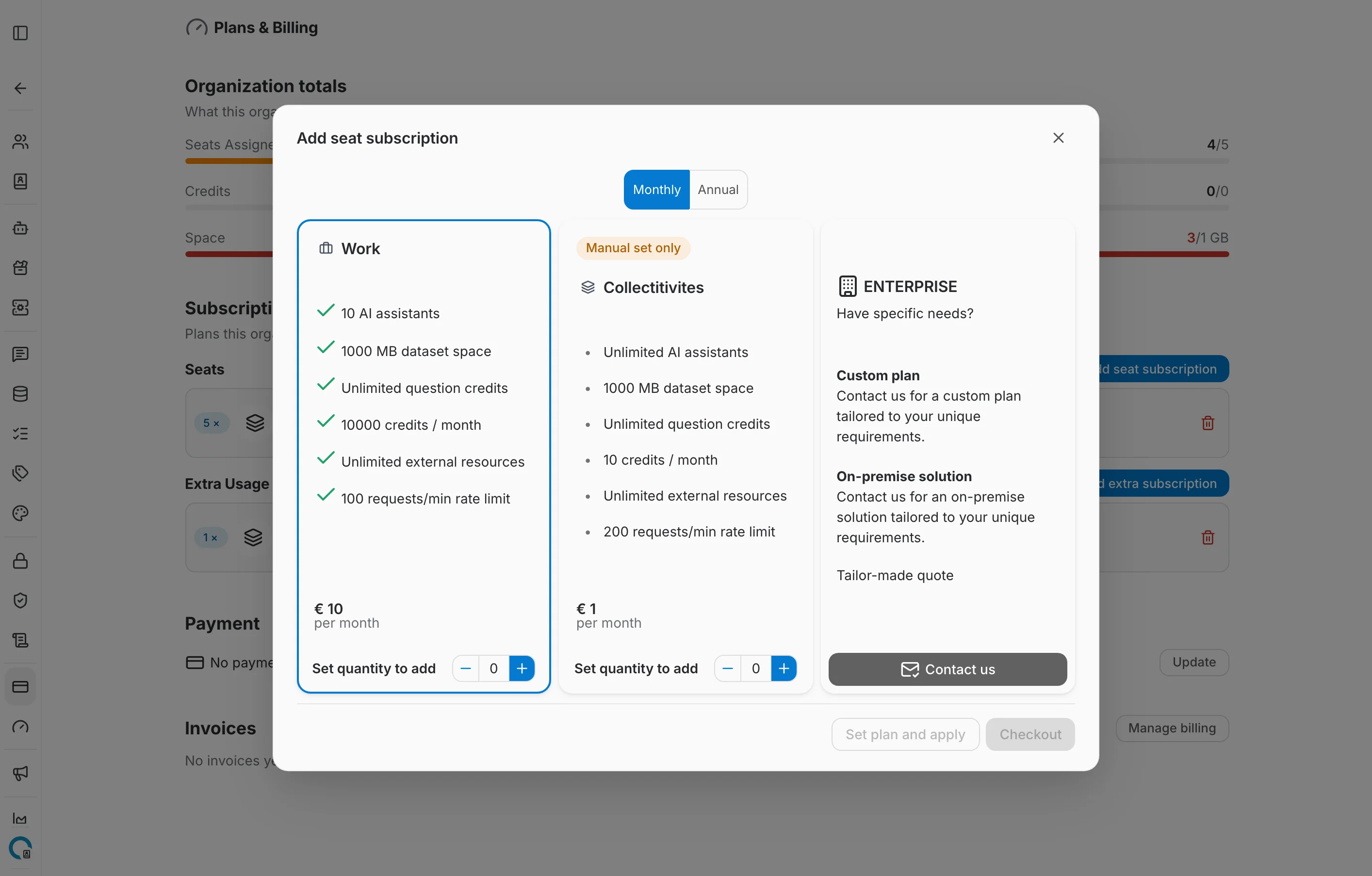
Add seat subscription opens the storefront with the active seat plans, each listing its quotas and price. Switch between Monthly and Annual at the top, set a quantity on the plan you want, then use Checkout to pay through Stripe, or Set plan and apply when the plan is assigned without payment. A plan with no Stripe price shows a Manual set only badge. The Enterprise card leads to a contact form for custom or on-premise arrangements instead.
Buying add-ons
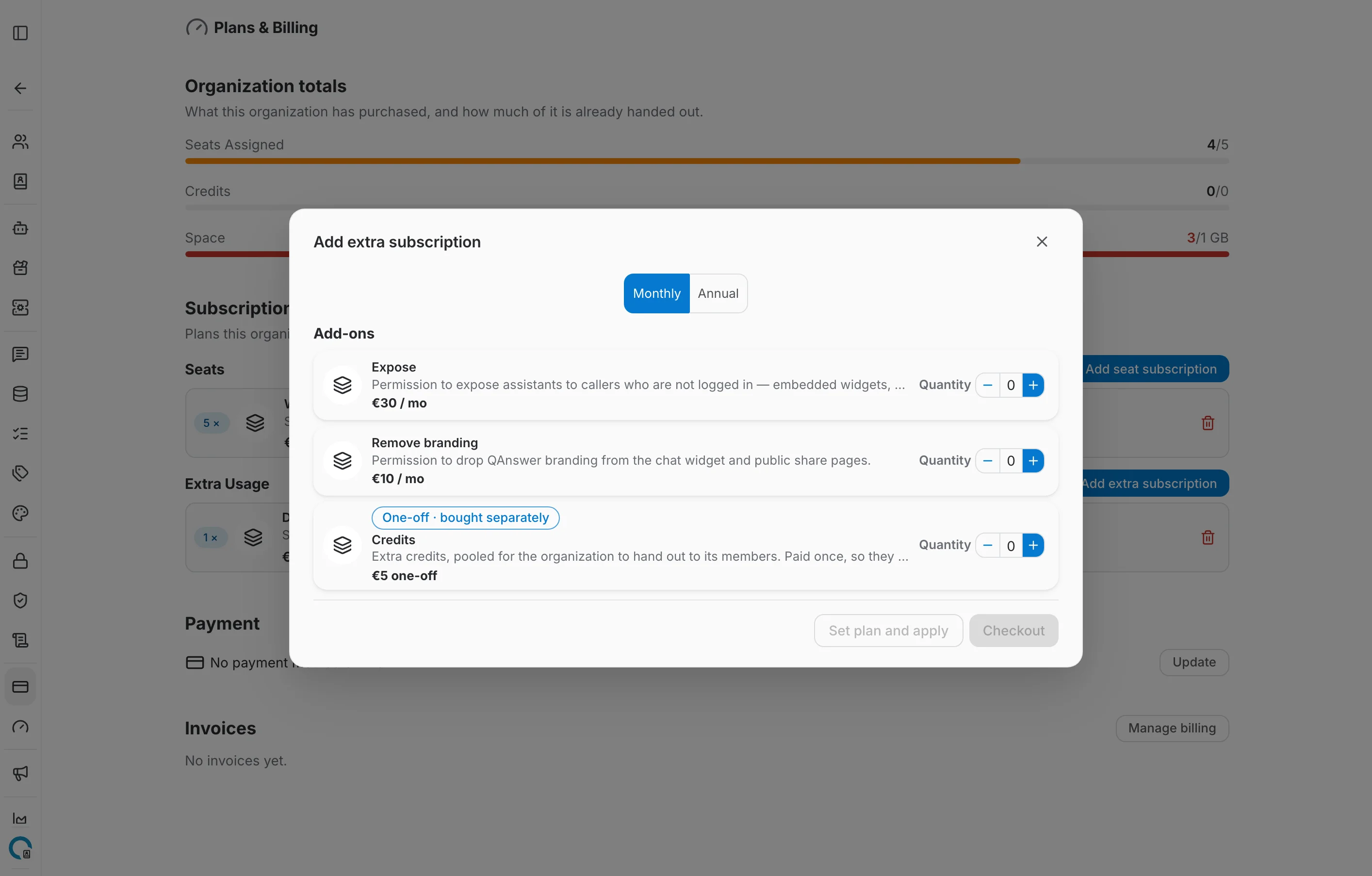
Add extra subscription opens the same storefront for the add-on catalog — extra space, extra credits, Expose, Remove branding — each with a quantity stepper. Add-ons billed once rather than monthly are marked One-off · bought separately.
Payment method and invoices
The Payment section shows the card on file, with Update to add or change it. Manage billing under Invoices opens the Stripe billing portal in a new tab, where past invoices can be downloaded. Both require Stripe to be configured on the instance.