
Privacy
The Privacy page decides how long an organization keeps its conversations before they are deleted automatically, and which privacy settings newly created AI assistants start with.
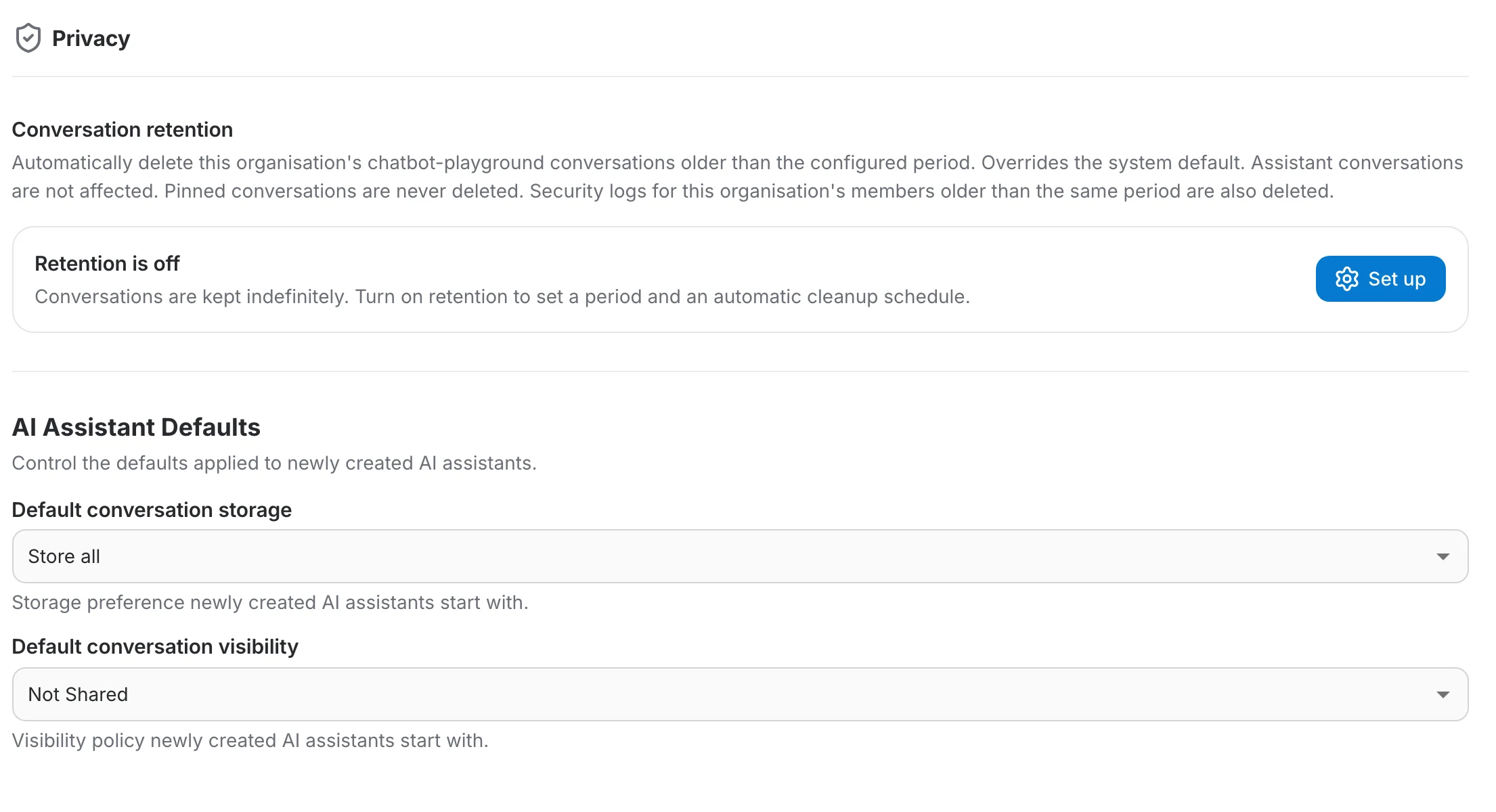
Every control on this page saves by itself — there is no Save button. A small pill appears while a change is being written, and turns red if it could not be saved.
Conversation retention
Retention automatically and permanently deletes conversations once they are older than a period you choose. It runs every night. A few things are worth knowing before you turn it on:
- It covers this organization's chatbot playground conversations.
- AI assistant conversations are not affected — those are configured per assistant.
- Pinned conversations are never deleted, by either the nightly run or a manual one.
- Security logs for this organization's members older than the same period are deleted alongside the conversations.
When retention is off
Out of the box retention is off, and conversations are kept indefinitely. The page shows a single panel saying so, with a Set up button that starts the guided setup.

Setting retention up
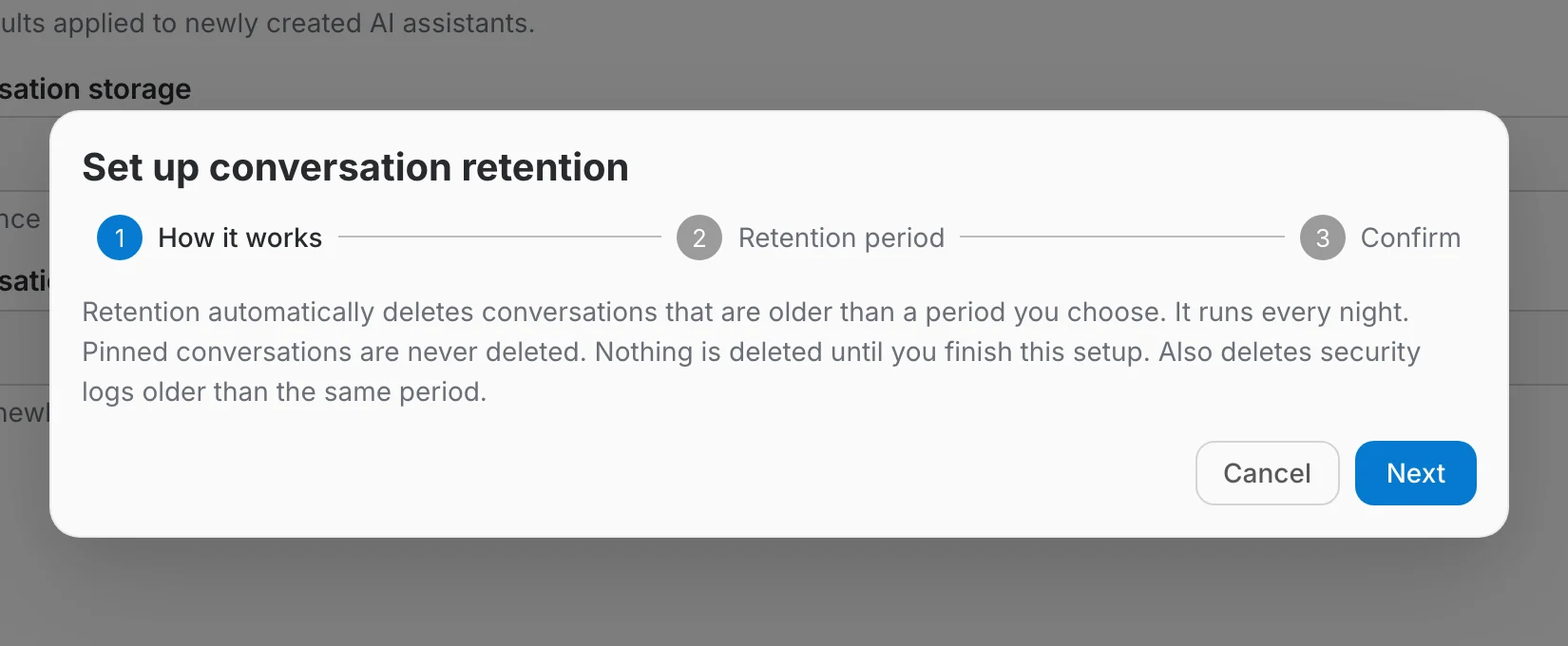
Because arming retention schedules irreversible deletions, it is not a simple toggle: it walks through three steps, and nothing changes until you finish the last one.
How it works — explains what retention deletes, that it runs nightly, and that pinned conversations survive.
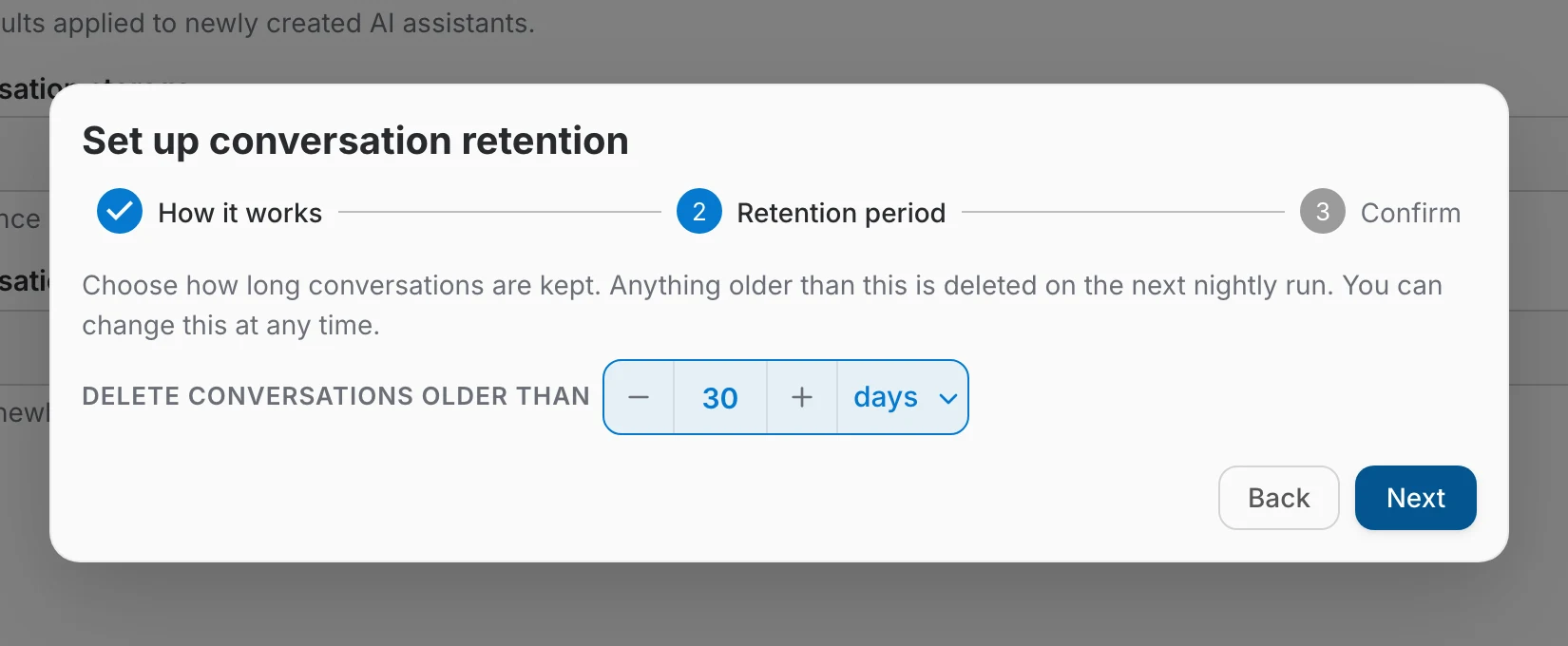
Retention period — choose how long conversations are kept, as a number plus a unit of days, months or years. Anything older is deleted on the next nightly run. You can change this later.
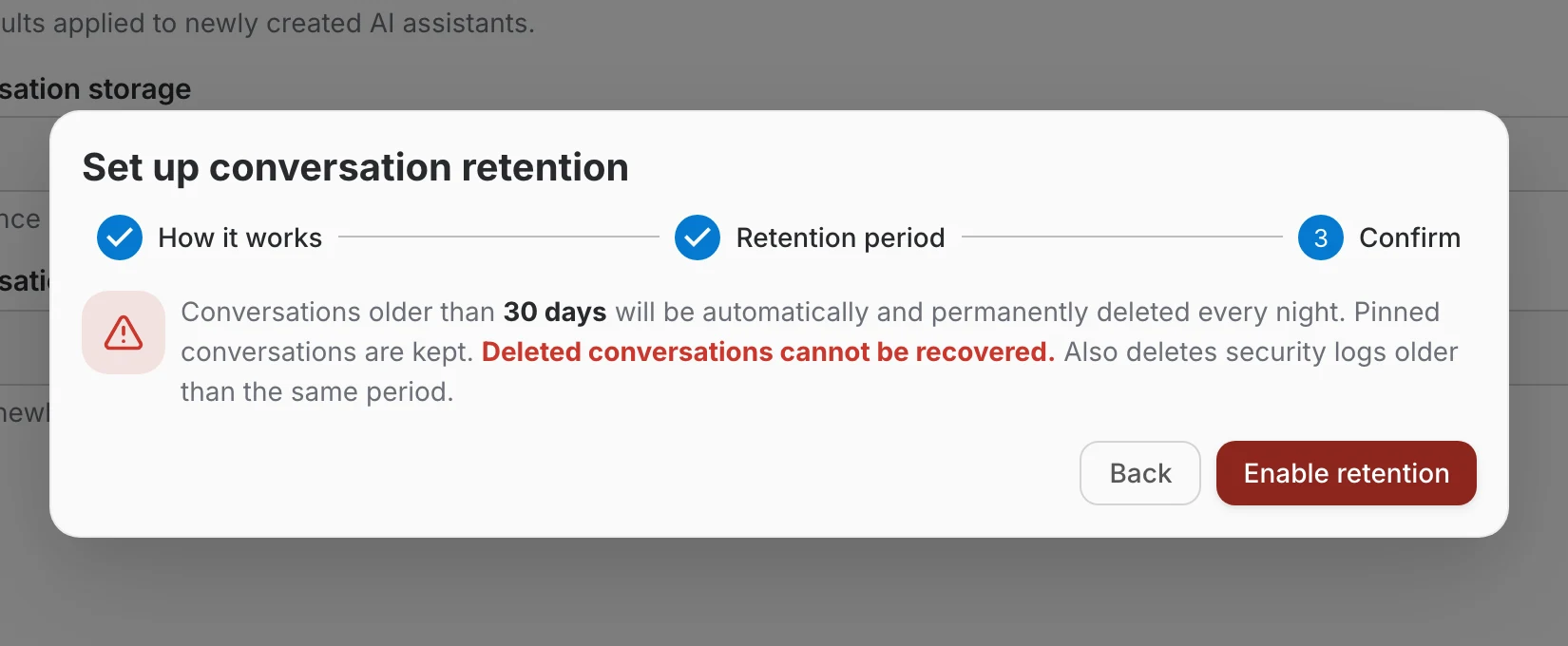
Confirm — restates the period you picked and warns, in red, that deleted conversations cannot be recovered. Enable retention applies the policy.
When retention is on
Once enabled, the panel is replaced by a card holding the live policy and everything you need to keep an eye on it.
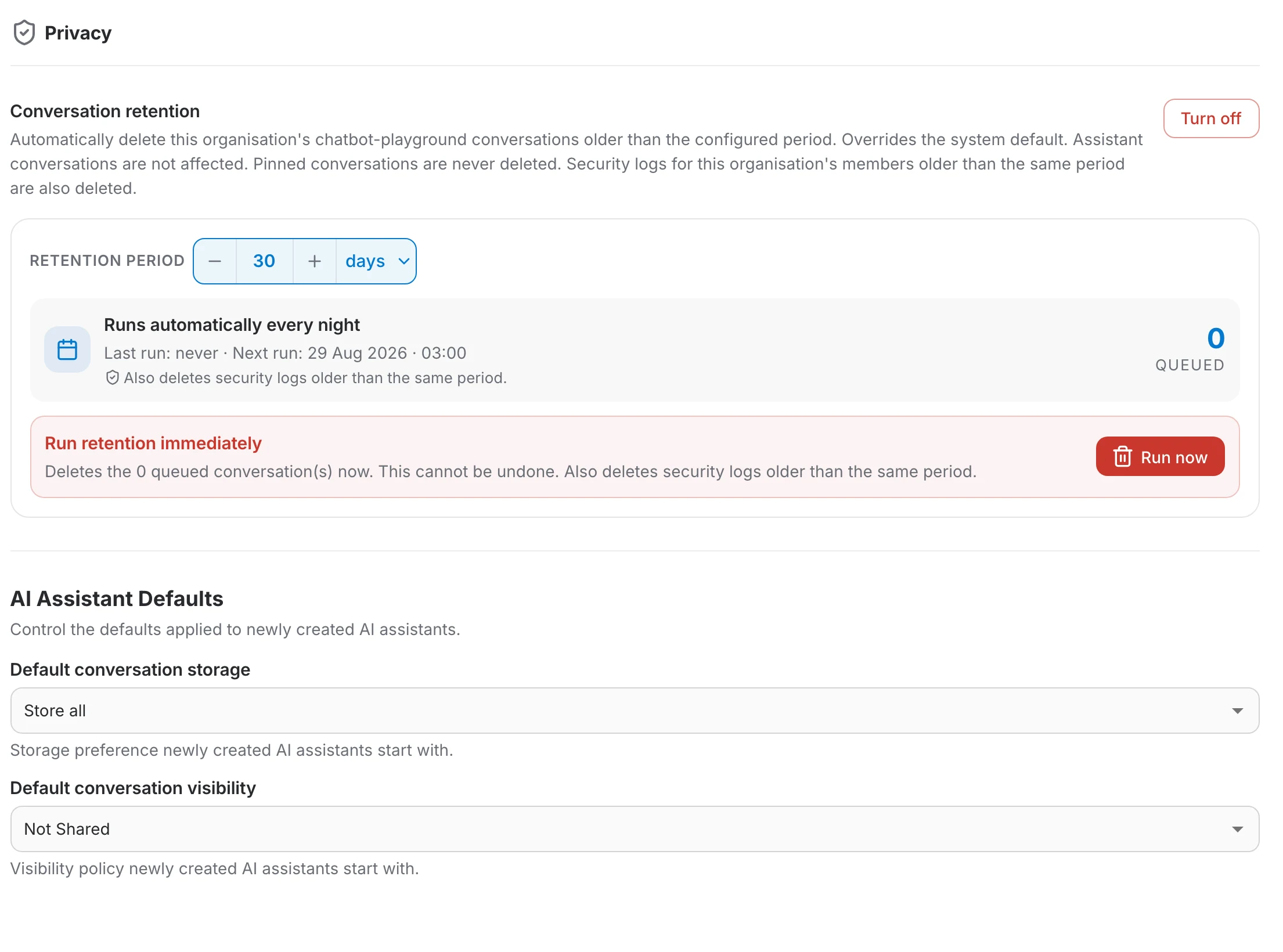
- Retention period — the same stepper and unit select from the wizard, editable in place. Changes save automatically after a short pause.
- Runs automatically every night — shows when the sweep last ran (or never) and when the next one is due.
- Queued — how many conversations currently match the policy and are estimated to be deleted on the next run.
- Turn off — in the section header, switches retention back off immediately. Conversations are then kept indefinitely again; nothing already deleted comes back.
Running retention immediately
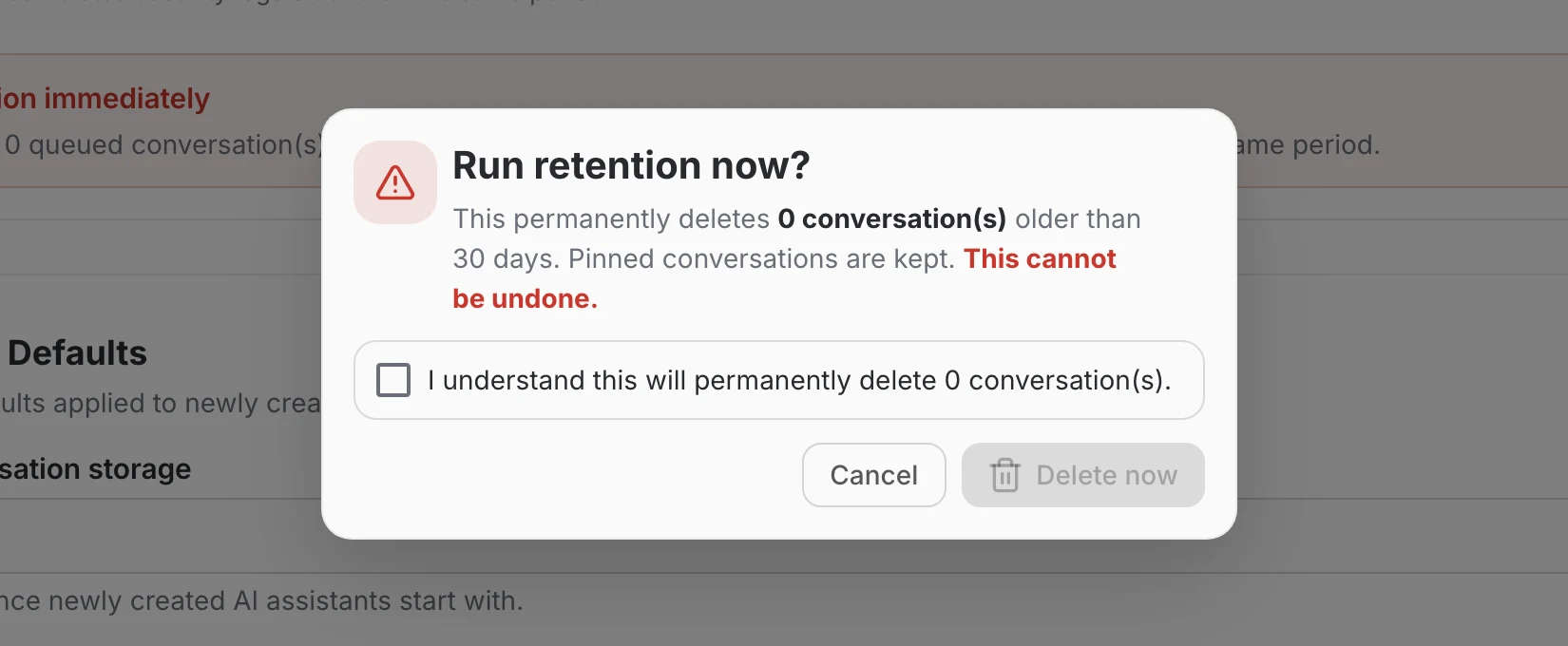
The red panel at the bottom of the card runs the sweep on demand instead of waiting for the night. Run now opens a confirmation that names the number of conversations it will delete, and the Delete now button stays disabled until you tick the acknowledgement box.
How the tiers fit together
Retention exists at more than one level, and the nearest policy wins:
- System default — applies wherever no organization policy is set.
- Organization — the policy on this page. It overrides the system default for this organization.
- Assistant — set on an individual AI assistant, and overrides both of the above for that assistant's conversations.
AI Assistant Defaults
The second half of the page controls the privacy settings a newly created AI assistant starts with, so members do not have to set them each time.
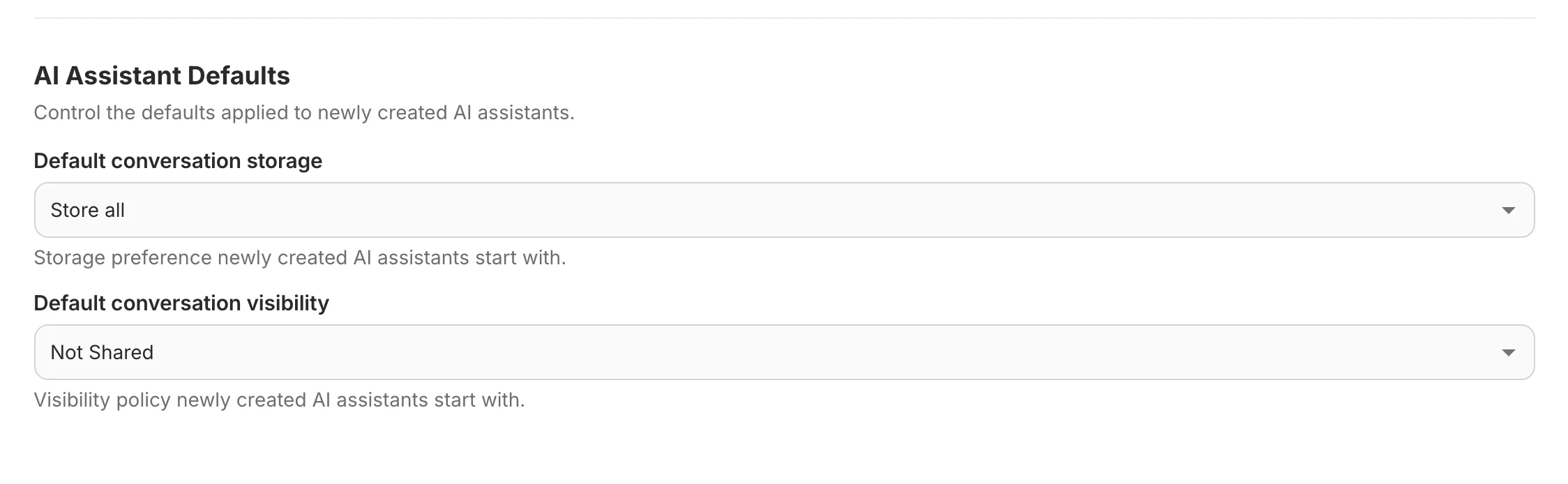
Default conversation storage
Whether conversations held with a new assistant are stored at all, and in what form.
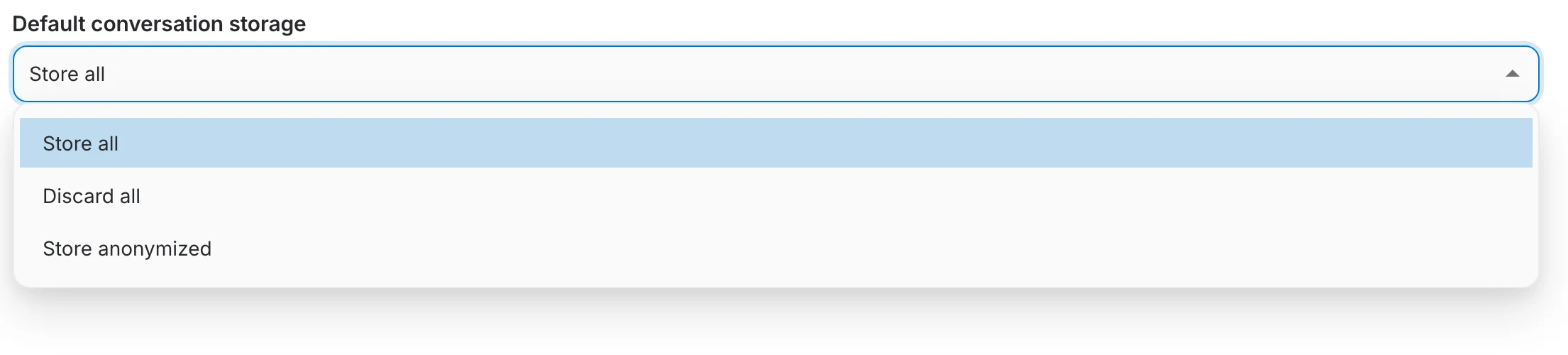
- Store all — conversations are saved and accessible to users of the assistant.
- Discard all — conversations are not saved.
- Store anonymized — conversations are saved without identifying who held them, and remain accessible to users of the assistant.
Default conversation visibility
Who, besides the person who held a conversation, can read it in the assistant's logs.
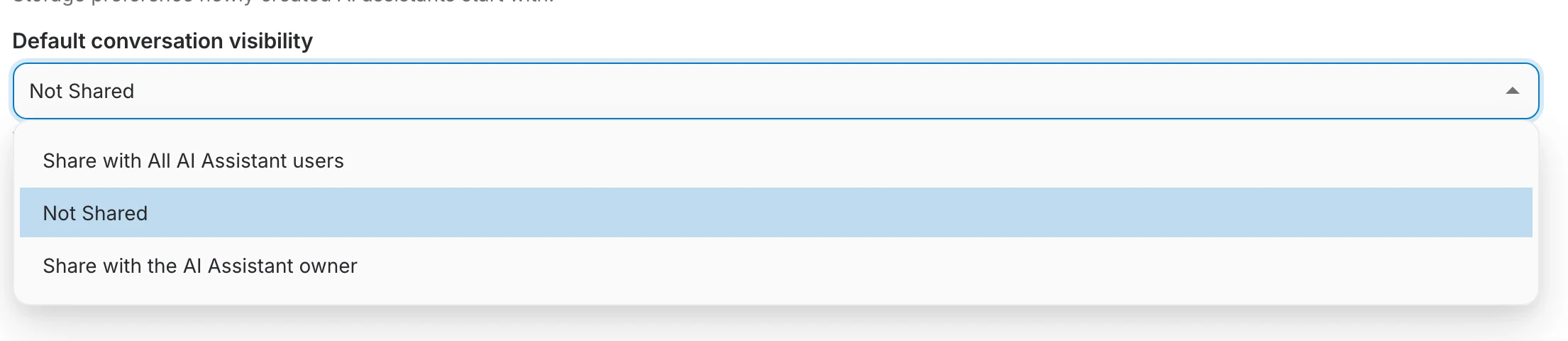
- Share with All AI Assistant users — logs are visible to everyone who uses the assistant.
- Not Shared — logs are not shared with anyone.
- Share with the AI Assistant owner — logs are also visible to the assistant's owner.