
Branding
The organization's Branding page gives this organization its own identity inside QAnswer: the name members see, and the three images used across the application. Open it from Configuration → Branding in the organization settings.
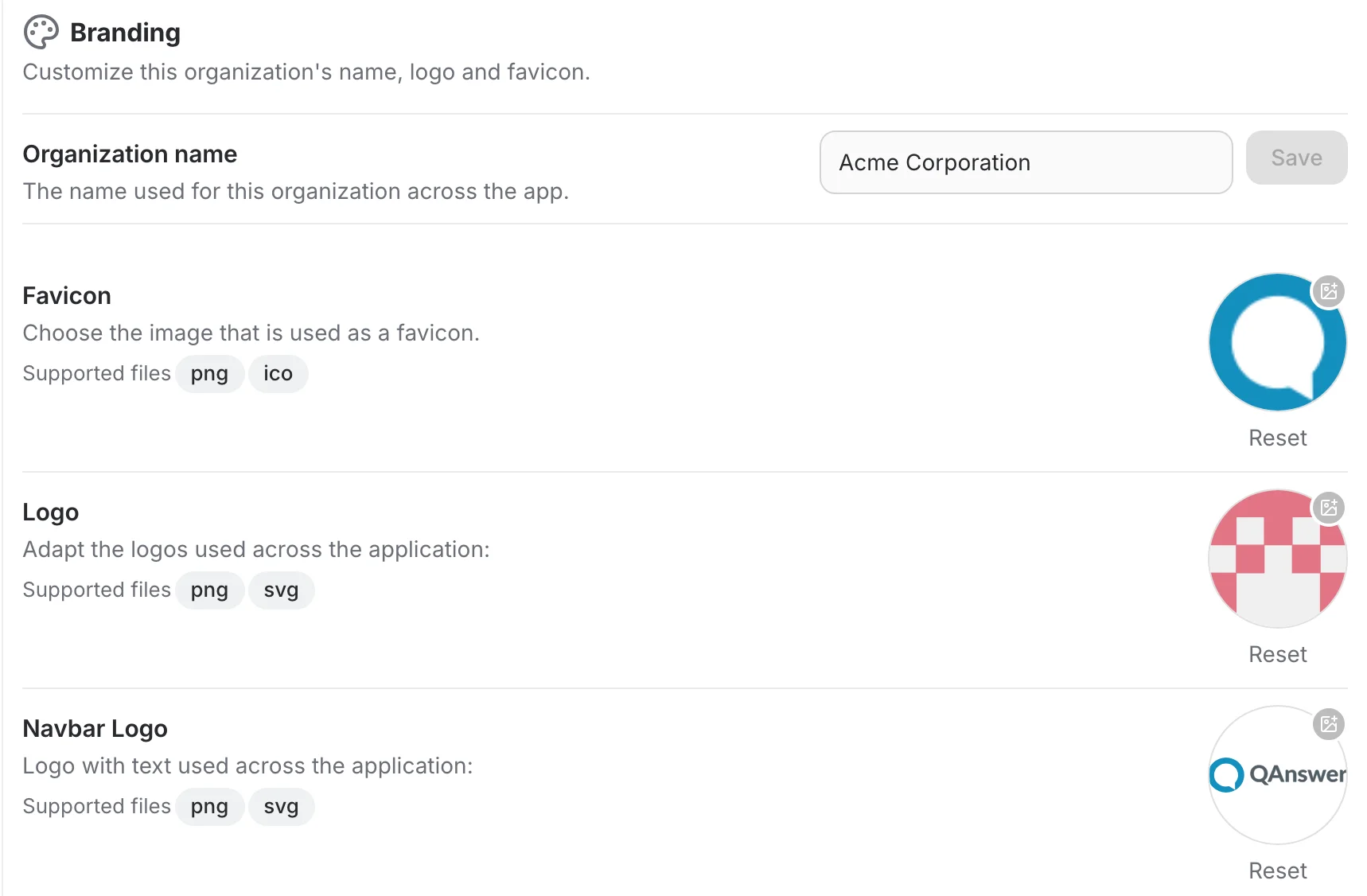
Organization name
The name used for this organization everywhere in the app — the workspace switcher, the settings header, and anywhere members pick between organizations. Edit it and select Save; the button stays greyed out until the field actually changes.
Logo and favicon
Three images can be replaced independently. Select an image to upload a replacement, or Reset below it to go back to the inherited one:
- Favicon — the small icon shown in the browser tab. Accepts .png or .ico.
- Logo — the mark-only logo used across the application. Accepts .png or .svg.
- Navbar Logo — the logo with text shown in the navigation bar. Accepts .png or .svg.
Show welcome message
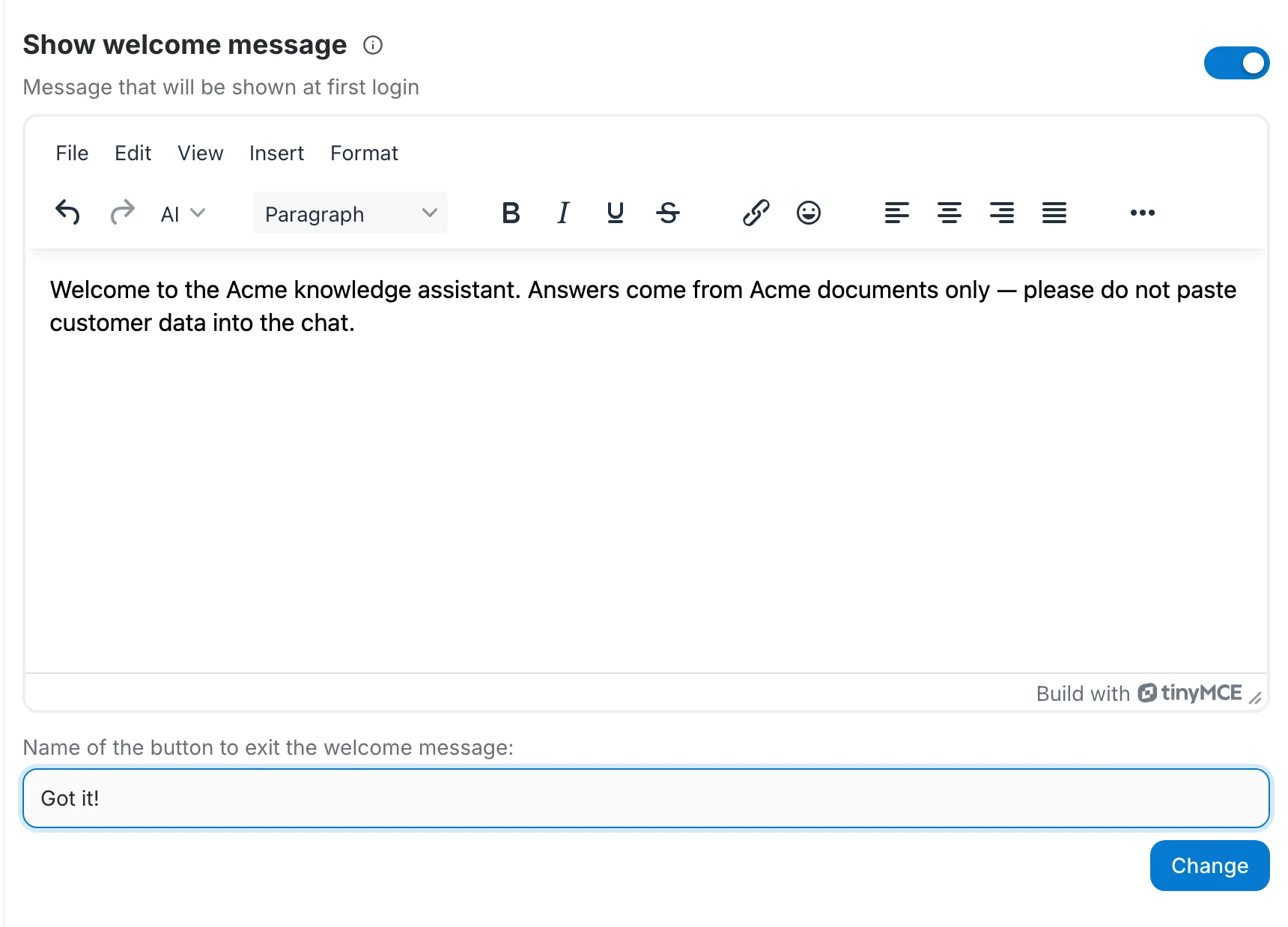
Turn this on to greet members with a message the first time they log in — the place to set out what the assistant covers, which data may be pasted into it, or any internal policy that applies.
The toggle reveals a rich-text editor for the message itself and a field for the label of the button that dismisses it, which defaults to "Got it!". Select Change to save both.
What is not here
The footer and navigation links — Imprint, Privacy Policy, Help and Terms of Use — are instance-wide and do not appear on this page. A platform administrator changes them from the admin panel's Branding page, and the result applies to every organization on the instance.