
Document Search
When a chat assistant has data, the right passages have to reach the model before it answers. QAnswer offers two ways to do that: the Document Search tool, which lets the assistant search its documents itself (agentic search), and RAG via prompt, which places retrieved passages into the prompt through its slots.
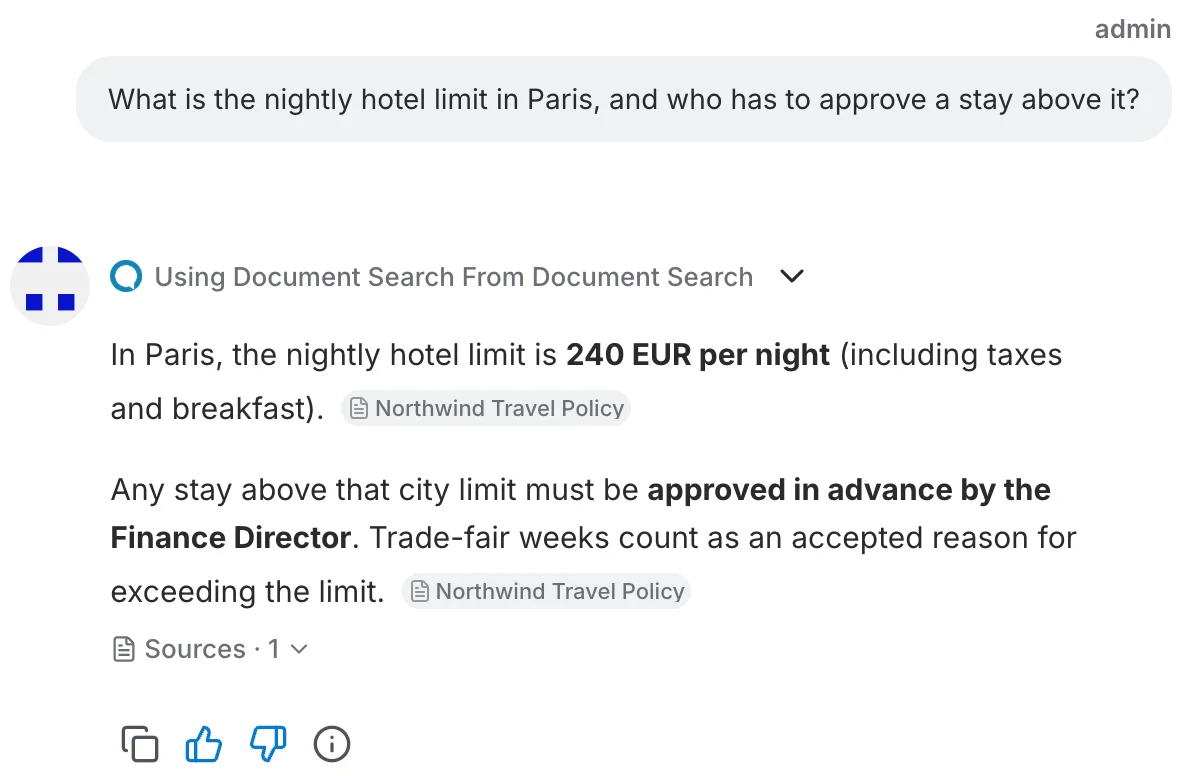
Two ways to use your documents
Both answer from the same documents and cite them. They differ in who decides what to look for.
| Document Search | RAG via prompt | |
|---|---|---|
| How it works | The assistant calls a search tool with a query it writes itself, reads the results, and searches again if something is missing. | QAnswer retrieves passages for the user's question once and places them in the prompt's {{documents}} slot. |
| Searches per question | As many as the question needs, each with its own focused query. | One, using the question as written. |
| Prompt slots | Not needed: the tool brings the documents in itself. | {{documents}}, {{chat_history}} and {{question}} carry the input. |
| Works best for | Questions that need several pieces of evidence, a specific file, or a second look. | Prompts written around the slots, and assistants whose answers should stay exactly as they are. |
How Document Search works
For each new question, the assistant:
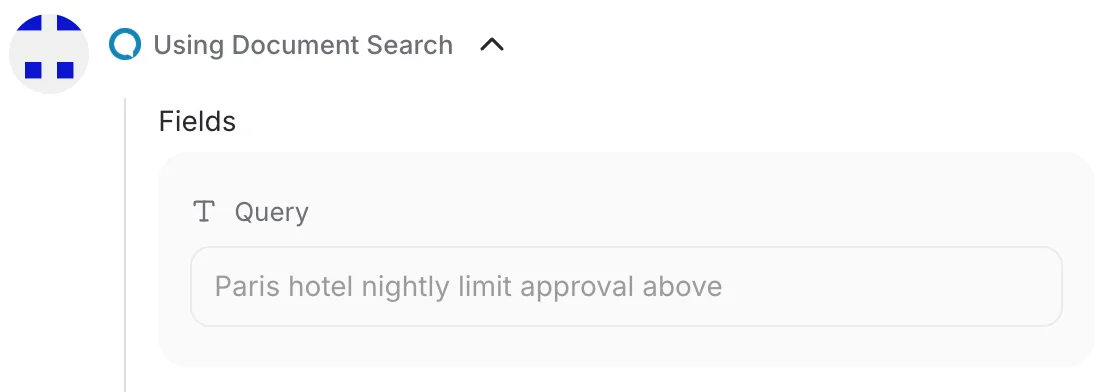
- Writes a focused search query and runs it over its documents.
- Reads what comes back and checks whether it answers the question.
- Answers with citations, or searches again for what is still missing.
A search can be narrowed when the user, the prompt or an earlier result names the source:
- to specific files, by their exact file names;
- to specific data sources, by their names, for example a SharePoint library or a website.
Every new question gets a fresh search, even in the middle of a conversation, so an answer never relies on passages found for an earlier question.
Example: counting the rules in a document
An assistant holding the European Parliament's Rules of Procedure is asked "How many rules are there in the document?". The correct answer is 251.
| Setup | Answer | Why |
|---|---|---|
| RAG via prompt | "At least 244" | The passages retrieved for the question don't reach the end of the document, so the assistant reports the highest rule number it was given. |
| Document Search | 251 rules | The assistant searches specifically for the last rule number, finds Rule 251 in the table of contents and cites it. |
Switching between the two
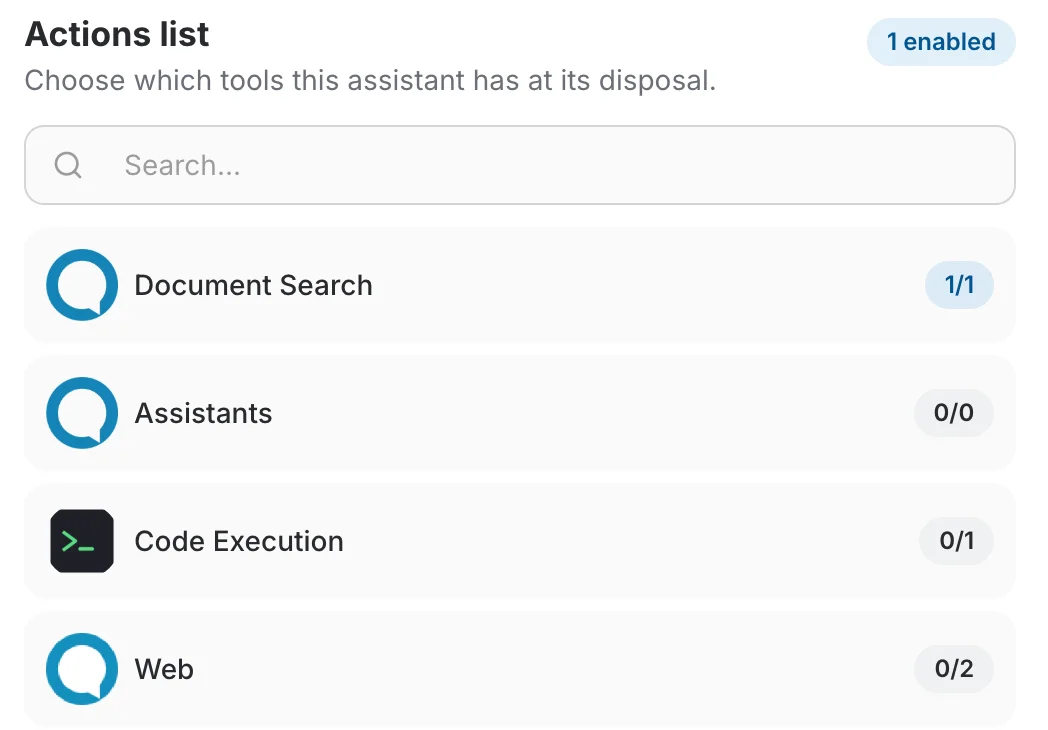
The choice is made per assistant:
- Open the assistant in Edit mode and go to the Advanced tab.
- Turn RAG via prompt on to place the documents in the prompt, or off to use Document Search.
- Save.

The switch and the Document Search tool in the Tools tab are two views of the same choice. Turning RAG via prompt off selects Document Search, turning it on deselects it, and selecting Document Search in the Tools tab turns RAG via prompt off.

What the prompt editor warns about
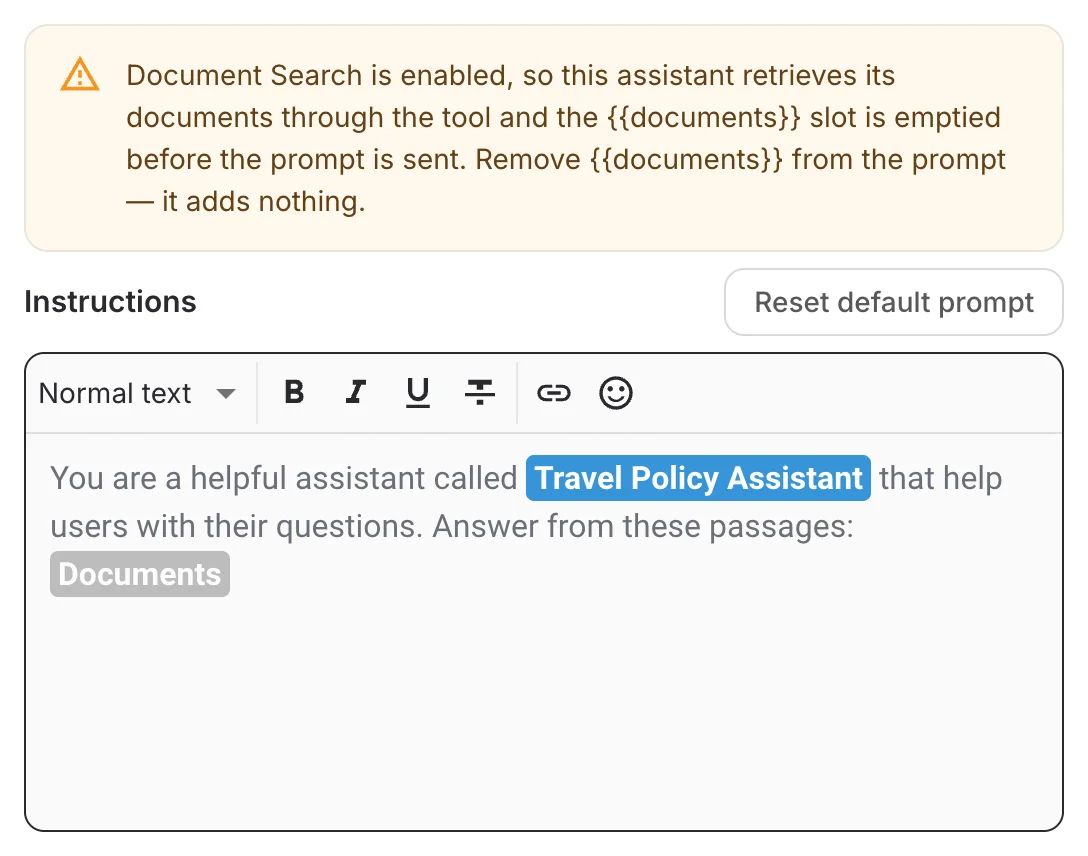
The prompt editor checks the prompt against the way the assistant retrieves:
- Document Search – a {{documents}} slot in the prompt is flagged, because it is emptied before the prompt is sent.
- RAG via prompt – if the assistant has data, the editor flags a missing {{documents}}, {{question}} or {{chat_history}} slot — without {{documents}} the assistant does not receive its documents. The prompt is saved exactly as you wrote it; nothing is added for you.
For what each slot does, see Slots.
Assistants created before Document Search
When Document Search was introduced, existing assistants were sorted by how they used their documents:
- assistants with data, or with a {{documents}} slot in their prompt, kept RAG via prompt;
- assistants with neither start on Document Search, like a new assistant.
The choice travels with the assistant when you export and import it, or clone it. A bundle exported before Document Search existed imports with Document Search on.
When Document Search is switched off
Document Search is on for every organization by default. An organization admin can switch it off in the MCP settings. Assistants in that organization can then no longer use it; turn RAG via prompt on for them so they keep answering from their documents.
Next
Choose which other tools the assistant can use in Tools, or review the rest of its behaviour in Advanced.