
Document Extraction Providers
A document extraction provider turns a document (a PDF, an Office file, an image or a web page) into text, page by page, keeping its tables and layout as markdown and reading scanned pages with OCR. The default provider reads the PDF and Office files uploaded to assistants, and every provider can also be called directly through the extraction API.
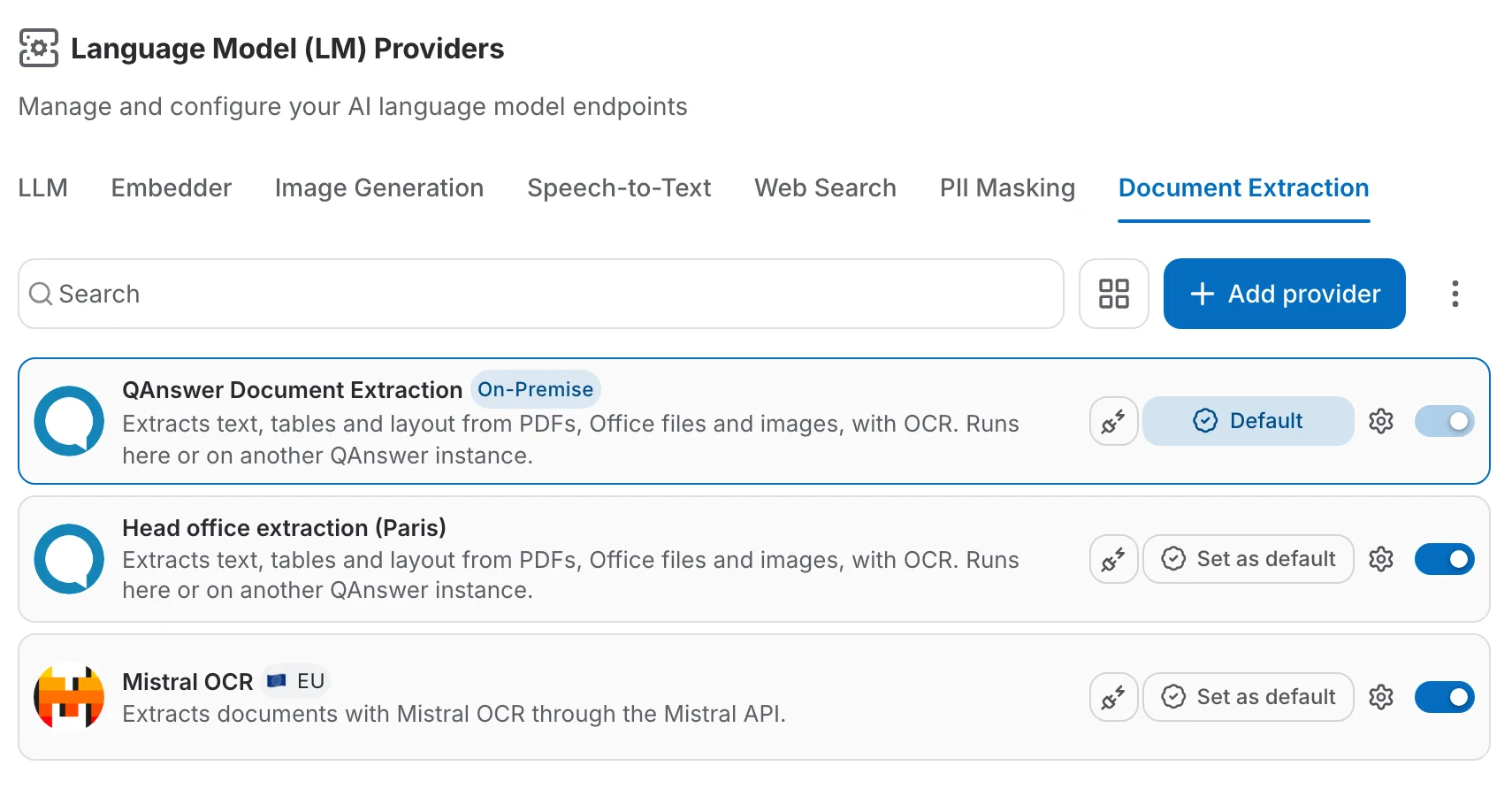
The providers live on the Document Extraction tab of the LM Providers page, at every level where providers are managed: the admin space, an organization, a team and your own workspace. A new installation already has one: QAnswer Document Extraction, this deployment's own extraction, set as the platform default. The example below, taken in the admin space, adds a provider on another QAnswer instance and a Mistral provider.
Provider types
Two types are available when you add a provider:
 QAnswer — extracts text, tables and layout from PDFs, Office files and images, with OCR. It runs here, or on another QAnswer instance given its URL and an API key.
 Mistral — extracts documents with Mistral OCR through the Mistral API (EU): PDF, DOCX, PPTX, PNG and JPEG, up to 50 MB. It needs an API key from console.mistral.ai
Adding a provider
Click Add provider and go through the two steps.
Step 1: choose the type
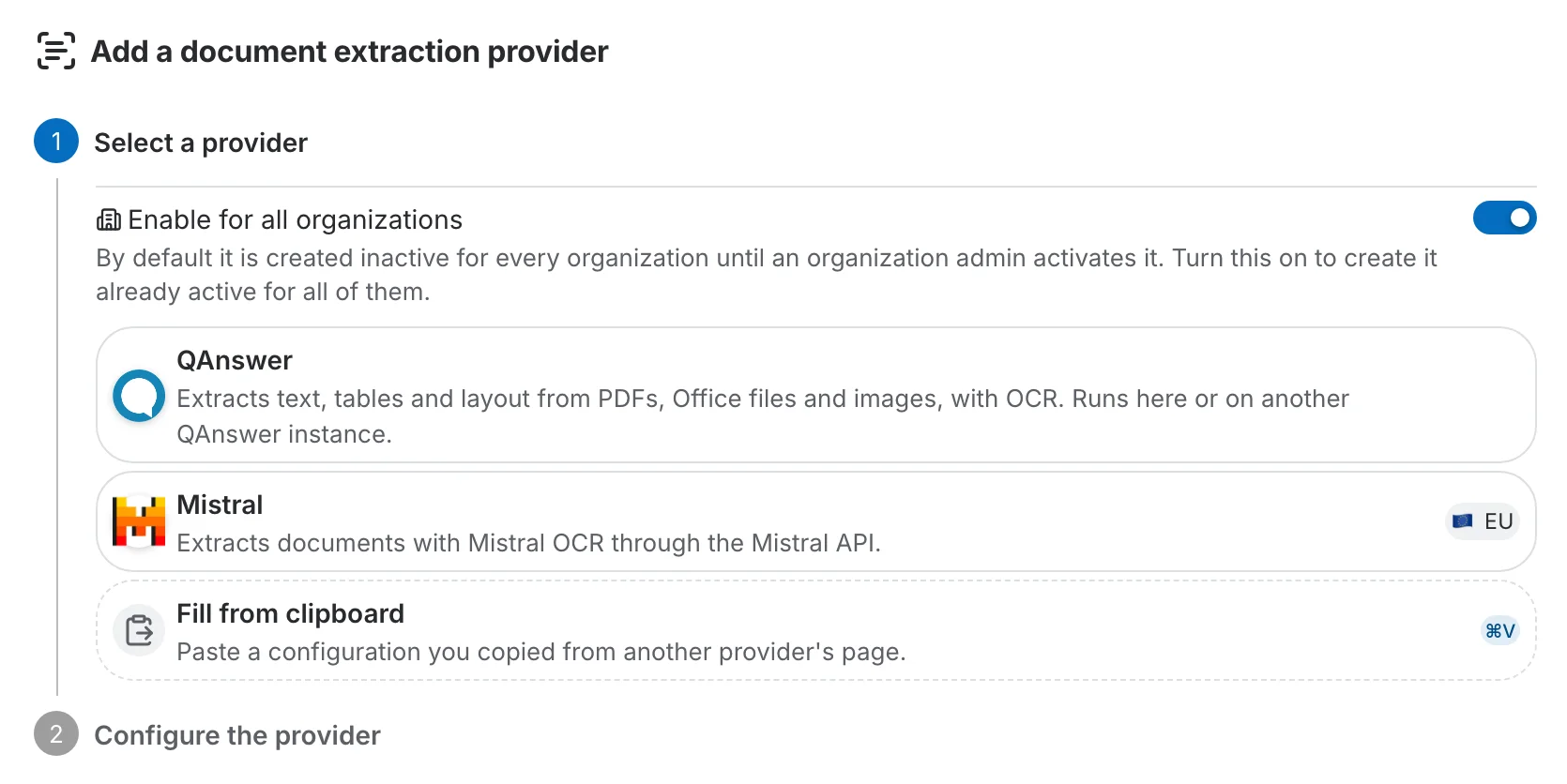
Pick QAnswer or Mistral. In the admin space, Enable for all organizations decides whether every organization gets the new provider switched on at once or has to activate it itself; in an organization, Enable for all teams does the same for its teams. Fill from clipboard creates the provider from a configuration copied on another provider's page.
Step 2: a QAnswer provider
A QAnswer provider has these fields:
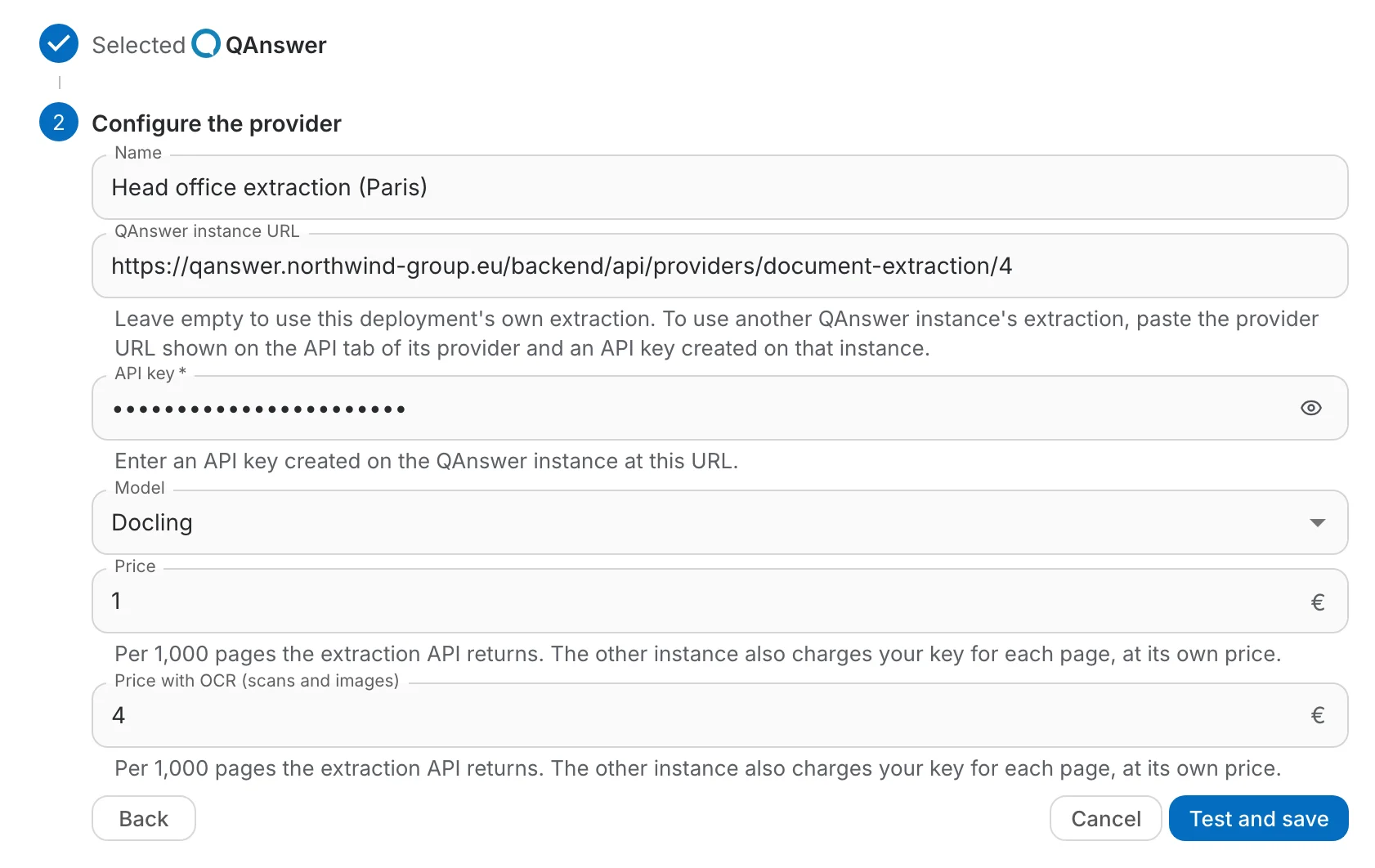
- Name — the title shown in the list. Keep the suggested one or use a name your colleagues will recognise.
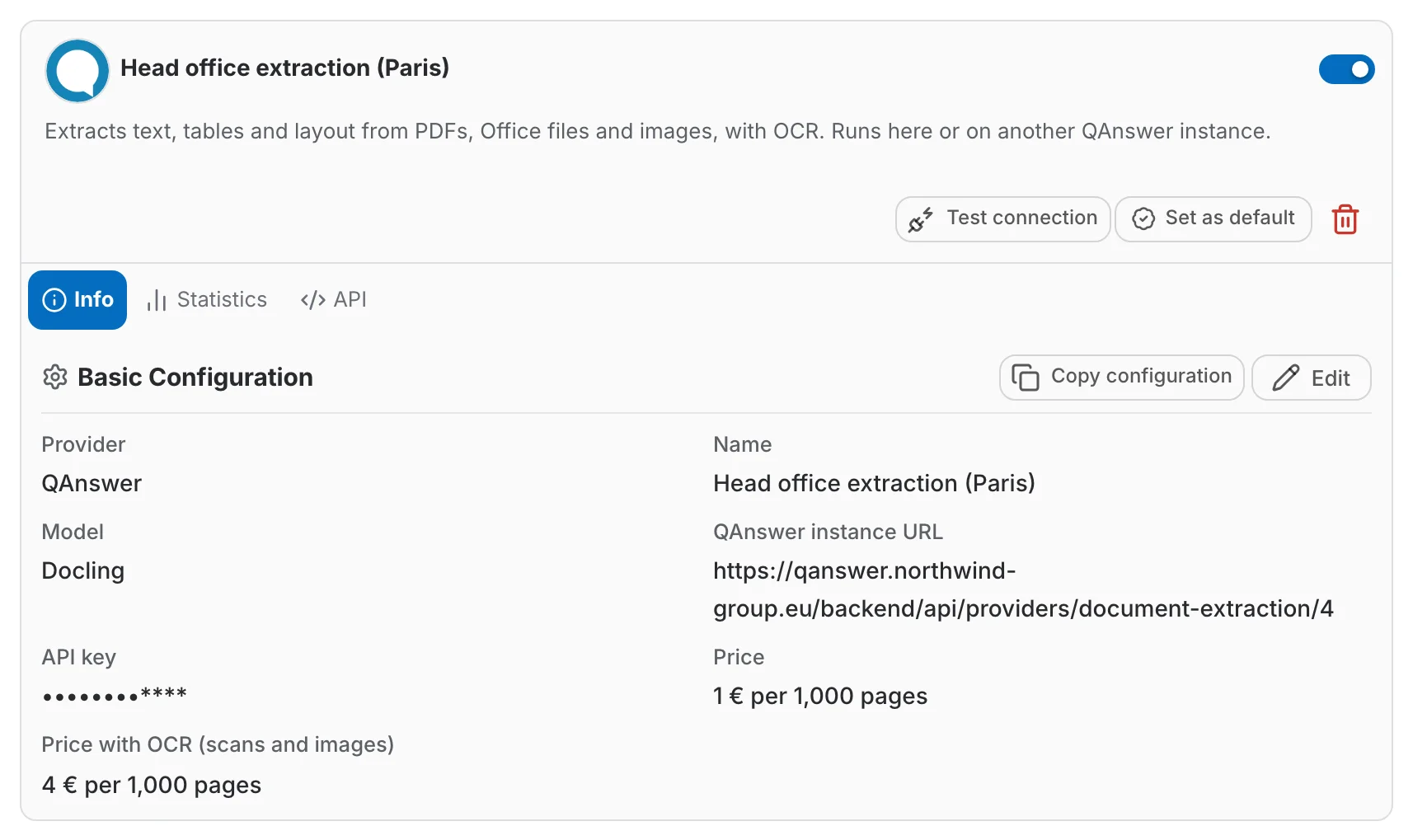
- QAnswer instance URL — leave it empty to extract on this deployment. To use another QAnswer instance, paste the Provider URL shown on the API tab of a provider on that instance.
- API key — with a URL, an API key created on that instance. When the URL changes, the key has to be entered again: a stored key is never sent to another instance.
- Model — Docling analyses the layout and tables and reads scans with OCR; Vanilla reads the text layer only. Automatic, offered when there is no URL, follows this deployment: Docling where it is enabled, Vanilla otherwise.
- Price and Price with OCR — what callers of the extraction API pay per 1,000 pages, for ordinary pages and for pages read with OCR (scans and images): 1 € and 4 € by default, 0 makes it free. A provider on another instance is also charged by that instance, at its own price, on the key you entered.
Step 2: a Mistral provider
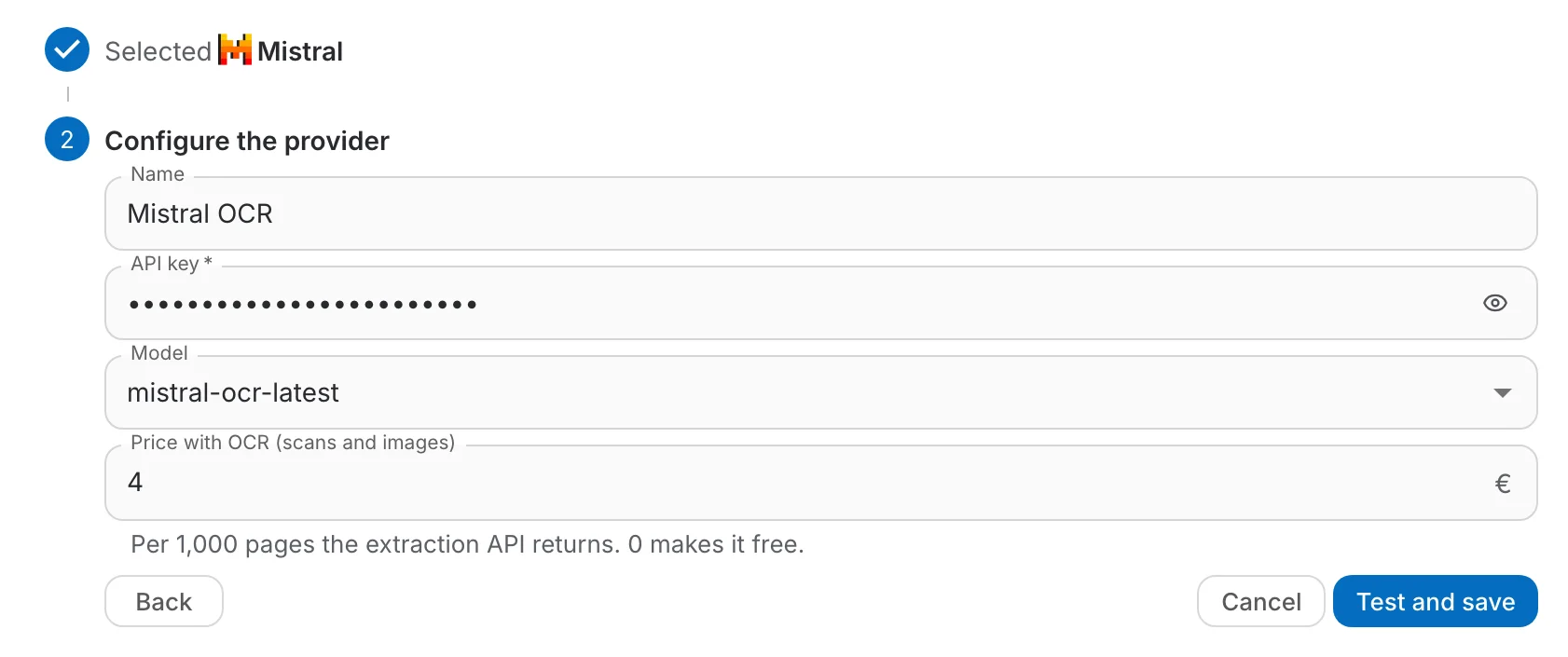
A Mistral provider needs a name and the API key of your Mistral account; its model is mistral-ocr-latest. Mistral reads every page with OCR, so it has a single price, Price with OCR.
Test and save
Test and save creates the provider and tests it. When the test passes, you are back on the list. When it fails, the provider is saved anyway and a message says why it does not work yet (a wrong key, an unreachable URL): correct the field and click Test and save again.
The provider page
Click the gear icon of a provider to open its page. The header holds the active switch, Test connection, Set as default and, for the providers you created, the bin that deletes it. Below are three tabs: Info, Statistics and API.
Editing a provider
On the Info tab, click Edit, change the fields and click Save. The API key field starts empty: leave it empty to keep the stored key. Copy configuration, next to Edit, copies the provider so that Fill from clipboard can recreate it elsewhere; the list, import and export work as on every tab, see Managing LM Providers.
The built-in provider
QAnswer Document Extraction, marked On-Premise, is this deployment's own extraction. It cannot be deleted and has no URL field. Its API key is the deployment's QANSWER_DOCLING_API_KEY, shown read-only when the provider is edited; whoever runs the deployment sets it in its environment.
Statistics
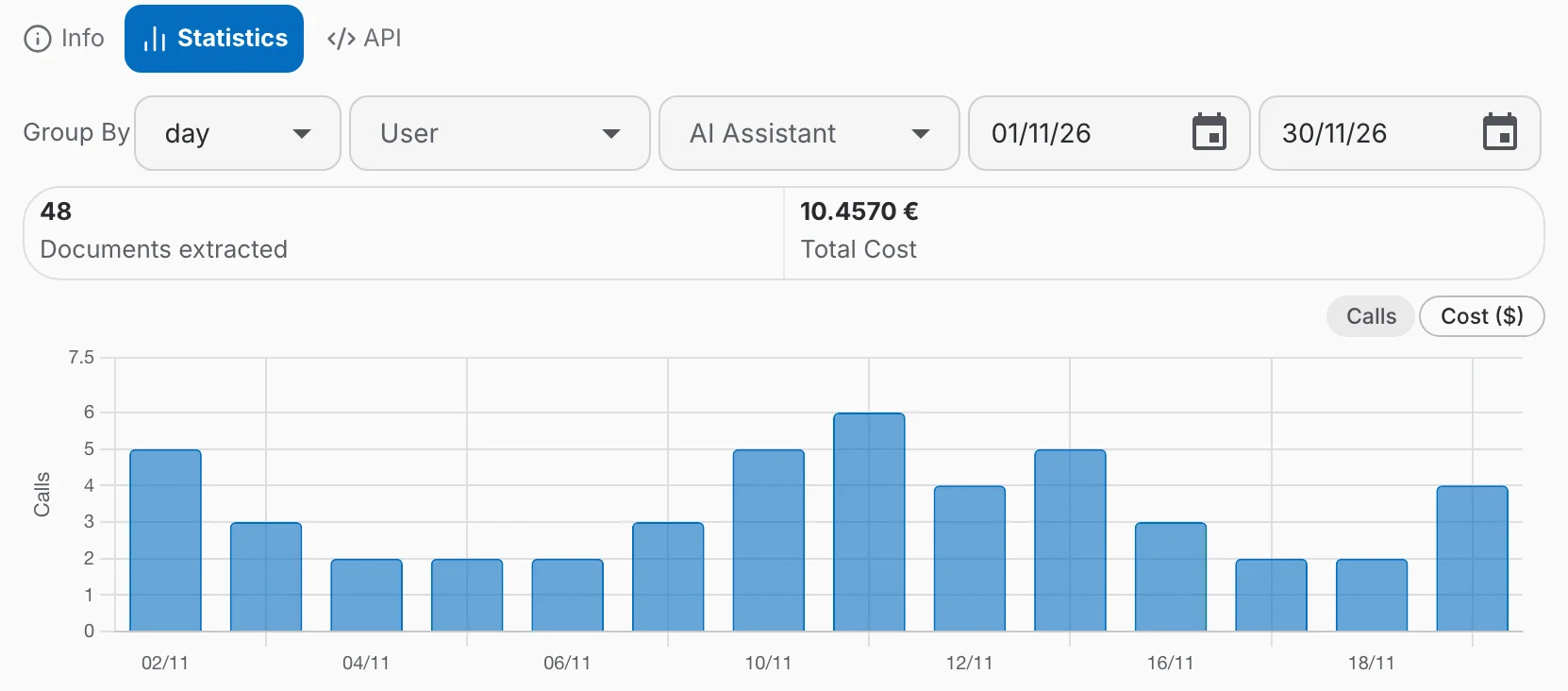
The Statistics tab counts the documents the provider extracted and what they cost, grouped by day, month, year, user or AI assistant, and filtered by user, AI assistant and dates. Export downloads the figures as a CSV file.
API
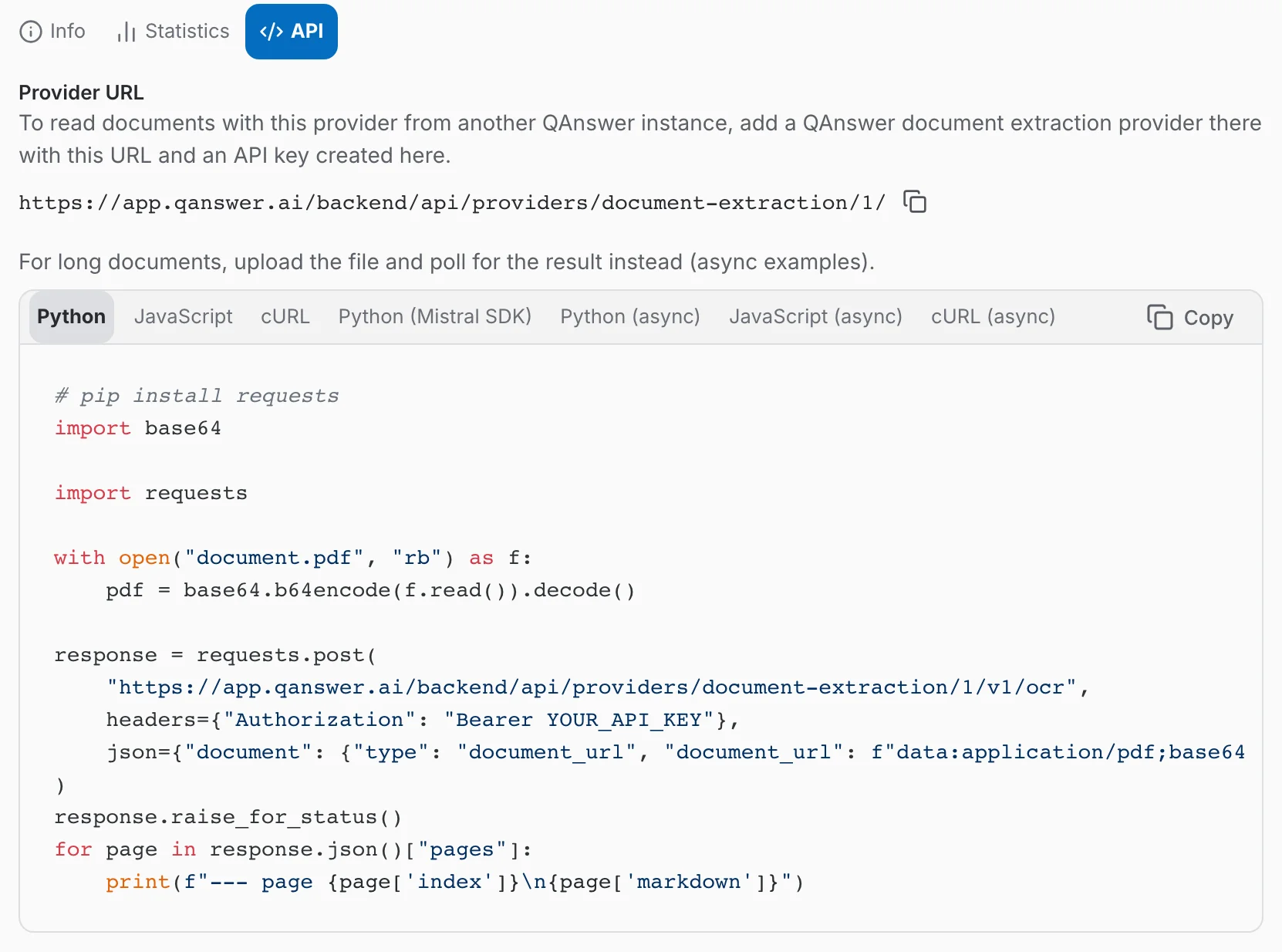
The API tab shows the provider URL, the one to paste into a QAnswer provider on another instance, and ready-to-run examples in Python, JavaScript and cURL, with the Mistral SDK and asynchronous variants. The endpoints, limits and prices are described in Extraction API.
Limits and price
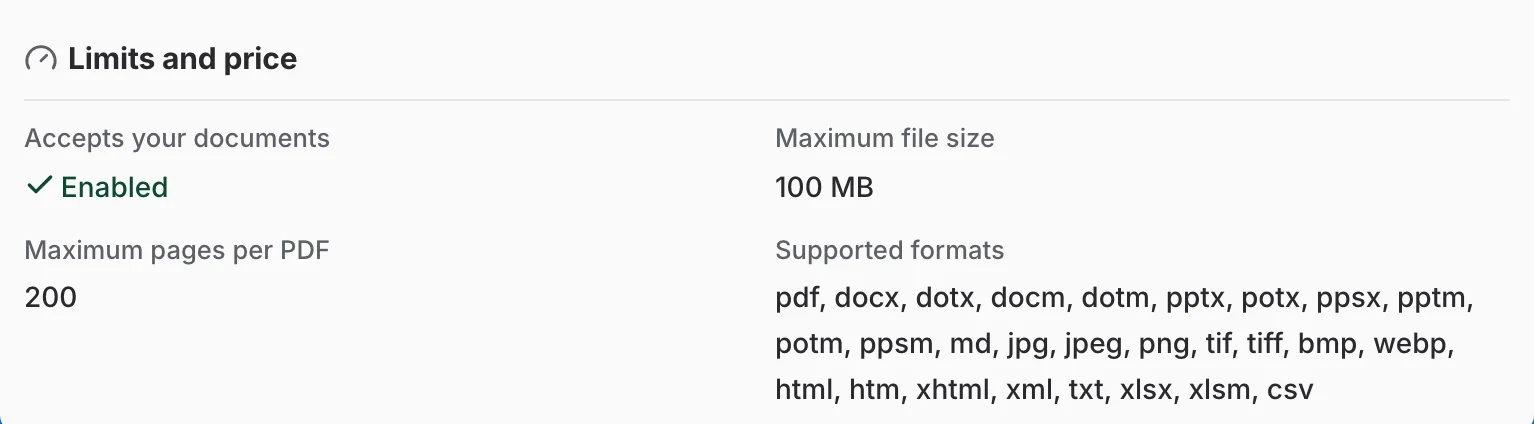
On your own LM Providers page (LM Providers in the main left menu), the Info tab adds Limits and price, worked out for you: whether the provider accepts your documents right now (your plan includes document extraction), the largest file it takes, the most pages it reads from one PDF and the formats it reads.
Pricing
- Your credits, and your API key's own limit, are checked when a request is accepted (402 when they run out). The pages are charged once the extraction succeeds: a failed extraction, or one cancelled before it reached the provider, is not charged.
- A PDF or an image counts its pages. A format without pages (docx, html…) counts one page per 3,000 characters of markdown returned.
- A document read with OCR is charged the OCR price. A Mistral provider always is.
Limits
- File size — 100 MB; 50 MB on a Mistral provider
- Pages per PDF — 200; other formats are read whole
The default provider
The default provider is the one that reads the PDF and Office files uploaded to assistants. Click Set as default on an active provider to make it the default; the default provider cannot be switched off. To clear it, open its page and click Default. Each level picks its own default, and the most specific one wins: personal over team, team over organization, organization over platform.