
Install the QAnswer App
QAnswer is a Progressive Web App (PWA): it can be installed on your computer, phone or tablet like a regular app. The installed app opens in its own window, without the browser's address bar and tabs, and you start it from your dock, taskbar, Start menu or home screen like any other app. It is the same QAnswer you use in the browser: same account, same assistants and conversations, and it needs an internet connection.
The install prompt
In browsers that support it, QAnswer shows a small Install QAnswer prompt in the bottom-right corner:
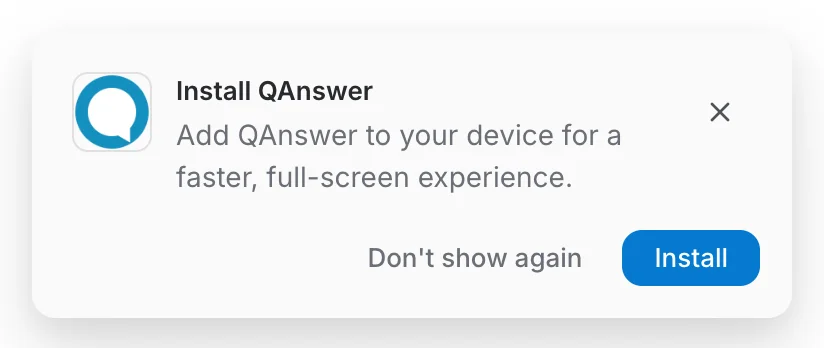
- Install opens your browser's install dialog. Confirm it and QAnswer opens in its own window.
- Don't show again hides the prompt for good in this browser. You can still install the app from the browser menu.
- The × button hides it until your next visit.
The prompt does not appear once QAnswer is installed, or in browsers that cannot install apps this way, such as Safari and Firefox. Use the steps below instead.
On a computer
- Open QAnswer in the browser and sign in.
- Click the install icon at the right end of the address bar.
- Click Install in the dialog that opens.
No icon? Open the browser menu (⋮ or …). In Chrome, choose Cast, save and share → Install page as app; in Edge, Apps → Install this site as an app.
On a phone or tablet
- Open QAnswer in Safari (or Chrome) and sign in.
- Tap the Share button.
- Scroll down and tap Add to Home Screen.
- Tap Add. The QAnswer icon appears on your home screen.
Removing the app
- Chrome, Edge, Brave, Vivaldi: open the installed app, open its menu (⋮ or …) in the title bar, and choose Uninstall.
- Safari (Mac): drag QAnswer out of the Dock, then move it from the Applications folder to the Bin.
- iPhone, iPad and Android: long-press the QAnswer icon and choose Remove App or Uninstall.
Removing the app only removes the shortcut and window. Your account, assistants and conversations stay in QAnswer, and you can keep using it in the browser.